USB Hyundai Sonata
[x] Cancel search | Manufacturer: HYUNDAI, Model Year: , Model line: , Model:Pages: 411, PDF Size: 8.68 MB
Page 17 of 411
23
Your vehicle at a glance
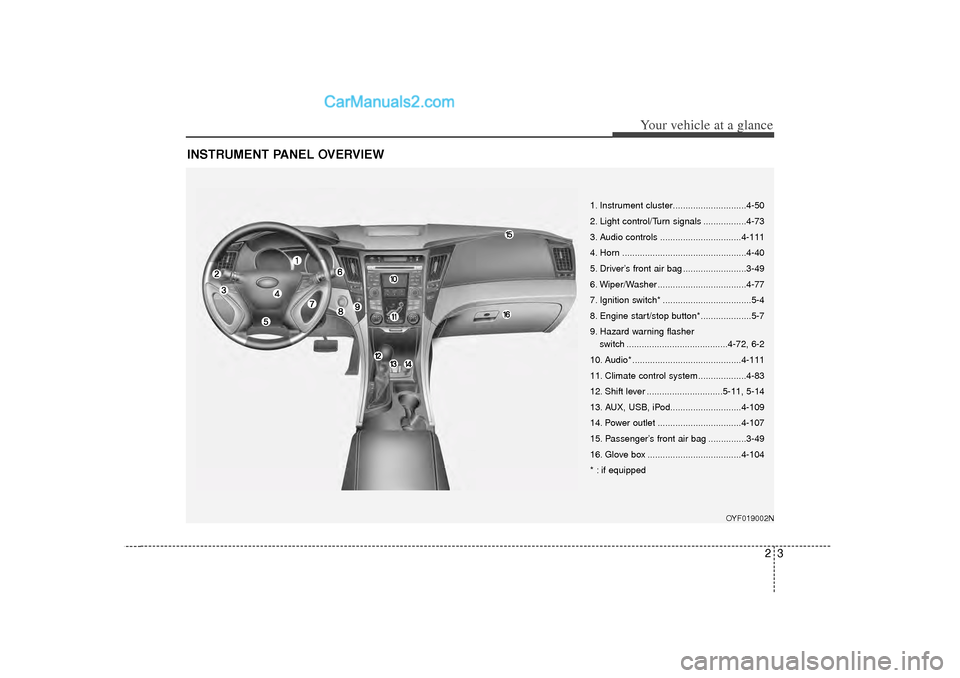
INSTRUMENT PANEL OVERVIEW
OYF019002N
1. Instrument cluster.............................4-50
2. Light control/Turn signals .................4-73
3. Audio controls ................................4-111
4. Horn .................................................4-40
5. Driver’s front air bag .........................3-49
6. Wiper/Washer ...................................4-77
7. Ignition switch* ...................................5-4
8. Engine start/stop button*....................5-7
9. Hazard warning flasherswitch ........................................4-72, 6-2
10. Audio* ...........................................4-111
11. Climate control system ...................4-83
12. Shift lever ..............................5-11, 5-14
13. AUX, USB, iPod............................4-109
14. Power outlet .................................4-107
15. Passenger’s front air bag ...............3-49
16. Glove box .....................................4-104
* : if equipped
Page 192 of 411
Features of your vehicle110
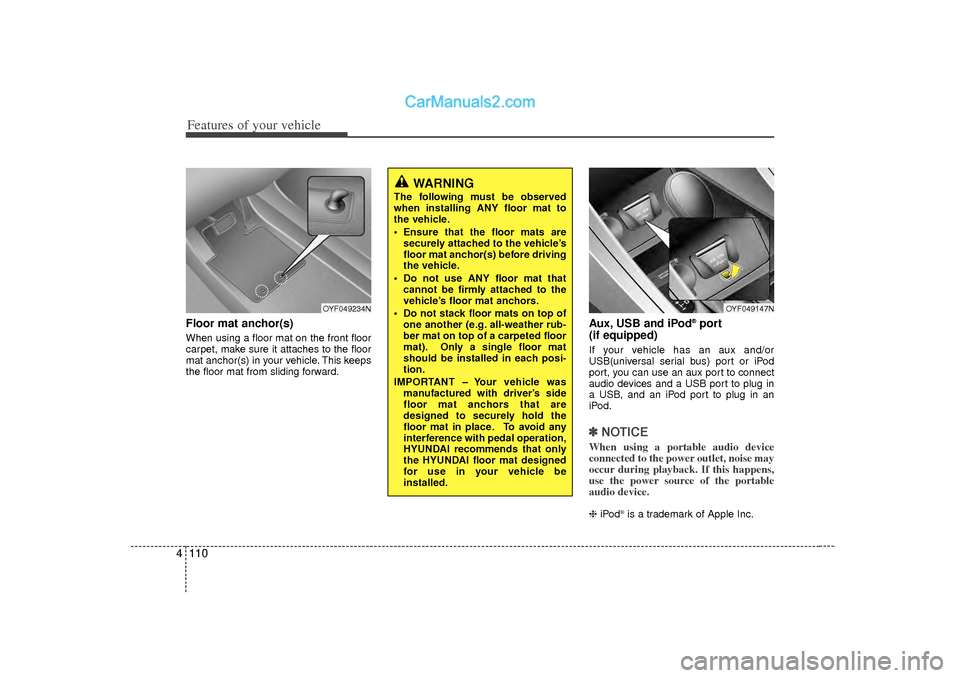
4Floor mat anchor(s)When using a floor mat on the front floor
carpet, make sure it attaches to the floor
mat anchor(s) in your vehicle. This keeps
the floor mat from sliding forward.
Aux, USB and iPod
®port
(if equipped)
If your vehicle has an aux and/or
USB(universal serial bus) port or iPod
port, you can use an aux port to connect
audio devices and a USB port to plug in
a USB, and an iPod port to plug in an
iPod.✽ ✽ NOTICEWhen using a portable audio device
connected to the power outlet, noise may
occur during playback. If this happens,
use the power source of the portable
audio device. ❈ iPod
is a trademark of Apple Inc.
OYF049234N
OYF049147N
WARNING
The following must be observed
when installing ANY floor mat to
the vehicle.
Ensure that the floor mats are
securely attached to the vehicle’s
floor mat anchor(s) before driving
the vehicle.
Do not use ANY floor mat that cannot be firmly attached to the
vehicle’s floor mat anchors.
Do not stack floor mats on top of one another (e.g. all-weather rub-
ber mat on top of a carpeted floor
mat). Only a single floor mat
should be installed in each posi-
tion.
IMPORTANT – Your vehicle was manufactured with driver’s side
floor mat anchors that are
designed to securely hold the
floor mat in place. To avoid any
interference with pedal operation,
HYUNDAI recommends that only
the HYUNDAI floor mat designed
for use in your vehicle be
installed.
Page 195 of 411
4 113
Features of your vehicle
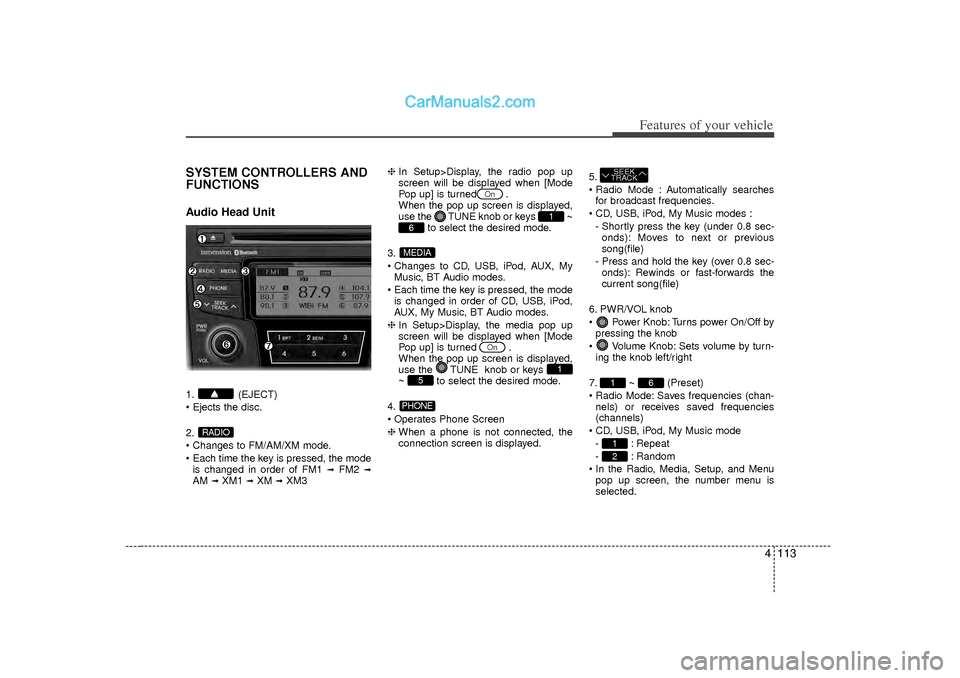
SYSTEM CONTROLLERS AND
FUNCTIONSAudio Head Unit1. (EJECT)
Ejects the disc.
2.
Changes to FM/AM/XM mode.
Each time the key is pressed, the modeis changed in order of FM1
➟
FM2
➟
AM
➟XM1
➟XM
➟XM3 ❈
In Setup>Display, the radio pop up
screen will be displayed when [Mode
Pop up] is turned .
When the pop up screen is displayed,
use the TUNE knob or keys
~
to select the desired mode.
3.
Changes to CD, USB, iPod, AUX, My Music, BT Audio modes.
Each time the key is pressed, the mode is changed in order of CD, USB, iPod,
AUX, My Music, BT Audio modes.
❈ In Setup>Display, the media pop up
screen will be displayed when [Mode
Pop up] is turned .
When the pop up screen is displayed,
use the TUNE knob or keys
~ to select the desired mode.
4.
Operates Phone Screen
❈ When a phone is not connected, the
connection screen is displayed. 5.
Radio Mode : Automatically searches
for broadcast frequencies.
CD, USB, iPod, My Music modes : - Shortly press the key (under 0.8 sec-onds): Moves to next or previous
song(file)
- Press and hold the key (over 0.8 sec- onds): Rewinds or fast-forwards the
current song(file)
6. PWR/VOL knob
Power Knob: Turns power On/Off by pressing the knob
Volume Knob: Sets volume by turn- ing the knob left/right
7. ~ (Preset)
Radio Mode: Saves frequencies (chan- nels) or receives saved frequencies
(channels)
CD, USB, iPod, My Music mode - : Repeat
- : Random
In the Radio, Media, Setup, and Menu pop up screen, the number menu is
selected.
21
6
1SEEK
TRACK
PHONE
5
1
On
MEDIA6
1
On
RADIO
Page 196 of 411
Features of your vehicle114
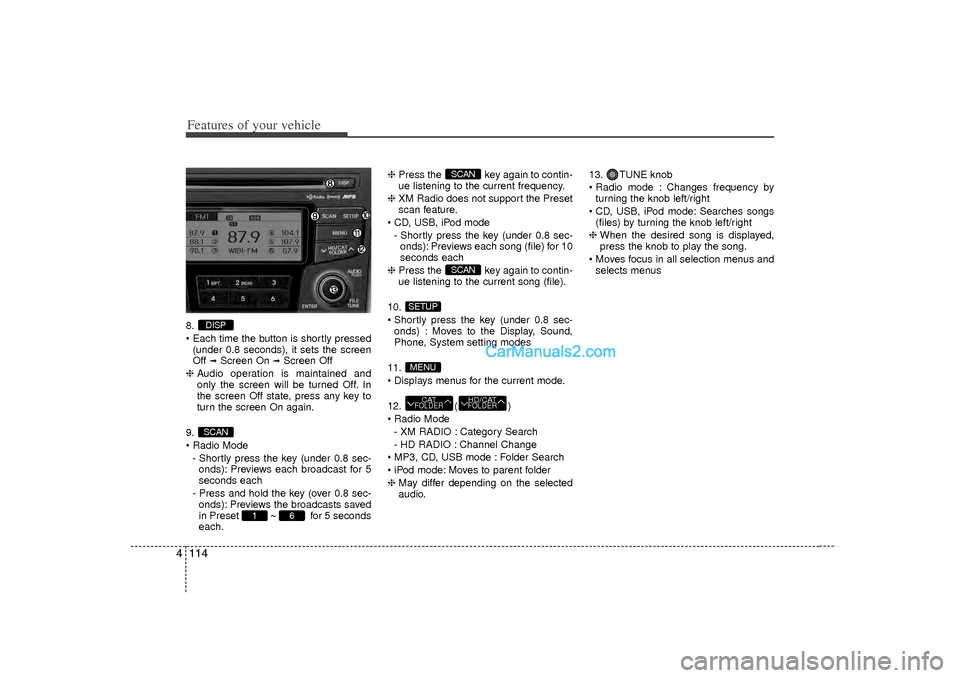
48.
Each time the button is shortly pressed
(under 0.8 seconds), it sets the screen
Off
➟Screen On
➟Screen Off
❈ Audio operation is maintained and
only the screen will be turned Off. In
the screen Off state, press any key to
turn the screen On again.
9.
Radio Mode - Shortly press the key (under 0.8 sec-onds): Previews each broadcast for 5
seconds each
- Press and hold the key (over 0.8 sec- onds): Previews the broadcasts saved
in Preset ~ for 5 seconds
each. ❈
Press the key again to contin-
ue listening to the current frequency.
❈ XM Radio does not support the Preset
scan feature.
CD, USB, iPod mode - Shortly press the key (under 0.8 sec-onds): Previews each song (file) for 10
seconds each
❈ Press the key again to contin-
ue listening to the current song (file).
10.
Shortly press the key (under 0.8 sec- onds) : Moves to the Display, Sound,
Phone, System setting modes
11.
Displays menus for the current mode.
12. ( )
Radio Mode - XM RADIO : Category Search
- HD RADIO : Channel Change
MP3, CD, USB mode : Folder Search
iPod mode: Moves to parent folder
❈ May differ depending on the selected
audio. 13. TUNE knob
Radio mode : Changes frequency by
turning the knob left/right
CD, USB, iPod mode: Searches songs (files) by turning the knob left/right
❈ When the desired song is displayed,
press the knob to play the song.
Moves focus in all selection menus and selects menus
HD/CATFOLDER
CATFOLDERMENUSETUP
SCANSCAN
6
1
SCANDISP
Page 216 of 411
Features of your vehicle134
4
CAUTION IN USING
USB DEVICE
To use an external USB device,
make sure the device is not con-nected when starting up the vehi- cle. Connect the device afterstarting up.
If you start the engine when the USB device is connected, it maydamage the USB device. (USB flashdrives are very sensitive toelectric shock.)
If the engine is started up or turned off while the external USBdevice is connected, the externalUSB device may not work.
The System may not play inau- thentic MP3 or WMA files.
1) It can only play MP3 files with the compression rate between8Kbps~320Kbps.
2) It can only play WMA music files with the compression ratebetween 8Kbps~320Kbps.
Take precautions for static electrici- ty when connecting or disconnect-ing the external USB device.
(Continued)
(Continued) An encrypted MP3 PLAYER is not recognizable.
Depending on the condition of the external USB device, the con-nected external USB device canbe unrecognizable.
When the formatted byte/sector setting of External USB device isnot either 512BYTE or 2048BYTE, then the device will not be recog-nized.
Use only a USB device formatted to FAT 12/16/32.
USB devices without USB I/F authentication may not be recog-nizable.
Make sure the USB connection terminal does not come in contactwith the human body or otherobjects.
If you repeatedly connect or dis- connect the USB device in a shortperiod of time, it may break thedevice.
You may hear a strange noise when connecting or disconnect-ing a USB device.
(Continued)
(Continued) If you disconnect the external USB device during playback in USBmode, the external USB device canbe damaged or may malfunction. Therefore, disconnect the externalUSB device when the audio is turned off or in another mode. (e.g,Radio, XM or CD) Depending on the type and capacity of the external USB device or thetype of the files stored in the device, there is a difference in the timetaken for recognition of the device. Do not use the USB device for pur- poses other than playing music files. Playing videos through the USB isnot supported.
Use of USB accessories such as rechargers or heaters using USBI/F may lower performance or cause trouble.
If you use devices such as a USB hub purchased separately, thevehicle’s audio system may notrecognize the USB device. In that case, connect the USB devicedirectly to the multimedia termi-nal of the vehicle.
(Continued)
Page 217 of 411
4 135
Features of your vehicle
(Continued) If the USB device is divided by logical drives, only the music fileson the highest-priority drive arerecognized by car audio.
Devices such as MP3 Player/ Cellular phone/Digital camera canbe unrecognizable by standardUSB I/F can be unrecognizable.
Charging through the USB may not be supported in some mobiledevices.
USB HDD or USB types liable to connection failures due to vehiclevibrations are not supported.(i-stick type)
Some non-standard USB devices (METAL COVER TYPE USB) canbe unrecognizable.
Some USB flash memory readers (such as CF, SD, micro SD, etc.) orexternal-HDD type devices can be unrecognizable.
Music files protected by DRM (DIGITAL RIGHTS MANAGEMENT)are not recognizable.
(Continued)
(Continued) The data in the USB memory may be lost while using this audio.Always back up important data on a personal storage device.
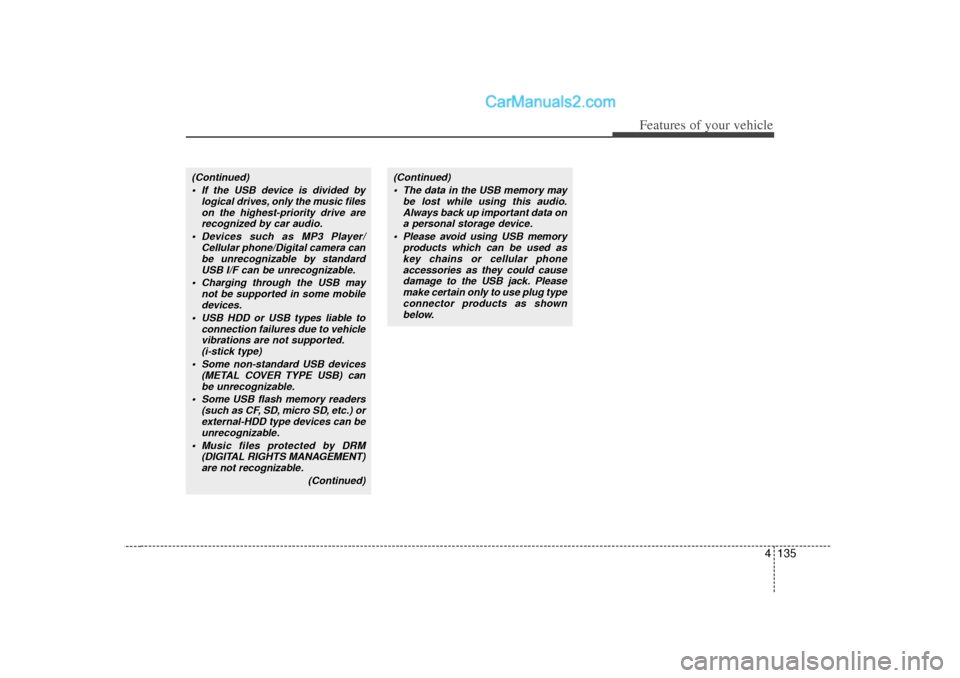
Please avoid using USB memory products which can be used askey chains or cellular phoneaccessories as they could cause damage to the USB jack. Pleasemake certain only to use plug type connector products as shownbelow.
Page 218 of 411
Features of your vehicle136
4\b
\b
NOTICE FOR USING THE
iPod
®DEVICE
• Some iPod models may not support
communication protocol and files
may not properly play.
Supported iPod models:
- iPod Mini
- iPod 4th(Photo) ~ 6th(Classic)
generation
- iPod Nano 1st~4th generation
- iPod Touch 1st~2nd generation
• The order of search or playback of songs in the iPod can be different
from the order searched in the
audio system.
• If the iPod disabled due to its own malfunction, reset the iPod. (Reset:
Refer to iPod manual)
• An iPod may not operate normally on low battery.
• Some iPod devices, such as the iPhone, can be connected through the
Bluetooth
®
interface. The device
must have audio Bluetooth
®capabili-
ty (such as for stereo headphone
Bluetooth
®). The device can play, but
it will not be controlled by the audio
system. (Continued)(Continued)
• To use iPod features within the audio,
use the cable provided upon purchas-
ing an iPod device.
• Skipping or improper operation may occur depending on the characteris-
tics of your iPod/Phone device.
• If your iPhone is connected to both the Bluetooth
®and USB, the sound
may not be properly played. In your
iPhone, select the Dock connector or
Bluetooth
®to change the sound out-
put (source).
CAUTION IN USING THE
iPod
®DEVICE
When connecting iPod with the
iPod Power Cable, insert the con-nector to the multimedia socketcompletely. If not inserted com- pletely, communications betweeniPod and audio may be interrupted.
When adjusting the sound effects of the iPod and the audio system, thesound effects of both devices willoverlap and might reduce or distortthe quality of the sound.
Deactivate (turn off) the equalizer function of an iPod when adjust-ing the audio system’s volume, and turn off the equalizer of theaudio system when using the equalizer of an iPod.
When not using iPod with car audio, detach the iPod cable fromiPod. Otherwise, iPod may remainin accessory mode, and may not work properly.
Page 220 of 411
Features of your vehicle138
4BASIC METHOD OF USE :
Audio CD / MP3 CD / USB /
iPod / My MusicPress the key to change the mod
mode in order of CD
➟USB(iPod)
➟AUX
➟My Music
➟BT Audio.
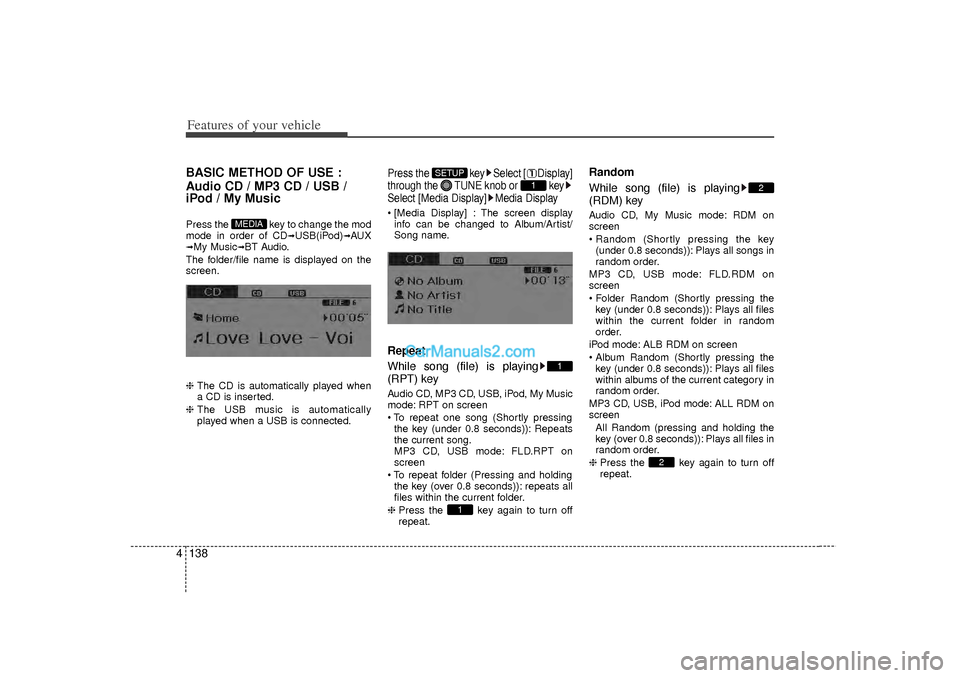
The folder/file name is displayed on the
screen.
❈ The CD is automatically played when
a CD is inserted.
❈ The USB music is automatically
played when a USB is connected.
Press the key Select [ Display]
through the TUNE knob or key
Select [Media Display] Media Display [Media Display] : The screen display
info can be changed to Album/Artist/
Song name.Repeat
While song (file) is playing
(RPT) keyAudio CD, MP3 CD, USB, iPod, My Music
mode: RPT on screen
To repeat one song (Shortly pressingthe key (under 0.8 seconds)): Repeats
the current song.
MP3 CD, USB mode: FLD.RPT on
screen
To repeat folder (Pressing and holding the key (over 0.8 seconds)): repeats all
files within the current folder.
❈ Press the key again to turn off
repeat.
Random
While song (file) is playing
(RDM) keyAudio CD, My Music mode: RDM on
screen
Random (Shortly pressing the key
(under 0.8 seconds)): Plays all songs in
random order.
MP3 CD, USB mode: FLD.RDM on
screen
Folder Random (Shortly pressing the key (under 0.8 seconds)): Plays all files
within the current folder in random
order.
iPod mode: ALB RDM on screen
Album Random (Shortly pressing the key (under 0.8 seconds)): Plays all files
within albums of the current category in
random order.
MP3 CD, USB, iPod mode: ALL RDM on
screen All Random (pressing and holding thekey (over 0.8 seconds)): Plays all files in
random order.
❈ Press the key again to turn off
repeat.
2
2
1
1
1
SETUP
MEDIA
Page 221 of 411
4 139
Features of your vehicle
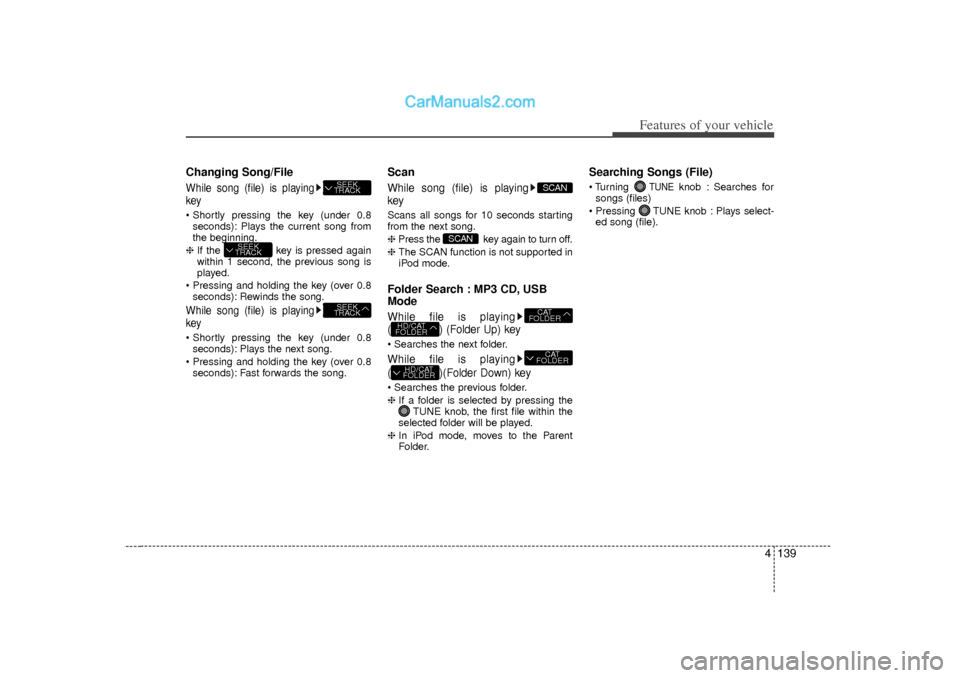
Changing Song/FileWhile song (file) is playing
key Shortly pressing the key (under 0.8seconds): Plays the current song from
the beginning.
❈ If the key is pressed again
within 1 second, the previous song is
played.
Pressing and holding the key (over 0.8 seconds): Rewinds the song.While song (file) is playing
key Shortly pressing the key (under 0.8seconds): Plays the next song.
Pressing and holding the key (over 0.8 seconds): Fast forwards the song.
ScanWhile song (file) is playing
keyScans all songs for 10 seconds starting
from the next song.
❈ Press the key again to turn off.
❈ The SCAN function is not supported in
iPod mode.Folder Search : MP3 CD, USB
ModeWhile file is playing
( ) (Folder Up) key Searches the next folder.While file is playing
( )(Folder Down) key Searches the previous folder.
❈ If a folder is selected by pressing the
TUNE knob, the first file within the
selected folder will be played.
❈ In iPod mode, moves to the Parent
Folder.
Searching Songs (File) Turning
TUNE
knob : Searches for
songs (files)
Pressing TUNE knob : Plays select- ed song (file).
HD/CAT
FOLDER
CAT
FOLDER
HD/CAT
FOLDER
CAT
FOLDER
SCAN
SCAN
SEEK
TRACK
SEEK
TRACK
SEEK
TRACK
Page 223 of 411
4 141
Features of your vehicle
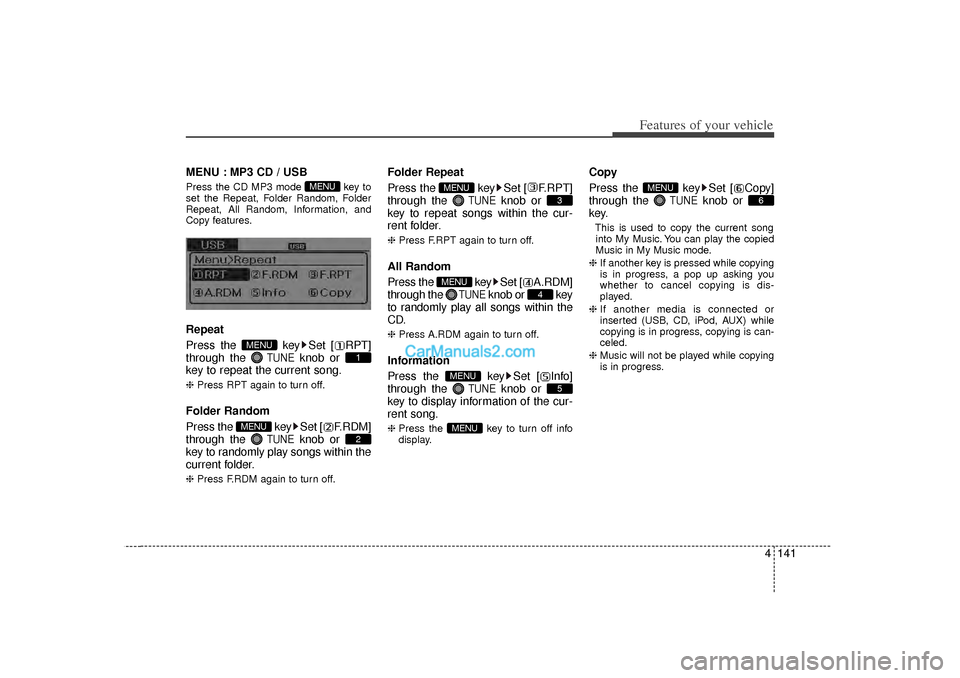
MENU : MP3 CD / USBPress the CD MP3 mode key to
set the Repeat, Folder Random, Folder
Repeat, All Random, Information, and
Copy features.Repeat
Press the key Set [ RPT]
through the
TUNE
knob or
key to repeat the current song.
❈ Press RPT again to turn off.Folder Random
Press the key Set [ F.RDM]
through the
TUNE
knob or
key to randomly play songs within the
current folder.
❈ Press F.RDM again to turn off.
Folder Repeat
Press the key Set [ F.RPT]
through the
TUNE
knob or
key to repeat songs within the cur-
rent folder.
❈ Press F.RPT again to turn off.All Random
Press the key Set [ A.RDM]
through the
TUNE
knob or key
to randomly play all songs within the
CD.
❈ Press A.RDM again to turn off.Information
Press the key Set [ Info]
through the
TUNE
knob or
key to display information of the cur-
rent song.
❈ Press the key to turn off info
display.
Copy
Press the key Set [ Copy]
through the
TUNE
knob or
key.
This is used to copy the current song into My Music. You can play the copied
Music in My Music mode.
❈ If another key is pressed while copying
is in progress, a pop up asking you
whether to cancel copying is dis-
played.
❈ If another media is connected or
inserted (USB, CD, iPod, AUX) while
copying is in progress, copying is can-
celed.
❈ Music will not be played while copying
is in progress.
6
MENU
MENU
5
MENU
4
MENU
3
MENU
2
MENU
1
MENU
MENU