sat nav Hyundai Sonata
[x] Cancel search | Manufacturer: HYUNDAI, Model Year: , Model line: , Model:Pages: 411, PDF Size: 8.68 MB
Page 125 of 411
443
Features of your vehicle
Z-Nav™ Compass Display
The NVS™ Mirror in your vehicle is also
equipped with a Z-Nav™ Compass that
shows the vehicle Compass heading in
the Display Window using the 8 basic
cardinal headings (N, NE, E, SE, etc.).
Compass function
The Compass can be turned ON and
OFF and will remember the last state
when the ignition is cycled. To turn the
display feature ON/OFF:
1. Press and release the button within1 second to turn the display feature
OFF.
2. Press and release the button again within 1 second to turn the display
back ON.
Additional options can be set with press
and hold sequences of the button and
are detailed below.
There is a difference between magnetic
north and true north. The compass in the
mirror can compensate for this difference
when it knows the Magnetic Zone in
which it is operating. This is set either by
the dealer or by the user. The operating
Zone Numbers for North America are
shown in the figure on the following sec-
tion.
B520C05NF
Page 193 of 411
4 111
Features of your vehicle
Navigation system (if equipped)The navigation system ascertains the
present position of your vehicle by using
information from satellites and guides
you to the place you assign as the desti-
nation.
Detailed information for the navigation
system is described in a separately sup-
plied manual.Bluetooth hands-free
(if equipped)You can use the phone wirelessly by
using the Bluetooth.
Detailed information for the Bluetooth
hands-free is described in the “audio” in
this chapter or in the manual supplied
separately.
Page 213 of 411
4 131
Features of your vehicle
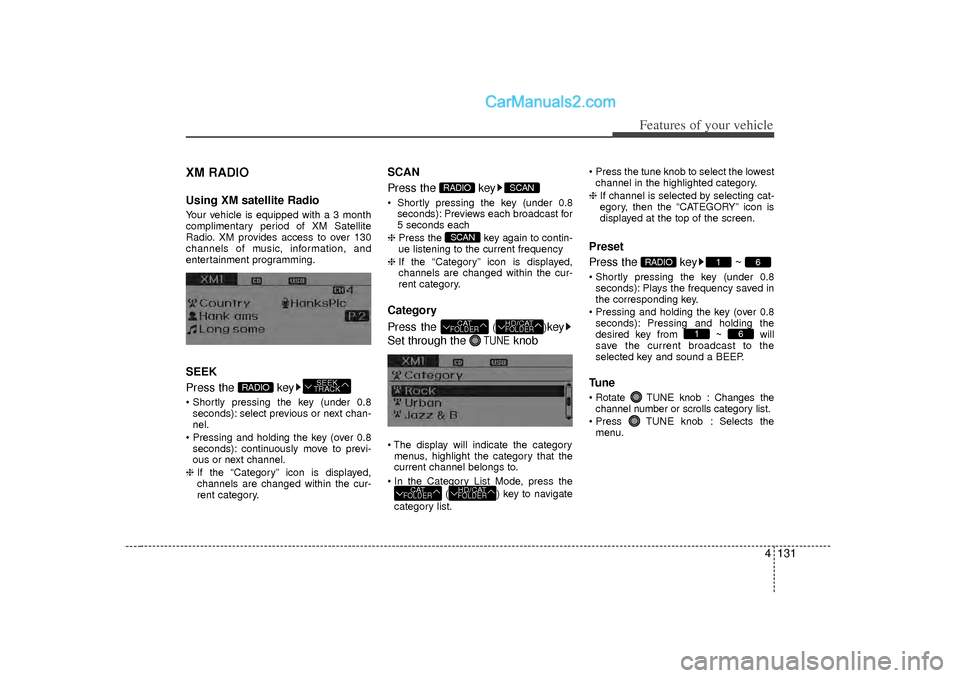
XM RADIOUsing XM satellite RadioYour vehicle is equipped with a 3 month
complimentary period of XM Satellite
Radio. XM provides access to over 130
channels of music, information, and
entertainment programming.SEEK
Press the key Shortly pressing the key (under 0.8seconds): select previous or next chan-
nel.
Pressing and holding the key (over 0.8 seconds): continuously move to previ-
ous or next channel.
❈ If the “Category” icon is displayed,
channels are changed within the cur-
rent category.
SCAN
Press the key Shortly pressing the key (under 0.8
seconds): Previews each broadcast for
5 seconds each
❈ Press the key again to contin-
ue listening to the current frequency
❈ If the “Category” icon is displayed,
channels are changed within the cur-
rent category.Category
Press the
()
key
Set through the
TUNE
knob
The display will indicate the category menus, highlight the category that the
current channel belongs to.
In the Category List Mode, press the ( ) key to navigate
category list. Press the tune knob to select the lowest
channel in the highlighted category.
❈ If channel is selected by selecting cat-
egory, then the “CATEGORY” icon is
displayed at the top of the screen.
Preset
Press the key ~ Shortly pressing the key (under 0.8
seconds): Plays the frequency saved in
the corresponding key.
Pressing and holding the key (over 0.8 seconds): Pressing and holding the
desired key from ~ will
save the current broadcast to the
selected key and sound a BEEP.Tune Rotate TUNE knob : Changes thechannel number or scrolls category list.
Press TUNE knob : Selects the menu.
6
1
6
1
RADIO
HD/CATFOLDER
CATFOLDER
HD/CATFOLDER
CATFOLDERSCAN
SCAN
RADIO
SEEK
TRACK
RADIO