change time HYUNDAI TUCSON 2014 Owner's Manual
[x] Cancel search | Manufacturer: HYUNDAI, Model Year: 2014, Model line: TUCSON, Model: HYUNDAI TUCSON 2014Pages: 542, PDF Size: 7.59 MB
Page 234 of 542
![HYUNDAI TUCSON 2014 Owners Manual 4-23
Multimedia System
4
SSYY SSTT EEMM SS EE TT TT IINN GGSS
Press the key Select [System] through tune knob or
key Select menu through TUNEknob
Memory Information
Displays currently used memory](/img/35/56203/w960_56203-233.png "HYUNDAI TUCSON 2014 Owners Manual 4-23
Multimedia System
4
SSYY SSTT EEMM SS EE TT TT IINN GGSS
Press the key Select [System] through tune knob or
key Select menu through TUNEknob
Memory Information
Displays currently used memory")
4-23
Multimedia System
4
SSYY SSTT EEMM SS EE TT TT IINN GGSS
Press the key Select [System] through tune knob or
key Select menu through TUNEknob
Memory Information
Displays currently used memory and
total system memory.
Select [Memory Information] OK
The currently used memory is dis-
played on the left side while the total
system memory is displayed on the
right side.
Prompt Feedback
This feature is used to change voice
command feedback between Normal
and Expert modes.
Select [Prompt Feedback] Set
through TUNE knob
This mode is for beginner
users and provides detailed
instructions during voice command
operation. This mode is for expert users
and omits some information during
voice command operation. (When
using Expert mode, guidance
instructions can be heard through
the [Help] or [Menu] commands.
Language
This menu is used to set the display
and voice recognition language.
Select [Language] Set through TUNE knob ❈ The system will reboot after the language is changed.
❈ Language support by region
- English, Francais, Espanol
5
SETUP
CLOCK
Page 235 of 542
4-24
Multimedia System
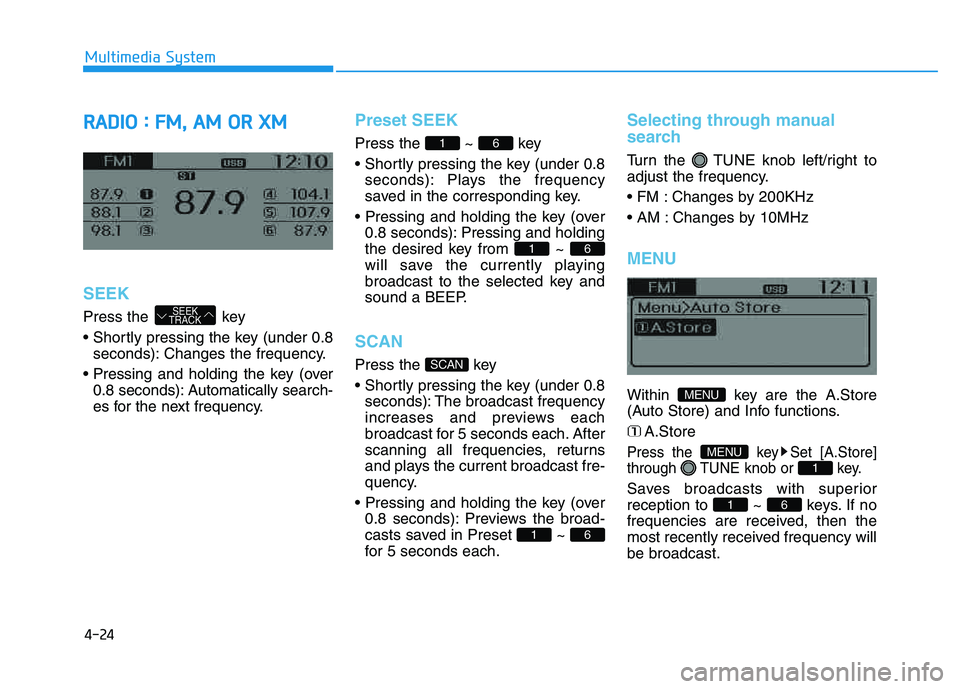
RRAA DDIIOO :: FF MM ,, AA MM OO RR XX MM
SEEK
Press the key
seconds): Changes the frequency.
0.8 seconds): Automatically search-
es for the next frequency.
Preset SEEK
Press the ~ key
seconds): Plays the frequency
saved in the corresponding key.
0.8 seconds): Pressing and holding
the desired key from ~
will save the currently playing
broadcast to the selected key and
sound a BEEP.
SCAN
Press the key
seconds): The broadcast frequency
increases and previews each
broadcast for 5 seconds each. After
scanning all frequencies, returns
and plays the current broadcast fre-
quency.
0.8 seconds): Previews the broad-
casts saved in Preset ~
for 5 seconds each.
Selecting through manual
search
Turn the TUNE knob left/right to
adjust the frequency.
Changes by 200KHz
Changes by 10MHz
MENU
Within key are the A.Store
(Auto Store) and Info functions.
A.Store
Press the key Set [A.Store]
through TUNE knob or key.
Saves broadcasts with superiorreception to ~ keys. If no
frequencies are received, then the
most recently received frequency willbe broadcast.61
1
MENU
MENU
61
SCAN
61
61
SEEK
TRACK
Page 236 of 542
4-25
Multimedia System
4
XXMM RR AA DDIIOO
Using XM satellite™ Radio
Your vehicle is equipped with a 3
month complimentary period of XM
Satellite™ Radio. XM provides
access to over 130 channels of
music, information, and entertain-
ment programming.
SEEK
Press the key
select
previous or next channel.
0.8 seconds): continuously move to
previous or next channel.
❈ If the “Category” icon is displayed,channels are changed within the
current category.
SCAN
Press the key
Previews
each broadcast for 5 seconds each
❈ Press the key again to
continue listening to the currentfrequency
❈ If the “Category” icon is displayed,channels are changed within the
current category.
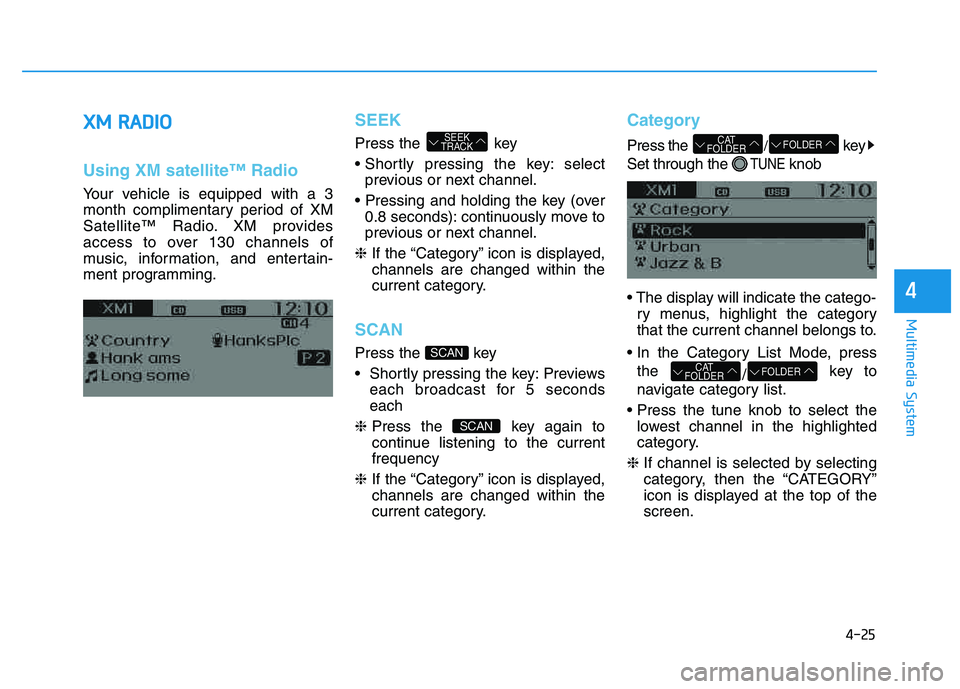
Category
Press the /key
Set through the
TUNEknob
ry menus, highlight the category
that the current channel belongs to.
the /key to
navigate category list.
lowest channel in the highlighted
category.
❈ If channel is selected by selecting
category, then the “CATEGORY”
icon is displayed at the top of thescreen.
FOLDERCAT
FOLDER
FOLDERCAT
FOLDER
SCAN
SCAN
SEEK
TRACK
Page 237 of 542
4-26
Multimedia System
Preset
Press the ~ key
Plays the frequency saved in the correspon-
ding key.
0.8 seconds): Pressing and holding
the desired key from ~
will save the current broadcast to
the selected key and sound a
BEEP.
Tune
Rotate TUNE knob : Changes thechannel number or scrolls category list.
TUNE knob : Selects the menu.
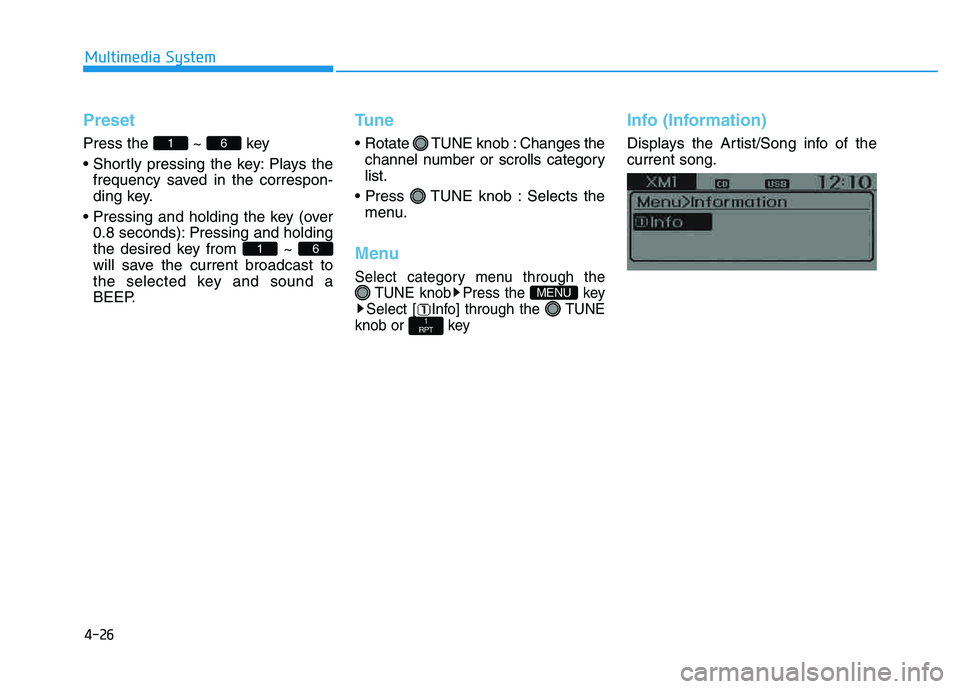
Menu
Select category menu through the TUNE knob Press the key
Select [ Info] through the TUNE
knob or key
Info (Information)
Displays the Artist/Song info of the current song.
1
RPT
MENU
61
61
Page 238 of 542
4-27
Multimedia System
4
BBAA SSIICC MM EETT HH OO DD OO FF UU SSEE ::
A
A uuddiioo CC DD // MM PP33 CC DD // UU SSBB //
i
i PP oodd ®®
// MM yy MM uussiicc
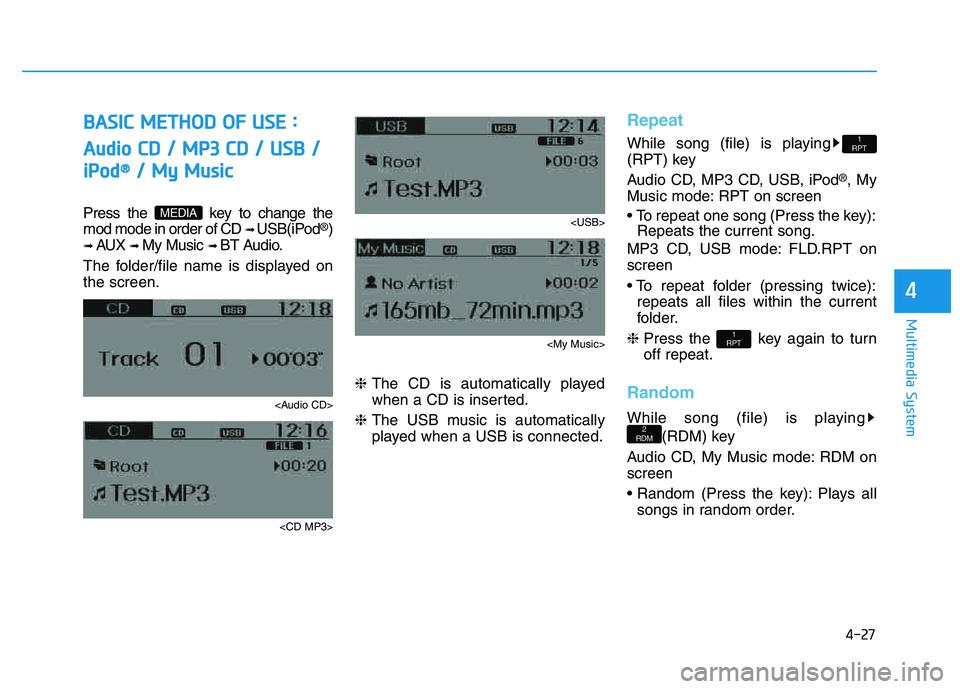
Press the key to change the mod mode in order of CD ➟ USB(iPod®)
➟ AUX ➟ My Music ➟ BT Audio.
The folder/file name is displayed on the screen.
Page 244 of 542
![HYUNDAI TUCSON 2014 Owners Manual 4-33
Multimedia System
4
Delete Selection
Press the key Set [ Del.Sel] through the TUNEknob or
key.
Songs within My Music are selected and deleted. ➀ Select the songs you wish to delete from the](/img/35/56203/w960_56203-243.png "HYUNDAI TUCSON 2014 Owners Manual 4-33
Multimedia System
4
Delete Selection
Press the key Set [ Del.Sel] through the TUNEknob or
key.
Songs within My Music are selected and deleted. ➀ Select the songs you wish to delete from the")
4-33
Multimedia System
4
Delete Selection
Press the key Set [ Del.Sel] through the TUNEknob or
key.
Songs within My Music are selected and deleted. ➀ Select the songs you wish to delete from the list.
➁ After selecting, press the key and
select the delete menu.
✽✽
NOTICE - USING THE My Music
Even if memory is available, a
maximum of 6,000 songs can be
stored.
The same song can be copied up to 1,000 times.
Memory info can be checked in the System menu of Setup.
AUX
AUX is used to play external MEDIA
currently connected with the AUX
terminal.
AUX mode will automatically start
when an external device is connect-
ed with the AUX terminal.
If an external device is connected,
you can also press the key to
change to AUX mode. ❈ AUX mode cannot be started
unless there is an external device
connected to the AUX terminal.
✽✽
NOTICE - USING THE AUX
Fully insert the AUX cable into the
AUX terminal for use.
MEDIA
6
MENU
Page 246 of 542
4-35
Multimedia System
4
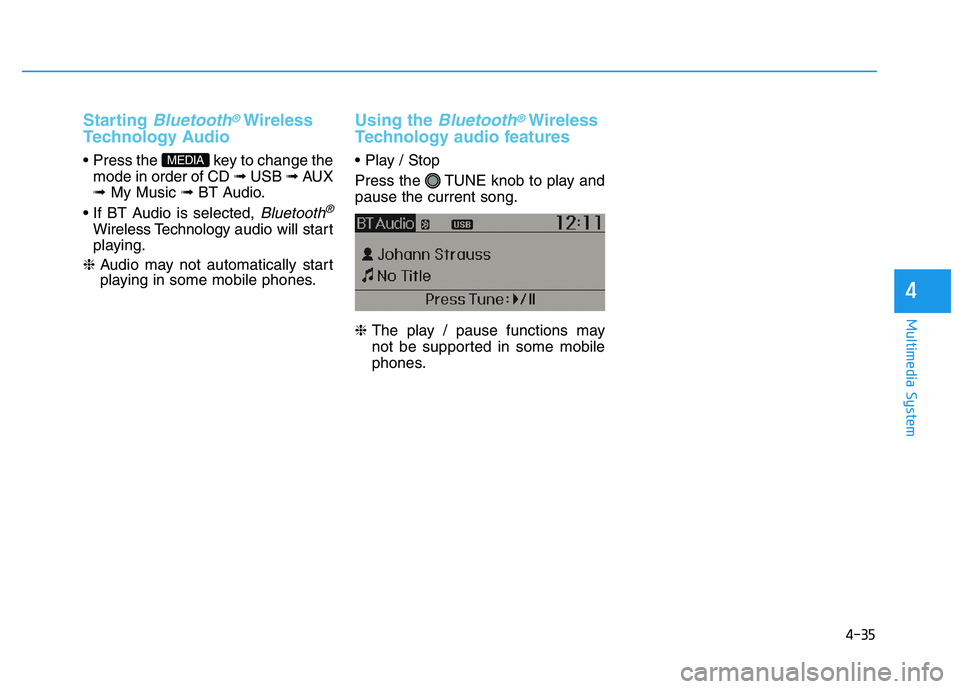
Starting Bluetooth®Wireless
Technology Audio
key to change the mode in order of CD ➟ USB ➟ AUX
➟ My Music ➟ BT Audio.
Bluetooth®
Wireless Technology audio will start
playing.
❈ Audio may not automatically start
playing in some mobile phones.
Using the Bluetooth®Wireless
Technology audio features
Press the TUNE knob to play and pause the current song. ❈ The play / pause functions may
not be supported in some mobile
phones.MEDIA
Page 252 of 542
![HYUNDAI TUCSON 2014 Owners Manual 4-41
Multimedia System
4
Connecting a Device
Press the key Select
[Phone] Select [Paired Phone List]
1) Connected Phone : Device that iscurrently connected
2) Paired Phone : Device that is paired](/img/35/56203/w960_56203-251.png "HYUNDAI TUCSON 2014 Owners Manual 4-41
Multimedia System
4
Connecting a Device
Press the key Select
[Phone] Select [Paired Phone List]
1) Connected Phone : Device that iscurrently connected
2) Paired Phone : Device that is paired")
4-41
Multimedia System
4
Connecting a Device
Press the key Select
[Phone] Select [Paired Phone List]
1) Connected Phone : Device that iscurrently connected
2) Paired Phone : Device that is paired but not connected From the paired phone list, select the
device you want to connect and select [Connect].
Changing Priority
What is Priority?
It is possible to pair up to five
Bluetooth®Wireless Technology
devices with the car audio system.
The "Change Priority" feature is used
to set the connection priority of
paired phones.
Press the key Select
[Phone] Select [Paired Phone List]
SETUP
CLOCK
SETUP
CLOCK
Page 253 of 542
![HYUNDAI TUCSON 2014 Owners Manual 4-42
Multimedia System
From the paired phone list, select
the phone you want to switch to the
highest priority, then select [Change
Priority] button from the Menu. The
selected device will be changed](/img/35/56203/w960_56203-252.png "HYUNDAI TUCSON 2014 Owners Manual 4-42
Multimedia System
From the paired phone list, select
the phone you want to switch to the
highest priority, then select [Change
Priority] button from the Menu. The
selected device will be changed")
4-42
Multimedia System
From the paired phone list, select
the phone you want to switch to the
highest priority, then select [Change
Priority] button from the Menu. The
selected device will be changed to
the highest priority.✽✽ NOTICE
Priority icon will be displayed when
the selected phone is set as a priority
phone.
Page 259 of 542
4-48
Multimedia System
1) Connect/Disconnect Phone :Connect/ disconnects currently selected phone
2) Change Priority : Sets currently selected phone to highest connec-
tion priority
3) Delete : Deletes the currently selected phone
4) Return : Moves to the previous screen
✽✽ NOTICE BEFORE DOWN-
LOADING CONTACTS
To learn more about whether your mobile phone supports contacts
downloads, refer to your mobile
phone user’s manual.
The contacts for only the connect- ed phone can be downloaded.
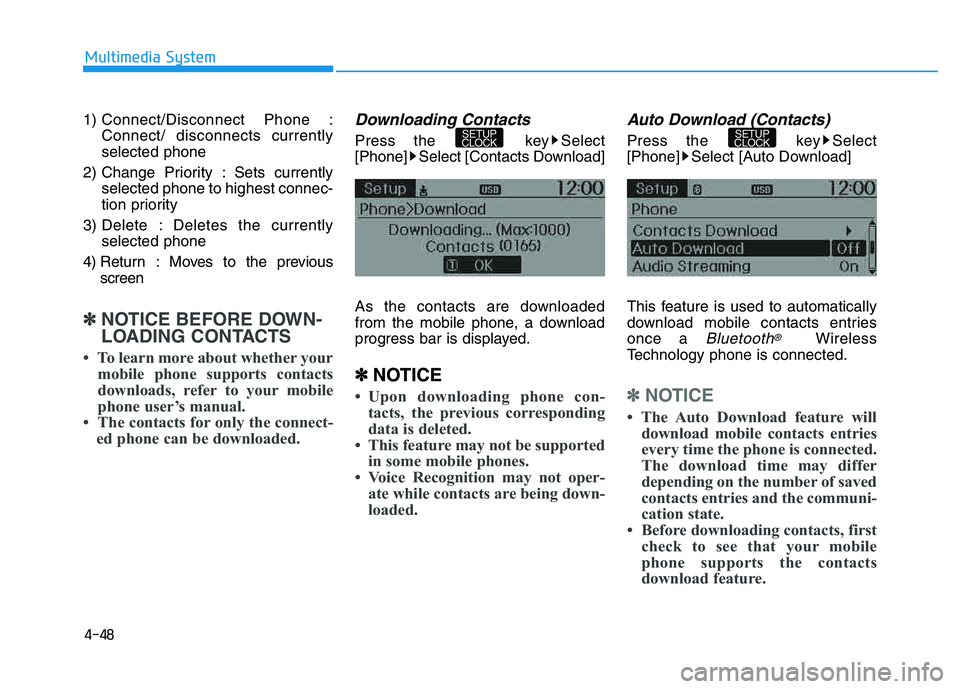
Downloading Contacts
Press the key Select
[Phone] Select [Contacts Download]
As the contacts are downloaded
from the mobile phone, a download
progress bar is displayed.
✽✽ NOTICE
Upon downloading phone con-
tacts, the previous corresponding
data is deleted.
This feature may not be supported in some mobile phones.
Voice Recognition may not oper- ate while contacts are being down-
loaded.
Auto Download (Contacts)
Press the key Select
[Phone] Select [Auto Download]
This feature is used to automatically
download mobile contacts entriesonce a
Bluetooth®Wireless
Technology phone is connected.
✽✽ NOTICE
The Auto Download feature will
download mobile contacts entries
every time the phone is connected.
The download time may differ
depending on the number of saved
contacts entries and the communi-
cation state.
Before downloading contacts, first check to see that your mobile
phone supports the contacts
download feature.
SETUP
CLOCKSETUP
CLOCK