audio Hyundai Tucson 2019 Owner's Manual - RHD (UK, Australia)
[x] Cancel search | Manufacturer: HYUNDAI, Model Year: 2019, Model line: Tucson, Model: Hyundai Tucson 2019Pages: 685, PDF Size: 17.76 MB
Page 17 of 685
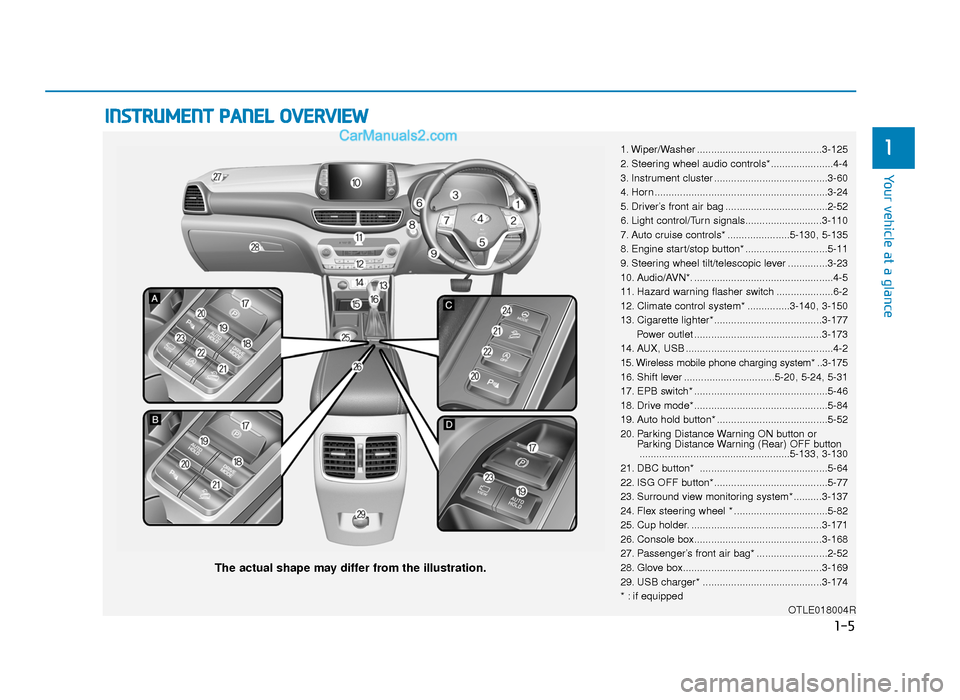
INSTRUMENT PANEL OVERVIEW
1. Wiper/Washer ............................................3-125
2. Steering wheel audio controls*......................4-4
3. Instrument cluster ........................................3-60
4. Horn .............................................................3-24
5. Driver’s front air bag ....................................2-52
6. Light control/Turn signals...........................3-110
7. Auto cruise controls* ......................5-130, 5-135
8. Engine start/stop button* .............................5-11
9. Steering wheel tilt/telescopic lever ..............3-23
10. Audio/AVN*. .................................................4-5
11. Hazard warning flasher switch ....................6-2
12. Climate control system* ...............3-140, 3-150
13. Cigarette lighter*......................................3-177Power outlet .............................................3-173
14. AUX, USB ....................................................4-2
15. Wireless mobile phone charging system* ..3-175
16. Shift lever ................................5-20, 5-24, 5-31
17. EPB switch* ...............................................5-46
18. Drive mode* ...............................................5-84
19. Auto hold button* .......................................5-52
20. Parking Distance Warning ON button or Parking Distance Warning (Rear) OFF button.....................................................5-133, 3-130
21. DBC button* .............................................5-64
22. ISG OFF button*........................................5-77
23. Surround view monitoring system* ..........3-137
24. Flex steering wheel * .................................5-82
25. Cup holder. ..............................................3-171
26. Console box.............................................3-168
27. Passenger’s front air bag* .........................2-52
28. Glove box.................................................3-169
29. USB charger* ..........................................3-174
* : if equipped OTLE018004R
The actual shape may differ from the illustration.
1-5
Your vehicle at a glance
1
TLe UK 1.qxp 5/10/2018 11:27 AM Page 5
Page 266 of 685
3-174
Convenient features of your vehicle
(Continued)
• Some electronic devices can cause electronic interference
when plugged into a vehicle’s
power outlet. These devices may
cause excessive audio static
and malfunctions in other elec-
tronic systems or devices used
in your vehicle.
• Push the plug in as far as it will go. If good contact is not made,
the plug may overheat and the
fuse may open.
• Plug in battery equipped electrical/ electronic devices with reverse
current protection. The current
from the battery may flow into the
vehicle's electrical/electronic sys-
tem and cause system malfunc-
tion.
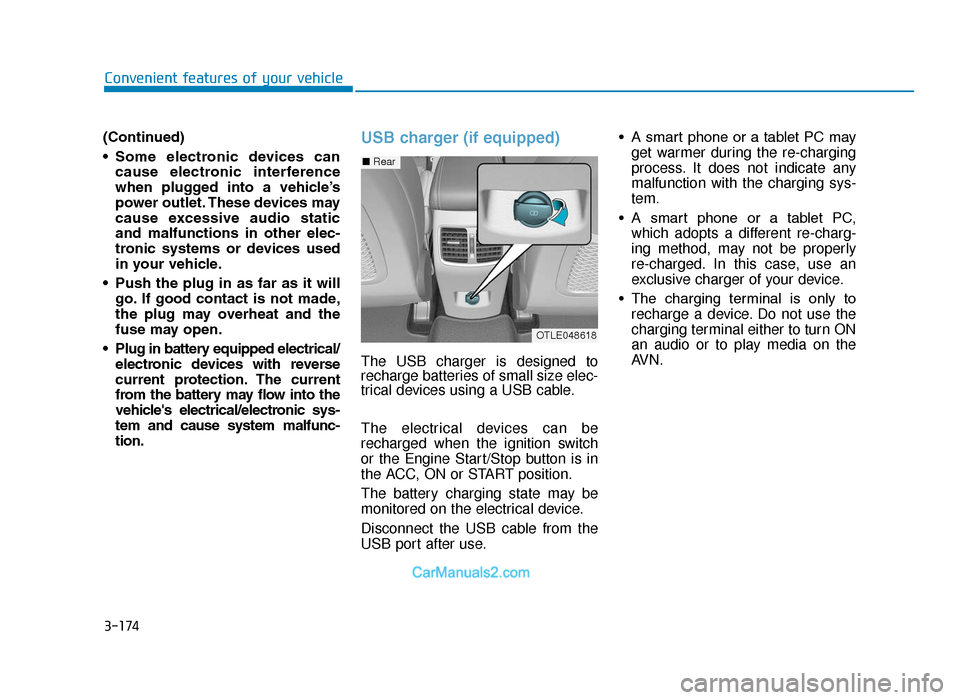
USB charger (if equipped)
The USB charger is designed to
recharge batteries of small size elec-
trical devices using a USB cable.
The electrical devices can be
recharged when the ignition switch
or the Engine Start/Stop button is in
the ACC, ON or START position.
The battery charging state may be
monitored on the electrical device.
Disconnect the USB cable from the
USB port after use. • A smart phone or a tablet PC may
get warmer during the re-charging
process. It does not indicate any
malfunction with the charging sys-
tem.
• A smart phone or a tablet PC, which adopts a different re-charg-
ing method, may not be properly
re-charged. In this case, use an
exclusive charger of your device.
• The charging terminal is only to recharge a device. Do not use the
charging terminal either to turn ON
an audio or to play media on the
AVN.
■ Rear
OTLE048618
TLe UK 3b(110~).qxp 6/12/2018 2:42 PM Page 174
Page 276 of 685
Multimedia System
Multimedia system .................................................4-2
AUX, USB and iPod®port ...............................................4-2
Antenna ........................................................................\
.......4-3
Steering wheel audio control .........................................4-4
Audio / Video / Navigation system (AVN) ..................4-5
Bluetooth®Wireless Technology hands-free ............4-5
How Vehicle Audio Works ...............................................4-6
Audio (without touch screen) ............................4-15
System layout - control panel.....................................4-15
System layout - steering wheel remote control.....4-17
Turning the system on or off ......................................4-20
Turning the display on or off ......................................4-20
Getting to know the basic operations .......................4-21
Radio ......................................................................4-\
22
Turning on the radio ......................................................4-22
Changing the radio mode ..............................................4-23
Scanning for available radio stations.........................4-23
Searching for radio stations ........................................4-24
Saving radio stations ......................................................4-24
Listening to saved radio stations ................................4-24
Media player .........................................................4-25
Using the media player..................................................4-25
Using the USB mode ......................................................4-26
Using the iPod mode ......................................................4-28
Using the AUX mode ......................................................4-31
Bluetooth...............................................................4-32
Connecting Bluetooth devices .....................................4-32
Using a Bluetooth audio device...................................4-35
Using a Bluetooth phone ..............................................4-37
Setup ......................................................................4-\
43
Display........................................................................\
........4-43
Sound ........................................................................\
.........4-43
Date/Time ........................................................................\
.4-44
Bluetooth ........................................................................\
...4-44
System ........................................................................\
.......4-44
System status icons .............................................4-45
Audio system specifications...............................4-46
USB ........................................................................\
.............4-46
Bluetooth ........................................................................\
...4-47
Trademarks ...........................................................4-48
Declaration of conformity ..................................4-49
CE RED for EU .................................................................4-49
4
TLe UK 4.qxp 5/10/2018 12:03 PM Page 1
Page 277 of 685
Information
• If you install an aftermarket HIDheadlamp, your vehicle’s audio and
electronic device may malfunction.
• Prevent chemicals such as perfume, cosmetic oil, sun cream, hand clean-
er, and air freshener from contacting
the interior parts because they may
cause damage or discolouration.
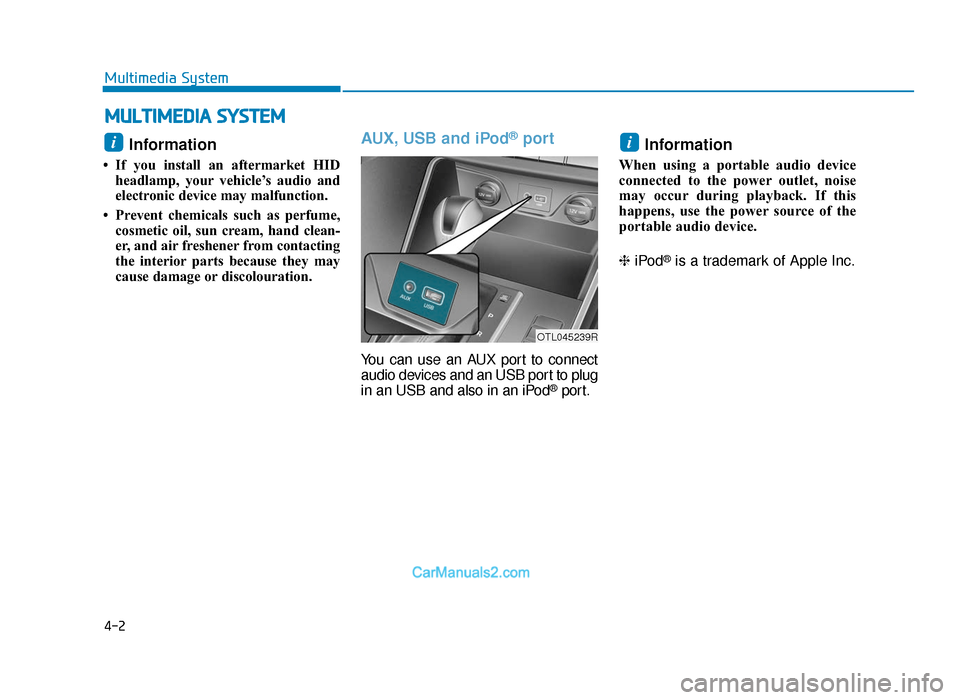
AUX, USB and iPod®port
You can use an AUX port to connect
audio devices and an USB port to plug
in an USB and also in an iPod
®port.
Information
When using a portable audio device
connected to the power outlet, noise
may occur during playback. If this
happens, use the power source of the
portable audio device.
❈ iPod
®is a trademark of Apple Inc.
ii
MULTIMEDIA SYSTEM
4-2
Multimedia System
OTL045239R
TLe UK 4.qxp 5/10/2018 12:03 PM Page 2
Page 279 of 685
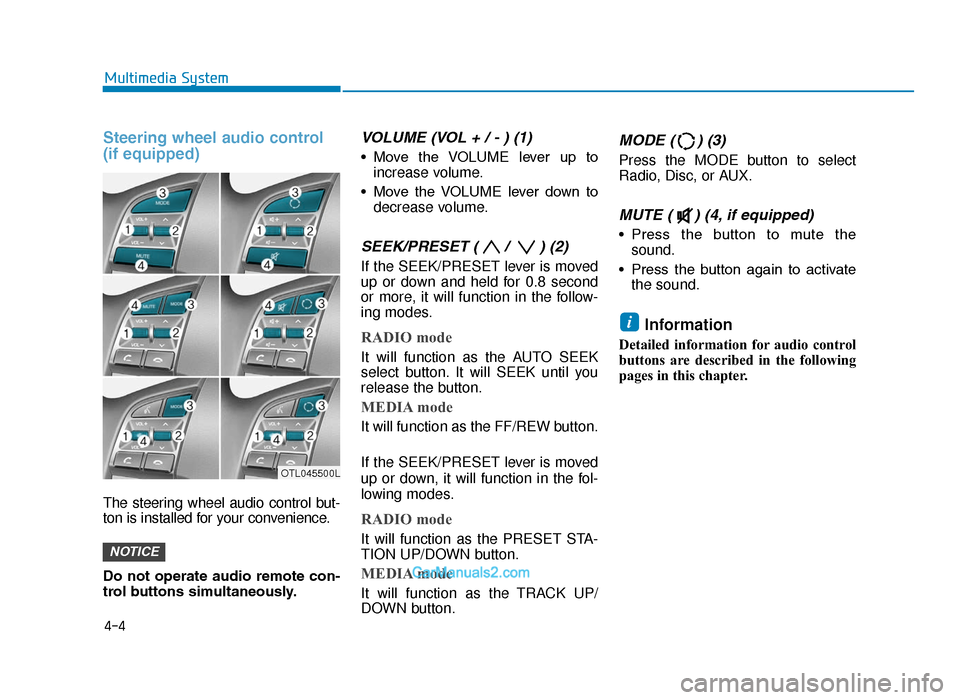
Steering wheel audio control
(if equipped)
The steering wheel audio control but-
ton is installed for your convenience.
Do not operate audio remote con-
trol buttons simultaneously.
VOLUME (VOL + / - ) (1)
• Move the VOLUME lever up toincrease volume.
• Move the VOLUME lever down to decrease volume.
SEEK/PRESET ( / ) (2)
If the SEEK/PRESET lever is moved
up or down and held for 0.8 second
or more, it will function in the follow-
ing modes.
RADIO mode
It will function as the AUTO SEEK
select button. It will SEEK until you
release the button.
MEDIA mode
It will function as the FF/REW button.
If the SEEK/PRESET lever is moved
up or down, it will function in the fol-
lowing modes.
RADIO mode
It will function as the PRESET STA-
TION UP/DOWN button.
MEDIA mode
It will function as the TRACK UP/
DOWN button.
MODE ( ) (3)
Press the MODE button to select
Radio, Disc, or AUX.
MUTE ( ) (4, if equipped)
• Press the button to mute thesound.
• Press the button again to activate the sound.
Information
Detailed information for audio control
buttons are described in the following
pages in this chapter.
i
NOTICE
4-4
Multimedia System
OTL045500L
TLe UK 4.qxp 5/10/2018 12:03 PM Page 4
Page 280 of 685
Audio / Video / Navigation sys-
tem (AVN)(if equipped)
Detailed information for the AVN sys-
tem is described in a separately sup-
plied manual.
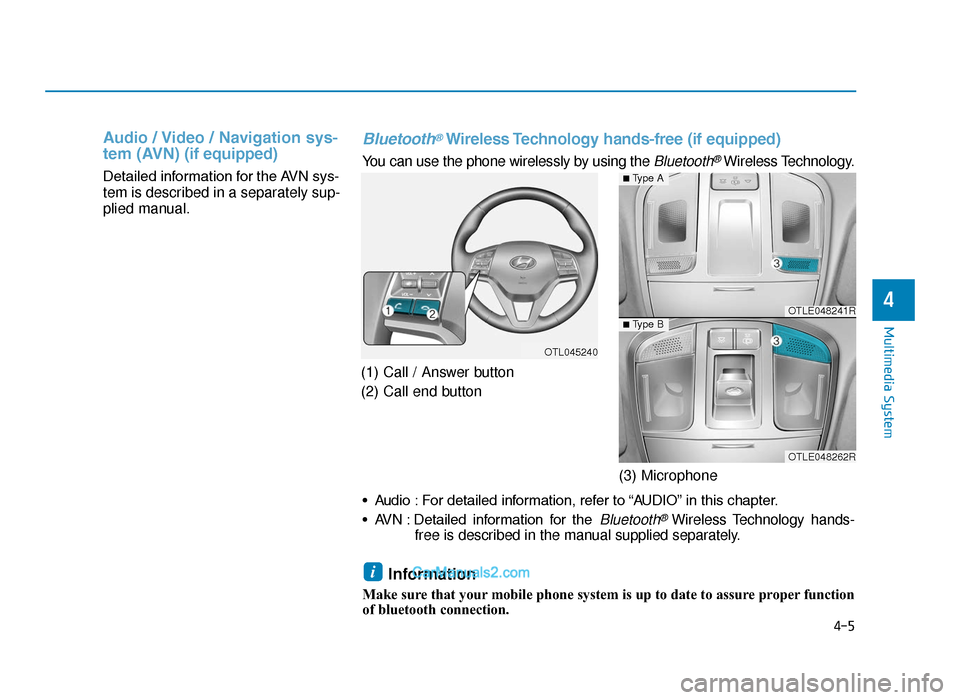
(1) Call / Answer button
(2) Call end button(3) Microphone
4-5
Multimedia System
4
Bluetooth®Wireless Technology hands-free (if equipped)
You can use the phone wirelessly by using the Bluetooth®Wireless Technology.
OTL045240
OTLE048241R
OTLE048262R
■Type A
■ Type B
• Audio : For detailed information, refer to “AUDIO” in this chapter.
• AVN : Detailed information for the
Bluetooth® Wireless Technology hands-
free is described in the manual supplied separately.
Information
Make sure that your mobile phone system is up to date to assure proper function
of bluetooth connection.
i
TLe UK 4.qxp 5/10/2018 12:04 PM Page 5
Page 281 of 685
4-6
How Vehicle Audio Works
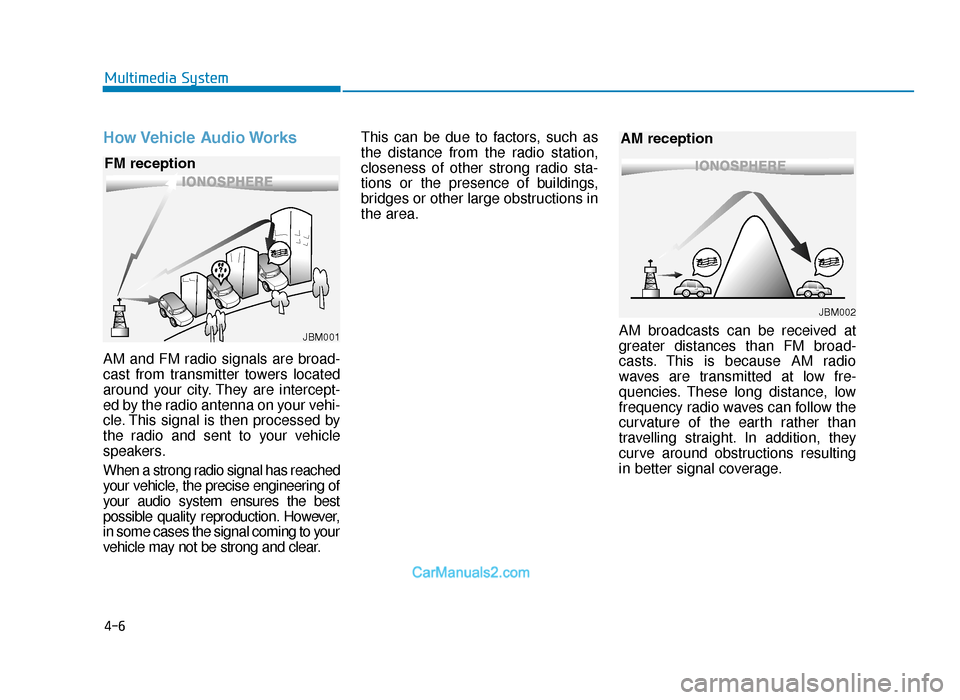
AM and FM radio signals are broad-
cast from transmitter towers located
around your city. They are intercept-
ed by the radio antenna on your vehi-
cle. This signal is then processed by
the radio and sent to your vehicle
speakers.
When a strong radio signal has reached
your vehicle, the precise engineering of
your audio system ensures the best
possible quality reproduction. However,
in some cases the signal coming to your
vehicle may not be strong and clear.This can be due to factors, such as
the distance from the radio station,
closeness of other strong radio sta-
tions or the presence of buildings,
bridges or other large obstructions in
the area.
AM broadcasts can be received at
greater distances than FM broad-
casts. This is because AM radio
waves are transmitted at low fre-
quencies. These long distance, low
frequency radio waves can follow the
curvature of the earth rather than
travelling straight. In addition, they
curve around obstructions resulting
in better signal coverage.
Multimedia System
JBM001
FM reception
JBM002
AM reception
TLe UK 4.qxp 5/10/2018 12:04 PM Page 6
Page 283 of 685
4-8
Multimedia System
Using a mobile phone or a two-way radio
When a mobile phone is used inside
the vehicle, noise may be produced
from the audio system. This does not
mean that something is wrong with
the audio equipment. In such a case,
try to operate mobile devices as far
from the audio equipment as possible. NOTE:
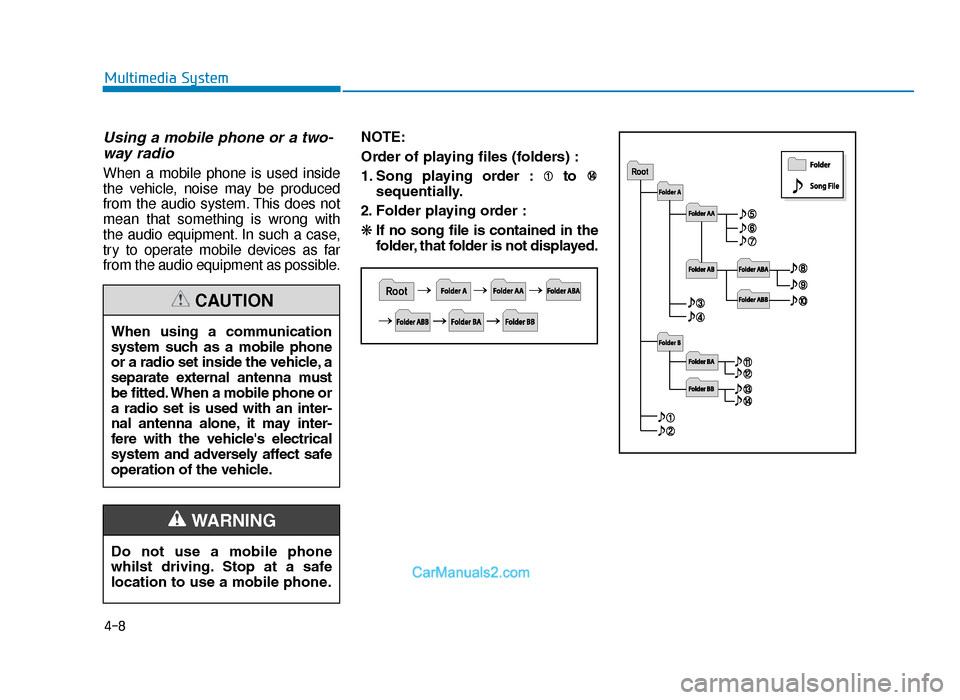
Order of playing files (folders) :
1. Song playing order : to
sequentially.
2. Folder playing order :
❋ If no song file is contained in the
folder, that folder is not displayed.
When using a communication
system such as a mobile phone
or a radio set inside the vehicle, a
separate external antenna must
be fitted. When a mobile phone or
a radio set is used with an inter-
nal antenna alone, it may inter-
fere with the vehicle's electrical
system and adversely affect safe
operation of the vehicle.
CAUTION
Do not use a mobile phone
whilst driving. Stop at a safe
location to use a mobile phone.
WARNING
TLe UK 4.qxp 5/10/2018 12:04 PM Page 8
Page 284 of 685
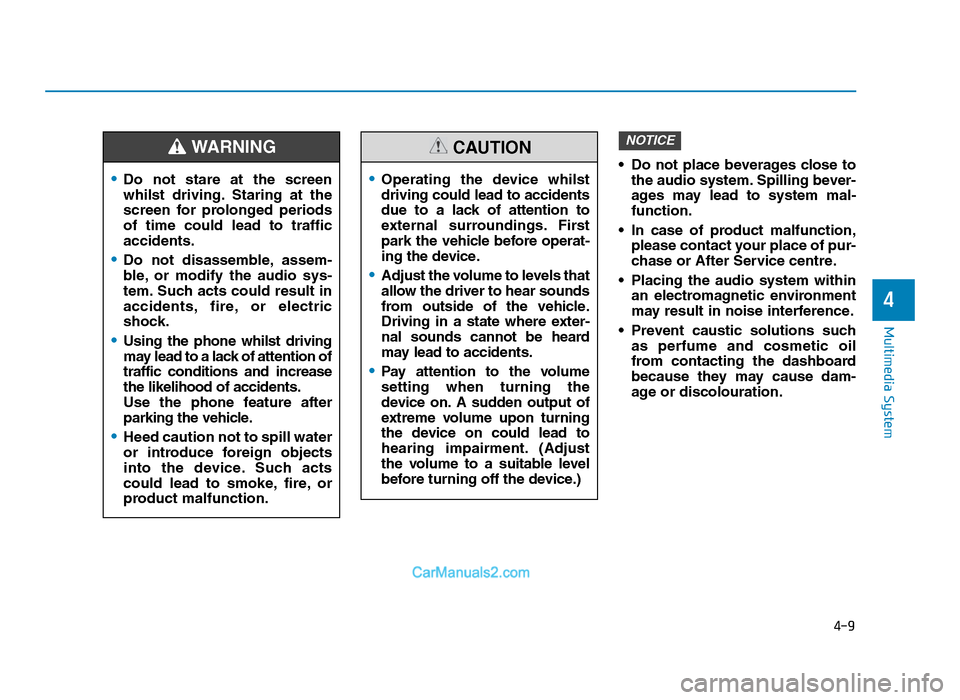
• Do not place beverages close tothe audio system. Spilling bever-
ages may lead to system mal-
function.
• In case of product malfunction, please contact your place of pur-
chase or After Service centre.
• Placing the audio system within an electromagnetic environment
may result in noise interference.
• Prevent caustic solutions such as perfume and cosmetic oil
from contacting the dashboard
because they may cause dam-
age or discolouration.
NOTICE
4-9
Multimedia System
4
•Operating the device whilst
driving could lead to accidents
due to a lack of attention to
external surroundings. First
park the vehicle before operat-
ing the device.
•Adjust the volume to levels that
allow the driver to hear sounds
from outside of the vehicle.
Driving in a state where exter-
nal sounds cannot be heard
may lead to accidents.
•Pay attention to the volume
setting when turning the
device on. A sudden output of
extreme volume upon turning
the device on could lead to
hearing impairment. (Adjust
the volume to a suitable level
before turning off the device.)
CAUTION
•Do not stare at the screen
whilst driving. Staring at the
screen for prolonged periods
of time could lead to traffic
accidents.
•Do not disassemble, assem-
ble, or modify the audio sys-
tem. Such acts could result in
accidents, fire, or electric
shock.
•Using the phone whilst driving
may lead to a lack of attention of
traffic conditions and increase
the likelihood of accidents.
Use the phone feature after
parking the vehicle.
•Heed caution not to spill water
or introduce foreign objects
into the device. Such acts
could lead to smoke, fire, or
product malfunction.
WARNING
TLe UK 4.qxp 5/10/2018 12:04 PM Page 9
Page 285 of 685
4-10
Multimedia System
Information-Using the USB
device
• Connect the USB device after turning on the engine. The USB device may
become damaged if it is already con-
nected when the ignition is turned
on.The USB device may not operate
properly if the car ignition is turned
on or off with the USB device con-
nected.
• Heed caution to static electricity when connecting/disconnecting USB
devices.
• Encoded MP3 Players will not be recognised when connected as an
external device.
• When connecting an external USB device, the device may not properly
recognise the USB is in some states.
• Only products formatted with byte/sectors under 64Kbyte will be
recognised.
• This device recognises USB devices formatted in FAT 12/16/32 file for-
mats. This device does not recognise
files in NTFS file format.
• Some USB devices may not be sup- ported due to compatibility issues.
(Continued)(Continued)
• Avoid contact between the USB con- nector with bodily parts or foreign
objects.
• Repeated connecting/disconnecting of USB devices within short periods
of time may result in product mal-
function.
• A strange noise may occur when dis- connecting the USB.
• Make sure to connect/disconnect external USB devices with the audio
power turned off.
• The amount of time required to recognise the USB device may differ
depending on the type, size or file for-
mats stored in the USB. Such differ-
ences in time are not indications of
malfunctions.
• The device only supports USB devices used to play music files.
• USB images and videos are not sup- ported.
• Do not use the USB I/F to charge batteries or USB accessories that
generate heat. Such acts may lead to
worsened performance or damage
to the device.
(Continued)(Continued)
• The device may not recognise the USB device if separately purchased
USB hubs and extension cables are
being used. Connect the USB direct-
ly with the multimedia terminal of
the vehicle.
• When using mass storage USB devices with separate logical drives,
only files saved to the root drive can
be played.
• Files may not properly operate if application programs are installed
to the USBs.
• The device may not operate normal- ly if MP3 Players, mobile phones,
digital cameras, or other electronic
devices (USB devices not recognised
as portable disk drives) are connect-
ed with the device.
• Charging through the USB may not work for some mobile devices.
• The device may not support normal operation when using a USB memo-
ry type besides (Metal Cover Type)
USB Memory.
(Continued)i
TLe UK 4.qxp 5/10/2018 12:04 PM Page 10