phone HYUNDAI TUCSON 2021 User Guide
[x] Cancel search | Manufacturer: HYUNDAI, Model Year: 2021, Model line: TUCSON, Model: HYUNDAI TUCSON 2021Pages: 546, PDF Size: 44.38 MB
Page 155 of 546
3-64
Convenient features of your vehicle
Information
• If you press the door unlock button
(2), the Smart Liftgate function will
be deactivated temporarily. But, if
you do not open any door for 30 sec-
onds, the Smart Liftgate function
will be activated again.
• If you press the liftgate open button
(3) for more than 1 second, the lift-
gate opens.
• The Smart Liftgate function will
still be activated if you press the
door lock button (1) or liftgate open
button (3) on the smart key as long
as the Smart Liftgate is not already
in the Detect and Alert stage.
• In case you have deactivated the
Smart Liftgate function by pressing
the smart key button and opened a
door, the Smart Liftgate function
can be activated again by closing
and locking all doors.
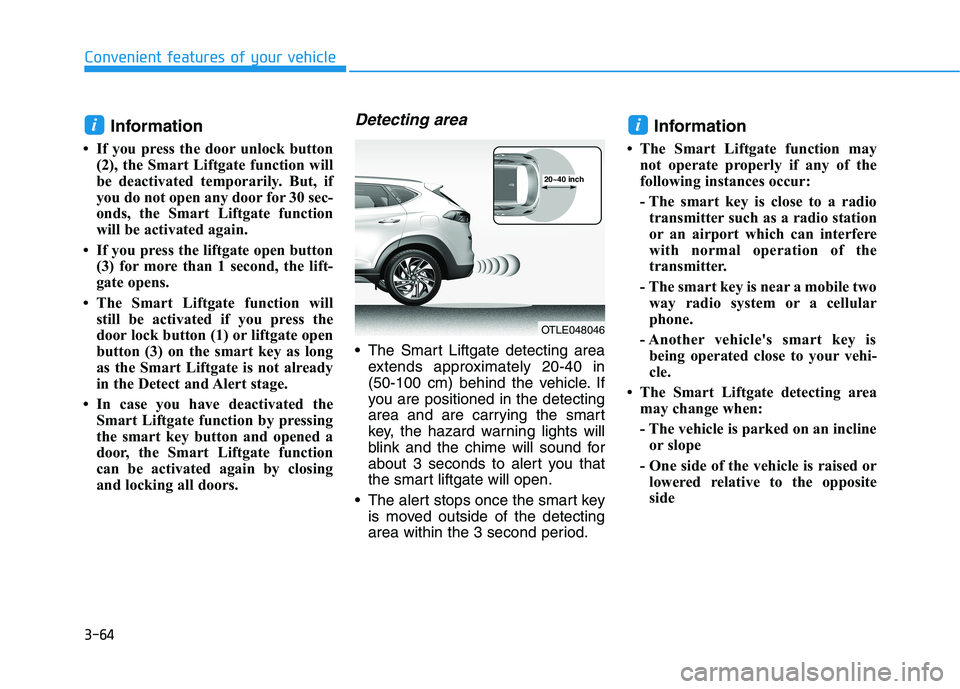
Detecting area
The Smart Liftgate detecting area
extends approximately 20-40 in
(50-100 cm) behind the vehicle. If
you are positioned in the detecting
area and are carrying the smart
key, the hazard warning lights will
blink and the chime will sound for
about 3 seconds to alert you that
the smart liftgate will open.
The alert stops once the smart key
is moved outside of the detecting
area within the 3 second period.
Information
• The Smart Liftgate function may
not operate properly if any of the
following instances occur:
- The smart key is close to a radio
transmitter such as a radio station
or an airport which can interfere
with normal operation of the
transmitter.
- The smart key is near a mobile two
way radio system or a cellular
phone.
- Another vehicle's smart key is
being operated close to your vehi-
cle.
• The Smart Liftgate detecting area
may change when:
- The vehicle is parked on an incline
or slope
- One side of the vehicle is raised or
lowered relative to the opposite
side
ii
OTLE048046
20~40 inch
Page 252 of 546
3-161
Convenient features of your vehicle
3
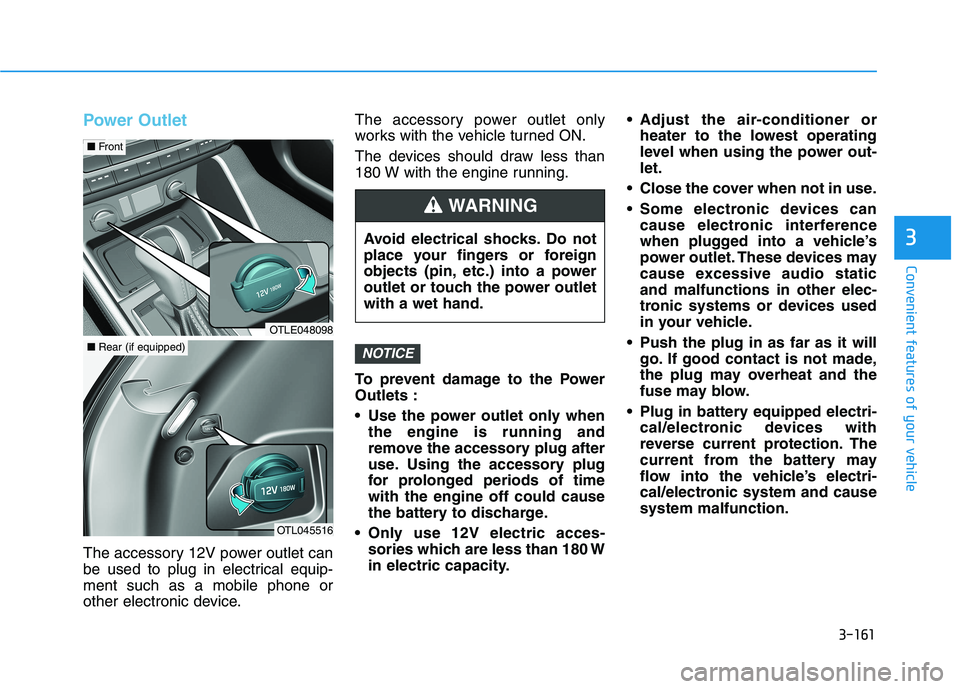
Power Outlet
The accessory 12V power outlet can
be used to plug in electrical equip-
ment such as a mobile phone or
other electronic device.The accessory power outlet only
works with the vehicle turned ON.
The devices should draw less than
180 W with the engine running.
To prevent damage to the Power
Outlets :
Use the power outlet only when
the engine is running and
remove the accessory plug after
use. Using the accessory plug
for prolonged periods of time
with the engine off could cause
the battery to discharge.
Only use 12V electric acces-
sories which are less than 180 W
in electric capacity. Adjust the air-conditioner or
heater to the lowest operating
level when using the power out-
let.
Close the cover when not in use.
Some electronic devices can
cause electronic interference
when plugged into a vehicle’s
power outlet. These devices may
cause excessive audio static
and malfunctions in other elec-
tronic systems or devices used
in your vehicle.
Push the plug in as far as it will
go. If good contact is not made,
the plug may overheat and the
fuse may blow.
Plug in battery equipped electri-
cal/electronic devices with
reverse current protection. The
current from the battery may
flow into the vehicle’s electri-
cal/electronic system and cause
system malfunction.
NOTICE
Avoid electrical shocks. Do not
place your fingers or foreign
objects (pin, etc.) into a power
outlet or touch the power outlet
with a wet hand.
WARNING
OTLE048098
■Front
OTL045516
■Rear (if equipped)
Page 253 of 546
3-162
Convenient features of your vehicle
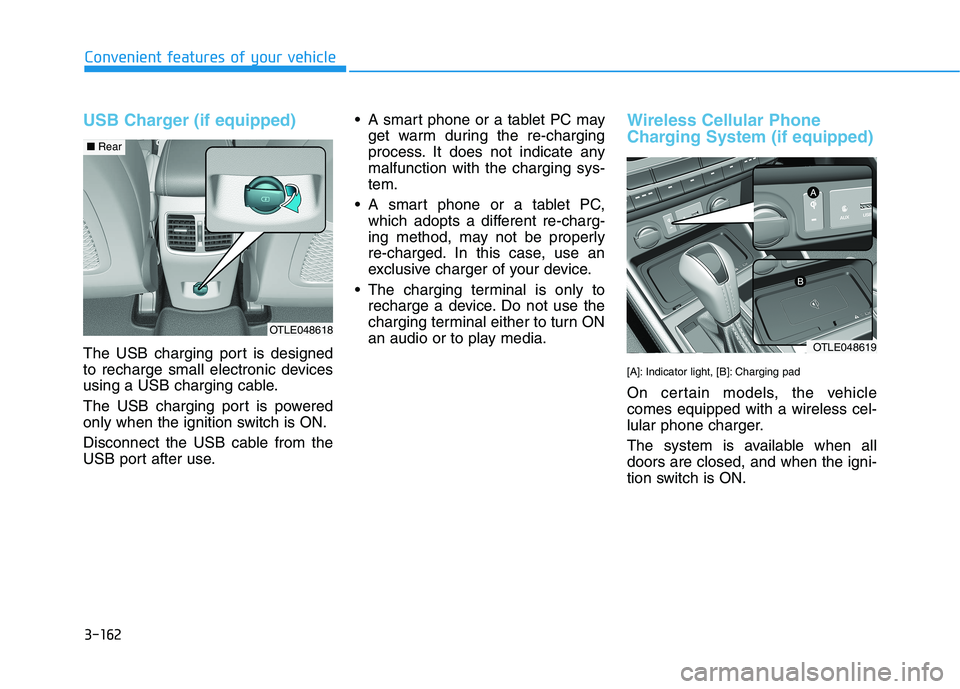
USB Charger (if equipped)
The USB charging port is designed
to recharge small electronic devices
using a USB charging cable.
The USB charging port is powered
only when the ignition switch is ON.
Disconnect the USB cable from the
USB port after use. A smart phone or a tablet PC may
get warm during the re-charging
process. It does not indicate any
malfunction with the charging sys-
tem.
A smart phone or a tablet PC,
which adopts a different re-charg-
ing method, may not be properly
re-charged. In this case, use an
exclusive charger of your device.
The charging terminal is only to
recharge a device. Do not use the
charging terminal either to turn ON
an audio or to play media.
Wireless Cellular Phone
Charging System (if equipped)
[A]: Indicator light, [B]: Charging pad
On certain models, the vehicle
comes equipped with a wireless cel-
lular phone charger.
The system is available when all
doors are closed, and when the igni-
tion switch is ON.
OTLE048618
OTLE048619
■Rear
Page 254 of 546
3-163
Convenient features of your vehicle
3
To charge a cellular phone
The wireless cellular phone charging
system charges only the Qi-enabled
cellular phones ( ). Read the label
on the cellular phone accessory
cover or visit your cellular phone
manufacturer's website to check
whether your cellular phone supports
the Qi technology.
The wireless charging process starts
when you put a Qi-enabled cellular
phone on the wireless charging unit.
1. Remove other items, including the
smart key, from the wireless
charging unit. If not, the wireless
charging process may be inter-
rupted. Place the cellular phone
on the center of the charging pad
().
2. The indicator light is orange when
the cellular phone is charging. The
indicator light turns green when
phone charging is complete.
3. You can turn ON or OFF the wire-
less charging function in the user
settings mode on the instrument
cluster. For further information,
refer to the "LCD Display Modes"
in this chapter.If your cellular phone is not charging:
- Slightly change the position of the
cellular phone on the charging
pad.
- Make sure the indicator light is
orange.
The indicator light will blink orange
for 10 seconds if there is a malfunc-
tion in the wireless charging system.
In this case, temporarily stop the
charging process, and re-attempt to
charge your cellular phone again.
The system warns you with a mes-
sage on the LCD display if the cellu-
lar phone is still on the wireless
charging unit after the engine is
turned OFF and the front door is
opened.
Information
For some manufacturer's cellular
phones, the system may not warn you
even though the cellular phone is left
on the wireless charging unit. This is
due to the particular characteristic of
the cellular phone and not a malfunc-
tion of the wireless charging. The wireless cellular phone
charging system may not sup-
port certain cellular phones,
which are not verified for the Qi
specification ( ).
When placing your cellular
phone on the charging mat,
position the phone in the middle
of the mat for optimal charging
performance. If your cell phone
is off to the side, the charging
rate may be less and in some
cases the cell phone may experi-
ence higher heat conduction.
In some cases, the wireless
charging may stop temporarily
when the Remote Key or Smart
Key is used, either when starting
the vehicle or locking/unlocking
the doors, etc.
When charging certain cellular
phones, the charging indicator
may not change to green when
the cell phone is fully charged.
NOTICE
i
Page 255 of 546
3-164
Convenient features of your vehicle
For certain cellular phones with
their own protection, the wire-
less charging speed may
decrease and the wireless
charging may stop if the temper-
ature inside the vehicle is too
high or low.
When the inside temperature is
too high or low do not use the
system and wait until the tem-
perature maintains a proper
level before using the system.
The wireless charging process
may temporarily stop, when tem-
perature abnormally increases
inside the wireless cellular
phone charging system. Stop
the charging cellular phone and
wait until temperature falls to a
certain level.
The wireless charging process
may temporarily stop when
there is any metallic item, such
as a coin, between the wireless
cellular phone charging system
and the cellular phone. When charging some cellular
phones with a self-protection
feature, the wireless charging
speed may decrease and the
wireless charging may stop.
If the cellular phone has a thick
cover, the wireless charging may
not be possible.
If the cell phone is not complete-
ly contacting the charging pad,
wireless charging may not oper-
ate properly.
Some magnetic items like credit
cards, phone cards or rail tickets
may be damaged if left with the
cellular phone during the charg-
ing process.
When any cellular phone with-
out a wireless charging function
or a metallic object is placed on
the charging pad, a small noise
may sound. This small sound is
due to the vehicle discerning
compatibility of the object
placed on the charging pad. It
does not affect your vehicle or
the cellular phone in any way.
Information
If the ignition switch is in the OFF
position, the charging also stops.
Information
This device complies with part 15 of
the FCC Rules.
Operation is subject to the following
two conditions:
1. This device may not cause harmful
interference, and
2. This device must accept any inter-
ference received, including interfer-
ence that may cause undesired
operation.
i
i
Page 266 of 546
4-4
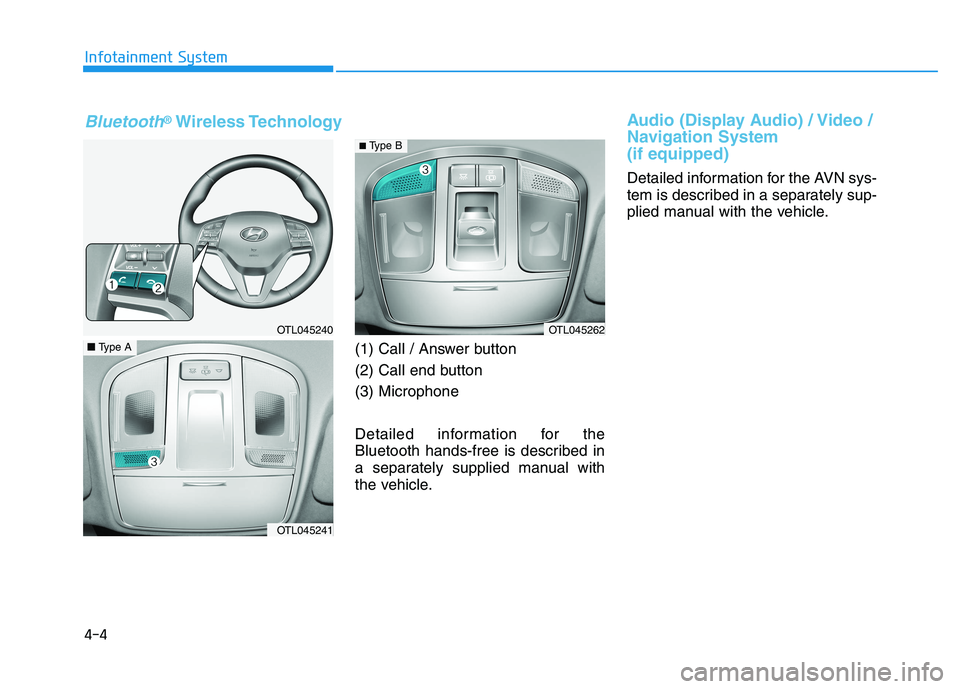
(1) Call / Answer button
(2) Call end button
(3) Microphone
Detailed information for the
Bluetooth hands-free is described in
a separately supplied manual with
the vehicle.
Audio (Display Audio) / Video /
Navigation System
(if equipped)
Detailed information for the AVN sys-
tem is described in a separately sup-
plied manual with the vehicle. Infotainment System
OTL045240
OTL045241
■Type A
OTL045262
Bluetooth®Wireless Technology
■ Type B
Page 541 of 546
I-6
Important Safety Precautions............................................2-2
Air Bag Hazards ...........................................................2-2
Always Wear Your Seat Belt ........................................2-2
Control Your Speed ......................................................2-3
Driver Distraction.........................................................2-2
Keep Your Vehicle in Safe Condition ..........................2-3
Restrain All Children....................................................2-2
In Case of an Emergency While Driving .........................6-2
If the Engine Stalls at a Crossroad or Crossing ...........6-2
If the Engine Stalls While Driving...............................6-2
If you Have a Flat Tire While Driving.........................6-3
Infotainment System .........................................................4-2
Antenna ........................................................................4-2
Audio / Video / Navigation System .............................4-4
AUX, USB and iPod
®Port ..........................................4-2
Bluetooth®Wireless Technology Hands-Free ..............4-4
Steering Wheel Audio Control .....................................4-3
Inside Rearview Mirror...................................................3-24
Instrument Cluster...........................................................3-65
Gauges and Meters .....................................................3-67
Icy Road Warning Light .............................................3-70
Instrument Cluster Control .........................................3-66
LCD Display Messages ..............................................3-84
Warning and Indicator Lights.....................................3-72
Instrument panel overview ...............................................1-5
Interior Features ............................................................3-159
Cargo Net Holder .....................................................3-167
Cargo Security Screen ..............................................3-167
Clock ........................................................................3-165Clothes Hanger .........................................................3-165
Cup Holder ...............................................................3-159
Floor Mat Anchor(s) .................................................3-166
Luggage Tray............................................................3-170
Plastic Bag Hook ......................................................3-166
Power Outlet.............................................................3-161
Sunvisor ....................................................................3-160
USB Charger ............................................................3-162
Wireless Cellular Phone Charging System ..............3-162
Interior Lights ...............................................................3-116
Front Door Lamp ......................................................3-118
Front Map Lamp.......................................................3-117
Front Room Lamp ....................................................3-117
Glove box lamp ........................................................3-119
Interior lamp AUTO cut ...........................................3-117
Liftgate room lamp ...................................................3-119
Rear lamp..................................................................3-118
Vanity mirror lamp ...................................................3-119
Interior overview...............................................................1-4
Jump Starting ....................................................................6-4
Index
J
Page 546 of 546
I-11
Washer Fluid ...................................................................7-24
Checking the Washer Fluid Level ..............................7-24
Welcome System ...........................................................3-115
Windows .........................................................................3-39
Power Windows..........................................................3-40
Windshield Defrosting And Defogging ........................3-150
Auto Defogging System ...........................................3-153
Automatic Climate Control System .........................3-151
Defogging logic ........................................................3-152
Manual Climate Control System ..............................3-150
Rear Window Defroster............................................3-154
Windshield Wipers ........................................................3-120
Winter Driving ..............................................................5-126
Snow or Icy Conditions............................................5-126
Winter Precautions ...................................................5-128
Wiper Blades ...................................................................7-29
Blade Inspection .........................................................7-29
Blade Replacement .....................................................7-29
Wipers and Washers ......................................................3-120
Front Windshield Washers........................................3-122
Rear Window Wiper and Washer Switch .................3-123
Windshield Wipers ...................................................3-120
Wireless Cellular Phone Charging System ...................3-162
I
Index
W