chapter 8 HYUNDAI TUCSON 2022 Manual PDF
[x] Cancel search | Manufacturer: HYUNDAI, Model Year: 2022, Model line: TUCSON, Model: HYUNDAI TUCSON 2022Pages: 638, PDF Size: 82.3 MB
Page 428 of 638
07
7-65
DRIVER ATTENTION WARNING (DAW)
Basic function
Driver Attention Warning will help
determine the driver's attention level by
analyzing driving pattern, driving time,
etc. while vehicle is being driven. Driver
Attention Warning will recommend a
break when the driver’s attention level falls below a certain level.
Leading Vehicle Departure Alert
function
Leading Vehicle Departure Alert function
will inform the driver when a detected
vehicle in front departs from a stop.
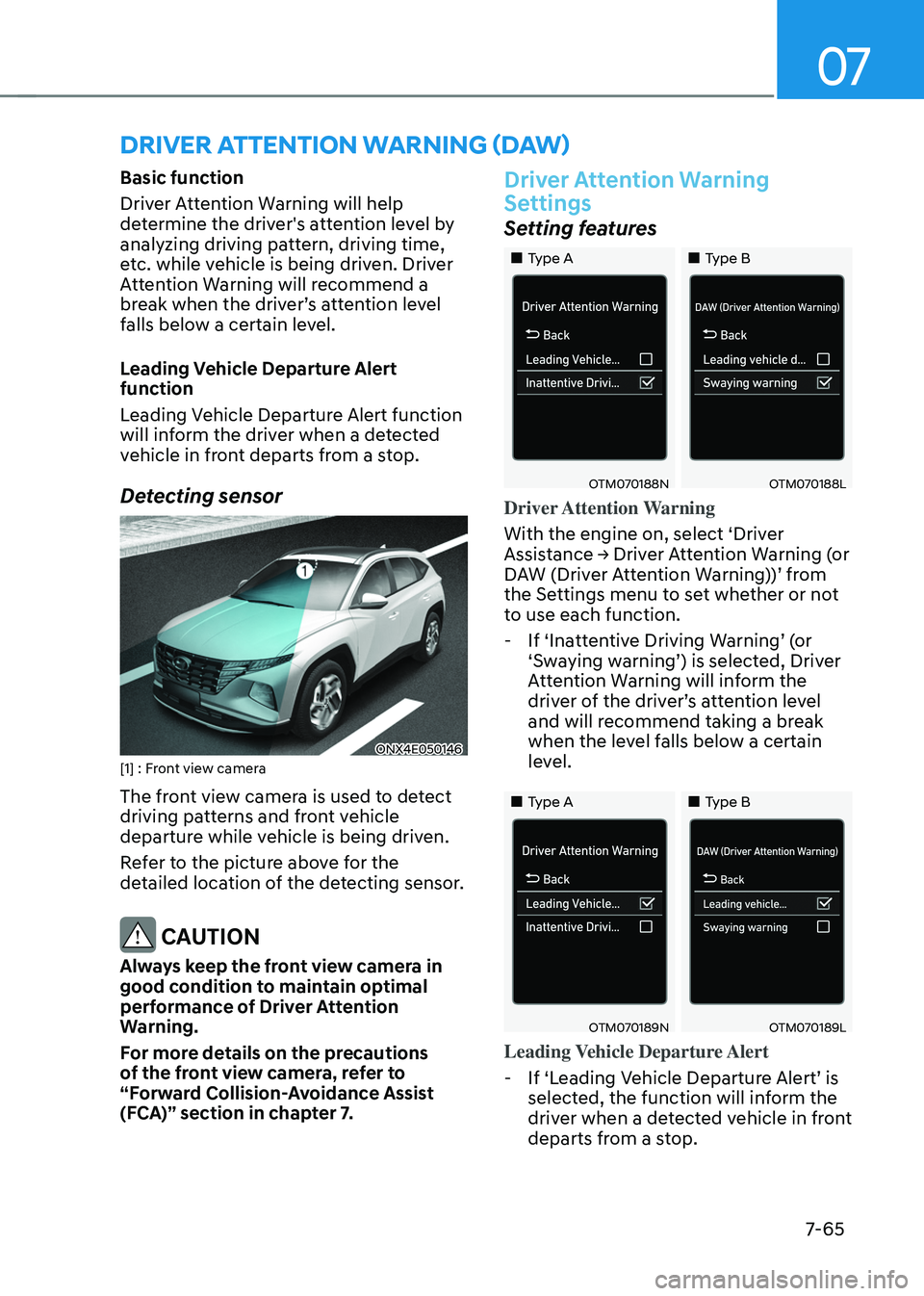
Detecting sensor
ONX4E050146[1] : Front view camera
The front view camera is used to detect
driving patterns and front vehicle
departure while vehicle is being driven.
Refer to the picture above for the
detailed location of the detecting sensor.
CAUTION
Always keep the front view camera in
good condition to maintain optimal
performance of Driver Attention
Warning.
For more details on the precautions
of the front view camera, refer to
“Forward Collision-Avoidance Assist
(FCA)” section in chapter 7.
Driver Attention Warning
Settings
Setting features
„„Type A„„Type B
OTM070188NOTM070188L
Driver Attention Warning
With the engine on, select ‘Driver
Assistance → Driver Attention Warning (or DAW (Driver Attention Warning))’ from the Settings menu to set whether or not
to use each function.
-If ‘Inattentive Driving Warning’ (or ‘Swaying warning’) is selected, Driver Attention Warning will inform the driver of the driver’s attention level and will recommend taking a break
when the level falls below a certain
level.
„„Type A„„Type B
OTM070189NOTM070189L
Leading Vehicle Departure Alert
-If ‘Leading Vehicle Departure Alert’ is selected, the function will inform the
driver when a detected vehicle in front
departs from a stop.
Page 430 of 638
07
7-67
• The driver’s attention lev el is display ed on the scale of 1 to 5. The lower the
level is, the more inattentive the driver
is.
• The level decreases when the driver
does not take a break for a certain
period of time.
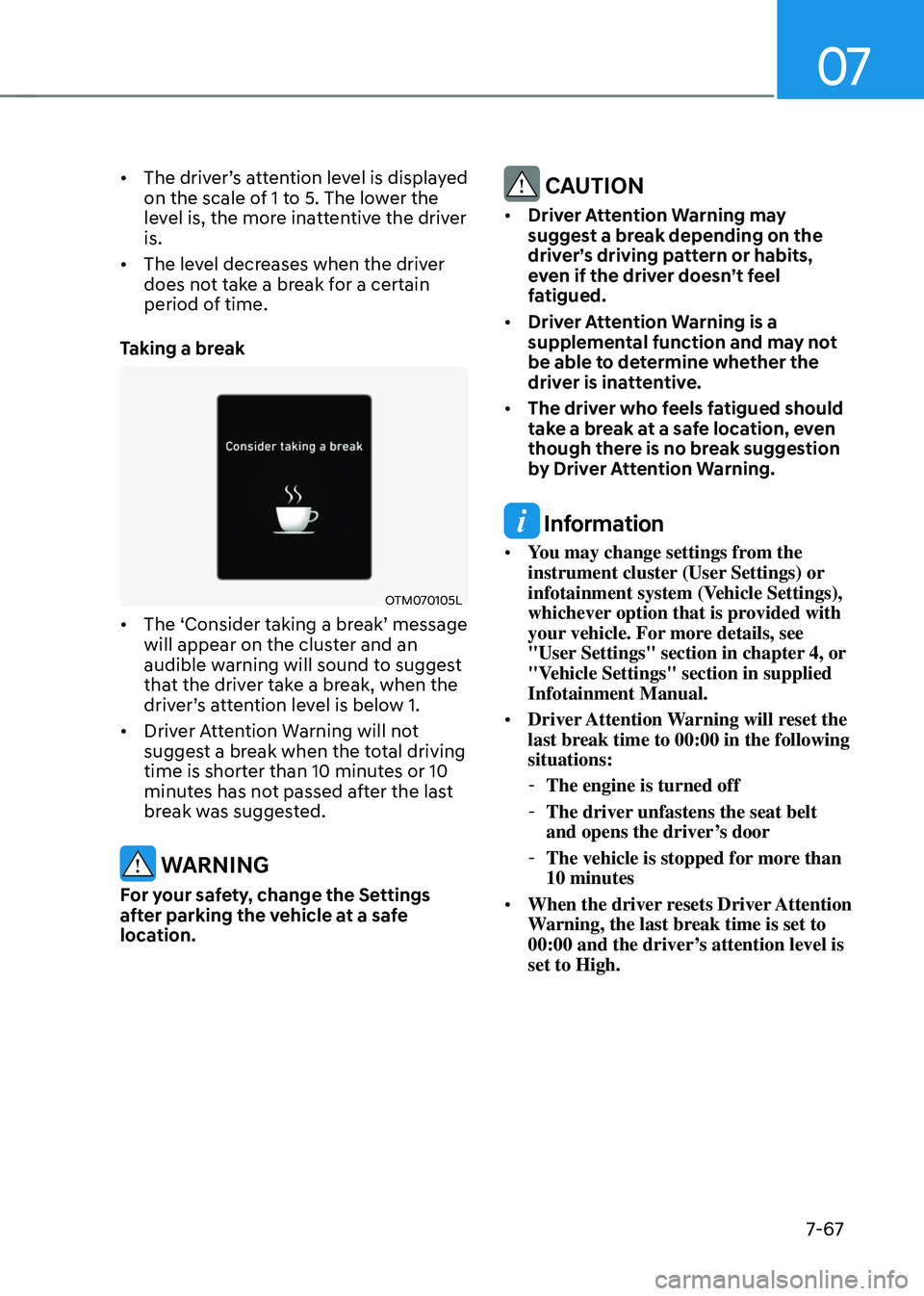
Taking a break
OTM070105L
• The ‘Consider taking a break’ message will appear on the cluster and an
audible warning will sound to suggest
that the driver take a break, when the
driver’s attention level is below 1.
• Driver Attention Warning will not
suggest a break when the total driving
time is shorter than 10 minutes or 10
minutes has not passed after the last
break was suggested.
WARNING
For your safety, change the Settings
after parking the vehicle at a safe
location.
CAUTION
• Driver Attention Warning may
suggest a break depending on the
driver’s driving pattern or habits,
even if the driver doesn’t feel
fatigued.
• Driver Attention Warning is a
supplemental function and may not
be able to determine whether the
driver is inattentive.
• The driver who feels fatigued should
take a break at a safe location, even
though there is no break suggestion
by Driver Attention Warning.
Information
• You may change settings from the
instrument cluster (User Settings) or
infotainment system (Vehicle Settings),
whichever option that is provided with
your vehicle. For more details, see
"User Settings" section in chapter 4, or
"Vehicle Settings" section in supplied
Infotainment Manual.
• Driver Attention Warning will reset the
last break time to 00:00 in the following
situations:
-The engine is turned off
-The driver unfastens the seat belt
and opens the driver’s door
-The vehicle is stopped for more than
10 minutes
• When the driver resets Driver Attention
Warning, the last break time is set to
00:00 and the driver’s attention level is
set to High.
Page 433 of 638
Driver assistance system
7-7 0
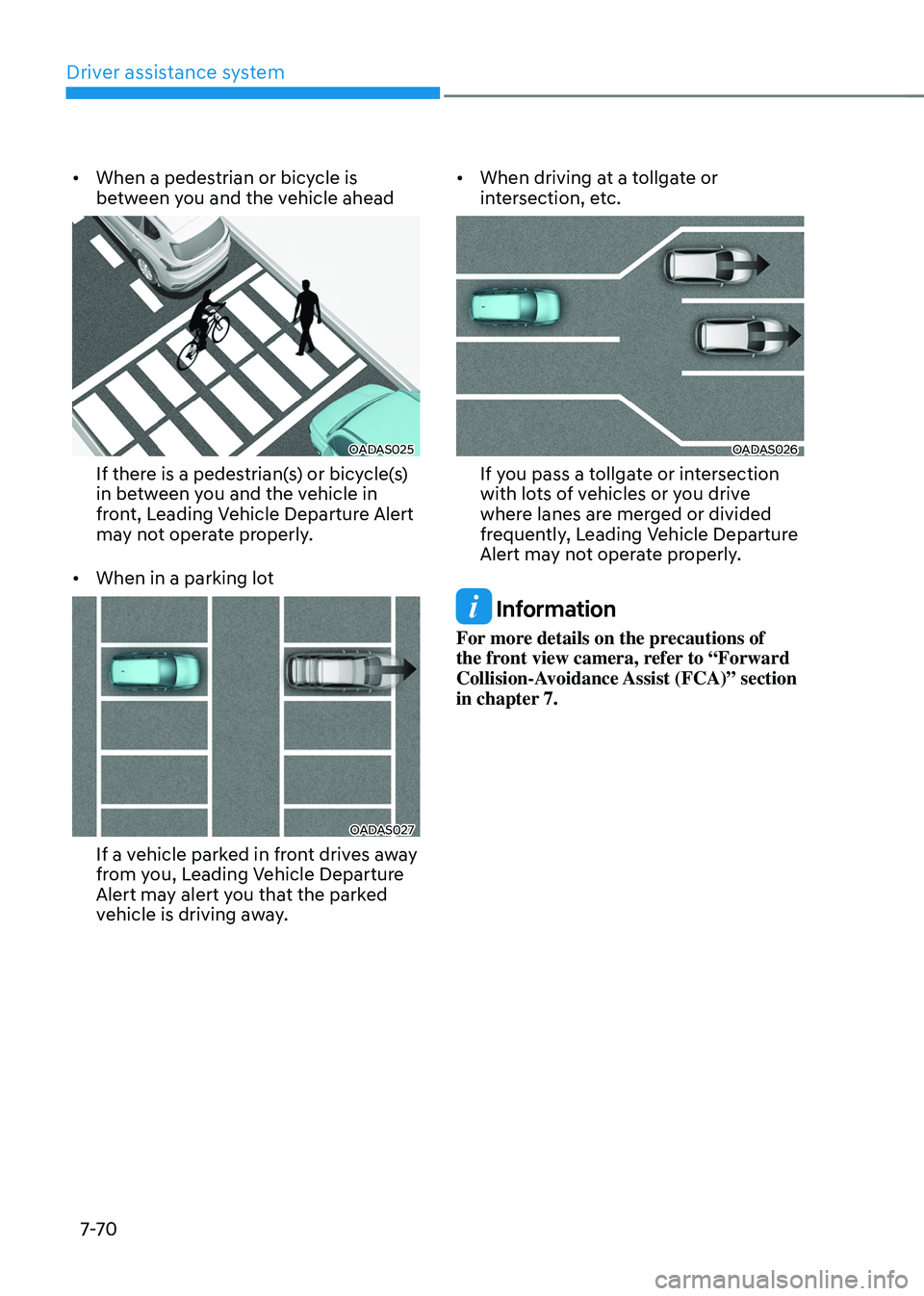
• When a pedestrian or bicycle is
between you and the vehicle ahead
OADAS025
If there is a pedestrian(s) or bicycle(s)
in between you and the vehicle in
front, Leading Vehicle Departure Alert
may not operate properly.
• When in a parking lot
OADAS027
If a vehicle parked in front drives away
from you, Leading Vehicle Departure
Alert may alert you that the parked
vehicle is driving away. •
When driving at a tollgate or
intersection, etc.
OADAS026
If you pass a tollgate or intersection
with lots of vehicles or you drive
where lanes are merged or divided
frequently, Leading Vehicle Departure
Alert may not operate properly.
Information
For more details on the precautions of
the front view camera, refer to “Forward
Collision-Avoidance Assist (FCA)” section
in chapter 7.
Page 440 of 638
07
7-7 7
SMART CRUISE CONTROL (SCC) (IF EQUIPPED)
Smart Cruise Control is designed to
help detect the vehicle ahead and
help maintain the desired speed and
minimum distance between the vehicle
ahead.
Overtaking Acceleration Assist
While Smart Cruise Control is operating,
if the function judges that the driver is
determined to overtake the vehicle in
front, acceleration will be assisted.
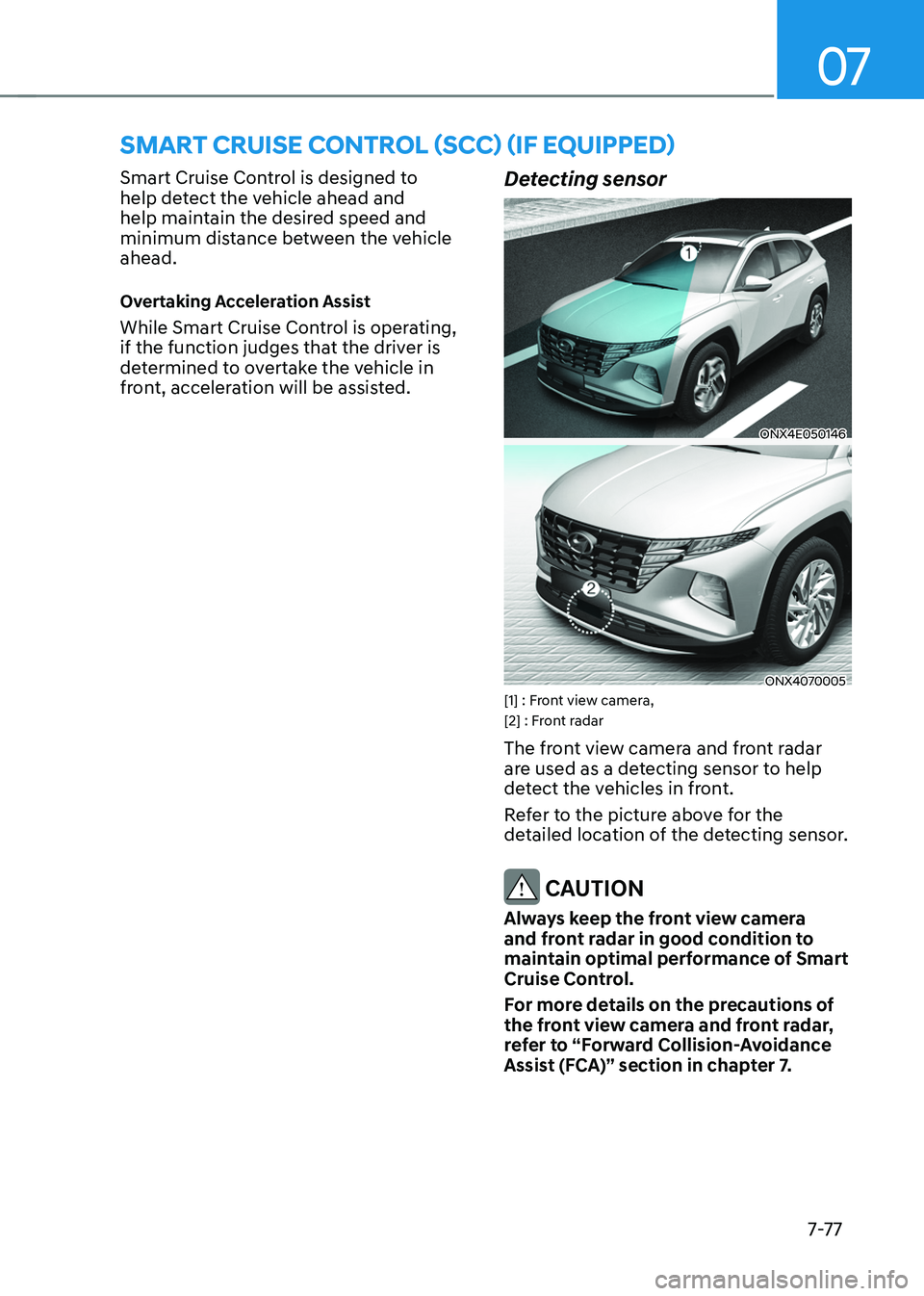
Detecting sensor
ONX4E050146
ONX4070005 [1] : Front view camera,
[2] : Front radar
The front view camera and front radar
are used as a detecting sensor to help
detect the vehicles in front.
Refer to the picture above for the
detailed location of the detecting sensor.
CAUTION
Always keep the front view camera
and front radar in good condition to
maintain optimal performance of Smart
Cruise Control.
For more details on the precautions of
the front view camera and front radar,
refer to “Forward Collision-Avoidance
Assist (FCA)” section in chapter 7.
Page 444 of 638
07
7-81
Based on Drive Mode
Smart Cruise Control will change
acceleration based on the drive mode
selected from Drive Mode Integrated
Control system. Refer to the following
chart.
Drive modeSmart Cruise Control
COMFORT Normal
ECO Slow
SPORT Fast
SMART
(if equipped) Normal
CUSTOM
(if equipped) Based on selected
Powertrain mode
Information
For more details on drive mode, refer to
“Drive Mode Integrated Control System”
section in chapter 6.
OTM070141N
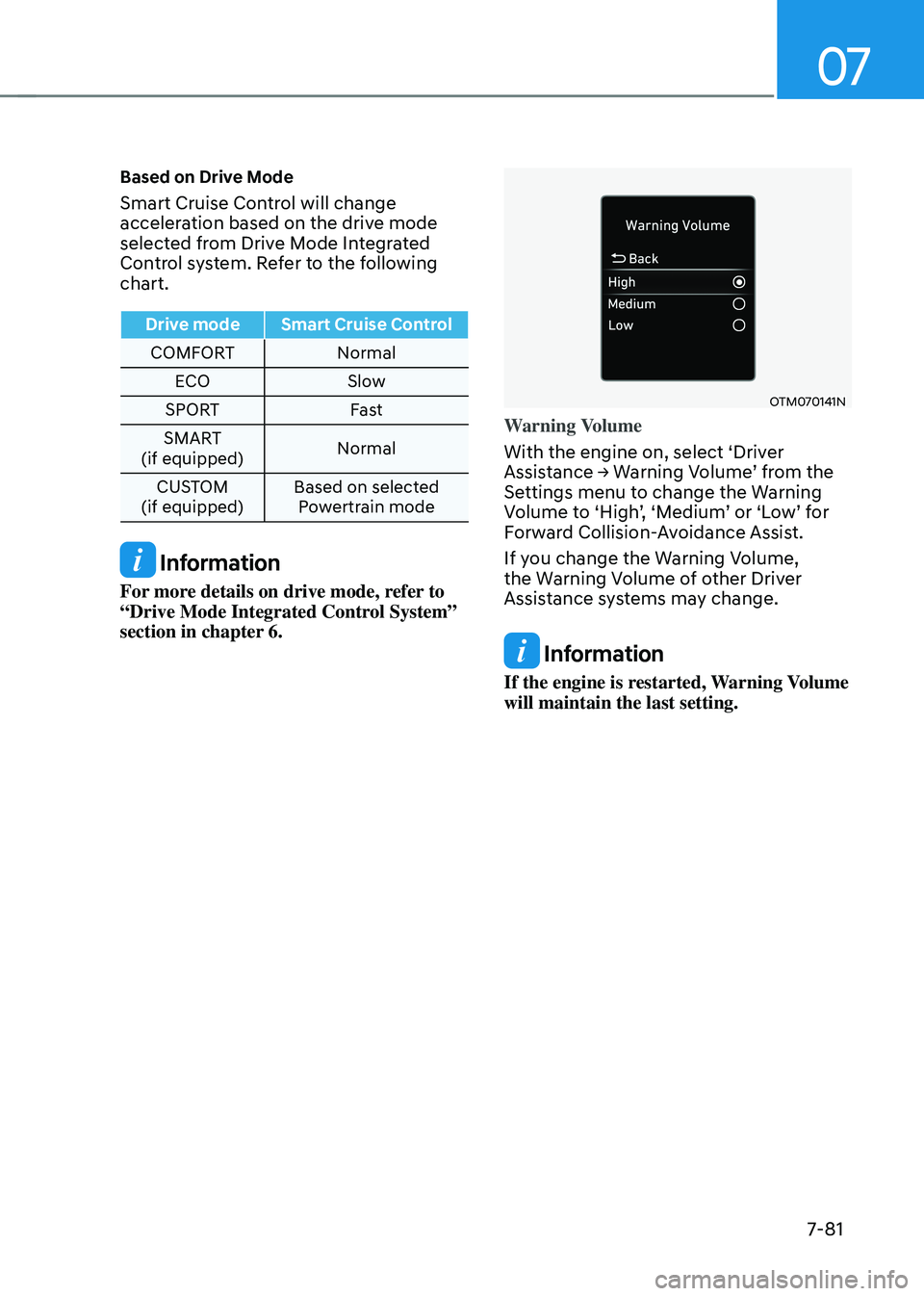
Warning Volume
With the engine on, select ‘Driver
Assistance → Warning Volume’ from the Settings menu to change the Warning Volume to ‘High’, ‘Medium’ or ‘Low’ for Forward Collision-Avoidance Assist.
If you change the Warning Volume,
the Warning Volume of other Driver
Assistance systems may change.
Information
If the engine is restarted, Warning Volume
will maintain the last setting.
Page 446 of 638
07
7-83
Smart Cruise Control Display and
Control
Basic function
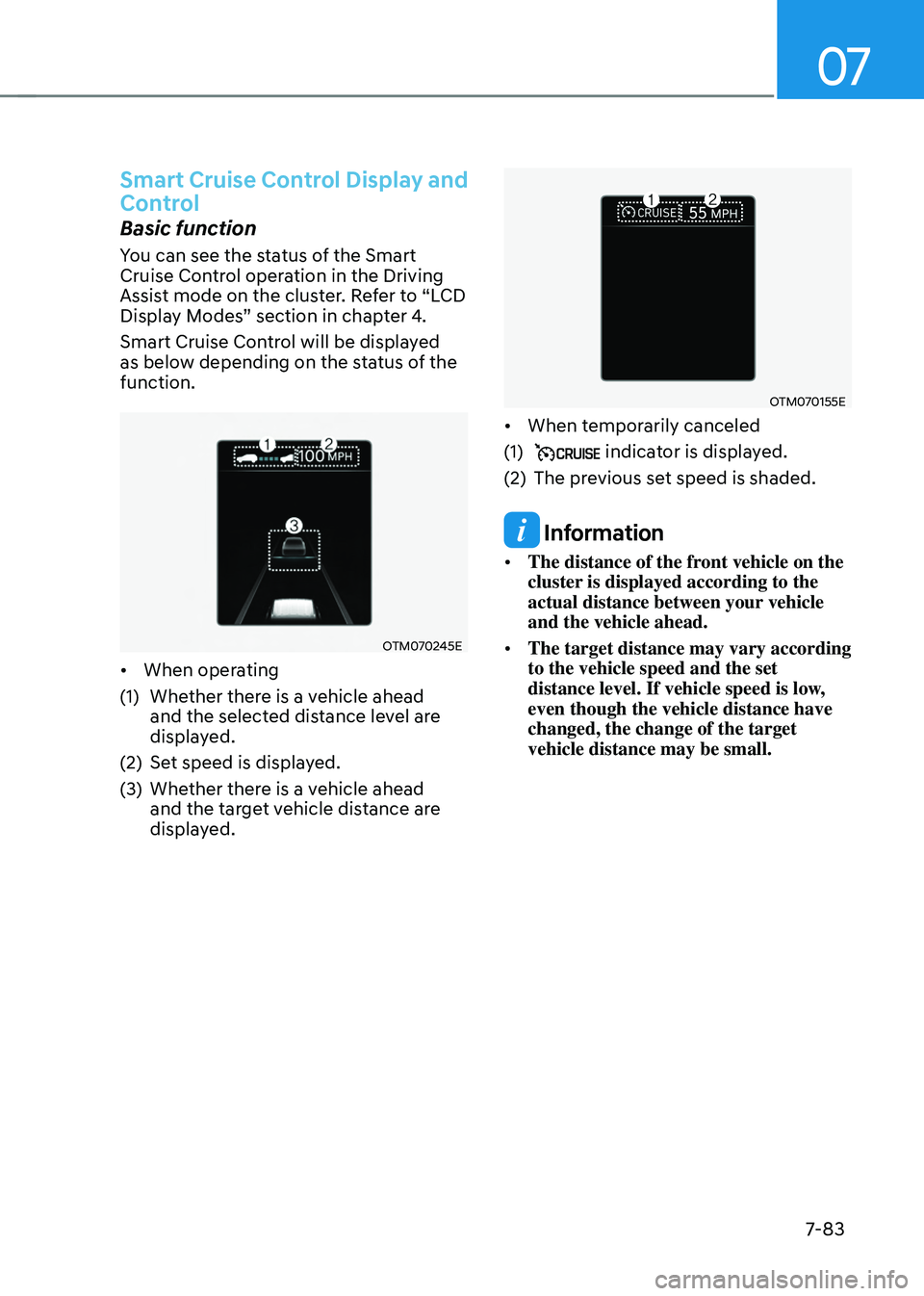
You can see the status of the Smart
Cruise Control operation in the Driving
Assist mode on the cluster. Refer to “LCD
Display Modes” section in chapter 4.
Smart Cruise Control will be displayed
as below depending on the status of the
function.
OTM070245E
• When operating
(1) Whether there is a vehicle ahead
and the selected distance level are
displayed.
(2) Set speed is displayed.
(3) Whether there is a vehicle ahead
and the target vehicle distance are
displayed.
OTM070155E
• When temporarily canceled
(1) indicator is displayed.
(2) The previous set speed is shaded.
Information
• The distance of the front vehicle on the
cluster is displayed according to the
actual distance between your vehicle
and the vehicle ahead.
• The target distance may vary according
to the vehicle speed and the set
distance level. If vehicle speed is low,
even though the vehicle distance have
changed, the change of the target
vehicle distance may be small.
Page 458 of 638
07
7-95
Navigation-based Smart Cruise
Control Operation
Operating conditions
Navigation-based Smart Cruise Control
is ready to operate if all of the following
conditions are satisfied:
• Smart Cruise Control is operating
• Driving on main roads of highways (or
motorways)
Information
For more details on how to operate Smart
Cruise Control, refer to “Smart Cruise
Control (SCC)” section in chapter 7.
Navigation-based Smart Cruise
Control display and control
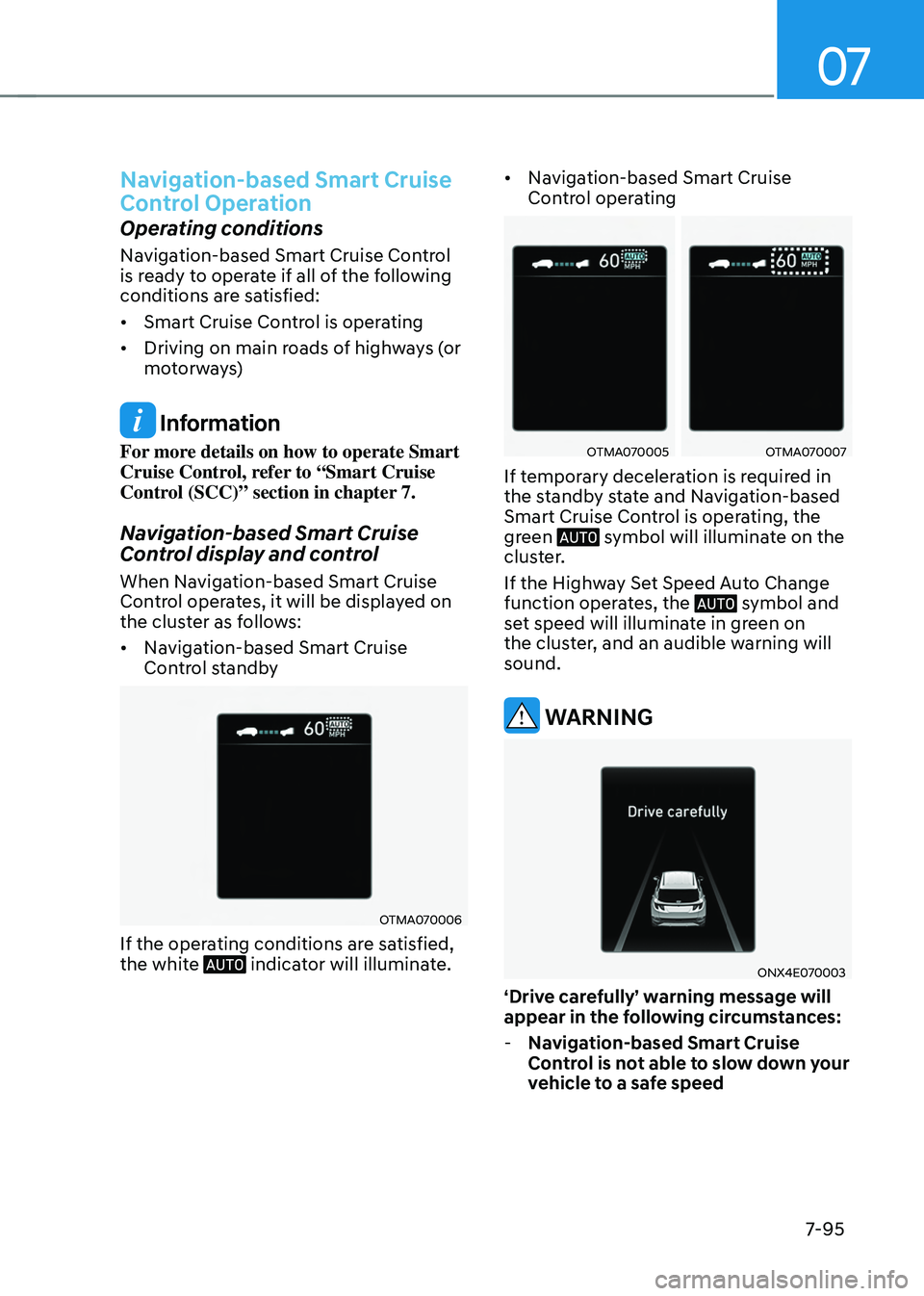
When Navigation-based Smart Cruise
Control operates, it will be displayed on
the cluster as follows:
• Navigation-based Smart Cruise
Control standby
OTMA070006
If the operating conditions are satisfied,
the white indicator will illuminate.
• Navigation-based Smart Cruise
Control operating
OTMA070005OTMA070007
If temporary deceleration is required in
the standby state and Navigation-based
Smart Cruise Control is operating, the
green
symbol will illuminate on the cluster.
If the Highway Set Speed Auto Change
function operates, the
symbol and set speed will illuminate in green on
the cluster, and an audible warning will
sound.
WARNING
ONX4E070003
‘Drive carefully’ warning message will
appear in the following circumstances:
-Navigation-based Smart Cruise
Control is not able to slow down your
vehicle to a safe speed
Page 464 of 638
07
7-101
LANE FOLLOWING ASSIST (LFA)
Lane Following Assist is designed to help
detect lane markings and/or vehicles on
the road, and assists the driver’s steering to help center the vehicle in the lane.
Detecting sensor
ONX4E050146[1] : Front view camera
The front view camera is used as a
detecting sensor to help detect lane
markings and vehicles in front.
Refer to the picture above for the
detailed location of the detecting sensor.
CAUTION
For more details on the precautions
of the front view camera, refer to
“Forward Collision-Avoidance Assist
(FCA)” section in chapter 7.
Lane Following Assist Settings
Setting features
OCN7060087
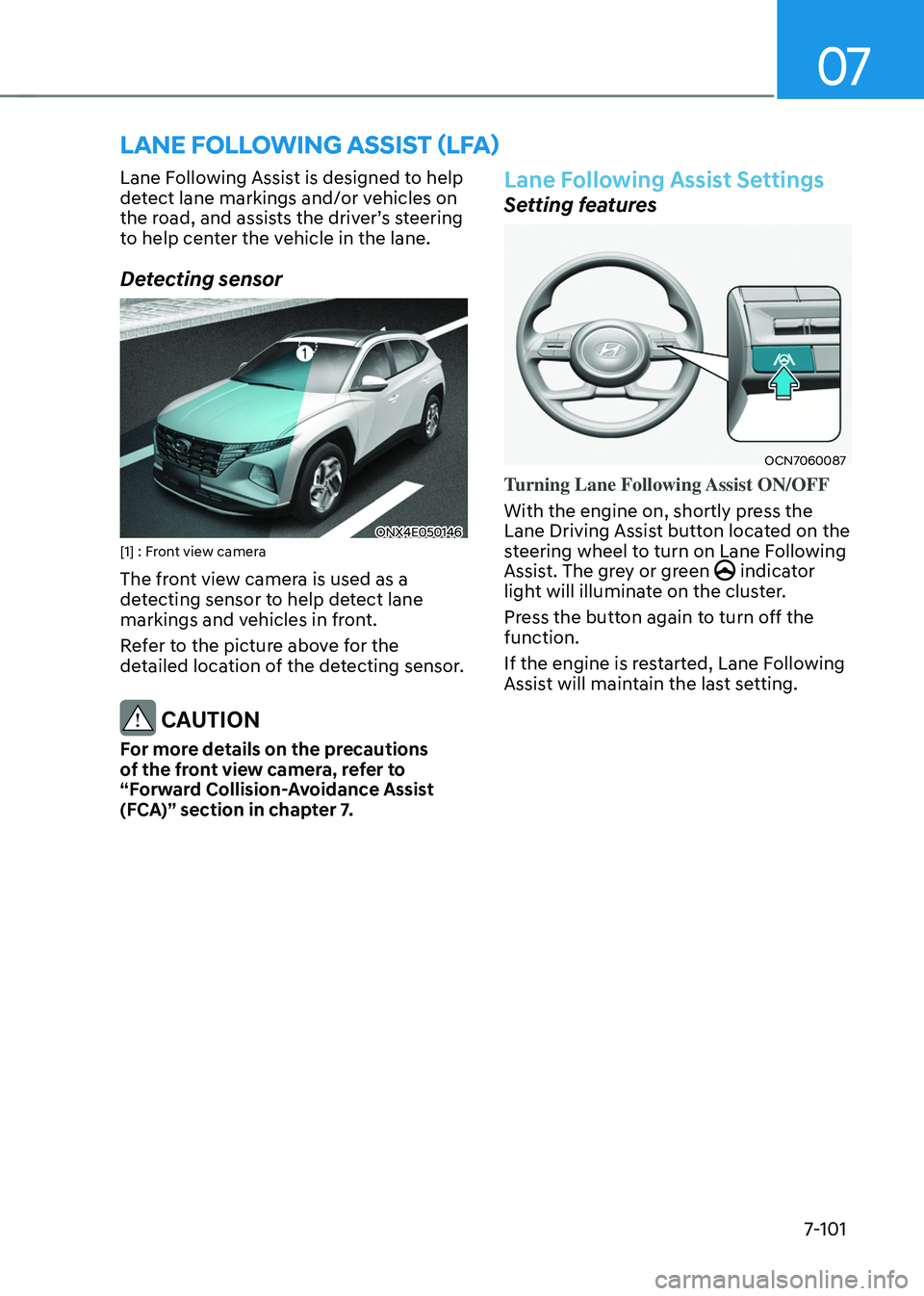
Turning Lane Following Assist ON/OFF
With the engine on, shortly press the
Lane Driving Assist button located on the
steering wheel to turn on Lane Following
Assist. The grey or green
indicator light will illuminate on the cluster.
Press the button again to turn off the
function.
If the engine is restarted, Lane Following
Assist will maintain the last setting.
Page 467 of 638
Driver assistance system7-104
Information
• You may change settings from the
instrument cluster (User Settings) or
infotainment system (Vehicle Settings),
whichever option that is provided with
your vehicle. For more details, see
"User Settings" section in chapter 4, or
"Vehicle Settings" section in supplied
Infotainment Manual.
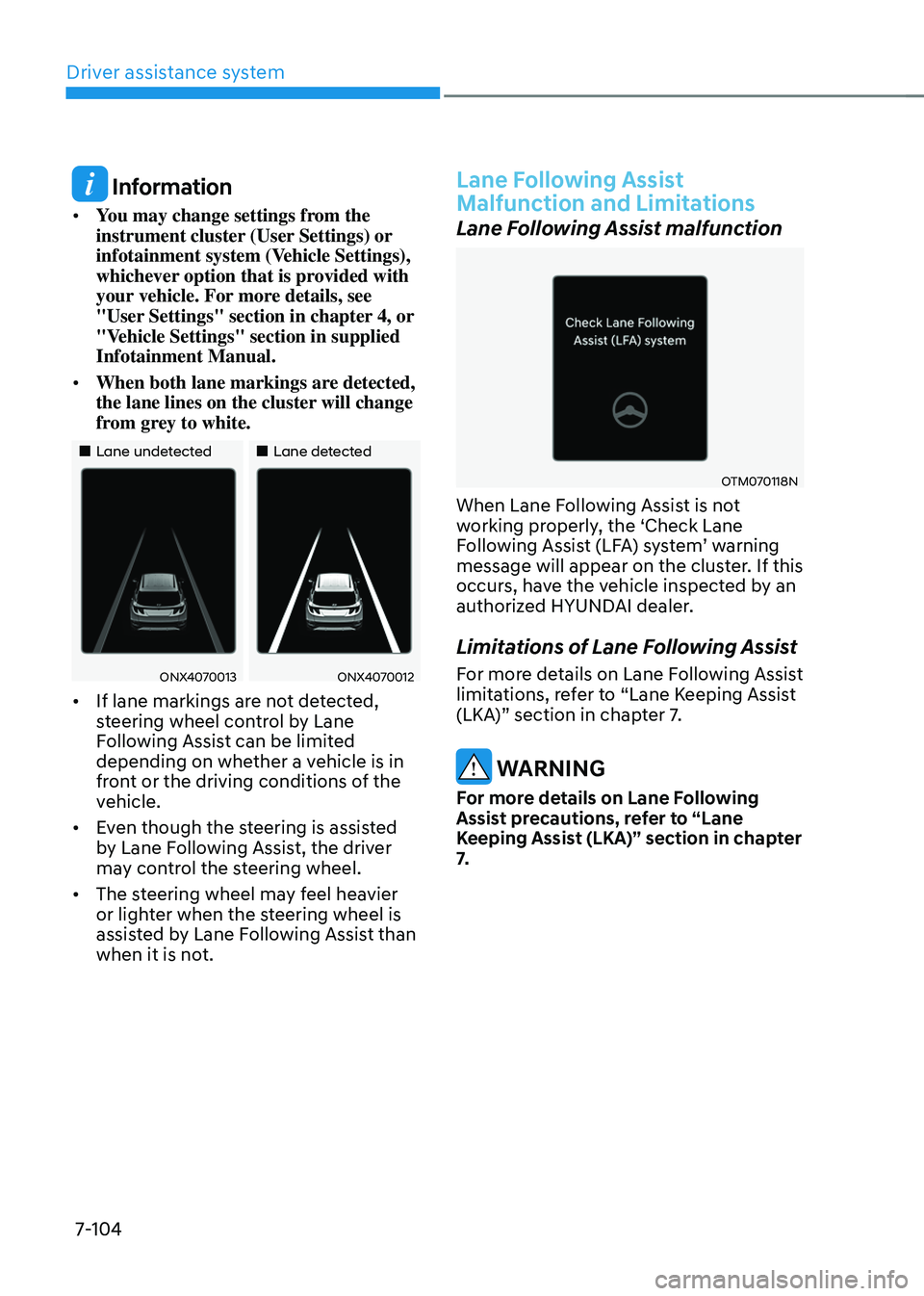
• When both lane markings are detected,
the lane lines on the cluster will change
from grey to white.
„„Lane undetected„„Lane detected
ONX4070013ONX4070012
• If lane markings are not detected,
steering wheel control by Lane
Following Assist can be limited
depending on whether a vehicle is in
front or the driving conditions of the
vehicle.
• Even though the steering is assisted
by Lane Following Assist, the driver
may control the steering wheel.
• The steering wheel may feel heavier
or lighter when the steering wheel is
assisted by Lane Following Assist than
when it is not.
Lane Following Assist
Malfunction and Limitations
Lane Following Assist malfunction
OTM070118N
When Lane Following Assist is not
working properly, the ‘Check Lane
Following Assist (LFA) system’ warning message will appear on the cluster. If this
occurs, have the vehicle inspected by an
authorized HYUNDAI dealer.
Limitations of Lane Following Assist
For more details on Lane Following Assist
limitations, refer to “Lane Keeping Assist
(LKA)” section in chapter 7.
WARNING
For more details on Lane Following
Assist precautions, refer to “Lane
Keeping Assist (LKA)” section in chapter
7.
Page 468 of 638
07
7-105
HIGHWAY DRIVING ASSIST (HDA) (IF EQUIPPED)
Highway Driving Assist is designed to
help detect vehicles and lanes ahead,
and help maintain distance from the
vehicle ahead, maintain the set speed,
and help center the vehicle in the
lane while driving on the highway (or
motorway).
OADAS035
Information
• The Highway Driving Assist is available
only on controlled access road of
certain highways.
ÃControlled access road indicates
roads with limited entrances and
exits that allow uninterrupted high
speed traffic flow. Only passenger
cars and motorcycles are allowed on
controlled access roads.
• Additional highways may be expanded
by future navigation updates.
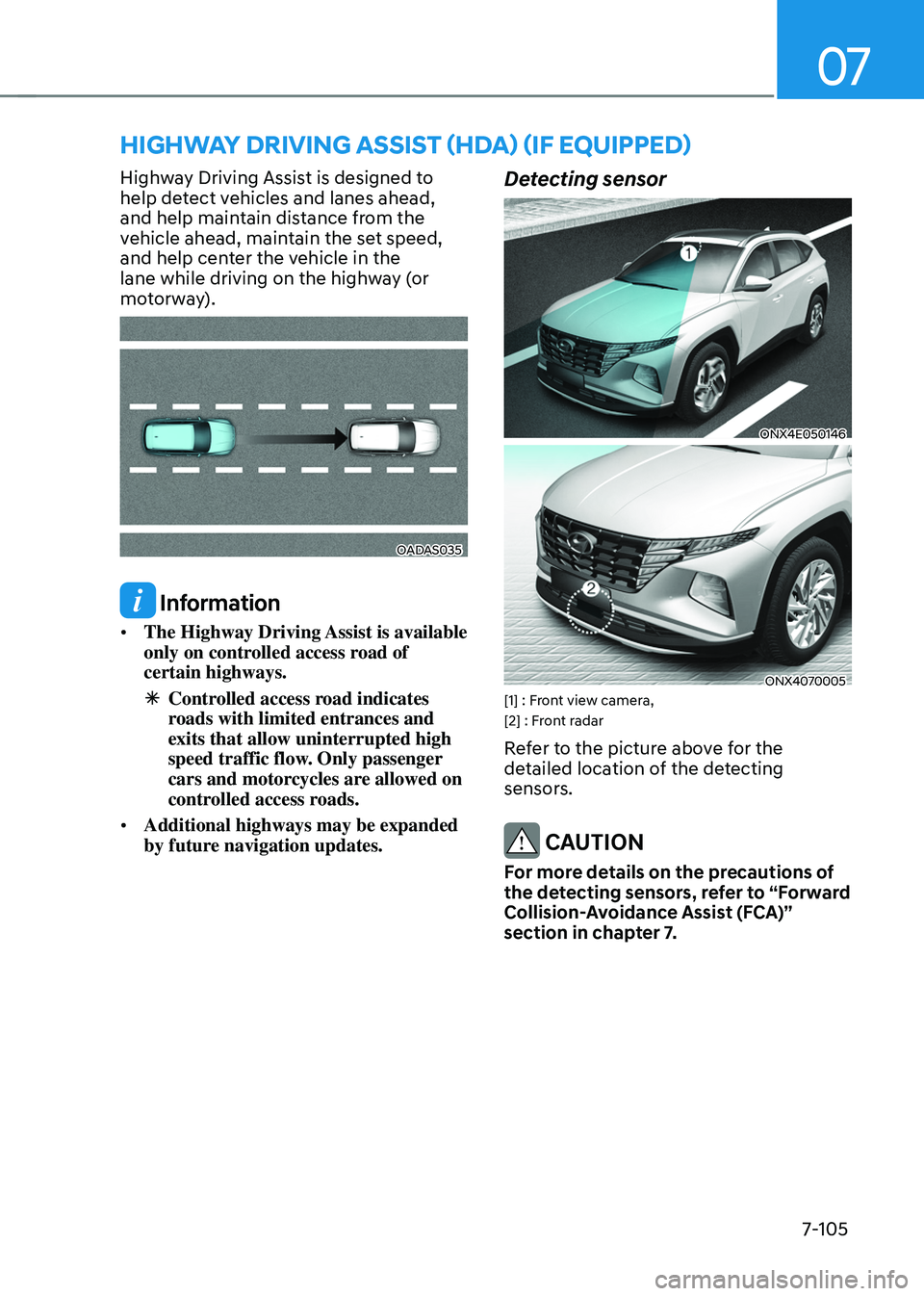
Detecting sensor
ONX4E050146
ONX4070005[1] : Front view camera,
[2] : Front radar
Refer to the picture above for the
detailed location of the detecting
sensors.
CAUTION
For more details on the precautions of
the detecting sensors, refer to “Forward
Collision-Avoidance Assist (FCA)”
section in chapter 7.