Ac system HYUNDAI TUCSON 2023 Owners Manual
[x] Cancel search | Manufacturer: HYUNDAI, Model Year: 2023, Model line: TUCSON, Model: HYUNDAI TUCSON 2023Pages: 638, PDF Size: 26.51 MB
Page 429 of 638
Driver assistance system
7-66
OTM070140N
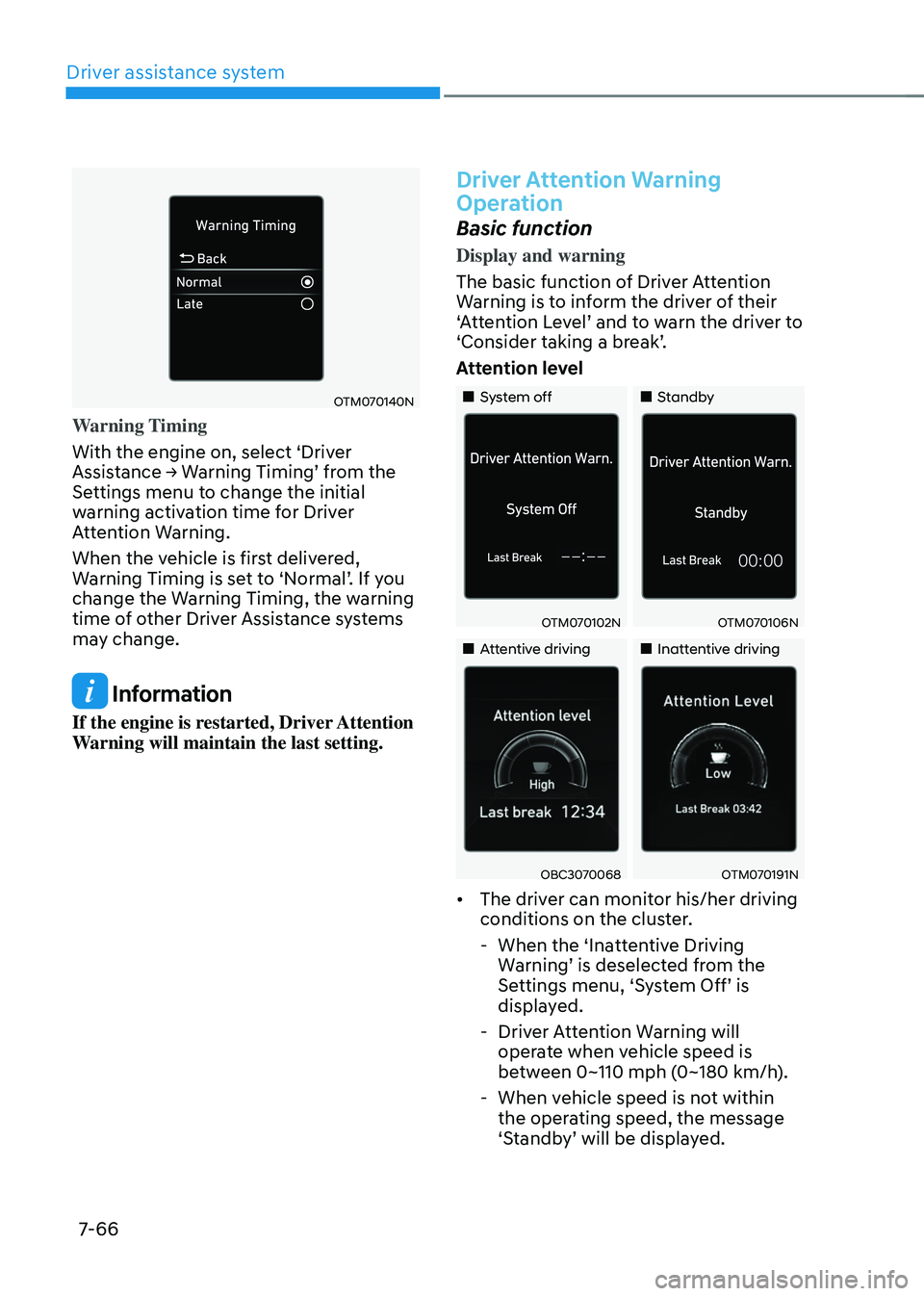
Warning Timing
With the engine on, select ‘Driver
Assistance → Warning Timing’ from the Settings menu to change the initial
warning activation time for Driver
Attention Warning.
When the vehicle is first delivered,
Warning Timing is set to ‘Normal’. If you change the Warning Timing, the warning
time of other Driver Assistance systems
may change.
Information
If the engine is restarted, Driver Attention
Warning will maintain the last setting.
Driver Attention Warning
Operation
Basic function
Display and warning
The basic function of Driver Attention
Warning is to inform the driver of their
‘Attention Level’ and to warn the driver to ‘Consider taking a break’.
Attention level
„„System off„„Standby
OTM070102NOTM070106N
„„Attentive driving„„Inattentive driving
OBC3070068OTM070191N
• The driver can monitor his/her driving
conditions on the cluster.
-When the ‘Inattentive Driving Warning’ is deselected from the Settings menu, ‘System Off’ is displayed.
-Driver Attention Warning will
operate when vehicle speed is
between 0~110 mph (0~180 km/h).
-When vehicle speed is not within
the operating speed, the message
‘Standby’ will be displayed.
Page 430 of 638
07
7-67
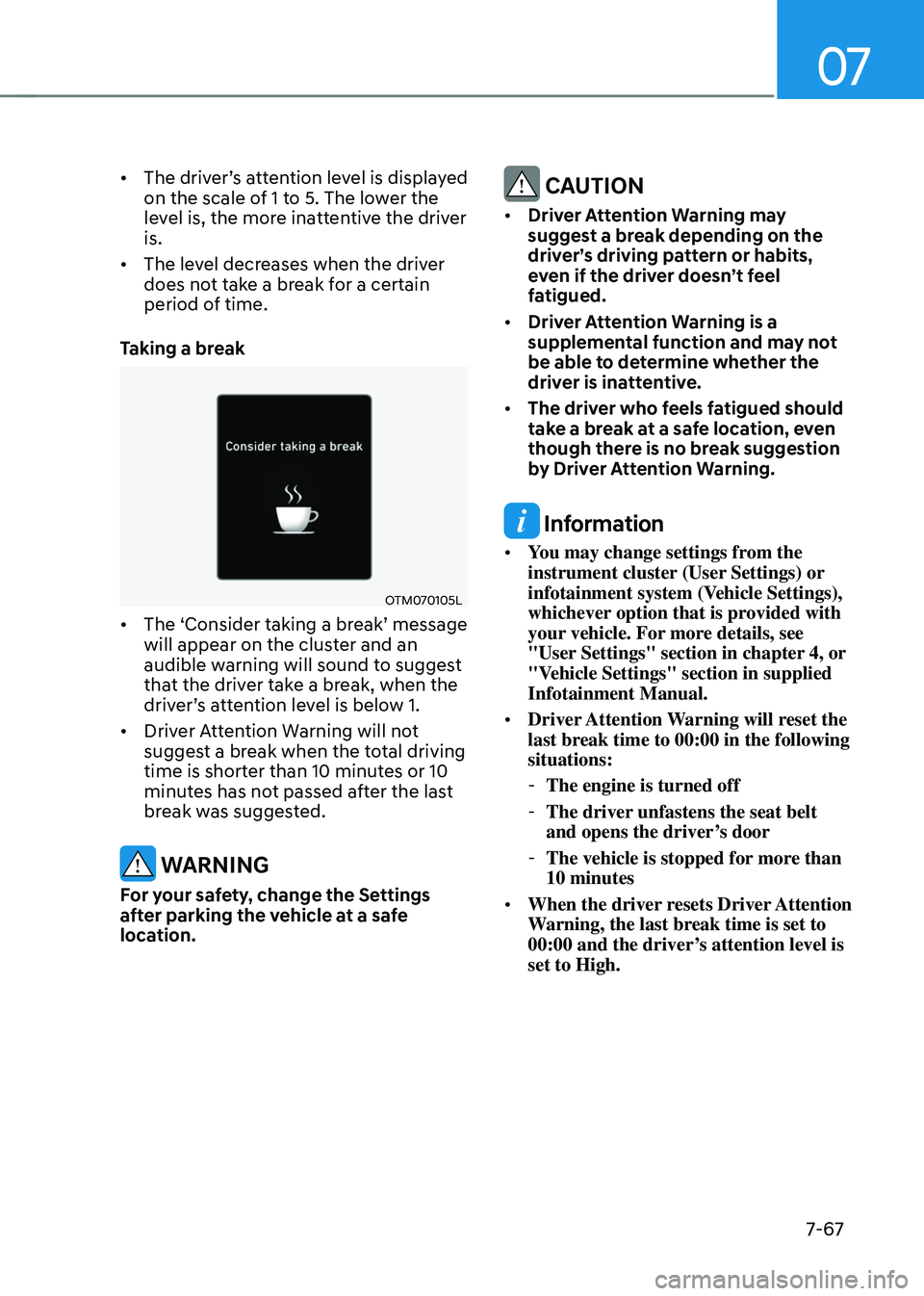
• The driver’s attention lev el is display ed on the scale of 1 to 5. The lower the
level is, the more inattentive the driver
is.
• The level decreases when the driver
does not take a break for a certain
period of time.
Taking a break
OTM070105L
• The ‘Consider taking a break’ message will appear on the cluster and an
audible warning will sound to suggest
that the driver take a break, when the
driver’s attention level is below 1.
• Driver Attention Warning will not
suggest a break when the total driving
time is shorter than 10 minutes or 10
minutes has not passed after the last
break was suggested.
WARNING
For your safety, change the Settings
after parking the vehicle at a safe
location.
CAUTION
• Driver Attention Warning may
suggest a break depending on the
driver’s driving pattern or habits,
even if the driver doesn’t feel
fatigued.
• Driver Attention Warning is a
supplemental function and may not
be able to determine whether the
driver is inattentive.
• The driver who feels fatigued should
take a break at a safe location, even
though there is no break suggestion
by Driver Attention Warning.
Information
• You may change settings from the
instrument cluster (User Settings) or
infotainment system (Vehicle Settings),
whichever option that is provided with
your vehicle. For more details, see
"User Settings" section in chapter 4, or
"Vehicle Settings" section in supplied
Infotainment Manual.
• Driver Attention Warning will reset the
last break time to 00:00 in the following
situations:
-The engine is turned off
-The driver unfastens the seat belt
and opens the driver’s door
-The vehicle is stopped for more than
10 minutes
• When the driver resets Driver Attention
Warning, the last break time is set to
00:00 and the driver’s attention level is
set to High.
Page 431 of 638
Driver assistance system
7-68
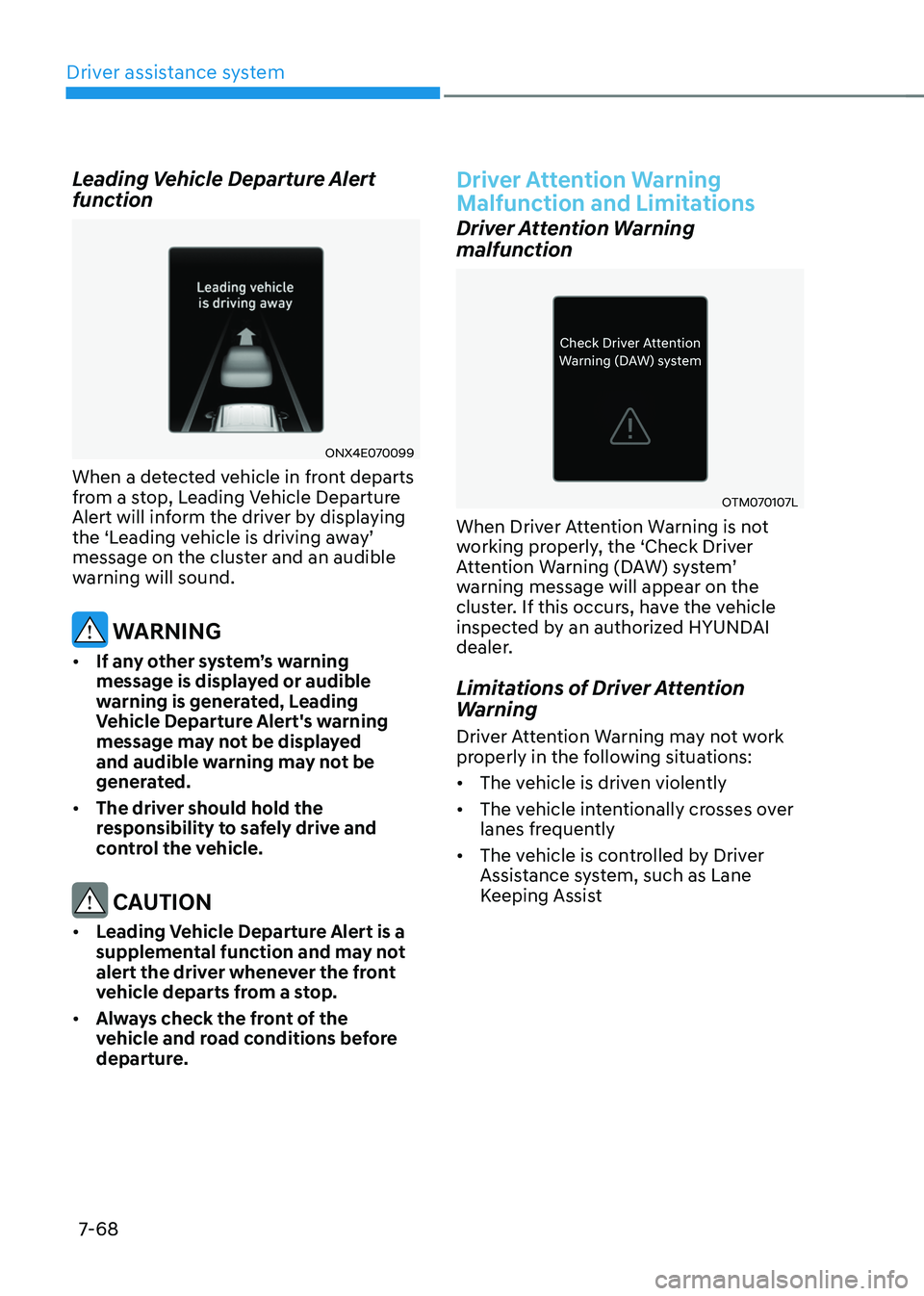
Leading Vehicle Departure Alert
function
ONX4E070099
When a detected vehicle in front departs
from a stop, Leading Vehicle Departure
Alert will inform the driver by displaying
the ‘Leading vehicle is driving away’ message on the cluster and an audible
warning will sound.
WARNING
• If any other system’s warning
message is displayed or audible
warning is generated, Leading
Vehicle Departure Alert's warning
message may not be displayed
and audible warning may not be
generated.
• The driver should hold the
responsibility to safely drive and
control the vehicle.
CAUTION
• Leading Vehicle Departure Alert is a
supplemental function and may not
alert the driver whenever the front
vehicle departs from a stop.
• Always check the front of the
vehicle and road conditions before
departure.
Driver Attention Warning
Malfunction and Limitations
Driver Attention Warning
malfunction
OTM070107L
When Driver Attention Warning is not
working properly, the ‘Check Driver
Attention Warning (DAW) system’ warning message will appear on the
cluster. If this occurs, have the vehicle
inspected by an authorized HYUNDAI
dealer.
Limitations of Driver Attention
Warning
Driver Attention Warning may not work
properly in the following situations:
• The vehicle is driven violently
• The vehicle intentionally crosses over
lanes frequently
• The vehicle is controlled by Driver
Assistance system, such as Lane
Keeping Assist
Page 433 of 638
Driver assistance system
7-7 0
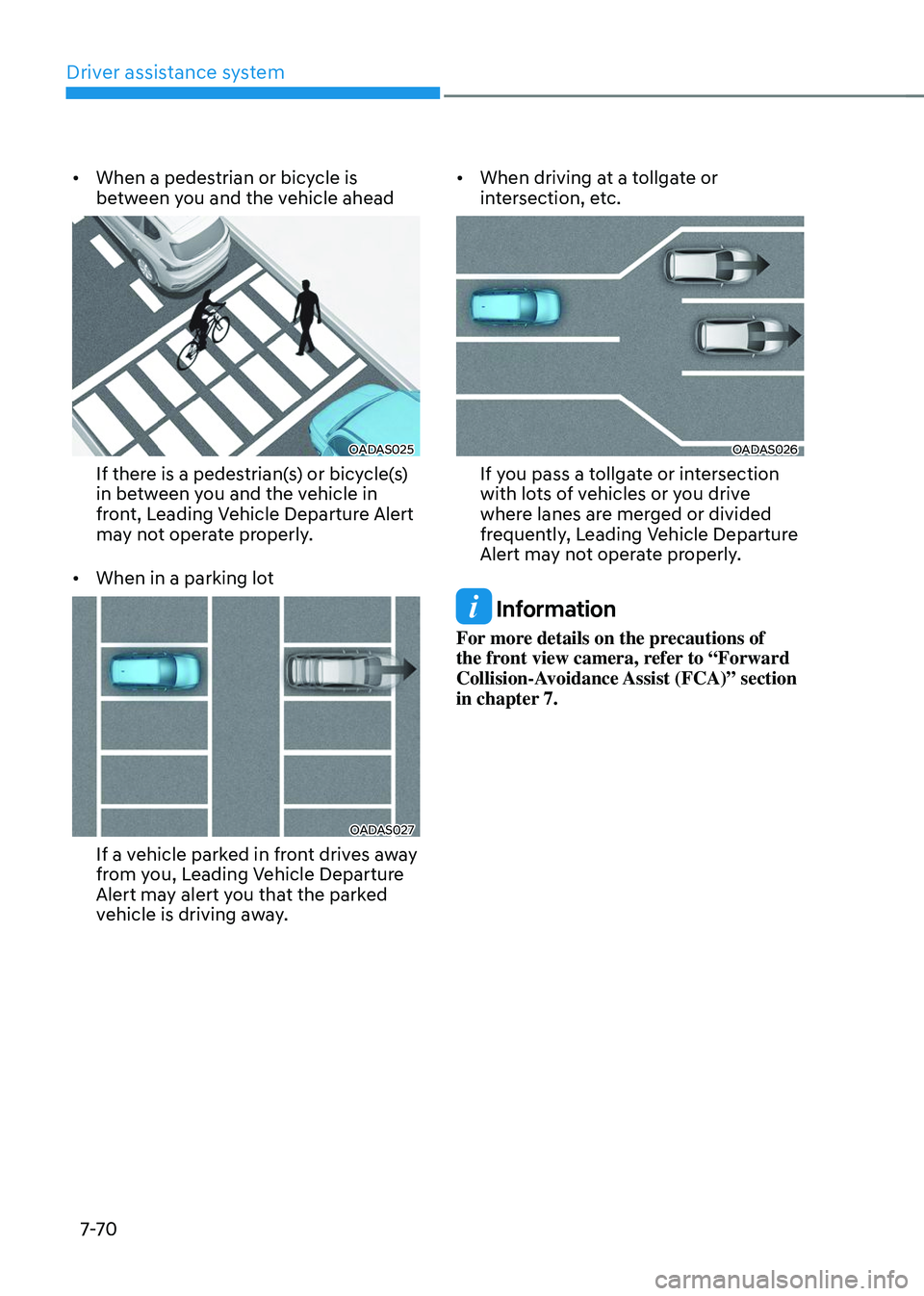
• When a pedestrian or bicycle is
between you and the vehicle ahead
OADAS025
If there is a pedestrian(s) or bicycle(s)
in between you and the vehicle in
front, Leading Vehicle Departure Alert
may not operate properly.
• When in a parking lot
OADAS027
If a vehicle parked in front drives away
from you, Leading Vehicle Departure
Alert may alert you that the parked
vehicle is driving away. •
When driving at a tollgate or
intersection, etc.
OADAS026
If you pass a tollgate or intersection
with lots of vehicles or you drive
where lanes are merged or divided
frequently, Leading Vehicle Departure
Alert may not operate properly.
Information
For more details on the precautions of
the front view camera, refer to “Forward
Collision-Avoidance Assist (FCA)” section
in chapter 7.
Page 435 of 638
Driver assistance system
7-7 2
Blind-Spot View Monitor
Operating conditions
When the left or right side turn signal
turns on, the image in that direction is
displayed on the instrument cluster.
Off conditions
• When the turn signal turns off, the
image on the instrument cluster will
turn off.
• When the hazard warning flasher
is on, Blind-Spot View Monitor will
turn off, regardless of the turn signal
status.
• When other important warning is
displayed on the instrument cluster,
Blind-Spot View Monitor may turn off.
Blind-Spot View Monitor
Malfunction
When Blind-Spot View Monitor is not
working properly, or the cluster display
flickers, or the camera image does
not display normally, have the vehicle
inspected by an authorized HYUNDAI
dealer.
WARNING
• The image shown on the cluster may
differ from the actual distance of the
object. Make sure to directly check
the vehicle's surroundings for safety.
• Always keep the camera lens clean.
If the lens is covered with foreign
material, it may adversely affect
camera performance and Blind-
Spot View Monitor may not operate
normally.
Page 437 of 638
Driver assistance system
7-74
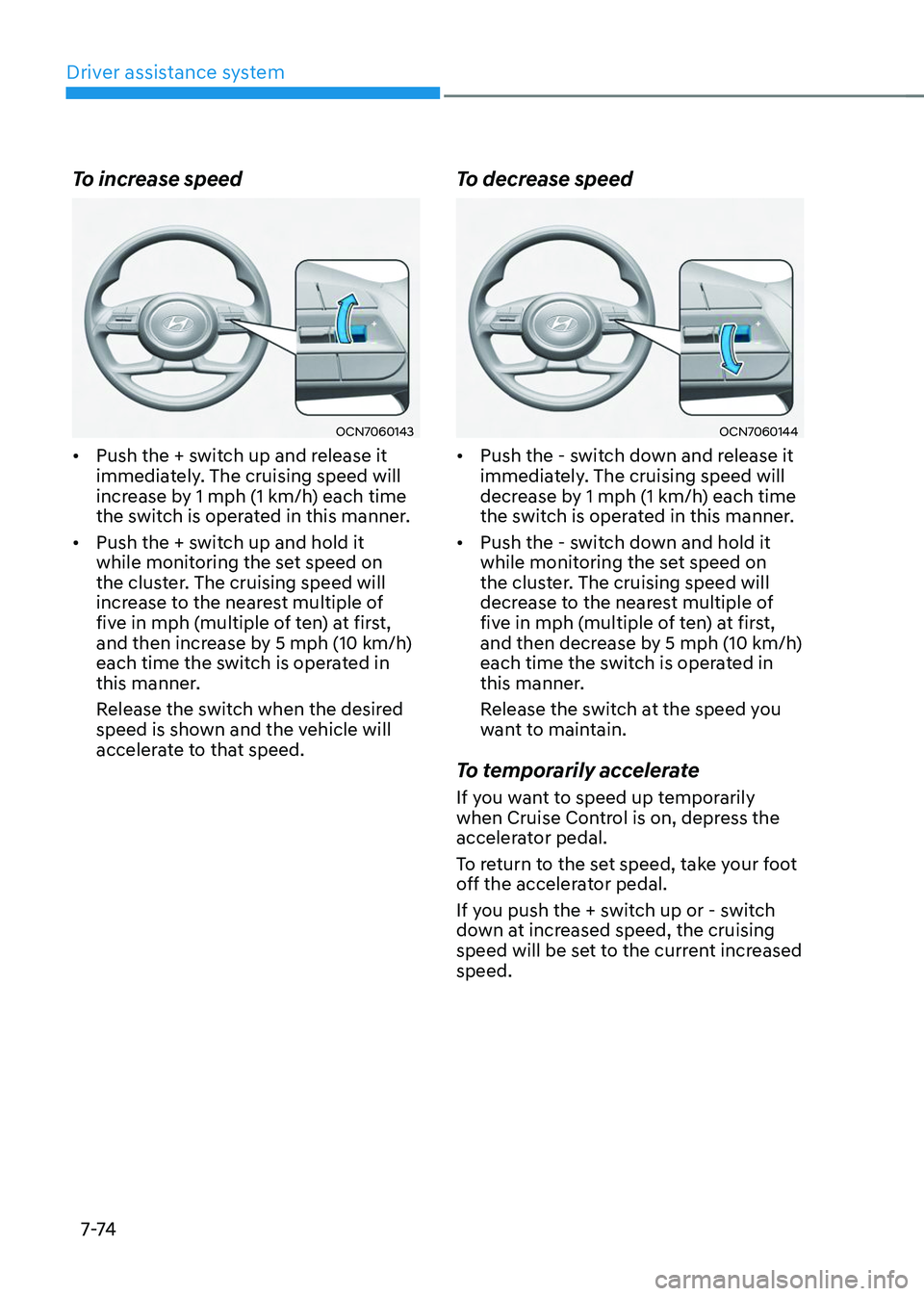
To increase speed
OCN7060143
• Push the + switch up and release it
immediately. The cruising speed will
increase by 1 mph (1 km/h) each time
the switch is operated in this manner.
• Push the + switch up and hold it
while monitoring the set speed on
the cluster. The cruising speed will
increase to the nearest multiple of
five in mph (multiple of ten) at first,
and then increase by 5 mph (10 km/h)
each time the switch is operated in
this manner.
Release the switch when the desired
speed is shown and the vehicle will
accelerate to that speed.
To decrease speed
OCN7060144
• Push the - switch down and release it
immediately. The cruising speed will
decrease by 1 mph (1 km/h) each time
the switch is operated in this manner.
• Push the - switch down and hold it
while monitoring the set speed on
the cluster. The cruising speed will
decrease to the nearest multiple of
five in mph (multiple of ten) at first,
and then decrease by 5 mph (10 km/h)
each time the switch is operated in
this manner.
Release the switch at the speed you
want to maintain.
To temporarily accelerate
If you want to speed up temporarily
when Cruise Control is on, depress the
accelerator pedal.
To return to the set speed, take your foot
off the accelerator pedal.
If you push the + switch up or - switch
down at increased speed, the cruising
speed will be set to the current increased
speed.
Page 439 of 638
Driver assistance system
7-76
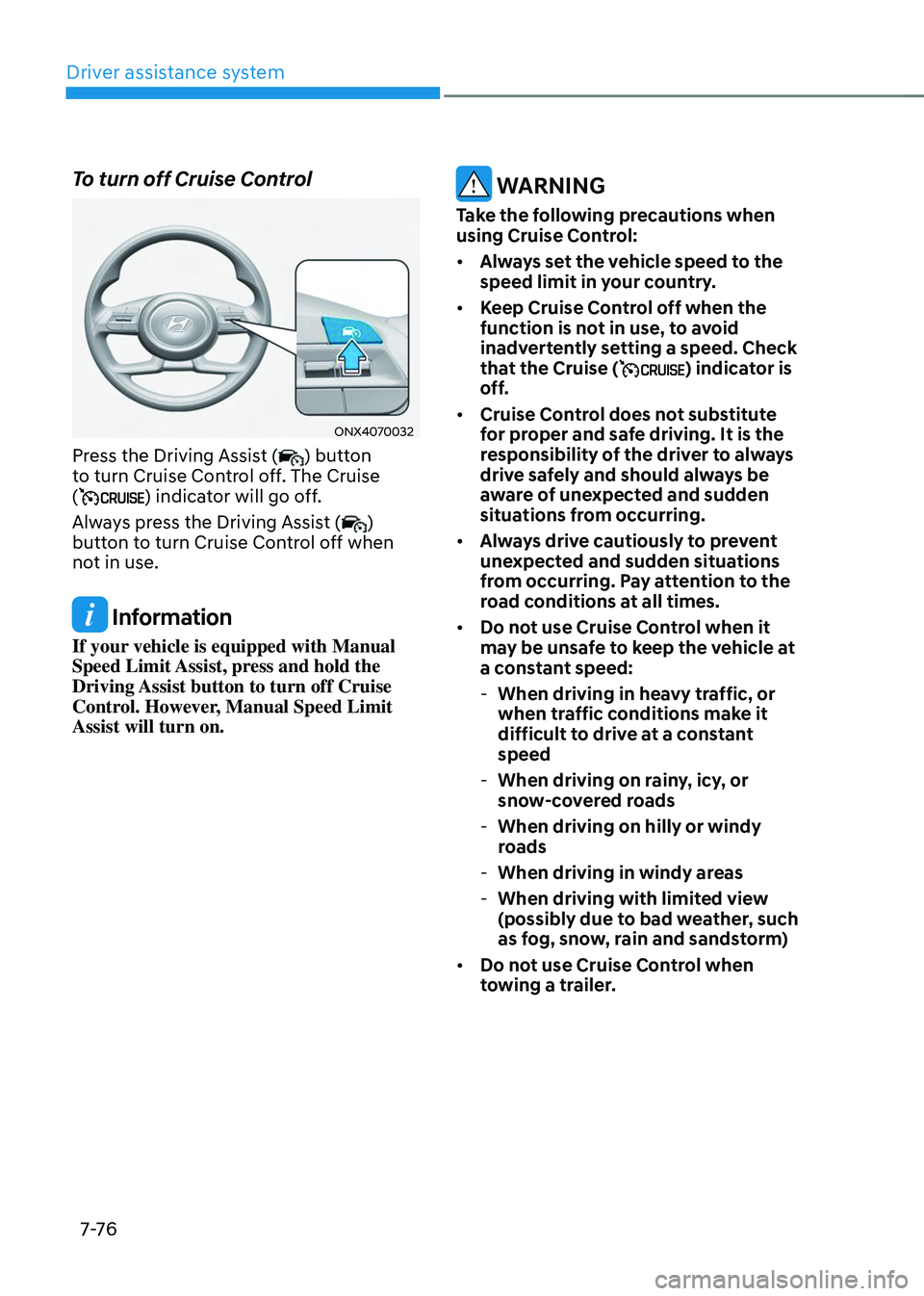
To turn off Cruise Control
ONX4070032
Press the Driving Assist () button
to turn Cruise Control off. The Cruise
(
) indicator will go off.
Always press the Driving Assist (
)
button to turn Cruise Control off when
not in use.
Information
If your vehicle is equipped with Manual
Speed Limit Assist, press and hold the
Driving Assist button to turn off Cruise
Control. However, Manual Speed Limit
Assist will turn on.
WARNING
Take the following precautions when
using Cruise Control:
• Always set the vehicle speed to the
speed limit in your country.
• Keep Cruise Control off when the
function is not in use, to avoid
inadvertently setting a speed. Check
that the Cruise (
) indicator is
off.
• Cruise Control does not substitute
for proper and safe driving. It is the
responsibility of the driver to always
drive safely and should always be
aware of unexpected and sudden
situations from occurring.
• Always drive cautiously to prevent
unexpected and sudden situations
from occurring. Pay attention to the
road conditions at all times.
• Do not use Cruise Control when it
may be unsafe to keep the vehicle at
a constant speed:
-When driving in heavy traffic, or
when traffic conditions make it
difficult to drive at a constant
speed
-When driving on rainy, icy, or
snow-covered roads
-When driving on hilly or windy
roads
-When driving in windy areas
-When driving with limited view
(possibly due to bad weather, such
as fog, snow, rain and sandstorm)
• Do not use Cruise Control when
towing a trailer.
Page 441 of 638
Driver assistance system
7-7 8
Smart Cruise Control Settings
Setting features
ONX4070032
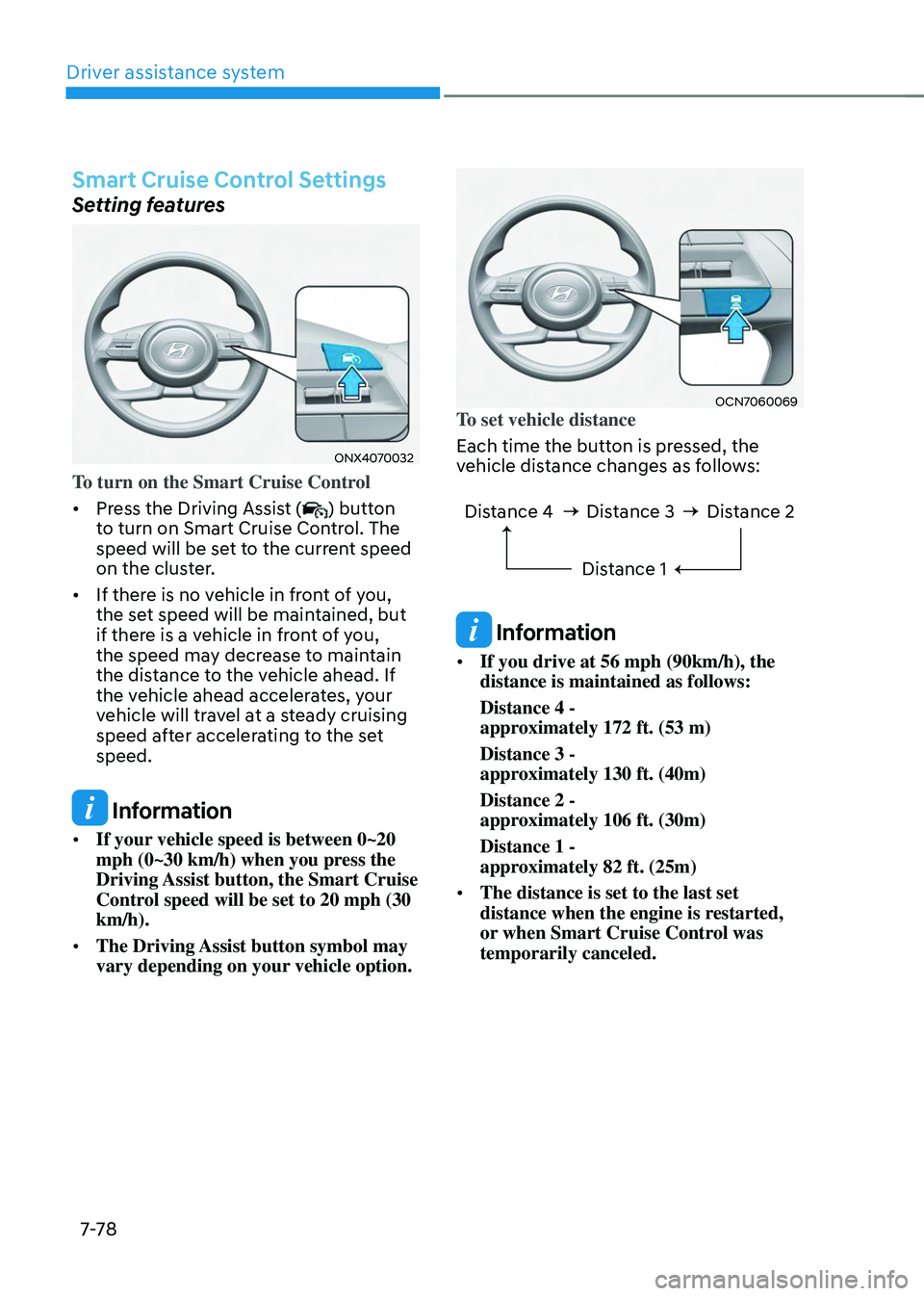
To turn on the Smart Cruise Control
• Press the Driving Assist (
) button
to turn on Smart Cruise Control. The
speed will be set to the current speed
on the cluster.
• If there is no vehicle in front of you,
the set speed will be maintained, but
if there is a vehicle in front of you,
the speed may decrease to maintain
the distance to the vehicle ahead. If
the vehicle ahead accelerates, your
vehicle will travel at a steady cruising
speed after accelerating to the set
speed.
Information
• If your vehicle speed is between 0~20
mph (0~30 km/h) when you press the
Driving Assist button, the Smart Cruise
Control speed will be set to 20 mph (30
km/h).
• The Driving Assist button symbol may
vary depending on your vehicle option.
OCN7060069To set vehicle distance
Each time the button is pressed, the
vehicle distance changes as follows:
Distance 4 Distance 3
Distance 1Distance 2
Information
• If you drive at 56 mph (90km/h), the
distance is maintained as follows:
Distance 4 -
approximately 172 ft. (53 m)
Distance 3 -
approximately 130 ft. (40m)
Distance 2 -
approximately 106 ft. (30m)
Distance 1 -
approximately 82 ft. (25m)
• The distance is set to the last set
distance when the engine is restarted,
or when Smart Cruise Control was
temporarily canceled.
Page 443 of 638
Driver assistance system
7-80
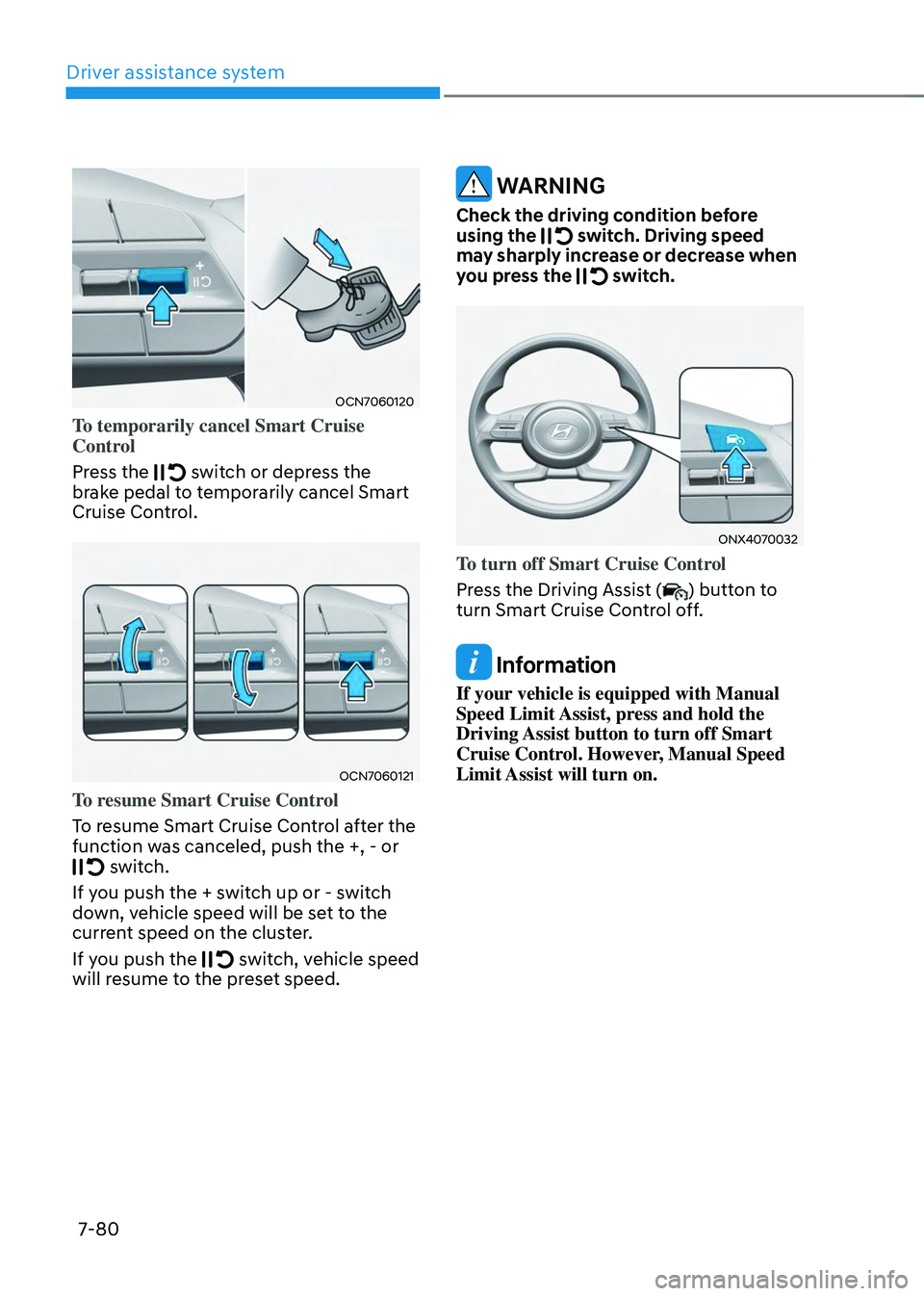
OCN7060120
To temporarily cancel Smart Cruise
Control
Press the
switch or depress the brake pedal to temporarily cancel Smart
Cruise Control.
OCN7060121
To resume Smart Cruise Control
To resume Smart Cruise Control after the
function was canceled, push the +, - or
switch.
If you push the + switch up or - switch
down, vehicle speed will be set to the
current speed on the cluster.
If you push the
switch, vehicle speed will resume to the preset speed.
WARNING
Check the driving condition before
using the switch. Driving speed may sharply increase or decrease when
you press the switch.
ONX4070032
To turn off Smart Cruise Control
Press the Driving Assist (
) button to
turn Smart Cruise Control off.
Information
If your vehicle is equipped with Manual
Speed Limit Assist, press and hold the
Driving Assist button to turn off Smart
Cruise Control. However, Manual Speed
Limit Assist will turn on.
Page 444 of 638
07
7-81
Based on Drive Mode
Smart Cruise Control will change
acceleration based on the drive mode
selected from Drive Mode Integrated
Control system. Refer to the following
chart.
Drive modeSmart Cruise Control
COMFORT Normal
ECO Slow
SPORT Fast
SMART
(if equipped) Normal
CUSTOM
(if equipped) Based on selected
Powertrain mode
Information
For more details on drive mode, refer to
“Drive Mode Integrated Control System”
section in chapter 6.
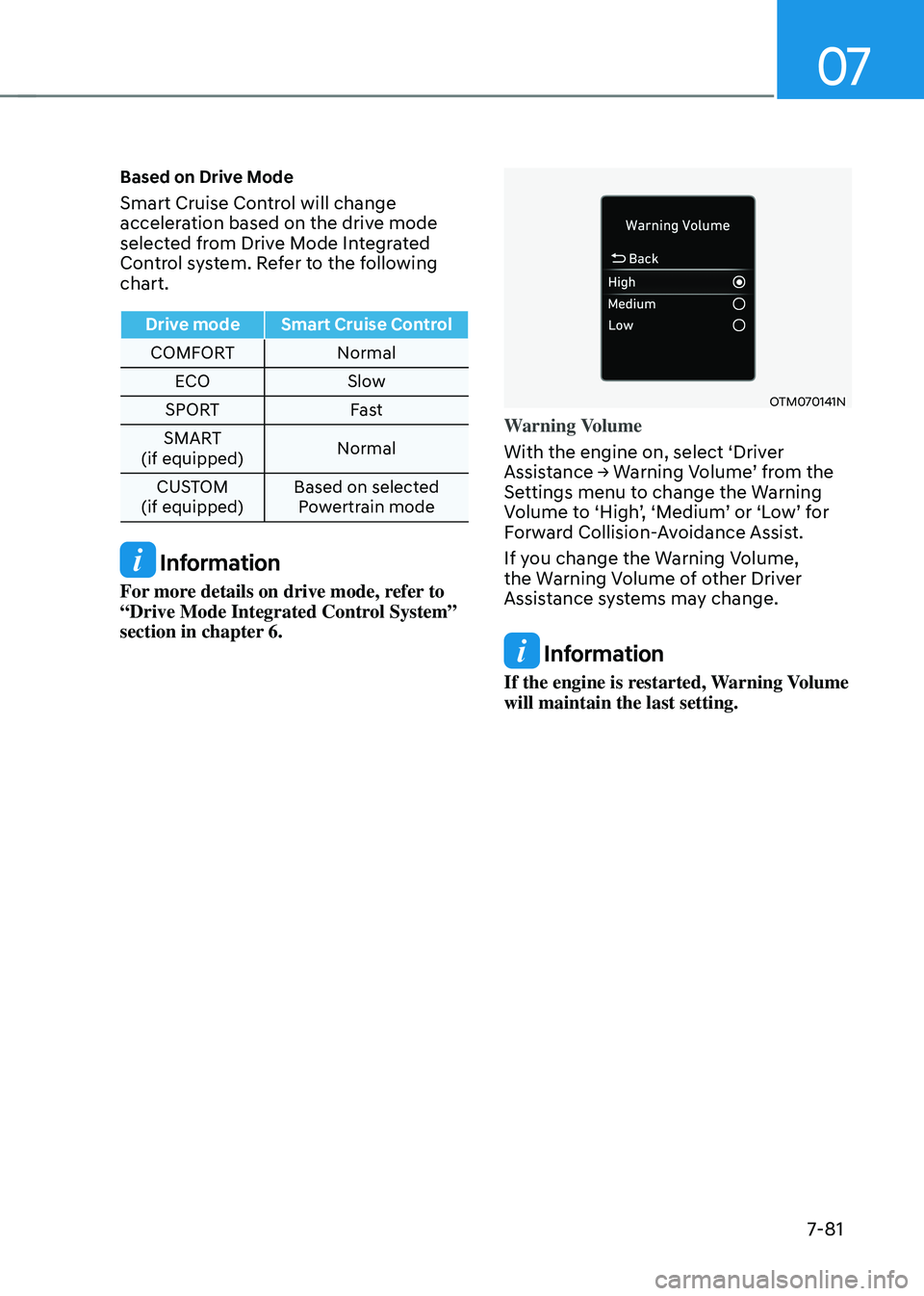
OTM070141N
Warning Volume
With the engine on, select ‘Driver
Assistance → Warning Volume’ from the Settings menu to change the Warning Volume to ‘High’, ‘Medium’ or ‘Low’ for Forward Collision-Avoidance Assist.
If you change the Warning Volume,
the Warning Volume of other Driver
Assistance systems may change.
Information
If the engine is restarted, Warning Volume
will maintain the last setting.