lock HYUNDAI TUCSON HYBRID 2021 Service Manual
[x] Cancel search | Manufacturer: HYUNDAI, Model Year: 2021, Model line: TUCSON HYBRID, Model: HYUNDAI TUCSON HYBRID 2021Pages: 630, PDF Size: 77.98 MB
Page 165 of 630
Convenient features
5-8
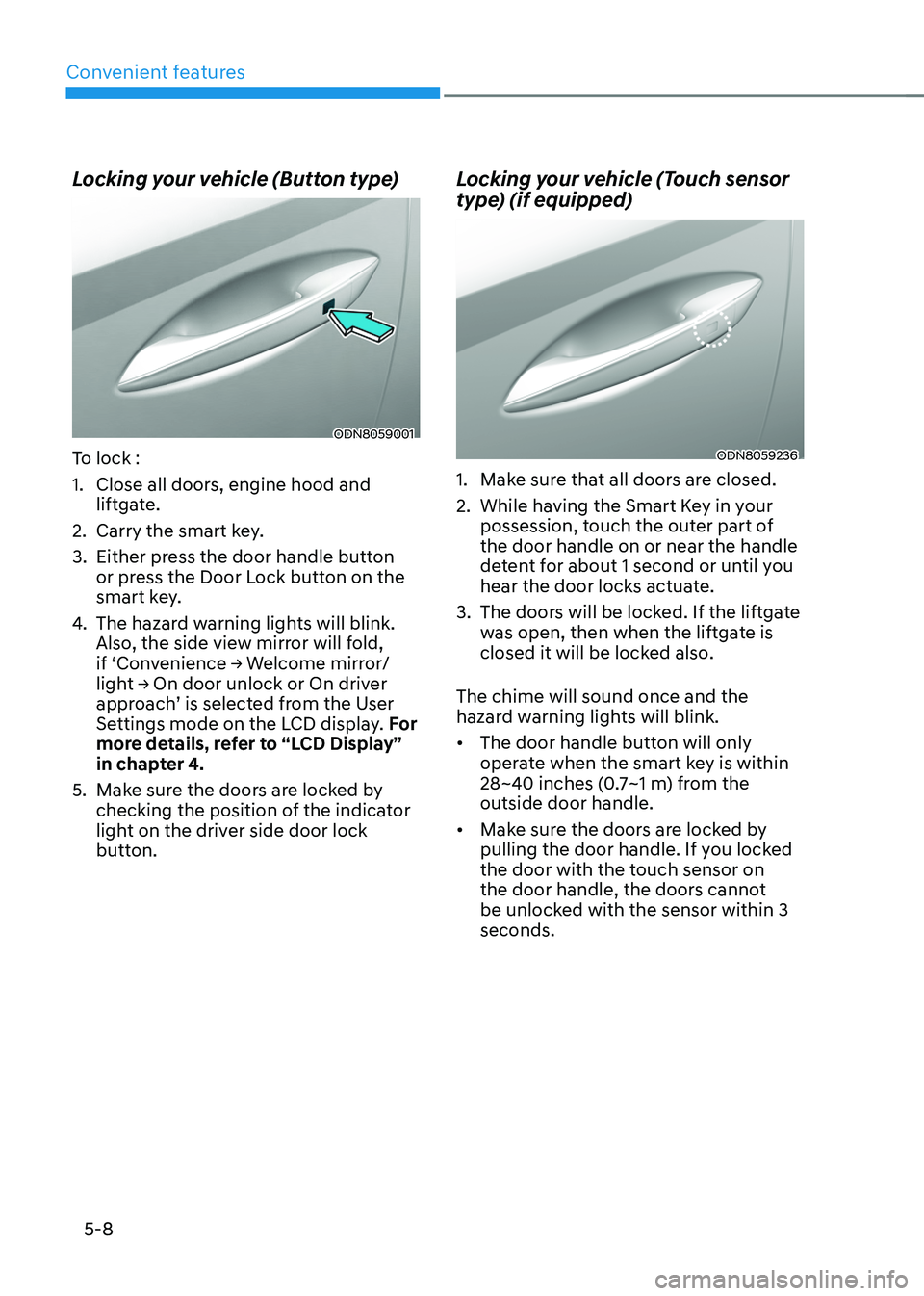
Locking your vehicle (Button type)
ODN8059001
To lock :
1.
Close all doors, engine hood and
lift
gate.
2.
Carry the smart ke
y.
3.
Either press the door handle butt
on
or press the Door Lock button on the
smart key.
4.
The hazard w
arning lights will blink.
Also, the side view mirror will fold,
if
‘Con
venience
→ W
elcome
mirr
or/
light
→ On door unlock or On driv
er
approach
’ is selected from the User
Settings mode on the LCD display. For
more details, refer to “LCD Display”
in chapter 4.
5.
Make sur
e the doors are locked by
checking the position of the indicator
light on the driver side door lock
button.
Locking your vehicle (Touch sensor
type) (if equipped)
ODN8059236
1. Make sure that all doors are closed.
2.
While having the Smart K
ey in your
possession, touch the outer part of
the door handle on or near the handle
detent for about 1 second or until you
hear the door locks actuate.
3.
The doors will be lock
ed. If the liftgate
was open, then when the liftgate is
closed it will be locked also.
The chime will sound once and the
hazard warning lights will blink.
• The door handle button will only
operate when the smart key is within
28~40 inches (0.7~1 m) from the
outside door handle.
• Make sure the doors are locked by
pulling the door handle. If you locked
the door with the touch sensor on
the door handle, the doors cannot
be unlocked with the sensor within 3
seconds.
Page 166 of 630
05
5-9
Note that if you press the outside door
handle to lock the doors using the touch
sensor, the doors will not lock under the
following circumstances:
• The Smart Key is in the vehicle
• The Engine Start/Stop button is in the
ACC or ON position
• Any of the doors are open (except for
the liftgate)
If this occurs, then a chime will sound
for about 3 seconds. Check the vehicle
before attempting to lock the car again.
CAUTION
Before you leave your vehicle with the
Smart Key, verify that your vehicle is
locked. When using the touch sensor
on the front door handle, listen to hear
that the lock has actuated, and then
pull the handle within 3 seconds to
confirm the doors are locked.
(if it has been longer than 3 seconds,
verify the doors are locked by pressing
the lock button on the Smart Key. You
will hear a single beep.)
WARNING
Do not leave the Smart Key in
your vehicle with children that are
unattended or unsupervised.
Children could inadvertently press
the Engine Start/Stop button or could
operate the power windows or other
vehicle controls or even cause the
vehicle to move. This could result in
serious injury or death.
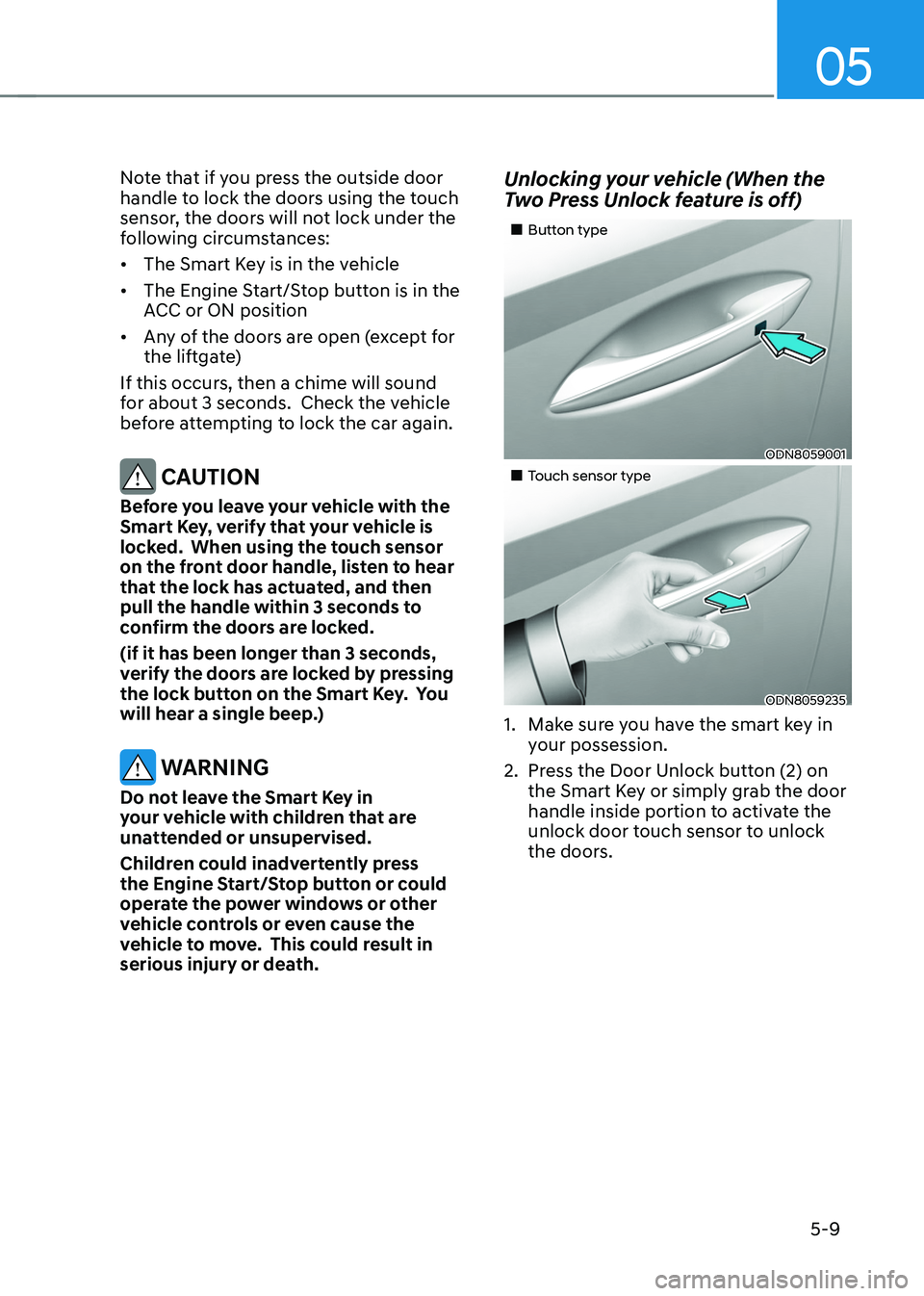
Unlocking your vehicle (When the
Two Press Unlock feature is off)
„„Button type
ODN8059001
„„Touch sensor type
ODN8059235
1. Make sure you have the smart key in
y our possession.
2.
Press the Door Unlock butt
on (2) on
the Smart Key or simply grab the door
handle inside portion to activate the
unlock door touch sensor to unlock
the doors.
Page 167 of 630
Convenient features
5-10
3. If you unlock the doors using the
passenger side door handle, all the
doors will unlock. If you unlock the
doors using the driver side door
handle, either the driver side door
will unlock or all the doors will unlock
depending on the setting for the Two
Press Unlock feature. Refer to User
Settings to change the Driver Door
unlock mode.
• The door handle button will only
operate when the smart key is within
28~40 inches (0.7~1 m) from the
outside door handle.
• If you do not open the door after
unlocking within 30 seconds, it will
return to the lock mode.
• If you unlocked the door with the door
handle, the doors cannot be locked
with the sensor within 2 seconds.Unlocking your vehicle
(When the Two Press Unlock feature
is on)
1. Make sure you have the smart key in
y
our possession.
2.
Press the Door Unlock butt
on (2) on
the smart key, press the button on the
front door handle or touch the door
unlock sensor inside of the front door
handle to unlock the doors.
3.
The driver’
s door will unlock.
4.
If you pr
ess the button on the front
door handle or touch the door unlock
sensor inside of the front door handle
to unlock the doors within 4 seconds,
all of the doors unlock. When the
doors unlock, the hazard warning
lights will blink two times and the
chime will sound.
• The door handle button will only
operate when the smart key is within
28~40 inches (0.7~1 m) from the
outside door handle.
• If you do not open the door after
unlocking within 30 seconds, it will
return to the lock mode.
• The factory default setting is in off
mode so you should set in the User’s
Settings mode.
• If you unlocked the door with the door
handle, the doors cannot be unlocked
with the sensor within 2 seconds.
Page 168 of 630
05
5-11
Two Press Unlock Feature
The priority for unlocking the driver door
only, or unlocking all the doors with
one press may be adjusted in the User
Settings mode in the cluster LCD display.
The Two Press Unlock feature, when
enabled, will require the user to press
the door unlock button once for driver
door only and twice for unlocking all the
doors.
Select or Deselect the Two Press Unlock
feature in the User Settings mode in the
cluster LCD display. The option can be
found under the following menu:
User
Se
ttings
→ Door → T
wo
Pr
ess
Unlock
The T
wo Press Unlock feature can also be
enabled or disabled by pressing the door
lock and unlock buttons simultaneously
on the Key FOB:
Press and hold both the Door Lock
button and the Door Unlock button
simultaneously until the hazard warning
lights blink.
This will enable or disable the Two Press
Unlock feature. Repeat this procedure to
enable/disable the mode again.
Information
If you press the front passenger outside
door handle with the smart key in your
possession, all the doors will unlock.
Opening or Unlocking the Liftgate
To open the liftgate:
1.
If your v
ehicle has a Smart Key, make
sure you have the Smart Key in your
possession.
2.
Press either the lift
gate open/close
button on the vehicle or press and
hold the liftgate open button on
the smart key for more than one
second. The hazard warning lights
will blink twice and the liftgate will be
unlocked. Pull up on the liftgate to
open. If your vehicle is equipped with
power liftgate then the liftgate will
automatically open.
Page 169 of 630
Convenient features
5-12
Remotely starting vehicle (if
equipped)
You can start the vehicle using the
Remote Start button on the smart key.
To start the vehicle remotely:
1.
Bef
ore you can use remote start your
vehicle, the door lock button must be
pressed. Press the door lock button
on the Smart Key. You must be within
about 32 feet (10m) from your vehicle.
2.
Press and hold the r
emote start
button on your Smart Key. You must
press the button within 4 seconds
from when you pressed the door lock
button to activate the remote start.
3.
The hazard w
arning lights will blink
and the engine will start.
4.
To turn o
ff the remote start function,
press the Remote Start button once.
Information
• The vehicle must be in P (Park) for the
remote start function to start.
• The engine turns off if you get on the
vehicle without a registered smart key.
• The engine turns off if you do not get
on the vehicle within 10 minutes after
remotely starting the vehicle.
• The Remote Start button may not
operate if the smart key is not within 32
feet (10 m).
• The vehicle will not remotely start if the
engine hood or liftgate is opened.
• Do not idle the engine for a long period.
Remote Smart Parking Assist
Feature (if equipped)
Some models are equipped with Remote
Smart Parking Assist Feature. With the
Smart Key, the vehicle can be moved
forward or backward remotely to enter or
exit a tight parking space.
For more details, refer to “Remote
Smart Parking Assist (RSPA)” section in
chapter 7.
Panic alarm
The horn sounds and the hazard warning
lights blink for about 30 seconds if
this button is pressed for more than 1
seconds. To stop the horn and lights,
press any button on the transmitter.
Push Button Start/Stop (if equipped)
Some models are equipped with a push
button start instead of a key cylinder.
You can leave your Smart Key in your
pocket or purse when you start your
vehicle.
For more details, refer to the “Engine
Start/Stop Button” section in chapter 6.
Information
If the smart key is not moved for some
time, the detection function for smart key
operation will pause. Lift the smart key to
activate the detection again.
NOTICE
To prevent damaging the smart key:
• Keep the smart key in a cool,
dry place to avoid damage or
malfunction. Exposure to moisture
or high temperature may cause
the internal circuit of the smart key
to malfunction which may not be
covered under warranty.
• Avoid dropping or throwing the
smart key.
• Protect the smart key from extreme
temperatures.
Page 170 of 630
05
5-13
Mechanical key
If the Smart Key does not operate
normally, you can lock or unlock the
driver’s door by using the mechanical
key.
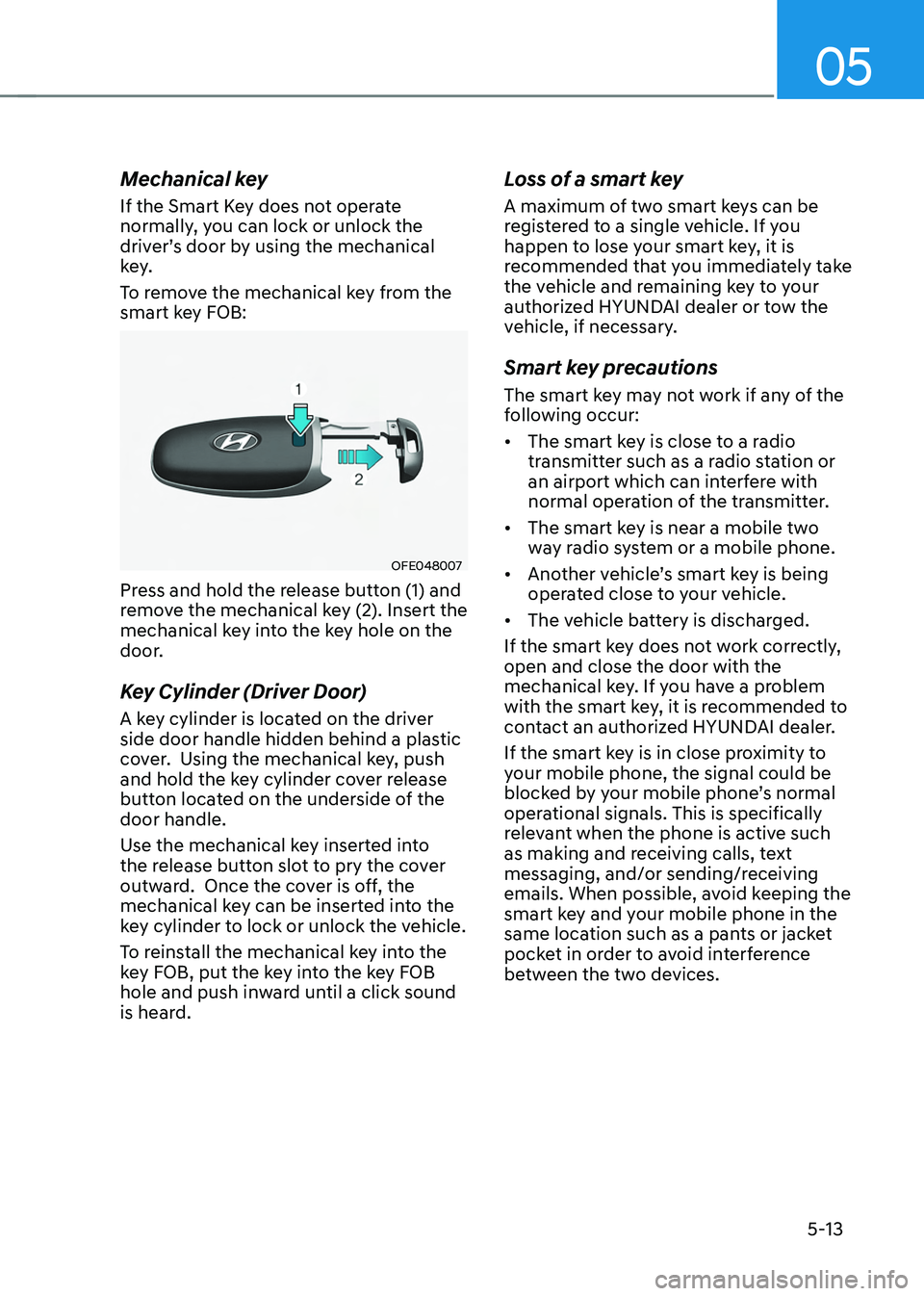
To remove the mechanical key from the
smart key FOB:
OFE048007
Press and hold the release button (1) and
remove the mechanical key (2). Insert the
mechanical key into the key hole on the
door.
Key Cylinder (Driver Door)
A key cylinder is located on the driver
side door handle hidden behind a plastic
cover. Using the mechanical key, push
and hold the key cylinder cover release
button located on the underside of the
door handle.
Use the mechanical key inserted into
the release button slot to pry the cover
outward. Once the cover is off, the
mechanical key can be inserted into the
key cylinder to lock or unlock the vehicle.
To reinstall the mechanical key into the
key FOB, put the key into the key FOB
hole and push inward until a click sound
is heard.
Loss of a smart key
A maximum of two smart keys can be
registered to a single vehicle. If you
happen to lose your smart key, it is
recommended that you immediately take
the vehicle and remaining key to your
authorized HYUNDAI dealer or tow the
vehicle, if necessary.
Smart key precautions
The smart key may not work if any of the
following occur:
• The smart key is close to a radio
transmitter such as a radio station or
an airport which can interfere with
normal operation of the transmitter.
• The smart key is near a mobile two
way radio system or a mobile phone.
• Another vehicle’s smart key is being
operated close to your vehicle.
• The vehicle battery is discharged.
If the smart key does not work correctly,
open and close the door with the
mechanical key. If you have a problem
with the smart key, it is recommended to
contact an authorized HYUNDAI dealer.
If the smart key is in close proximity to
your mobile phone, the signal could be
blocked by your mobile phone’s normal
operational signals. This is specifically
relevant when the phone is active such
as making and receiving calls, text
messaging, and/or sending/receiving
emails. When possible, avoid keeping the
smart key and your mobile phone in the
same location such as a pants or jacket
pocket in order to avoid interference
between the two devices.
Page 171 of 630
Convenient features
5-14
Information
This device complies with Part 15 of the
FCC rules.
Operation is subject to the following three
conditions:
1.
This device may not cause harmful
interference.
2.
This device must accept any
interference r
eceived, including
interference that may cause undesired
operation.
3.
Changes or modifications not expr
essly
approved by the party responsible
for compliance could void the user’s
authority to operate the device.
NOTICE
• Keep the smart key away from
electromagnetic materials that
blocks electromagnetic waves to the
key surface.
• Always have the smart key with
you when leaving the vehicle. If the
smart key is left near the vehicle, the
vehicle battery may be discharged.
Battery replacement
If the Smart Key is not working properly,
try replacing the battery with a new one.
Battery Type: CR2032
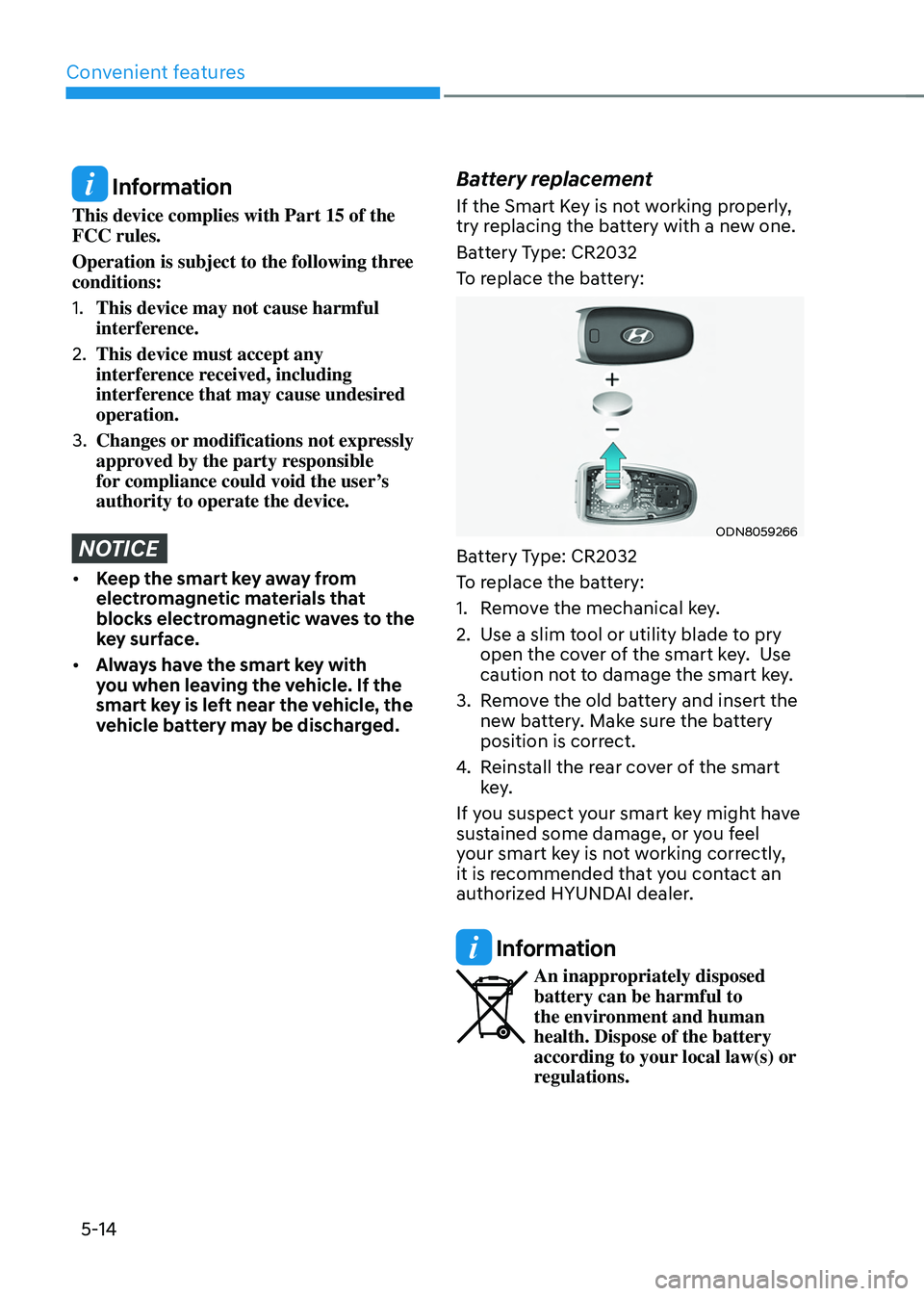
To replace the battery:
ODN8059266
Battery Type: CR2032
To replace the battery:
1.
Remo
ve the mechanical key.
2.
Use a slim t
ool or utility blade to pry
open the cover of the smart key. Use
caution not to damage the smart key.
3.
Remo
ve the old battery and insert the
new battery. Make sure the battery
position is correct.
4.
Reins
tall the rear cover of the smart
key.
If you suspect your smart key might have
sustained some damage, or you feel
your smart key is not working correctly,
it is recommended that you contact an
authorized HYUNDAI dealer.
Information
An inappropriately disposed
battery can be harmful to
the environment and human
health. Dispose of the battery
according to your local law(s) or
regulations.
Page 172 of 630
05
5-15
Immobilizer system (if equipped)
The immobilizer system helps protect
your vehicle from theft. If an improperly
coded key (or other device) is used, the
engine’s fuel system is disabled.
When the Engine Start/Stop button
is pressed to the ON position, the
immobilizer system indicator should
come on briefly, then go off. If the
indicator starts to blink, the system does
not recognize the coding of the key.
Place the ignition switch to the LOCK/
OFF position, then place the ignition
switch to the ON position again.
The system may not recognize your
key’s coding if another immobilizer key
or other metal object (i.e. key chain) is
near the key. The engine may not start
because the metal may interrupt the
transponder signal from transmitting
normally.
If the system repeatedly does not
recognize the coding of the key, it is
recommended that you contact your
HYUNDAI dealer.
Do not attempt to alter this system
or add other devices to it. Electrical
problems could result that may make
your vehicle inoperable. WARNING
In order to prevent theft of your
vehicle, do not leave spare keys
anywhere in your vehicle. Your
immobilizer password is a customer
unique password and should be kept
confidential.
NOTICE
The transponder in your key is an
important part of the immobilizer
system. It is designed to give years
of trouble-free service, however you
should avoid exposure to moisture,
static electricity and rough handling.
Immobilizer system malfunction could
occur.
Information
This device complies with Part 15 of the
FCC rules.
Operation is subject to the following three
conditions:
1.
This device may not cause harmful
interference.
2.
This device must accept any
interference r
eceived, including
interference that may cause undesired
operation.
3.
Changes or modifications not expr
essly
approved by the party responsible
for compliance could void the user’s
authority to operate the device.
Page 173 of 630
Convenient features
5-16
hyundai Digital Key
(if equipped)
Digital Key Application
To use Hyundai Digital Key mobile app,
you should install the Hyundai Digital
Key application on your Android phone.
Search ‘Hyundai digital key’ in the
Google Play Store and download the app.
Please refer to the detailed manual of the
digital key app. The option can be found
under the following app menu:
Menu → Application Info → Tutorial
Please review the contents of the manual
before using the app.
à This service is only av
ailable for
Android smartphones. Please confirm
supported/compatible devices on our
website.
WARNING
Delete Digital Key Settings When
Purchasing a Used Vehicle
If any of the digital key (smartphone key
or card key) is already registered when
you press ON button after unlocking the
doors, the message ‘Digital key(s) active’
appears on the instrument cluster once.
If you sell your vehicle or purchase a
used Hyundai vehicle equipped with the
Digital Key feature, you should confirm
the message and delete the registered
smartphone key and card key. For more
information, please contact the Hyundai
Customer Care Center.
If the card key does not work properly,
please delete the card key and register
the smartphone key and re-register the
card key.
For vehicle maintenance
If you need to have your Digital Key
System repaired or replaced, please
ensure your Smartphone Key is still
active. You may have to pair your phone
again.
In the case, re-initialize your Digital Keys
using the Hyundai Digital Key mobile app.
Digital key (smartphone) NFC
function
You can use the smartphone Digital Key
feature once Near Field Communication
(NFC) setting has been enabled on your
phone.
To enable NFC, go to Settings on your
smart phone.
In addition, your smart phone screen
should be unlocked when using the
Digital Key feature.
à To enable the user se
ttings for NFC on
your smart phone, go to the Settings
app on your phone. For further
assistance, refer to your smart phone
manual.
Page 175 of 630
Convenient features
5-18
ODN8A059129
ODN8A059130
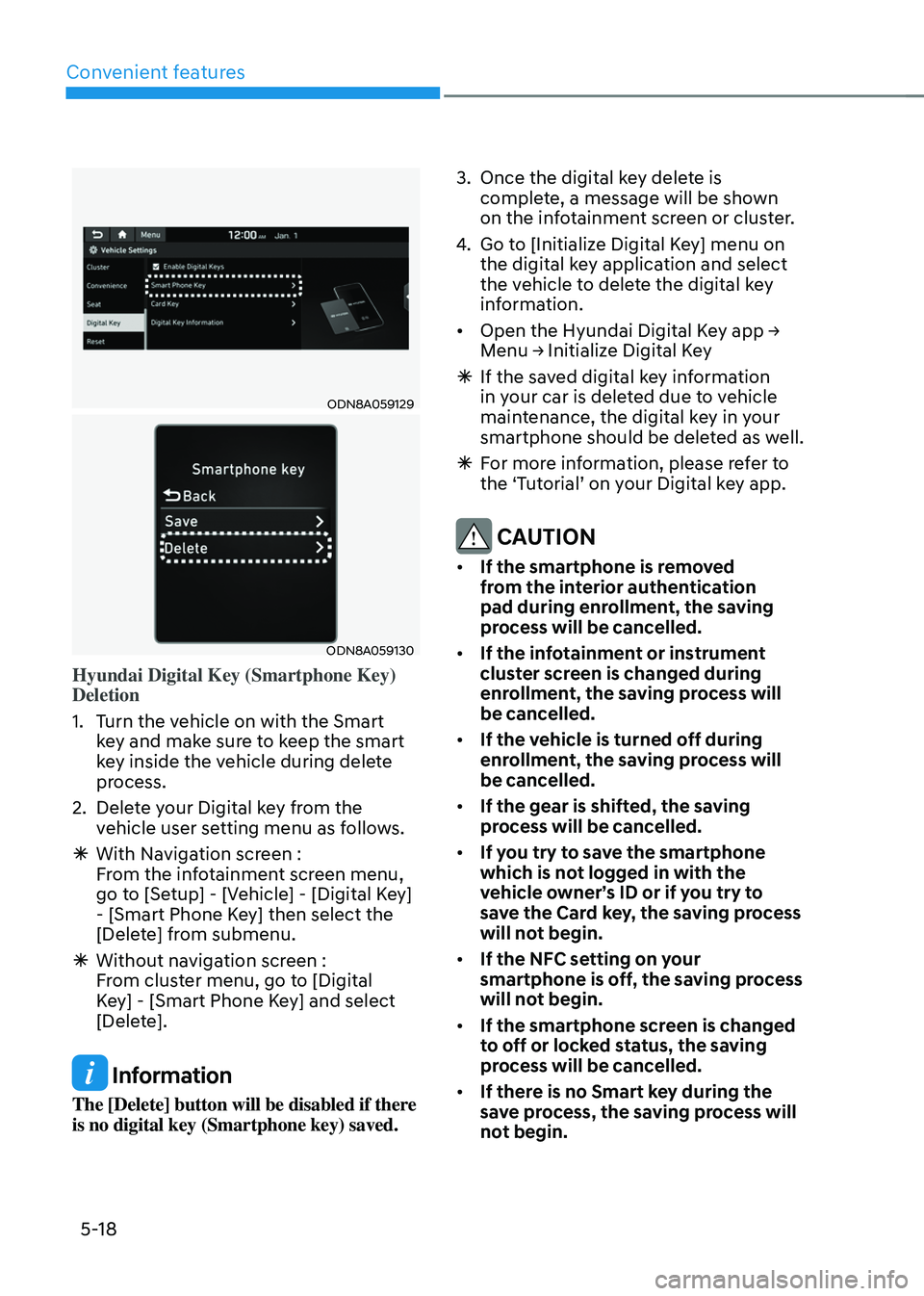
Hyundai Digital Key (Smartphone Key)
Deletion
1.
Turn the v
ehicle on with the Smart
key and make sure to keep the smart
key inside the vehicle during delete
process.
2.
Delet
e your Digital key from the
vehicle user setting menu as follows.
à With Naviga
tion screen :
From the infotainment screen menu,
go to [Setup] - [Vehicle] - [Digital Key]
- [Smart Phone Key] then select the
[Delete] from submenu.
à Without naviga
tion screen :
From cluster menu, go to [Digital
Key] - [Smart Phone Key] and select
[Delete].
Information
The [Delete] button will be disabled if there
is no digital key (Smartphone key) saved. 3.
Once the digital ke
y delete is
complete, a message will be shown
on the infotainment screen or cluster.
4.
Go to [Initializ
e Digital Key] menu on
the digital key application and select
the vehicle to delete the digital key
information.
• Open
the Hyundai Digital K
ey
app → Menu → Initializ
e
Digital K
ey
Ã
If the sav
ed digital key information
in your car is deleted due to vehicle
maintenance, the digital key in your
smartphone should be deleted as well.
à For mor
e information, please refer to
the ‘Tutorial’ on your Digital key app.
CAUTION
• If the smartphone is removed
from the interior authentication
pad during enrollment, the saving
process will be cancelled.
• If the infotainment or instrument
cluster screen is changed during
enrollment, the saving process will
be cancelled.
• If the vehicle is turned off during
enrollment, the saving process will
be cancelled.
• If the gear is shifted, the saving
process will be cancelled.
• If you try to save the smartphone
which is not logged in with the
vehicle owner’s ID or if you try to
save the Card key, the saving process
will not begin.
• If the NFC setting on your
smartphone is off, the saving process
will not begin.
• If the smartphone screen is changed
to off or locked status, the saving
process will be cancelled.
• If there is no Smart key during the
save process, the saving process will
not begin.