reset HYUNDAI TUCSON HYBRID 2022 User Guide
[x] Cancel search | Manufacturer: HYUNDAI, Model Year: 2022, Model line: TUCSON HYBRID, Model: HYUNDAI TUCSON HYBRID 2022Pages: 630, PDF Size: 77.98 MB
Page 155 of 630
04
4-43
Trip computer (10.25-inch)
The trip computer is a microcomputer-
controlled driver information system that
displays information related to driving.
Information
Some driving information stored in the
trip computer (for example Average
Vehicle Speed) resets if the battery is
disconnected.
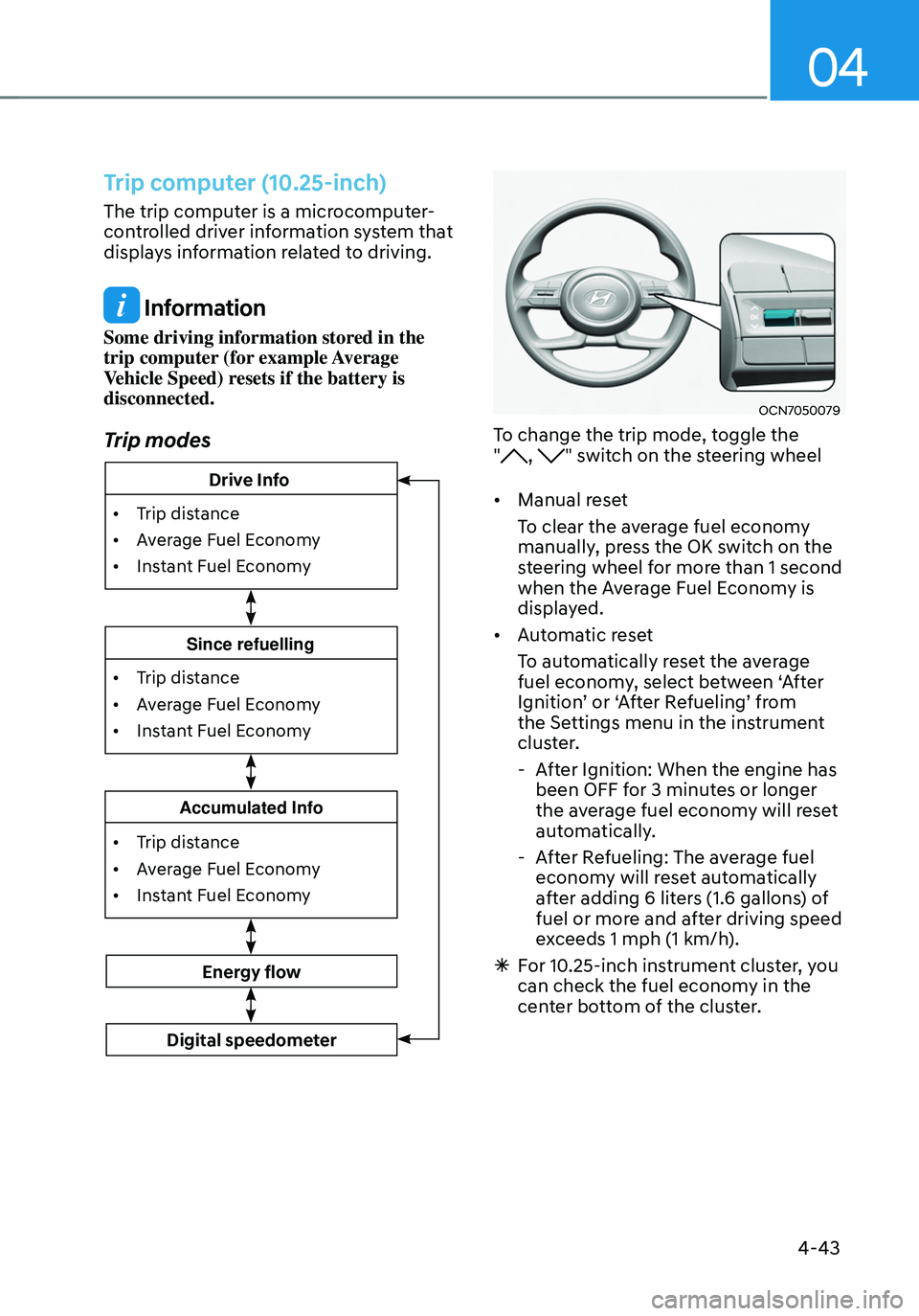
Trip modes
• Trip distance
•
Av
erage Fuel Economy
•
Instan
t Fuel Economy
Accumulated Info
• Trip distance
•
Av
erage Fuel Economy
•
Instan
t Fuel Economy
Since refuelling
Energy flow
Digital speedometer
• Trip distance
•
Av
erage Fuel Economy
•
Instan
t Fuel Economy
Drive Info
OCN7050079
To change the trip mode, toggle the
", " switch on the steering wheel
• Manual reset
To clear the average fuel economy
manually, press the OK switch on the
steering wheel for more than 1 second
when the Average Fuel Economy is
displayed.
• Automatic reset
To automatically reset the average
fuel economy, select between ‘After
Ignition’ or ‘After Refueling’ from
the Settings menu in the instrument
cluster.
-After Ignition: When the engine has
been OFF for 3 minutes or longer
the average fuel economy will reset
automatically.
-After Refueling: The average fuel
economy will reset automatically
after adding 6 liters (1.6 gallons) of
fuel or more and after driving speed
exceeds 1 mph (1 km/h).
à For 10.25-inch instrument cluster, you
can check the fuel economy in the
center bottom of the cluster.
Page 156 of 630
Instrument cluster
4-44
OTMA040012
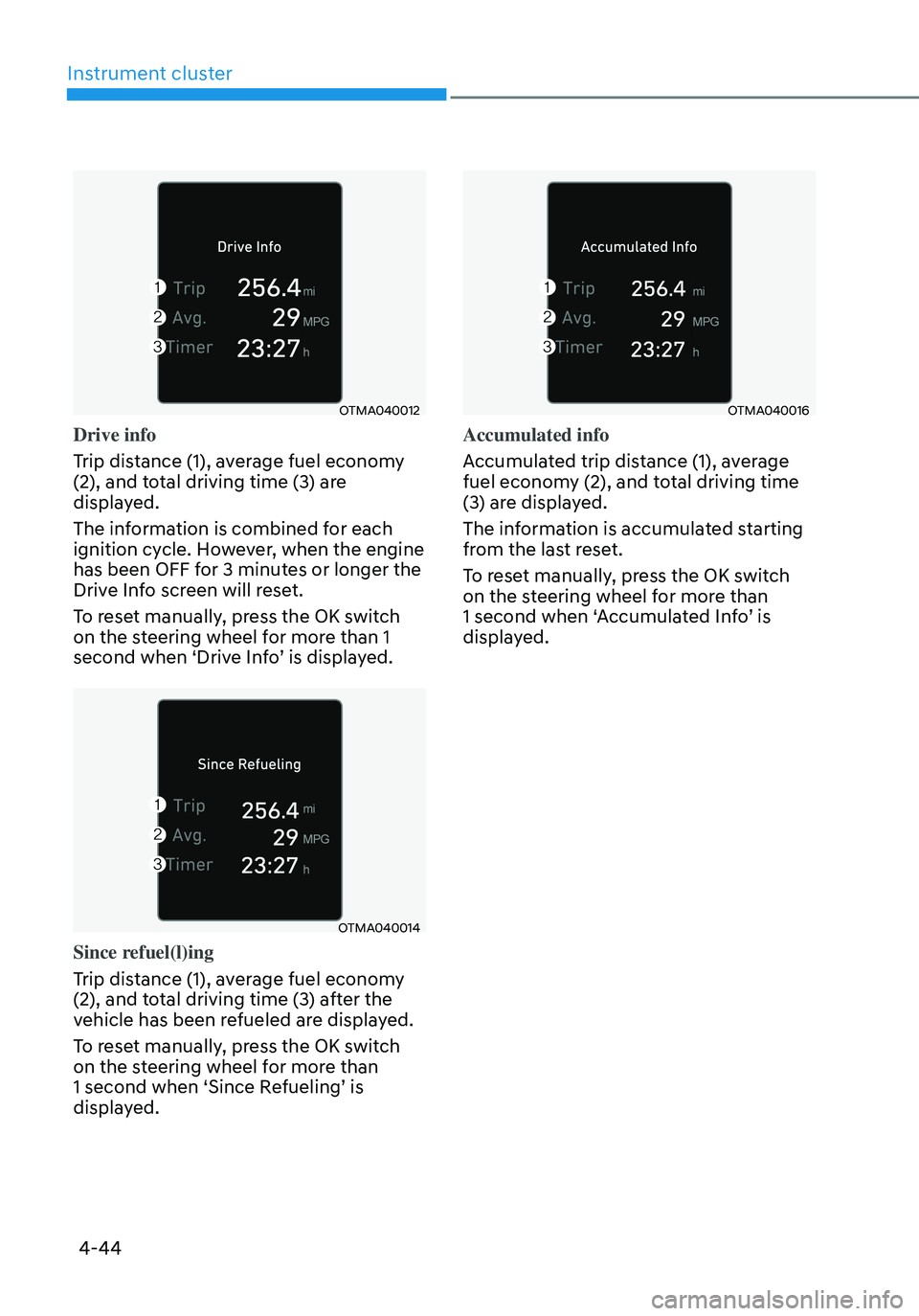
Drive info
Trip distance (1), average fuel economy
(2), and total driving time (3) are
displayed.
The information is combined for each
ignition cycle. However, when the engine
has been OFF for 3 minutes or longer the
Drive Info screen will reset.
To reset manually, press the OK switch
on the steering wheel for more than 1
second when ‘Drive Info’ is displayed.
OTMA040014
Since refuel(l)ing
Trip distance (1), average fuel economy
(2), and total driving time (3) after the
vehicle has been refueled are displayed.
To reset manually, press the OK switch
on the steering wheel for more than
1 second when ‘Since Refueling’ is
displayed.
OTMA040016
Accumulated info
Accumulated trip distance (1), average
fuel economy (2), and total driving time
(3) are displayed.
The information is accumulated starting
from the last reset.
To reset manually, press the OK switch
on the steering wheel for more than
1 second when ‘Accumulated Info’ is
displayed.
Page 158 of 630

Convenient features
Accessing your vehicle ........................................................................\
.............5-4Remote key ........................................................................\
........................................... 5-4
Smart ke y ........................................................................\
..................................... .........5 -7
Immobilizer system
........................................................................\
............................. 5-
15
Hyundai Digital Key
........................................................................\
............................ 5-
16
Door locks.......................................................................\
................................. 5-32Operating door locks from outside the vehicle........................................................ 5-32
Operating door unlocks from inside the vehicle ......................................................5-
34
Auto door lock/unlock features........................................................................\
.........5-36
Child-protector rear door locks
........................................................................\
......... 5-36
Theft-alarm system ........................................................................\
.................. 5-37
In tegrated memory system
........................................................................\
.... 5-38
Storing memory positions ........................................................................\
................. 5-38
R ecalling memory positions ........................................................................\
.............. 5-
39
Resetting the system
........................................................................\
......................... 5-
39
Seat Easy Access Operation
........................................................................\
............. 5-40
Steering wheel ........................................................................\
......................... 5-41Electric Power Steering (EPS) ........................................................................\
............5-41
Tilt / T elescopic steering ........................................................................\
.................... 5-42
H
eated steering wheel
........................................................................\
....................... 5-42
H
orn........................................................................\
.....................................................5-43
Mirrors ........................................................................\
..................................... 5-44Inside rearview mirror ........................................................................\
.......................5-44
Side view mirr ors ........................................................................\
................................ 5-55
Windows ........................................................................\
.................................. 5-57Power windows ........................................................................\
..................................5-58
Panoramic sunroof ........................................................................\
...................5-61Sunshade ........................................................................\
............................................ 5-62
Sliding the sunroo f ........................................................................\
............................. 5-62
Tilting the sunr
oof
........................................................................\
.............................. 5-63
Closing the sunr
oof
........................................................................\
............................ 5-63
R
esetting the sunroof
........................................................................\
........................ 5-65
Sunr
oof open warning
........................................................................\
...................... 5-66
Exterior features ........................................................................\
......................5-67Hood ........................................................................\
.................................................... 5-67
Liftga te ........................................................................\
............................................... 5-68
P
ower liftgate
........................................................................\
..................................... 5-
70
Smart liftgate
........................................................................\
.....................................
.5 -76
Fuel filler door........................................................................\
..................................... 5-78
5. Convenient features
5
Page 180 of 630
05
5-23
Smartphone change/App deletion
If you change your smartphone or delete
the Hyundai Digital Key App, please refer
to the following to set up your Digital
Key:
Smartphone Change/ Reset
If you change or reset the smartphone,
the registered digital key in your previous
smartphone may not be used. Please
refer to following procedure to use the
digital key.
1.
Install the digital k
ey application and
log in.
2.
If you ar
e the owner, retry the Digital
key save process.
3.
If you ar
e the sharer, need to re-share
the key from owner.
App delete & reinstall/ Delete App data
You can re-download the digital key
from server in these cases as follow
procedure.
1.
Reins
tall the application and log in.
2.
Input the PIN number for user
v
erification.
3.
If PIN is correct, digital k
ey data
will be re-downloaded to your
smartphone and you can use it
without any further registration or
sharing.
Smartphone operability with Digital Key
The digital key application may not
be available to old type smartphones.
Please check the available smartphone
models with your dealer. NFC antenna
position on the smartphone can be
confirmed on each smartphone’s manual
or contact to customer service center of
the smartphone manufacture. CAUTION
• Do not leave the registered digital
key (smartphone) and card key in
your vehicle. Please carry around
your keys all the times.
• If you happen to lose your digital
key (smartphone) or card key
registered as a main user’s key, you
should immediately delete the key
on the vehicle’s key menu. For more
information, refer to the Digital Key
Deletion in this chapter.
• If you registered your digital key
(smartphone) or card key in the
vehicle, a message appears on the
instrument cluster and let you know
the key is registered.
(Message: Digital key(s) active.)
• If you buy a used vehicle, you should
confirm the message and delete the
registered smartphone key and card
key. In this case, you should carry
your smart key.
• If you keep place the NFC card
of the digital key on the interior
authentication pad (wireless
charger) while driving, it may cause a
malfunction of the NFC card.
• You should remove your NFC card
of the digital key on the interior
authentication pad after turning on
the engine.
• Hyundai digital key app may not
work properly when the NFC or
Bluetooth communication between
smartphone and car is not good.
• If the remote control operation
is executed where the mobile
connection is weak, Bluetooth
connection is poor due to lots of
Bluetooth devices or there is an
object such as metal or concrete, it
might be delayed or the operable
distance might decrease. Especially,
you should not cover the smartphone
with your hand or place other
devices which can cause frequency
interference. It may result in poor
performance.
Page 181 of 630
Convenient features
5-24
• If the remote control function is not
activated, please use NFC function to
lock or unlock the doors
• You should be careful not to
press the remote control button
on the digital key (smartphone)
accidentally.
• If the digital key (smartphone) is
discharged or defective or you
cannot use the digital key since the
vehicle battery is discharged, use the
inside door lock button to lock all of
the doors.
CAUTION
• Hyundai digital key app on the
smartphone and card key may not
work if any of the following occurs:
-Hyundai digital ke
y app on the
smartphone is deleted. (Required
to reinstall the app)
- Ac
count log in information of
Hyundai digital key app is expired.
(Required to re-log in)
- When you try t
o log in to another
smartphone instead of the
registered smartphone with same
user account.
- Smartphone roo
ting or app
hacking is detected.
- Smartphone batt
ery or the vehicle
battery is discharged.
- Smartphone’
s screen is off or
locked.
- NFC or Blue
tooth is turned off on
the smartphone settings.
- Smartphone’
s mobile network
setting is off or airplane mode is
activated.
- A credit car
d is overlapped in the
back of your smartphone or metal
or thick case is used.
- Use the car
d key with insert it
into the wallet or card holder or
overlapping with other cards.
- If y
ou use a smart phone cover that
uses wireless communication or is
made of metal, the digital key NFC
function may not work properly.
Remove the smart phone cover
before using the digital key NFC
function.
• The vehicle may not be controlled by
the smartphone if any of the following
occurs:
- Basic and necessary functions o f
the smartphone manufacturer are
operating. (General call, urgent
call, audio or NFC payment)
- Wireless earphone is oper
ating.
(General call, urgent call or audio)
- The digital ke
y app function such
as basic setting or app launching
is limited by prior policy according
to the manufacturer while using a
smartphone produced by domestic
and foreign manufactures.
à If y
ou change the smartphone
number, you should modify the user
account information on the HYUNDAI
customer web site to use the digital
key app.
à If the v
ehicle owner changes
the smartphone device, the new
smartphone should be registered in
the car after deleting the registered
digital key(smartphone).
à If a shar
er changes or reset the
smartphone, the key should be re-
shared from owner.
à Some of the old smartphone ma
y
not work properly. Please check the
available smartphone models with
your dealer.
à NFC an
tenna position on the
smartphone can be confirmed
on each smartphone’s manual or
contact to customer service center
of the smartphone manufacture.
Page 188 of 630
05
5-31
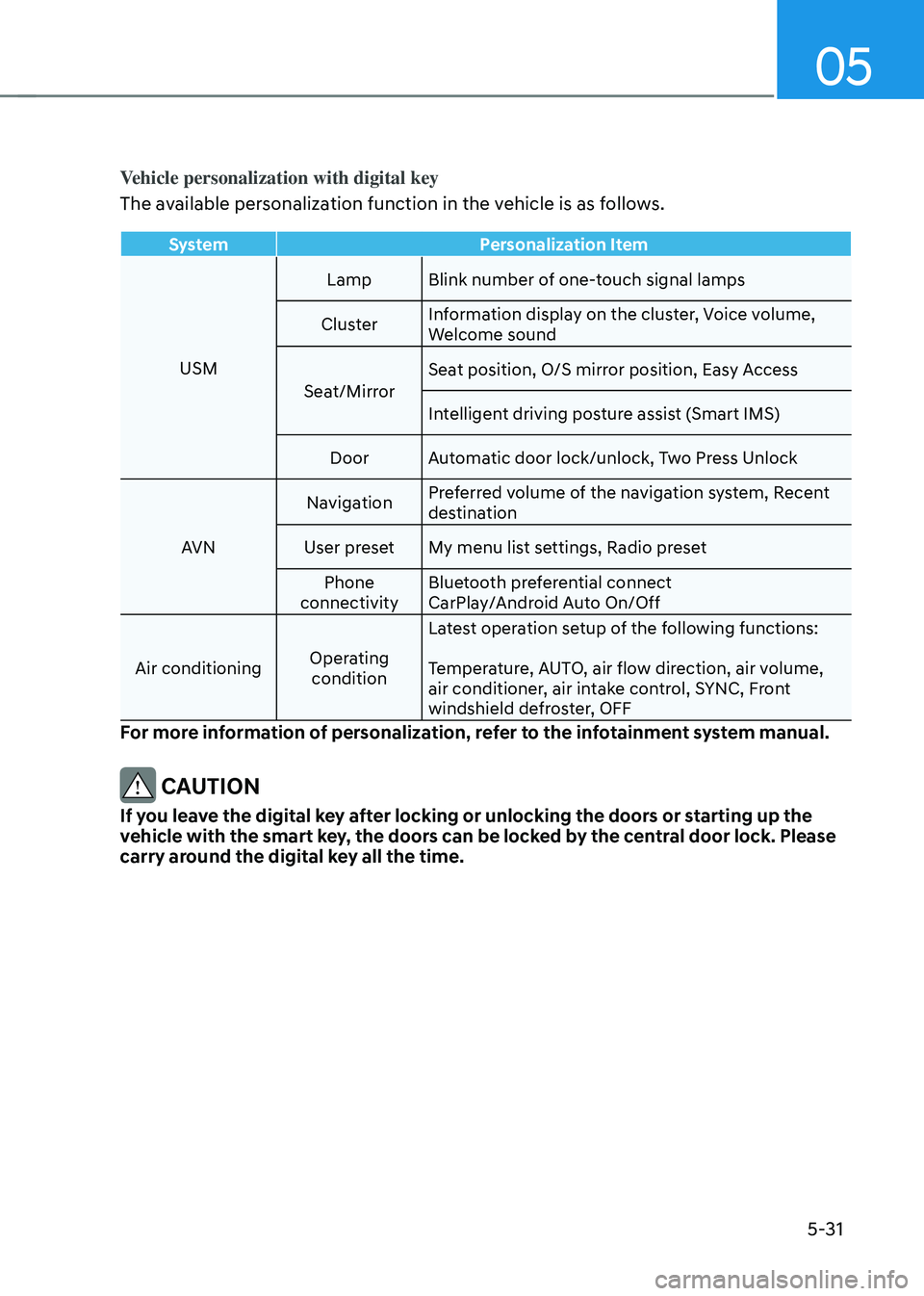
Vehicle personalization with digital key
The available personalization function in the vehicle is as follows.
SystemPersonalization Item
USM Lamp Blink number of one-touch signal lamps
Cluster Information display on the cluster, Voice volume,
Welcome sound
Seat/Mirror Seat position, O/S mirror position, Easy Access
Intelligent driving posture assist (Smart IMS)
Door Automatic door lock/unlock, Two Press Unlock
AVN Navigation
Preferred volume of the navigation system, Recent
destination
User preset My menu list settings, Radio preset Phone
connectivity Bluetooth preferential connect
CarPlay/Android Auto On/Off
Air conditioning Operating
condition Latest operation setup of the following functions:
Temperature, AUTO, air flow direction, air volume,
air conditioner, air intake control, SYNC, Front
windshield defroster, OFF
For more information of personalization, refer to the infotainment system manual.
CAUTION
If you leave the digital key after locking or unlocking the doors or starting up the
vehicle with the smart key, the doors can be locked by the central door lock. Please
carry around the digital key all the time.
Page 194 of 630
05
5-37
ThefT-alarm sysTem
This system helps to protect your vehicle
and valuables. The horn will sound and
the hazard warning lights will blink
continuously if any of the following
occur:
- A door is opened without using the smart ke
y.
- The liftga
te is opened without using
the smart key.
- The engine hood is opened.
The alarm continues f
or 30 seconds, then
the system resets. To turn off the alarm,
unlock the doors with the smart key.
The Theft Alarm System automatically
sets 30 seconds after you lock the
doors and the liftgate. For the system to
activate, you must lock the doors and
the liftgate from outside the vehicle with
the smart key or by touching the touch
sensor on the outside of the door handle
with the smart key in your possession.
The hazard warning lights will blink and
the chime will sound once to indicate the
system is armed.
Once the security system is set, opening
any door, the liftgate, or the hood
without using the smart key will cause
the alarm to activate.
The Theft Alarm System will not set if the
hood, the liftgate, or any door is not fully
closed. If the system will not set, check
the hood, the liftgate, or the doors are
fully closed.
Do not attempt to alter this system or
add other devices to it. Information
• Do not lock the doors until all
passengers have left the vehicle. If the
remaining passenger leaves the vehicle
when the system is armed, the alarm
will be activated.
• If the vehicle is not disarmed with the
smart key, open the doors by using the
mechanical key and start the engine by
directly pressing the Engine Start/Stop
button with the smart key.
• If the system is disarmed by unlocking
the vehicle, but neither a door or the
liftgate is opened within 30 seconds, the
doors will relock and the system will
rearm automatically.
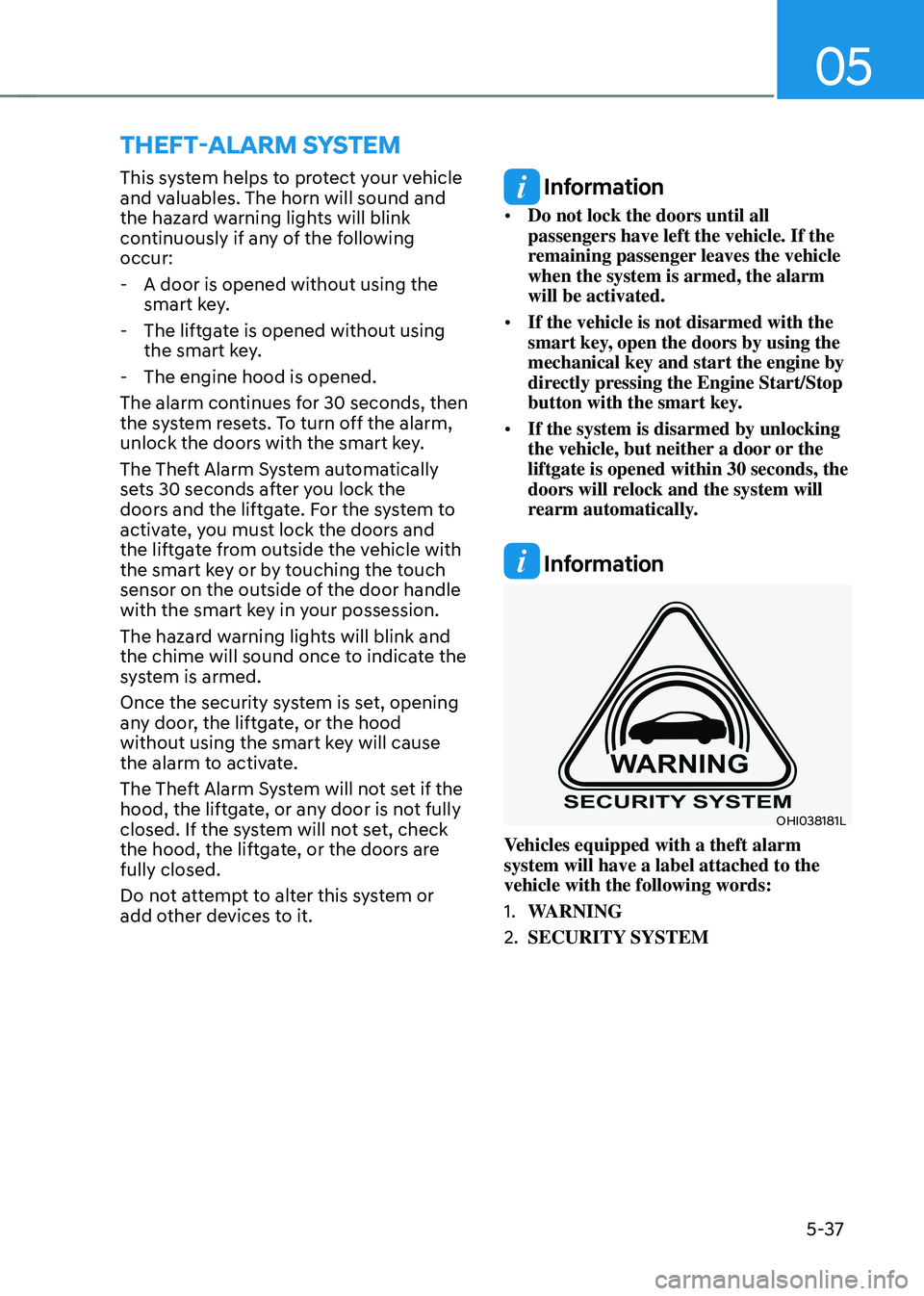
Information
OHI038181L
Vehicles equipped with a theft alarm
system will have a label attached to the
vehicle with the following words:
1.
WARNING
2.
SECURITY SYSTEM
Page 196 of 630
05
5-39
Recalling memory positions
1. Make sure that the vehicle is in the ON
position and the gear selector is in P
(Park).
2.
Press the desir
ed button (1 or 2). The
system will beep once and the driver’s
seat position and side view mirror
position will be automatically adjusted
to the stored positions.
3.
‘Driver 1 (
or 2) settings applied’ will
appear on the cluster LCD display.
Information
• Note that while the memory settings
are being recalled, if you press the
SET button or the corresponding IMS
memory button (1 or 2) for which the
settings are being recalled, the IMS will
temporarily deactivate. If you select
the alternate IMS memory button (1 or
2), the IMS will activate according to
the settings of the alternate button.
For example, if you press the SET
button or the number 1 button with the
number 1 setting in operation, the IMS
will temporarily deactivate.
If you press the number 2 button, then
the IMS memory settings according to
number 2 will activate.
• If you adjust the driver seat settings
or side mirror settings while the IMS
is recalling the stored positions, the
memory settings will not be applied.
Resetting the system
Follow the below procedures to reset the
Integrated Memory System (IMS) if it is
not operating properly:
Resetting the Integrated Memory
System (IMS)
1. Make sure that the vehicle is in Park
(P) and the engine is ON. Open the
driv
er’s door.
2.
Adjus
t the driver’s seat and seatback
angle to the most forward positions.
3.
Press the SET butt
on and push
the driver’s seat switch forward
simultaneously for about 2 seconds.
Page 197 of 630
Convenient features
5-40
While resetting integrated memory
system
1. Resetting starts with a notification
sound.
2.
The driver’
s seat and seatback is
adjusted to the rearward position with
the notification sound.
3.
The driver’
s seat and seatback is
re-adjusted to the default position
(central position) with the notification
sound.
However, in the following cases, the
resetting procedure and the notification
sound may stop.
• The memory button is pressed.
• The seat control switch is operated.
• The gear is shifted out of P (Park).
• The driving speed exceeds
2 mph (3 km/h).
• The driver’s door is closed.
NOTICE
• While integrated memory system
is being reset, if the resetting
and notification sound stops
incompletely, restart the resetting
procedure again.
• Before performing the IMS memory
reset operation, make sure there are
no objects on or around the driver’s
seat.
Seat Easy Access Operation (if
equipped)
The system will move the driver’s seat
automatically as follows:
• Vehicles equipped with Driver’s Power
Seat and Smart Key
- The driver’
s seat will move rearward
when the Engine Start/Stop button
is pressed to turn the engine OFF.
- The driver’
s seat will move forward
when the Engine Start/Stop button
is pressed to the ACC or engine
START position.
Note that Seat Easy Access operation
may be limited when the driver’s seat
position setting is already close to the
maximum rearward travel position.
You can enable or disable the Seat Easy
Access feature in the User Settings menu
on the LCD display or the navigation
infotainment screen on some models.
‘Convenience
→ Sea
t
E
asy
A
ccess
→ Off/
N
ormal/Extended’.
For more details, refer to “LCD Display”
In chapter 4.
CAUTION
The driver should be aware and be
cautious to avoid injury or damage
when using this feature if there are
objects or passengers in the driver’s
side rear seat or seat floor.
In case of emergency or to stop
movement of the front seat when the
Seat Easy Access is operating, press the
SET button or any of the driver’s seat
control switches.
Page 215 of 630
Convenient features
5-58
Power windows
The ignition switch must be in the ON
position to be able to raise or lower
the windows. Each door has a Power
Window switch to control that door’s
window. The driver has a Power Window
Lock switch which can block the
operation of passenger windows. The
power windows will operate for about
3 minutes after the ignition is turned
OFF or if the ignition is placed in the
ACC position, as long as the front doors
remain closed.
If the front doors are opened, battery
power is turned OFF and the Power
Windows will not operate.
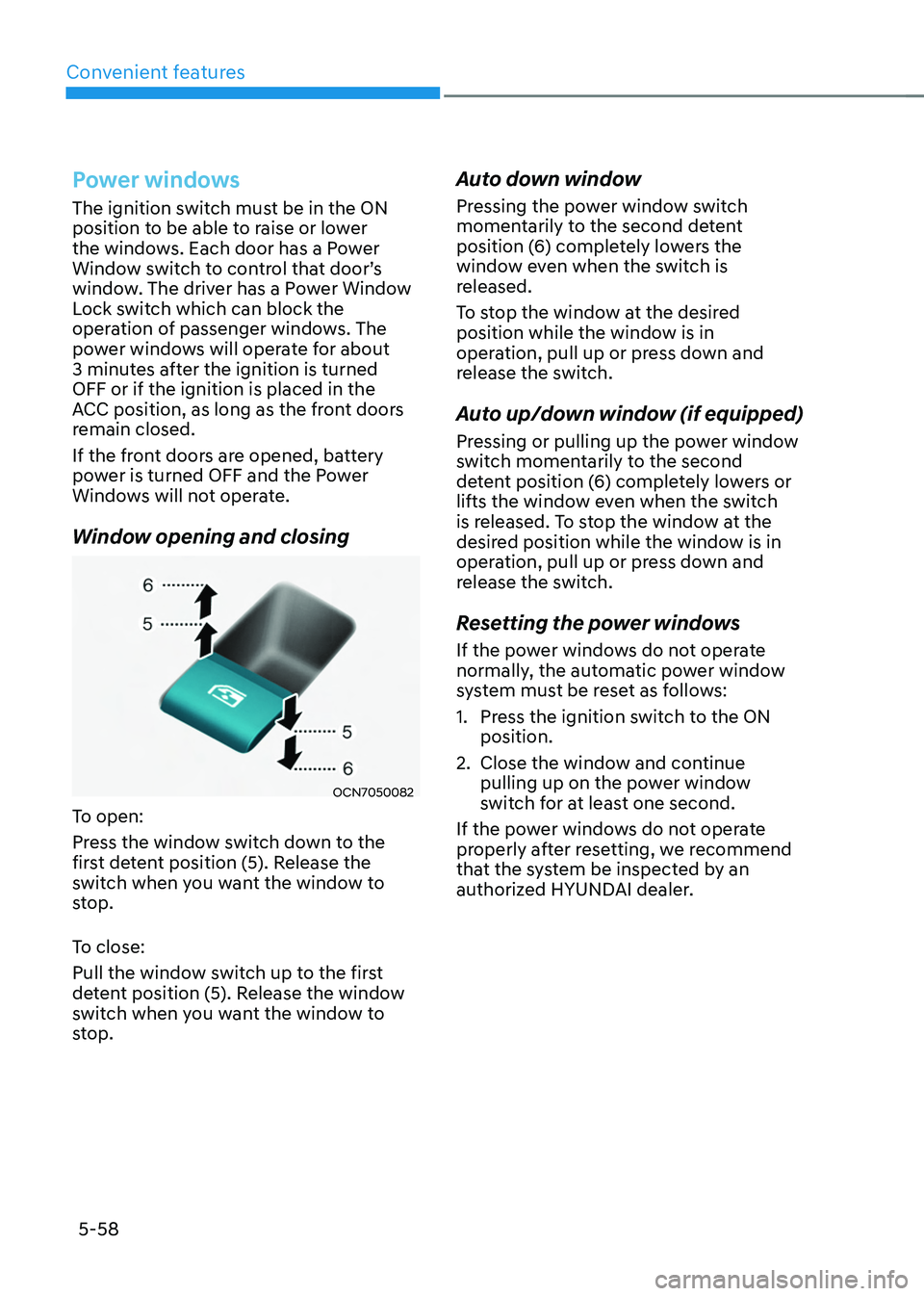
Window opening and closing
OCN7050082
To open:
Press the window switch down to the
first detent position (5). Release the
switch when you want the window to
stop.
To close:
Pull the window switch up to the first
detent position (5). Release the window
switch when you want the window to
stop.
Auto down window
Pressing the power window switch
momentarily to the second detent
position (6) completely lowers the
window even when the switch is
released.
To stop the window at the desired
position while the window is in
operation, pull up or press down and
release the switch.
Auto up/down window (if equipped)
Pressing or pulling up the power window
switch momentarily to the second
detent position (6) completely lowers or
lifts the window even when the switch
is released. To stop the window at the
desired position while the window is in
operation, pull up or press down and
release the switch.
Resetting the power windows
If the power windows do not operate
normally, the automatic power window
system must be reset as follows:
1.
Press the ignition s
witch to the ON
position.
2.
Close the window and con
tinue
pulling up on the power window
switch for at least one second.
If the power windows do not operate
properly after resetting, we recommend
that the system be inspected by an
authorized HYUNDAI dealer.