mirror INFINITI FX 2012 Owner's Manual
[x] Cancel search | Manufacturer: INFINITI, Model Year: 2012, Model line: FX, Model: INFINITI FX 2012Pages: 522, PDF Size: 3.51 MB
Page 202 of 522
SAA1896
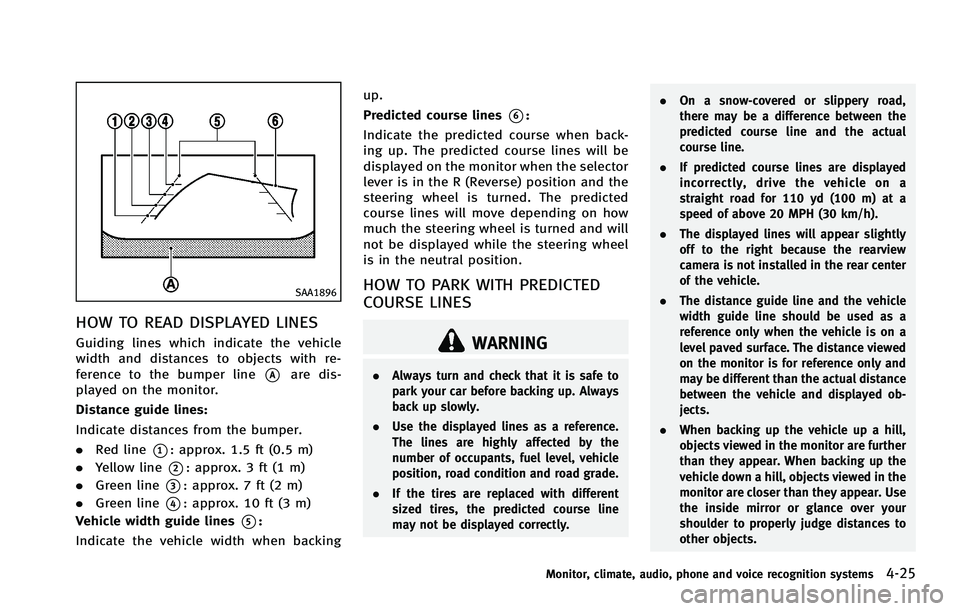
HOW TO READ DISPLAYED LINES
Guiding lines which indicate the vehicle
width and distances to objects with re-
ference to the bumper line
*Aare dis-
played on the monitor.
Distance guide lines:
Indicate distances from the bumper.
. Red line
*1: approx. 1.5 ft (0.5 m)
. Yellow line
*2: approx. 3 ft (1 m)
. Green line
*3: approx. 7 ft (2 m)
. Green line
*4: approx. 10 ft (3 m)
Vehicle width guide lines
*5:
Indicate the vehicle width when backing up.
Predicted course lines
*6:
Indicate the predicted course when back-
ing up. The predicted course lines will be
displayed on the monitor when the selector
lever is in the R (Reverse) position and the
steering wheel is turned. The predicted
course lines will move depending on how
much the steering wheel is turned and will
not be displayed while the steering wheel
is in the neutral position.
HOW TO PARK WITH PREDICTED
COURSE LINES
WARNING
. Always turn and check that it is safe to
park your car before backing up. Always
back up slowly.
. Use the displayed lines as a reference.
The lines are highly affected by the
number of occupants, fuel level, vehicle
position, road condition and road grade.
. If the tires are replaced with different
sized tires, the predicted course line
may not be displayed correctly. .
On a snow-covered or slippery road,
there may be a difference between the
predicted course line and the actual
course line.
. If predicted course lines are displayed
incorrectly, drive the vehicle on a
straight road for 110 yd (100 m) at a
speed of above 20 MPH (30 km/h).
. The displayed lines will appear slightly
off to the right because the rearview
camera is not installed in the rear center
of the vehicle.
. The distance guide line and the vehicle
width guide line should be used as a
reference only when the vehicle is on a
level paved surface. The distance viewed
on the monitor is for reference only and
may be different than the actual distance
between the vehicle and displayed ob-
jects.
. When backing up the vehicle up a hill,
objects viewed in the monitor are further
than they appear. When backing up the
vehicle down a hill, objects viewed in the
monitor are closer than they appear. Use
the inside mirror or glance over your
shoulder to properly judge distances to
other objects.
Monitor, climate, audio, phone and voice recognition systems4-25
Page 208 of 522

When you push theCAMERAbutton or shift
the selector lever into the R (Reverse)
position while the ignition switch is in the
ON position, the Around View Monitor
operates. The monitor displays various
views of the position of the vehicle.
Available views:
. Bird-Eye View
The surrounding view of the vehicle.
. Front-Side View
The view around and ahead of the front
passenger’s side wheel.
. Front View
The view to the front of the vehicle.
. RearView
The view to the rear of the vehicle.
. Rear-Wide View
An approximately 180-degree view of
the rear of the vehicle.
The system is designed as an aid to the
driver in situations such as slot parking or
parallel parking.
SAA2148
There are some areas where the system
will not detect objects. When in the front or
the rearview display, an object below the
bumper or on the ground may not be
detected
*1. When in the bird-eye view, a
tall object near the seam of the camera
detecting areas will not appear in the monitor
*2.
WARNING
.
The Around View Monitor is a conveni-
ence but it is not a substitute for proper
vehicle operation because it has areas
where objects cannot be viewed. Always
look out the windows and check to be
sure that it is safe to move before
operating the vehicle. Always operate
the vehicle slowly.
. Do not use the Around View Monitor with
the outside mirror in the stored position,
and make sure that the lift gate is
securely closed when operating the
vehicle using the Around View Monitor.
. The distance between objects viewed on
the Around View Monitor differs from the
actual distance.
. The cameras are installed above the
front grille, the outside mirrors and
above the rear license plate. Do not put
anything on the cameras.
. When washing the vehicle with high-
pressure water, be sure not to spray it
around the cameras. Otherwise, water
may enter the camera unit causing water
Monitor, climate, audio, phone and voice recognition systems4-31
AROUND VIEWTMMONITOR (AVM) (if so
equipped)
Page 211 of 522
4-34Monitor, climate, audio, phone and voice recognition systems
HOW TO SEE EACH VIEW
WARNING
.The distance guide line and the vehicle
width line should be used as a reference
only when the vehicle is on a paved,
level surface. The distance viewed on the
monitor is for reference only and may be
different than the actual distance be-
tween the vehicle and displayed objects.
. Use the displayed lines and the bird-eye
view as a reference. The lines and the
bird-eye view are greatly affected by the
number of occupants, fuel level, vehicle
position, road condition and road grade.
. If the tires are replaced with different
sized tires, the predicted course line and
the bird-eye view may be displayed
incorrectly.
. When driving the vehicle up a hill,
objects viewed in the monitor are further
than they appear. When driving the
vehicle down a hill, objects viewed in
the monitor are closer than they appear.
Use the mirrors or actually look to
properly judge distances to other ob-
jects.
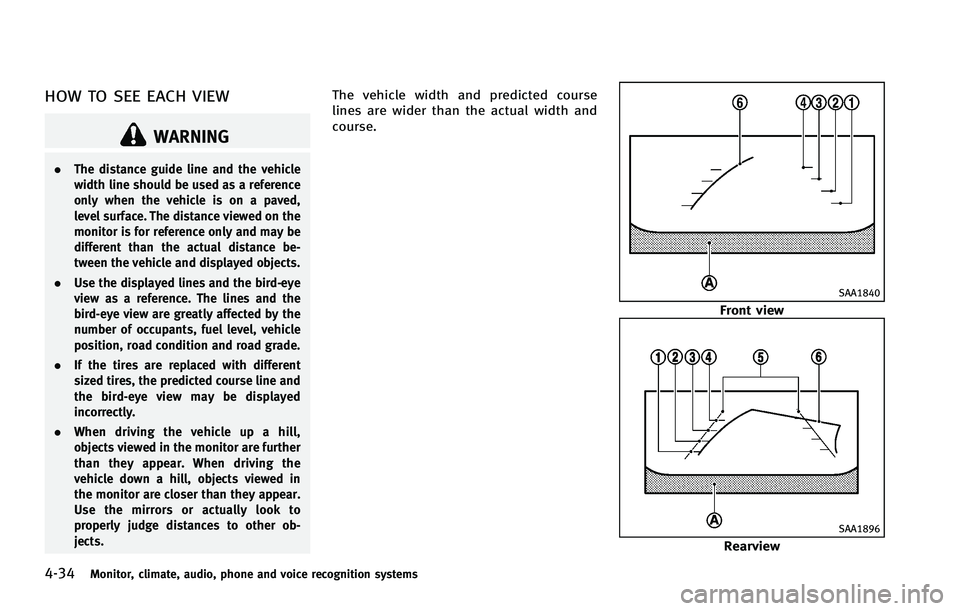
The vehicle width and predicted course
lines are wider than the actual width and
course.
SAA1840
Front view
SAA1896
Rearview
Page 212 of 522
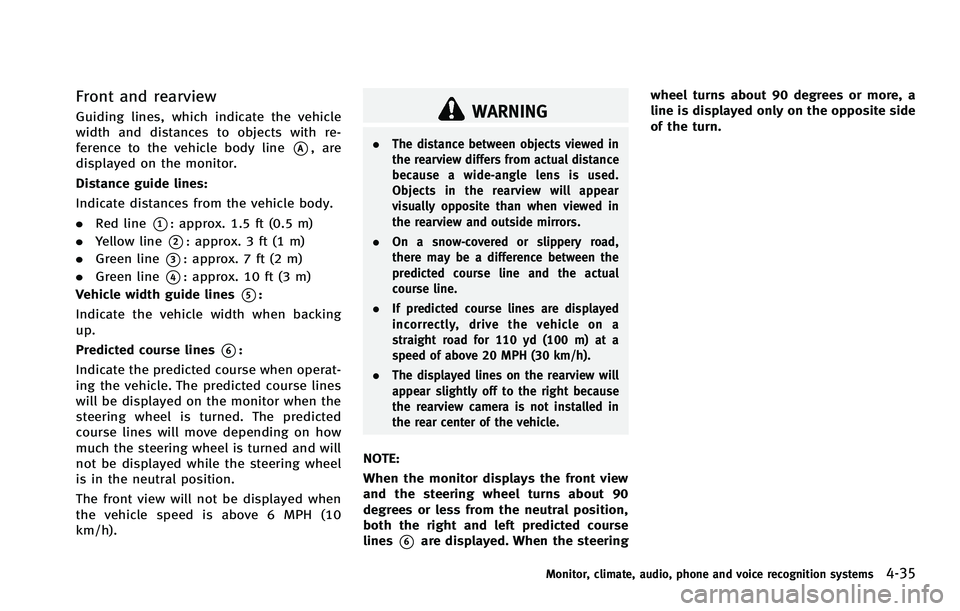
Front and rearview
Guiding lines, which indicate the vehicle
width and distances to objects with re-
ference to the vehicle body line
*A, are
displayed on the monitor.
Distance guide lines:
Indicate distances from the vehicle body.
. Red line
*1: approx. 1.5 ft (0.5 m)
. Yellow line
*2: approx. 3 ft (1 m)
. Green line
*3: approx. 7 ft (2 m)
. Green line
*4: approx. 10 ft (3 m)
Vehicle width guide lines
*5:
Indicate the vehicle width when backing
up.
Predicted course lines
*6:
Indicate the predicted course when operat-
ing the vehicle. The predicted course lines
will be displayed on the monitor when the
steering wheel is turned. The predicted
course lines will move depending on how
much the steering wheel is turned and will
not be displayed while the steering wheel
is in the neutral position.
The front view will not be displayed when
the vehicle speed is above 6 MPH (10
km/h).
WARNING
. The distance between objects viewed in
the rearview differs from actual distance
because a wide-angle lens is used.
Objects in the rearview will appear
visually opposite than when viewed in
the rearview and outside mirrors.
. On a snow-covered or slippery road,
there may be a difference between the
predicted course line and the actual
course line.
. If predicted course lines are displayed
incorrectly, drive the vehicle on a
straight road for 110 yd (100 m) at a
speed of above 20 MPH (30 km/h).
. The displayed lines on the rearview will
appear slightly off to the right because
the rearview camera is not installed in
the rear center of the vehicle.
NOTE:
When the monitor displays the front view
and the steering wheel turns about 90
degrees or less from the neutral position,
both the right and left predicted course
lines
*6are displayed. When the steering wheel turns about 90 degrees or more, a
line is displayed only on the opposite side
of the turn.
Monitor, climate, audio, phone and voice recognition systems4-35
Page 213 of 522
4-36Monitor, climate, audio, phone and voice recognition systems
SAA1841
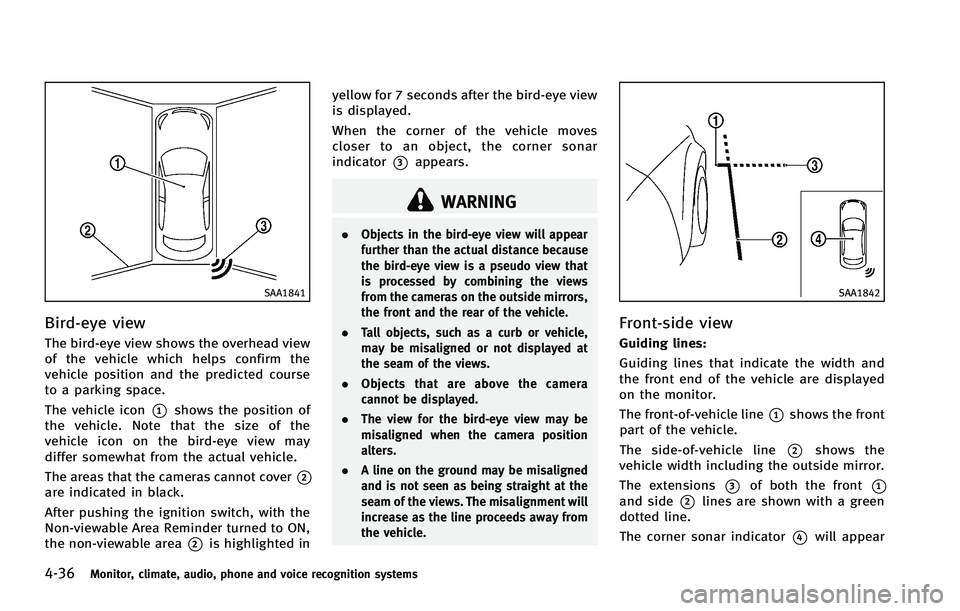
Bird-eye view
The bird-eye view shows the overhead view
of the vehicle which helps confirm the
vehicle position and the predicted course
to a parking space.
The vehicle icon
*1shows the position of
the vehicle. Note that the size of the
vehicle icon on the bird-eye view may
differ somewhat from the actual vehicle.
The areas that the cameras cannot cover
*2are indicated in black.
After pushing the ignition switch, with the
Non-viewable Area Reminder turned to ON,
the non-viewable area
*2is highlighted in yellow for 7 seconds after the bird-eye view
is displayed.
When the corner of the vehicle moves
closer to an object, the corner sonar
indicator
*3appears.
WARNING
.
Objects in the bird-eye view will appear
further than the actual distance because
the bird-eye view is a pseudo view that
is processed by combining the views
from the cameras on the outside mirrors,
the front and the rear of the vehicle.
. Tall objects, such as a curb or vehicle,
may be misaligned or not displayed at
the seam of the views.
. Objects that are above the camera
cannot be displayed.
. The view for the bird-eye view may be
misaligned when the camera position
alters.
. A line on the ground may be misaligned
and is not seen as being straight at the
seam of the views. The misalignment will
increase as the line proceeds away from
the vehicle.
SAA1842
Front-side view
Guiding lines:
Guiding lines that indicate the width and
the front end of the vehicle are displayed
on the monitor.
The front-of-vehicle line
*1shows the front
part of the vehicle.
The side-of-vehicle line
*2shows the
vehicle width including the outside mirror.
The extensions
*3of both the front*1and side*2lines are shown with a green
dotted line.
The corner sonar indicator
*4will appear
Page 214 of 522
when a corner of the vehicle moves closer
to an object.
The corner sonar indicator
*4can be
turned off. See “Around view monitor
settings” (P.4-41).
CAUTION
The turn signal light may overlap with the
side-of-vehicle line. This is not a malfunc-
tion.
Infrared illumination:
The images on the front-side view can be
displayed at night using the infrared
illumination on the outside mirror.SAA2629
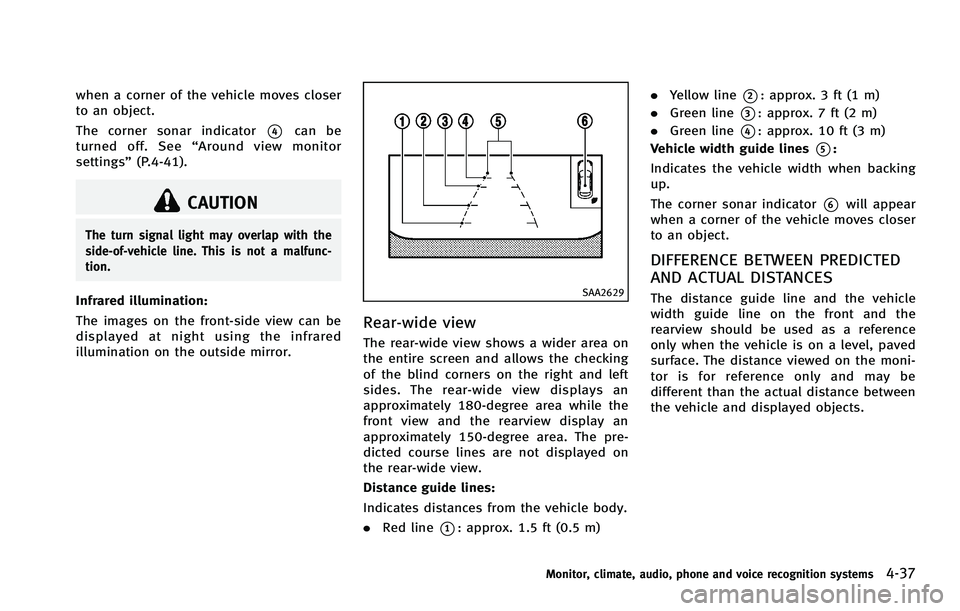
Rear-wide view
The rear-wide view shows a wider area on
the entire screen and allows the checking
of the blind corners on the right and left
sides. The rear-wide view displays an
approximately 180-degree area while the
front view and the rearview display an
approximately 150-degree area. The pre-
dicted course lines are not displayed on
the rear-wide view.
Distance guide lines:
Indicates distances from the vehicle body.
.Red line
*1: approx. 1.5 ft (0.5 m) .
Yellow line
*2: approx. 3 ft (1 m)
. Green line
*3: approx. 7 ft (2 m)
. Green line
*4: approx. 10 ft (3 m)
Vehicle width guide lines
*5:
Indicates the vehicle width when backing
up.
The corner sonar indicator
*6will appear
when a corner of the vehicle moves closer
to an object.
DIFFERENCE BETWEEN PREDICTED
AND ACTUAL DISTANCES
The distance guide line and the vehicle
width guide line on the front and the
rearview should be used as a reference
only when the vehicle is on a level, paved
surface. The distance viewed on the moni-
tor is for reference only and may be
different than the actual distance between
the vehicle and displayed objects.
Monitor, climate, audio, phone and voice recognition systems4-37
Page 221 of 522

4-44Monitor, climate, audio, phone and voice recognition systems
SAA1527
Without Advanced Climate Control System (ACCS)
SAA2153
With Advanced Climate Control System (ACCS)1.
“AUTO” automatic climate control ON
button/Temperature control dial (dri-
ver side)
2. “A/C” air conditioner ON/OFF button
3. “
”fan speed increase button
4. “
”front defroster button
5. “MODE” manual air flow control but-
ton
6. “DUAL” zone control ON/OFF button/
Temperature control dial (passenger
side)
7. “OFF” button for climate control sys-
tem
8. “
”fan speed decrease button
9. “
”rear window defroster button
(See “Rear window and outside mirror
defroster switch” (P.2-36).)
10. “
”intake air control button
11. “
”auto-recirculation button/
intake air control button
Page 282 of 522
WARNING
.Use a phone after stopping your vehicle
in a safe location. If you have to use a
phone while driving, exercise extreme
caution at all times so full attention may
be given to vehicle operation.
. If you find yourself unable to devote full
attention to vehicle operation while
talking on the phone, pull off the road
to a safe location and stop your vehicle
before doing so.
CAUTION
To avoid draining the vehicle battery, use a
phone after starting the engine.
Your vehicle is equipped with Bluetooth®
Hands-Free Phone System. If you are an
owner of a Bluetooth®enabled cellular
phone, you can set up the wireless
connection between your cellular phone
and the in-vehicle phone module. With
Bluetooth
®wireless technology, you can
make or receive a telephone call with your
cellular phone in your pocket. Once your cellular phone is paired to the
in-vehicle phone module, no phone con-
necting procedure is required. Your phone
is automatically connected with the in-
vehicle phone module when the ignition
switch is pushed to the
“ON”position with
the registered cellular phone turned on
and carried in the vehicle.
You can register up to 5 different Blue-
tooth
®cellular phones in the in-vehicle
phone module. However, you can talk on
only one cellular phone at a time.
When a call is active, the audio system and
microphone (located in the ceiling in front
of the rearview mirror) are used for the
handsfree communications.
If the audio system is being used at the
time, the audio mode will mute and will
stay muted until the active call is ended.
The INFINITI Voice Recognition system
supports the phone commands, so dialing
a phone number using your voice is
possible.
Before using the Bluetooth
®Hands-Free
Phone System, refer to the following notes.
. Wireless LAN (Wi-Fi) and the Bluetooth
®
functions share the same frequency
band (2.4 GHz). Using the Bluetooth®
and the wireless LAN functions at the
same time may slow down or discon-
nect the communication and cause
undesired noise. It is recommended
that you turn off the wireless LAN (Wi-
Fi) when using the Bluetooth
®func-
tions.
. Set up the wireless connection between
a cellular phone and the in-vehicle
phone module before using the Blue-
tooth
®Hands-Free Phone System.
. Some Bluetooth®enabled cellular
phones may not be recognized by the
in-vehicle phone module. Please visit
www.InfinitiUSA.com/bluetooth for a
recommended phone list.
. You will not be able to use a hands-free
phone under the following conditions:
— Your vehicle is outside of the tele-
phone service area.
— Your vehicle is in an area where it is
difficult to receive radio waves; such
as in a tunnel, in an underground
parking garage, behind a tall build-
ing or in a mountainous area.
— Your cellular phone is locked in
order not to be dialed.
. When the radio wave condition is not
ideal or ambient sound is too loud, it
Monitor, climate, audio, phone and voice recognition systems4-105
Bluetooth®HANDS-FREE PHONE SYSTEM
(models without navigation system)
Page 286 of 522

command recognition mode.
4. The system acknowledges the com- mand and announces the next set of
available commands.
5. After the tone sounds, speak the phone number.
6. When you have finished speaking the phone number, the system repeats it
back and announces the available
commands.
7. After system responds, speak “Dial”
and the system dials the spoken
numbers.
Operating tips:
. Voice commands cannot be accepted
when the icon is
.
. If the command is not recognized, the
system announces, “Please say again”.
Repeat the command in a clear voice.
. Push the
switch or the BACKbutton
once to return to the previous screen.
. If you want to cancel the command,
push the
switch. The message
“ Voice input is canceled” will be
announced. If you want to adjust the
volume of the system feedback, push
the volume control buttons [+] or [−]on
the steering wheel or use the audio system volume knob while the system
is making an announcement.
How to speak commands:
The Voice Recognition System requires a
certain way to speak voice commands.
Speak normally and clearly in the direction
of the microphone (located in front of the
rearview mirror). Every digit of the number
must be spoken individually and in a
normal manner. The hands-free mode will
work best when the telephone number is
spoken in blocks of three to five digits.
After each spoken block is terminated, the
system will repeat the three to five digits
and wait for you to speak the next digit or
block of digits required for the telephone
number.
See “List of voice commands” (P.4-111) for
the appropriate commands that can be
spoken for the hands-free mode system.
Example:
In order to initiate a call, speak “Phone-
book”.
INFO
. If you are controlling the telephone
system by voice command for the first
time or do not know the appropriate
voice command, speak “Help” . The system announces the available com-
mands.
. When you speak numbers, you can
speak both “zero”or“oh” for“0”.
Personal vocabulary (voicetags):
Voice Recognition System is equipped with
the function called “voicetags”, which can
be associated with the phone number and
name in the phonebook. Using the voice
tag will automatically generate a speed
dial to the registered number.
See “Phonebook registration” (P.4-113).
You can call the identified number using
the following command: “Dial”followed by
the voice tag.
Dialling a name with a voice tag:
It is possible to call up a name via a voice
tag instead of a number, provided the
name and number of your correspondent
have been previously stored in the phone-
book.
Dial via a voice tag, according to the
following procedure.
1. Push the
switch.
2. The system replies “please say a
command after the beep. Available
commands are: Call, Phonebook, Re-
Monitor, climate, audio, phone and voice recognition systems4-109
Page 338 of 522
SSD0731
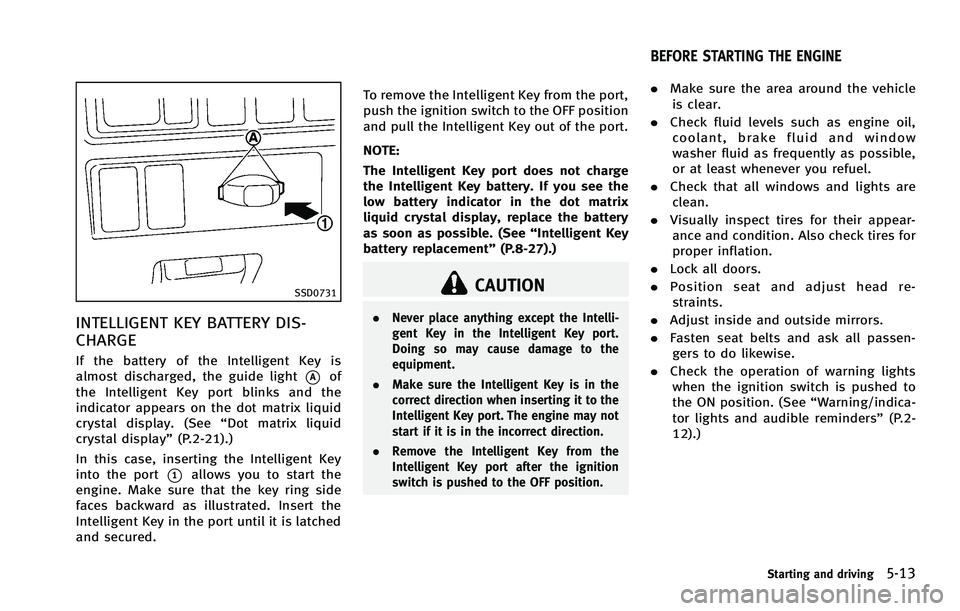
INTELLIGENT KEY BATTERY DIS-
CHARGE
If the battery of the Intelligent Key is
almost discharged, the guide light
*Aof
the Intelligent Key port blinks and the
indicator appears on the dot matrix liquid
crystal display. (See “Dot matrix liquid
crystal display” (P.2-21).)
In this case, inserting the Intelligent Key
into the port
*1allows you to start the
engine. Make sure that the key ring side
faces backward as illustrated. Insert the
Intelligent Key in the port until it is latched
and secured. To remove the Intelligent Key from the port,
push the ignition switch to the OFF position
and pull the Intelligent Key out of the port.
NOTE:
The Intelligent Key port does not charge
the Intelligent Key battery. If you see the
low battery indicator in the dot matrix
liquid crystal display, replace the battery
as soon as possible. (See
“Intelligent Key
battery replacement” (P.8-27).)
CAUTION
.Never place anything except the Intelli-
gent Key in the Intelligent Key port.
Doing so may cause damage to the
equipment.
. Make sure the Intelligent Key is in the
correct direction when inserting it to the
Intelligent Key port. The engine may not
start if it is in the incorrect direction.
. Remove the Intelligent Key from the
Intelligent Key port after the ignition
switch is pushed to the OFF position.
.Make sure the area around the vehicle
is clear.
. Check fluid levels such as engine oil,
coolant, brake fluid and window
washer fluid as frequently as possible,
or at least whenever you refuel.
. Check that all windows and lights are
clean.
. Visually inspect tires for their appear-
ance and condition. Also check tires for
proper inflation.
. Lock all doors.
. Position seat and adjust head re-
straints.
. Adjust inside and outside mirrors.
. Fasten seat belts and ask all passen-
gers to do likewise.
. Check the operation of warning lights
when the ignition switch is pushed to
the ON position. (See “Warning/indica-
tor lights and audible reminders” (P.2-
12).)
Starting and driving5-13
BEFORE STARTING THE ENGINE