ignition INFINITI FX 2012 Repair Manual
[x] Cancel search | Manufacturer: INFINITI, Model Year: 2012, Model line: FX, Model: INFINITI FX 2012Pages: 522, PDF Size: 3.51 MB
Page 190 of 522
Maintenance information
The maintenance intervals can be dis-
played for the engine oil, oil filter, tire
and other reminders.
To set a maintenance interval, select a
preferred item from the list.
You can also set to display a message to
remind you that the maintenance needs to
be performed.
The following example shows how to set
the engine oil maintenance information.
Use the same steps to set the other
maintenance information.
1. Set the interval (mileage) of the main-tenance schedule. To determine the
recommended maintenance interval,
refer to your “INFINITI Service and
Maintenance Guide”.
2. To display the reminder automatically when the desired distance is reached,
select the “Reminder” key.
3. Reset the driving distance to the new maintenance schedule.
4. To return to the previous screen, push the BACK button.
The unit can be converted between “US”
and “Metric”. (See “How to use SETTING button”
(P.4-15).)
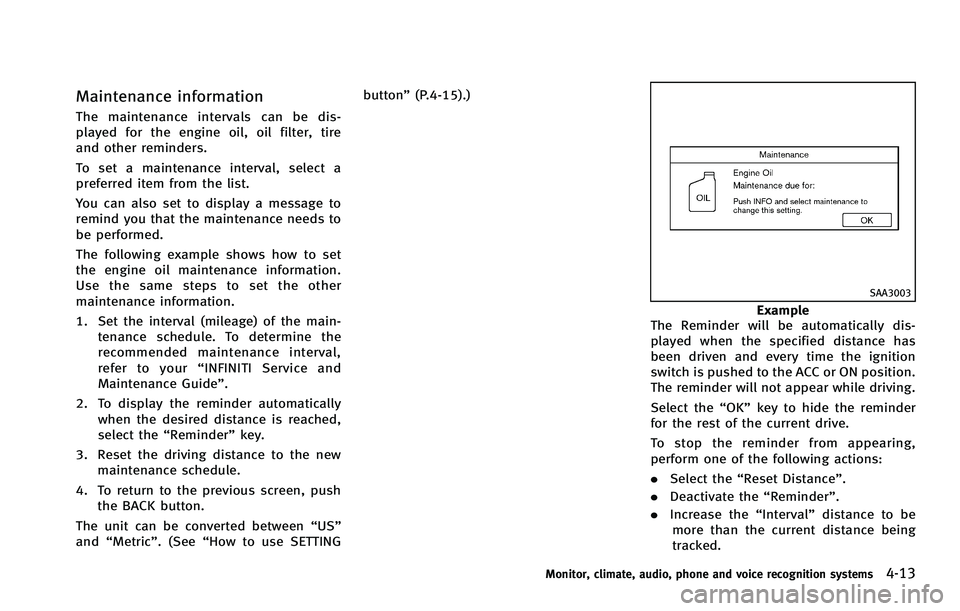
SAA3003
Example
The Reminder will be automatically dis-
played when the specified distance has
been driven and every time the ignition
switch is pushed to the ACC or ON position.
The reminder will not appear while driving.
Select the “OK”key to hide the reminder
for the rest of the current drive.
To stop the reminder from appearing,
perform one of the following actions:
. Select the “Reset Distance”.
. Deactivate the “Reminder”.
. Increase the “Interval”distance to be
more than the current distance being
tracked.
Monitor, climate, audio, phone and voice recognition systems4-13
Page 191 of 522

4-14Monitor, climate, audio, phone and voice recognition systems
SAA3145
Others information (models with
navigation system)
The Others information display will appear
when pushing the INFO button and select-
ing the“Others” key.
Navigation Version: For the details of this item, see the
separate Navigation System Owner’s Man-
ual.
When the ignition switch is in the ignition
position, the “Navigation Version” key is
displayed after pushing the INFO button. GPS Position:
For the details of this item, see the
separate Navigation System Owner’s Man-
ual.
Voice Recognition:
For the details of this item, see “INFINITI
Voice Recognition System (models with
navigation system)” (P.4-120).
SAA2484
Models with navigation system
SAA2604
Models without navigation system
Page 197 of 522
4-20Monitor, climate, audio, phone and voice recognition systems
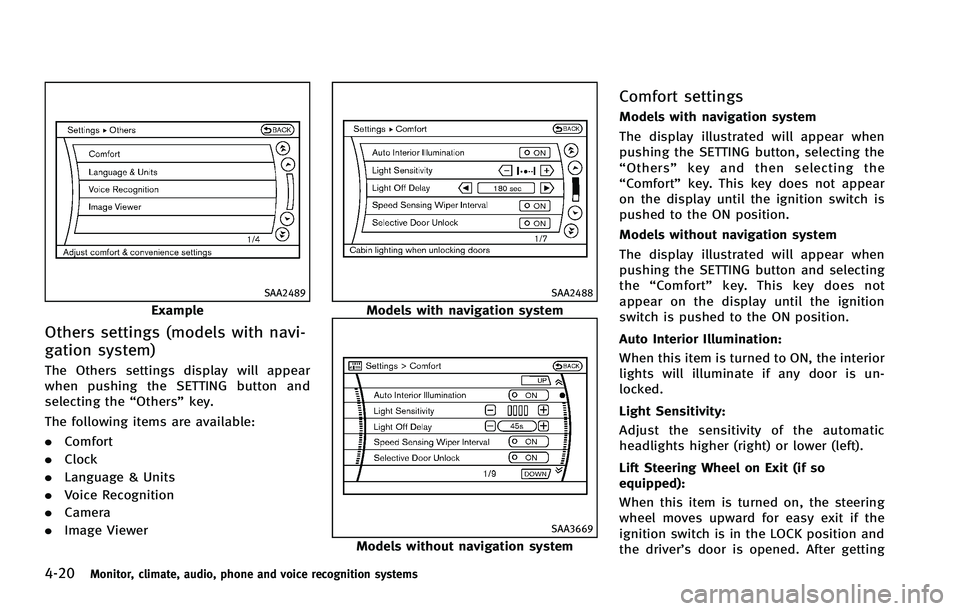
SAA2489
Example
Others settings (models with navi-
gation system)
The Others settings display will appear
when pushing the SETTING button and
selecting the“Others”key.
The following items are available:
. Comfort
. Clock
. Language & Units
. Voice Recognition
. Camera
. Image Viewer
SAA2488
Models with navigation system
SAA3669
Models without navigation system
Comfort settings
Models with navigation system
The display illustrated will appear when
pushing the SETTING button, selecting the
“Others” key and then selecting the
“Comfort” key. This key does not appear
on the display until the ignition switch is
pushed to the ON position.
Models without navigation system
The display illustrated will appear when
pushing the SETTING button and selecting
the “Comfort” key. This key does not
appear on the display until the ignition
switch is pushed to the ON position.
Auto Interior Illumination:
When this item is turned to ON, the interior
lights will illuminate if any door is un-
locked.
Light Sensitivity:
Adjust the sensitivity of the automatic
headlights higher (right) or lower (left).
Lift Steering Wheel on Exit (if so
equipped):
When this item is turned on, the steering
wheel moves upward for easy exit if the
ignition switch is in the LOCK position and
the driver’s door is opened. After getting
Page 198 of 522

into the vehicle and pushing the ignition
switch to the ACC position, the steering
wheel moves to the previous position.
Slide Driver Seat Back on Exit (if so
equipped):
When this item is turned on, the driver’s
seat moves backward for easy exit if the
ignition switch is in the OFF position and
the driver’s door is opened. After getting
into the vehicle and pushing the ignition
switch to the ACC position, the driver’s seat
moves to the previous position.
Light Off Delay:
Choose the duration of the automatic
headlight off timer from 0, 30, 45, 60, 90,
120, 150 and 180 second periods.
Speed Sensing Wiper Interval (if so
equipped):
When this item is turned to ON, the wiper
interval is adjusted automatically accord-
ing to the vehicle speed.
Selective Door Unlock:
When this item is turned to ON, only the
driver’s door is unlocked first after the door
unlock operation. When the door handle
request switch on the driver’s or front
passenger’s side door is pushed to beunlocked, only the corresponding door is
unlocked first. All the doors can be
unlocked if the door unlock operation is
performed again within 60 seconds.
When this item is turned to OFF, all the
doors will be unlocked after the door
unlock operation is performed once.
Intelligent Key Lock/Unlock:
When this item is turned to ON, door lock/
unlock function by pushing the door
handle request switch will be activated.
Return All Settings to Default:
Select this item and then select “YES”to
return all settings to the default.
SAA3007
Models with navigation system
SAA3014
Models without navigation system
Monitor, climate, audio, phone and voice recognition systems4-21
Page 199 of 522
4-22Monitor, climate, audio, phone and voice recognition systems
Language & Units settings
Models with navigation system
The display illustrated will appear when
pushing the SETTING button, selecting the
“Others” key and then selecting the
“Language & Units” key.
Models without navigation system
The display illustrated will appear when
pushing the SETTING button and selecting
the “Language & Units” key.
Select Language:
Select the “Select Language” key. Choose
“English”, “Français” or“Español” for your
favorite display appearance.
If you select the “Français”key, the French
language will be displayed, so please use
the French Owner’s Manual. To obtain a
French Owner’ s Manual, see “Owner’ s
Manual/Service Manual order information”
(P.9-32).
Select Units:
Select the “Select Units” key. Choose“US”
(Mile, 8F, MPG) or “Metric”(km,8C, L/100
km) for your favorite display appearance. Select Units (Tire Pressure):
Choose the “Select Units (Tire Pressure)”
key and push the ENTER button. From the
following display, select “kPa”or“psi”.
*When the ignition switch is in the ACC
position, the “Select Units (Tire Pressure)”
key is not displayed.
Voice Recognition settings (models
with navigation system)
For details about the “Voice Recognition”
settings, see “INFINITI Voice Recognition
System (models with navigation system)”
(P.4-120).
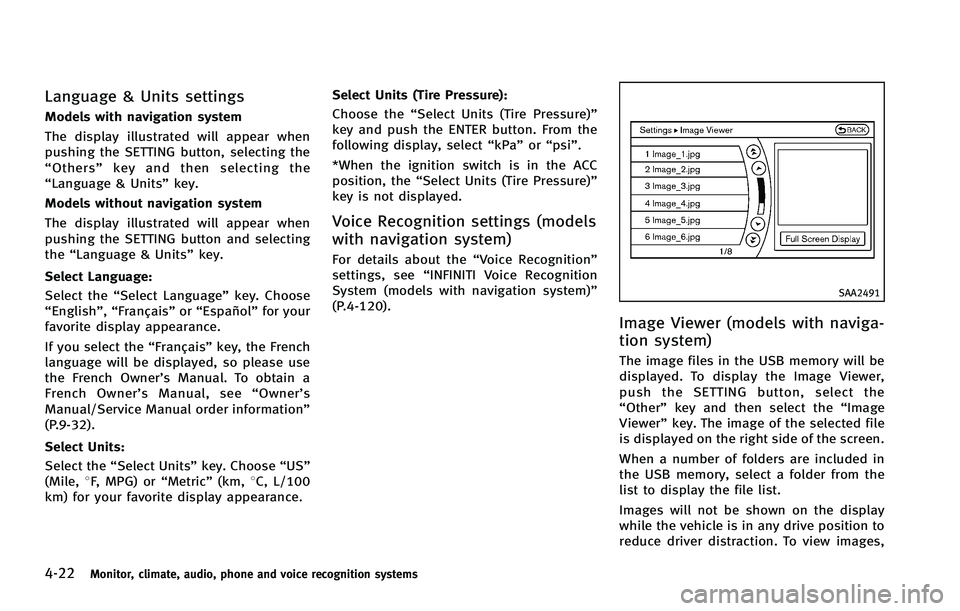
SAA2491
Image Viewer (models with naviga-
tion system)
The image files in the USB memory will be
displayed. To display the Image Viewer,
push the SETTING button, select the
“Other” key and then select the “Image
Viewer” key. The image of the selected file
is displayed on the right side of the screen.
When a number of folders are included in
the USB memory, select a folder from the
list to display the file list.
Images will not be shown on the display
while the vehicle is in any drive position to
reduce driver distraction. To view images,
Page 208 of 522

When you push theCAMERAbutton or shift
the selector lever into the R (Reverse)
position while the ignition switch is in the
ON position, the Around View Monitor
operates. The monitor displays various
views of the position of the vehicle.
Available views:
. Bird-Eye View
The surrounding view of the vehicle.
. Front-Side View
The view around and ahead of the front
passenger’s side wheel.
. Front View
The view to the front of the vehicle.
. RearView
The view to the rear of the vehicle.
. Rear-Wide View
An approximately 180-degree view of
the rear of the vehicle.
The system is designed as an aid to the
driver in situations such as slot parking or
parallel parking.
SAA2148
There are some areas where the system
will not detect objects. When in the front or
the rearview display, an object below the
bumper or on the ground may not be
detected
*1. When in the bird-eye view, a
tall object near the seam of the camera
detecting areas will not appear in the monitor
*2.
WARNING
.
The Around View Monitor is a conveni-
ence but it is not a substitute for proper
vehicle operation because it has areas
where objects cannot be viewed. Always
look out the windows and check to be
sure that it is safe to move before
operating the vehicle. Always operate
the vehicle slowly.
. Do not use the Around View Monitor with
the outside mirror in the stored position,
and make sure that the lift gate is
securely closed when operating the
vehicle using the Around View Monitor.
. The distance between objects viewed on
the Around View Monitor differs from the
actual distance.
. The cameras are installed above the
front grille, the outside mirrors and
above the rear license plate. Do not put
anything on the cameras.
. When washing the vehicle with high-
pressure water, be sure not to spray it
around the cameras. Otherwise, water
may enter the camera unit causing water
Monitor, climate, audio, phone and voice recognition systems4-31
AROUND VIEWTMMONITOR (AVM) (if so
equipped)
Page 213 of 522
4-36Monitor, climate, audio, phone and voice recognition systems
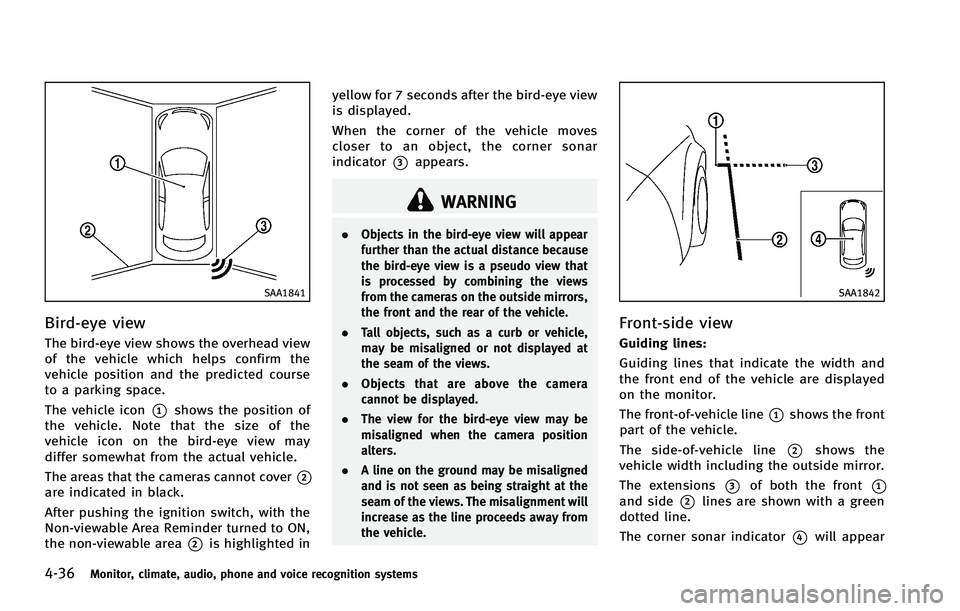
SAA1841
Bird-eye view
The bird-eye view shows the overhead view
of the vehicle which helps confirm the
vehicle position and the predicted course
to a parking space.
The vehicle icon
*1shows the position of
the vehicle. Note that the size of the
vehicle icon on the bird-eye view may
differ somewhat from the actual vehicle.
The areas that the cameras cannot cover
*2are indicated in black.
After pushing the ignition switch, with the
Non-viewable Area Reminder turned to ON,
the non-viewable area
*2is highlighted in yellow for 7 seconds after the bird-eye view
is displayed.
When the corner of the vehicle moves
closer to an object, the corner sonar
indicator
*3appears.
WARNING
.
Objects in the bird-eye view will appear
further than the actual distance because
the bird-eye view is a pseudo view that
is processed by combining the views
from the cameras on the outside mirrors,
the front and the rear of the vehicle.
. Tall objects, such as a curb or vehicle,
may be misaligned or not displayed at
the seam of the views.
. Objects that are above the camera
cannot be displayed.
. The view for the bird-eye view may be
misaligned when the camera position
alters.
. A line on the ground may be misaligned
and is not seen as being straight at the
seam of the views. The misalignment will
increase as the line proceeds away from
the vehicle.
SAA1842
Front-side view
Guiding lines:
Guiding lines that indicate the width and
the front end of the vehicle are displayed
on the monitor.
The front-of-vehicle line
*1shows the front
part of the vehicle.
The side-of-vehicle line
*2shows the
vehicle width including the outside mirror.
The extensions
*3of both the front*1and side*2lines are shown with a green
dotted line.
The corner sonar indicator
*4will appear
Page 226 of 522
AUDIO OPERATION PRECAUTIONS
Radio
Push the ignition switch to the ACC or ON
position and push the radio band select
button to turn on the radio. If you listen to
the radio with the engine not running, the
ignition switch should be pushed to the
ACC position.
Radio reception is affected by station
signal strength, distance from radio trans-
mitter, buildings, bridges, mountains and
other external influences. Intermittent
changes in reception quality normally are
caused by these external influences.
Using a cellular phone in or near the
vehicle may influence radio reception
quality.
Radio reception:
Your INFINITI radio system is equipped with
state-of-the-art electronic circuits to en-
hance radio reception. These circuits are
designed to extend reception range, and to
enhance the quality of that reception.
However there are some general character-
istics of both FM and AM radio signals that
can affect radio reception quality in a
moving vehicle, even when the finestequipment is used. These characteristics
are completely normal in a given reception
area, and do not indicate any malfunction
in your INFINITI radio system.
Reception conditions will constantly
change because of vehicle movement.
Buildings, terrain, signal distance and
interference from other vehicles can work
against ideal reception. Described below
are some of the factors that can affect your
radio reception.
Some cellular phones or other devices may
cause interference or a buzzing noise to
come from the audio system speakers.
Storing the device in a different location
may reduce or eliminate the noise.
SAA0306
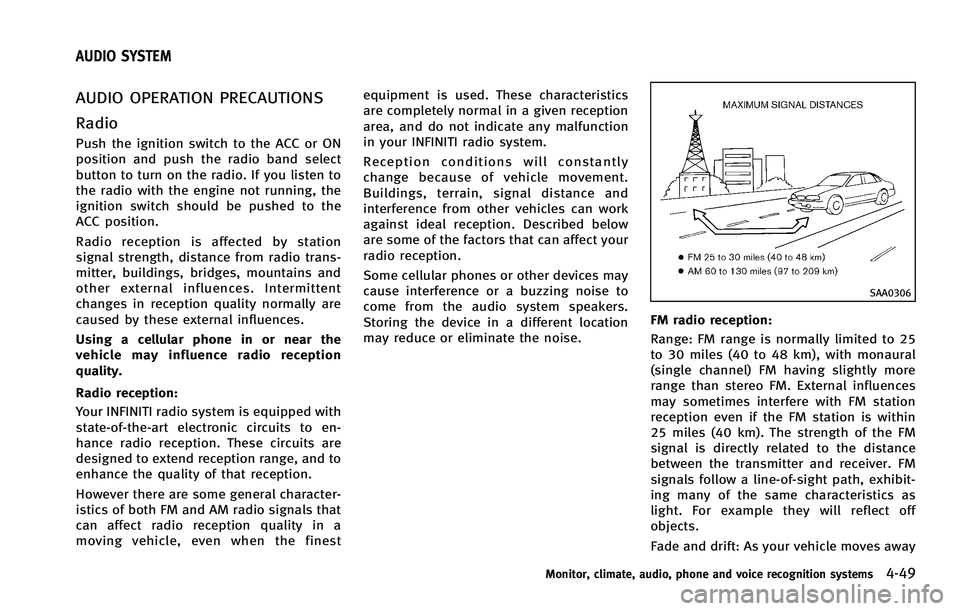
FM radio reception:
Range: FM range is normally limited to 25
to 30 miles (40 to 48 km), with monaural
(single channel) FM having slightly more
range than stereo FM. External influences
may sometimes interfere with FM station
reception even if the FM station is within
25 miles (40 km). The strength of the FM
signal is directly related to the distance
between the transmitter and receiver. FM
signals follow a line-of-sight path, exhibit-
ing many of the same characteristics as
light. For example they will reflect off
objects.
Fade and drift: As your vehicle moves away
Monitor, climate, audio, phone and voice recognition systems4-49
AUDIO SYSTEM
Page 240 of 522
JVH0138X
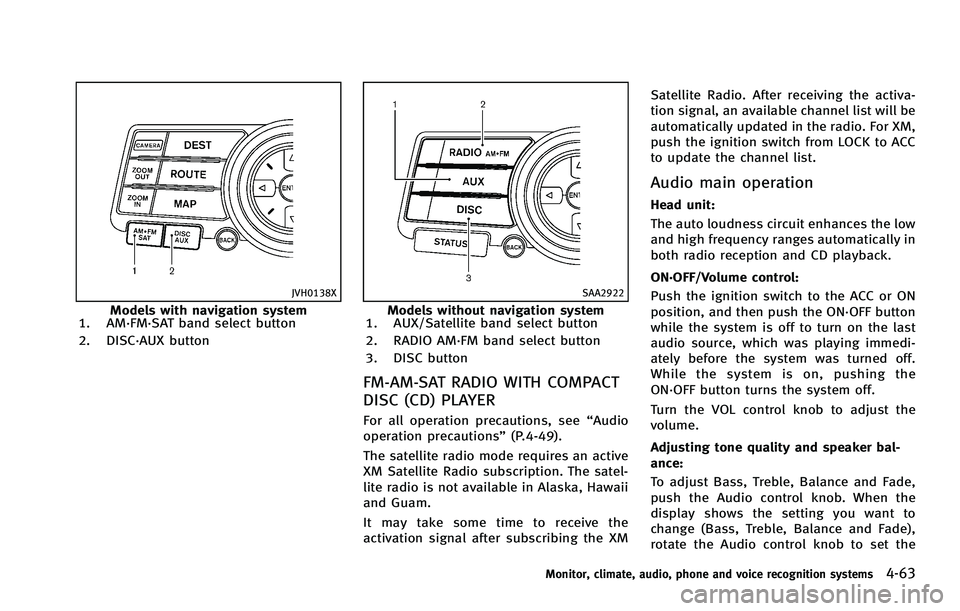
Models with navigation system
1. AM·FM·SAT band select button
2. DISC·AUX button
SAA2922
Models without navigation system
1. AUX/Satellite band select button
2. RADIO AM·FM band select button
3. DISC button
FM-AM-SAT RADIO WITH COMPACT
DISC (CD) PLAYER
For all operation precautions, see “Audio
operation precautions” (P.4-49).
The satellite radio mode requires an active
XM Satellite Radio subscription. The satel-
lite radio is not available in Alaska, Hawaii
and Guam.
It may take some time to receive the
activation signal after subscribing the XM Satellite Radio. After receiving the activa-
tion signal, an available channel list will be
automatically updated in the radio. For XM,
push the ignition switch from LOCK to ACC
to update the channel list.
Audio main operation
Head unit:
The auto loudness circuit enhances the low
and high frequency ranges automatically in
both radio reception and CD playback.
ON·OFF/Volume control:
Push the ignition switch to the ACC or ON
position, and then push the ON·OFF button
while the system is off to turn on the last
audio source, which was playing immedi-
ately before the system was turned off.
While the system is on, pushing the
ON·OFF button turns the system off.
Turn the VOL control knob to adjust the
volume.
Adjusting tone quality and speaker bal-
ance:
To adjust Bass, Treble, Balance and Fade,
push the Audio control knob. When the
display shows the setting you want to
change (Bass, Treble, Balance and Fade),
rotate the Audio control knob to set the
Monitor, climate, audio, phone and voice recognition systems4-63
Page 241 of 522
4-64Monitor, climate, audio, phone and voice recognition systems
desired setting. For the other setting
methods, see“How to use SETTING button”
(P.4-15).
Switching the display:
. Models with navigation system
Pushing the DISC·AUX button will switch
the displays as follows:
iPod
®/USB ?CD/DVD ?Music Box®(if
so equipped) ?Bluetooth®streaming
audio ?iPod®/USB
. Models without navigation system
Pushing the DISC button will switch the
display as follows:
CD ?Music Box
®(if so equipped) ?CD
Pushing the AUX button will switch the
display as follows:
USB/iPod
®? XM1 ?XM2 ?XM3 ?
USB/iPod®
FM-AM-SAT radio operation
When the radio band select button is
pushed while the ignition switch is in the
ACC or ON position, the radio will come on
at the channel last played.
The last channel played will also come on
when the ON·OFF button is pushed to ON.
The satellite radio is not available in Alaska, Hawaii and Guam.
If another audio source is playing when the
radio or satellite band select button is
turned to ON, the audio source will
automatically be turned off and the last
radio channel played will come on.
When the stereo broadcast signal is weak,
the radio will automatically change from
stereo to monaural reception.
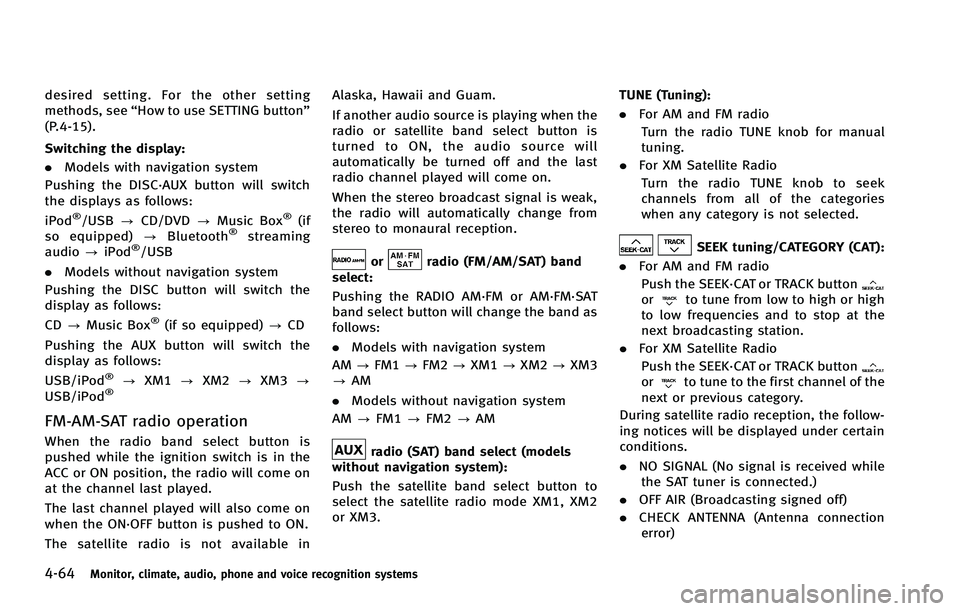
orradio (FM/AM/SAT) band
select:
Pushing the RADIO AM·FM or AM·FM·SAT
band select button will change the band as
follows:
. Models with navigation system
AM ?FM1 ?FM2 ?XM1 ?XM2 ?XM3
? AM
. Models without navigation system
AM ?FM1 ?FM2 ?AM
radio (SAT) band select (models
without navigation system):
Push the satellite band select button to
select the satellite radio mode XM1, XM2
or XM3. TUNE (Tuning):
. For AM and FM radio
Turn the radio TUNE knob for manual
tuning.
. For XM Satellite Radio
Turn the radio TUNE knob to seek
channels from all of the categories
when any category is not selected.
SEEK tuning/CATEGORY (CAT):
. For AM and FM radio
Push the SEEK·CAT or TRACK button
orto tune from low to high or high
to low frequencies and to stop at the
next broadcasting station.
. For XM Satellite Radio
Push the SEEK·CAT or TRACK button
orto tune to the first channel of the
next or previous category.
During satellite radio reception, the follow-
ing notices will be displayed under certain
conditions.
. NO SIGNAL (No signal is received while
the SAT tuner is connected.)
. OFF AIR (Broadcasting signed off)
. CHECK ANTENNA (Antenna connection
error)