AUX INFINITI G CONVERTIBLE 2013 Owner's Manual
[x] Cancel search | Manufacturer: INFINITI, Model Year: 2013, Model line: G CONVERTIBLE, Model: INFINITI G CONVERTIBLE 2013Pages: 466
Page 172 of 466

GUID-AB20B569-6B63-45A7-8FC3-14C059B43D12
WARNING
.Do not disassemble or modify this
system. If you do, it may result in
accidents, fire, or electric shock.
. Do not use this system if you notice any
abnormality, such as a frozen screen or
lack of sound. Continued use of the
system may result in accident, fire or
electric shock.
. In case you notice any foreign object in
the system hardware, spill liquid on it,
or notice smoke or smell coming from it,
stop using the system immediately and
contact your nearest INFINITI retailer.
Ignoring such conditions may lead to
accidents, fire, or electric shock.
. Park the vehicle in a safe location and
apply the parking brake to view the
images on the front center display
screen.
Do not attempt to operate the system in
extreme temperature conditions [below
−48F (−208C) and above 1588F (708C)].
Operating this system under these condi-
tions may result in system malfunctions.
GUID-6E127E83-FDFD-4E28-A42A-25C915B65672
SAA1523
Models with navigation system
1. “STATUS” status display button
(P.4-9)
2, 6, 7, 10, 11. For navigation system control buttons
(Refer to the separate Navigation
System Owner’s Manual.)
3. INFINITI controller (P.4-5)
4. “PHONE” Bluetooth
®Hands-Free
Phone System button (P.4-79)
5. “
OFF” brightness control and
display ON/OFF button (P.4-9)
8. “AM·FM·SAT” band selector button
(P.4-39) 9.
“DISC·AUX” selector button (P.4-39)
12. “INFO” vehicle and navigation infor-
mation button (P.4-9)
13. “SETTING” button (P.4-13)
Monitor, climate, audio, phone and voice recognition systems4-3
SAFETY NOTE CENTER MULTI-FUNCTION CONTROL PANEL
Page 173 of 466

4-4Monitor, climate, audio, phone and voice recognition systems
SAA1524
Models without navigation system
1. “AUX” button (P.4-39)
2. “RADIO AM·FM” band selector button
(P.4-39)
3. INFINITI controller (P.4-5)
4. “
OFF” brightness control and
display ON/OFF button (P.4-9)
5. “INFO” vehicle information button
(P.4-9)
6. “DISC” selector button (P.4-39)
7. “STATUS” status display button
(P.4-9)
8. “SETTING” button (P.4-13)
When you use this system, make sure the
engine is running. If you use the system with the engine not
running (ignition ON or ACC) for a long
time, it will use up all the battery power,
and the engine will not start.
SAA1541
Models with navigation system
SAA1508
Models without navigation system
Page 224 of 466
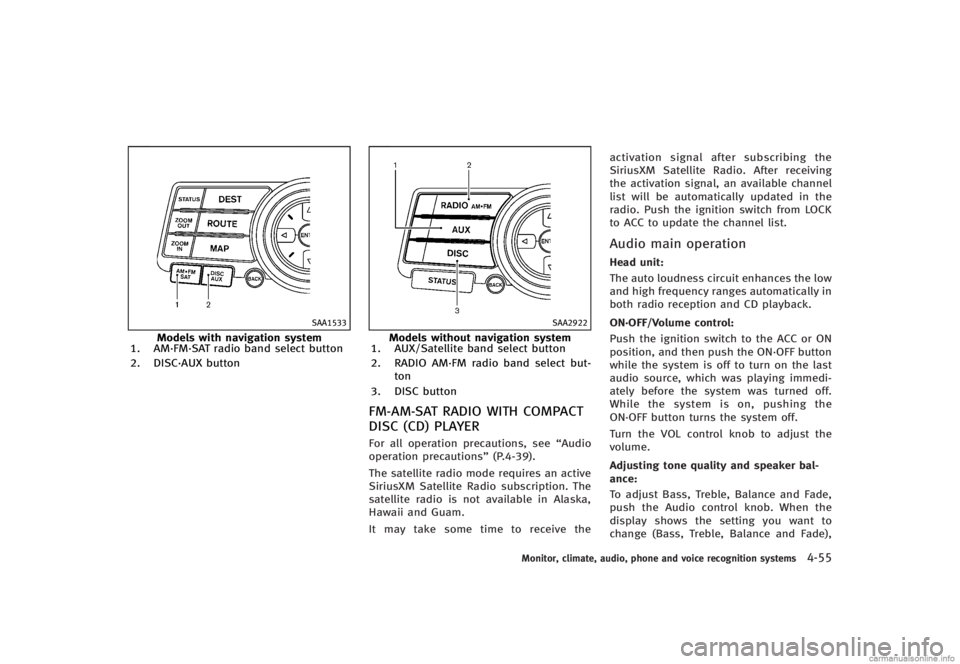
SAA1533
Models with navigation system
1. AM·FM·SAT radio band select button
2. DISC·AUX button
SAA2922
Models without navigation system
1. AUX/Satellite band select button
2. RADIO AM·FM radio band select but-
ton
3. DISC button
FM-AM-SAT RADIO WITH COMPACT
DISC (CD) PLAYER
GUID-A8D248EB-6B03-444F-9184-74B5AD0A3E52For all operation precautions, see “Audio
operation precautions” (P.4-39).
The satellite radio mode requires an active
SiriusXM Satellite Radio subscription. The
satellite radio is not available in Alaska,
Hawaii and Guam.
It may take some time to receive the activation signal after subscribing the
SiriusXM Satellite Radio. After receiving
the activation signal, an available channel
list will be automatically updated in the
radio. Push the ignition switch from LOCK
to ACC to update the channel list.
Audio main operationGUID-12E9E908-9A26-4A2D-8254-200EA72F37F0Head unit:GUID-D73A39BF-43C8-459F-9C24-47B7F579C407The auto loudness circuit enhances the low
and high frequency ranges automatically in
both radio reception and CD playback.
ON·OFF/Volume control:
GUID-D73A39BF-43C8-459F-9C24-47B7F579C407Push the ignition switch to the ACC or ON
position, and then push the ON·OFF button
while the system is off to turn on the last
audio source, which was playing immedi-
ately before the system was turned off.
While the system is on, pushing the
ON·OFF button turns the system off.
Turn the VOL control knob to adjust the
volume.
Adjusting tone quality and speaker bal-
ance:
GUID-D73A39BF-43C8-459F-9C24-47B7F579C407To adjust Bass, Treble, Balance and Fade,
push the Audio control knob. When the
display shows the setting you want to
change (Bass, Treble, Balance and Fade),
Monitor, climate, audio, phone and voice recognition systems4-55
Page 225 of 466
4-56Monitor, climate, audio, phone and voice recognition systems
rotate the Audio control knob to set the
desired setting. For the other setting
methods, see“How to use SETTING button”
(P.4-13).
This vehicle has some sound effect func-
tions as follows:
. Speed Sensitive Vol. (if so equipped)
. Precision Phased Audio (if so equipped)
. BOSE
®AudioPilot®(if so equipped)
For more details, see “How to use SETTING
button” (P.4-13).
For models with BOSE Sound System, tone
qualities are adjusted automatically ac-
cording to the roof condition (open/close).
The output from the audio system may be
interrupted during adjustment. This is not a
malfunction.
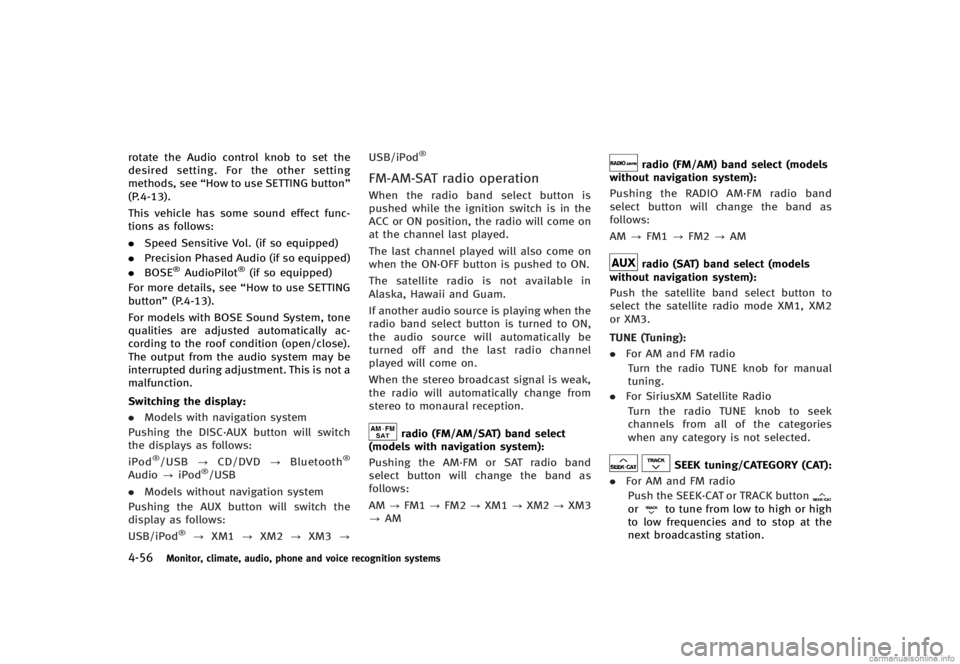
Switching the display:
GUID-D73A39BF-43C8-459F-9C24-47B7F579C407. Models with navigation system
Pushing the DISC·AUX button will switch
the displays as follows:
iPod
®/USB ?CD/DVD ?Bluetooth®
Audio ?iPod®/USB
. Models without navigation system
Pushing the AUX button will switch the
display as follows:
USB/iPod
®? XM1 ?XM2 ?XM3 ? USB/iPod
®
FM-AM-SAT radio operationGUID-8CCC0D99-C92F-489F-8CF0-BF1E682C17DDWhen the radio band select button is
pushed while the ignition switch is in the
ACC or ON position, the radio will come on
at the channel last played.
The last channel played will also come on
when the ON·OFF button is pushed to ON.
The satellite radio is not available in
Alaska, Hawaii and Guam.
If another audio source is playing when the
radio band select button is turned to ON,
the audio source will automatically be
turned off and the last radio channel
played will come on.
When the stereo broadcast signal is weak,
the radio will automatically change from
stereo to monaural reception.
radio (FM/AM/SAT) band select
(models with navigation system):
GUID-D73A39BF-43C8-459F-9C24-47B7F579C407Pushing the AM·FM or SAT radio band
select button will change the band as
follows:
AM ?FM1 ?FM2 ?XM1 ?XM2 ?XM3
? AM
radio (FM/AM) band select (models
without navigation system):
GUID-D73A39BF-43C8-459F-9C24-47B7F579C407Pushing the RADIO AM·FM radio band
select button will change the band as
follows:
AM ?FM1 ?FM2 ?AM
radio (SAT) band select (models
without navigation system):
GUID-D73A39BF-43C8-459F-9C24-47B7F579C407Push the satellite band select button to
select the satellite radio mode XM1, XM2
or XM3.
TUNE (Tuning):
GUID-D73A39BF-43C8-459F-9C24-47B7F579C407. For AM and FM radio
Turn the radio TUNE knob for manual
tuning.
. For SiriusXM Satellite Radio
Turn the radio TUNE knob to seek
channels from all of the categories
when any category is not selected.
SEEK tuning/CATEGORY (CAT):GUID-D73A39BF-43C8-459F-9C24-47B7F579C407. For AM and FM radio
Push the SEEK·CAT or TRACK button
orto tune from low to high or high
to low frequencies and to stop at the
next broadcasting station.
Page 227 of 466
4-58Monitor, climate, audio, phone and voice recognition systems
.Categories
Selecting a category will go to the first
channel in that category as defined by
SiriusXM Satellite Radio.
. Direct Tune
Inputs the channel number by using a
keypad.
Text (models without navigation system):
GUID-D73A39BF-43C8-459F-9C24-47B7F579C407When the “Text”key is selected with the
INFINITI controller on the display and then
the ENTER button is pushed while the
satellite radio is being played, the text
information listed below will be displayed
on the screen.
. CH Name
. Category
. Name
. Title
. Other
Compact Disc (CD) player operationGUID-FAE4F579-A69E-4E6C-A880-8DA46C6CE364Push the ignition switch to the ACC or ON
position and insert the Compact Disc (CD)
into the slot with the label side facing up.
The CD will be guided automatically into
the slot and start playing.
After loading the CD, the number of tracks
on the CD and the play time will appear on
the display.
If the radio is already operating, it will
automatically turn off and the CD will play.
If the system has been turned off while the
CD was playing, pushing the ON·OFF
button will start the CD.
Do not use 3.1 in (8 cm) discs.
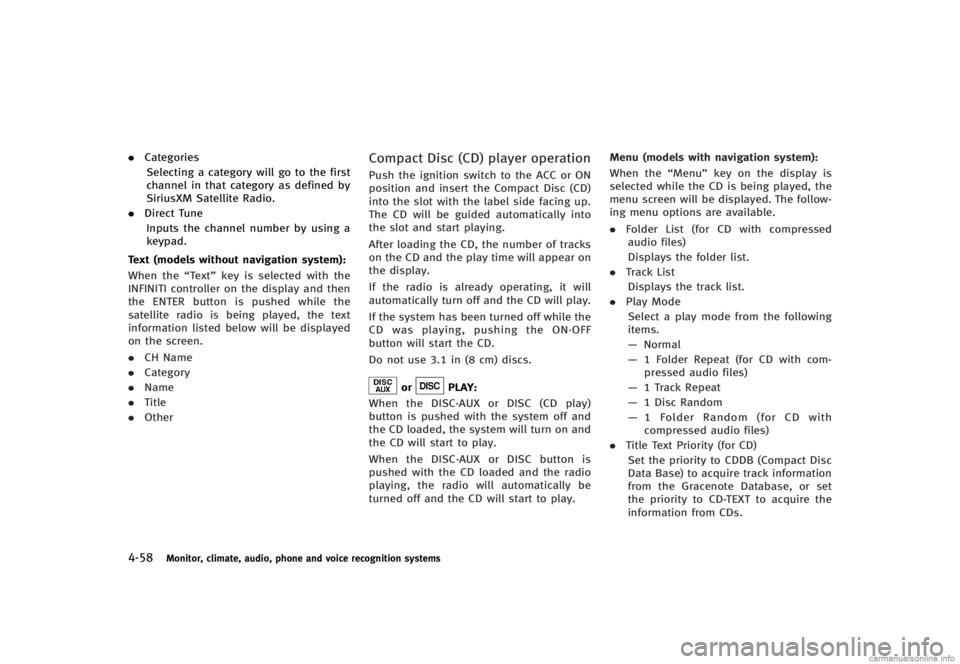
orPLAY:GUID-D73A39BF-43C8-459F-9C24-47B7F579C407When the DISC·AUX or DISC (CD play)
button is pushed with the system off and
the CD loaded, the system will turn on and
the CD will start to play.
When the DISC·AUX or DISC button is
pushed with the CD loaded and the radio
playing, the radio will automatically be
turned off and the CD will start to play. Menu (models with navigation system):
GUID-D73A39BF-43C8-459F-9C24-47B7F579C407When the
“Menu”key on the display is
selected while the CD is being played, the
menu screen will be displayed. The follow-
ing menu options are available.
. Folder List (for CD with compressed
audio files)
Displays the folder list.
. Track List
Displays the track list.
. Play Mode
Select a play mode from the following
items.
— Normal
— 1 Folder Repeat (for CD with com-
pressed audio files)
— 1 Track Repeat
— 1 Disc Random
— 1 Folder Random (for CD with
compressed audio files)
. Title Text Priority (for CD)
Set the priority to CDDB (Compact Disc
Data Base) to acquire track information
from the Gracenote Database, or set
the priority to CD-TEXT to acquire the
information from CDs.
Page 229 of 466
4-60Monitor, climate, audio, phone and voice recognition systems
tion.
. Do not attempt to modify the system to
display a movie on the front screen while
the vehicle is being driven. Doing so may
distract the driver and may cause a
collision and serious personal injury or
death.
CAUTION
.Only operate the DVD while the vehicle
engine is running. Operating the DVD for
extended periods of time with the
engine OFF can discharge the vehicle
battery.
. Do not allow the system to get wet.
Excessive moisture such as spilled
liquids may cause the system to mal-
function.
. While playing VIDEO-CD media, this DVD
player does not guarantee complete
functionality of all VIDEO-CD formats.
Display settingsGUID-E08BD57F-87E4-4259-AED9-EA220FDFA06DTo adjust the front display mode, push the
SETTING button while the DVD is being played, select the
“Others”key and then
select the “Display”key.
To adjust the display ON/OFF, brightness,
tint, color and contrast, select the “Display
Adjustment” key and then select each key.
Then you can adjust each item using the
INFINITI controller. After changes have
been made push the BACK button to save
the setting.
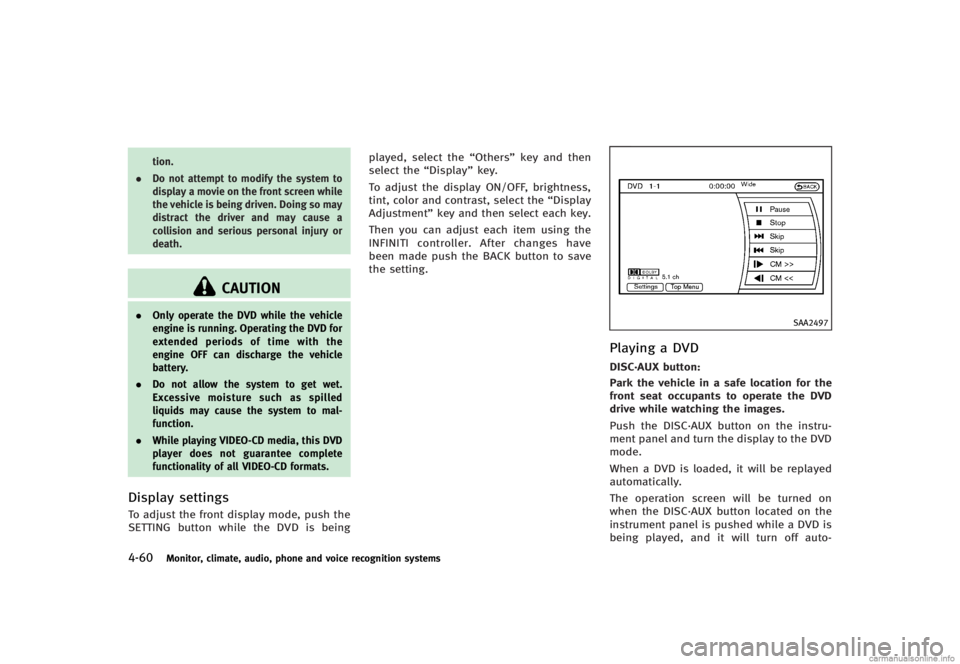
SAA2497
Playing a DVDGUID-AD1D14DA-9569-4B06-B32E-463373B8A37BDISC·AUX button:GUID-D73A39BF-43C8-459F-9C24-47B7F579C407Park the vehicle in a safe location for the
front seat occupants to operate the DVD
drive while watching the images.
Push the DISC·AUX button on the instru-
ment panel and turn the display to the DVD
mode.
When a DVD is loaded, it will be replayed
automatically.
The operation screen will be turned on
when the DISC·AUX button located on the
instrument panel is pushed while a DVD is
being played, and it will turn off auto-
Page 230 of 466
matically after a period of time. To turn it
on again, push the DISC·AUX button again.
DVD operation keys:
GUID-D73A39BF-43C8-459F-9C24-47B7F579C407When the DVD is playing without the
operation screen being shown, you may
use the touch screen to select items from
the displayed video. You may also use the
INFINITI controller to select an item from
the displayed video. When the operation
screen is being shown, use the INFINITI
controller or touch screen to select an item
from the displayed menus.
PAUSE:
Select the “
”key to pause the DVD. To
resume playing the DVD, use the “PLAY”
key.
PLAY:
Select the “
”key to start playing the
DVD, for example, after pausing the DVD.
STOP:
Select the “
”key to stop playing the
DVD.
/Next/Previous Chapter:
Select the “
”or “”key to skip the
chapter(s) of the disc forward/backward.
The chapters will advance/go back the
number of times this key is selected.
/Commercial Skip:
This function is only for DVD-VIDEO, DVD-
VR. Select the “
”or “”key to skip
forward or backwards by the set amount as
defined in the DVD Settings menu.
Top Menu:
GUID-D73A39BF-43C8-459F-9C24-47B7F579C407When the “Top Menu” key is selected in
the screen while a DVD is being played, the
top menu specific to each disc will be
displayed. For details, see the instructions
on the disc.
SAA2498
Example
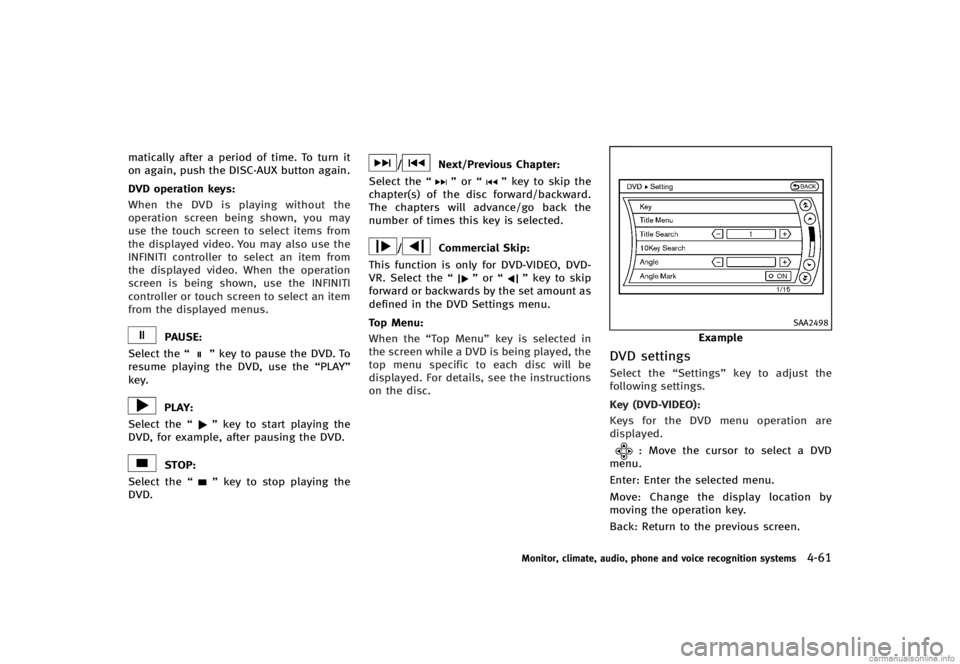
DVD settingsGUID-81CEDB27-0718-4CF6-B90B-387B1856E46CSelect the “Settings”key to adjust the
following settings.
Key (DVD-VIDEO):
GUID-D73A39BF-43C8-459F-9C24-47B7F579C407Keys for the DVD menu operation are
displayed.
: Move the cursor to select a DVD
menu.
Enter: Enter the selected menu.
Move: Change the display location by
moving the operation key.
Back: Return to the previous screen.
Monitor, climate, audio, phone and voice recognition systems4-61
Page 232 of 466
SAA2973
Automatic transmission models
SAA2610
Manual transmission models
USB INPUT OPERATIONGUID-0956B25A-5423-4DC4-97BC-929F8E12E1FB
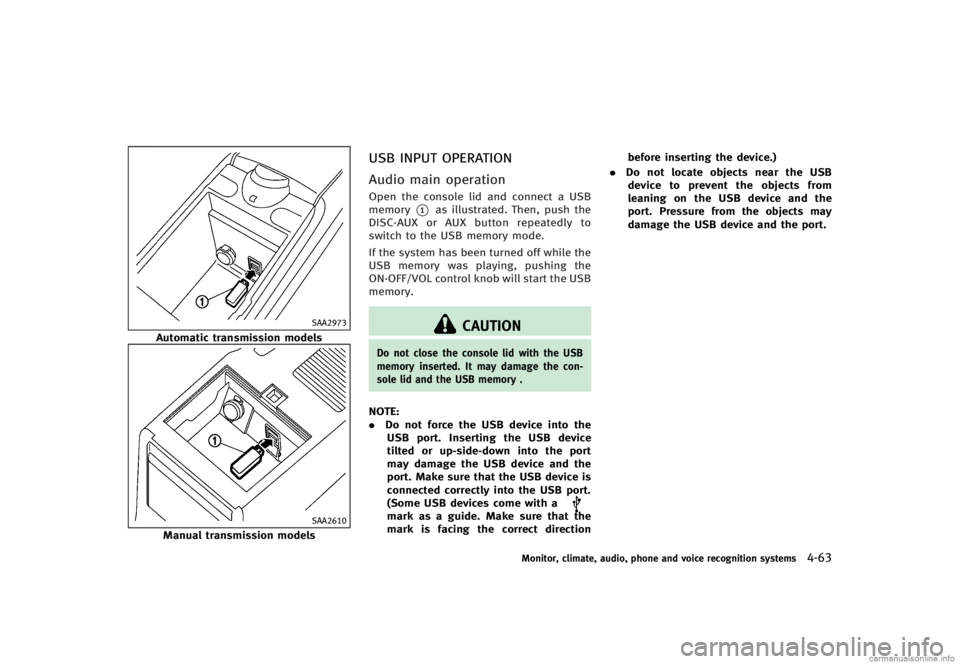
Audio main operationGUID-CCE18802-5F37-40D8-89D4-7A6B1F5829E9Open the console lid and connect a USB
memory
*1as illustrated. Then, push the
DISC·AUX or AUX button repeatedly to
switch to the USB memory mode.
If the system has been turned off while the
USB memory was playing, pushing the
ON·OFF/VOL control knob will start the USB
memory.
CAUTION
Do not close the console lid with the USB
memory inserted. It may damage the con-
sole lid and the USB memory .
NOTE:
. Do not force the USB device into the
USB port. Inserting the USB device
tilted or up-side-down into the port
may damage the USB device and the
port. Make sure that the USB device is
connected correctly into the USB port.
(Some USB devices come with a
mark as a guide. Make sure that the
mark is facing the correct direction before inserting the device.)
. Do not locate objects near the USB
device to prevent the objects from
leaning on the USB device and the
port. Pressure from the objects may
damage the USB device and the port.
Monitor, climate, audio, phone and voice recognition systems4-63
Page 233 of 466
4-64Monitor, climate, audio, phone and voice recognition systems
SAA2500
File selection (models with naviga-
tion system)
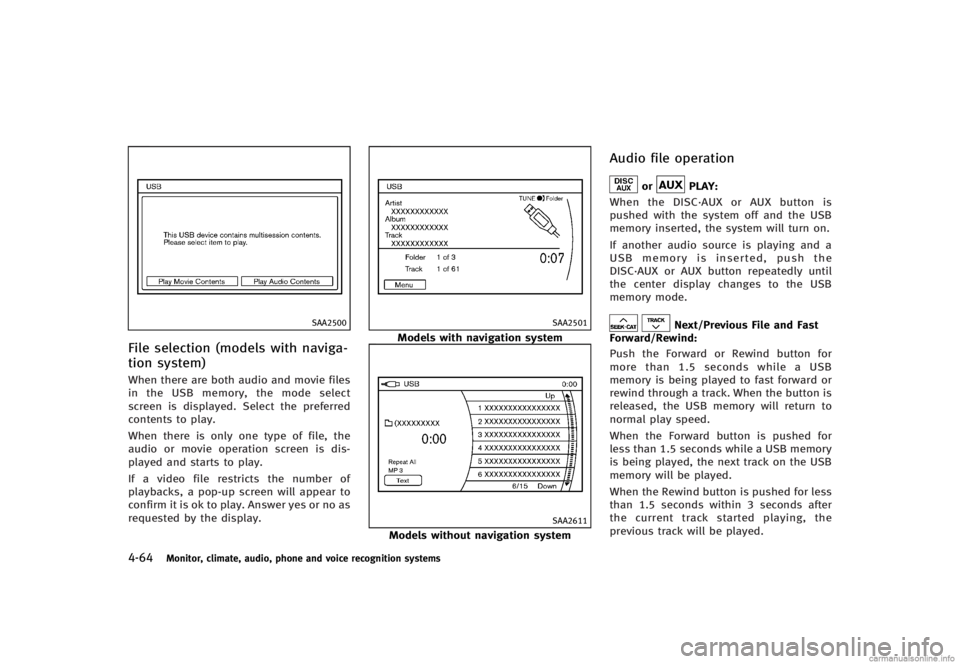
GUID-8685DE35-EA8B-4A42-85A6-5617751CFD1DWhen there are both audio and movie files
in the USB memory, the mode select
screen is displayed. Select the preferred
contents to play.
When there is only one type of file, the
audio or movie operation screen is dis-
played and starts to play.
If a video file restricts the number of
playbacks, a pop-up screen will appear to
confirm it is ok to play. Answer yes or no as
requested by the display.
SAA2501
Models with navigation system
SAA2611
Models without navigation system
Audio file operationGUID-E6FC959F-E6DF-4E4E-BC68-C648F8C3FD8D
orPLAY:GUID-D73A39BF-43C8-459F-9C24-47B7F579C407When the DISC·AUX or AUX button is
pushed with the system off and the USB
memory inserted, the system will turn on.
If another audio source is playing and a
USB memory is inserted, push the
DISC·AUX or AUX button repeatedly until
the center display changes to the USB
memory mode.
Next/Previous File and Fast
Forward/Rewind:
GUID-D73A39BF-43C8-459F-9C24-47B7F579C407Push the Forward or Rewind button for
more than 1.5 seconds while a USB
memory is being played to fast forward or
rewind through a track. When the button is
released, the USB memory will return to
normal play speed.
When the Forward button is pushed for
less than 1.5 seconds while a USB memory
is being played, the next track on the USB
memory will be played.
When the Rewind button is pushed for less
than 1.5 seconds within 3 seconds after
the current track started playing, the
previous track will be played.
Page 235 of 466
4-66Monitor, climate, audio, phone and voice recognition systems
ing to the movie playback mode.
. Play Mode
Select the preferred play mode.
SAA2503
Movie file operation (models with
navigation system)
GUID-AB939568-CE6C-4BF6-9300-42965593DFEAPark the vehicle in a safe location for the
front seat occupants to operate the USB
memory while watching the images.
PLAY:GUID-D73A39BF-43C8-459F-9C24-47B7F579C407When the DISC·AUX button is pushed with
the system off and the USB memory
inserted, the system will turn on.
If another audio source is playing and a
USB memory is inserted, push the
DISC·AUX button repeatedly until the cen-
ter display changes to the USB memory mode.
Operation keys:
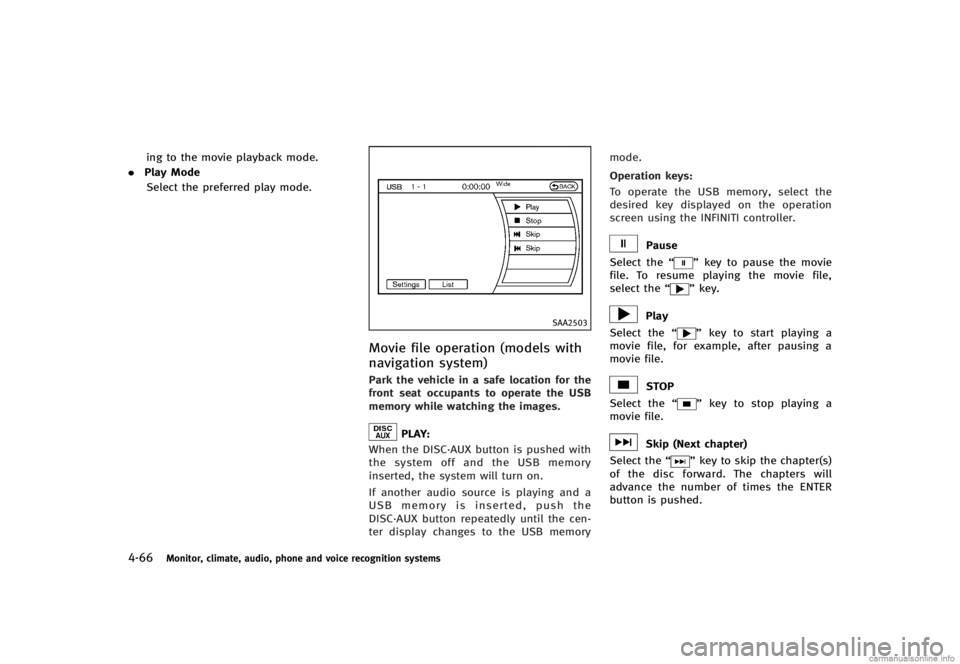
GUID-D73A39BF-43C8-459F-9C24-47B7F579C407To operate the USB memory, select the
desired key displayed on the operation
screen using the INFINITI controller.
Pause
Select the “
”key to pause the movie
file. To resume playing the movie file,
select the “
”key.
Play
Select the “
”key to start playing a
movie file, for example, after pausing a
movie file.
STOP
Select the “
”key to stop playing a
movie file.
Skip (Next chapter)
Select the “
”key to skip the chapter(s)
of the disc forward. The chapters will
advance the number of times the ENTER
button is pushed.