light INFINITI M 2010 Owners Manual
[x] Cancel search | Manufacturer: INFINITI, Model Year: 2010, Model line: M, Model: INFINITI M 2010Pages: 445, PDF Size: 6.15 MB
Page 198 of 445

Static and flutter: During signal interference
from buildings, large hills or due to antenna
position, usually in conjunction with increased
distance from the station transmitter, static or
flutter can be heard. This can be reduced by
lowering the treble setting to reduce the treble
response.
Multipath reception: Because of the reflective
characteristics of FM signals, direct and re-
flected signals reach the receiver at the same
time. The signals may cancel each other, result-
ing in momentary flutter or loss of sound.
AM radio reception :
AM signals, because of their low frequency, can
bend around objects and skip along the ground.
In addition, the signals can be bounced off the
ionosphere and bent back to earth. Because of
these characteristics. AM signals are also sub-
ject to interference as they travel from transmit-
ter to receiver.
Fading: Occurs while the vehicle is passing
through freeway underpasses or in areas with
many tall buildings. It can also occur for several
seconds during ionospheric turbulence even in
areas where no obstacles exist.
Static: Caused by thunderstorms, electrical
power lines, electric signs and even traffic
lights.Satellite radio reception :
When the satellite radio (if so equipped) is first
installed or the battery has been replaced, the
satellite radio may not work properly. This is not
a malfunction. Wait more than 10 minutes with
satellite radio ON and the vehicle outside of any
metal or large building for satellite radio to
receive all of the necessary data.
The satellite radio mode will be skipped unless
an optional satellite receiver and antenna are
installed and an XMT
satellite radio service
subscription is active. Satellite radio is not
available in Alaska, Hawaii and Guam.
Satellite radio performance may be affected if
cargo carried on the roof blocks the satellite
radio signal.
If possible, do not put cargo near the satellite
antenna.
A build up of ice on the satellite radio antenna
can affect satellite radio performance. Remove
the ice to restore satellite radio reception.
Compact Disc (CD) player
c Do not force a compact disc into the CD insert
slot. This could damage the CD and/or CD
changer/player.
c Trying to load a CD with the CD door closed
could damage the CD and/or CD changer.
SAA0480
Monitor, climate, audio, phone and voice recognition systems4-35
wÐ
Ð
05/14/09Ðpattie
X
Page 199 of 445

cDuring cold weather or rainy days, the player
may malfunction due to the humidity. If this
occurs, remove the CD and dehumidify or ven-
tilate the player completely.
c The player may skip while driving on rough
roads.
c The CD player sometimes cannot function
when the passenger compartment tempera-
ture is extremely high. Decrease the tem-
perature before use.
c Only use high quality 4.7 in (12 cm) round
discs that have the ªCOMPACT disc DIGITAL
AUDIOº logo on the disc or packaging.
c Do not expose the CD to direct sunlight.
c CDs that are of poor quality, dirty, scratched,
covered with fingerprints, or that have pin
holes may not work properly.
c The following CDs may not work properly:
± Copy control compact discs (CCCD)
± Recordable compact discs (CD-R)
± Rewritable compact discs (CD-RW)
c Do not use the following CDs as they may
cause the CD player to malfunction.
± 3.1 in (8 cm) discs
± CDs that are not round ±
CDs with a paper label
± CDs that are warped, scratched, or have
abnormal edges
c This audio system can only play prerecorded
CDs. It has no capabilities to record or burn
CDs.
c If the CD cannot be played, one of the follow-
ing messages will be displayed.
CHECK DISC: ± Confirm that the CD is inserted correctly
(the label side is facing up, etc.).
± Confirm that the CD is not bent or warped
and it is free of scratches.
PUSH EJECT:
This is an error due to the temperature inside
the player is too high. Remove the CD by
pushing the EJECT button, and after a short
time reinsert the CD. The CD can be played
when the temperature of the player returns to
normal.
UNPLAYABLE:
The file is unplayable in this audio system
(only MP3 or WMA CD).CompactFlash (CF) player
c Do not force a CF card into the slot. This could
damage the CF card and/or player.
c During cold weather or rainy days, the player
may malfunction due to the humidity. If this
occurs, remove the CF card and dehumidify or
ventilate the player completely.
c The CF player sometimes cannot function
when the passenger compartment tempera-
ture is extremely high. Decrease the tem-
perature before use.
c Do not expose a CF card to direct sunlight.
c Confirm that a CF card is inserted correctly.
iPodT player
cSome characters used in other languages
(Chinese, Japanese, etc.) are not displayed
properly on the vehicle center screen. We rec-
ommend using English language characters
with an iPodT.
c Large video podcast files cause slow re-
sponses in the iPod T. The vehicle center dis-
play may momentarily black out, but it will
soon recover.
c If the iPod Tautomatically selects large video
podcast files while in the shuffle mode, the
vehicle center display may momentarily
black out, but it will soon recover.
4-36Monitor, climate, audio, phone and voice recognition systems
wÐ
Ð
05/14/09Ðpattie
X
Page 221 of 445
cA new disc may be rough on the inner and
outer edges. Remove the rough edges by
rubbing the inner and outer edges with the
side of a pen or pencil as illustrated.
CF cards
cNever touch the terminal portion of the
CompactFlash cards. Do not bend the cards.
c Always place the cards in the storage case
when they are not being used.
c Do not place heavy objects on the cards.
c Do not store the cards in highly humid
locations.
c Do not expose the cards to direct sunlight.
c Do not spill any liquids on the cards.
Refer to the CompactFlash card Owner's Manual
for the details.
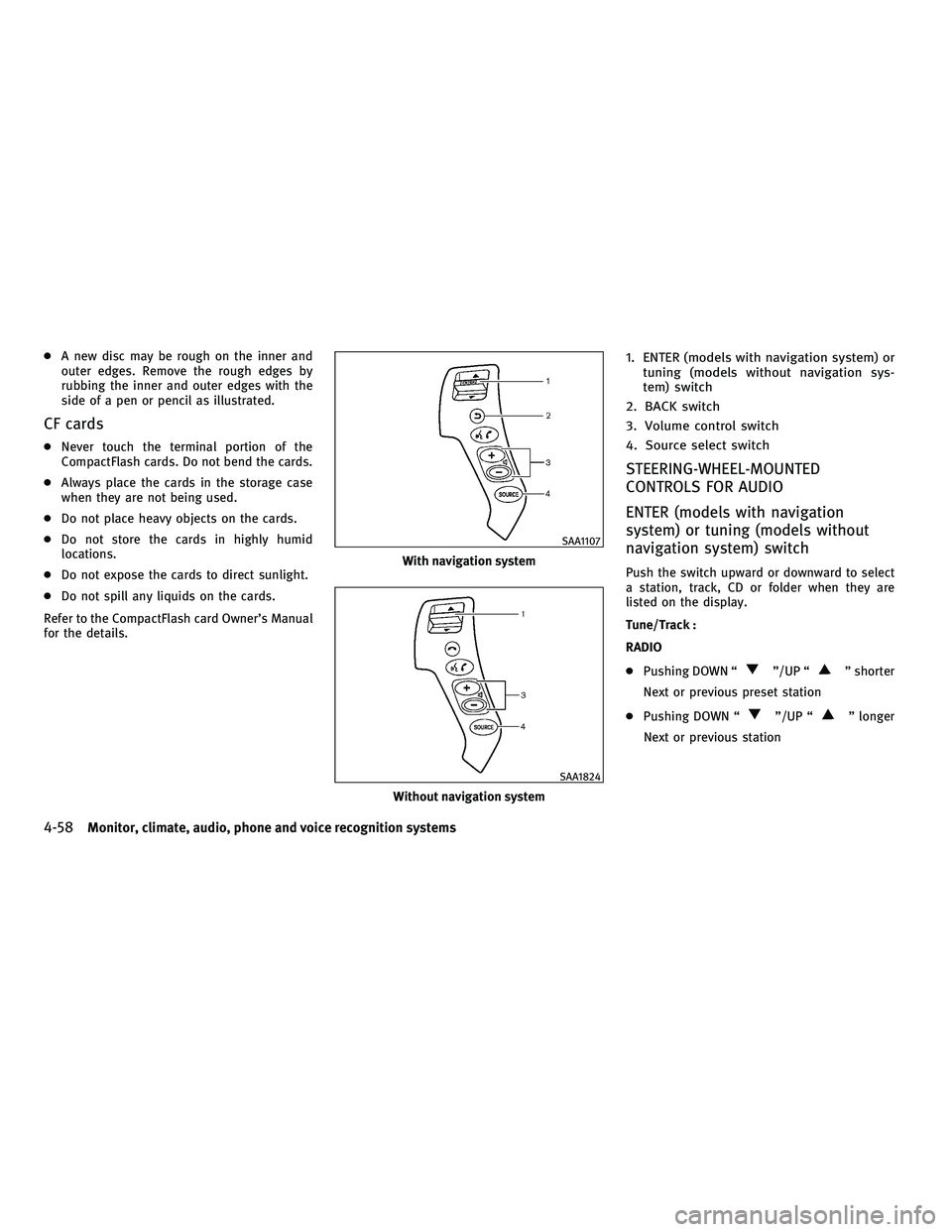
1. ENTER (models with navigation system) or tuning (models without navigation sys-
tem) switch
2. BACK switch
3. Volume control switch
4. Source select switch
STEERING-WHEEL-MOUNTED
CONTROLS FOR AUDIO
ENTER (models with navigation
system) or tuning (models without
navigation system) switch
Push the switch upward or downward to select
a station, track, CD or folder when they are
listed on the display.
Tune/Track :
RADIO
c Pushing DOWN ª
º/UP ªº shorter
Next or previous preset station
c Pushing DOWN ª
º/UP ªº longer
Next or previous station
With navigation system
SAA1107
Without navigation system
SAA1824
4-58Monitor, climate, audio, phone and voice recognition systems
wÐ
Ð
05/19/09Ðtbrooks
X
Page 224 of 445
cPushing DOWN (rear) ªº/UP (front)
ª
º longer
Next group/title or the beginning of the
current group/title
iPodT (if so equipped) :
c Pushing DOWN (rear) ª
º/UP (front)
ª
º shorter
Previous or next track (Start/Pause or Menu
can be selected when the ENTER button is
pushed.)
c Pushing DOWN (rear) ª
º/UP (front)
ª
º longer
Rewind or fast forward search
ªMusic Boxº hard-disk drive audio system (if so
equipped) :
c Pushing DOWN (rear) ª
º/UP (front)
ª
º shorter
Next track or the beginning of the current
track
c Pushing DOWN (rear) ª
º/UP (front)
ª
º longer
Playlist change (When the last playlist is
playing, the next playlist will be selected.)
ªON/OFFº switch
With the ignition switch pushed to the ACC or
ON position, push the ª ON/OFFº switch to turn
the audio system ON or OFF.
Source select switch
Push the ªSRC º select switch to change the
audio mode.
ANTENNA
Window antenna
The antenna pattern is printed inside the rear
window.
CAUTION
c Do not place metalized film near the rear
window glass or attach any metal parts to it.
This may cause poor reception or noise.
c When cleaning the inside of the rear window,
be careful not to scratch or damage the rear
window antenna. Lightly wipe along the an-
tenna with a dampened soft cloth.
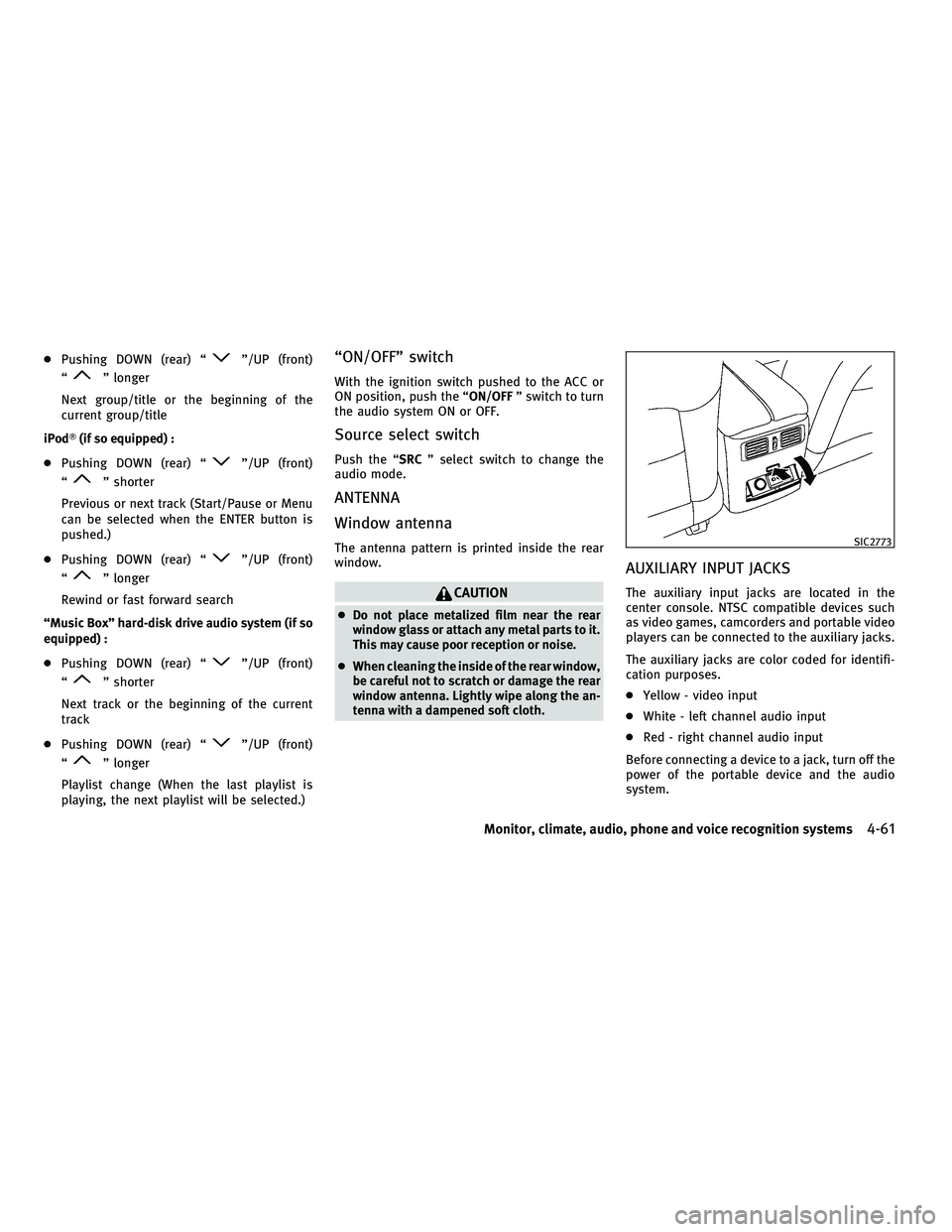
AUXILIARY INPUT JACKS
The auxiliary input jacks are located in the
center console. NTSC compatible devices such
as video games, camcorders and portable video
players can be connected to the auxiliary jacks.
The auxiliary jacks are color coded for identifi-
cation purposes.
c Yellow - video input
c White - left channel audio input
c Red - right channel audio input
Before connecting a device to a jack, turn off the
power of the portable device and the audio
system.
SIC2773
Monitor, climate, audio, phone and voice recognition systems4-61
wÐ
Ð
05/14/09Ðpattie
X
Page 235 of 445
Volume :
To control the volume level, push the VOL
button ª
º.
Display :
To adjust the rear display screen (brightness,
tint, contrast, etc.), push the DISP button.
Aspect :
To change the display size, push the ASPECT
button. Each time the button is pushed, the
display size will change to ªCinemaº, ªWideº,
ªFullº or ªNormalº.
Sound :
To change the language, push the SOUND but-
ton. Each time the button is pushed, the lan-
guage will change to each language stored in
the DVD.
Headphones :
The DVD sound can be heard through the
headphones.
Push the headphones ª
º button. Each
time the button is pushed, the headphones
mode will switch to ON or OFF.
To control the volume of sound from the head-
phones, use the volume control knob attached
to the headphones. Track/Channel :
To skip to the previous or next DVD scene
selection, push the TRACK CH button
ª
º.
Keypad :
: PLAY/PAUSE button
: STOP button
: FORWARD button
: REWIND button
: FORWARD button for still images (for DVD-AUDIO)
: REWIND button for still images (forDVD-AUDIO)
CARE AND MAINTENANCE
Use a lightly dampened, lint free cloth to clean
the surfaces of your Mobile Entertainment Sys-
tem. (DVD player face, screen, remote control-
ler, etc.)
c Do not attempt to operate the system in
extreme temperature conditions [below
24ÉF (220ÉC) and above 158ÉF (70ÉC)]. c
Do not attempt to operate the system in
extreme humidity conditions (less than 10%
or more than 75%).
CAUTION
cDo not use any solvents or cleaning solu-
tions when cleaning the video system.
c Do not use excessive force on the monitor
screen.
c Avoid touching or scratching the monitor
screen as it may become dirty or damaged.
4-72Monitor, climate, audio, phone and voice recognition systems
wÐ
Ð
05/14/09Ðpattie
X
Page 236 of 445
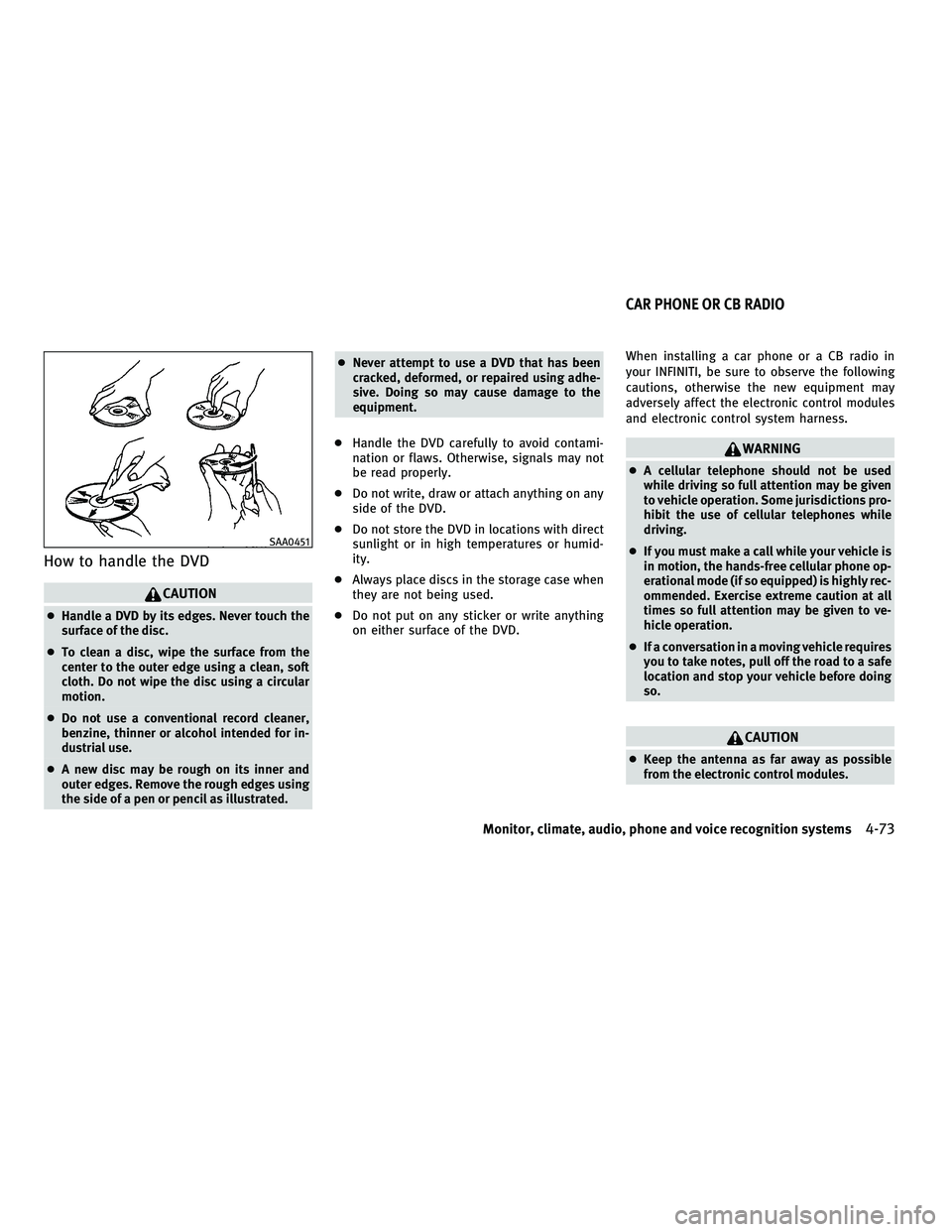
How to handle the DVD
CAUTION
cHandle a DVD by its edges. Never touch the
surface of the disc.
c To clean a disc, wipe the surface from the
center to the outer edge using a clean, soft
cloth. Do not wipe the disc using a circular
motion.
c Do not use a conventional record cleaner,
benzine, thinner or alcohol intended for in-
dustrial use.
c A new disc may be rough on its inner and
outer edges. Remove the rough edges using
the side of a pen or pencil as illustrated. c
Never attempt to use a DVD that has been
cracked, deformed, or repaired using adhe-
sive. Doing so may cause damage to the
equipment.
c Handle the DVD carefully to avoid contami-
nation or flaws. Otherwise, signals may not
be read properly.
c Do not write, draw or attach anything on any
side of the DVD.
c Do not store the DVD in locations with direct
sunlight or in high temperatures or humid-
ity.
c Always place discs in the storage case when
they are not being used.
c Do not put on any sticker or write anything
on either surface of the DVD. When installing a car phone or a CB radio in
your INFINITI, be sure to observe the following
cautions, otherwise the new equipment may
adversely affect the electronic control modules
and electronic control system harness.
WARNING
c
A cellular telephone should not be used
while driving so full attention may be given
to vehicle operation. Some jurisdictions pro-
hibit the use of cellular telephones while
driving.
c If you must make a call while your vehicle is
in motion, the hands-free cellular phone op-
erational mode (if so equipped) is highly rec-
ommended. Exercise extreme caution at all
times so full attention may be given to ve-
hicle operation.
c If a conversation in a moving vehicle requires
you to take notes, pull off the road to a safe
location and stop your vehicle before doing
so.
CAUTION
cKeep the antenna as far away as possible
from the electronic control modules.
SAA0451
CAR PHONE OR CB RADIO
Monitor, climate, audio, phone and voice recognition systems4-73
wÐ
Ð
05/14/09Ðpattie
X
Page 262 of 445
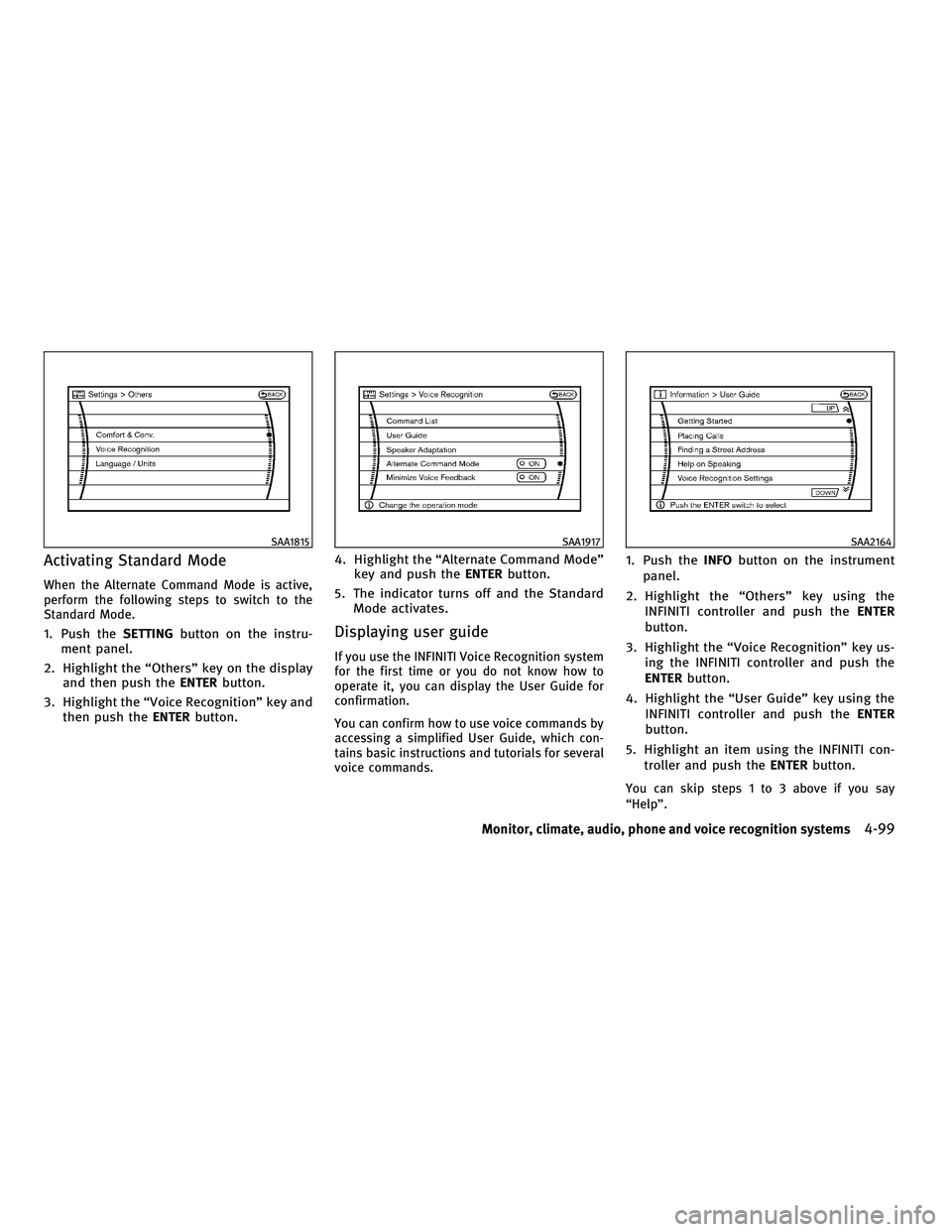
Activating Standard Mode
When the Alternate Command Mode is active,
perform the following steps to switch to the
Standard Mode.
1. Push theSETTINGbutton on the instru-
ment panel.
2. Highlight the ªOthersº key on the display and then push the ENTERbutton.
3. Highlight the ªVoice Recognitionº key and then push the ENTERbutton. 4. Highlight the ªAlternate Command Modeº
key and push the ENTERbutton.
5. The indicator turns off and the Standard Mode activates.Displaying user guide
If you use the INFINITI Voice Recognition system
for the first time or you do not know how to
operate it, you can display the User Guide for
confirmation.
You can confirm how to use voice commands by
accessing a simplified User Guide, which con-
tains basic instructions and tutorials for several
voice commands.
1. Push the INFObutton on the instrument
panel.
2. Highlight the ªOthersº key using the INFINITI controller and push the ENTER
button.
3. Highlight the ªVoice Recognitionº key us- ing the INFINITI controller and push the
ENTER button.
4. Highlight the ªUser Guideº key using the INFINITI controller and push the ENTER
button.
5. Highlight an item using the INFINITI con- troller and push the ENTERbutton.
You can skip steps 1 to 3 above if you say
ªHelpº.
SAA1815SAA1917SAA2164
Monitor, climate, audio, phone and voice recognition systems4-99
wÐ
Ð
05/14/09Ðpattie
X
Page 263 of 445

Available items :
cGetting Started
Describes the basics of how to operate the
INFINITI Voice Recognition system.
c Placing Calls
Tutorial for making a phone call by voice
command operation.
c Finding a Street Address
Tutorial for entering a destination by street
address.
c Help on Speaking
Displays useful tips of speaking for correct
command recognition by the system.
c Voice Recognition Settings
Describes the available voice recognition
settings.
Note that the Command List feature is only
available when Alternate Command Mode is
active.
Getting Started
Before using the INFINITI Voice Recognition
system for the first time, you can confirm how to
use commands by viewing the Getting Started
section of the User Guide.
1. Highlight ªGetting Startedº and push the ENTER button.
2. You can confirm the page by scrolling the screen using the INFINITI controller.
Tutorials on the operation of the INFINITI Voice
Recognition system
If you choose ªFinding a Street Addressº or
ªPlacing Callsº, you can view tutorials on how
to perform these operations using INFINITI
Voice Recognition.
Useful tips for correct operation
You can display useful speaking tips to help the
system recognize your voice commands cor-
rectly.
Highlight ªHelp on Speakingº and push the
ENTER button.
SAA1904SAA2165
4-100Monitor, climate, audio, phone and voice recognition systems
wÐ
Ð
05/14/09Ðpattie
X
Page 264 of 445

Voice recognition settings
The available settings of the INFINITI Voice
Recognition system are described.
1. Highlight ªVoice Recognition Settingsºand push the ENTERbutton.
2. You can confirm the page by scrolling the screen using the INFINITI controller.
USING THE SYSTEM
Initialization
When the ignition switch is pushed to the ON
position, INFINITI Voice Recognition is initial-
ized, which takes a few seconds. When com-
pleted, the system is ready to accept voice
commands. If the TALK
switch is pushed before the initialization completes, the display
will show the message: ªPhonetic data down-
loaded. Please wait.º or a beep sounds.
Before starting
To get the best recognition performance from
INFINITI Voice Recognition, observe the follow-
ing:
c
The interior of the vehicle should be as quiet
as possible. Close the windows to eliminate
the surrounding noises (traffic noise and
vibration sounds, etc.), which may prevent
the system from correctly recognizing the
voice commands.
c Wait until the tone sounds before speaking a
command.
c Speak in a natural conversational voice with-
out pausing between words.
c If the air conditioner is set to ªAutoº, the fan
speed is automatically lowered so that your
commands can be recognized more easily.
Giving voice commands
1. Push the TALKswitch located on the
steering wheel.
SAA2166SAA1113
Monitor, climate, audio, phone and voice recognition systems4-101
wÐ
Ð
05/14/09Ðpattie
X
Page 273 of 445

Activating Alternate Command Mode
When the Standard Mode is active, perform the
following steps to switch to the Alternate Com-
mand Mode.
1. Push theSETTINGbutton on the instru-
ment panel.
2. Highlight the ªOthersº key on the display and then push the ENTERbutton.
3. Highlight the ªVoice Recognitionº key and then push the ENTERbutton. 4. Highlight the ªAlternate Command Modeº
key and push the ENTERbutton.
5. The confirmation message is displayed on the screen. Push the ªOKº key to activate
the Alternate Command Mode.Displaying command list
If you are controlling the system by voice
commands for the first time or do not know the
appropriate voice command, perform the fol-
lowing procedure for displaying the voice com-
mand list (available only in Alternate Command
Mode).
1. Push the INFObutton on the instrument
panel.
2. Highlight the ªOthersº key using the INFINITI controller and push the ENTER
button.
3. Highlight the ªVoice Recognitionº key us- ing the INFINITI controller and push the
ENTER button.
You can skip steps 1 to 3 above if you say
ªHelpº.
4. Highlight the ªCommand Listº key using
the INFINITI controller and push the ENTER
button.
SAA1916SAA2168SAA1803
4-110Monitor, climate, audio, phone and voice recognition systems
wÐ
Ð
05/14/09Ðpattie
X