light INFINITI M 2010 Manual Online
[x] Cancel search | Manufacturer: INFINITI, Model Year: 2010, Model line: M, Model: INFINITI M 2010Pages: 445, PDF Size: 6.15 MB
Page 172 of 445
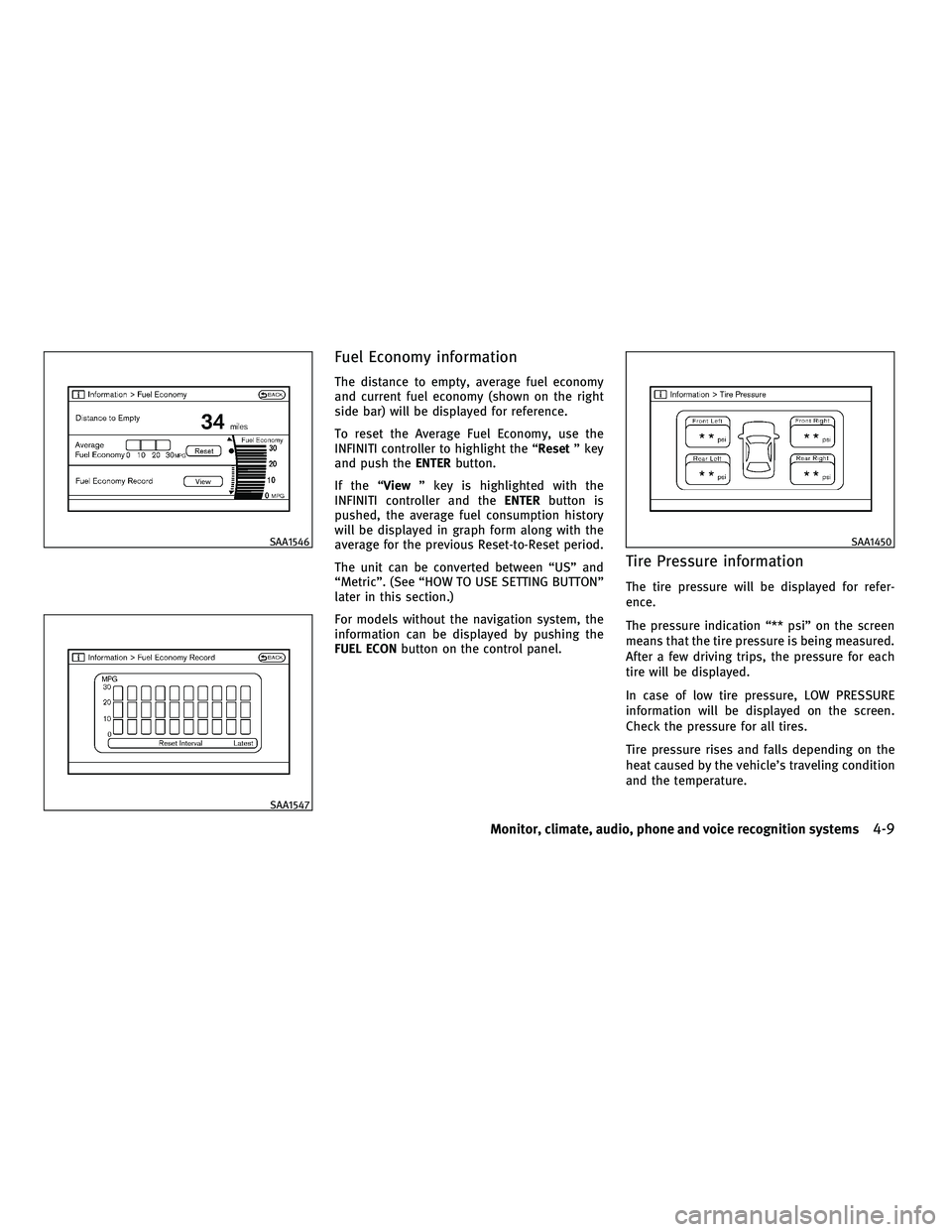
Fuel Economy information
The distance to empty, average fuel economy
and current fuel economy (shown on the right
side bar) will be displayed for reference.
To reset the Average Fuel Economy, use the
INFINITI controller to highlight the ªResetº key
and push the ENTERbutton.
If the ª Viewº key is highlighted with the
INFINITI controller and the ENTERbutton is
pushed, the average fuel consumption history
will be displayed in graph form along with the
average for the previous Reset-to-Reset period.
The unit can be converted between ªUSº and
ªMetricº. (See ªHOW TO USE SETTING BUTTONº
later in this section.)
For models without the navigation system, the
information can be displayed by pushing the
FUEL ECON button on the control panel.
Tire Pressure information
The tire pressure will be displayed for refer-
ence.
The pressure indication ª** psiº on the screen
means that the tire pressure is being measured.
After a few driving trips, the pressure for each
tire will be displayed.
In case of low tire pressure, LOW PRESSURE
information will be displayed on the screen.
Check the pressure for all tires.
Tire pressure rises and falls depending on the
heat caused by the vehicle's traveling condition
and the temperature.
SAA1546
SAA1547
SAA1450
Monitor, climate, audio, phone and voice recognition systems4-9
wÐ
Ð
05/14/09Ðpattie
X
Page 173 of 445
After tire rotation is performed, tire pressure
will not be displayed in the actual tire position.
Drive the vehicle at over 25 MPH (40 km/h) for
approximately 10 minutes to reset the display.
For more details about the Tire Pressure Moni-
toring System (TPMS), see ªTIRE PRESSURE
MONITORING SYSTEM (TPMS)º in the ª5. Start-
ing and drivingº section.
WARNING
cWhen a spare tire is mounted or a wheel is
replaced, tire pressure will not be indicated,
the TPMS will not function and the low tire
pressure warning light will flash for approxi-
mately 1 minute. The light will remain on
after 1 minute. Contact your INFINITI retailer
as soon as possible for tire replacement
and/or system resetting.
c Replacing tires with those not originally
specified by INFINITI could affect the proper
operation of the TPMS.
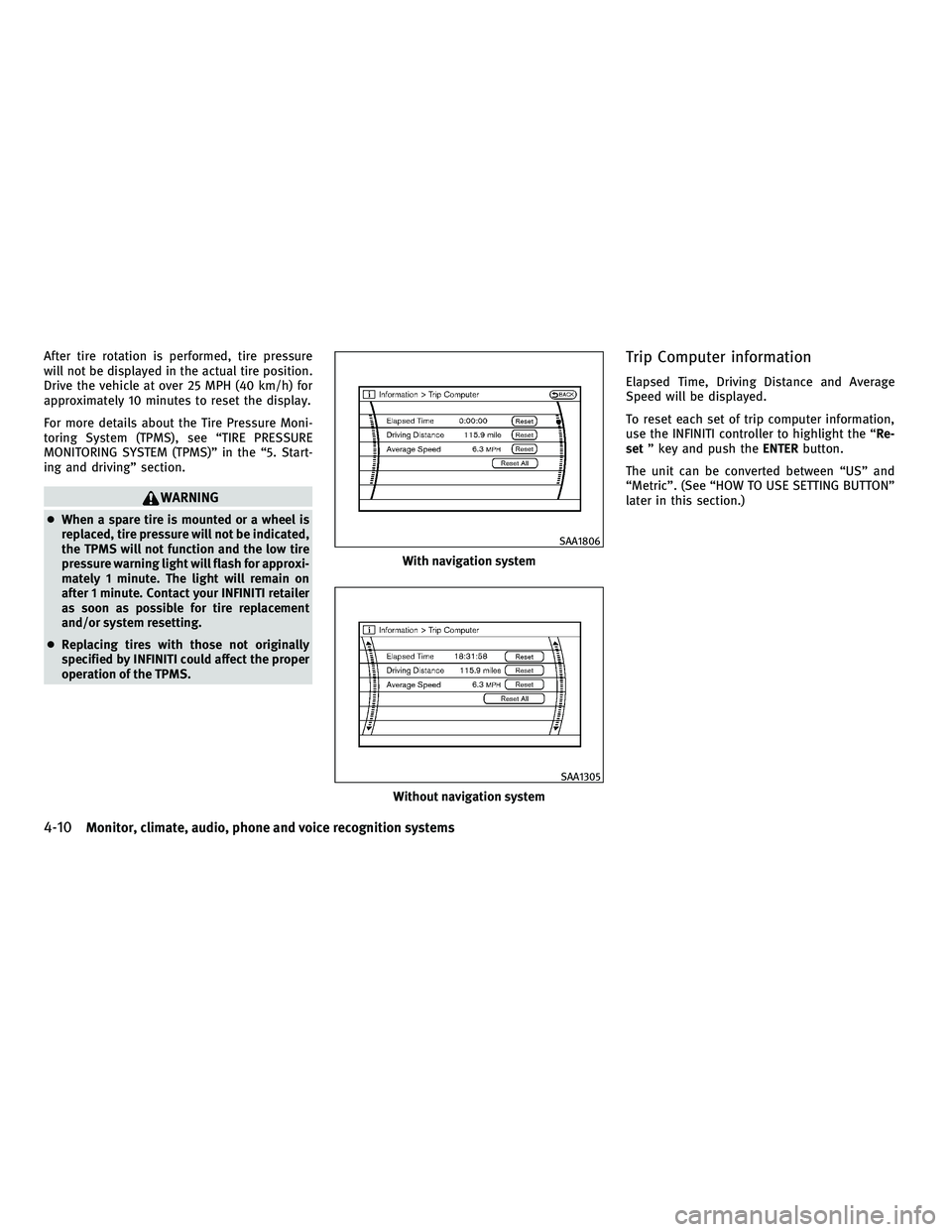
Trip Computer information
Elapsed Time, Driving Distance and Average
Speed will be displayed.
To reset each set of trip computer information,
use the INFINITI controller to highlight the ª Re-
set º key and push the ENTERbutton.
The unit can be converted between ªUSº and
ªMetricº. (See ªHOW TO USE SETTING BUTTONº
later in this section.)
With navigation system
SAA1806
Without navigation system
SAA1305
4-10Monitor, climate, audio, phone and voice recognition systems
wÐ
Ð
05/14/09Ðpattie
X
Page 174 of 445
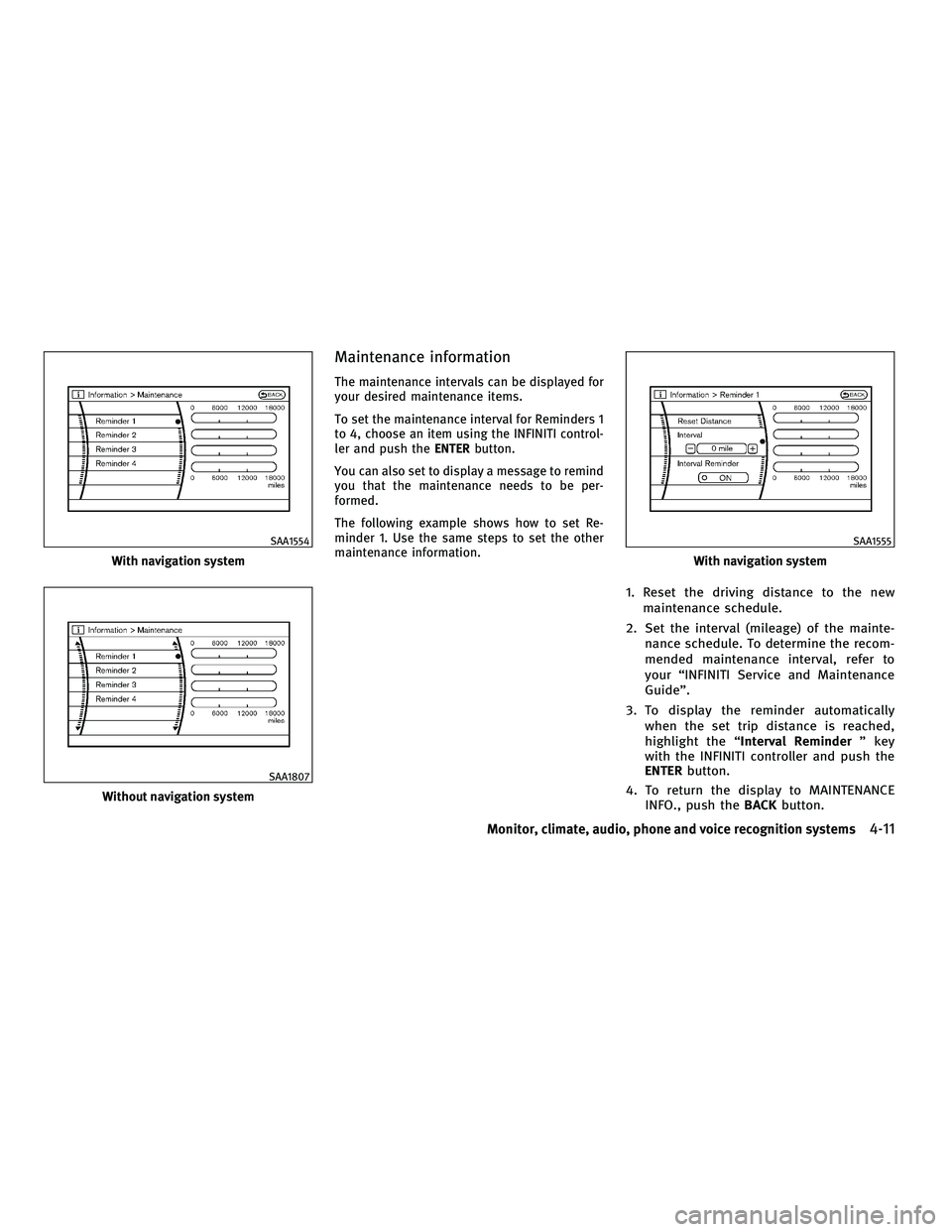
Maintenance information
The maintenance intervals can be displayed for
your desired maintenance items.
To set the maintenance interval for Reminders 1
to 4, choose an item using the INFINITI control-
ler and push theENTERbutton.
You can also set to display a message to remind
you that the maintenance needs to be per-
formed.
The following example shows how to set Re-
minder 1. Use the same steps to set the other
maintenance information.
1. Reset the driving distance to the new maintenance schedule.
2. Set the interval (mileage) of the mainte- nance schedule. To determine the recom-
mended maintenance interval, refer to
your ªINFINITI Service and Maintenance
Guideº.
3. To display the reminder automatically when the set trip distance is reached,
highlight the ª Interval Reminder º key
with the INFINITI controller and push the
ENTER button.
4. To return the display to MAINTENANCE INFO., push the BACKbutton.
With navigation system
SAA1554
Without navigation system
SAA1807
With navigation system
SAA1555
Monitor, climate, audio, phone and voice recognition systems4-11
wÐ
Ð
05/14/09Ðpattie
X
Page 182 of 445
Clock Format :
Choose either the 12-hour clock display or the
24-hour clock display.
Offset Adjust :
Adjust the time by increasing or decreasing per
minute.
Daylight Saving Time :
Turn this item to ON for daylight saving time
application.
Time Zone :
Choose the time zone from the following
cPacific
c Mountain
c Central
c Eastern
c Atlantic
c Newfoundland
c Hawaii
c Aleutian
c Alaska
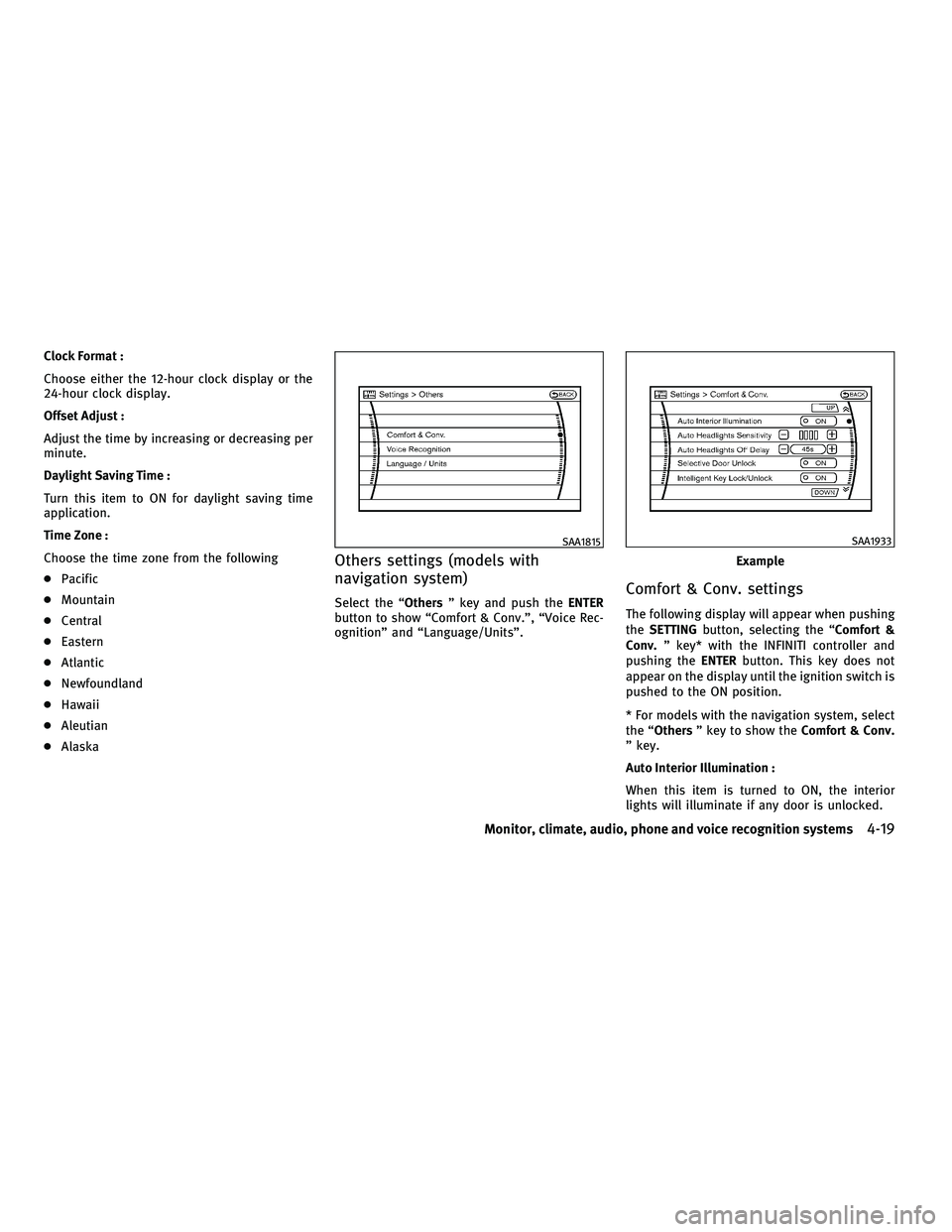
Others settings (models with
navigation system)
Select the ªOthers º key and push the ENTER
button to show ªComfort & Conv.º, ªVoice Rec-
ognitionº and ªLanguage/Unitsº.Comfort & Conv. settings
The following display will appear when pushing
the SETTING button, selecting the ªComfort &
Conv. º key* with the INFINITI controller and
pushing the ENTERbutton. This key does not
appear on the display until the ignition switch is
pushed to the ON position.
* For models with the navigation system, select
the ªOthers º key to show the Comfort & Conv.
º key.
Auto Interior Illumination :
When this item is turned to ON, the interior
lights will illuminate if any door is unlocked.
SAA1815
Example
SAA1933
Monitor, climate, audio, phone and voice recognition systems4-19
wÐ
Ð
05/14/09Ðpattie
X
Page 183 of 445
Auto Headlights Sensitivity (if so equipped) :
Adjust the sensitivity of the automatic head-
lights higher (right) or lower (left).
Auto Headlights Off Delay (if so equipped) :
Choose the duration of the automatic headlight
off timer from 0, 30, 45, 60, 90, 120, 150 and
180 second periods.
Selective Door Unlock :
When this item is turned to ON, only the driver's
door is unlocked first after the door unlock
operation. When the door handle request
switch on the driver's or front passenger's side
door is pushed to be unlocked, only the corre-
sponding door is unlocked first. All the doors
can be unlocked if the door unlock operation is
performed again within 5 seconds.
When this item is turned to OFF, all the doors
will be unlocked after the door unlock operation
is performed once.
Intelligent Key Lock/Unlock :
When this item is turned to ON, door
lock/unlock function by pushing the door
handle request switch will be activated.
Lift Steering Wheel on Exit (if so equipped) :
When this item is turned to ON, the steering
wheel moves upward for easy exit if the ignitionswitch is in the LOCK position and the driver's
door is opened. After getting into the vehicle
and pushing the ignition switch to the ACC
position, the steering wheel moves to the pre-
vious position.
Slide Driver Seat Back on Exit (if so equipped) :
When this item is turned to ON, the driver's seat
moves backward for easy exit if the ignition
switch is in the LOCK position and the driver's
door is opened. After getting into the vehicle
and pushing the ignition switch to the ACC
position, the driver's seat moves to the previous
position.
Return All Settings to Default :
Select this item, push the
ENTERbutton and
choose ªYESº if you want to return all settings
to the default.
Voice Recognition settings (models
with navigation system)
For details about the ªVoice Recognitionº set-
tings, see ªINFINITI VOICE RECOGNITION SYS-
TEM (models with navigation system)º later in
this section.
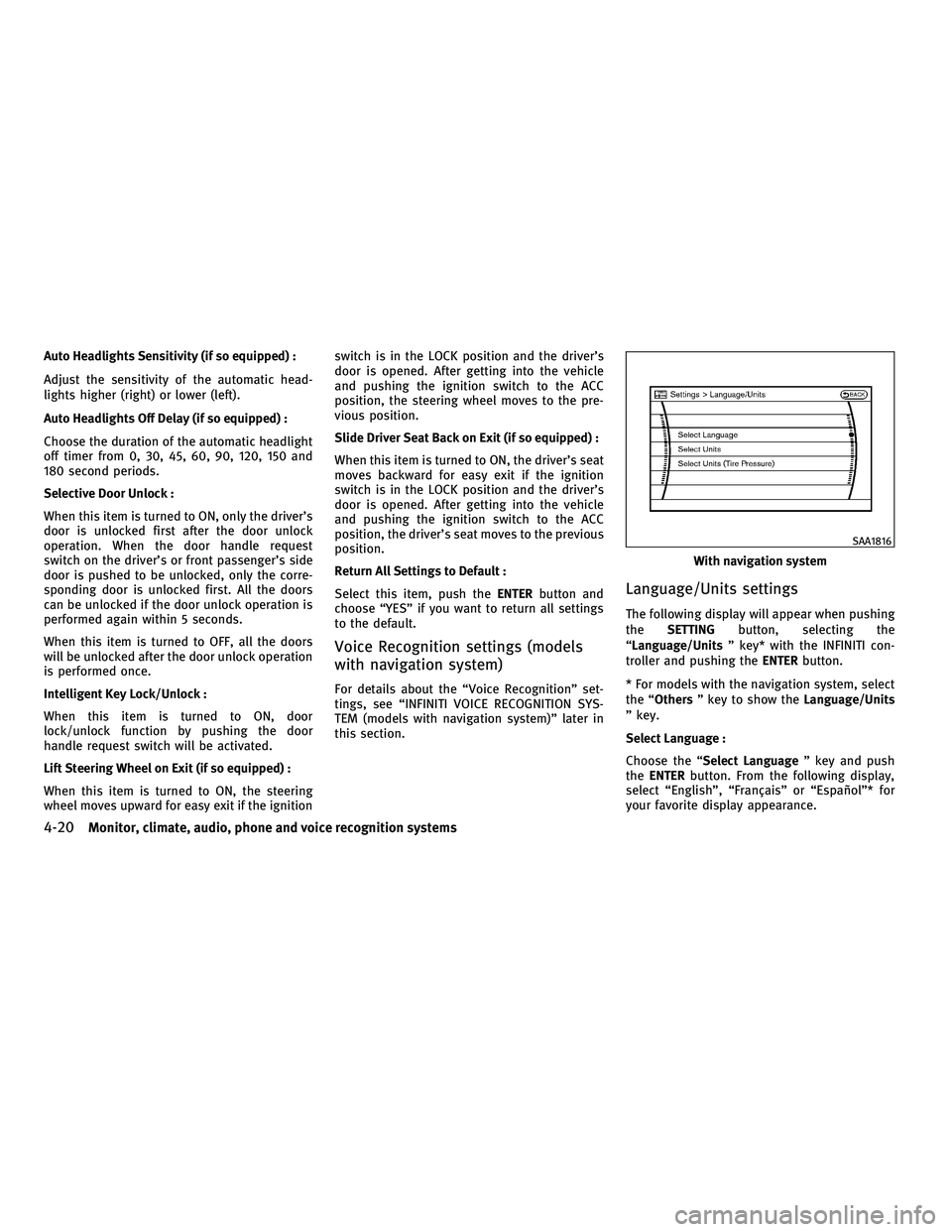
Language/Units settings
The following display will appear when pushing
the SETTING button, selecting the
ªLanguage/Units º key* with the INFINITI con-
troller and pushing the ENTERbutton.
* For models with the navigation system, select
the ªOthers º key to show the Language/Units
º key.
Select Language :
Choose the ª Select Language º key and push
the ENTER button. From the following display,
select ªEnglishº, ªFranÕaisº or ªEspaÞolº* for
your favorite display appearance.
With navigation system
SAA1816
4-20Monitor, climate, audio, phone and voice recognition systems
wÐ
Ð
05/14/09Ðpattie
X
Page 186 of 445
HOW TO READ THE DISPLAYED LINES
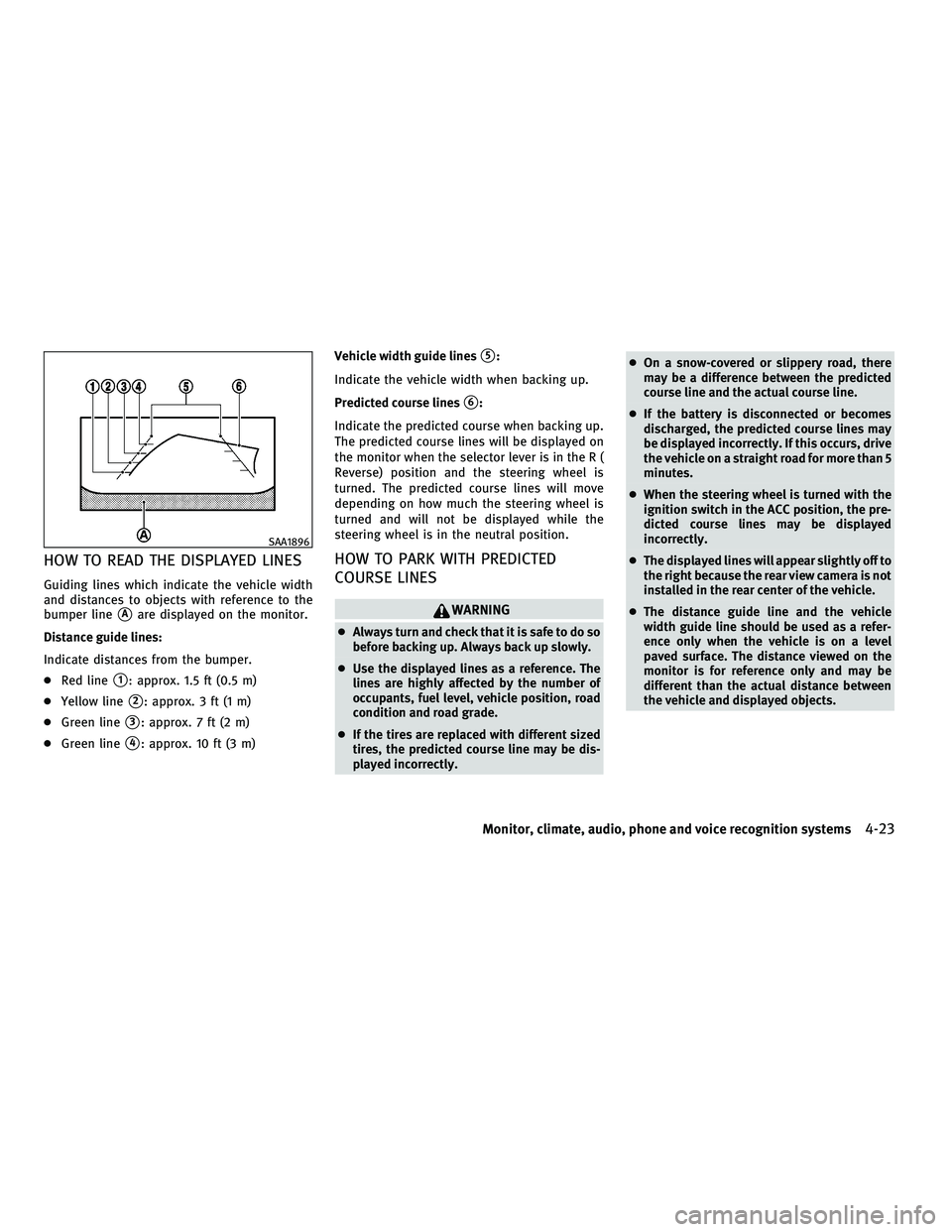
Guiding lines which indicate the vehicle width
and distances to objects with reference to the
bumper line
sAare displayed on the monitor.
Distance guide lines:
Indicate distances from the bumper.
c Red line
s1: approx. 1.5 ft (0.5 m)
c Yellow line
s2: approx. 3 ft (1 m)
c Green line
s3: approx. 7 ft (2 m)
c Green line
s4: approx. 10 ft (3 m) Vehicle width guide lines
s5:
Indicate the vehicle width when backing up.
Predicted course lines
s6:
Indicate the predicted course when backing up.
The predicted course lines will be displayed on
the monitor when the selector lever is in the R (
Reverse) position and the steering wheel is
turned. The predicted course lines will move
depending on how much the steering wheel is
turned and will not be displayed while the
steering wheel is in the neutral position.
HOW TO PARK WITH PREDICTED
COURSE LINES
WARNING
c Always turn and check that it is safe to do so
before backing up. Always back up slowly.
c Use the displayed lines as a reference. The
lines are highly affected by the number of
occupants, fuel level, vehicle position, road
condition and road grade.
c If the tires are replaced with different sized
tires, the predicted course line may be dis-
played incorrectly. c
On a snow-covered or slippery road, there
may be a difference between the predicted
course line and the actual course line.
c If the battery is disconnected or becomes
discharged, the predicted course lines may
be displayed incorrectly. If this occurs, drive
the vehicle on a straight road for more than 5
minutes.
c When the steering wheel is turned with the
ignition switch in the ACC position, the pre-
dicted course lines may be displayed
incorrectly.
c The displayed lines will appear slightly off to
the right because the rear view camera is not
installed in the rear center of the vehicle.
c The distance guide line and the vehicle
width guide line should be used as a refer-
ence only when the vehicle is on a level
paved surface. The distance viewed on the
monitor is for reference only and may be
different than the actual distance between
the vehicle and displayed objects.
SAA1896
Monitor, climate, audio, phone and voice recognition systems4-23
wÐ
Ð
05/14/09Ðpattie
X
Page 190 of 445
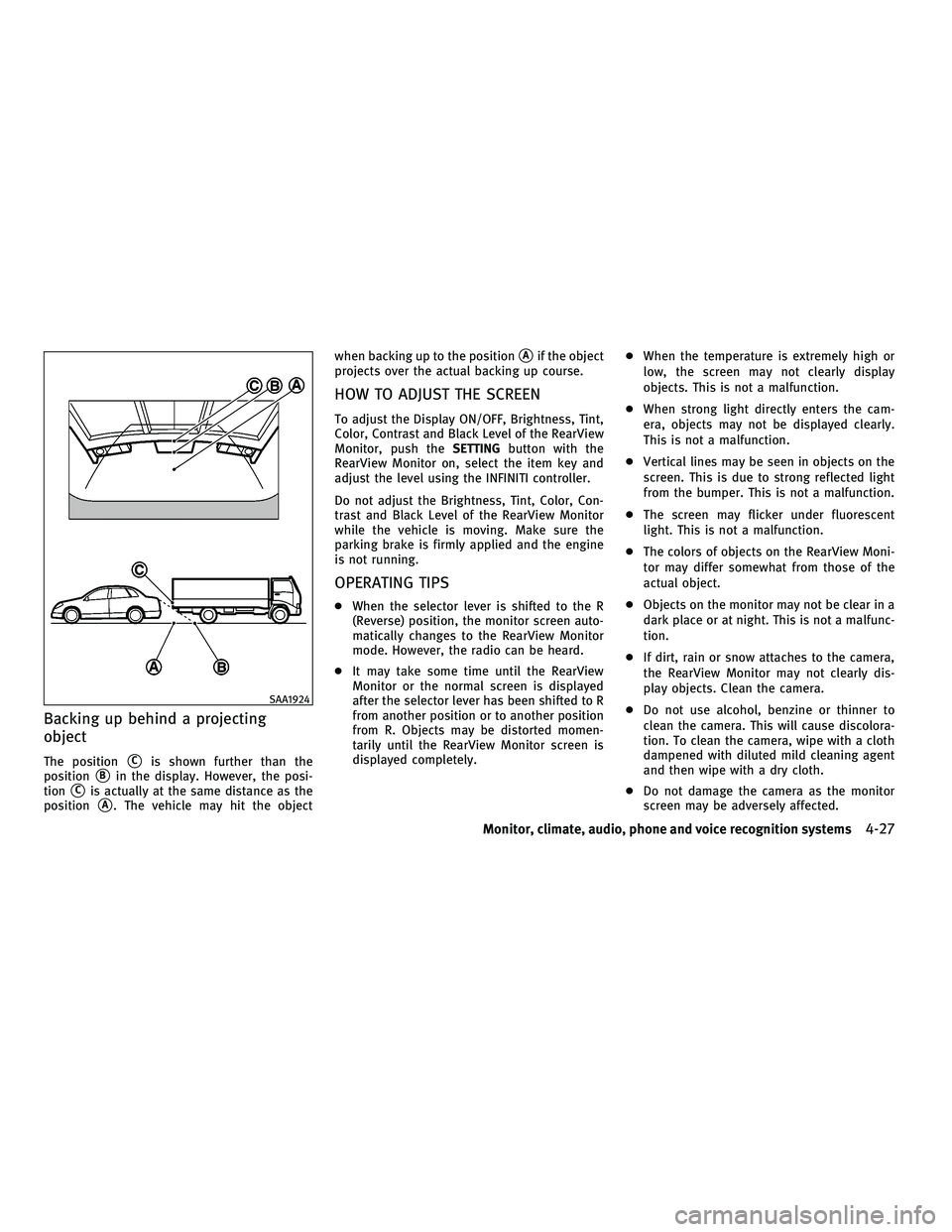
Backing up behind a projecting
object
The positionsCis shown further than the
position
sBin the display. However, the posi-
tion
sCis actually at the same distance as the
position
sA. The vehicle may hit the object when backing up to the position
sAif the object
projects over the actual backing up course.
HOW TO ADJUST THE SCREEN
To adjust the Display ON/OFF, Brightness, Tint,
Color, Contrast and Black Level of the RearView
Monitor, push the SETTINGbutton with the
RearView Monitor on, select the item key and
adjust the level using the INFINITI controller.
Do not adjust the Brightness, Tint, Color, Con-
trast and Black Level of the RearView Monitor
while the vehicle is moving. Make sure the
parking brake is firmly applied and the engine
is not running.
OPERATING TIPS
c When the selector lever is shifted to the R
(Reverse) position, the monitor screen auto-
matically changes to the RearView Monitor
mode. However, the radio can be heard.
c It may take some time until the RearView
Monitor or the normal screen is displayed
after the selector lever has been shifted to R
from another position or to another position
from R. Objects may be distorted momen-
tarily until the RearView Monitor screen is
displayed completely. c
When the temperature is extremely high or
low, the screen may not clearly display
objects. This is not a malfunction.
c When strong light directly enters the cam-
era, objects may not be displayed clearly.
This is not a malfunction.
c Vertical lines may be seen in objects on the
screen. This is due to strong reflected light
from the bumper. This is not a malfunction.
c The screen may flicker under fluorescent
light. This is not a malfunction.
c The colors of objects on the RearView Moni-
tor may differ somewhat from those of the
actual object.
c Objects on the monitor may not be clear in a
dark place or at night. This is not a malfunc-
tion.
c If dirt, rain or snow attaches to the camera,
the RearView Monitor may not clearly dis-
play objects. Clean the camera.
c Do not use alcohol, benzine or thinner to
clean the camera. This will cause discolora-
tion. To clean the camera, wipe with a cloth
dampened with diluted mild cleaning agent
and then wipe with a dry cloth.
c Do not damage the camera as the monitor
screen may be adversely affected.
SAA1924
Monitor, climate, audio, phone and voice recognition systems4-27
wÐ
Ð
05/14/09Ðpattie
X
Page 194 of 445

A visible mist may be seen coming from the
ventilators in hot, humid conditions as the air is
cooled rapidly. This does not indicate a mal-
function.
Heating (A/C OFF) :
The air conditioner does not activate in this
mode. When you need to heat only, use this
mode.
1. Push the ªA/Cº button. (The A/C indicatorwill turn off.)
2. Push the temperature control button to set the desired temperature.
cThe temperature of the passenger compart-
ment will be maintained automatically. Air
flow distribution and fan speed are also
controlled automatically.
c Do not set the temperature lower than the
outside air temperature. Otherwise the sys-
tem may not work properly.
c Not recommended if windows fog up.
Dehumidified defrosting or defogging:
1. Push the ªº front defroster button.
(The indicator light on the button will
come on.)
2. Push the temperature control button to set the desired temperature.
cTo quickly remove ice from the outside of the
windows, push the fan speed increase but-
ton ª
º and set it to the maximum
position.
c As soon as possible after the windshield is
clean, push the ªAUTOº button to return to
the AUTO mode.
c When the ª
º front defroster button is
pushed, the air conditioner will automati-
cally be turned on at outside temperatures
above 23ÉF ( 25ÉC) to defog the windshield,
and the air recirculate mode will automati-
cally be turned off.
Outside air is drawn into the passenger
compartment to improve the defogging per-
formance.
To turn the system off :
Push the ªOFFº button.
Manual operation
Fan speed control :
Push the fan speed increase ª
ºorde-
crease ª
º buttons to manually control the
fan speed.
Push the ªAUTOº button to return to automatic
control of the fan speed. Air recirculation :
Push the intake air control button
ª
º to recirculate interior air inside
the vehicle. The indicator light on the ª
º
side will come on.
The air recirculation mode cannot be activated
when the air conditioner is in the front defrost-
ing mode ª
º.
Outside air circulation :
Push the intake air control button
ª
º to draw outside air into the
passenger compartment. The indicator light on
the ª
º side will come on.
Automatic intake air control :
In the AUTO mode, the intake air will be con-
trolled automatically. To manually control the
intake air, push the intake air control button
ª
º. To return to the automatic con-
trol mode, push the intake air control button
ª
º for about 2 seconds. The indi-
cator lights (both air recirculation and outside
air circulation sides) will flash twice, and then
the intake air will be controlled automatically.
Monitor, climate, audio, phone and voice recognition systems4-31
wÐ
Ð
05/14/09Ðpattie
X
Page 195 of 445

Air flow control :
Pushing the ªMODEº manual air flow control
button selects the air outlet to:
: Air flows from center and side ventila-tors.
: Air flows from center and side ventila-tors and foot outlets.
: Air flows mainly from foot outlets.
: Air flows from defroster and foot outlets.
Automatic upper vent system
When the ªº automatic upper vent button
is pushed, the air flow against the driver's or
passenger's upper body becomes gentle. The
indicator light on the button will come on.
In this mode, air from the center ventilators
flows both straight and upward in order to
control the cabin temperature without blowing
air directly on the occupants.
Distribution between straight and upward flows
will be determined automatically by the climate
control system.
If you prefer strong air flow against your upper
body, push the ª
º button to turn the
indicator light off. To turn the system off :
Push the ªOFFº button.
Ambient temperature
The ambient temperature will be displayed.
The ambient temperature sensor is located in
front of the radiator. The sensor may be affected
by road or engine heat, wind direction and other
driving conditions. The display may differ from
the actual ambient temperature or the tempera-
ture displayed on various signs or billboards.
1. AUTO button
2. Fan speed control button
3. Temperature control button
SAA1103
4-32Monitor, climate, audio, phone and voice recognition systems
wÐ
Ð
05/19/09Ðtbrooks
X
Page 197 of 445

AUDIO OPERATION PRECAUTIONS
Radio
Push the ignition switch to the ACC or ON
position and push the radio band select button
to turn on the radio. If you listen to the radio
with the engine not running, the ignition switch
should be pushed to the ACC position.
Radio reception is affected by station signal
strength, distance from radio transmitter, build-
ings, bridges, mountains and other external
influences. Intermittent changes in reception
quality normally are caused by these external
influences.
Using a cellular phone in or near the vehicle may
influence radio reception quality.
Radio reception :
Your INFINITI radio system is equipped with
state-of-the-art electronic circuits to enhance
radio reception. These circuits are designed to
extend reception range, and to enhance the
quality of that reception.
However there are some general characteristics
of both FM and AM radio signals that can affect
radio reception quality in a moving vehicle,
even when the finest equipment is used. These
characteristics are completely normal in a givenreception area, and do not indicate any mal-
function in your INFINITI radio system.
Reception conditions will constantly change
because of vehicle movement. Buildings, ter-
rain, signal distance and interference from
other vehicles can work against ideal reception.
Described below are some of the factors that
can affect your radio reception.
Some cellular phones or other devices may
cause interference or a buzzing noise to come
from the audio system speakers. Storing the
device in a different location may reduce or
eliminate the noise.
FM radio reception :
Range: FM range is normally limited to 25 to 30
miles (40 to 48 km), with monaural (single
channel) FM having slightly more range than
stereo FM. External influences may sometimes
interfere with FM station reception even if the
FM station is within 25 miles (40 km). The
strength of the FM signal is directly related to
the distance between the transmitter and re-
ceiver. FM signals follow a line-of-sight path,
exhibiting many of the same characteristics as
light. For example they will reflect off objects.
Fade and drift: As your vehicle moves away from
a station transmitter, the signals will tend to
fade and/or drift.
SAA0306
AUDIO SYSTEM
4-34Monitor, climate, audio, phone and voice recognition systems
wÐ
Ð
05/14/09Ðpattie
X