reset INFINITI M 2010 User Guide
[x] Cancel search | Manufacturer: INFINITI, Model Year: 2010, Model line: M, Model: INFINITI M 2010Pages: 445, PDF Size: 6.15 MB
Page 200 of 445

cImproperly plugging in the iPod Tmay cause
a checkmark to be displayed on and off (flick-
ering). Always make sure that the iPodT is
connected properly.
c The iPodT nano (2nd Generation) will con-
tinue to fast forward or rewind if it is discon-
nected during a seek operation.
c An incorrect song title may appear when the
Play Mode is changed while using the iPodT
nano (2nd Generation).
c Audiobooks may not play in the same order
as they appear on the iPodT.
c The iPodT nano (1st Generation) may remain
in fast forward or rewind mode if it is con-
nected during a seek operation. In this case,
please manually reset the iPodT.
c If you are using an iPod T(3rd Generation with
Dock connector), do not use very long names
for the song title, album name or artist name
to avoid the iPodT from resetting itself.
c Be careful not to do the following, or the
cable could be damaged and a loss of func-
tion may occur.
± Bend the cable excessively (1.6 in (40 mm)
radius minimum).
± Twist the cable excessively (more than
180 degrees). ±
Pull or drop the cable.
± Close the center console lid on the cable or
connectors.
± Store objects with sharp edges in the stor-
age where the cable is stored.
± Spill liquids on the cable and connectors.
c Do not connect the cable to the iPod Tif the
cable and/or connectors are wet. It may dam-
age the iPodT.
c If the cable and connectors are exposed to
water, allow the cable and/or connectors to
dry completely before connecting the cable
to the iPodT (wait 24 hours for it to dry).
c If the connector is exposed to fluids other
than water, evaporative residue may cause a
short between the connector pins. In this
case, replace the cable, otherwise damage to
the iPodT and a loss of function may occur.
c If the cable is damaged (insulation cut, con-
nectors cracked, contamination such as liq-
uids, dust, dirt, etc. in the connectors), do not
use the cable and contact an INFINITI retailer
to replace the cable with a new one.
c When not in use for extended periods of time,
store the cable in a clean, dust free environ-
ment at room temperature and without direct
sun exposure. c
Do not use the cable for any other purposes
other than its intended use in the vehicle.
c iPodT charging is only possible for devices
that support charging via a FireWire Tconnec-
tion. Devices that can be charged by the iPod
player include:
± iPodT Classic - 1st through 6th generation
± iPodT Mini - 1st and 2nd generation
± iPodT Nano - 1st through 3rd generation
only
± iPodT Touch - 1st generation only
± iPhoneT - 1st generation only
* The iPod TClassic and iPod TTouch may not
charge properly in some cases.
* 12V charging is not possible on the iPhone 3G and later models.
* iPodT and FireWireT are trademarks of Apple
Inc., registered in the U.S. and other countries.
Compact Disc (CD)/CompactFlash (CF)
with MP3 or WMA
Explanation of terms :
c MP3 Ð MP3 is short for Moving Pictures
Experts Group Audio Layer 3. MP3 is the
most well known compressed digital audio
file format. This format allows for near ªCD
Monitor, climate, audio, phone and voice recognition systems4-37
wÐ
Ð
05/14/09Ðpattie
X
Page 205 of 445

1. ON´OFF/VOLUME control knob
2. Radio station preset and CD selectorbuttons
3. Radio tuning / MP3/WMA folder selector / AUDIO control knob
4. CD LOAD button (if so equipped) 5. Radio PRESET A-B-C selector button
6. Radio SCAN (tuning)/CD RPT (repeat) play
button
7. Radio CAT (category)/REW (rewind) button for SEEK/TRACK
8. FF (fast forward) button for SEEK/TRACK 9. CD EJECT button
10. CompactFlash (CF) card slot (located un-
der the audio unit) (if so equipped)
No satellite radio reception is available unless
there is an active XMT satellite radio service
subscription.
The audio control buttons are also located on
the center multi-function control panel.
SAA1818
4-42Monitor, climate, audio, phone and voice recognition systems
wÐ
Ð
05/19/09Ðtbrooks
X
Page 208 of 445

SCAN tuning :
Push the SCAN tuning button to tune from low
to high frequencies and stop at each broadcast-
ing station for 5 seconds. Pushing the button
again during this 5-second period will stop
SCAN tuning and the radio will remain tuned to
that station.
If the SCAN tuning button is not pushed within
5 seconds, SCAN tuning moves to the next
station.
PRESET select :
Push the PRESET select button to go to the next
PRESET. After choosing from the PRESET A, B or
C, you can select the desired station using the
INFINITI controller or pushing the station preset
buttons
to.
toStation memory operations :
6 stations can be set for PRESET A, B and C. The
PRESET A, B and C function allows you to store
a combination of FM, AM and SAT stations for
easy access.
1. Choose preset station A, B or C using the preset select button.
2. Tune to the desired station using the SEEK, SCAN or TUNE button. 3. Select the desired station and push and
hold the desired station preset button
tountil a beep sound is
heard. (The radio mutes when the select
button is pushed.)
4. The station indicator will then come on and the sound will resume. Memorizing is
now complete.
5. Other buttons can be set in the same manner.
If the battery cable is disconnected, or if the
fuse opens, the radio memory will be erased. In
that case, reset the desired stations.
Text :
When the ªText º key is selected with the
INFINITI controller on the display and then the
ENTER button is pushed while the satellite radio
is being played, the text information will be
displayed on the screen.
c CH Name
c Category
c Name
c Title
c Other
If your vehicle is equipped with the AUDIO TEXT
ª
º button on the center multi-function control panel, push this button while the satel-
lite programming is selected to show the text
information.
Compact Disc (CD) player/changer
operation
Push the ignition switch to the ACC or ON
position, push the LOAD button (if so equipped)
and insert the Compact Disc (CD) into the slot
with the label side facing up. The CD will be
guided automatically into the slot and start
playing.
After loading the CD, the number of tracks on
the CD and the play time will appear on the
display.
If the radio is already operating, it will automati-
cally turn off and the CD will play.
If the system has been turned off while the CD
was playing, pushing the ON´OFF/VOL control
knob will start the CD.
Do not use 3.1 in (8 cm) discs.
CD LOAD (if so equipped) :
To insert a CD in the CD changer, push the LOAD
button for less than 1.5 seconds. Select the
Monitor, climate, audio, phone and voice recognition systems4-45
wÐ
Ð
05/14/09Ðpattie
X
Page 218 of 445
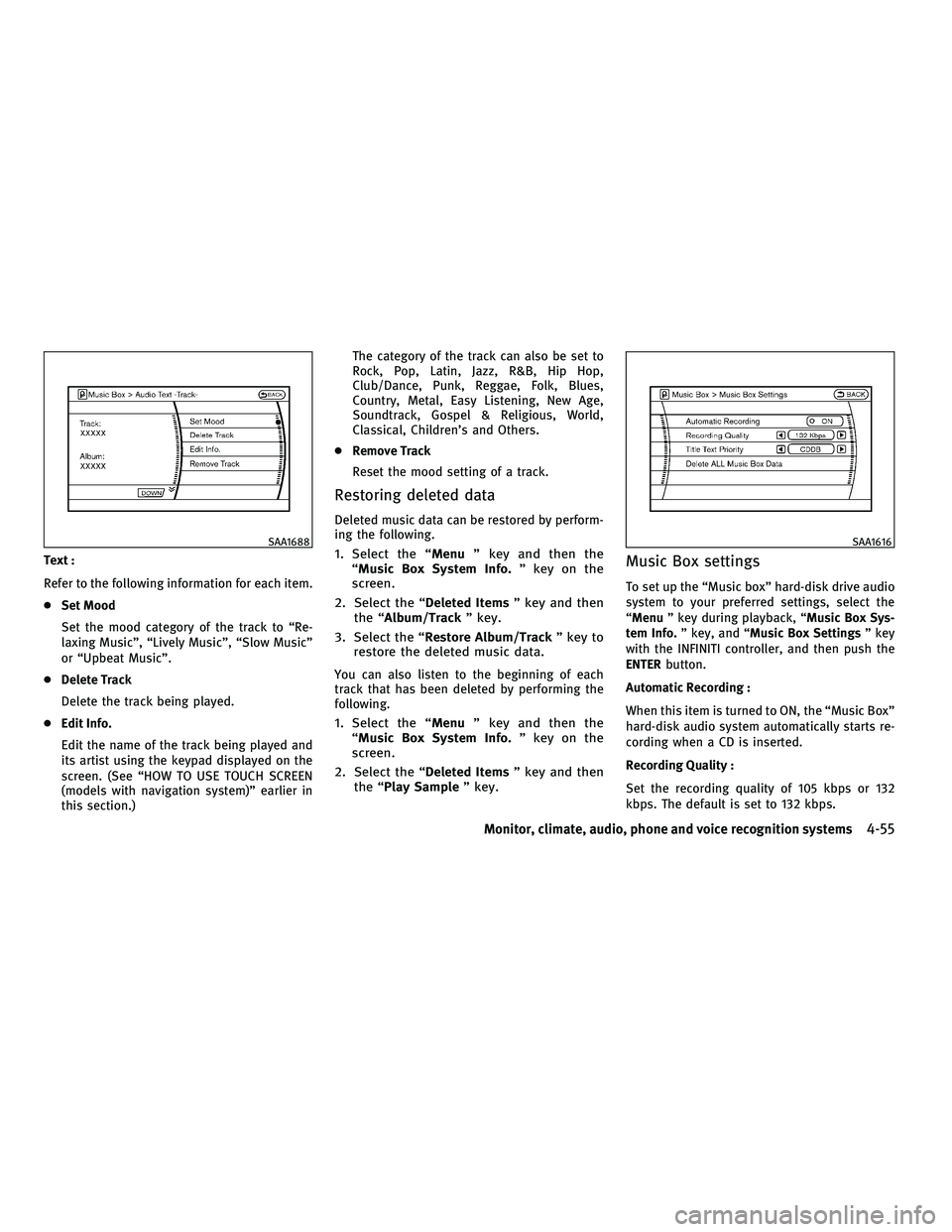
Text :
Refer to the following information for each item.
cSet Mood
Set the mood category of the track to ªRe-
laxing Musicº, ªLively Musicº, ªSlow Musicº
or ªUpbeat Musicº.
c Delete Track
Delete the track being played.
c Edit Info.
Edit the name of the track being played and
its artist using the keypad displayed on the
screen. (See ªHOW TO USE TOUCH SCREEN
(models with navigation system)º earlier in
this section.) The category of the track can also be set to
Rock, Pop, Latin, Jazz, R&B, Hip Hop,
Club/Dance, Punk, Reggae, Folk, Blues,
Country, Metal, Easy Listening, New Age,
Soundtrack, Gospel & Religious, World,
Classical, Children's and Others.
c Remove Track
Reset the mood setting of a track.
Restoring deleted data
Deleted music data can be restored by perform-
ing the following.
1. Select the ª Menuº key and then the
ªMusic Box System Info. º key on the
screen.
2. Select the ª Deleted Itemsº key and then
the ªAlbum/Track º key.
3. Select the ªRestore Album/Track º key to
restore the deleted music data.
You can also listen to the beginning of each
track that has been deleted by performing the
following.
1. Select the ª Menuº key and then the
ªMusic Box System Info. º key on the
screen.
2. Select the ª Deleted Itemsº key and then
the ª Play Sample º key.
Music Box settings
To set up the ªMusic boxº hard-disk drive audio
system to your preferred settings, select the
ªMenuº key during playback, ª Music Box Sys-
tem Info. º key, and ª Music Box Settings º key
with the INFINITI controller, and then push the
ENTER button.
Automatic Recording :
When this item is turned to ON, the ªMusic Boxº
hard-disk audio system automatically starts re-
cording when a CD is inserted.
Recording Quality :
Set the recording quality of 105 kbps or 132
kbps. The default is set to 132 kbps.
SAA1688SAA1616
Monitor, climate, audio, phone and voice recognition systems4-55
wÐ
Ð
05/14/09Ðpattie
X
Page 221 of 445
cA new disc may be rough on the inner and
outer edges. Remove the rough edges by
rubbing the inner and outer edges with the
side of a pen or pencil as illustrated.
CF cards
cNever touch the terminal portion of the
CompactFlash cards. Do not bend the cards.
c Always place the cards in the storage case
when they are not being used.
c Do not place heavy objects on the cards.
c Do not store the cards in highly humid
locations.
c Do not expose the cards to direct sunlight.
c Do not spill any liquids on the cards.
Refer to the CompactFlash card Owner's Manual
for the details.
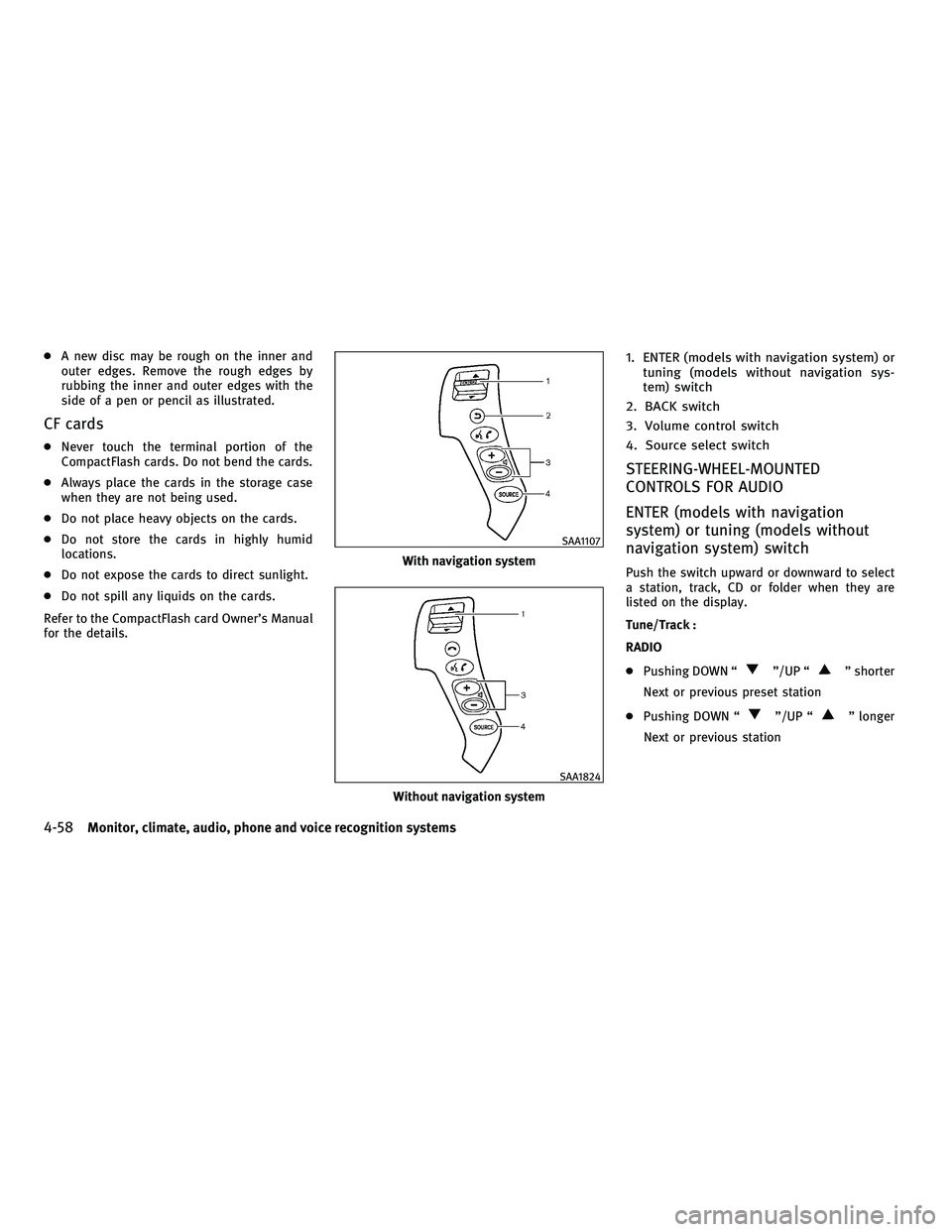
1. ENTER (models with navigation system) or tuning (models without navigation sys-
tem) switch
2. BACK switch
3. Volume control switch
4. Source select switch
STEERING-WHEEL-MOUNTED
CONTROLS FOR AUDIO
ENTER (models with navigation
system) or tuning (models without
navigation system) switch
Push the switch upward or downward to select
a station, track, CD or folder when they are
listed on the display.
Tune/Track :
RADIO
c Pushing DOWN ª
º/UP ªº shorter
Next or previous preset station
c Pushing DOWN ª
º/UP ªº longer
Next or previous station
With navigation system
SAA1107
Without navigation system
SAA1824
4-58Monitor, climate, audio, phone and voice recognition systems
wÐ
Ð
05/19/09Ðtbrooks
X
Page 222 of 445
CD
cPushing DOWN ª
º/UP ªº shorter
Next track or the beginning of the current
track
c Pushing DOWN ª
º/UP ªº longer
(CD changer - if so equipped)
Disc change (When only one disc is loaded,
the 1st track of the disc will be selected.)
CD/CF (if so equipped) with MP3/WMA
c Pushing DOWN ª
º/UP ªº shorter
Next track or the beginning of the current
track
c Pushing DOWN ª
º/UP ªº longer
Folder change (When the last folder on a disc
is playing, the next disc will be selected.)
DVD (if so equipped)
c Pushing DOWN ª
º/UP ªº shorter
Next track/chapter or the beginning of the
current track/chapter
c Pushing DOWN ª
º/UP ªº longer
Next group/title or the beginning of the
current group/title iPodT
(if so equipped)
c Pushing DOWN ª
º/UP ªº shorter
Previous or next track (Start/Pause or Menu
can be selected when the ENTER button is
pushed.)
c Pushing DOWN ª
º/UP ªº longer
Rewind or fast forward search
ªMusic Boxº hard-disk drive audio system (if so
equipped)
c Pushing DOWN ª
º/UP ªº shorter
Next track or the beginning of the current
track
c Pushing DOWN ª
º/UP ªº longer
Playlist change (When the last playlist is
playing, the next playlist will be selected.)
ENTER switch operation :
You can also use the ENTER switch to select the
items on the usual setting menu screen.
After selecting an MP3 folder using the up and
down switch, push the ENTER switch to com-
plete the selection.
While the display is in the NAVI, STATUS or
Audio setting screen, some audio functions can
also be controlled using the ENTER switch. The function varies depending on if you push the
switch shorter (less than 1.5 seconds) or longer
(more than 1.5 seconds).
BACK switch
Push this switch to go back to the previous
screen or cancel the selection if it is not com-
pleted.
Volume control switches
Push the upper (+) or lower (2) side switch to
increase or decrease the volume.
SOURCE select switch
Push the source select switch to change the
mode, Preset A, Preset B, Preset C, ªMusic Boxº
(if so equipped), CD, CompactFlash (if so
equipped), DVD (if so equipped), AUX and iPodT
(if equipped).
Monitor, climate, audio, phone and voice recognition systems4-59
wÐ
Ð
05/14/09Ðpattie
X
Page 223 of 445
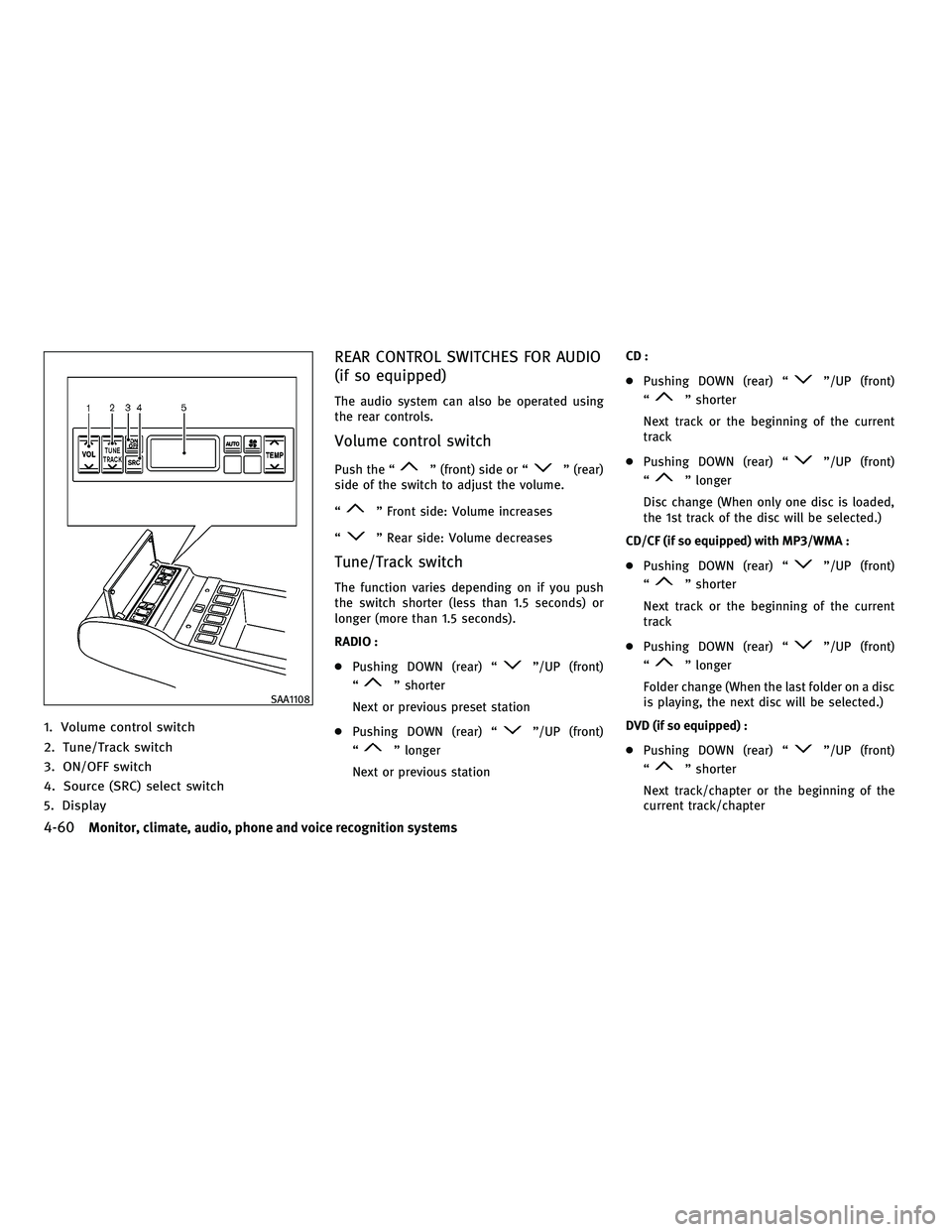
1. Volume control switch
2. Tune/Track switch
3. ON/OFF switch
4. Source (SRC) select switch
5. Display
REAR CONTROL SWITCHES FOR AUDIO
(if so equipped)
The audio system can also be operated using
the rear controls.
Volume control switch
Push the ªº (front) side or ªº (rear)
side of the switch to adjust the volume.
ª
º Front side: Volume increases
ª
º Rear side: Volume decreases
Tune/Track switch
The function varies depending on if you push
the switch shorter (less than 1.5 seconds) or
longer (more than 1.5 seconds).
RADIO :
c Pushing DOWN (rear) ª
º/UP (front)
ª
º shorter
Next or previous preset station
c Pushing DOWN (rear) ª
º/UP (front)
ª
º longer
Next or previous station CD :
c
Pushing DOWN (rear) ª
º/UP (front)
ª
º shorter
Next track or the beginning of the current
track
c Pushing DOWN (rear) ª
º/UP (front)
ª
º longer
Disc change (When only one disc is loaded,
the 1st track of the disc will be selected.)
CD/CF (if so equipped) with MP3/WMA :
c Pushing DOWN (rear) ª
º/UP (front)
ª
º shorter
Next track or the beginning of the current
track
c Pushing DOWN (rear) ª
º/UP (front)
ª
º longer
Folder change (When the last folder on a disc
is playing, the next disc will be selected.)
DVD (if so equipped) :
c Pushing DOWN (rear) ª
º/UP (front)
ª
º shorter
Next track/chapter or the beginning of the
current track/chapter
SAA1108
4-60Monitor, climate, audio, phone and voice recognition systems
wÐ
Ð
05/14/09Ðpattie
X
Page 253 of 445
Once you have confirmed the name and loca-
tion, the system begins the call.
When prompted by the system, say the number
you wish to call. (See ªHow to say numbersº
earlier in this section and ªMAKING A CALL BY
ENTERING A PHONE NUMBERº earlier in this
section for more details.)
ªRedialº
Use the Redial command to call the last number
that was dialed within the vehicle.
NOTE:
The system will not redial the last number dialed
by the handset keypad.
The system acknowledges the command, re-
peats the number and begins dialing.
If a redial number does not exist, the system
announces, ªThere is no number to redialº and
ends the VR session.
ªCallbackº
Use the Call Back command to dial the number
of the last incoming call within the vehicle.
The system acknowledges the command, re-
peats the number and begins dialing. If a callback number does not exist, the system an-
nounces, ªThere is no number to call backº and
ends the VR session.
International
For dialing more than 10 digits or any special
characters, say ªInternationalº. When the sys-
tem acknowledges the command, the system
will prompt you to speak the number.
DURING A CALL
During a call there are several command op-
tions available. Press the
button on the
steering wheel to mute the receiving voice and
enter commands.
c ªHelpº Ð The system announces the avail-
able commands.
c ªGo back/Correctionº Ð The system an-
nounces ªGo back,º ends the VR session and
returns to the call.
c ªCancel/Quitº Ð The system announces
ªCancel,º ends the VR session and returns to
the call.
c ªSend/Enter/Call/Dialº Ð Use the Send
command to enter numbers during a call. For
example, if you were directed to dial an
extension by an automated system:
Say: ªSend one two three four.º The system acknowledges the command and
sends the tones associated with the num-
bers. The system then ends the VR session
and returns to the call.
c ªTransfer Callº Ð Use the Transfer Call com-
mand to transfer the call from the
BluetoothT Hands-Free Phone System to the
cellular phone when privacy is desired.
The system announces, ªTransfer call. Call
transferred to privacy mode.º The system
then ends the VR session.
You can also issue the Transfer Call com-
mand again to return to a hands-free call
through the vehicle.
c ªMuteº Ð Use the Mute command to mute
your voice so the other party cannot hear it.
Use the mute command again to unmute
your voice.
NOTE:
If the other party ends the call or the cellular
phone network connection is lost while the Mute
feature is on, the Mute feature may need to be
reset to ªoff.º
4-90Monitor, climate, audio, phone and voice recognition systems
wÐ
Ð
05/19/09Ðtbrooks
X
Page 282 of 445
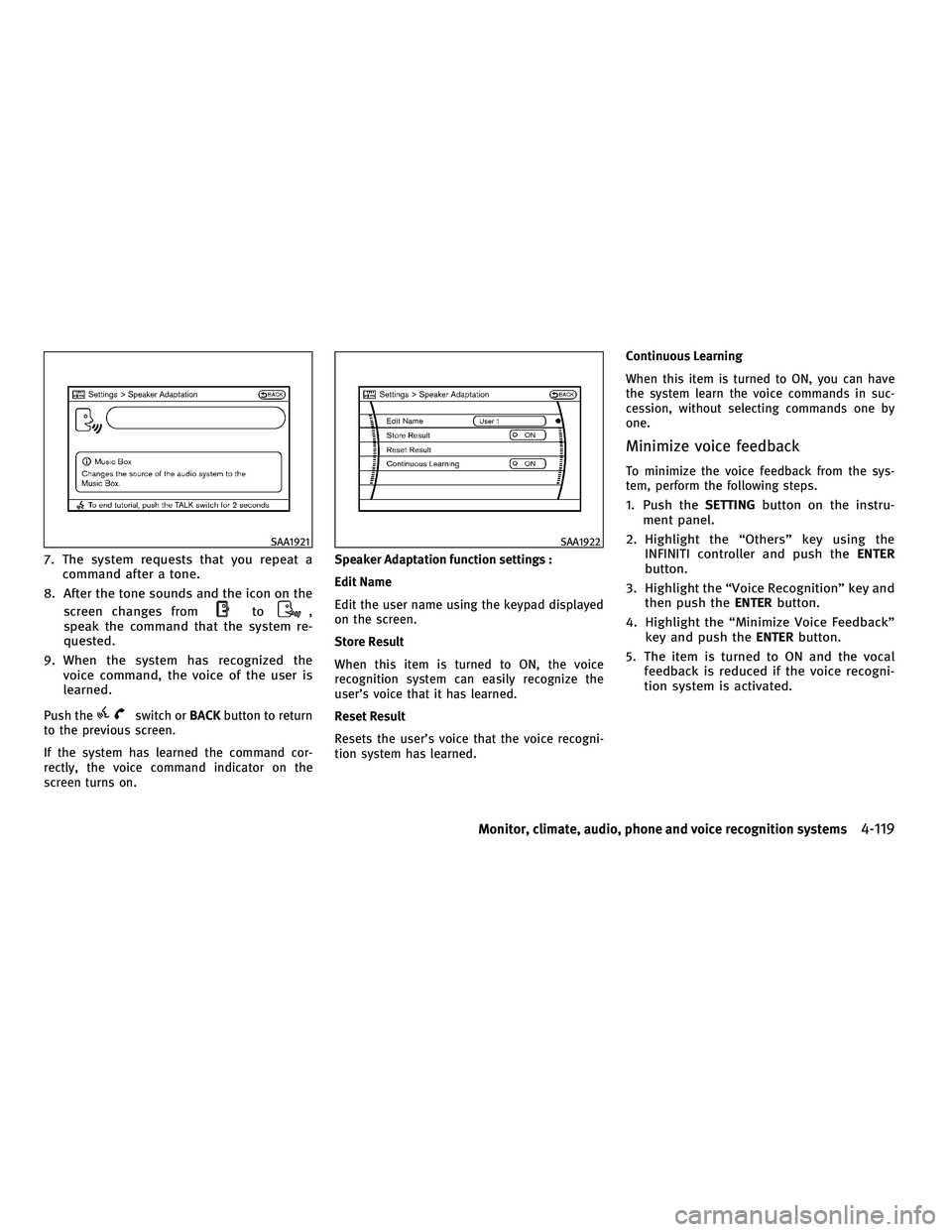
7. The system requests that you repeat acommand after a tone.
8. After the tone sounds and the icon on the screen changes from
to,
speak the command that the system re-
quested.
9. When the system has recognized the voice command, the voice of the user is
learned.
Push theswitch or BACKbutton to return
to the previous screen.
If the system has learned the command cor-
rectly, the voice command indicator on the
screen turns on. Speaker Adaptation function settings :
Edit Name
Edit the user name using the keypad displayed
on the screen.
Store Result
When this item is turned to ON, the voice
recognition system can easily recognize the
user's voice that it has learned.
Reset Result
Resets the user's voice that the voice recogni-
tion system has learned.Continuous Learning
When this item is turned to ON, you can have
the system learn the voice commands in suc-
cession, without selecting commands one by
one.
Minimize voice feedback
To minimize the voice feedback from the sys-
tem, perform the following steps.
1. Push the
SETTINGbutton on the instru-
ment panel.
2. Highlight the ªOthersº key using the INFINITI controller and push the ENTER
button.
3. Highlight the ªVoice Recognitionº key and then push the ENTERbutton.
4. Highlight the ªMinimize Voice Feedbackº key and push the ENTERbutton.
5. The item is turned to ON and the vocal feedback is reduced if the voice recogni-
tion system is activated.
SAA1921SAA1922
Monitor, climate, audio, phone and voice recognition systems4-119
wÐ
Ð
05/15/09Ðpattie
X
Page 289 of 445

Additional information
cThe TPMS does not monitor the tire pressure
of the spare tire.
c The TPMS will activate only when the vehicle
is driven at speeds above 16 MPH (25 km/h).
Also, this system may not detect a sudden
drop in tire pressure (for example a flat tire
while driving).
c The low tire pressure warning light does not
automatically turn off when the tire pressure
is adjusted. After the tire is inflated to the
recommended pressure, the vehicle must be
driven at speeds above 16 MPH (25 km/h) to
activate the TPMS and turn off the low tire
pressure warning light. Use a tire pressure
gauge to check the tire pressure.
c Tire pressure rises and falls depending on
the heat caused by the vehicle's operation
and the outside temperature. Low outside
temperature can lower the temperature of
the air inside the tire which can cause a
lower tire inflation pressure. This may cause
the low tire pressure warning light to illumi-
nate. If the warning light illuminates in low
ambient temperature, check the tire pres-
sure for all four tires. c
You can also check the pressure of all tires
(except the spare tire) on the display. (See
ªHOW TO USE INFO BUTTONº in the ª4.
Monitor, climate, audio, phone and voice
recognition systemsº section.)
After tire rotation is performed, tire pressure
will not be displayed in the actual tire posi-
tion. Drive the vehicle at over 25 MPH (40
km/h) for approximately 10 minutes to reset
the display.
For additional information, see ªLow tire pres-
sure warning lightº in the ª2. Instruments and
controlsº section and ªTIRE PRESSURE MONI-
TORING SYSTEM (TPMS)º in the ª6. In case of
emergencyº section.
WARNING
c If the low tire pressure warning light illumi-
nates or LOW PRESSURE information is dis-
played on the monitor screen while driving,
avoid sudden steering maneuvers or abrupt
braking, reduce vehicle speed, pull off the
road to a safe location and stop the vehicle
as soon as possible. Driving with under-
inflated tires may permanently damage the
tires and increase the likelihood of tire fail-
ure. Serious vehicle damage could occur and
may lead to an accident and could result in
serious personal injury. Check the tire pres-
sure for all four tires. Adjust the tire pressure
to the recommended COLD tire pressure
shown on the Tire and Loading Information
label to turn the low tire pressure warning
light OFF. If you have a flat tire, replace it
with a spare tire as soon as possible. (See
ªFLAT TIREº in the ª6. In case of emergencyº
section for changing a flat tire.)
c When a spare tire is mounted or a wheel is
replaced, tire pressure will not be indicated,
the TPMS will not function and the low tire
pressure warning light will flash for approxi-
mately 1 minute. The light will remain on
after 1 minute. Contact your INFINITI retailer
as soon as possible for tire replacement
and/or system resetting.
5-4Starting and driving
wÐ
Ð
05/15/09Ðpattie
X