climate settings INFINITI M 2012 Owner's Guide
[x] Cancel search | Manufacturer: INFINITI, Model Year: 2012, Model line: M, Model: INFINITI M 2012Pages: 522, PDF Size: 3.8 MB
Page 248 of 522
SAA2511
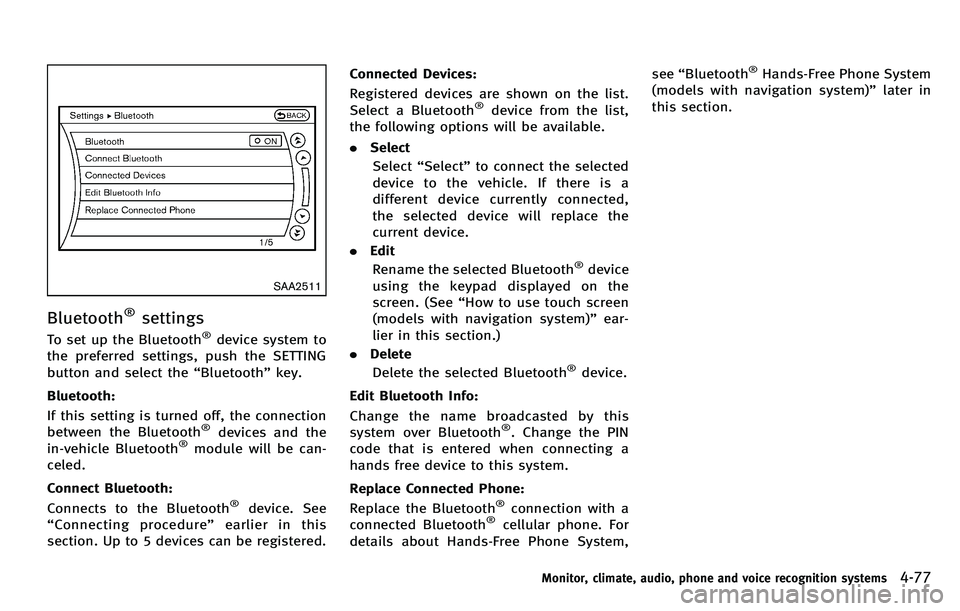
Bluetooth®settings
To set up the Bluetooth®device system to
the preferred settings, push the SETTING
button and select the “Bluetooth ”key.
Bluetooth:
If this setting is turned off, the connection
between the Bluetooth
®devices and the
in-vehicle Bluetooth®module will be can-
celed.
Connect Bluetooth:
Connects to the Bluetooth
®device. See
“ Connecting procedure ”earlier in this
section. Up to 5 devices can be registered. Connected Devices:
Registered devices are shown on the list.
Select a Bluetooth
®device from the list,
the following options will be available.
. Select
Select “Select ”to connect the selected
device to the vehicle. If there is a
different device currently connected,
the selected device will replace the
current device.
. Edit
Rename the selected Bluetooth
®device
using the keypad displayed on the
screen. (See “How to use touch screen
(models with navigation system) ”ear-
lier in this section.)
. Delete
Delete the selected Bluetooth
®device.
Edit Bluetooth Info:
Change the name broadcasted by this
system over Bluetooth
®. Change the PIN
code that is entered when connecting a
hands free device to this system.
Replace Connected Phone:
Replace the Bluetooth
®connection with a
connected Bluetooth®cellular phone. For
details about Hands-Free Phone System, see
“Bluetooth
®Hands-Free Phone System
(models with navigation system) ”later in
this section.
Monitor, climate, audio, phone and voice recognition systems4-77
Page 250 of 522
PLAY:
When the DISC·AUX button is pushed with
the system off and the iPod
®connected,
the system will turn on. If another audio
source is playing and the iPod
®is con-
nected, push the DISC·AUX button repeat-
edly until the center display changes to the
iPod
®mode.
Interface:
The interface for iPod
®operation shown on
the vehicle center display is similar to the
iPod
®interface. Use the INFINITI controller
and the ENTER or BACK button to play the
iPod
®with your favorite settings.
The following items can be chosen from the
menu list screen. For further information
about each item, see the iPod
®Owner ’s
Manual.
. Now Playing
. Playlists
. Artists
. Albums
. Songs
. Podcasts
. Genres
. Composers .
Audiobooks
. Shuffle Songs
The following touch-panel buttons shown
on the screen are also available:
.
: returns to the previous screen.
.
: plays/pauses the music selected.
Next/Previous Track and Fast For-
ward/Rewind:
When the
orbutton is pushed for
more than 1.5 seconds while the iPod®is
playing, the iPod®will play while fast
forwarding or rewinding. When the button
is released, the iPod
®will return to the
normal play speed.
When the
orbutton is pushed for
less than 1.5 seconds while the iPod®is
playing, the next track or the beginning of
the current track on the iPod
®will be
played.
The INFINITI controller can also be used to
select tracks when the iPod
®is playing.
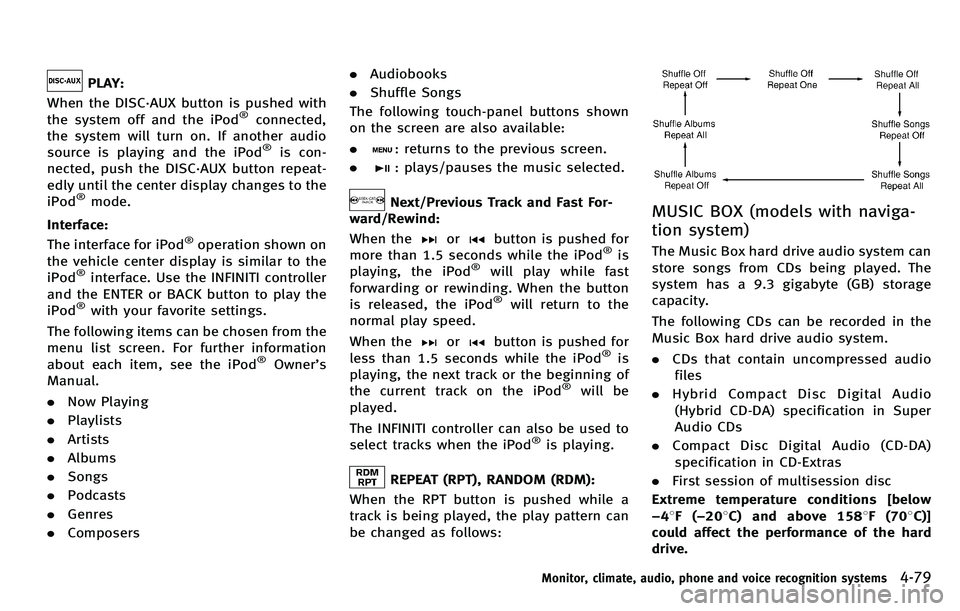
REPEAT (RPT), RANDOM (RDM):
When the RPT button is pushed while a
track is being played, the play pattern can
be changed as follows:
MUSIC BOX (models with naviga-
tion system)
The Music Box hard drive audio system can
store songs from CDs being played. The
system has a 9.3 gigabyte (GB) storage
capacity.
The following CDs can be recorded in the
Music Box hard drive audio system.
. CDs that contain uncompressed audio
files
. Hybrid Compact Disc Digital Audio
(Hybrid CD-DA) specification in Super
Audio CDs
. Compact Disc Digital Audio (CD-DA)
specification in CD-Extras
. First session of multisession disc
Extreme temperature conditions [below
− 48F( −20 8C) and above 158 8F(70 8C)]
could affect the performance of the hard
drive.
Monitor, climate, audio, phone and voice recognition systems4-79
Page 252 of 522

SAA2514
If the title information of the track being
recorded is stored either in the hard drive
or in the CD, the title is automatically
displayed on the screen. For title acquisi-
tion from the hard drive, music recognition
technology and related data are provided
by Gracenote
®.
If a track is not recorded successfully due
to skipping sounds, the
mark is
displayed behind the track number.
The Music Box hard drive cannot perform
recording under the following conditions.
. There is not enough space in the hard
drive. .
The number of albums reaches the
maximum of 500.
. The number of tracks reaches the
maximum of 3,000.
Automatic recording:
If the “Automatic Recording ”function is
turned to ON, recording starts when a CD is
inserted. (See “Music Box settings ”later in
this section.)
Stopping recording:
To stop the recording, select the “Stop
REC ”key button by touching the screen or
using the INFINITI controller.
If the CD is ejected, the audio system is
turned off or the ignition switch is pushed
to the OFF position, the recording also
stops.
SAA2515
Playing recorded songs
Select the Music Box audio system by
using one of the following methods.
. Push the audio source switch on the
steering wheel r epeatedly until the
center display changes to the Music
Box mode. (See “Steering-wheel-
mounted controls for audio ”later in
this section.)
. Push the DISC·AUX button repeatedly
until the center display changes to the
Music Box mode.
. Give voice commands. (See “INFINITI
Voice Recognition system (models with
Monitor, climate, audio, phone and voice recognition systems4-81
Page 255 of 522

4-84Monitor, climate, audio, phone and voice recognition systems
Visit www.InfinitiUSA.com/music-up-
date/ for details.
. Update Gracenote from HDD
Search the title using the database in
the hard disk.
SAA2517
Music Box settings
To set the Music box hard drive to your
preferred settings, select the “Menu ”key
during playback, and the “Music Box
Settings ”key with the INFINITI controller,
and then push the ENTER button.
Music Box Used/Free Space:
Information about “Saved Album ”, “Saved
Track ”and “Remaining Time ”is displayed.
Automatic Recording:
When this item is turned to ON, the Music
Box hard drive automatically starts record-
ing when a CD is inserted. Delete Songs from Music Box:
Deletes the current song, selected songs or
albums by choosing from the list, or all
songs/albums in the Music Box.
Recording Quality:
Set the recording quality of 105 kbps or
132 kbps. The default is set to 105 kbps.
CDDB Version (models with navigation
system):
The version of the built-in Gracenote
Database is displayed.
Gracenote
NOTE:
.
The information contained in the Grace-
note Database is not fully guaranteed.
. The service of the Gracenote Database
on the Internet may be stopped without
prior notice for maintenance.
End-User License Agreement
USE OF THIS PRODUCT IMPLIES ACCEP-
TANCE OF THE TERMS BELOW.
Gracenote
®MusicID Terms of Use
Page 268 of 522
SAA3587
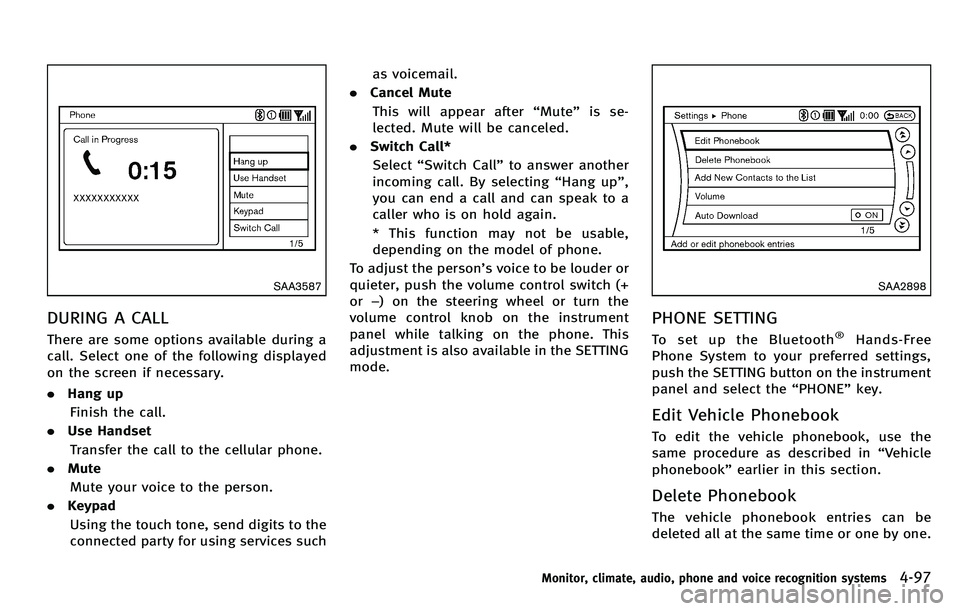
DURING A CALL
There are some options available during a
call. Select one of the following displayed
on the screen if necessary.
.Hang up
Finish the call.
. Use Handset
Transfer the call to the cellular phone.
. Mute
Mute your voice to the person.
. Keypad
Using the touch tone, send digits to the
connected party for using services such as voicemail.
. Cancel Mute
This will appear after “Mute” is se-
lected. Mute will be canceled.
. Switch Call*
Select “Switch Call ”to answer another
incoming call. By selecting “Hang up ”,
you can end a call and can speak to a
caller who is on hold again.
* This function may not be usable,
depending on the model of phone.
To adjust the person ’s voice to be louder or
quieter, push the volume control switch (+
or −) on the steering wheel or turn the
volume control knob on the instrument
panel while talking on the phone. This
adjustment is also available in the SETTING
mode.
SAA2898
PHONE SETTING
To set up the Bluetooth®Hands-Free
Phone System to your preferred settings,
push the SETTING button on the instrument
panel and select the “PHONE ”key.
Edit Vehicle Phonebook
To edit the vehicle phonebook, use the
same procedure as described in “Vehicle
phonebook ”earlier in this section.
Delete Phonebook
The vehicle phonebook entries can be
deleted all at the same time or one by one.
Monitor, climate, audio, phone and voice recognition systems4-97
Page 269 of 522

4-98Monitor, climate, audio, phone and voice recognition systems
Download Handset Phonebook
Download the contacts registered in a
Bluetooth®cellular phone. Availability of
this function depends on each cellular
phone. The memory downloading proce-
dure from the cellular phone also varies
according to each cellular phone. See
cellular phone Owner ’s Manual for details.
When “Auto Download ”is active, the
system will automatically re-download the
entries registered in the phone everytime it
is paired with the vehicle, even after you
delete the entries from your vehicle ’s
Handset Memory.
Volume
The following kinds of phone volume can
be set. Pushing the
button and
selecting the “Volume ”key can also
operate the same settings.
. Ringtone/Incoming Call/Outgoing Call
To increase or decrease the volume,
select the “Ringtone ”, “Incoming Call ”
or “Outgoing Call ”key and adjust it
with the INFINITI controller.
. Automatic Hold
When this function is activated, an
incoming phone call is automatically
held. .
Vehicle Ringtone
When this function is activated, a
specific ringtone that is different from
the cellular phone will sound when
receiving a call.
Auto Download
When this item is activated, the phonebook
of a hands-free phone is automatically
downloaded at the same time that the
hands-free phone is connected.
When this item is active, the system will
automatically re-download the entries re-
gistered in the connected phone even if
you attempt to delete the entries.
Page 281 of 522

4-110Monitor, climate, audio, phone and voice recognition systems
call.
. “Mute on/off ”—Use the Mute com-
mand to mute the user ’s voice so the
other party cannot hear it.
Use the mute command again to
unmute the user ’s voice.
. “Transfer Handset ”—Use the Transfer
Handset command to transfer the call
from the Bluetooth
®Hands-Free Phone
System to a cellular phone when
privacy is desired. The system an-
nounces, “Transfer Handset. The call
is transferred to the handset only. ”The
system then ends the VR session.
The Transfer Call command can also be
issued again to return to a hands-free
call through the vehicle.
. “Help ”— The system announces the
available commands.
NOTE:
If the other party ends the call or the
cellular phone network connection is lost
while the Mute feature is on, the Mute
feature may need to be reset to “off. ”
SAA2582
PHONE SETTINGS
Call
.(a name)
If there are entries stored in the Phone
Book, a number associated with a
name and location can be dialed. See
“ Phone book registration ”in this sec-
tion to learn how to store entries. When
prompted by the system, say the name
of the phone book entry to call.
The system acknowledges the name. If
there are multiple locations associated
with the name, the system asks the
user to choose the location. Once the name and location are con-
firmed, the system begins the call.
. Number
When prompted by the system, speak
the number to call.
. Redial
Use the Redial command to call the last
number of outgoing calls. The system
acknowledges the command, repeats
the number and begins dialing. If a
redial number does not exist, the
system announces, “There is no num-
ber to redial ”and ends the VR session.
. Callback
Use the Callback command to call the
last number in incoming calls. The
system acknowledges the command,
repeats the number and begins dialing.
If an incoming call number does not
exist, the system announces, “There is
no number to call back ”and ends the
VR session.
. Help
The system announces the available
commands.
Page 307 of 522
4-136Monitor, climate, audio, phone and voice recognition systems
SAA2547
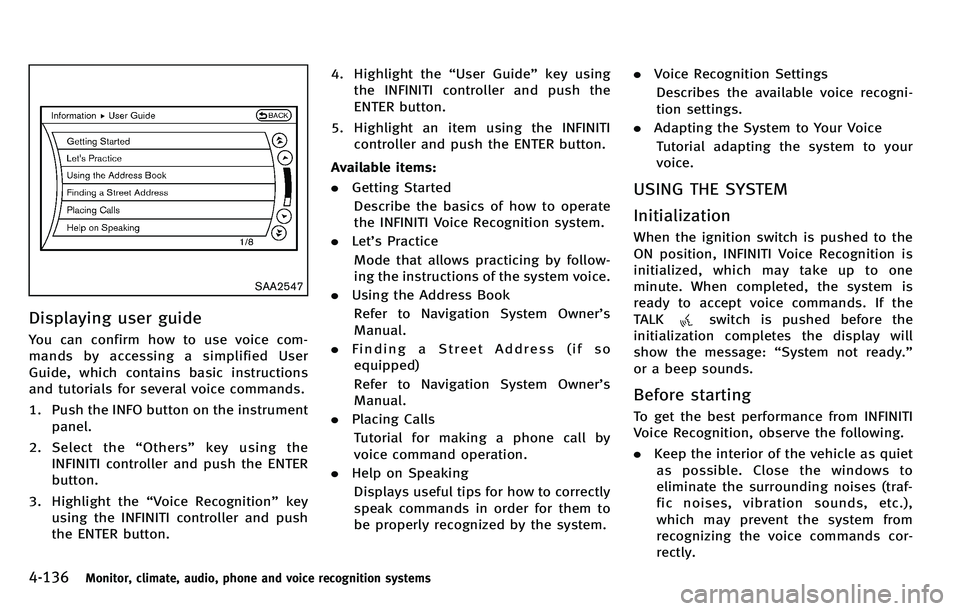
Displaying user guide
You can confirm how to use voice com-
mands by accessing a simplified User
Guide, which contains basic instructions
and tutorials for several voice commands.
1. Push the INFO button on the instrumentpanel.
2. Select the “Others ”key using the
INFINITI controller and push the ENTER
button.
3. Highlight the “Voice Recognition ”key
using the INFINITI controller and push
the ENTER button. 4. Highlight the
“User Guide ”key using
the INFINITI controller and push the
ENTER button.
5. Highlight an item using the INFINITI controller and push the ENTER button.
Available items:
. Getting Started
Describe the basics of how to operate
the INFINITI Voice Recognition system.
. Let’s Practice
Mode that allows practicing by follow-
ing the instructions of the system voice.
. Using the Address Book
Refer to Navigation System Owner ’s
Manual.
. Finding a Street Address (if so
equipped)
Refer to Navigation System Owner ’s
Manual.
. Placing Calls
Tutorial for making a phone call by
voice command operation.
. Help on Speaking
Displays useful tips for how to correctly
speak commands in order for them to
be properly recognized by the system. .
Voice Recognition Settings
Describes the available voice recogni-
tion settings.
. Adapting the System to Your Voice
Tutorial adapting the system to your
voice.
USING THE SYSTEM
Initialization
When the ignition switch is pushed to the
ON position, INFINITI Voice Recognition is
initialized, which may take up to one
minute. When completed, the system is
ready to accept voice commands. If the
TALK
switch is pushed before the
initialization completes the display will
show the message: “System not ready. ”
or a beep sounds.
Before starting
To get the best performance from INFINITI
Voice Recognition, observe the following.
. Keep the interior of the vehicle as quiet
as possible. Close the windows to
eliminate the surrounding noises (traf-
fic noises, vibration sounds, etc.),
which may prevent the system from
recognizing the voice commands cor-
rectly.
Page 312 of 522
SAA2553
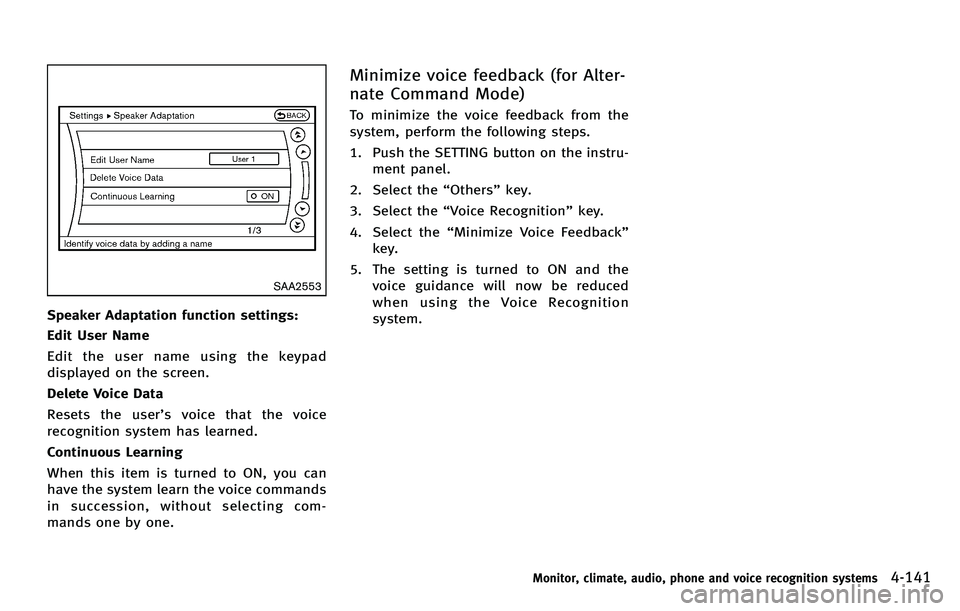
Speaker Adaptation function settings:
Edit User Name
Edit the user name using the keypad
displayed on the screen.
Delete Voice Data
Resets the user’s voice that the voice
recognition system has learned.
Continuous Learning
When this item is turned to ON, you can
have the system learn the voice commands
in succession, without selecting com-
mands one by one.
Minimize voice feedback (for Alter-
nate Command Mode)
To minimize the voice feedback from the
system, perform the following steps.
1. Push the SETTING button on the instru- ment panel.
2. Select the “Others ”key.
3. Select the “Voice Recognition ”key.
4. Select the “Minimize Voice Feedback ”
key.
5. The setting is turned to ON and the voice guidance will now be reduced
when using the Voice Recognition
system.
Monitor, climate, audio, phone and voice recognition systems4-141
Page 517 of 522

10-6
Child restraints ............................................ 1-21
Cruise control .............................................. 5-45
Lane departure warning (LDW) system ......... 5-23
Maintenance .................................................. 8-5
Seat belt usage ........................................... 1-12
Supplemental restraint system ..................... 1-39
When starting and driving .............................. 5-3
Pre-crash seat belts with comfort function ........ 1-14
Predictive course line settings .......................... 4-32
Preview function ............................................... 5-94
Preview function (for Intelligent cruise
control system) ................................................. 5-69
Preview Function warning light.......................... 2-15
Push starting .................................................... 6-10
Push-button ignition switch ....................... 5-9, 5-10
R
Radio Car phone or CB radio ................................. 4-89
FM-AM-SAT radio with Compact Disc
(CD) player ................................................... 4-61
Rain-sensing auto wiper system ........................ 2-33
Rapid air pressure loss ....................................... 5-7
Readiness for inspection/maintenance (I/M) test
(US only) .......................................................... 9-22
Rear door lock Child safety rear door lock ............................. 3-6
Rear pocket ...................................................... 2-51
Rear sunshade .................................................. 2-57 Rear window and outside mirror
defroster switch ................................................ 2-34
Rearview monitor .............................................. 4-26
Recorders
Event data ................................................... 9-23
Registering your vehicle in another country ...... 9-11
Remote keyless entry system ............................ 3-14
Reporting safety defects ................................... 9-21
Rise-up and build-up ........................................ 5-99
Roadside assistance program ............................. 6-2
Rollover .............................................................. 5-6
Roof Moonroof ..................................................... 2-56
S
Safety
Child seat belts ........................................... 1-19
Reporting safety defects .............................. 9-21
Satellite radio operation ................................... 4-62
Seat adjustment Front power seat adjustment .......................... 1-3
Front seats..................................................... 1-3
Seat belt(s)
Child safety ................................................. 1-19
Infants ......................................................... 1-20
Injured persons ........................................... 1-14
Larger children ............................................. 1-20
Precautions on seat belt usage .................... 1-12
Pre-crash seat belts with comfort function ... 1-14
Pregnant women .......................................... 1-14
Seat belt cleaning .......................................... 7-6 Seat belt extenders ...................................... 1-18
Seat belt maintenance ................................. 1-18
Seat belt warning light and chime ............... 2-15
Seat belts .................................................... 1-12
Seat belts with pretensioners ...................... 1-51
Shoulder belt height adjustment .................. 1-18
Small children ............................................. 1-20
Three-point type .......................................... 1-15
Seat(s)
Climate controlled seats .............................. 2-43
Driver-side memory ...................................... 3-28
Heated seats ............................................... 2-41
Seats ............................................................. 1-2
Security system Vehicle security system ................................ 2-29
Security system (INFINITI Vehicle Immobilizer
System)
Engine start ................................................. 2-30
Selector lever
Shift lock release ......................................... 5-18
Servicing air conditioner (See automatic
climate control) ................................................. 4-33
Servicing climate control ................................... 4-47
SETTING button ................................................. 4-16
Shift lock release, Transmission ........................ 5-18
Shifting
Automatic transmission ............................... 5-14
Shoulder belt height adjustment ....................... 1-18
SNOW mode ..................................................... 5-20
Spare tire ........................................................... 9-9
Spark plugs ...................................................... 8-21