steering wheel INFINITI Q50 HYBRID 2014 Infiniti Intouch
[x] Cancel search | Manufacturer: INFINITI, Model Year: 2014, Model line: Q50 HYBRID, Model: INFINITI Q50 HYBRID 2014Pages: 274, PDF Size: 1.43 MB
Page 43 of 274

3. Heater and air conditioner
3-12
Otherwise, the Climate Control system
will stop activating with the deactiva-
tion of the engine as part of the Idle
Stop function.
. Steering Heater Auto Settings (if so
equipped)
The automatic control mode for steer-
ing-wheel heating can be turned on/off.
When this item is turned on, the
steering-wheel heating will turn on
automatically if the temperature inside
the vehicle compartment is low at the
time when the ignition switch is turned
on. Regardless of the temperature, the
steering-wheel heating will turn off
after 30 minutes.
If the steering-wheel heater is turned
on/off manually by touching [Steering
Heater] on the CLIMATE screen, the
automatic steering heating control
mode will be canceled and will return
to the manual mode.
INFO:
If the surface temperature of the steering-wheel
is above the temperature within which the
system is designed to operate, the system will
not heat the steering-wheel. This is not a malfunction.
Page 44 of 274

4 Audio system
Audio operation precautions ................................ 4-2Radio .............................................................. 4-2
Compact Disc (CD) player ................................ 4-4
USB (Universal Serial Bus)............................... 4-5
Compressed Audio Files (MP3/WMA/AAC)........ 4-7
Bluetooth
®streaming audio ............................ 4-9
Names and functions of audio control buttons.... 4-10
Audio main buttons....................................... 4-10
Steering-wheel mounted audio
control buttons.............................................. 4-11
Audio operations ............................................... 4-11
Audio main operation .................................... 4-11 Radio........................................................... 4-13
Compact Disc (CD) player............................. 4-18
USB memory device player .......................... 4-20
iPod player .................................................. 4-23
Bluetooth
®streaming audio ........................ 4-26
Auxiliary (AUX) devices ................................ 4-30
Audio settings................................................... 4-31
CD/USB memory device care and cleaning ........ 4-33 CD ............................................................... 4-33
USB memory device ..................................... 4-33
Gracenote
®End User License Agreement .......... 4-33
Page 54 of 274
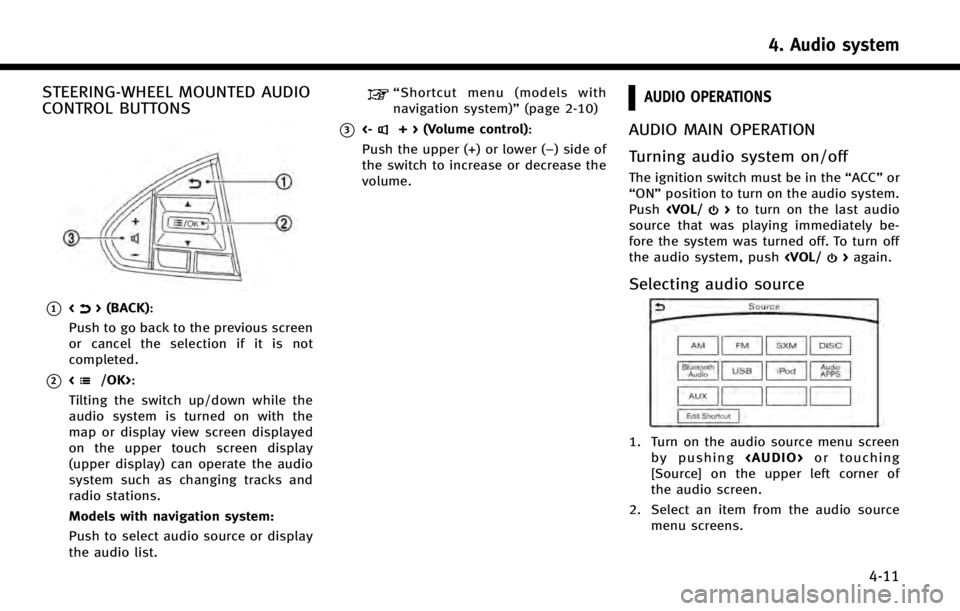
STEERING-WHEEL MOUNTED AUDIO
CONTROL BUTTONS
*1<> (BACK):
Push to go back to the previous screen
or cancel the selection if it is not
completed.
*2:
Tilting the switch up/down while the
audio system is turned on with the
map or display view screen displayed
on the upper touch screen display
(upper display) can operate the audio
system such as changing tracks and
radio stations.
Models with navigation system:
Push to select audio source or display
the audio list.
“ Shortcut menu (models with
navigation system)” (page 2-10)
*3<-+ > (Volume control):
Push the upper (+) or lower (−) side of
the switch to increase or decrease the
volume.
AUDIO OPERATIONS
AUDIO MAIN OPERATION
Turning audio system on/off
The ignition switch must be in the “ACC”or
“ON” position to turn on the audio system.
Push
source that was playing immediately be-
fore the system was turned off. To turn off
the audio system, push
Selecting audio source
1. Turn on the audio source menu screen
by pushing
Page 57 of 274
![INFINITI Q50 HYBRID 2014 Infiniti Intouch 4. Audio system
4-14
*6[Control]:
Touch to display the control screen.
“Radio controls”(page 4-15)
*7Preset list:
36 stations/channels (FM/AM/SXM)
can be registered in the preset list.
“Presetti](/img/42/34966/w960_34966-56.png "INFINITI Q50 HYBRID 2014 Infiniti Intouch 4. Audio system
4-14
*6[Control]:
Touch to display the control screen.
“Radio controls”(page 4-15)
*7Preset list:
36 stations/channels (FM/AM/SXM)
can be registered in the preset list.
“Presetti")
4. Audio system
4-14
*6[Control]:
Touch to display the control screen.
“Radio controls”(page 4-15)
*7Preset list:
36 stations/channels (FM/AM/SXM)
can be registered in the preset list.
“Presetting”(page 4-14)
INFO:
HD Radio reception needs to be activated to
receive HD Radio broadcasts. This enables you
to receive radio broadcasts digitally (where
available), providing a better quality sound with
clear reception. When this feature is not
activated or HD Radio broadcasts are not
available, you will receive analog radio (AM/
FM) broadcasts.
Radio operation
Radio activation and band selection:
Push
band (AM, FM or SXM) from the audio
source list to turn on the radio. Each time
change.
“Selecting audio source ”(page 4-11)
INFO:
When the stereo broadcast signal is weak, the
radio will automatically change from stereo to
monaural reception.
Seeking stations/channels:
AM and FM radio
Push
to high or high to low frequencies and to
stop at the next broadcasting station.
Tilting and holding <
/OK>on the
steering-wheel will also seek up/down to
the next station.
SiriusXM Satellite Radio
Push
channel of the next or previous category.
Tilting and holding <
/OK>on the
steering-wheel will also fast tune the
channels.
Scan tuning:
To scan tune the stations/channels, touch
[Control] on the lower display and touch
[Scan]. The stations/channels will be tuned
from low to high frequencies and stop at
each broadcasting station/channel for 5
seconds. Touching [Scan] again during this
5 seconds period will stop scan tuning and the radio will remain tuned to that station/
channel.
Presetting:
Up to 36 stations/channels can be regis-
tered for AM, FM and SXM in the preset list.
1. Select a radio band (AM, FM or SXM).
2. Tune to the station/channel you wish to
store in the preset list.
3. Touch and hold one of the preset numbers in the preset list.
4. The information such as frequency (AM/FM), channel number (SXM), etc.
will be displayed on the preset list.
INFO:
.
To change the preset stations/channels,
touch and hold one of the preset numbers.
You can select whether to change the
station/channel or to delete the preset
setting.
.Tilting will scroll up/down the
preset stations/channels.
Alert Notification (SXM only):
Favorite artists and songs can be regis-
tered to receive an alert notice when a
Page 62 of 274
![INFINITI Q50 HYBRID 2014 Infiniti Intouch - [Folder List] (for MP3, WMA, AAC)
- [Play Mode]
*8Play Mode Indicator:
Indicates the current play mode. Touch
to change the play mode.
For CDs without compressed audio files:
Mode Screen display
Dis](/img/42/34966/w960_34966-61.png "INFINITI Q50 HYBRID 2014 Infiniti Intouch - [Folder List] (for MP3, WMA, AAC)
- [Play Mode]
*8Play Mode Indicator:
Indicates the current play mode. Touch
to change the play mode.
For CDs without compressed audio files:
Mode Screen display
Dis")
- [Folder List] (for MP3, WMA, AAC)
- [Play Mode]
*8Play Mode Indicator:
Indicates the current play mode. Touch
to change the play mode.
For CDs without compressed audio files:
Mode Screen display
Disc Repeat
Disc
1 Track Repeat
1 Track
Disc Random
Disc
For CDs with compressed audio files:
Mode Screen display
Disc Repeat
Disc
1 Folder Repeat
1 Folder
1 Track Repeat
1 Track
Disc Random
Disc
1 Folder Ran-
dom
1 Folder
*9Folder number:
Indicates the folder number when a CD
with compressed audio files is loaded.
CD player operation
Loading:
Insert the CD into the slot with the label
side facing up. The CD will be guided
automatically into the slot and start play-
ing.
After loading the CD, the CD screen will
appear on the display.
Activation and playing:
The CD mode can be also selected from the
source list or by pushing
CD loaded to play the CD.
“Selecting audio source ”(page 4-11)“Audio main buttons” (page 4-10)
If the system has been turned off while the
CD was playing, pushing the ON·OFF
button will start the CD.
Selecting track/folder:
Touch [Track List] or [Folder List] in the CD
menu and select a preferred track or folder
from the list.
Push
<
/OK> on the steering-wheel briefly to
move to the next or the previous track.
For CDs with compressed audio files, push
or tilt and hold<
/OK>on the steering-wheel to move to the
next or the previous folder.
“Audio main buttons” (page 4-10)
Fast-forwarding/rewinding:
Push and hold the
fast-forward or rewind the track. Release
ordinary speed.
Scanning:
Touch [Scan] on the lower display to scan
the tracks in the CD. While scanning, the
CD will play the first 10 seconds of each
track and move on to the next track.
Pushing [Scan] again within the 10 sec-
onds will stop scanning.
Changing play mode:
Touch [Play Mode] on the lower display to
select the play mode.
CD without compressed audio files:
. Disc Repeat
. 1 Track Repeat
. Disc Random
CD with compressed audio files:
4. Audio system
4-19
Page 65 of 274
![INFINITI Q50 HYBRID 2014 Infiniti Intouch 4. Audio system
4-22
*9USB menu:
USB menu items are displayed. Touch
an icon to display the list or to change
the setting.
- [Folder/File List]
- [Artists]
- [Albums]
- [Previous List]
- [Scan]
- [Pla](/img/42/34966/w960_34966-64.png "INFINITI Q50 HYBRID 2014 Infiniti Intouch 4. Audio system
4-22
*9USB menu:
USB menu items are displayed. Touch
an icon to display the list or to change
the setting.
- [Folder/File List]
- [Artists]
- [Albums]
- [Previous List]
- [Scan]
- [Pla")
4. Audio system
4-22
*9USB menu:
USB menu items are displayed. Touch
an icon to display the list or to change
the setting.
- [Folder/File List]
- [Artists]
- [Albums]
- [Previous List]
- [Scan]
- [Play Mode]
*10Play mode indicator:
Indicates the current play mode. Touch
to change the play mode.
ModeScreen display
All Track Repeat
All
1 Folder Repeat
1 Folder
1 Track Repeat
1 Track
All Random
All
1 Folder Ran-
dom
1 Folder
*11Folder number:
Indicates the folder, artist or album
number and the total number of the
folders/lists.
USB memory device player opera-
tion
Activation and playing:
Connecting the USB memory device into
the connector will activate the USB mode.
The USB memory device can also be
selected from the audio source list by the
touch panel operation or by pushing
“Selecting audio source ”(page 4-11)“Audio main buttons” (page 4-10)
To play the USB memory device touch
[
], and to pause the USB memory
touch [].
Selecting play list:
Select a play list in the USB menu.
Available play list: . Folder/File List
. Artist (List)
. Album (List)
. Previous List
Skipping tracks/folders:
Push
<
/OK> on the steering-wheel briefly to skip to the next or the previous track.
To skip to the next or the previous folder,
push
<
/OK> on the steering wheel.
Fast-forwarding/rewinding:
Push and hold
forward or rewind the track. Release to play
the track at the ordinary speed.
Scanning:
Touch [Scan] in the USB menu to scan the
tracks in the USB memory device. While
scanning, the USB memory device will play
the first 10 seconds of each track and move
on to the next track. Touching [Scan] again
within the 10 seconds will stop scanning.
Changing play mode:
Touch [Play Mode] on the lower display to
select the play mode.
Page 72 of 274
![INFINITI Q50 HYBRID 2014 Infiniti Intouch ModeScreen display
All Track Repeat
All
1 Folder Repeat
1 Folder
1 Track Repeat
1 Track
*8Bluetooth®streaming audio menu:
- [Play]
- [Pause]
- [Folder/File List]
- [Repeat]
- [Random]
*9Random mode i](/img/42/34966/w960_34966-71.png "INFINITI Q50 HYBRID 2014 Infiniti Intouch ModeScreen display
All Track Repeat
All
1 Folder Repeat
1 Folder
1 Track Repeat
1 Track
*8Bluetooth®streaming audio menu:
- [Play]
- [Pause]
- [Folder/File List]
- [Repeat]
- [Random]
*9Random mode i")
ModeScreen display
All Track Repeat
All
1 Folder Repeat
1 Folder
1 Track Repeat
1 Track
*8Bluetooth®streaming audio menu:
- [Play]
- [Pause]
- [Folder/File List]
- [Repeat]
- [Random]
*9Random mode indicator:
Touch to change the random mode.
Mode Screen display
All Random
All
1 Folder Random
1 Folder
Random off
OFF
INFO:
Depending on the audio device that is
connected to the vehicle, track information
may not be displayed.
Bluetooth®streaming audio op-
eration
The ability to pause, change tracks, fast
forward, rewind, randomize and repeat
music may be different between devices.
Some or all of these functions may not be
supported on each device.
INFO:
.
Depending on the Bluetooth®audio device
that is connected, it may not be possible to
perform audio operations.
.Depending on the Bluetooth®audio device
that is connected, a time lag may occur
before music is played back.
Activation and playing:
A Bluetooth
®audio device can be selected
from the audio sources list by touching
[Source] or by pushing
“Selecting audio source ”(page 4-11)“Audio main buttons” (page 4-10)
To play the Bluetooth®audio device touch
[Play], and to pause the Bluetooth®audio
device touch [Pause] in the Bluetooth®
streaming audio menu. Selecting folder/file:
Touch [Folder/File List] to select a folder/
file.
Changing play mode:
Touch [Repeat] or [Random] in the Blue-
tooth
®streaming audio menu to change
the play mode.
Fast-forwarding/rewinding:
Push and hold
forward or rewind the song. Release to play
the song at the ordinary speed.
Skipping songs/folders:
Push
<
/OK> on the steering-wheel briefly to
skip to the next or the previous song.
To skip to the next or the previous folder,
push
<
/OK> on the steering-wheel.
Bluetooth®streaming audio con-
trols
Touch [Control] on the Bluetooth®audio
screen to display the control screen.
4. Audio system
4-29
Page 83 of 274
![INFINITI Q50 HYBRID 2014 Infiniti Intouch 5. Hands-Free Phone
5-4
Making a call
1. Push<MENU>and touch [Phone].
2. Select one of the following methods and make a call.
Available methods
.[Favorites]:
Select a telephone number from a
list of p](/img/42/34966/w960_34966-82.png "INFINITI Q50 HYBRID 2014 Infiniti Intouch 5. Hands-Free Phone
5-4
Making a call
1. Push<MENU>and touch [Phone].
2. Select one of the following methods and make a call.
Available methods
.[Favorites]:
Select a telephone number from a
list of p")
5. Hands-Free Phone
5-4
Making a call
1. Push
Page 84 of 274
![INFINITI Q50 HYBRID 2014 Infiniti Intouch During a call
There are some options available during a
call. Select one of the following displayed
on the screen if necessary.
Available itemAction
[Switch Call]* Answer another incoming call. The pe](/img/42/34966/w960_34966-83.png "INFINITI Q50 HYBRID 2014 Infiniti Intouch During a call
There are some options available during a
call. Select one of the following displayed
on the screen if necessary.
Available itemAction
[Switch Call]* Answer another incoming call. The pe")
During a call
There are some options available during a
call. Select one of the following displayed
on the screen if necessary.
Available itemAction
[Switch Call]* Answer another incoming call. The person you are talking to will
be placed on hold. Push once more to speak to the person on hold
again.
[Hang Up] Hang up the line you are currently on and you will be connected to
the line that is on hold.
[Mute]/[Cancel Mute] When muted, your voice will not be heard by the person on the
other end of the line.
[Put on Hold]** Put the line on hold.
[Send Digits] Using the touch tone, send digits to the connected party for using
services such as voicemail.
[Use Handset] Transfer the call to the cellular phone.
[End all calls]* Hang up all the lines including the ones that were on hold.
*: Available when multiple lines are connected.
**: Available when a single line is connected.
INFO:
.
To adjust the person’s voice to be louder or quieter, push <-+>on the steering-wheel or turn
.Touch [Mute] if you wish your voice to not be heard by the person on the other end of the line.
5. Hands-Free Phone
5-5
Page 86 of 274
INFO:
.
If <~> or on the steering-wheel is
pushed while the received text message is
read out the next or previous message will
be read.
.After the message is read out, a message
box will appear and an action can be
selected.
[Reply] Create a reply message.“Sending a text message”
(page 5-8)
[Next] Have the system read out the next message.
.If the sender’ s name and address is
registered in the Phonebook, the name of
the sender is displayed as sender informa-
tion on the screen.
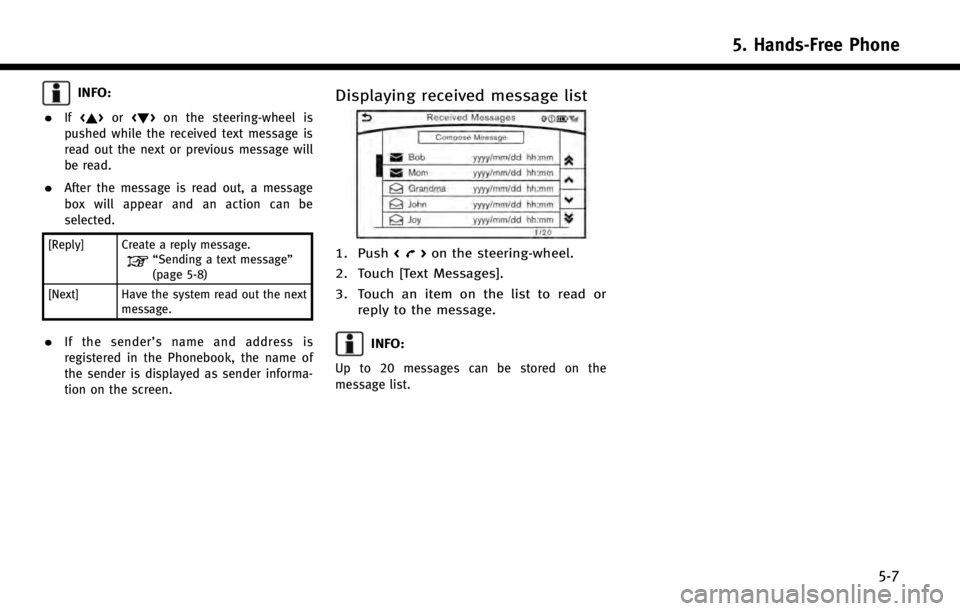
Displaying received message list
1. Push <>on the steering-wheel.
2. Touch [Text Messages].
3. Touch an item on the list to read or reply to the message.
INFO:
Up to 20 messages can be stored on the
message list.
5. Hands-Free Phone
5-7