climate settings INFINITI Q60 2014 User Guide
[x] Cancel search | Manufacturer: INFINITI, Model Year: 2014, Model line: Q60, Model: INFINITI Q60 2014Pages: 466, PDF Size: 3.2 MB
Page 188 of 466

Comfort settings
Models with navigation system:
The display illustrated will appear when
pushing the SETTING button, selecting the
“Others” key and then selecting the
“Comfort” key. This key does not appear
on the display until the ignition switch is
pushed to the ON position.
Models without navigation system:
The display illustrated will appear when
pushing the SETTING button and selecting
the “Comfort” key. This key does not
appear on the display until the ignition
switch is pushed to the ON position.
Auto Interior Illumination:
When this item is turned to ON, the interior
lights will illuminate if any door is un-
locked.
Light Sensitivity:
Adjust the sensitivity of the automatic
headlights higher (right) or lower (left).
Light Off Delay:
Choose the duration of the automatic
headlight off timer from 0, 30, 45, 60, 90,
120, 150 and 180 second periods. Speed Sensing Wiper Interval (if so
equipped):
When this item is turned to ON, the wiper
interval is adjusted automatically accord-
ing to the vehicle speed.
Selective Door Unlock:
When this item is turned to ON, only the
driver’s door is unlocked first after the door
unlock operation. When the door handle
request switch on the driver’s or front
passenger’s side door is pushed to be
unlocked, only the corresponding door is
unlocked first. All the doors can be
unlocked if the door unlock operation is
performed again within 60 seconds.
When this item is turned to OFF, all the
doors will be unlocked after the door
unlock operation is performed once.
Intelligent Key Lock/Unlock:
When this item is turned to ON, door lock/
unlock function by pushing the door
handle request switch will be activated.
Return All Settings to Default:
Select this item and then select
“YES”to
return all settings to the default.
SAA2490
Models with navigation system
SAA1092
Models without navigation system
Monitor, climate, audio, phone and voice recognition systems4-19
Page 189 of 466

4-20Monitor, climate, audio, phone and voice recognition systems
Language & Units settings
The Language & Units settings display will
appear when pushing the SETTING button,
selecting the“Language & Units” key with
the INFINITI controller and pushing the
ENTER button.
For models with the navigation system,
select the “Others” key to show the
“Language & Units” key.
Select Language:
Select the “Select Language” key. Choose
“English”, “Français” or“Español” for your
favorite display appearance.
If you select the “Français”key, the French
language will be displayed, so please use
the French Owner’s Manual. To obtain a
French Owner’ s Manual, see “Owner’ s
manual/service manual order information”
(P.9-24).
Select Units:
Select the “Select Units” key. Choose“US”
(Mile, 8F, MPG) or “Metric”(km,8C, L/100
km) for your favorite display appearance.
Voice Recognition settings (models
with navigation system)
For details about the “Voice Recognition”
settings, see “INFINITI Voice Recognition system (models with navigation system)”
(P.4-101).
CAMERA settings
The
“CAMERA” screen will appear when
selecting the “Camera”key.
For the details about the camera system
operation, see “Rearview monitor” (P.4-
23).
JVH0141M
Models with navigation system
JVH0142M
Models without navigation system
Page 190 of 466
SONAR settings (if so equipped)
The“Sonar” screen will appear when
selecting the “Sonar”key with the INFINITI
controller and pushing the ENTERbutton.
For models with the navigation system,
select the “Others” key to show the
“Sonar” key.
For the details about the sonar system
operation, see “Sonar system” (P.5-49).
Sonar Display: When this item is turned ON, the corner/
center sonar indicator will appear when the
sonar detects rear obstacles near the
bumper.
Corner Sonar Sensitivity:
Adjust the sensitivity level of the corner
sonar higher (right) or lower (left).
Center Sonar Sensitivity:
Adjust the sensitivity level of the center
sonar higher (right) or lower (left).
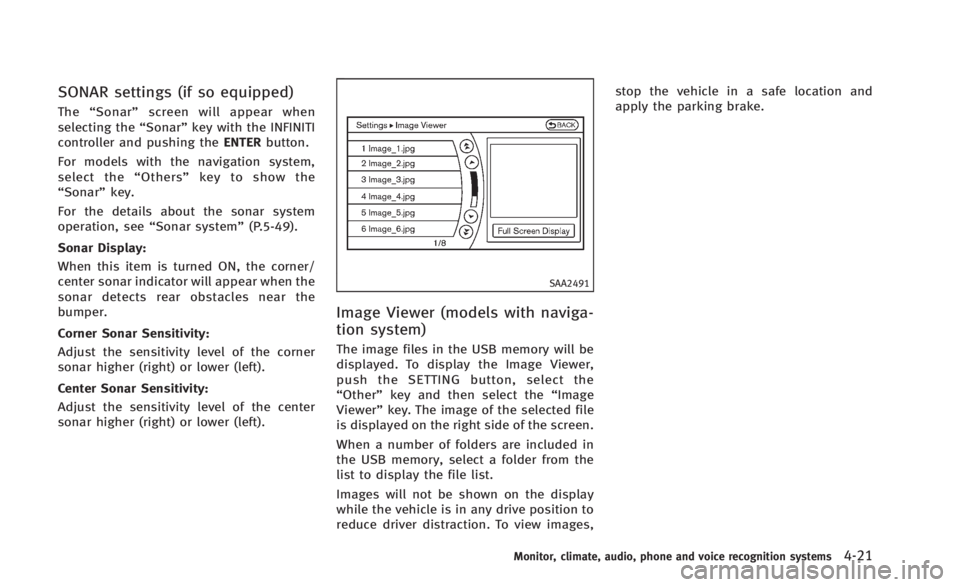
SAA2491
Image Viewer (models with naviga-
tion system)
The image files in the USB memory will be
displayed. To display the Image Viewer,
push the SETTING button, select the
“Other” key and then select the “Image
Viewer” key. The image of the selected file
is displayed on the right side of the screen.
When a number of folders are included in
the USB memory, select a folder from the
list to display the file list.
Images will not be shown on the display
while the vehicle is in any drive position to
reduce driver distraction. To view images, stop the vehicle in a safe location and
apply the parking brake.
Monitor, climate, audio, phone and voice recognition systems4-21
Page 191 of 466

4-22Monitor, climate, audio, phone and voice recognition systems
SAA2492
Full Screen Display:
The full screen display will appear when
selecting the“Full Screen Display” key.
To operate the Image Viewer or to change
the settings, select the desired key using
the INFINITI controller.
.
(Start)
Select the “
”key to start playing
the slideshow.
.
(Stop)
Select the “
”key to stop the
slideshow.
.
(Next)
Select the “
”key to display the next file.
.
(Previous)
Select the “
”key to display the
previous file.
Setting the Image Viewer:
The Image Viewer setting display will
appear when selecting the “Settings”key
on the full screen display. The following
settings are available for the full screen
display.
. Slideshow Speed
Select the “Slideshow Speed” key.
From the following display, select the
changing time from 5, 10, 30, 60
seconds or “No Auto Change”.
. Slideshow Order
Select the “Slideshow Order” key. From
the following display, select “Random”
or “Order List”. For “Order List”, the
image order is the order of the files as
stored on the USB memory.
Operating tips:
. Only files that meet the following
conditions will be displayed.
— Image type: JPEG
— File Extensions: *.jpg, *jpeg —
Maximum Resolution: 2048 61536
pixels
— Maximum Size: 2-MB
— Colors: 32768 (15-bit)
— Maximum File Name lengths: 253-
Bytes
— Maximum Folders: 500
— Maximum Images per Folder: 1024
. If an electronic device (such as a digital
camera) is directly connected to the
vehicle using a USB cable, no image
will be displayed on the screen.
. If the file name is too long, some file
names may not be entirely displayed.
. When the total number of characters in
the file name exceeds 100 or if 1 file
name in a directory exceeds 100
characters, all files will show a shor-
tened 8-character version. The image
will still be displayed when selected.
Page 197 of 466

4-28Monitor, climate, audio, phone and voice recognition systems
may hit the object when backing up to the
position
*Aif the object projects over the
actual backing up course.
SAA2404
Models with navigation system
SAA2606
Models without navigation system
PREDICTIVE COURSE LINE SETTINGS
To turn ON or OFF the predictive course line
display, push the SETTING button, select
the “Camera” key and push the ENTER
button.
For models with the navigation system,
select the “Others” key to show the
“Camera” key.
. Predictive Course Lines
When this item is turned to ON, the
predictive course lines will be displayed
on the monitor when the shift lever is in
the “R” (Reverse) position.
HOW TO ADJUST SCREEN
To adjust the Display ON/OFF, Brightness,
Tint, Color, Contrast and Black Level of the
rearview monitor, push the SETTINGbutton
with the rearview monitor on, select the
“Display” key on the screen and select the
item key and adjust the level using the
INFINITI controller.
Do not adjust the Brightness, Tint, Color,
Contrast and Black Level of the rearview
monitor while the vehicle is moving. Make
sure the parking brake is firmly applied
and the engine is not running.
Page 205 of 466

4-36Monitor, climate, audio, phone and voice recognition systems
.If the windows fog up, use dehumi-dified heating instead of the A/C off
heating.
Dehumidified defrosting/defogging:
1. Push the “
”button. (The indicator
light will illuminate.)
2. Turn the temperature control dial to set the desired temperature.
.To remove frost from the outsidesurface of the windshield quickly,
set the temperature control and fan
speed control to their maximum
position.
.After the windshield is cleared, pushthe “AUTO” button to set to the
automatic mode.
.When the “”button is pushed,
the air conditioner will automatically
turn on when the outside air tem-
perature is above 238F( −58C) to
defog the windshield. The air recir-
culation mode will automatically
turn off. The outside air circulation
mode will be selected to improve the
defogging performance.
Manual operation
The manual mode can be used to control
the heater and air conditioner to your
desired settings.
To turn off the heater and air conditioner,
push the “OFF”button.
Fan speed control:
Push the fan speed control button “
”to
increase the fan speed.
Push the fan speed control button “
”to
decrease the fan speed.
Push the “AUTO”button to change the fan
speed to the automatic mode.
Air flow control:
Push the “MODE”button to change the air
flow mode.
: Air flows from the center and side ventila- tors.
: Air flows from the center and side ventila-tors, and foot outlets.
: Air flows mainly from the foot outlets.
: Air flows from the defroster and footoutlets.
Temperature control:
Turn the temperature control dial to set the
desired temperature. .
The temperature can be set within the
following range.
— For U.S.: 60 to 908F (16 to 328C)
— For Canada: 64 to 908F (18 to 328C)
Air recirculation:
Push the intake air control button to
recirculate interior air inside the vehicle.
The indicator light on the “
”side will
illuminate.
The air recirculation mode cannot be
activated when the air conditioner is in
the front defrosting mode “
”.
Outside air circulation:
Push the intake air control button to draw
outside air into the passenger compart-
ment.
The indicator light on the “
”side and
“” side will turn off.
Automatic intake air control:
In the AUTO mode, the intake air will be
controlled automatically. To manually con-
trol the intake air, push the intake air
control button.
To return to the automatic control mode,
push the intake air control button until the
indicator light on the “
”side illumi-
nates. The advanced climate control sys-
Page 227 of 466
4-58Monitor, climate, audio, phone and voice recognition systems
distract the driver and may cause a
collision and serious personal injury or
death.
CAUTION
.Only operate the DVD while the vehicle
engine is running. Operating the DVD for
extended periods of time with the
engine OFF can discharge the vehicle
battery.
. Do not allow the system to get wet.
Excessive moisture such as spilled
liquids may cause the system to mal-
function.
. While playing VIDEO-CD media, this DVD
player does not guarantee complete
functionality of all VIDEO-CD formats.
Display settings
To adjust the front display mode, push the
SETTING button while the DVD is being
played, select the “Others”key and then
select the “Display”key.
To adjust the display ON/OFF, brightness,
tint, color and contrast, select the “DisplayAdjustment”
key and then select each key.
Then you can adjust each item using the
INFINITI controller. After changes have
been made push the BACK button to save
the setting.
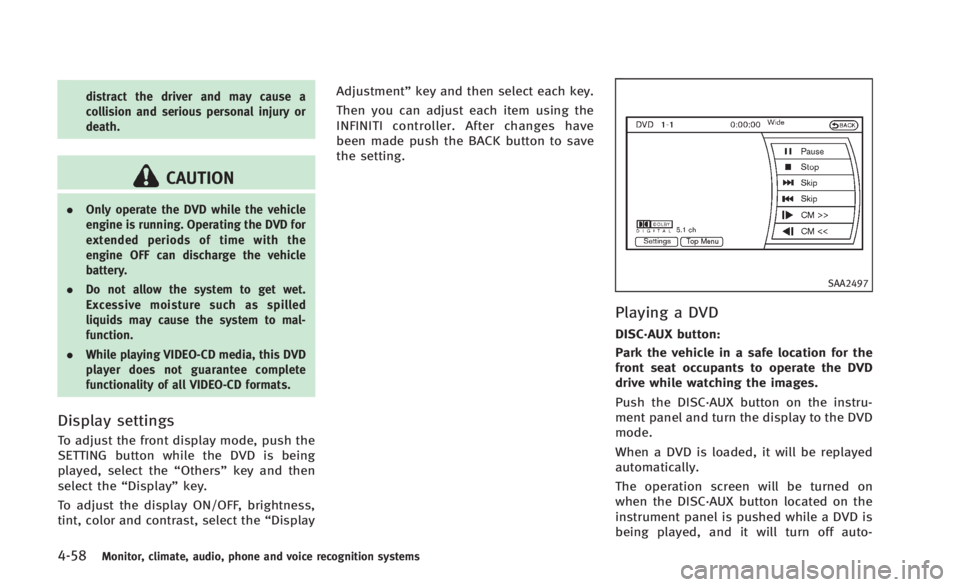
SAA2497
Playing a DVD
DISC·AUX button:
Park the vehicle in a safe location for the
front seat occupants to operate the DVD
drive while watching the images.
Push the DISC·AUX button on the instru-
ment panel and turn the display to the DVD
mode.
When a DVD is loaded, it will be replayed
automatically.
The operation screen will be turned on
when the DISC·AUX button located on the
instrument panel is pushed while a DVD is
being played, and it will turn off auto-
Page 228 of 466

matically after a period of time. To turn it
on again, push the DISC·AUX button again.
DVD operation keys:
When the DVD is playing without the
operation screen being shown, you may
use the touch screen to select items from
the displayed video. You may also use the
INFINITI controller to select an item from
the displayed video. When the operation
screen is being shown, use the INFINITI
controller or touch screen to select an item
from the displayed menus.
PAUSE:
Select the “
”key to pause the DVD. To
resume playing the DVD, use the “PLAY”
key.
PLAY:
Select the “
”key to start playing the
DVD, for example, after pausing the DVD.
STOP:
Select the “
”key to stop playing the
DVD.
/Next/Previous Chapter:
Select the “
”or “”key to skip the
chapter(s) of the disc forward/backward.
The chapters will advance/go back the
number of times this key is selected.
/Commercial Skip:
This function is only for DVD-VIDEO, DVD-
VR. Select the “
”or “”key to skip
forward or backwards by the set amount as
defined in the DVD Settings menu.
Top Menu:
When the “Top Menu” key is selected in
the screen while a DVD is being played, the
top menu specific to each disc will be
displayed. For details, see the instructions
on the disc.
SAA2498
Example
DVD settings
Select the “Settings”key to adjust the
following settings.
Key (DVD-VIDEO):
Keys for the DVD menu operation are
displayed.
: Move the cursor to select a DVD
menu.
Enter: Enter the selected menu.
Move: Change the display location by
moving the operation key.
Back: Return to the previous screen.
Monitor, climate, audio, phone and voice recognition systems4-59
Page 234 of 466

Skip (Previous chapter)
Select the “
”key to skip the chapter(s)
of the disc backward. The chapters will go
back the number of times the “
”key is
selected.
List:
Select the “List”key on the movie file
operation screen to display the file list.
SAA2504
Example
Settings:
Select the “Settings”key to adjust the
following settings.
. Audio File Playback
Switch to the audio playback mode.
This item is displayed only when the
USB memory contains the audio files.
. Play Mode
Select the “Normal”or“1 Track Re-
peat” play mode.
. 10 Key Search
Select the “10 Key Search” key to open
the number entry screen. Input the number to be searched and
select the
“OK”key.
The specified folder/file will be played.
. Display
To adjust the image quality of the
screen, select the preferred adjustment
items.
. DRC
DRC (Dynamic Range Compression)
automatically adjusts the soundtrack
volume level to maintain a more even
sound to the speakers.
. Audio
Select the preferred language for audio.
. Subtitle
Select the preferred language for sub-
title.
. Display Mode
Select the “Normal”,“Wide”,“Cinema”
or “Full” mode.
Monitor, climate, audio, phone and voice recognition systems4-65
Page 239 of 466
4-70Monitor, climate, audio, phone and voice recognition systems
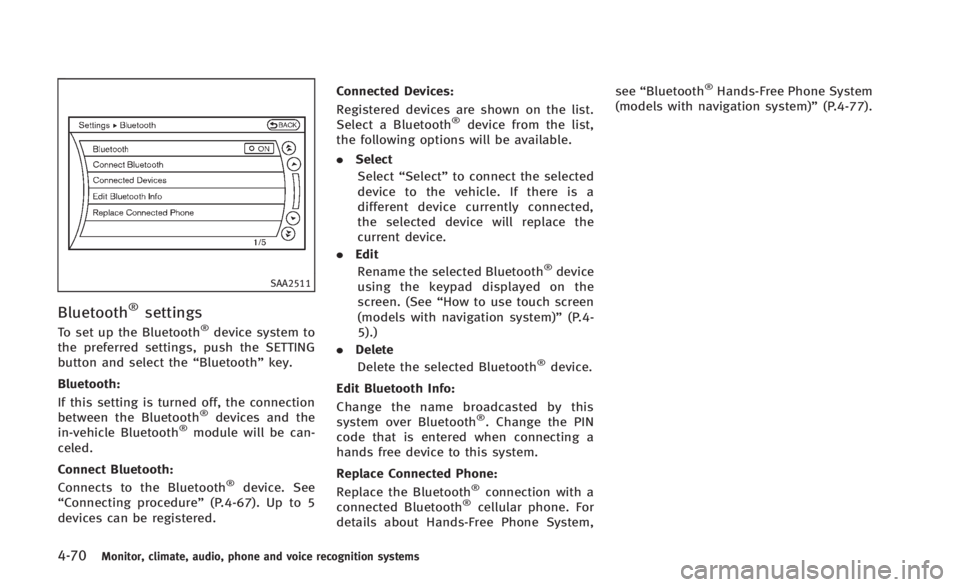
SAA2511
Bluetooth®settings
To set up the Bluetooth®device system to
the preferred settings, push the SETTING
button and select the “Bluetooth”key.
Bluetooth:
If this setting is turned off, the connection
between the Bluetooth
®devices and the
in-vehicle Bluetooth®module will be can-
celed.
Connect Bluetooth:
Connects to the Bluetooth
®device. See
“Connecting procedure” (P.4-67). Up to 5
devices can be registered. Connected Devices:
Registered devices are shown on the list.
Select a Bluetooth
®device from the list,
the following options will be available.
. Select
Select “Select” to connect the selected
device to the vehicle. If there is a
different device currently connected,
the selected device will replace the
current device.
. Edit
Rename the selected Bluetooth
®device
using the keypad displayed on the
screen. (See “How to use touch screen
(models with navigation system)” (P.4-
5).)
. Delete
Delete the selected Bluetooth
®device.
Edit Bluetooth Info:
Change the name broadcasted by this
system over Bluetooth
®. Change the PIN
code that is entered when connecting a
hands free device to this system.
Replace Connected Phone:
Replace the Bluetooth
®connection with a
connected Bluetooth®cellular phone. For
details about Hands-Free Phone System, see
“Bluetooth
®Hands-Free Phone System
(models with navigation system)” (P.4-77).