service INFINITI Q60 COUPE 2018 Infiniti Intouch
[x] Cancel search | Manufacturer: INFINITI, Model Year: 2018, Model line: Q60 COUPE, Model: INFINITI Q60 COUPE 2018Pages: 292, PDF Size: 1.45 MB
Page 81 of 292

use the Gracenote Data, the Gracenote
Software, and Gracenote Servers will termi-
nate if you violate these restrictions. If your
license terminates, you agree to cease any
and all use of the Gracenote Data, the
Gracenote Software, and Gracenote Ser-
vers. Gracenote reserves all rights in Grace-
note Data, the Gracenote Software, and the
Gracenote Servers, including all ownership
rights. Under no circumstances will Grace-
note become liable for any payment to you
for any information that you provide. You
agree that Gracenote, Inc. may enforce its
rights under this Agreement against you
directly in its own name.
The Gracenote service uses a unique identi-
fier to track queries for statistical purposes.
The purpose of a randomly assigned numeric
identifier is to allow the Gracenote service to
count queries without knowing anything
about who you are. For more information,
see the web page for the Gracenote Privacy
Policy for the Gracenote service.
The Gracenote Software and each item of
Gracenote Data are licensed to you “AS IS.”
Gracenote makes no representations or
warranties, express or implied, regarding
the accuracy of any Gracenote Data from
in the Gracenote Servers. Gracenote re-serves the right to delete data from the
Gracenote Servers or to change data cate-
gories for any cause that Gracenote deems
sufficient. No warranty is made that the
Gracenote Software or Gracenote Servers
are error-free or that functioning of Grace-
note Software or Gracenote Servers will be
uninterrupted. Gracenote is not obligated to
provide you with new enhanced or addi-
tional data types or categories that Grace-
note may provide in the future and is free to
discontinue its services at any time.
GRACENOTE DISCLAIMS ALL WARRAN-
TIES EXPRESS OR IMPLIED, INCLUDING,
BUT NOT LIMITED TO, IMPLIED WAR-
RANTIES OF MERCHANTABILITY, FIT-
NESS FOR A PARTICULAR PURPOSE,
TITLE, AND NON-INFRINGEMENT.
GRACENOTE DOES NOT WARRANT THE
RESULTS THAT WILL BE OBTAINED BY
YOUR USE OF THE GRACENOTE SOFT-
WARE OR ANY GRACENOTE SERVER. IN
NO CASE WILL GRACENOTE BE LIABLE
FOR ANY CONSEQUENTIAL OR INCI-
DENTAL DAMAGES OR FOR ANY LOST
PROFITS OR LOST REVENUES.
copyright © 2000 to present Gracenote
4. Audio system
4-35
Page 84 of 292

5. Hands-Free Phone
BLUETOOTH® HANDS-FREE
PHONE SYSTEM
WARNING
.Use a phone after stopping your
vehicle in a safe location. If you have
to use a phone while driving, exercise
extreme caution at all times so full
attention may be given to vehicle
operation.
. If you find yourself unable to devote
full attention to vehicle operation
while talking on the phone, pull off
the road to a safe location and stop
your vehicle before doing so.
CAUTION
To avoid draining the vehicle battery, use
a phone after starting the engine or the
hybrid system.
Your vehicle is equipped with Bluetooth®
Hands-Free Phone System. If you are an
owner of a compatible Bluetooth® enabled
cellular phone, you can set up the wireless
connection between your cellular phone and the in-vehicle phone module. With Blue-
tooth® wireless technology, you can make
or receive a telephone call with your cellular
phone in your pocket.
Once a cellular phone is connected to the in-
vehicle phone module, the procedure for
connecting the phone does not need to be
performed again. Your phone is automati-
cally selected with the in-vehicle phone
module when the ignition switch is pushed
to the “ON” position with the selected
cellular phone turned on and carried in the
vehicle.
You can register up to 5 different Blue-
tooth® cellular phones in the in-vehicle
phone module. However, you can talk on
only one cellular phone at a time.
The Voice Recognition system supports
phone commands, so dialing a phone number
using your voice is possible.“10. Voice recognition”
Before using the Bluetooth® Hands-Free
Phone System, refer to the following notes. . Wireless LAN (Wi-Fi) and the Blue-
tooth® functions share the same fre-
quency band (2.4 GHz). Using the
Bluetooth® and the wireless LAN func-
tions at the same time may slow down or disconnect the communication and cause
undesired noise. It is recommended that
you turn off the wireless LAN (Wi-Fi)
when using the Bluetooth® functions.
. Set up the wireless connection between
a compatible cellular phone and the in-
vehicle phone module before using the
Bluetooth® Hands-Free Phone System.
. Some Bluetooth® enabled cellular
phones may not be recognized by the
in-vehicle phone module.
Please visit www.infinitiusa.com/blue-
tooth/search for a recommended phone
list.
. You will not be able to use a hands-free
phone under the following conditions:
— Your vehicle is outside of the tele- phone service area.
— Your vehicle is in an area where it is difficult to receive radio waves; such
as in a tunnel, in an underground
parking garage, behind a tall building
or in a mountainous area.
— Your cellular phone is locked in order to prevent dialing.
5-2
Page 88 of 292
![INFINITI Q60 COUPE 2018 Infiniti Intouch 5. Hands-Free Phone
Available itemAction
[Switch Call] Answer another incoming call. The person you are talking to
will be placed on hold. Push once more to speak to the person
on hold again. This ite](/img/42/34989/w960_34989-87.png "INFINITI Q60 COUPE 2018 Infiniti Intouch 5. Hands-Free Phone
Available itemAction
[Switch Call] Answer another incoming call. The person you are talking to
will be placed on hold. Push once more to speak to the person
on hold again. This ite")
5. Hands-Free Phone
Available itemAction
[Switch Call] Answer another incoming call. The person you are talking to
will be placed on hold. Push once more to speak to the person
on hold again. This item is available when multiple lines are
connected.
[Hang Up] Hang up the line you are currently on and you will be
connected to the line that is on hold.
[Mute]/[Cancel Mute] When muted, your voice will not be heard by the person on
the other end of the line.
[Hold Call] Put the line on hold. This item is available when a single line is
connected.
[Enter Digits] Using the touch tone, send digits to the connected party for
using services such as voicemail.
[Use Handset] Transfer the call to the cellular phone.
[End All Calls] Hang up all the lines including the ones that were on hold.
This item is available when multiple lines are connected.
INFO:
. To adjust the person’s voice to be louder or quieter, push <-
+>on the steering-wheel
or turn
. Touch [Mute] if you wish your voice to not be heard by the person on the other end of the
line.
. Models with navigation system:
Push
Page 98 of 292

6. Infiniti InTouchTMApps
INFINITI INTOUCHTMAPPS
OVERVIEW
Laws in some jurisdictions may restrict the
use of some of the applications and features,
such as social networking and texting. Check
local regulations for any requirements.
Infiniti InTouch
TMprovides in-vehicle access
to two types of applications: Vehicle Apps
and Mobile Apps (if so equipped for Cana-
da).
Some pre-installed Vehicle Apps can be used
without taking any extra steps.
CAUTION
. While driving, some operations are
limited in order to prevent distracting
the driver. While driving, avoid keep-
ing a close watch on the display.
. Some application services may be
subject to change or termination
without prior notice. For Canada (if so equipped):
The system allows you to download new
applications, update downloaded applica-
tions and delete downloaded applications in
a similar manner as popular smartphone
operating systems using Vehicle Apps Man-
ager.
You will need to connect a compatible
smartphone to the vehicle in order to update
Vehicle Apps or use Mobile Apps.
The usage of applications is only guaranteed
for smartphones that have been tested and
approved for use with Infiniti InTouch
TM
Mobile Apps. Only iPhone® and Android
devices are currently supported. Android
smartphones must support Bluetooth® and
SPP (Serial Port Profile).
USING APPLICATIONS
NOTE:
To use APP functions on the models with-
out navigation system, calendar setting is
necessary for checking SSL expiration date.
“Clock settings” (page 2-21)
MAIN OPERATION
Push
Page 102 of 292

6. Infiniti InTouchTMApps
APPSDescriptions
Quick guide You can see how to connecting bluetooth® device, making a call and
setting the clock.
Driving Performance Vehicle performance such as Fuel Flow, Accel etc. can be understood intuitively.
Maintenance Note You can check maintenance items inside the vehicle at your conve- nience.
Calendar* Today’s schedule can be checked before you leave. Your schedule is
linked to web-based services. Requires an account to be set up.
Email* The Email account you use can also be accessed through the vehicle
system. You will be informed when a new Email is received. Requires an
account to be set up.
Compass
(models with navigation
system) In addition to the current traveling direction of the vehicle, the direction
of the destination is also shown.
Accurate information cannot be provided if GPS position information
cannot be obtained.
Clock Clock shows the current time in various kinds of skins.
Mobile Apps* Many popular applications you usually use in your smartphone can also
be used in your vehicle.
After registering a subscription in Infiniti InTouch
TMApp you can use
these applications by operating the in-vehicle display.
*: Requires Infiniti InTouchTMApp to be downloaded to your smartphone (if so equipped for
Canada).
WARNING
. Use the information from the Driving
Performance strictly as a reference to
make your driving more comfortable.
The readings are not meant to pre-
vent accidents caused by reckless
driving or poor driving conditions
(due to weather, road condition,
etc.). Always obey all traffic regula-
tions and posted speed limits.
. Operating the Driving Performance
while driving can lead to a crash
resulting in serious injuries or death.
Always park the vehicle in a safe place
before operating the display screen.
. Look at the display screen only briefly
while driving. Keep your eyes on the
road. Inattentive driving may lead to
a crash resulting in serious injuries or
death.
6-6
Page 103 of 292
For Canada (if so equipped):
NOTE:
A PIN code can be used so that other people
cannot see your Email and calendar apps.
When the engine or the hybrid system is
turned OFF and then ON again, the PIN
code has to be input.
After the PIN code is input, regardless of
whether your smartphone is connected to
the vehicle or not, Email and calendar apps
will be viewable until either the engine or
the hybrid system is turned OFF. When the
system is set to valet parking, if the
relevant account is erased, Email and ca-
lendar schedule will be erased from the
system.
INFO:
. The Infiniti InTouch
TMApp must be
installed and running on a compatible
smartphone in order to download up-
dates or use Vehicle Apps that require a
network connection.
“Getting user ID and password”
(page 6-9)
. When Email service and calendar sche-
dule information are displayed in the in-
vehicle display, the system controls the display based on the ID and password.
Therefore, users are required to manage
an ID and password.
EXAMPLES OF HOW VEHICLE
APPS IS USED
Example 1 Driving Performance
application
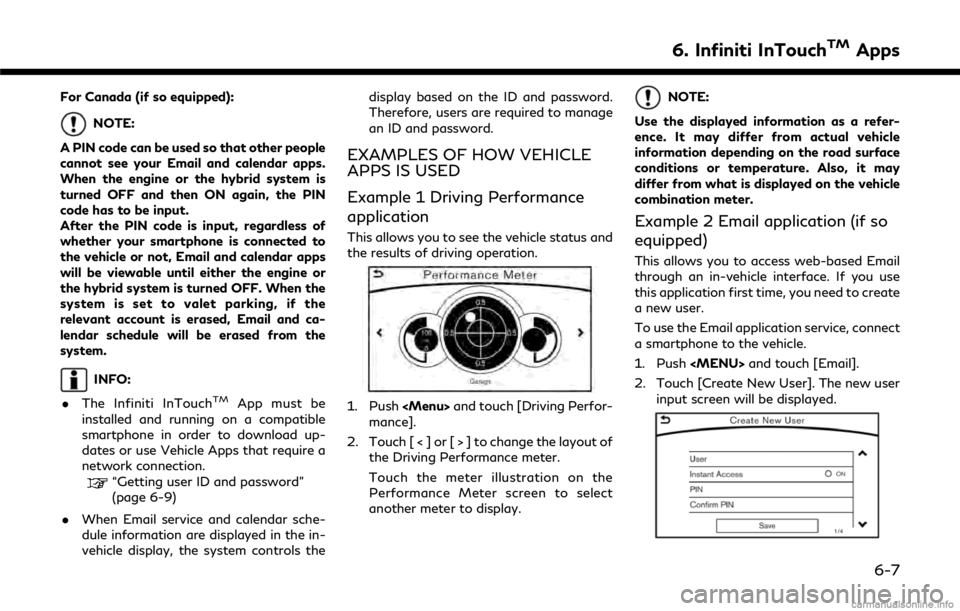
This allows you to see the vehicle status and
the results of driving operation.
1. Push
Page 104 of 292
![INFINITI Q60 COUPE 2018 Infiniti Intouch 6. Infiniti InTouchTMApps
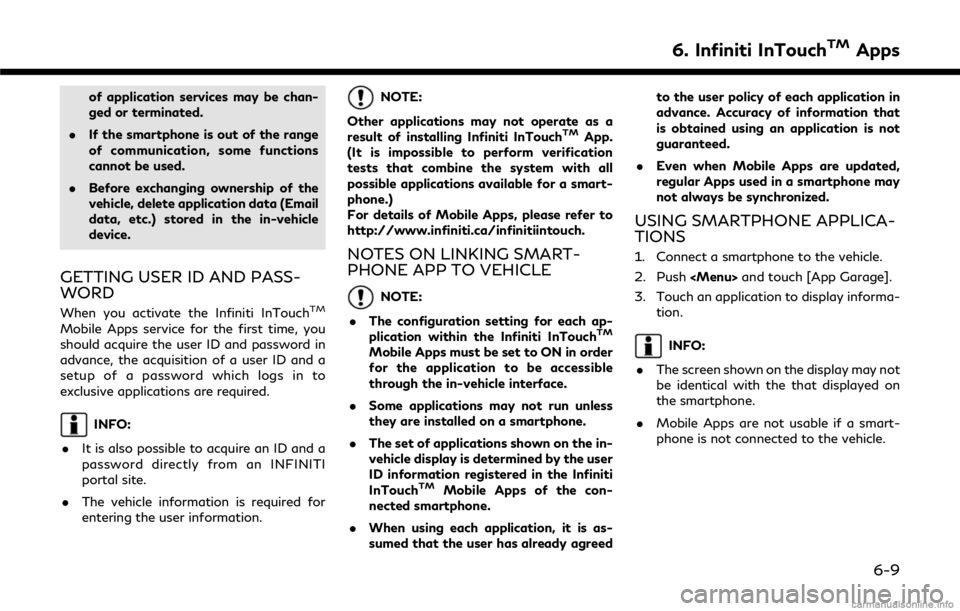
3. Input your name and PIN code and select[Instant Access] ON or OFF, and then
touch [Save].
INFO:
If the Instant Access mode is set to ON, it
is not necessary to enter a PIN](/img/42/34989/w960_34989-103.png "INFINITI Q60 COUPE 2018 Infiniti Intouch 6. Infiniti InTouchTMApps
3. Input your name and PIN code and select[Instant Access] ON or OFF, and then
touch [Save].
INFO:
If the Instant Access mode is set to ON, it
is not necessary to enter a PIN")
6. Infiniti InTouchTMApps
3. Input your name and PIN code and select[Instant Access] ON or OFF, and then
touch [Save].
INFO:
If the Instant Access mode is set to ON, it
is not necessary to enter a PIN code each
time.
4. Stored user name is displayed in the list, touch the user name.
5. Input PIN code and touch [OK]. Display your mail box screen.
If an account is not yet set up, set an
account (Google account, etc) in the
Manager Account screen displayed.
INFO:
. On receive message screen, touch sender
name or address to display sender detail
screen.
. System folders (Inbox, Draft, send, etc.)
cannot be modified.
MOBILE APPS (if so equipped
for Canada)
Mobile Apps are a limited selection of
popular smartphone-based Apps that have
been customized for in-vehicle use. Mobile
Apps can be accessed by connecting your
compatible smartphone to the vehicle.
Using with iPhone®:
To use Infiniti InTouch
TMMobile Apps with
your iPhone®, the iPhone® must be con-
nected with a USB cable. If an additional
iPhone® is connected by wired connection
while an iPod® is being used via a wired
connection, the service will not be available.
To use the service, it is first necessary to
unplug the iPod® cable from the USB
connection port where the iPod® is con-
nected.
“Media Hub” (page 2-6)
Using with an Android smartphone:
To use Infiniti InTouch
TMMobile Apps with
your Android smartphone, the device must
be connected via Bluetooth and registered
as a hands-free device.
“Connecting Bluetooth® device”
(page 2-22) A compatible smartphone is required to use
Mobile Apps.
CAUTION
.
To use Mobile Apps, the Infiniti
InTouchTMApp must be installed and
running on the compatible smart-
phone. This app can be downloaded
from the iTunes App Store or Google
Play store.
. Mobile Apps also requires an active
subscription and valid Infiniti Owner
Portal account. Please see http://
www.infiniti.ca/infinitiintouch for
more information.
. Communication fees may be charged
depending on the contents of the
contract between the user and the
mobile phone carrier.
. Before using this service, some appli-
cations may require individual sub-
scriptions (e.g., Facebook, etc.).
. For some applications, the system
may not support all of the functions
of applications that are installed on
your smartphone. Additionally, due to
service provider policies, the contents
6-8
Page 105 of 292
of application services may be chan-
ged or terminated.
. If the smartphone is out of the range
of communication, some functions
cannot be used.
. Before exchanging ownership of the
vehicle, delete application data (Email
data, etc.) stored in the in-vehicle
device.
GETTING USER ID AND PASS-
WORD
When you activate the Infiniti InTouchTM
Mobile Apps service for the first time, you
should acquire the user ID and password in
advance, the acquisition of a user ID and a
setup of a password which logs in to
exclusive applications are required.
INFO:
. It is also possible to acquire an ID and a
password directly from an INFINITI
portal site.
. The vehicle information is required for
entering the user information.
NOTE:
Other applications may not operate as a
result of installing Infiniti InTouch
TMApp.
(It is impossible to perform verification
tests that combine the system with all
possible applications available for a smart-
phone.)
For details of Mobile Apps, please refer to
http://www.infiniti.ca/infinitiintouch.
NOTES ON LINKING SMART-
PHONE APP TO VEHICLE
NOTE:
. The configuration setting for each ap-
plication within the Infiniti InTouch
TM
Mobile Apps must be set to ON in order
for the application to be accessible
through the in-vehicle interface.
. Some applications may not run unless
they are installed on a smartphone.
. The set of applications shown on the in-
vehicle display is determined by the user
ID information registered in the Infiniti
InTouch
TMMobile Apps of the con-
nected smartphone.
. When using each application, it is as-
sumed that the user has already agreed to the user policy of each application in
advance. Accuracy of information that
is obtained using an application is not
guaranteed.
. Even when Mobile Apps are updated,
regular Apps used in a smartphone may
not always be synchronized.
USING SMARTPHONE APPLICA-
TIONS
1. Connect a smartphone to the vehicle.
2. Push
Page 133 of 292

8 Information and settings
Information screen ........................................................... 8-2
SiriusXM Travel Link® (if so equipped) ...................... 8-4Viewing SiriusXM Travel Link® .............................. 8-4
Infiniti InTouch
TMServices (if so equipped) ............ 8-11
Subscription to Infiniti InTouchTMServices ....... 8-11
Important information regarding access to
Infiniti InTouch
TMServices ..................................... 8-11
Infiniti InTouchTMServices features .................... 8-11
Connecting to Interactive Voice Menu ............... 8-16
Using My Schedule ................................................... 8-17
Viewing information feeds ..................................... 8-17 Infiniti InTouch
TMServices settings ................... 8-19
Volume setting ......................................................... 8-22
Emergency support ................................................ 8-22
Settings screen .............................................................. 8-24 Quick setting menu screen ................................... 8-29
Fully customizable digital environment .................. 8-30 User registration ..................................................... 8-30
Editing user information ....................................... 8-31
Setting Infiniti InTuition feature ......................... 8-32
Driver Assistance settings (if so equipped) ............ 8-33
Page 136 of 292
8. Information and settings
SiriusXM TRAVEL LINK® (if so
equipped)
SiriusXM Travel Link information is a sub-
scription service offered by SiriusXM Satel-
lite Radio. It is necessary to subscribe to use
the SiriusXM Travel Link information.
This service provides real-time information
regarding current weather, fuel prices,
sports scores, stock tickers and movie times
where available. The SiriusXM Travel Link is
broadcast to the vehicle by SiriusXM Satel-
lite Radio.
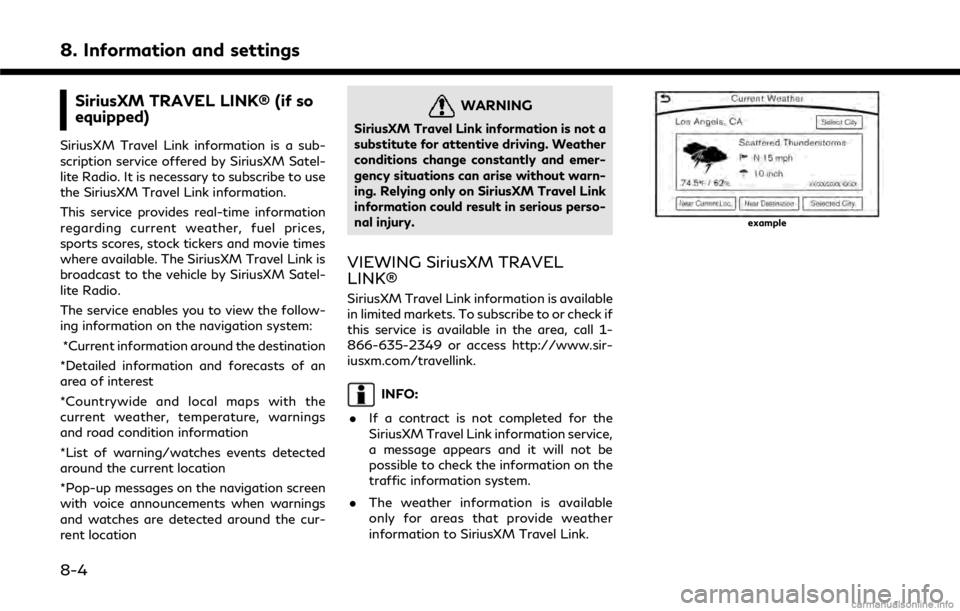
The service enables you to view the follow-
ing information on the navigation system:*Current information around the destination
*Detailed information and forecasts of an
area of interest
*Countrywide and local maps with the
current weather, temperature, warnings
and road condition information
*List of warning/watches events detected
around the current location
*Pop-up messages on the navigation screen
with voice announcements when warnings
and watches are detected around the cur-
rent location
WARNING
SiriusXM Travel Link information is not a
substitute for attentive driving. Weather
conditions change constantly and emer-
gency situations can arise without warn-
ing. Relying only on SiriusXM Travel Link
information could result in serious perso-
nal injury.
VIEWING SiriusXM TRAVEL
LINK®
SiriusXM Travel Link information is available
in limited markets. To subscribe to or check if
this service is available in the area, call 1-
866-635-2349 or access http://www.sir-
iusxm.com/travellink.
INFO:
. If a contract is not completed for the
SiriusXM Travel Link information service,
a message appears and it will not be
possible to check the information on the
traffic information system.
. The weather information is available
only for areas that provide weather
information to SiriusXM Travel Link.
example
8-4