Air INFINITI QX 2013 Repair Manual
[x] Cancel search | Manufacturer: INFINITI, Model Year: 2013, Model line: QX, Model: INFINITI QX 2013Pages: 578, PDF Size: 3.92 MB
Page 245 of 578

4-44Monitor, climate, audio, phone and voice recognition systems
turned off).
. The outside temperature is about 328F
(08C) or more.
When the automatic intake air control is
ON, for the first 5 minutes, the recircula-
tion mode is selected to prevent dust, dirt
and pollen from entering the vehicle and
cleans the air inside of the vehicle with
positive and negative ions that are emitted
from the ventilator.
After the 5 minutes, the sensor detects
exhaust gas and automatically alternates
between the recirculation mode and out-
side air circulation mode.
JVH0357M
Rear automatic air conditioning
system
To control the rear automatic air condition-
ing system with the front air conditioner
control panel, push the “REAR”button.
When the rear automatic air conditioning
system control is on, the indicator light on
the “REAR” button will illuminate and the
front display will switch to the rear air
conditioner screen.
The rear automatic air conditioning system
can be adjusted with the front air condi-
tioner control panel, when the rear air
conditioner screen is displayed. To adjust the front air conditioning system,
push the
“REAR”button one more time.
Automatic operation: 1. Push the “AUTO”button. (The AUTO
indicator light will illuminate and
“AUTO” will appear on the display.)
2. Turn the temperature control dial (dri- ver’s side) to set the desired tempera-
ture.
Manual operation:
. Temperature control
Turn the temperature control dial to set
the desired temperature.
. Fan speed control
Push the fan speed control “
”
button or “”button to manually
control the fan speed.
. Air flow control
Push the “MODE”button to change the
air flow mode.
: The air outlet is fixed at foot level.
: The air outlet is fixed at both the head and foot level.
: The air outlet is fixed at the head level.
Pushing the “A/C”button when the rear
automatic air conditioning system is
turned on with the rear air conditioner
Page 246 of 578

screen displayed will also turn off the rear
automatic air conditioning system.
Rear Heating (A/C off):
1. Push the“REAR”button to display the
rear air conditioner screen on the front
display when the rear automatic air
conditioning system is on.
2. Switch the air flow mode to
by
pushing the “MODE”button.
3. Push the “AUTO”button. (The AUTO
indicator light will illuminate and
“AUTO” will appear on the display.)
4. If the A/C indicator light illuminates, push the “A/C” button. (The A/C
indicator light will turn off.)
5. Turn the temperature control dial to set the desired temperature.
. Do not set the temperature lower than
the outside air temperature. Doing so
may cause the temperature to not be
controlled properly.
. To dehumidify the air, push the “A/C”
button before turning on the heater.
. Air does not blow out from the vents on
the ceiling when the system is used for
heating. Turning the system off:
Push the OFF button when the rear air
conditioner screen is displayed.
SAA3327
1. “OFF” button
2. Fan speed control button
3. “AUTO” button
4. Display
5. “MODE” button
6. “TEMP” button
Monitor, climate, audio, phone and voice recognition systems4-45
Page 247 of 578
4-46Monitor, climate, audio, phone and voice recognition systems
.Rear control buttons
The rear seat passengers can adjust the
rear automatic air conditioning system
using the control switches at the rear of
the center console.
The rear control buttons do not function
when the rear air conditioner screen is
shown on the front display. To activate
the rear control buttons, push the
“REAR” button on the front air condi-
tioner control panel and switch the
screen on the front display.
“OFF” button: Rear automatic air con-
ditioning system off.
“
” button: Rear fan speed control
up/down
“ AUTO” button: Rear automatic air
conditioning system on, AUTO mode on
“MODE” button: Rear air flow control
change
“TEMP” button: Rear temperature con-
trol up/down
SAA3088
SAA3058
OPERATING TIPS
When the engine coolant temperature and
outside air temperature are low, the air
flow from the foot outlets may not operate.
However, this is not a malfunction. After
the coolant temperature warms up, the air
flow from the foot outlets will operate
normally.
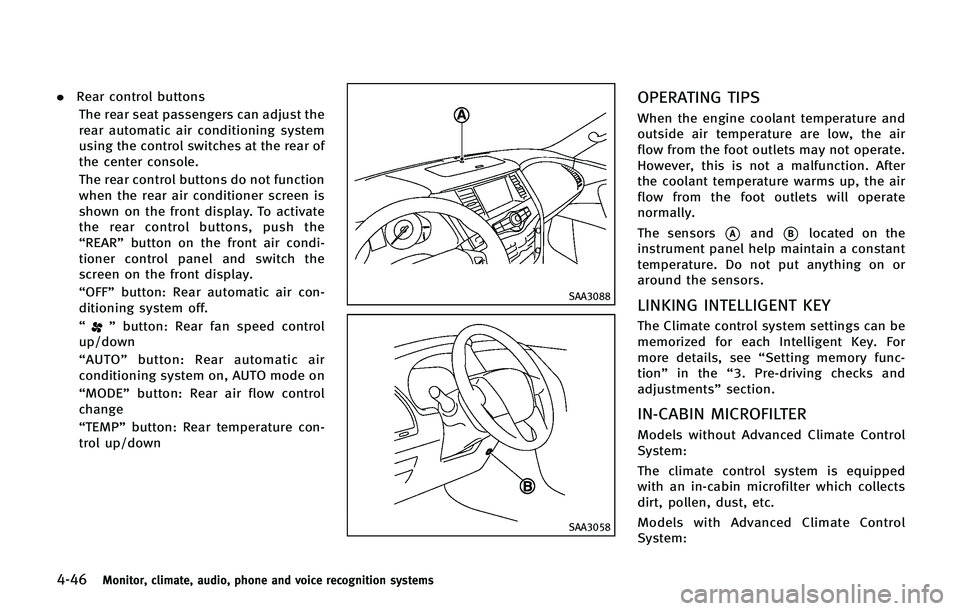
The sensors
*Aand*Blocated on the
instrument panel help maintain a constant
temperature. Do not put anything on or
around the sensors.
LINKING INTELLIGENT KEY
The Climate control system settings can be
memorized for each Intelligent Key. For
more details, see “Setting memory func-
tion” in the “3. Pre-driving checks and
adjustments” section.
IN-CABIN MICROFILTER
Models without Advanced Climate Control
System:
The climate control system is equipped
with an in-cabin microfilter which collects
dirt, pollen, dust, etc.
Models with Advanced Climate Control
System:
Page 248 of 578

The climate control system is equipped
with a natural grape seed polyphenol filter
which collects and neutralizes dirt, pollen,
dust, etc.
To make sure that the air conditioner
heats, defogs and ventilates efficiently,
replace the filter in accordance with the
maintenance schedule in the INFINITI Ser-
vice and Maintenance Guide. To replace the
filter, contact an INFINITI retailer.
The filter should be replaced if the air flow
decreases significantly or if windows fog
up easily when operating the heater or air
conditioner.
SERVICING CLIMATE CONTROL
The climate control system in your INFINITI
is charged with a refrigerant designed with
the environment in mind.This refrigerant
will not harm the earth’s ozone layer.
However, special charging equipment and
lubricant are required when servicing your
INFINITI air conditioner. Using improper
refrigerants or lubricants will cause severe
damage to your climate control system.
(See “Capacities and recommended fuel/
lubricants” in the“9. Technical and con-
sumer information” section for climate
control system refrigerant and lubricant recommendations.)
Your INFINITI retailer will be able to service
your environmentally friendly climate con-
trol system.
WARNING
The system contains refrigerant under high
pressure. To avoid personal injury, any air
conditioner service should be done only by
an experienced technician with the proper
equipment.
AUDIO OPERATION PRECAUTIONS
Radio
Push the ignition switch to the ACC or ON
position and push the radio band select
button to turn on the radio. If you listen to
the radio with the engine not running, the
ignition switch should be pushed to the
ACC position.
Radio reception is affected by station
signal strength, distance from radio trans-
mitter, buildings, bridges, mountains and
other external influences. Intermittent
changes in reception quality normally are
caused by these external influences.
Using a cellular phone in or near the
vehicle may influence radio reception
quality.
Radio reception:
Your INFINITI radio system is equipped with
state-of-the-art electronic circuits to en-
hance radio reception. These circuits are
designed to extend reception range, and to
enhance the quality of that reception.
However there are some general character-
istics of both FM and AM radio signals that
can affect radio reception quality in a
moving vehicle, even when the finest
Monitor, climate, audio, phone and voice recognition systems4-47
AUDIO SYSTEM
Page 254 of 578
device and dehumidify or ventilate the
USB player completely.
. Do not connect a USB device if a
connector, cable or USB port is wet.
Allow the connector, cable, and USB
port to dry completely before connect-
ing the USB device. (Wait for 24 hours
or more until it is dry.) If the connector
and USB port are exposed to fluids
other than water, evaporative residue
may cause a short circuit between the
connector pins and USB port. In this
case, replace the cable and USB port.
Otherwise damage to the USB device
and a loss of function may occur.
. If the cable is damaged (insulation cut,
connectors cracked, contamination
such as liquids, dust, dirt, etc. in the
connectors), do not use the cable.
Replace the cable with a new one.
. Do not put a USB device in a location
where static electricity occurs, electrical
noise is generated or hot air from the
air conditioner blows directly on it.
Doing so may cause the data stored on
the USB device to be corrupted.
Notes for iPod
®use:
iPod®is a trademark of Apple Inc.,
registered in the U.S. and other countries. .
Improperly plugging in the iPod
®may
cause a checkmark to be displayed on
and off (flickering). Always make sure
that the iPod
®is connected properly.
. An iPod nano®(1st Generation) may
remain in fast forward or rewind mode
if it is connected during a seek opera-
tion. In this case, please manually reset
the iPod
®.
. An iPod nano®(2nd Generation) will
continue to fast-forward or rewind if it
is disconnected during a seek opera-
tion.
. An incorrect song title may appear when
the Play Mode is changed while using
an iPod nano
®(2nd Generation)
. Audiobooks may not play in the same
order as they appear on an iPod
®.
. Large video files cause slow responses
in an iPod
®. The vehicle center display
may momentarily black out, but will
soon recover.
. If an iPod
®automatically selects large
video files while in the shuffle mode,
the vehicle center display may momen-
tarily black out, but will soon recover.
Compressed Audio Files (MP3/
WMA/AAC)
Explanation of terms:
. MP3 —MP3 is short for Moving Pictures
Experts Group Audio Layer 3. MP3 is
the most well known compressed
digital audio file format. This format
allows for near “CD quality”sound, but
at a fraction of the size of normal audio
files. MP3 conversion of an audio track
can reduce the file size by approxi-
mately a 10:1 ratio (Sampling: 44.1
kHz, Bit rate: 128 kbps) with virtually
no perceptible loss in quality. The
compression reduces certain parts of
sound that seem inaudible to most
people.
. WMA —Windows Media Audio (WMA) is
a compressed audio format created by
Microsoft as an alternative to MP3. The
WMA codec offers greater file compres-
sion than the MP3 codec, enabling
storage of more digital audio tracks in
the same amount of space when
compared to MP3s at the same level
of quality.
. AAC/M4A —Advanced Audio Coding
(AAC) is a lossy audio compression
format. Audio files that have been
Monitor, climate, audio, phone and voice recognition systems4-53
Page 263 of 578

4-62Monitor, climate, audio, phone and voice recognition systems
SEEK tuning:
. For AM and FM radio
Push the SEEK·CAT or TRACK button
orto tune from low to high or high
to low frequencies and to stop at the
next broadcasting station.
. For SiriusXM Satellite Radio
Push the SEEK·CAT or TRACK button
orto tune to the first channel of the
next or previous category.
During satellite radio reception, the follow-
ing notices will be displayed under certain
conditions.
. NO SIGNAL (No signal is received while
the SAT tuner is connected.)
. OFF AIR (Broadcasting signed off)
. CHECK ANTENNA (Antenna connection
error)
. LOADING (When the initial setting is
performed)
. UPDATING (When the satellite radio
subscription is not active)
. INVALID CH (Invalid channel is re-
ceived.)
SCAN tuning:
Push the SCAN tuning button to tune from low to high frequencies and stop at each
broadcasting station/channel for 5 sec-
onds. Pushing the button again during this
10 seconds period will stop SCAN tuning
and the radio will remain tuned to that
station/channel.
If the SCAN tuning button is not pushed
within 5 seconds, SCAN tuning moves to
the next station/channel.
*1to*6Station memory operations:
12 stations/channels can be set for the FM
band (6 each for FM1 and FM2), 18 for
SiriusXM Satellite Radio (6 each for XM1,
XM2 and XM3) and 6 stations can be set
for the AM band.
1. Choose the radio band using the radio band select button.
2. Tune to the desired station/channel using the SEEK·CAT, TRACK, SCAN
button or the radio TUNE knob.
3. Push and hold the desired station preset button
*1to*6until the radio
mutes.
4. The station indicator will then come on and the sound will resume. Memorizing
is now complete.
5. Other buttons can be set in the same manner.
If the battery cable is disconnected, or if
the fuse opens, the radio memory will be
erased. In that case, reset the desired
stations/channels.
Menu (SiriusXM Satellite Radio):
When the “Menu”key on the display is
selected while the SiriusXM Satellite Radio
is being played, the menu list will be
displayed.
The following items are available.
. Preset List
Displays the preset channel list. If 1 of
the 6 preset stations listed is touched
and held, the current station will be
stored as the new preset.
. Customize Channel List
Selects specific channels to skip while
using the TUNE, SEEK·CAT or Menu-
Categories feature.
. Favorite Artists & Songs
Stores the current artist or song that is
being played. Touch the “Alert”key to
be reminded when the stored artist or
song is playing on a station while
listening to SiriusXM Satellite Radio.
. Categories
Page 275 of 578

4-74Monitor, climate, audio, phone and voice recognition systems
SAA3005
4. When a passkey appears on the screen,operate the compatible Bluetooth®
audio device to enter the passkey. The
pairing procedure of the audio device
varies according to each audio device.
See the Bluetooth
®audio Owner’ s
Manual for details.
When pairing is completed, the screen
will return to the Bluetooth
®setup
display.
SAA2510
Audio main operation
Push the ignition switch to the ACC or ON
position. Then, push the DISC·AUX button
repeatedly to switch to the Bluetooth audio
mode. If the system has been turned off
while the Bluetooth audio device was
playing, pushing the ON·OFF/VOL control
knob will start the Bluetooth audio device.
The ability to pause, change tracks, fast
forward, rewind, randomize and repeat
music may be different between devices.
Some or all of these functions may not be
supported on each device.
DISC·AUX button:
When the DISC·AUX button is pushed with
the system off and the Bluetooth audio
device connected, the system will turn on.
If another audio source is playing and the
Bluetooth
®audio device is connected,
push the DISC·AUX button repeatedly until
the display changes to the Bluetooth audio
mode.
Next/Previous Track and Fast
Forward/Rewind:
When the
orbutton is pushed for
more than 1.5 seconds while a Bluetooth®
audio file is being played, the Bluetooth®
audio device will play while forwarding or
rewinding. When the button is released,
the Bluetooth
®audio device will return to
normal play speed.
When the
orbutton is pushed for
less than 1.5 seconds while a Bluetooth®
audio file is being played, the next track or
the beginning of the current track on the
Bluetooth audio device will be played.
When the rewind button is pushed for less
than 1.5 seconds within 3 seconds after
the current track starts playing, the pre-
vious track will be played.
Page 287 of 578

4-86Monitor, climate, audio, phone and voice recognition systems
headphones.
It is also possible that the headphones
may be too far from the transmitter which
is in the rear display screen. This is not a
malfunction.
The sound may also be interrupted tem-
porarily when there is an obstacle between
the headphones and the transmitter. Re-
move the obstacle, such as opaque materi-
als, hands, hair, etc.
JVH0387X
Channel change:
When the rear displays are playing differ-
ent sources, slide the channel select switch
to select the sound.
JVH0360X
The selected headphone channel (“Left”or
“ Right” )
*1will appear on the menu
screen on the rear display.
Page 298 of 578

AUX Volume Setting:
This is only active when in the Rear AUX
mode. To set the AUX volume, select from
“HIGH”,“LOW”or “MIDDLE” .
OPERATING TIPS
.The images from a device that is
connected to the rear auxiliary input
jacks cannot be viewed on the front
displays.
. It is not possible to display different
video files, such as DVD or video files in
the USB memory, on the front and rear
displays at the same time.
. It is not possible to play an audio file
and a video file in the same USB
memory at the same time.
Multiple source display
It is possible to play different sources on
each display. The following example shows
how to operate multiple sources.
It is also possible to set in the front
display. For more details, see “REAR DIS-
PLAY settings” earlier in this section.
1. Display a video file in the front display by selecting the DVD mode.
2. Set the rear display select switch on the remote controller to the L side and push the POWER button. The left rear
display will turn on and the DVD screen
will be displayed.
(If
“Auto Display” is set to ON, the
display will turn on automatically.)
3. Set the rear display select switch on the remote controller to the R side and
push the POWER button. The right rear
display will turn on and the DVD screen
will be displayed.
(If“Auto Display” is set to ON, the
display will turn on automatically.)
4. Switch the source on the front display to an audio source. The sound from the
speakers switches according to the
front display. The rear display con-
tinues to display the DVD.
5. Turn on a pair of headphones and listen to the DVD on the rear displays using
the headphones.
6. Connect an auxiliary device to the AUX jack, set the rear display select switch
to the L or R side and push the SOURCE
button to select “Rear AUX” . The
selected side of the rear display will
switch to the AUX mode. The other rear
display will continue to display the
DVD. 7. Turn on the other pair of headphones. If
the sound from the headphones is not
from the AUX jacks, switch the channel
with the channel select switch on the
headphones.
CARE AND MAINTENANCE
Use a lightly dampened, lint free cloth to
clean the surfaces of your Dual Head
Restraint DVD System (DVD player face,
screen, remote controller, etc.).
CAUTION
. Do not use any solvents or cleaning
solutions when cleaning the video sys-
tem.
. Do not use excessive force on the
monitor screen.
. Avoid touching or scratching the monitor
screen as it may become dirty or
damaged.
. Do not attempt to operate the system in
extreme temperature conditions [below
−48F( −208C) and above 1588F (708C)].
. Do not attempt to operate the system in
extreme humidity conditions (less than
10% or more than 75%).
Monitor, climate, audio, phone and voice recognition systems4-97
Page 300 of 578

Once a cellular phone is connected to the
in-vehicle phone module, no phone con-
necting procedure is required anymore.
Your phone is automatically connected
with the in-vehicle phone module when
the ignition switch is pushed to the ON
position with the registered cellular phone
turned on and carried in the vehicle.
You can register up to 5 different Blue-
tooth
®cellular phones in the in-vehicle
phone module. However, you can talk on
only one cellular phone at a time.
The INFINITI Voice Recognition system
supports the phone commands, so dialing
a phone number using your voice is
possible. For more details, see “INFINITI
Voice Recognition system” later in this
section; page 4-109.
Before using the Bluetooth
®Hands-Free
Phone System, refer to the following notes.
. Wireless LAN (Wi-Fi) and the Bluetooth
®
functions share the same frequency
band (2.4 GHz). Using the Bluetooth®
and the wireless LAN functions at the
same time may slow down or discon-
nect the communication and cause
undesired noise. It is recommended
that you turn off the wireless LAN (Wi-
Fi) when using the Bluetooth
®func- tions.
. Set up the wireless connection between
a compatible cellular phone and the in-
vehicle phone module before using the
Bluetooth
®Hands-Free Phone System.
. Some Bluetooth®enabled cellular
phones may not be recognized by the
in-vehicle phone module. Please visit
www.InfinitiUSA.com/bluetooth for a
recommended phone list.
. You will not be able to use a hands-free
phone under the following conditions:
— Your vehicle is outside of the tele-
phone service area.
— Your vehicle is in an area where it is
difficult to receive radio waves; such
as in a tunnel, in an underground
parking garage, behind a tall build-
ing or in a mountainous area.
— Your cellular phone is locked in
order not to be dialed.
. When the radio wave condition is not
ideal or ambient sound is too loud, it
may be difficult to hear the other
person’s voice during a call.
. Immediately after the ignition switch is
pushed to the ON position, it may be
impossible to receive a call for a short
period of time. .
Do not place the cellular phone in an
area surrounded by metal or far away
from the in-vehicle phone module to
prevent tone quality degradation and
wireless connection disruption.
. While a cellular phone is connected
through the Bluetooth®wireless con-
nection, the battery power of the
cellular phone may discharge quicker
than usual.
. If the Bluetooth
®Hands-Free Phone
System seems to be malfunctioning,
please visit www.InfinitiUSA.com/blue-
tooth for troubleshooting help.
. Some cellular phones or other devices
may cause interference or a buzzing
noise to come from the audio system
speakers. Storing the device in a
different location may reduce or elim-
inate the noise.
. Refer to the cellular phone Owner’s
Manual regarding the telephone pairing
procedure specific to your phone,
battery charging, cellular phone anten-
na, etc.
. The antenna display on the monitor will
not coincide with the antenna display
of some cellular phones.
Monitor, climate, audio, phone and voice recognition systems4-99