ECO mode INFINITI QX60 2017 Repair Manual
[x] Cancel search | Manufacturer: INFINITI, Model Year: 2017, Model line: QX60, Model: INFINITI QX60 2017Pages: 629, PDF Size: 6.89 MB
Page 338 of 629
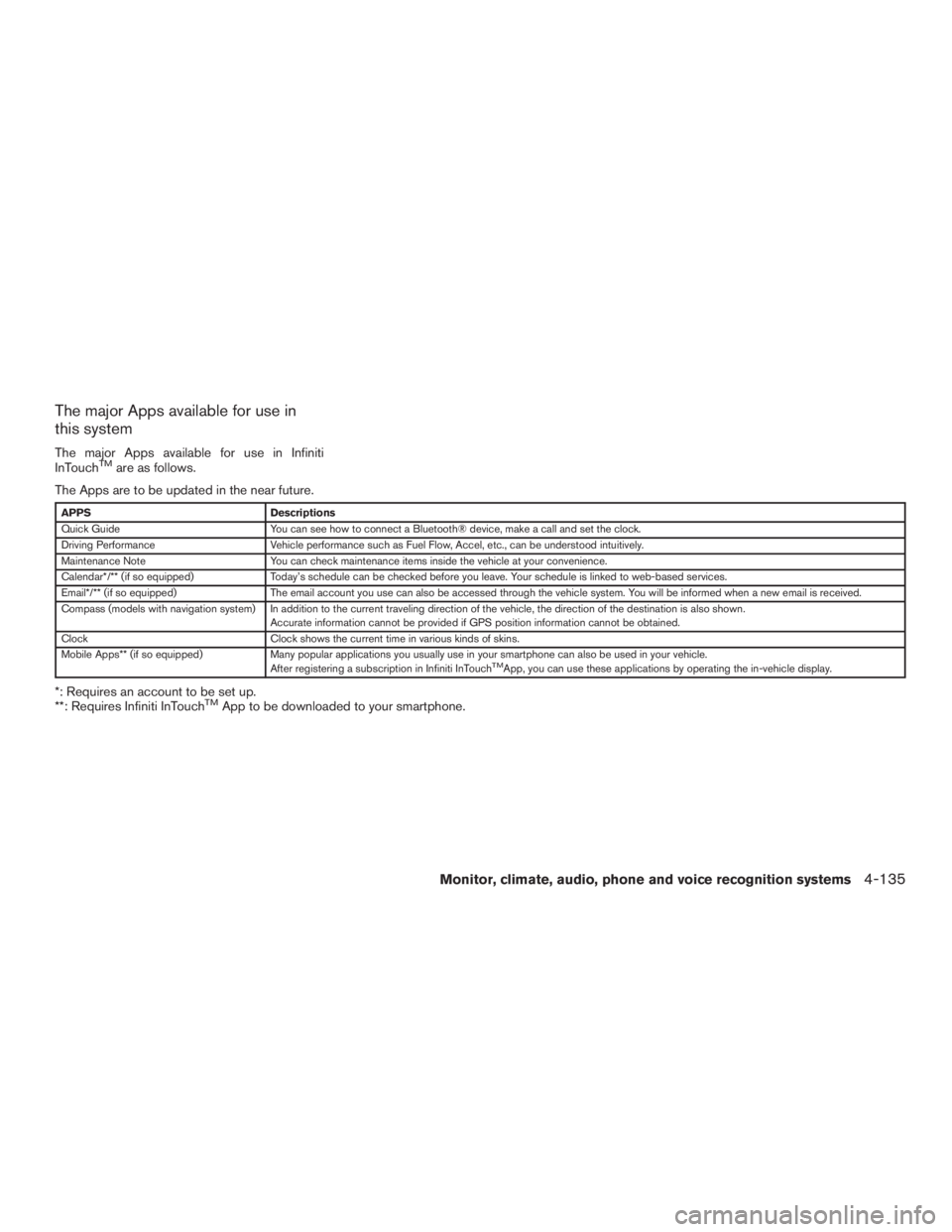
The major Apps available for use in
this system
The major Apps available for use in Infiniti
InTouchTMare as follows.
The Apps are to be updated in the near future.
APPS Descriptions
Quick Guide You can see how to connect a Bluetooth® device, make a call and set the clock.
Driving Performance Vehicle performance such as Fuel Flow, Accel, etc., can be understood intuitively.
Maintenance Note You can check maintenance items inside the vehicle at your convenience.
Calendar*/** (if so equipped) Today’s schedule can be checked before you leave. Your schedule is linked to web-based services.
Email*/** (if so equipped) The email account you use can also be accessed through the vehicle system. You will be informed when a new email is received.
Compass (models with navigation system) In addition to the current traveling direction of the vehicle, the direction of the destination is also shown .
Accurate information cannot be provided if GPS position information cannot be obtained.
Clock Clock shows the current time in various kinds of skins.
Mobile Apps** (if so equipped) Many popular applications you usually use in your smartphone can also be used in your vehicle.
After registering a subscription in Infiniti InTouch
TMApp, you can use these applications by operating the in-vehicle display.
*: Requires an account to be set up.
**: Requires Infiniti InTouchTMApp to be downloaded to your smartphone.
Monitor, climate, audio, phone and voice recognition systems4-135
Page 340 of 629
NOTE:
Use the displayed information as a reference. It
may differ from actual vehicle information de-
pending on the road surface conditions or tem-
perature. Also, it may differ from what is displayed
on the vehicle combination meter.● Lateral G (G force) and vertical G: Due
to the inclination of the road surface, G
may occur even when the vehicle stops.
This is not a malfunction.
● Fuel economy: This is a guideline for
the level of fuel economy driving.
Therefore, it may differ from the actual
fuel economy achieved.
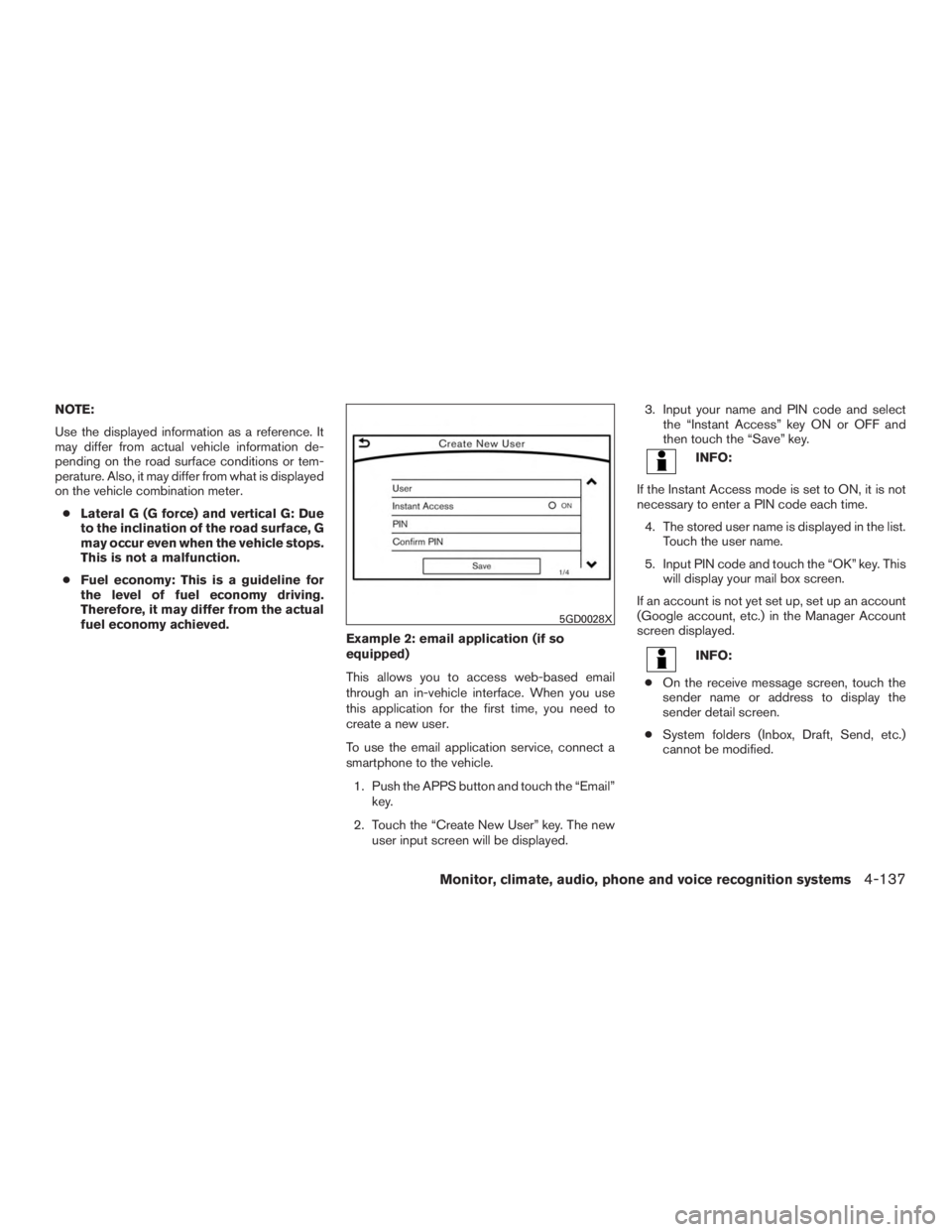
Example 2: email application (if so
equipped)
This allows you to access web-based email
through an in-vehicle interface. When you use
this application for the first time, you need to
create a new user.
To use the email application service, connect a
smartphone to the vehicle.
1. Push the APPS button and touch the “Email” key.
2. Touch the “Create New User” key. The new user input screen will be displayed. 3. Input your name and PIN code and select
the “Instant Access” key ON or OFF and
then touch the “Save” key.
INFO:
If the Instant Access mode is set to ON, it is not
necessary to enter a PIN code each time. 4. The stored user name is displayed in the list. Touch the user name.
5. Input PIN code and touch the “OK” key. This will display your mail box screen.
If an account is not yet set up, set up an account
(Google account, etc.) in the Manager Account
screen displayed.
INFO:
● On the receive message screen, touch the
sender name or address to display the
sender detail screen.
● System folders (Inbox, Draft, Send, etc.)
cannot be modified.
5GD0028X
Monitor, climate, audio, phone and voice recognition systems4-137
Page 344 of 629

Selecting a category by touching the screen or
pressing the ENTER button will execute the com-
mand. After executing the category command,
only the commands related to the selected cat-
egory can be recognized.3. After the tone sounds and the icon on the screen changes from
to,
speak a command. You can also select a
command by directly touching the screen.
The Voice Recognition system will pause opera-
tion when the center dial or slide switch is moved.
To resume operation, push the
switch on
the steering wheel.
4. Continue to follow the voice menu prompts and speak after the tone sounds until the
preferred operation is completed.
To cancel the voice command, push and hold
the
switch.
You can interrupt the voice prompt at any time by
pushing the
switch.
Operating tips
● Speak a command after the tone.
● If the command is not accepted, the system
announces, “Please say again”. Repeat the
command in a clear voice. ●
Push the
switch on the steering-
wheel once to return to the previous screen.
● Voice commands spoken from the passen-
ger seat cannot be recognized.
● When the
switch on the steering
wheel is pushed while the air conditioner is
set to the Auto mode, the system controls
the air conditioner fan speed in order to
improve Voice Recognition performance.
When the fan speed is set higher than the
4th speed position, the fan speed is de-
creased to 4th speed. When the air condi-
tioner is set to the manual mode, the fan
speed does not change. The accuracy of
Voice Recognition may be affected depend-
ing on the fan speed and the air direction.
● To skip the voice guidance function and give
the command immediately, push the
switch on the steering wheel to interrupt the
system. Remember to speak after the tone.
● To cancel the command, push and hold
the
switch or theswitch on the
steering-wheel. ●
To adjust the volume of the system feedback,
push the volume switch on the steering
wheel or use the audio system
VOL/ON•OFF button while the system is
making the announcement.
Voice prompt interrupt
Push the
switch on the steering-wheel to
stop the voice prompt and give the command at
once. Remember to wait for the tone before
speaking.
How to see the voice command
screen
1. Push theswitch to display the first
screen of the voice command list.
2. Speak a command or select an item from the voice command list. The second screen is
displayed.
3. Speak a command. The list screen is dis- played.
4. Speak the preferred number from the list to perform operation.
The voice commands can be spoken one at a
time following prompts step by step or the com-
mand can be spoken successively in one step.
Monitor, climate, audio, phone and voice recognition systems4-141
Page 349 of 629

NOTE:
The system can read out SMS text messages in voice.
However, it cannot always read the text correctly.
Audio command
1st command 2nd command3rd commandAction
Audio FM <87.7–107.9> Switches to the FM band, selecting the station of the preferred frequency.
SXM
USB Play Album
iPod Play Album
AM <530–1710> Switches to the AM band, selecting the preferred station.
FM <87.7–107.9> HD <#> Switches to the FM HD band, selecting the preferred station.
DISC Track <#> Turns on the CD, selecting the track number.
USB Play Song < Name> Switches to the USB, selecting the track. You can speak the commands
successively.
Play < Source Name> Plays the spoken audio source.
USB All Artists Displays the USB all artists list.
USB All Albums Displays the USB all albums list.
USB All Folders Displays the USB all folders list.
iPod All Artists Displays the iPod® all artists list.
iPod All Albums Displays the iPod® all albums list.
iPod All Songs Displays the iPod® all songs list.
4-146Monitor, climate, audio, phone and voice recognition systems
Page 351 of 629
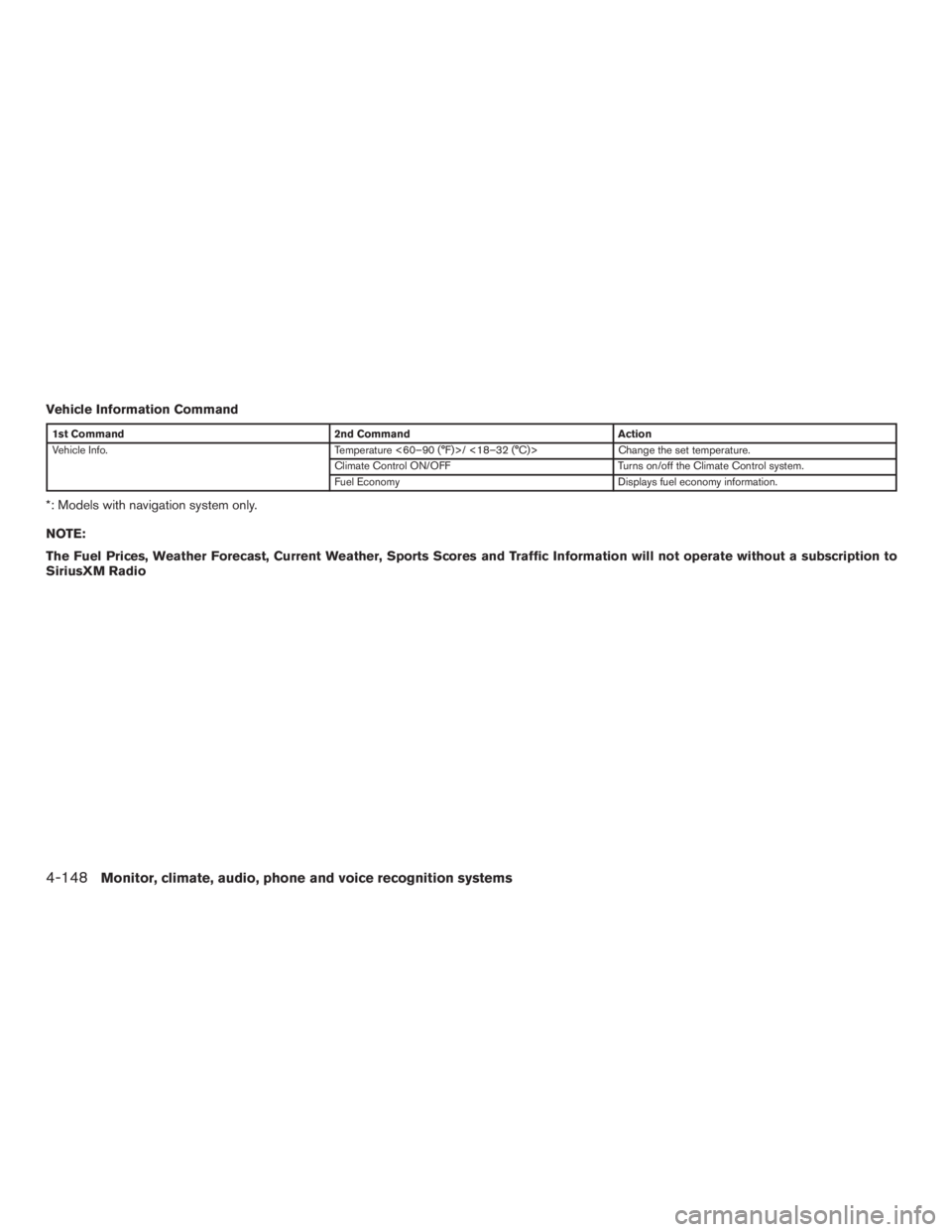
Vehicle Information Command
1st Command2nd Command Action
Vehicle Info. Temperature <60–90 (°F)>/ <18–32 (°C)> Change the set temperature.
Climate Control ON/OFF Turns on/off the Climate Control system.
Fuel Economy Displays fuel economy information.
*: Models with navigation system only.
NOTE:
The Fuel Prices, Weather Forecast, Current Weather, Sports Scores and Traffic Information will not operate without a subscription to
SiriusXM Radio
4-148Monitor, climate, audio, phone and voice recognition systems
Page 353 of 629
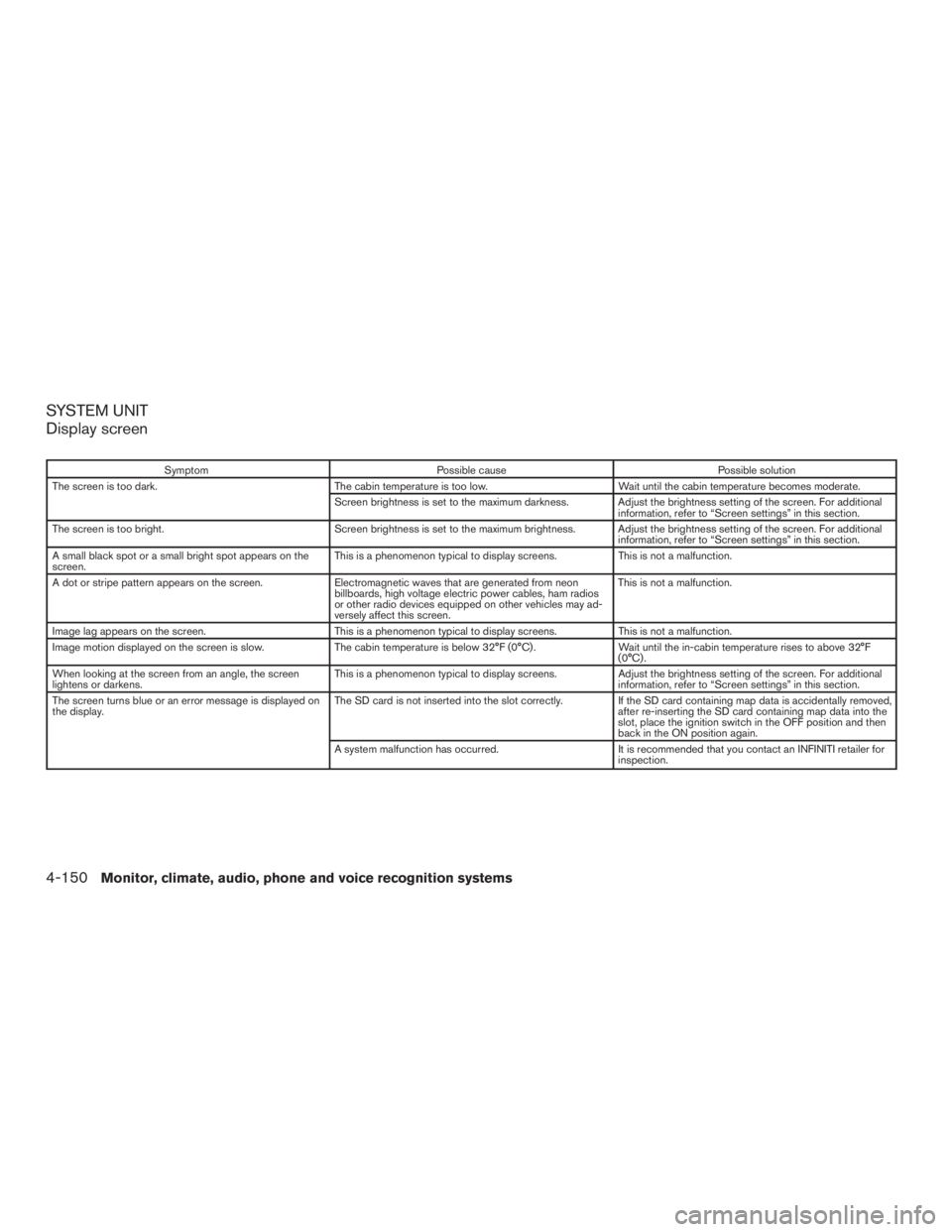
SYSTEM UNIT
Display screen
SymptomPossible cause Possible solution
The screen is too dark. The cabin temperature is too low. Wait until the cabin temperature becomes moderate.
Screen brightness is set to the maximum darkness. Adjust the brightness setting of the screen. For additional information, refer to “Screen settings” in this section.
The screen is too bright. Screen brightness is set to the maximum brightness. Adjust the brightness setting of the screen. For additional
information, refer to “Screen settings” in this section.
A small black spot or a small bright spot appears on the
screen. This is a phenomenon typical to display screens.
This is not a malfunction.
A dot or stripe pattern appears on the screen. Electromagnetic waves that are generated from neon
billboards, high voltage electric power cables, ham radios
or other radio devices equipped on other vehicles may ad-
versely affect this screen. This is not a malfunction.
Image lag appears on the screen. This is a phenomenon typical to display screens. This is not a malfunction.
Image motion displayed on the screen is slow. The cabin temperature is below 32°F (0°C) . Wait until the in-cabin temperature rises to above 32°F
(0°C) .
When looking at the screen from an angle, the screen
lightens or darkens. This is a phenomenon typical to display screens.
Adjust the brightness setting of the screen. For additional
information, refer to “Screen settings” in this section.
The screen turns blue or an error message is displayed on
the display. The SD card is not inserted into the slot correctly.
If the SD card containing map data is accidentally removed,
after re-inserting the SD card containing map data into the
slot, place the ignition switch in the OFF position and then
back in the ON position again.
A system malfunction has occurred. It is recommended that you contact an INFINITI retailer for
inspection.
4-150Monitor, climate, audio, phone and voice recognition systems
Page 355 of 629
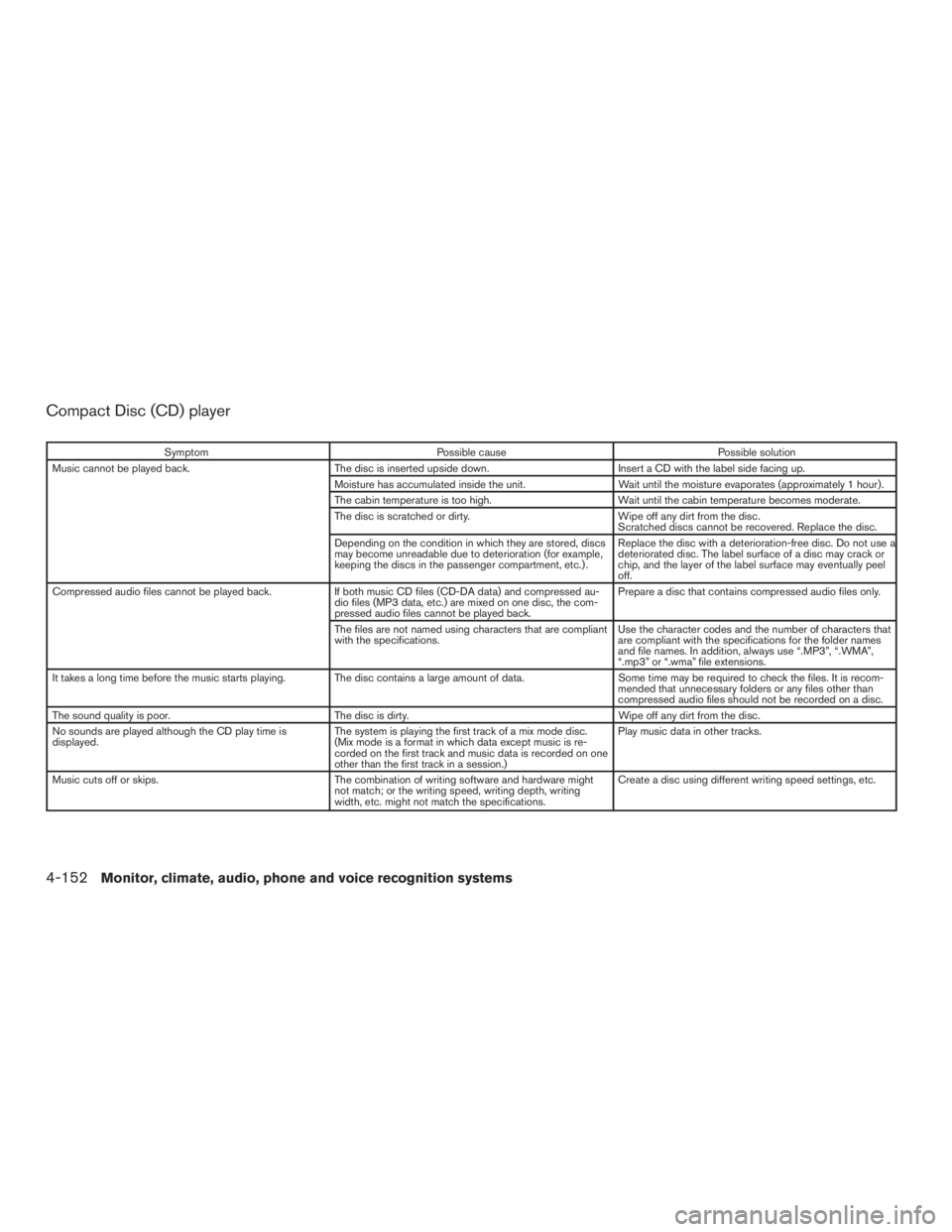
Compact Disc (CD) player
SymptomPossible cause Possible solution
Music cannot be played back. The disc is inserted upside down. Insert a CD with the label side facing up.
Moisture has accumulated inside the unit. Wait until the moisture evaporates (approximately 1 hour) .
The cabin temperature is too high. Wait until the cabin temperature becomes moderate.
The disc is scratched or dirty. Wipe off any dirt from the disc.
Scratched discs cannot be recovered. Replace the disc.
Depending on the condition in which they are stored, discs
may become unreadable due to deterioration (for example,
keeping the discs in the passenger compartment, etc.) . Replace the disc with a deterioration-free disc. Do not use a
deteriorated disc. The label surface of a disc may crack or
chip, and the layer of the label surface may eventually peel
off.
Compressed audio files cannot be played back. If both music CD files (CD-DA data) and compressed au-
dio files (MP3 data, etc.) are mixed on one disc, the com-
pressed audio files cannot be played back. Prepare a disc that contains compressed audio files only.
The files are not named using characters that are compliant
with the specifications. Use the character codes and the number of characters that
are compliant with the specifications for the folder names
and file names. In addition, always use “.MP3”, “.WMA”,
“.mp3” or “.wma” file extensions.
It takes a long time before the music starts playing. The disc contains a large amount of data. Some time may be required to check the files. It is recom-
mended that unnecessary folders or any files other than
compressed audio files should not be recorded on a disc.
The sound quality is poor. The disc is dirty. Wipe off any dirt from the disc.
No sounds are played although the CD play time is
displayed. The system is playing the first track of a mix mode disc.
(Mix mode is a format in which data except music is re-
corded on the first track and music data is recorded on one
other than the first track in a session.) Play music data in other tracks.
Music cuts off or skips. The combination of writing software and hardware might
not match; or the writing speed, writing depth, writing
width, etc. might not match the specifications. Create a disc using different writing speed settings, etc.
4-152Monitor, climate, audio, phone and voice recognition systems
Page 356 of 629
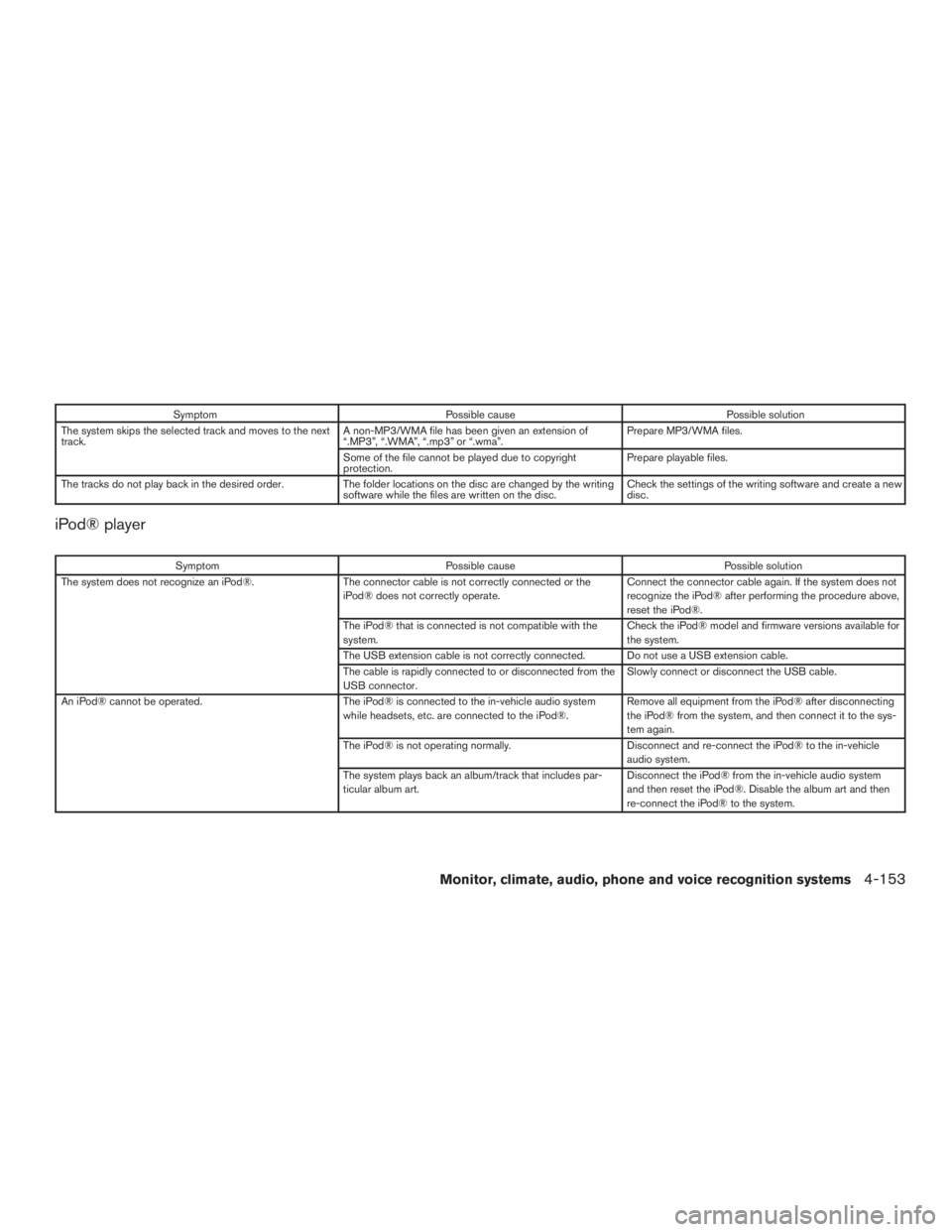
SymptomPossible cause Possible solution
The system skips the selected track and moves to the next
track. A non-MP3/WMA file has been given an extension of
“.MP3”, “.WMA”, “.mp3” or “.wma”. Prepare MP3/WMA files.
Some of the file cannot be played due to copyright
protection. Prepare playable files.
The tracks do not play back in the desired order. The folder locations on the disc are changed by the writing
software while the files are written on the disc. Check the settings of the writing software and create a new
disc.
iPod® player
Symptom
Possible cause Possible solution
The system does not recognize an iPod®. The connector cable is not correctly connected or the
iPod® does not correctly operate. Connect the connector cable again. If the system does not
recognize the iPod® after performing the procedure above,
reset the iPod®.
The iPod® that is connected is not compatible with the
system. Check the iPod® model and firmware versions available for
the system.
The USB extension cable is not correctly connected. Do not use a USB extension cable.
The cable is rapidly connected to or disconnected from the
USB connector. Slowly connect or disconnect the USB cable.
An iPod® cannot be operated. The iPod® is connected to the in-vehicle audio system
while headsets, etc. are connected to the iPod®. Remove all equipment from the iPod® after disconnecting
the iPod® from the system, and then connect it to the sys-
tem again.
The iPod® is not operating normally. Disconnect and re-connect the iPod® to the in-vehicle
audio system.
The system plays back an album/track that includes par-
ticular album art. Disconnect the iPod® from the in-vehicle audio system
and then reset the iPod®. Disable the album art and then
re-connect the iPod® to the system.
Monitor, climate, audio, phone and voice recognition systems4-153
Page 358 of 629
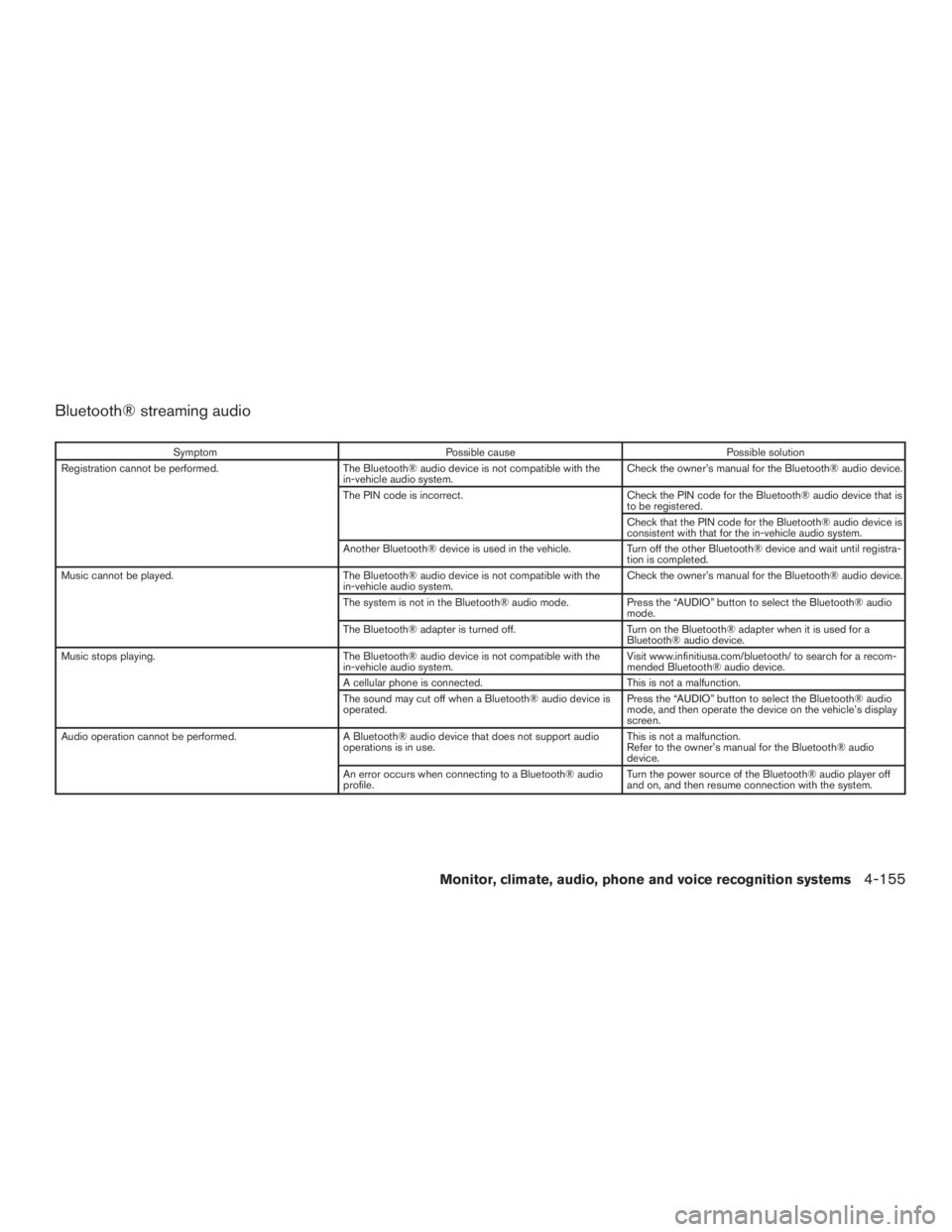
Bluetooth® streaming audio
SymptomPossible cause Possible solution
Registration cannot be performed. The Bluetooth® audio device is not compatible with the
in-vehicle audio system. Check the owner’s manual for the Bluetooth® audio device.
The PIN code is incorrect. Check the PIN code for the Bluetooth® audio device that is
to be registered.
Check that the PIN code for the Bluetooth® audio device is
consistent with that for the in-vehicle audio system.
Another Bluetooth® device is used in the vehicle. Turn off the other Bluetooth® device and wait until registra-
tion is completed.
Music cannot be played. The Bluetooth® audio device is not compatible with the
in-vehicle audio system. Check the owner’s manual for the Bluetooth® audio device.
The system is not in the Bluetooth® audio mode. Press the “AUDIO” button to select the Bluetooth® audio
mode.
The Bluetooth® adapter is turned off. Turn on the Bluetooth® adapter when it is used for a
Bluetooth® audio device.
Music stops playing. The Bluetooth® audio device is not compatible with the
in-vehicle audio system. Visit www.infinitiusa.com/bluetooth/ to search for a recom-
mended Bluetooth® audio device.
A cellular phone is connected. This is not a malfunction.
The sound may cut off when a Bluetooth® audio device is
operated. Press the “AUDIO” button to select the Bluetooth® audio
mode, and then operate the device on the vehicle’s display
screen.
Audio operation cannot be performed. A Bluetooth® audio device that does not support audio
operations is in use. This is not a malfunction.
Refer to the owner’s manual for the Bluetooth® audio
device.
An error occurs when connecting to a Bluetooth® audio
profile. Turn the power source of the Bluetooth® audio player off
and on, and then resume connection with the system.
Monitor, climate, audio, phone and voice recognition systems4-155
Page 359 of 629
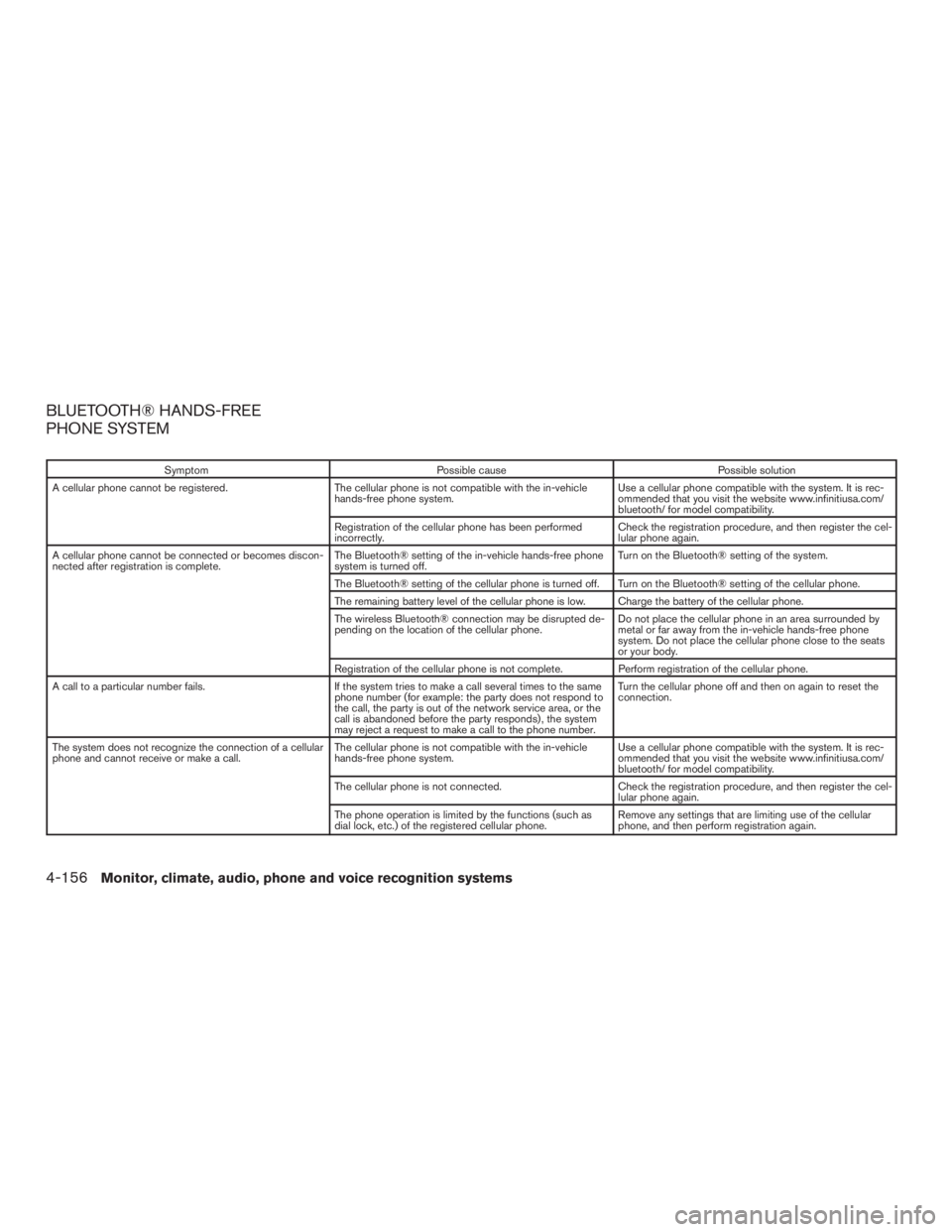
BLUETOOTH® HANDS-FREE
PHONE SYSTEM
SymptomPossible cause Possible solution
A cellular phone cannot be registered. The cellular phone is not compatible with the in-vehicle
hands-free phone system. Use a cellular phone compatible with the system. It is rec-
ommended that you visit the website www.infinitiusa.com/
bluetooth/ for model compatibility.
Registration of the cellular phone has been performed
incorrectly. Check the registration procedure, and then register the cel-
lular phone again.
A cellular phone cannot be connected or becomes discon-
nected after registration is complete. The Bluetooth® setting of the in-vehicle hands-free phone
system is turned off. Turn on the Bluetooth® setting of the system.
The Bluetooth® setting of the cellular phone is turned off. Turn on the Bluetooth® setting of the cellular phone.
The remaining battery level of the cellular phone is low. Charge the battery of the cellular phone.
The wireless Bluetooth® connection may be disrupted de-
pending on the location of the cellular phone. Do not place the cellular phone in an area surrounded by
metal or far away from the in-vehicle hands-free phone
system. Do not place the cellular phone close to the seats
or your body.
Registration of the cellular phone is not complete. Perform registration of the cellular phone.
A call to a particular number fails. If the system tries to make a call several times to the same
phone number (for example: the party does not respond to
the call, the party is out of the network service area, or the
call is abandoned before the party responds) , the system
may reject a request to make a call to the phone number. Turn the cellular phone off and then on again to reset the
connection.
The system does not recognize the connection of a cellular
phone and cannot receive or make a call. The cellular phone is not compatible with the in-vehicle
hands-free phone system. Use a cellular phone compatible with the system. It is rec-
ommended that you visit the website www.infinitiusa.com/
bluetooth/ for model compatibility.
The cellular phone is not connected. Check the registration procedure, and then register the cel-
lular phone again.
The phone operation is limited by the functions (such as
dial lock, etc.) of the registered cellular phone. Remove any settings that are limiting use of the cellular
phone, and then perform registration again.
4-156Monitor, climate, audio, phone and voice recognition systems