radio INFINITI QX60 2017 Owner's Manual
[x] Cancel search | Manufacturer: INFINITI, Model Year: 2017, Model line: QX60, Model: INFINITI QX60 2017Pages: 629, PDF Size: 6.89 MB
Page 295 of 629
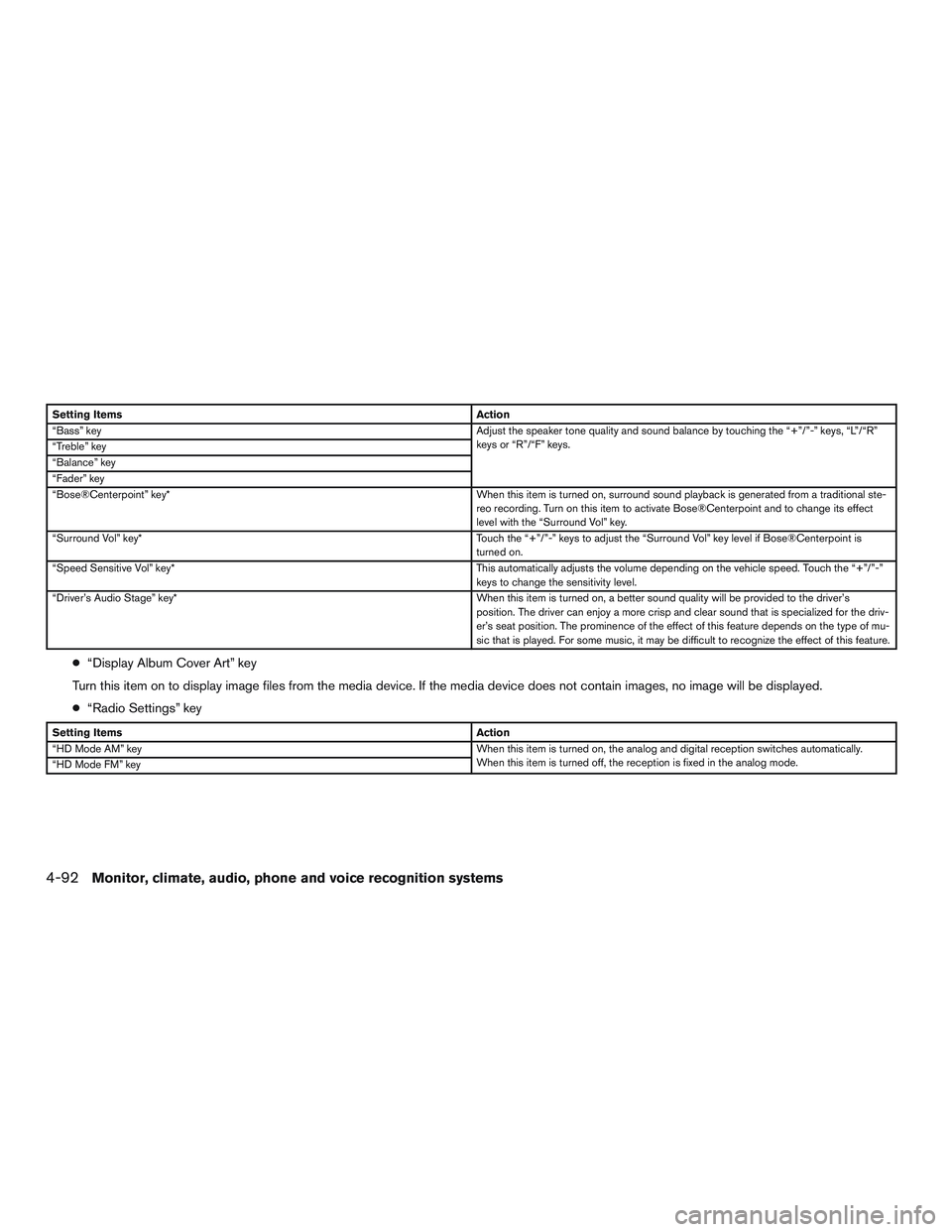
Setting ItemsAction
“Bass” key Adjust the speaker tone quality and sound balance by touching the “+”/”-” keys, “L”/“R”
keys or “R”/“F” keys.
“Treble” key
“Balance” key
“Fader” key
“Bose®Centerpoint” key* When this item is turned on, surround sound playback is generated from a traditional ste-
reo recording. Turn on this item to activate Bose®Centerpoint and to change its effect
level with the “Surround Vol” key.
“Surround Vol” key* Touch the “+”/”-” keys to adjust the “Surround Vol” key level if Bose®Centerpoint is
turned on.
“Speed Sensitive Vol” key* This automatically adjusts the volume depending on the vehicle speed. Touch the “+”/”-”
keys to change the sensitivity level.
“Driver’s Audio Stage” key* When this item is turned on, a better sound quality will be provided to the driver’s
position. The driver can enjoy a more crisp and clear sound that is specialized for the driv-
er’s seat position. The prominence of the effect of this feature depends on the type of mu-
sic that is played. For some music, it may be difficult to recognize the effect of this feature.
● “Display Album Cover Art” key
Turn this item on to display image files from the media device. If the media device does not contain images, no image will be displayed.
● “Radio Settings” key
Setting Items Action
“HD Mode AM” key When this item is turned on, the analog and digital reception switches automatically.
When this item is turned off, the reception is fixed in the analog mode.
“HD Mode FM” key
4-92Monitor, climate, audio, phone and voice recognition systems
Page 318 of 629
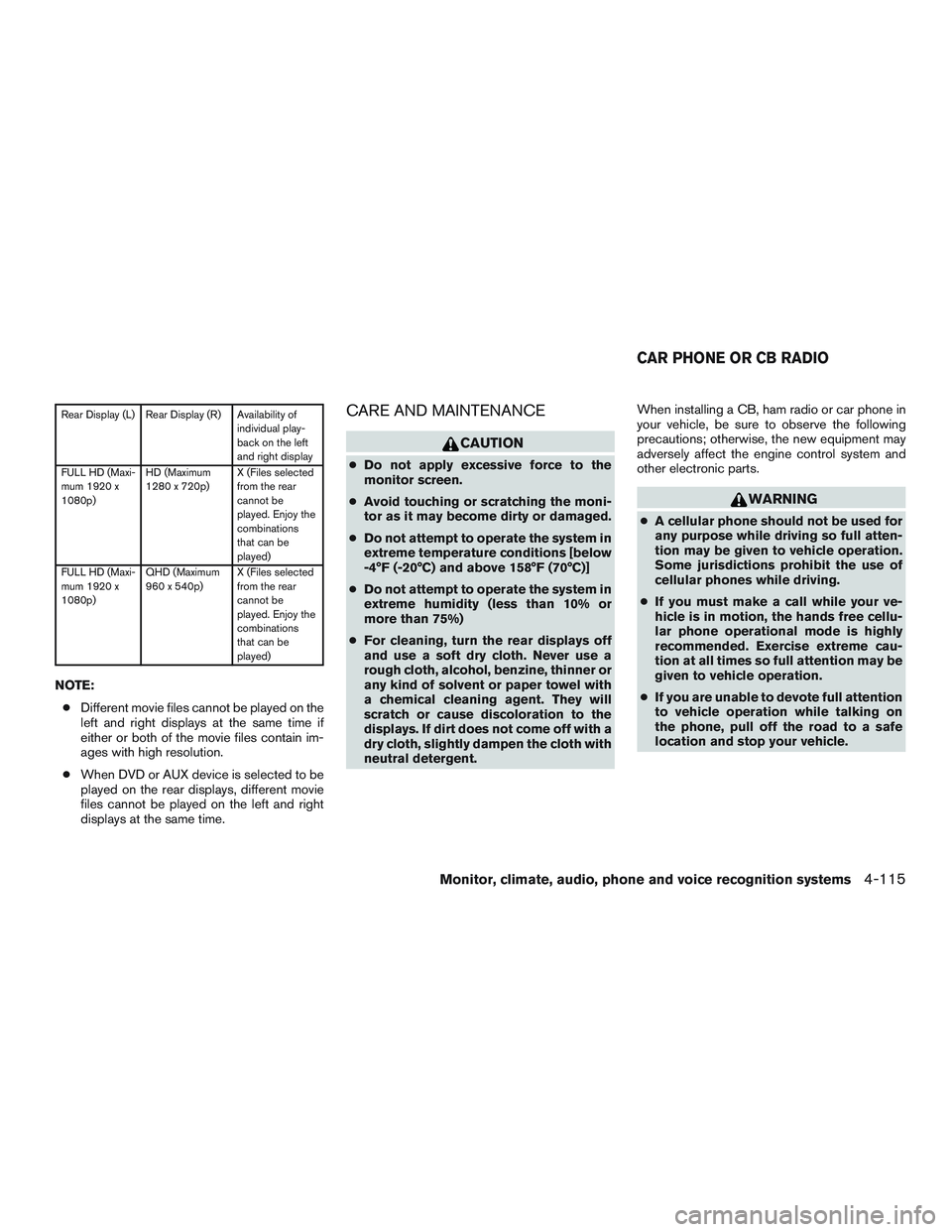
Rear Display (L) Rear Display (R) Availability ofindividual play-
back on the left
and right display
FULL HD (Maxi-
mum 1920 x
1080p) HD (Maximum
1280 x 720p)
X (Files selected
from the rear
cannot be
played. Enjoy the
combinations
that can be
played)
FULL HD (Maxi-
mum 1920 x
1080p) QHD (Maximum
960 x 540p)
X (Files selected
from the rear
cannot be
played. Enjoy the
combinations
that can be
played)
NOTE:
● Different movie files cannot be played on the
left and right displays at the same time if
either or both of the movie files contain im-
ages with high resolution.
● When DVD or AUX device is selected to be
played on the rear displays, different movie
files cannot be played on the left and right
displays at the same time.
CARE AND MAINTENANCE
CAUTION
● Do not apply excessive force to the
monitor screen.
● Avoid touching or scratching the moni-
tor as it may become dirty or damaged.
● Do not attempt to operate the system in
extreme temperature conditions [below
-4°F (-20°C) and above 158°F (70°C)]
● Do not attempt to operate the system in
extreme humidity (less than 10% or
more than 75%)
● For cleaning, turn the rear displays off
and use a soft dry cloth. Never use a
rough cloth, alcohol, benzine, thinner or
any kind of solvent or paper towel with
a chemical cleaning agent. They will
scratch or cause discoloration to the
displays. If dirt does not come off with a
dry cloth, slightly dampen the cloth with
neutral detergent. When installing a CB, ham radio or car phone in
your vehicle, be sure to observe the following
precautions; otherwise, the new equipment may
adversely affect the engine control system and
other electronic parts.
WARNING
●
A cellular phone should not be used for
any purpose while driving so full atten-
tion may be given to vehicle operation.
Some jurisdictions prohibit the use of
cellular phones while driving.
● If you must make a call while your ve-
hicle is in motion, the hands free cellu-
lar phone operational mode is highly
recommended. Exercise extreme cau-
tion at all times so full attention may be
given to vehicle operation.
● If you are unable to devote full attention
to vehicle operation while talking on
the phone, pull off the road to a safe
location and stop your vehicle.
CAR PHONE OR CB RADIO
Monitor, climate, audio, phone and voice recognition systems4-115
Page 319 of 629
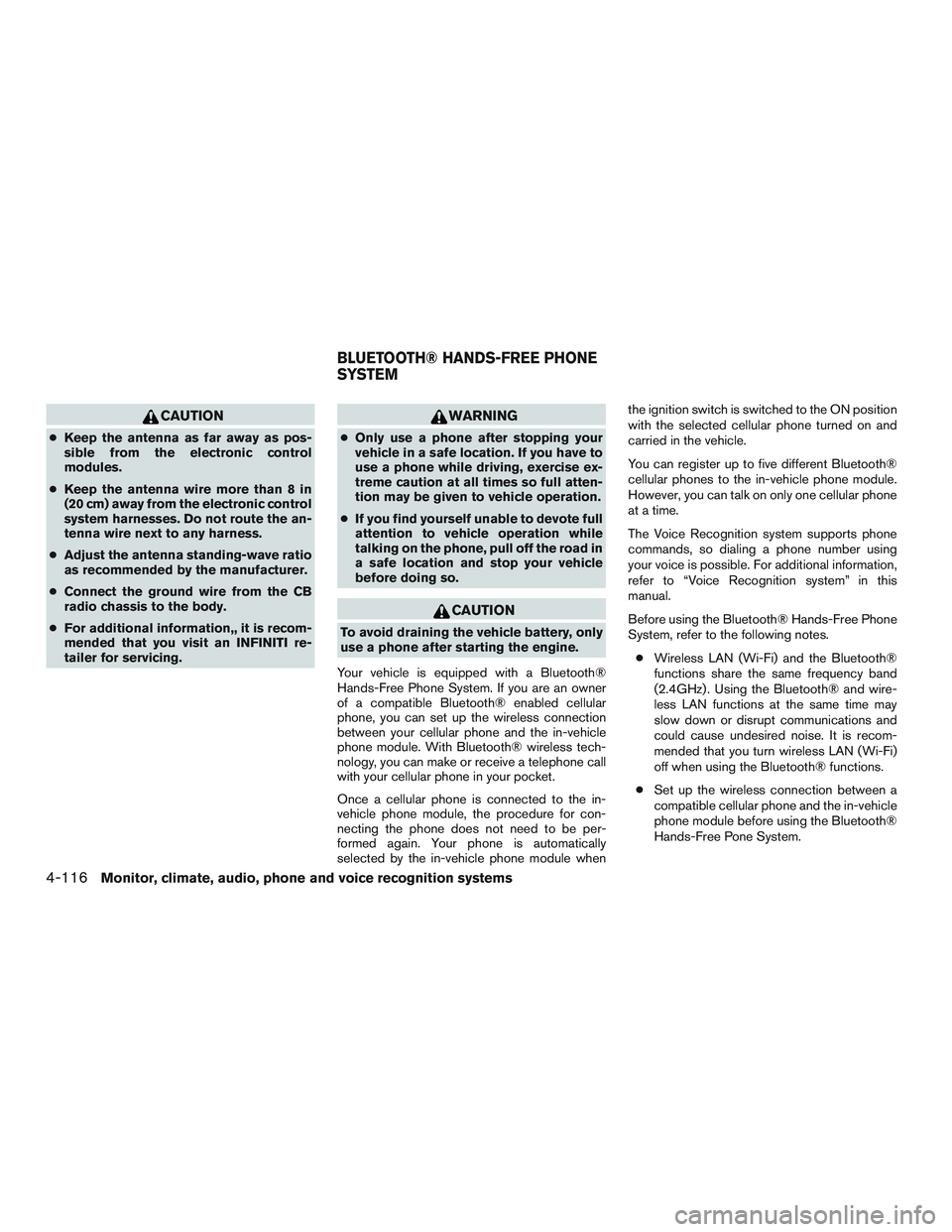
CAUTION
●Keep the antenna as far away as pos-
sible from the electronic control
modules.
● Keep the antenna wire more than 8 in
(20 cm) away from the electronic control
system harnesses. Do not route the an-
tenna wire next to any harness.
● Adjust the antenna standing-wave ratio
as recommended by the manufacturer.
● Connect the ground wire from the CB
radio chassis to the body.
● For additional information,, it is recom-
mended that you visit an INFINITI re-
tailer for servicing.
WARNING
● Only use a phone after stopping your
vehicle in a safe location. If you have to
use a phone while driving, exercise ex-
treme caution at all times so full atten-
tion may be given to vehicle operation.
● If you find yourself unable to devote full
attention to vehicle operation while
talking on the phone, pull off the road in
a safe location and stop your vehicle
before doing so.
CAUTION
To avoid draining the vehicle battery, only
use a phone after starting the engine.
Your vehicle is equipped with a Bluetooth®
Hands-Free Phone System. If you are an owner
of a compatible Bluetooth® enabled cellular
phone, you can set up the wireless connection
between your cellular phone and the in-vehicle
phone module. With Bluetooth® wireless tech-
nology, you can make or receive a telephone call
with your cellular phone in your pocket.
Once a cellular phone is connected to the in-
vehicle phone module, the procedure for con-
necting the phone does not need to be per-
formed again. Your phone is automatically
selected by the in-vehicle phone module when the ignition switch is switched to the ON position
with the selected cellular phone turned on and
carried in the vehicle.
You can register up to five different Bluetooth®
cellular phones to the in-vehicle phone module.
However, you can talk on only one cellular phone
at a time.
The Voice Recognition system supports phone
commands, so dialing a phone number using
your voice is possible. For additional information,
refer to “Voice Recognition system” in this
manual.
Before using the Bluetooth® Hands-Free Phone
System, refer to the following notes.
● Wireless LAN (Wi-Fi) and the Bluetooth®
functions share the same frequency band
(2.4GHz) . Using the Bluetooth® and wire-
less LAN functions at the same time may
slow down or disrupt communications and
could cause undesired noise. It is recom-
mended that you turn wireless LAN (Wi-Fi)
off when using the Bluetooth® functions.
● Set up the wireless connection between a
compatible cellular phone and the in-vehicle
phone module before using the Bluetooth®
Hands-Free Pone System.
BLUETOOTH® HANDS-FREE PHONE
SYSTEM
4-116Monitor, climate, audio, phone and voice recognition systems
Page 320 of 629
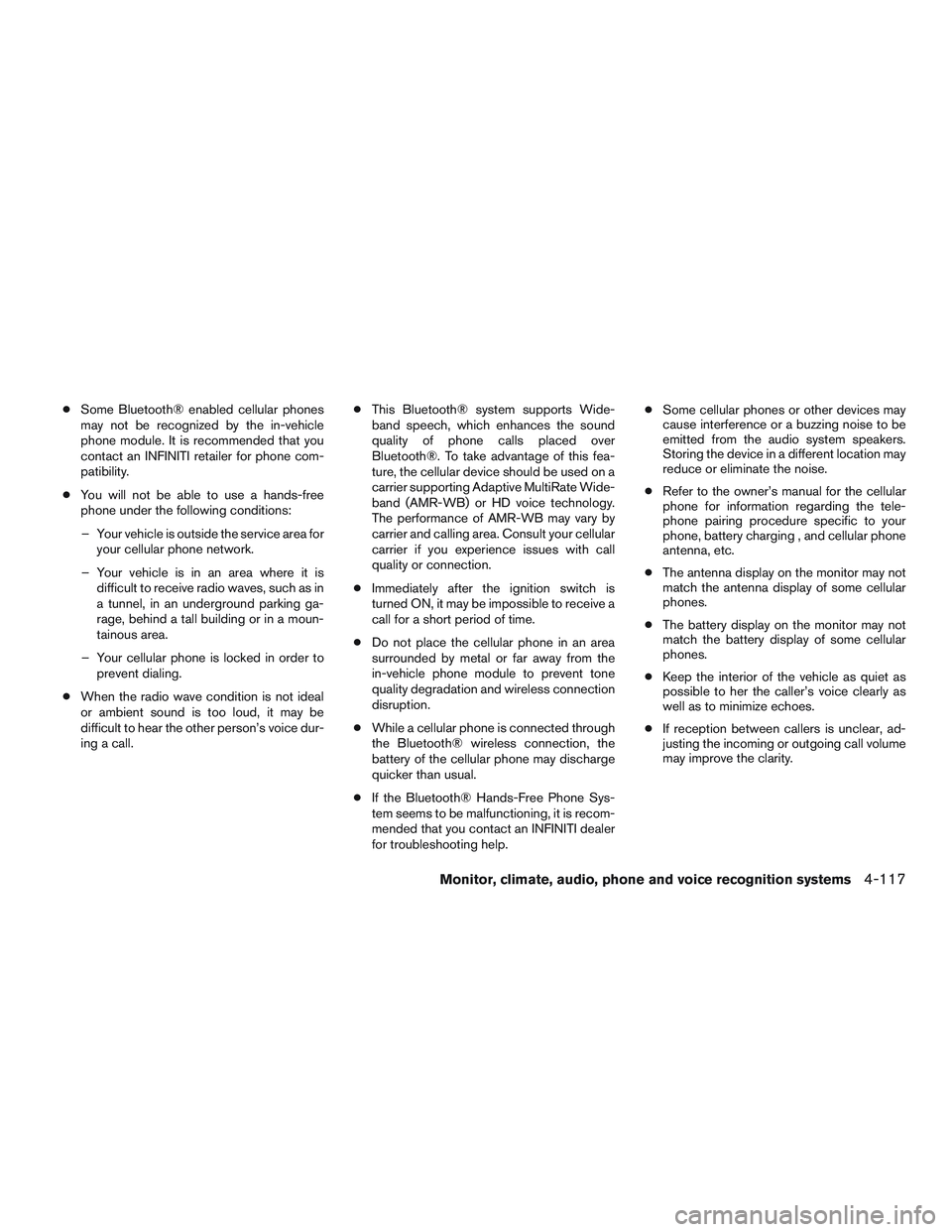
●Some Bluetooth® enabled cellular phones
may not be recognized by the in-vehicle
phone module. It is recommended that you
contact an INFINITI retailer for phone com-
patibility.
● You will not be able to use a hands-free
phone under the following conditions:
– Your vehicle is outside the service area for your cellular phone network.
– Your vehicle is in an area where it is difficult to receive radio waves, such as in
a tunnel, in an underground parking ga-
rage, behind a tall building or in a moun-
tainous area.
– Your cellular phone is locked in order to prevent dialing.
● When the radio wave condition is not ideal
or ambient sound is too loud, it may be
difficult to hear the other person’s voice dur-
ing a call. ●
This Bluetooth® system supports Wide-
band speech, which enhances the sound
quality of phone calls placed over
Bluetooth®. To take advantage of this fea-
ture, the cellular device should be used on a
carrier supporting Adaptive MultiRate Wide-
band (AMR-WB) or HD voice technology.
The performance of AMR-WB may vary by
carrier and calling area. Consult your cellular
carrier if you experience issues with call
quality or connection.
● Immediately after the ignition switch is
turned ON, it may be impossible to receive a
call for a short period of time.
● Do not place the cellular phone in an area
surrounded by metal or far away from the
in-vehicle phone module to prevent tone
quality degradation and wireless connection
disruption.
● While a cellular phone is connected through
the Bluetooth® wireless connection, the
battery of the cellular phone may discharge
quicker than usual.
● If the Bluetooth® Hands-Free Phone Sys-
tem seems to be malfunctioning, it is recom-
mended that you contact an INFINITI dealer
for troubleshooting help. ●
Some cellular phones or other devices may
cause interference or a buzzing noise to be
emitted from the audio system speakers.
Storing the device in a different location may
reduce or eliminate the noise.
● Refer to the owner’s manual for the cellular
phone for information regarding the tele-
phone pairing procedure specific to your
phone, battery charging , and cellular phone
antenna, etc.
● The antenna display on the monitor may not
match the antenna display of some cellular
phones.
● The battery display on the monitor may not
match the battery display of some cellular
phones.
● Keep the interior of the vehicle as quiet as
possible to her the caller’s voice clearly as
well as to minimize echoes.
● If reception between callers is unclear, ad-
justing the incoming or outgoing call volume
may improve the clarity.
Monitor, climate, audio, phone and voice recognition systems4-117
Page 321 of 629

REGULATORY INFORMATION
FCC Regulatory Information
FCC ID: HYQDNNS086
NOTE:
This device complies with part 15 of the FCC
Rules. Operation is subject to the following two
conditions: (1) This device may not cause harmful
interference, and (2) this device must accept any
interference received, including interference that
may cause undesired operation.
FCC WARNING: Changes or modifications not
expressly approved by the party responsible for
compliance could void the user’s authority to
operate the equipment.
CAUTION: Radio Frequency Radiation Exposure
This equipment complies with FCC radiation ex-
posure limits set forth for uncontrolled environ-
ment and meets the FCC radio frequency (RF)
Exposure Guidelines. This equipment has very
low levels of RF energy that it deemed to comply
without maximum permissive exposure evaluation
(MPE) . But it is desirable that it should be in-
stalled and operated with at lease 20cm and
more between the radiator and person’s body.Co-location: This transmitter must not be co-
located or operated in conjunction with any other
antenna or transmitter.IC Regulatory Information
The antenna cannot be removed (and changed)
by the user.
NOTE:
This device complies with Industry Canada li-
cense–exempt RSS standard(s) . Operation is
subject to the following two conditions: (1) This
device may or may not cause interference, and
(2) this device must accept any interference,
including interference that may cause undesired
operation of the device.
CAUTION: Radio Frequency Radiation Exposure
This equipment complies with IC radiation expo-
sure limits set forth for uncontrolled environment
and meets RSS-102 of the IC radio frequency
(RF) exposure rules. This equipment has very low
levels of RF energy that it deemed to comply
without maximum permissive exposure evaluation
(MPE) . But it is desirable that it should be in-
stalled and operated with at least 20cm and more
between the radiator and person’s body.
Co-location: This transmitter must not be co-
located or operated in conjunction with any other
antenna or transmitter.
This Class B digital apparatus meets all require-
ments of the Canadian Interference Causing
Equipment Regulations.
L’antenne ne peut être enlevé (et modifié par
l’utilisateur) .
NOTE:
Le préent appareil est conforme aux CNR
d’Industrie Canada applicables aux appareils ra-
dio exempts de licence. L’exploitation est autorisé
aux deux conditions suivantes: (1) l’appareil ne
doit pas produire de brouillage, et (2) l’utilisateur
de l’appareil doit accepter tout brouillage ra-
dioéectrique subi, mêe si le brouillage est sus-
ceptible d’en compromettre le fonctionnement.
4-118Monitor, climate, audio, phone and voice recognition systems
Page 346 of 629
Examples
1–800–662–6200
“One eight zero zero six six two six two zero zero”
For the best recognition, speak “zero” for the
number “0” and “oh” for the letter “o”.
Voice command examples
As examples, some additional basic operations
that can be performed by voice commands are
described here.
Example 1– Placing a call from handsfree
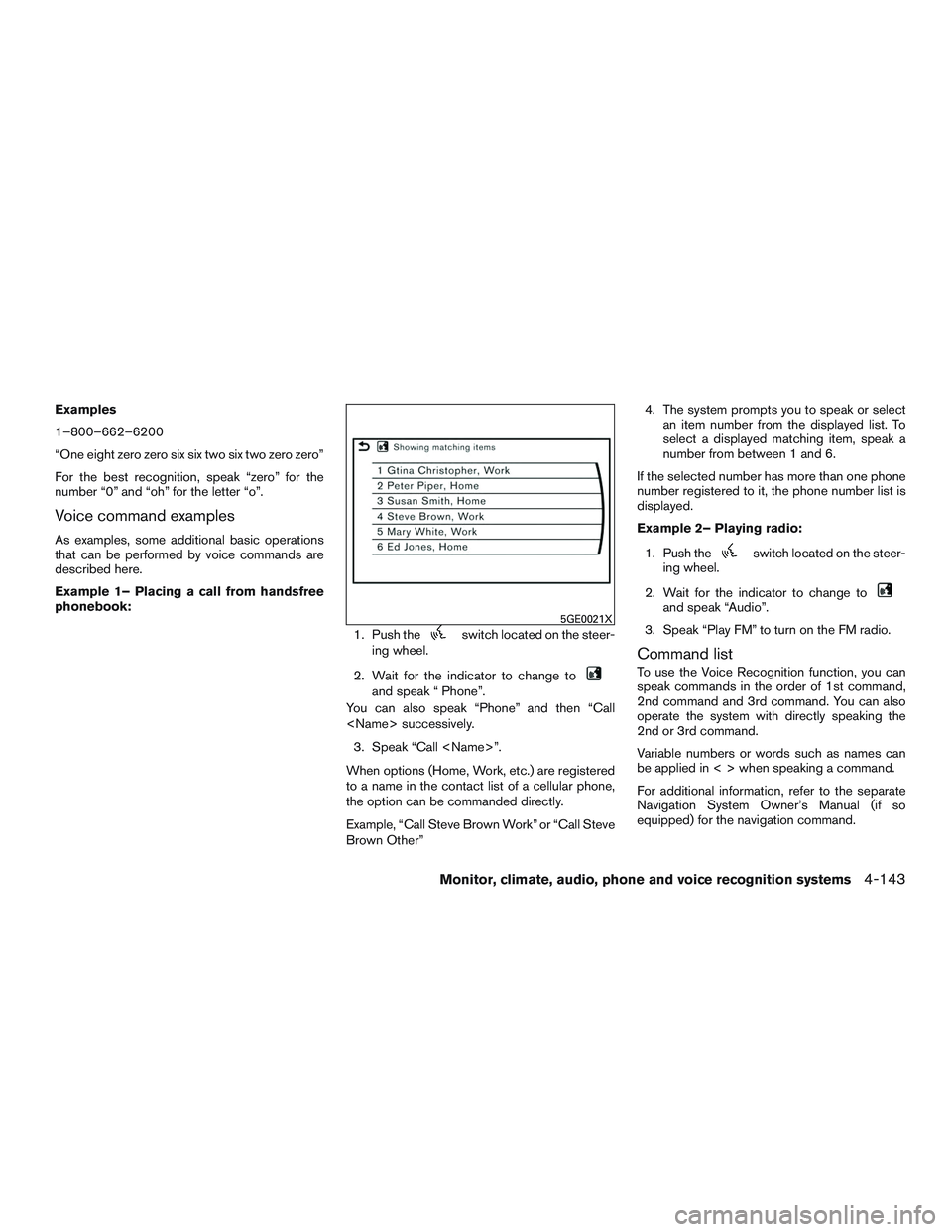
phonebook:1. Push the
switch located on the steer-
ing wheel.
2. Wait for the indicator to change to
and speak “ Phone”.
You can also speak “Phone” and then “Call
3. Speak “Call
When options (Home, Work, etc.) are registered
to a name in the contact list of a cellular phone,
the option can be commanded directly.
Example, “Call Steve Brown Work” or “Call Steve
Brown Other” 4. The system prompts you to speak or select
an item number from the displayed list. To
select a displayed matching item, speak a
number from between 1 and 6.
If the selected number has more than one phone
number registered to it, the phone number list is
displayed.
Example 2– Playing radio:
1. Push the
switch located on the steer-
ing wheel.
2. Wait for the indicator to change to
and speak “Audio”.
3. Speak “Play FM” to turn on the FM radio.
Command list
To use the Voice Recognition function, you can
speak commands in the order of 1st command,
2nd command and 3rd command. You can also
operate the system with directly speaking the
2nd or 3rd command.
Variable numbers or words such as names can
be applied in < > when speaking a command.
For additional information, refer to the separate
Navigation System Owner’s Manual (if so
equipped) for the navigation command.
5GE0021X
Monitor, climate, audio, phone and voice recognition systems4-143
Page 349 of 629
NOTE:
The system can read out SMS text messages in voice.
However, it cannot always read the text correctly.
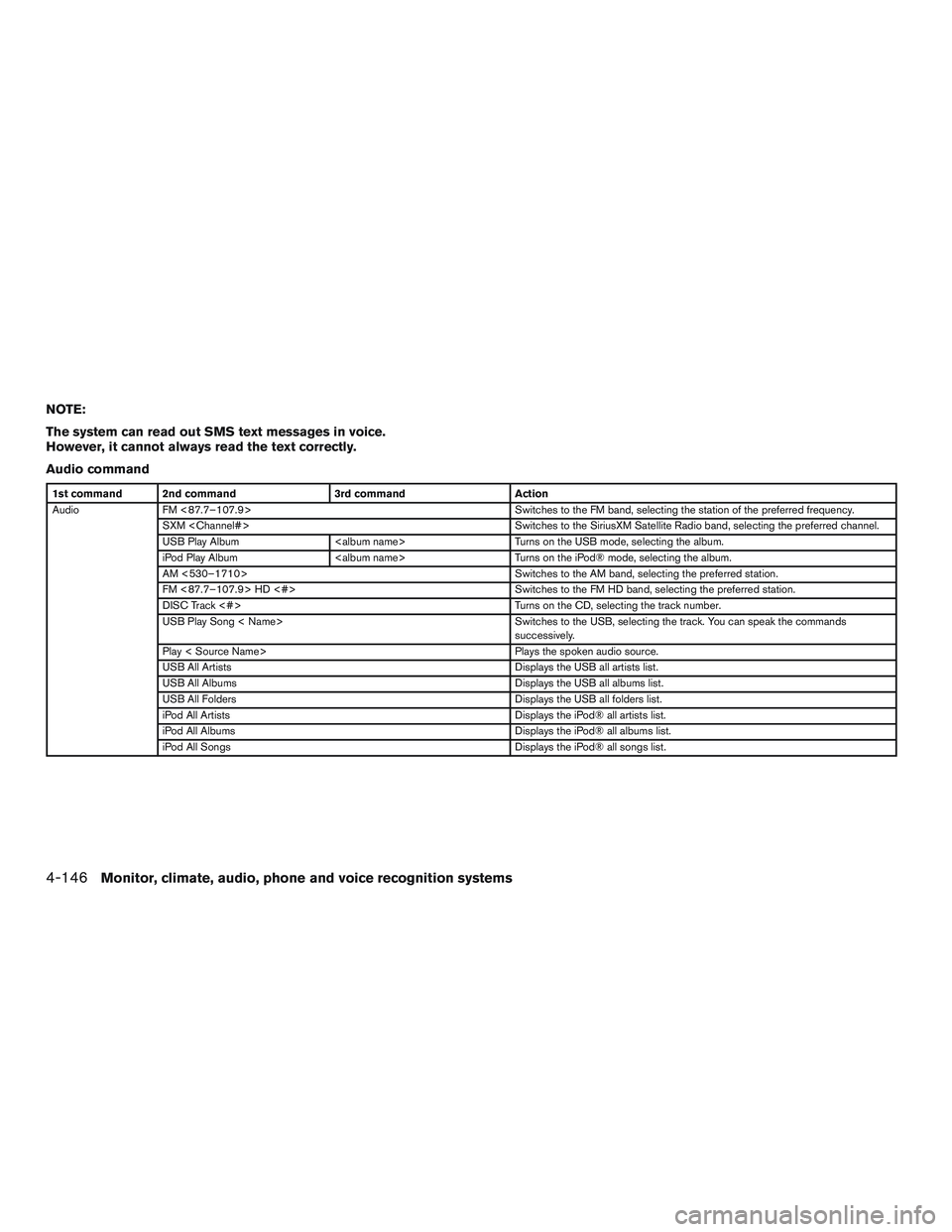
Audio command
1st command 2nd command3rd commandAction
Audio FM <87.7–107.9> Switches to the FM band, selecting the station of the preferred frequency.
SXM
USB Play Album
iPod Play Album
AM <530–1710> Switches to the AM band, selecting the preferred station.
FM <87.7–107.9> HD <#> Switches to the FM HD band, selecting the preferred station.
DISC Track <#> Turns on the CD, selecting the track number.
USB Play Song < Name> Switches to the USB, selecting the track. You can speak the commands
successively.
Play < Source Name> Plays the spoken audio source.
USB All Artists Displays the USB all artists list.
USB All Albums Displays the USB all albums list.
USB All Folders Displays the USB all folders list.
iPod All Artists Displays the iPod® all artists list.
iPod All Albums Displays the iPod® all albums list.
iPod All Songs Displays the iPod® all songs list.
4-146Monitor, climate, audio, phone and voice recognition systems
Page 351 of 629
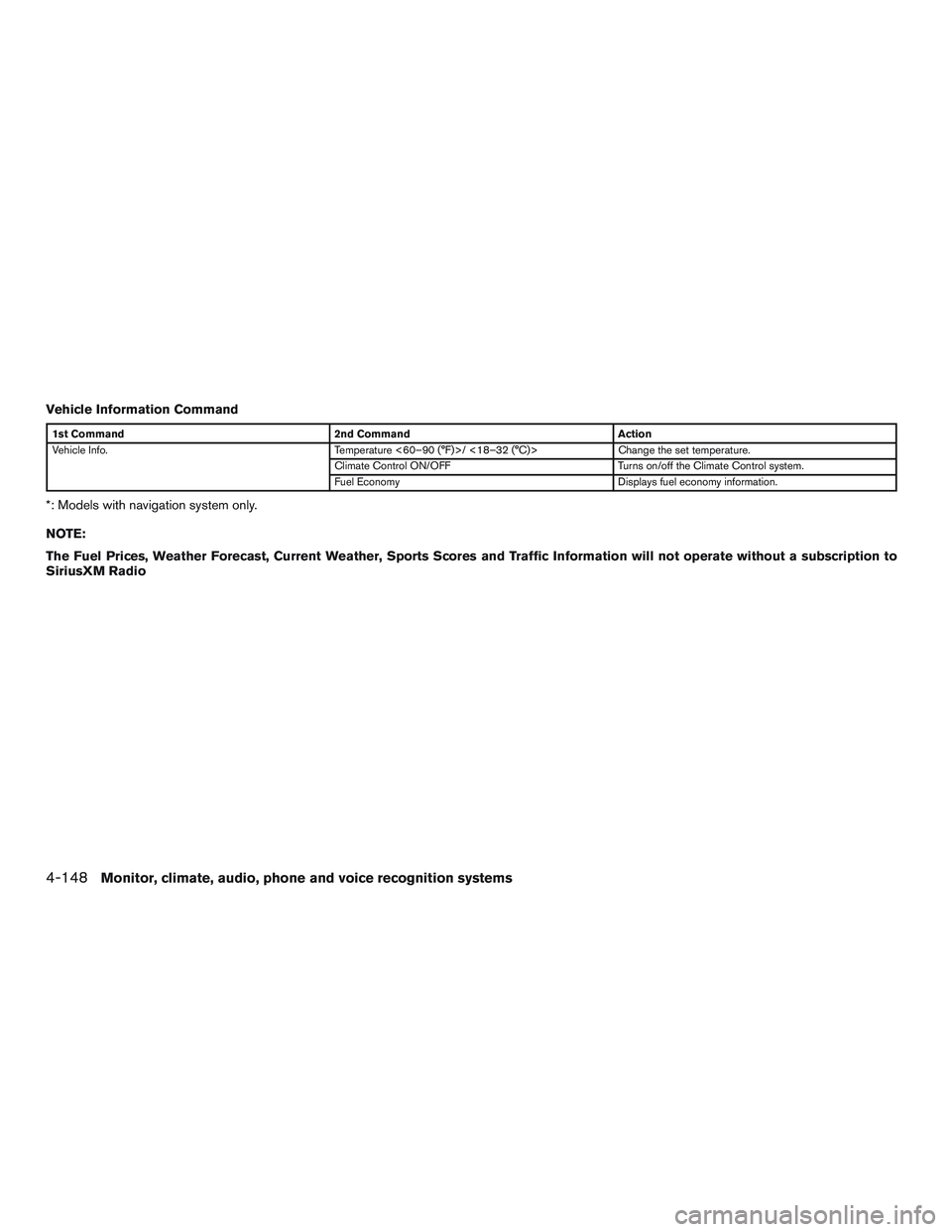
Vehicle Information Command
1st Command2nd Command Action
Vehicle Info. Temperature <60–90 (°F)>/ <18–32 (°C)> Change the set temperature.
Climate Control ON/OFF Turns on/off the Climate Control system.
Fuel Economy Displays fuel economy information.
*: Models with navigation system only.
NOTE:
The Fuel Prices, Weather Forecast, Current Weather, Sports Scores and Traffic Information will not operate without a subscription to
SiriusXM Radio
4-148Monitor, climate, audio, phone and voice recognition systems
Page 353 of 629
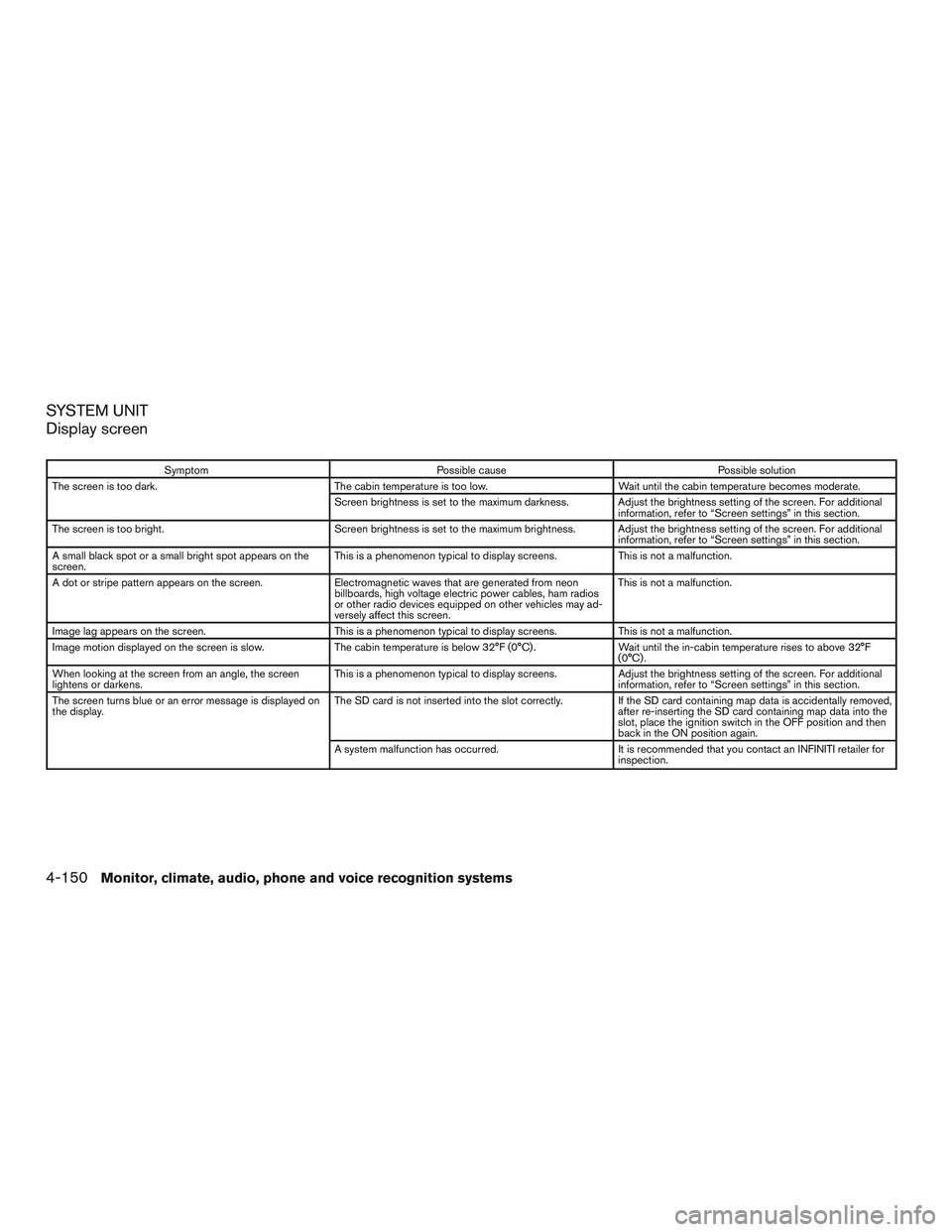
SYSTEM UNIT
Display screen
SymptomPossible cause Possible solution
The screen is too dark. The cabin temperature is too low. Wait until the cabin temperature becomes moderate.
Screen brightness is set to the maximum darkness. Adjust the brightness setting of the screen. For additional information, refer to “Screen settings” in this section.
The screen is too bright. Screen brightness is set to the maximum brightness. Adjust the brightness setting of the screen. For additional
information, refer to “Screen settings” in this section.
A small black spot or a small bright spot appears on the
screen. This is a phenomenon typical to display screens.
This is not a malfunction.
A dot or stripe pattern appears on the screen. Electromagnetic waves that are generated from neon
billboards, high voltage electric power cables, ham radios
or other radio devices equipped on other vehicles may ad-
versely affect this screen. This is not a malfunction.
Image lag appears on the screen. This is a phenomenon typical to display screens. This is not a malfunction.
Image motion displayed on the screen is slow. The cabin temperature is below 32°F (0°C) . Wait until the in-cabin temperature rises to above 32°F
(0°C) .
When looking at the screen from an angle, the screen
lightens or darkens. This is a phenomenon typical to display screens.
Adjust the brightness setting of the screen. For additional
information, refer to “Screen settings” in this section.
The screen turns blue or an error message is displayed on
the display. The SD card is not inserted into the slot correctly.
If the SD card containing map data is accidentally removed,
after re-inserting the SD card containing map data into the
slot, place the ignition switch in the OFF position and then
back in the ON position again.
A system malfunction has occurred. It is recommended that you contact an INFINITI retailer for
inspection.
4-150Monitor, climate, audio, phone and voice recognition systems
Page 354 of 629
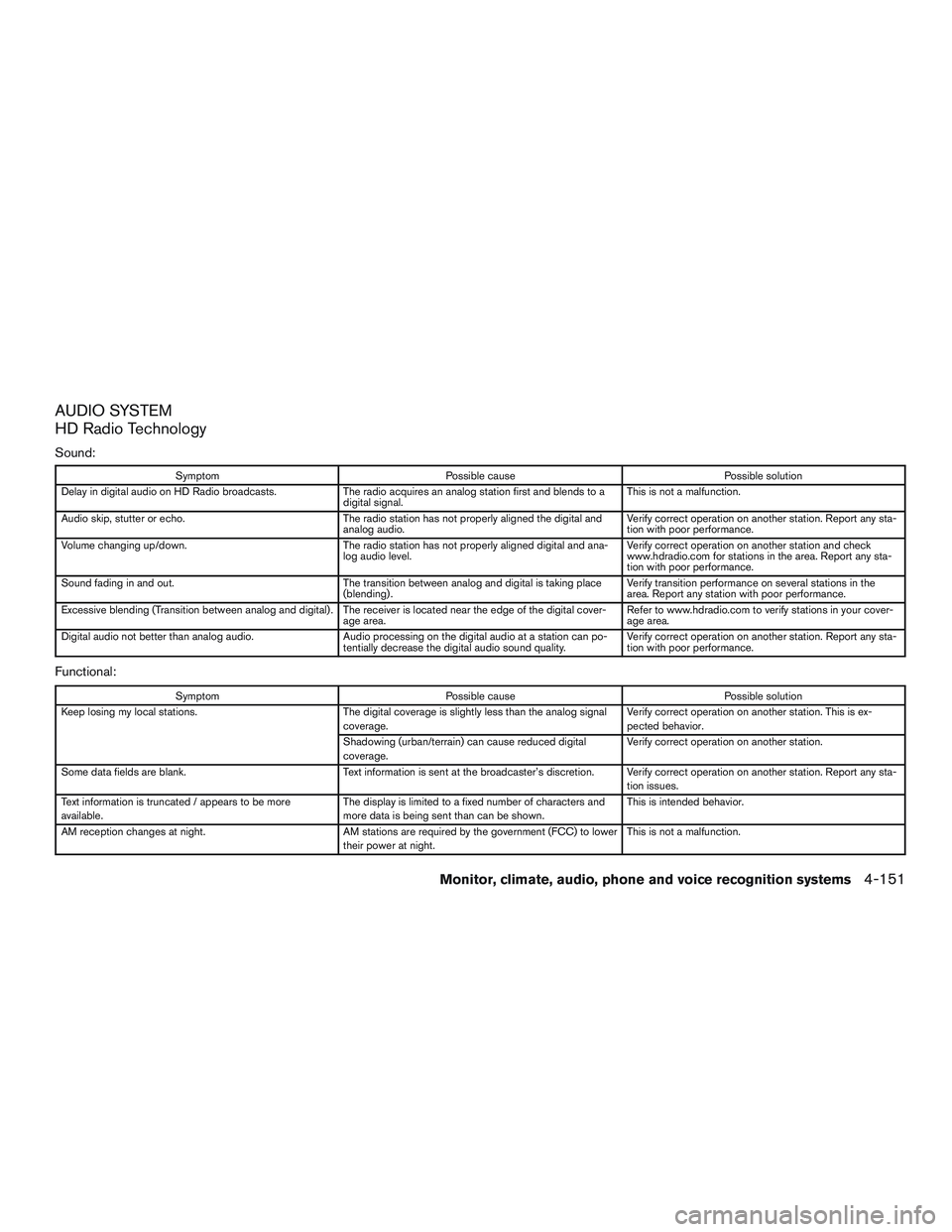
AUDIO SYSTEM
HD Radio Technology
Sound:
SymptomPossible cause Possible solution
Delay in digital audio on HD Radio broadcasts. The radio acquires an analog station first and blends to a
digital signal. This is not a malfunction.
Audio skip, stutter or echo. The radio station has not properly aligned the digital and
analog audio. Verify correct operation on another station. Report any sta-
tion with poor performance.
Volume changing up/down. The radio station has not properly aligned digital and ana-
log audio level. Verify correct operation on another station and check
www.hdradio.com for stations in the area. Report any sta-
tion with poor performance.
Sound fading in and out. The transition between analog and digital is taking place
(blending) . Verify transition performance on several stations in the
area. Report any station with poor performance.
Excessive blending (Transition between analog and digital) . The receiver is located near the edge of the digital cover- age area. Refer to www.hdradio.com to verify stations in your cover-
age area.
Digital audio not better than analog audio. Audio processing on the digital audio at a station can po-
tentially decrease the digital audio sound quality. Verify correct operation on another station. Report any sta-
tion with poor performance.
Functional:
Symptom
Possible cause Possible solution
Keep losing my local stations. The digital coverage is slightly less than the analog signal
coverage. Verify correct operation on another station. This is ex-
pected behavior.
Shadowing (urban/terrain) can cause reduced digital
coverage. Verify correct operation on another station.
Some data fields are blank. Text information is sent at the broadcaster’s discretion. Verify correct operation on another station. Report any sta-
tion issues.
Text information is truncated / appears to be more
available. The display is limited to a fixed number of characters and
more data is being sent than can be shown. This is intended behavior.
AM reception changes at night. AM stations are required by the government (FCC) to lower
their power at night. This is not a malfunction.
Monitor, climate, audio, phone and voice recognition systems4-151