phone INFINITI QX60 2020 Infiniti Connection
[x] Cancel search | Manufacturer: INFINITI, Model Year: 2020, Model line: QX60, Model: INFINITI QX60 2020Pages: 276, PDF Size: 1.17 MB
Page 2 of 276
INFINITI CONSUMER AFFAIRS
DEPARTMENT
For assistance or inquiries about the
INFINITI warranty, service or general ques-
tions, contact the INFINITI Consumer Af-
fairs Department at:
For U.S. customers
1-800-662-6200
For Canadian customers
1-800-361-4792
INFINITI NAVIGATION SYSTEM
HELPDESK CONTACT INFOR-
MATION
For assistance or inquiries about the
INFINITI InTouchTMwith Navigation sys-
tem, or to order updated map data, contact
the INFINITI NAVIGATION SYSTEM HELP-
DESK at:
.ADDRESS: P.O. Box 1588 Orem, UT
84059-992
.E-MAIL: [email protected]
For U.S. customers
WEB SITE: www.InfinitiNavigation.com
PHONES: 1-888-362-8837
HOURS: Monday – Friday: 8:00 AM - 8:00
PM (Eastern Time) and Saturday: 10:00 AM
- 6:00 PM (Eastern Time)
For Canadian customers
WEB SITE: www.infiniti.ca.
PHONES: 1-800-361-4792
HOURS: Monday – Friday: 8:00 AM - 8:00
PM (Eastern Time) and Saturday: 10:00 AM
- 6:00 PM (Eastern Time)
INFINITI INTOUCHTMSYSTEM
HELPDESK CONTACT INFOR-
MATION
For assistance or inquires about INFINITI
InTouchTMsystem, contact Infiniti Owner
Services helpdesk at:
.PHONES: 1-855-444-7244
.E-MAIL: infinitiownerservices@infiniti.
com
For U.S. customers
WEB SITE: www.infinitiusa.com/intouch/
support
For Canadian customers
WEB SITE:
English: www.infiniti.ca/infinitiintouch
French: www.infiniti.ca/infinitiintouch/fr
Page 3 of 276
FOREWORD
Thank you for purchasing an INFINITI
vehicle.
This user’s manual is for INFINITI InTouch
TM
and the systems linked to INFINITI In-
TouchTMoffered in your INFINITI vehicle.
Operation instructions for the following
systems are included in this manual.
. Audio
. Hands-Free Phone
. INFINITI InTouch
TMApps
. INFINITI InTouch
TMServices
. Navigation
. Voice recognition
. Information and settings viewable on
INFINITI InTouch
TM
Please read this manual carefully to ensure
safe operation of INFINITI InTouchTM.
. Because of possible specification
changes and optional equipment, some
sections of this manual may not apply to
your vehicle.
. All information, specifications and illus-
trations in this manual are those in effect at the time of printing. INFINITI reserves
the right to change specifications or
design at any time without notice.
. Do not remove this manual from the
vehicle when selling this vehicle. The next
user of this INFINITI InTouch
TMmay
need the manual.
Page 5 of 276
Table of Contents
1Introduction
How to use this manual ..... 1-2
Safety information ............... 1-3
Trademarks ........................... 1-4
Regulatory information ...... 1-5
Licenses ................................... 1-6
2Getting started
Control buttons and touch
screen display ....................... 2-2
Displaying operation
screen .................................... 2-10
Starting system .................. 2-11
Touch panel operation ..... 2-11
System status screen ....... 2-13
Shortcut menu .................... 2-14
Map menu (models with
navigation system) ............ 2-15
Display View Bar (models
with navigation
system) ................................. 2-16How to input letters and
numbers ................................ 2-18
System settings ................. 2-19
Functions disabled while
driving ................................... 2-28
Additional system
information .......................... 2-29
3Audio system
Audio operation
precautions ............................ 3-2
Names and functions of
audio control buttons ...... 3-14
Audio operations ............... 3-17
Audio settings .................... 3-38
Disc/USB memory device
care and cleaning .............. 3-41
Gracenote® End User
License Agreement ........... 3-41
Mobile Entertainment
System (MES) (if so
equipped) ............................. 3-42
4Bluetooth® Hands-Free Phone
Bluetooth® Hands-Free
Phone System ...................... 4-2
Bluetooth®
information .......................... 4-14
5Information
Information menu ................ 5-2
SiriusXM TrafficTM
information (if so
equipped) ............................... 5-4
SiriusXM® Travel Link and
SiriusXM Traffic
TM
(if so equipped) ................... 5-8
INFINITI InTouchTM
Services (if so
equipped) ............................. 5-15
INFINITI InTouch
TM
Apps ...................................... 5-29
Page 6 of 276
6Navigation (if so equipped)
Safety information .............. 6-3
Map data authentication ... 6-3
Map operation ..................... 6-4
Setting destination ........... 6-15
Route guidance .................. 6-32
Storing a
location/route .................... 6-47
Navigation settings ........... 6-56
General information ......... 6-59
7Voice Recognition
INFINITI Voice
Recognition System ............. 7-2
8Troubleshooting guide
Customer assistance .......... 8-2
System unit ........................... 8-3
Audio system ........................ 8-5Bluetooth® Hands-Free
Phone System .................... 8-15
Navigation (if so
equipped) ............................. 8-19
Voice Recognition ............. 8-27
Page 10 of 276
1. Introduction
TRADEMARKS
HD Radio Technology manufactured under
license from iBiquity Digital Corporation.
U.S. and Foreign Patents. For patents see
http://patents.dts.com/. HD Radio and the
HD, HD Radio, and “ARC” logos are regis-
tered trademarks or trademarks of iBiquity
Digital Corporation in the United States
and/or other countries.
SiriusXM® services require a subscription
after trial period and are sold separately or
as a package. Our satellite service is avail-
able only to those at least 18 and older in the
48 contiguous USA and DC. For more
information visit www.siriusxm.com.
Required SiriusXM® Satellite Radio and
SiriusXM TrafficTMmonthly subscriptions
are sold separately. SiriusXM TrafficTMare
only available in select markets. For more
information,
see www.siriusxm.com/siriusxmtraffic
Required SiriusXM® Satellite Radio and
SiriusXM® Travel Link monthly subscrip-
tions are sold separately. SiriusXM® Travel
Link is only available in select markets. For
more information,
see www.siriusxm.com/travellink
“Made for iPod®” and “Made for iPhone®”
mean that an electronic accessory has been
designed to connect specifically to iPod® or
iPhone®, respectively, and has been certified
by the developer to meet Apple performance
standards. Apple is not responsible for the
operation of this device or its compliance
with safety and regulatory standards. Please
note that the use of this accessory with
iPod® or iPhone® may affect wireless performance.
Apple, the Apple logo, iPhone®, iPod®, iPod
classic®, iPod nano®, and iPod touch® are
trademarks of Apple Inc., registered in the
U.S. and other countries. Lightning
TMis a
trademark of Apple Inc. App StoreSMis a
service mark of Apple Inc.
Music and video recognition technology and
related data are provided by Gracenote®.
Gracenote is the industry standard in music
recognition technology and related content
delivery. For more information visit www.
gracenote.com.
CD, DVD, Blu-ray Disc, and music and video-
related data from Gracenote, Inc., copyright
© 2000 to present Gracenote. Gracenote
Software, copyright © 2000 to present
Gracenote. One or more patents owned by
1-4
Page 19 of 276
Page 20 of 276
2. Getting started
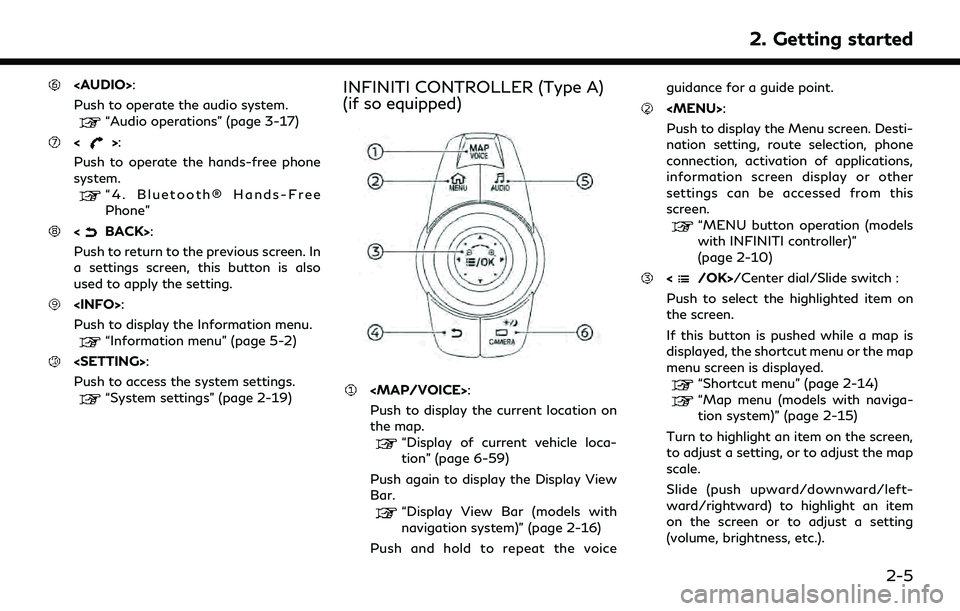
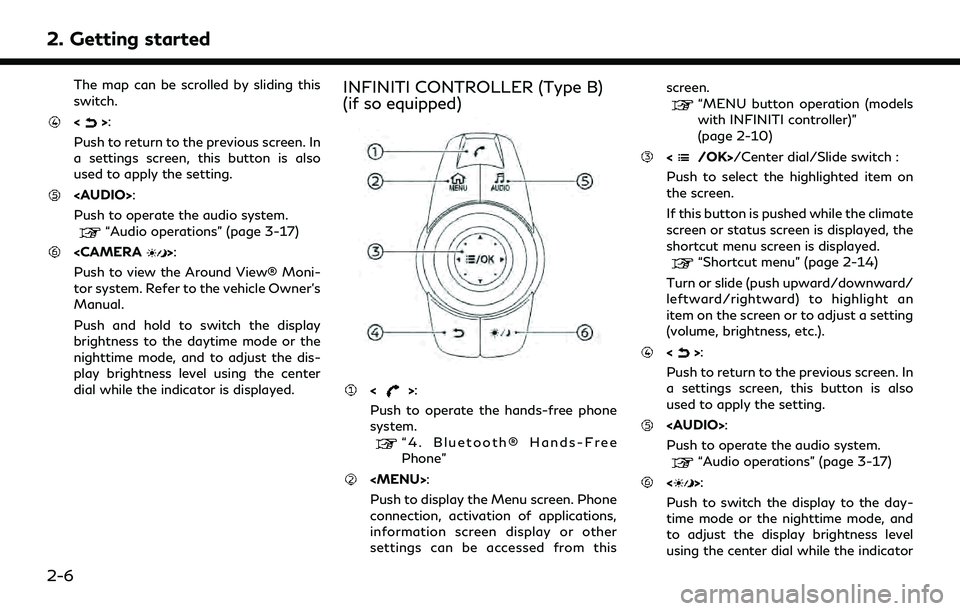
The map can be scrolled by sliding this
switch.
<>:
Push to return to the previous screen. In
a settings screen, this button is also
used to apply the setting.
Page 21 of 276
is displayed.
Push and hold to turn the display on/
off.
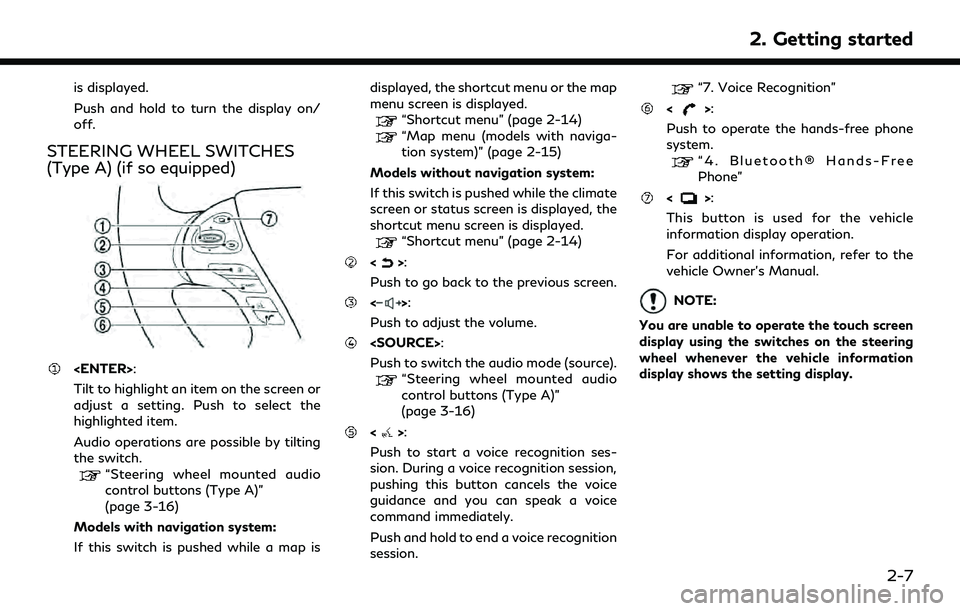
STEERING WHEEL SWITCHES
(Type A) (if so equipped)
Tilt to highlight an item on the screen or
adjust a setting. Push to select the
highlighted item.
Audio operations are possible by tilting
the switch.
“Steering wheel mounted audio
control buttons (Type A)”
(page 3-16)
Models with navigation system:
If this switch is pushed while a map is displayed, the shortcut menu or the map
menu screen is displayed.
“Shortcut menu” (page 2-14)“Map menu (models with naviga-
tion system)” (page 2-15)
Models without navigation system:
If this switch is pushed while the climate
screen or status screen is displayed, the
shortcut menu screen is displayed.
“Shortcut menu” (page 2-14)
<>:
Push to go back to the previous screen.
<>:
Push to adjust the volume.
Push to switch the audio mode (source).
“Steering wheel mounted audio
control buttons (Type A)”
(page 3-16)
<>:
Push to start a voice recognition ses-
sion. During a voice recognition session,
pushing this button cancels the voice
guidance and you can speak a voice
command immediately.
Push and hold to end a voice recognition
session.
“7. Voice Recognition”
<>:
Push to operate the hands-free phone
system.
“4. Bluetooth® Hands-Free
Phone”
<>:
This button is used for the vehicle
information display operation.
For additional information, refer to the
vehicle Owner’s Manual.
NOTE:
You are unable to operate the touch screen
display using the switches on the steering
wheel whenever the vehicle information
display shows the setting display.
2. Getting started
2-7
Page 22 of 276
2. Getting started
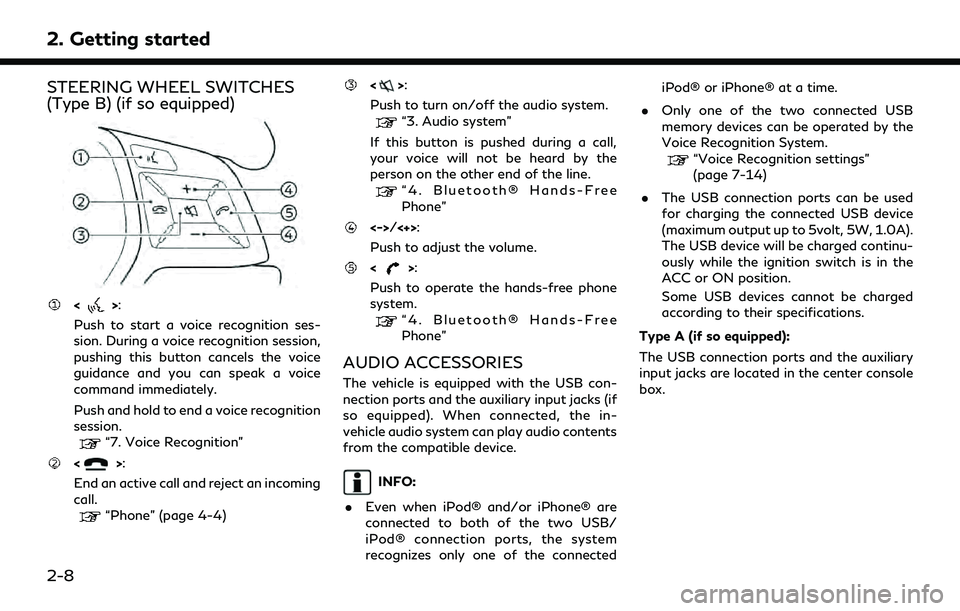
STEERING WHEEL SWITCHES
(Type B) (if so equipped)
<>:
Push to start a voice recognition ses-
sion. During a voice recognition session,
pushing this button cancels the voice
guidance and you can speak a voice
command immediately.
Push and hold to end a voice recognition
session.
“7. Voice Recognition”
<>:
End an active call and reject an incoming
call.
“Phone” (page 4-4)
<>:
Push to turn on/off the audio system.
“3. Audio system”
If this button is pushed during a call,
your voice will not be heard by the
person on the other end of the line.
“4. Bluetooth® Hands-Free
Phone”
<->/<+>:
Push to adjust the volume.
<>:
Push to operate the hands-free phone
system.
“4. Bluetooth® Hands-Free
Phone”
AUDIO ACCESSORIES
The vehicle is equipped with the USB con-
nection ports and the auxiliary input jacks (if
so equipped). When connected, the in-
vehicle audio system can play audio contents
from the compatible device.
INFO:
. Even when iPod® and/or iPhone® are
connected to both of the two USB/
iPod® connection ports, the system
recognizes only one of the connected iPod® or iPhone® at a time.
. Only one of the two connected USB
memory devices can be operated by the
Voice Recognition System.
“Voice Recognition settings”
(page 7-14)
. The USB connection ports can be used
for charging the connected USB device
(maximum output up to 5volt, 5W, 1.0A).
The USB device will be charged continu-
ously while the ignition switch is in the
ACC or ON position.
Some USB devices cannot be charged
according to their specifications.
Type A (if so equipped):
The USB connection ports and the auxiliary
input jacks are located in the center console
box.
2-8
Page 23 of 276
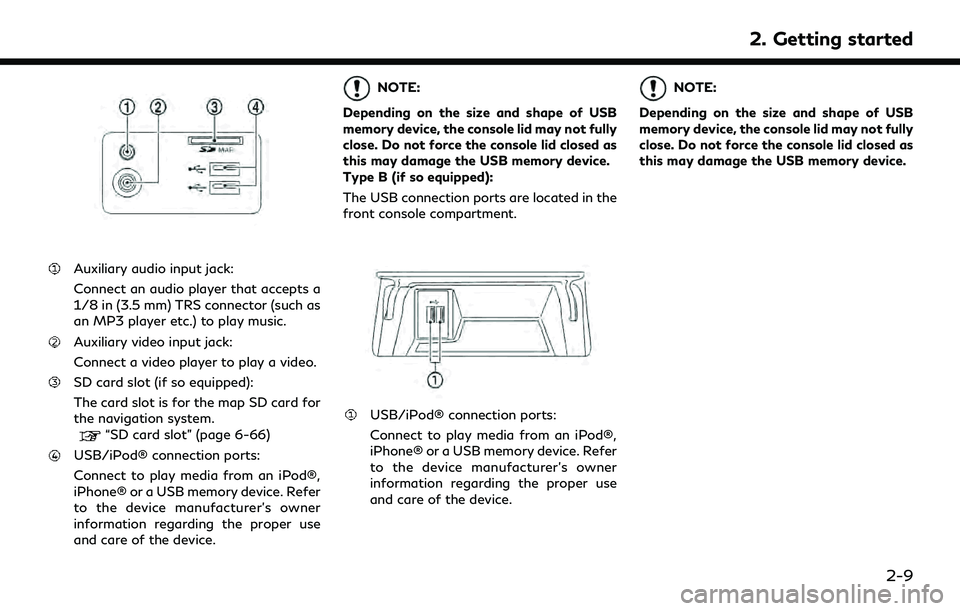
Auxiliary audio input jack:
Connect an audio player that accepts a
1/8 in (3.5 mm) TRS connector (such as
an MP3 player etc.) to play music.
Auxiliary video input jack:
Connect a video player to play a video.
SD card slot (if so equipped):
The card slot is for the map SD card for
the navigation system.
“SD card slot” (page 6-66)
USB/iPod® connection ports:
Connect to play media from an iPod®,
iPhone® or a USB memory device. Refer
to the device manufacturer’s owner
information regarding the proper use
and care of the device.
NOTE:
Depending on the size and shape of USB
memory device, the console lid may not fully
close. Do not force the console lid closed as
this may damage the USB memory device.
Type B (if so equipped):
The USB connection ports are located in the
front console compartment.
USB/iPod® connection ports:
Connect to play media from an iPod®,
iPhone® or a USB memory device. Refer
to the device manufacturer’s owner
information regarding the proper use
and care of the device.
NOTE:
Depending on the size and shape of USB
memory device, the console lid may not fully
close. Do not force the console lid closed as
this may damage the USB memory device.
2. Getting started
2-9