lock INFINITI QX60 2023 Owner's Guide
[x] Cancel search | Manufacturer: INFINITI, Model Year: 2023, Model line: QX60, Model: INFINITI QX60 2023Pages: 636, PDF Size: 7.28 MB
Page 125 of 636
• Audio information
• Compass and navigation information (if soequipped)
• Shift position
• Distance to empty
• Odometer
• Clock and outside temperature
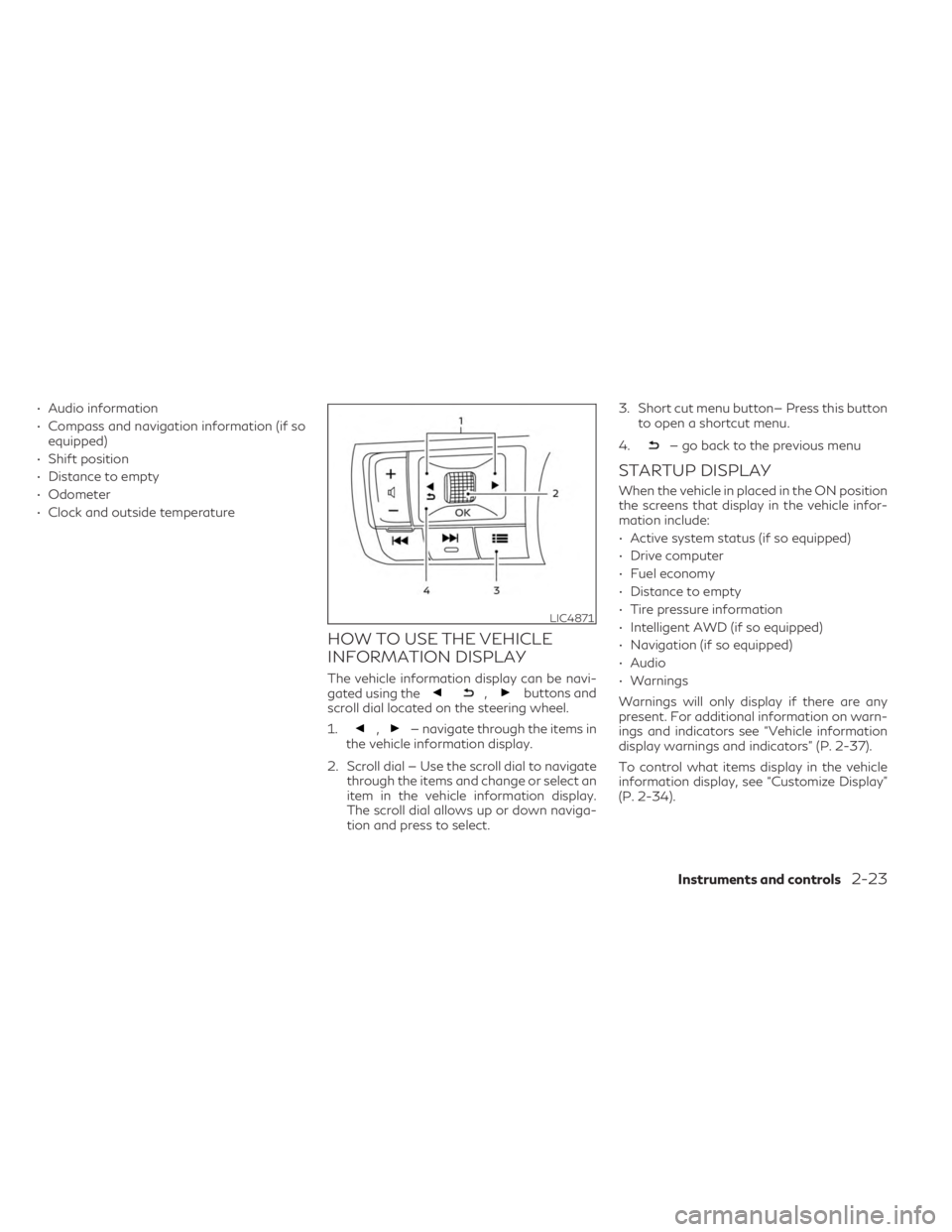
HOW TO USE THE VEHICLE
INFORMATION DISPLAY
The vehicle information display can be navi-
gated using the,buttons and
scroll dial located on the steering wheel.
1.
,— navigate through the items in
the vehicle information display.
2. Scroll dial — Use the scroll dial to navigate through the items and change or select an
item in the vehicle information display.
The scroll dial allows up or down naviga-
tion and press to select. 3. Short cut menu button— Press this button
to open a shortcut menu.
4.
— go back to the previous menu
STARTUP DISPLAY
When the vehicle in placed in the ON position
the screens that display in the vehicle infor-
mation include:
• Active system status (if so equipped)
• Drive computer
• Fuel economy
• Distance to empty
• Tire pressure information
• Intelligent AWD (if so equipped)
• Navigation (if so equipped)
• Audio
• Warnings
Warnings will only display if there are any
present. For additional information on warn-
ings and indicators see “Vehicle information
display warnings and indicators” (P. 2-37).
To control what items display in the vehicle
information display, see “Customize Display”
(P. 2-34).
LIC4871
Instruments and controls2-23
Page 129 of 636
14. Idling Stop System
The Idling Stop System provides the driver
with information about the amount of fuel
saved while using the system.
For additional information, see “Idling Stop
System” (P. 5-178).
OIL CONTROL SYSTEM (if so
equipped)
The oil control system can be accessed in the
Maintenance portion of the vehicle informa-
tion display settings.
Engine oil information informs the distance
to oil change. Never exceed one year or
10,000 miles (16,000 km) between oil
change intervals for the 3.5L 6 cylinder
(VQ35DD engine model).
Display when
ignition is ONDisplay timing Action Required
Engine Oil Ser-
vice due in xxx
miles Remaining oil
life is less than
940 miles
(1500 km). Plan to have
your vehicle
serviced.
Engine Oil Ser-
vice due Remaining oil
life is 0 miles (0
km). Have your ve-
hicle serviced
within two
weeks or less
than 500 miles
(800 km).
The oil change interval cannot be adjusted
manually.
The distance to oil change interval is calcu-
lated depending on the driving conditions and
set automatically by the oil control system. A
reminder will be displayed when approaching
the end of the service interval.
When the Factory Reset option is selected in
the vehicle information display, the oil control
system will also be reset to initial value.
Please change the engine oil when Factory
Reset is selected.
CAUTION
If the oil replacement indicator is displayed,
change the engine oil within two weeks or
less than 500 miles (800 km).
Operating the vehicle with deteriorated oil
can damage the engine.
To reset oil control system:
1. Place the ignition switch in the ON position.
2. Push the
andbuttons located
on the steering wheel until “Settings” dis-
plays in the vehicle information display.
Use the scroll dial to select “Maintenance”.
Then, press the scroll dial. 3. Select “Service” and press the scroll dial.
4. Press the scroll dial according to the reset
instructions displayed at the bottom of
the “Service” maintenance screen.
For additional information, see “Mainte-
nance” (P. 2-33).
SETTINGS
The setting mode allows you to change the
information displayed in the vehicle informa-
tion display:
• VDC Setting
• Driver Assistance
• ECO Mode Setting
• TPMS Setting
• Clock
• Vehicle Settings
• Maintenance
• Customize Display
• Unit/Language
• Key-Linked Settings (if so equipped)
• Factory Reset
Instruments and controls2-27
Page 132 of 636

TPMS Setting
The TPMS settings menu allows the user to view or change the tire pressure units displayed in the vehicle information display.
Some menu items shown below may not be equipped on your vehicle.
Menu itemExplanation
Tire Pressure Unit Allows user to select the tire pressure units that will display in the vehicle information display.
Clock
Allows user to adjust the clock settings and time within the vehicle information display.
Some menu items shown below may not be equipped on your vehicle.
Menu item Explanation
Display Allows user to turn the display on or off.
Set Clock Manually Allows user to set the clock manually.
Clock Format Allows user to adjust the clock format to 24H or 12H.
Clock Mode Allows user to adjust the clock mode to Auto, Manual or Time Zone.
Daylight Saving Allows user to turn on or off the daylight saving mode.
Time Zone Allows user to select a time zone.
2-30Instruments and controls
Page 133 of 636

Vehicle Settings
The vehicle settings menu allows the user to change the settings for lights, wipers, locking, keys, and other vehicle settings.
Some menu items shown below may not be equipped on your vehicle.
Menu itemExplanation
Lighting Displays the available lighting options.
Welcome Headlight Allows user to turn the welcome headlight on or off.
Auto Room Lamp Allows user to turn the auto room lamp on or off.
Accent Lighting Allows user to adjust the accent lighting.
Brightness Allows user to adjust the brightness of the accent lighting.
Front Seat Area Allows user to turn the front seat area lighting on or off.
Rear Seat Area Allows user to turn the rear seat area lighting on or off.
Light Sensitivity Allows user to change when the light illuminate based on the brightness outside the vehicle.
Light Off Delay Allows user to change the duration of time that the automatic headlights stay on after the vehicle is shut off.
Locking Displays the available locking options.
Ext. Door Switch Allows user to turn the exit door switch on or off.
Selective Unlock Allows user to turn the selective unlock feature on or off. When this item is turned on (default), only the driver’s door is
unlocked after the driver’s door unlock operation. All the doors can be unlocked if the capacitive touch pad is pressed
within 60 seconds of the door handle capacitive unlock feature. When this feature is turned off, all the doors unlock
when the driver’s door unlock operation is performed once.
Auto Door Unlock Allows the user to set the auto door unlock to Shift to P, Power OFF and OFF.
Horn beeps on lock Allows the user to turn the horn beeps on lock feature on or off.
Wipers Displays the available wiper options.
Speed Dependent Allows user to turn the speed dependent wipers on or off.
Rain Sensor Allows user to turn the rain sensor wipers on or off.
Reverse Link Allows user to turn the reverse link feature on or off.
Personal Drive Mode Displays the available INFINITI Drive Mode Selector options.
Instruments and controls2-31
Page 144 of 636

For additional information, see “Forward
Emergency Braking (FEB) with Pedestrian
Detection” (P. 5-128).
Blind Spot Warning
(BSW)/Blind Spot
Intervention® (BSI) indicator
This indicator appears when the BSW or BSI
system is unavailable.
For additional information, see “Blind Spot
Warning (BSW)” (P. 5-49) or “Blind Spot In-
tervention® (BSI)” (P. 5-61).
Cruise control indicator
This indicator shows the cruise control sys-
tem status.
When cruise control is activated, a green
circle will illuminate to indicate it is set. The
vehicle information display will also display
the speed the cruise control was set at. If you
accelerate past the set speed, the speed will
blink until you either cancel cruise control or
go back to the set speed. If cruise control is on
and canceled, the speed will be displayed to
show the speed the vehicle will return to if the
resume button is activated.
Driver Attention Alert
Malfunction
This warning appears when the Driver Atten-
tion Alert (DAA) system is not functioning
properly. For additional information, see
“Driver Attention Alert (DAA)” (P. 5-156).
Driver Attention Alert— Take
a Break?
This alert appears when the system has de-
tected that the driver may be displaying fa-
tigue or a lack of attention.
Forward Driving Aids temporarily
disabled Front Sensor blocked See
Owner’s Manual
This message appears when the front radar
sensor may be obstructed due to:
• mud, dirt, snow, ice, etc.
• inclement weather (rain, fog, snow, etc.).
All forward driving aids are temporarily dis-
abled until the system detects that the front
radar sensor is no longer obstructed.
For additional information, see (if so equipped):
• Forward Emergency Braking (FEB) withPedestrian Detection (P. 5-128)
• ProPILOT Assist (P. 5-84)
• Predictive Forward Collision Warning (PFCW) (P. 5-140)
Idling Stop System
This indicator shows the Idling Stop System
status.
For addition information, see “Idling Stop
System” (P. 5-178).
Lane Departure Warning
(LDW) indicator
This indicator appears when the LDW system
is unavailable.
For additional information, see “Lane Depar-
ture Warning (LDW)” (P. 5-36).
Malfunction: See Owner’s Manual
This warning appears when one or more of
the following systems (if so equipped) is not
functioning properly:
• Rear Automatic Braking (RAB)
• Traffic Sign Recognition (TSR)
If one or more of these warning appears,
have the system checked. It is recommended
that you visit an INFINITI retailer for this
service.
2-42Instruments and controls
Page 145 of 636

Malfunction warning
This warning appears when one or more of
the following systems (if so equipped) mal-
function:
• Rear Cross Traffic Alert (RCTA)
• Forward Emergency Braking with Pedes-trian Detection
• Predictive Forward Collision Warning (PFCW)
If one or more of these warning appears,
have the system checked. It is recommended
that you visit an INFINITI retailer for this
service.
Not Available System Malfunction
This warning appears when one or more of
the following systems (if so equipped) is not
functioning properly.
• ProPILOT
• Blind Spot Warning (BSW)
• Blind Spot Intervention® (BSI)
• Lane Departure Warning (LDW)
• Lane Departure Prevention (LDP)
If one or more of these warnings appear,
have the system checked. It is recommended
that you visit an INFINITI retailer for this
service. For additional information, see “ProPILOT
Assist” (P. 5-84), “Blind Spot Intervention®
(BSI)” (P. 5-61), “Blind Spot Warning (BSW)”
(P. 5-49), “Lane Departure Warning (LDW)”
(P. 5-36) or “Lane Departure Prevention
(LDP)” (P. 5-43).
Rear Automatic Braking
(RAB) system warning
indicator
This indicator appears to indicate the status
of the Rear Automatic Braking (RAB) system.
For additional information, see “Rear Auto-
matic Braking (RAB)” (P. 5-121).
Unavailable: High Cabin Temperature
This message appears when the camera de-
tects an interior temperature of more than
104°F (40°C). For additional information,
see (if so equipped) “ProPILOT Assist”
(P. 5-84), “Lane Departure Prevention (LDP)”
(P. 5-43), “Lane Departure Warning (LDW)”
(P. 5-36) or “Blind Spot Intervention® (BSI)”
(P. 5-61).
Unavailable Side Radar Obstruction
This message appears when the Blind Spot
Warning (BSW) or Rear Cross Traffic Alert
(RCTA) systems become unavailable because
a radar blockage is detected. For additional
information, see (if so equipped) “Blind Spot
Warning (BSW)” (P. 5-49), “Blind Spot Inter-
vention (BSI)” (P. 5-61) or “Rear Cross Traffic
Alert (RCTA)” (P. 5-72).
Vehicle ahead detection
indicator
This indicator shows when the following sys-
tems are engaged and have detected a ve-
hicle:
• Forward Emergency Braking (FEB) with
Pedestrian Detection
• Predictive Forward Collision Warning (PFCW)
For additional information, see “Forward
Emergency Braking (FEB) with Pedestrian
Detection” (P. 5-128) or “Predictive Forward
Collision Warning (PFCW)” (P. 5-140).
Instruments and controls2-43
Page 146 of 636
The vehicle information display is located to
the left of the speedometer. It displays such
items as:
• Vehicle settings
• Indicators and warnings
• Information/warning messages
• Tire pressure information
• Drive computer information
• Cruise control system information
• Driving Aids (if so equipped)
• ProPILOT Assist (if so equipped)
• INFINITI Intelligent Key operationinformation • Audio information
• Compass and navigation information (if so
equipped)
• Shift position
• Distance to empty
• Odometer/twin trip odometer
• Clock and outside temperature
• Intelligent All-Wheel Drive (AWD) (if so equipped)HOW TO USE THE VEHICLE
INFORMATION DISPLAY
The vehicle information display can be navi-
gated using the,buttons and
scroll dial located on the steering wheel.
1.
,— navigate through the items in
the vehicle information display.
2. Scroll dial — Use the scroll dial to navigate through the items and change or select an
item in the vehicle information display.
The scroll dial allows up or down naviga-
tion and press to select.
LIC4677LIC4871
VEHICLE INFORMATION DISPLAY
12.3 INCH (31 cm) TYPE B (if so
equipped)
2-44Instruments and controls
Page 152 of 636
Display when
ignition is ONDisplay timing Action Required
Engine Oil Ser-
vice due in xxx
miles Remaining oil
life is less than
940 miles
(1500 km). Plan to have
your vehicle
serviced.
Engine Oil Ser-
vice due Remaining oil
life is 0 miles (0
km). Have your ve-
hicle serviced
within two
weeks or less
than 500 miles
(800 km).
The oil change interval cannot be adjusted
manually.
The distance to oil change interval is calcu-
lated depending on the driving conditions and
set automatically by the oil control system. A
reminder will be displayed when approaching
the end of the service interval.
When the Factory Reset option is selected in
the vehicle information display, the oil control
system will also be reset to initial value.
Please change the engine oil when Factory
Reset is selected.
CAUTION
If the oil replacement indicator is displayed,
change the engine oil within two weeks or
less than 500 miles (800 km).
Operating the vehicle with deteriorated oil
can damage the engine.
To reset oil control system:
1. Place the ignition switch in the ON position.
2. Push the
andbuttons located
on the steering wheel until “Settings” dis-
plays in the vehicle information display.
Use the scroll dial to select “Maintenance”.
Then, press the scroll dial.
3. Select “Service” and press the scroll dial.
4. Press the scroll dial according to the reset instructions displayed at the bottom of
the “Service” maintenance screen.
For additional information, see “Mainte-
nance” (P. 2-58).
SETTINGS
The setting mode allows you to change the
information displayed in the vehicle informa-
tion display:
• VDC Setting
• Driver Assistance
• Personal Display
• Head-Up Display (if so equipped)
• ECO Mode Setting
• TPMS Setting
• Clock
• Vehicle Settings
• Maintenance
• Customize Display
• Unit/Language
• Factory Reset
2-50Instruments and controls
Page 157 of 636
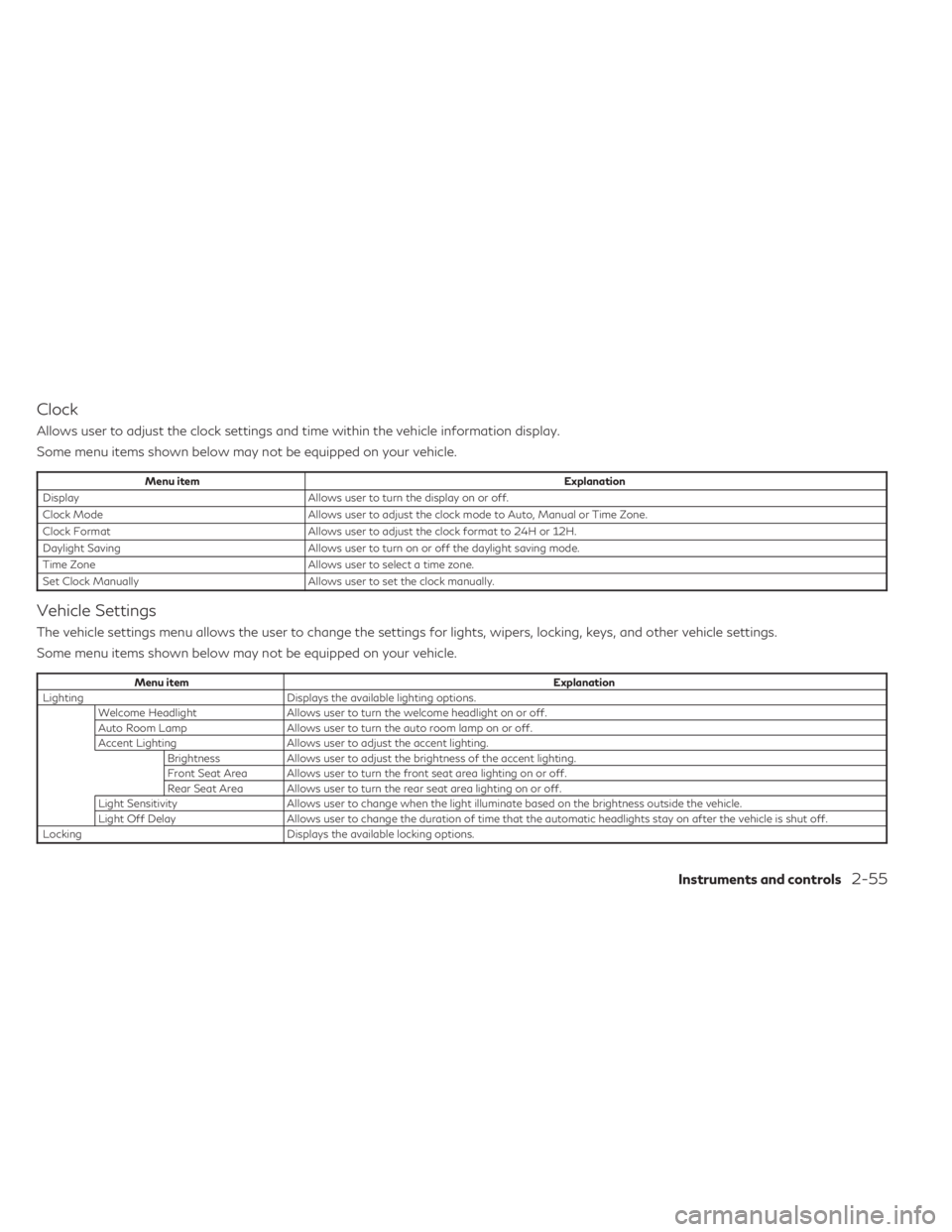
Clock
Allows user to adjust the clock settings and time within the vehicle information display.
Some menu items shown below may not be equipped on your vehicle.
Menu itemExplanation
Display Allows user to turn the display on or off.
Clock Mode Allows user to adjust the clock mode to Auto, Manual or Time Zone.
Clock Format Allows user to adjust the clock format to 24H or 12H.
Daylight Saving Allows user to turn on or off the daylight saving mode.
Time Zone Allows user to select a time zone.
Set Clock Manually Allows user to set the clock manually.
Vehicle Settings
The vehicle settings menu allows the user to change the settings for lights, wipers, locking, keys, and other vehicle settings.
Some menu items shown below may not be equipped on your vehicle.
Menu item Explanation
Lighting Displays the available lighting options. Welcome Headlight Allows user to turn the welcome headlight on or off.
Auto Room Lamp Allows user to turn the auto room lamp on or off.
Accent Lighting Allows user to adjust the accent lighting. Brightness Allows user to adjust the brightness of the accent lighting.
Front Seat Area Allows user to turn the front seat area lighting on or off.
Rear Seat Area Allows user to turn the rear seat area lighting on or off.
Light Sensitivity Allows user to change when the light illuminate based on the brightness outside the vehicle.
Light Off Delay Allows user to change the duration of time that the automatic headlights stay on after the vehicle is shut off.
Locking Displays the available locking options.
Instruments and controls2-55
Page 158 of 636

Menu itemExplanation
Ext. Door Switch Allows user to turn the exit door switch on or off.
Selective Unlock Allows user to turn the selective unlock feature on or off. When this item is turned on (default), only the driver’s door is unlocked after the driver’s door unlock operation. All the doors can be unlocked if the capacitive touch pad is pressed
within 60 seconds of the door handle capacitive unlock feature. When this feature is turned off, all the doors unlock
when the driver’s door unlock operation is performed once.
Auto Door Unlock Allows the user to set the auto door unlock to Shift to P, IGN OFF and OFF.
Horn beeps on lock Allows the user to turn the horn beeps on lock feature on or off.
Wipers Displays the available wiper options. Speed Dependent Allows user to turn the speed dependent wipers on or off.
Rain Sensor Allows user to turn the rain sensor wipers on or off.
Reverse Link Allows user to turn the reverse link feature on or off.
Personal Drive Mode Displays the available INFINITI Drive Mode Selector options. Acceleration Allows user to adjust the acceleration mode to SPORT, STANDARD or ECO.
Steering Allows user to adjust the steering mode to SPORT or STANDARD.
Trace Control Allows user to turn the Active Trace Control feature on or off.
Reset Allows user to reset the INFINITI Drive Mode Selector settings.
Driving Position Displays the available driving position options. Exit Seat Slide When the exit seat slide is on the driver’s seat will move backward for easy exit when the ignition switch is placed in the OFF position and the driver’s door is opened. After getting into the vehicle and placing the ignition switch in the ON
position, the driver’s seat will move to the previous set position.
For additional information, see “Memory seat” (P. 3-43).
Exit Steering Up When the exit steering up feature is turned on, the steering wheel moves upward for easy exit when the ignition switch is in the OFF position and the driver’s door is opened. After getting into the vehicle and placing the ignition switch in
the ON position, the steering wheel moves to the previous position.
For additional information, see “Memory seat” (P. 3-43).
Rear Door Alert Displays the available Rear Door Alert options.
Horn & Alert When selected, the alert is displayed; and the horn sounds.
Alert Only When selected, only the alert is displayed.
OFF When selected, no alert or horn will be active.
2-56Instruments and controls