ad blue INFINITI QX60-HYBRID 2017 Owner's Manual
[x] Cancel search | Manufacturer: INFINITI, Model Year: 2017, Model line: QX60-HYBRID, Model: INFINITI QX60-HYBRID 2017Pages: 655, PDF Size: 7.01 MB
Page 334 of 655
●This Bluetooth® system supports Wide-
band speech, which enhances the sound
quality of phone calls placed over
Bluetooth®. To take advantage of this fea-
ture, the cellular device should be used on a
carrier supporting Adaptive MultiRate Wide-
band (AMR-WB) or HD voice technology.
The performance of AMR-WB may vary by
carrier and calling area. Consult your cellular
carrier if you experience issues with call
quality or connection.
● Immediately after the ignition switch is
turned ON, it may be impossible to receive a
call for a short period of time.
● Do not place the cellular phone in an area
surrounded by metal or far away from the
in-vehicle phone module to prevent tone
quality degradation and wireless connection
disruption.
● While a cellular phone is connected through
the Bluetooth® wireless connection, the
battery of the cellular phone may discharge
quicker than usual.
● If the Bluetooth® Hands-Free Phone Sys-
tem seems to be malfunctioning, please visit
www.infinitiusa.com/bluetooth/ for trouble-
shooting help. ●
Some cellular phones or other devices may
cause interference or a buzzing noise to be
emitted from the audio system speakers.
Storing the device in a different location may
reduce or eliminate the noise.
● Refer to the owner’s manual for the cellular
phone for information regarding the tele-
phone pairing procedure specific to your
phone, battery charging , and cellular phone
antenna, etc.
● The antenna display on the monitor may not
match the antenna display of some cellular
phones.
● The battery display on the monitor may not
match the battery display of some cellular
phones.
● Keep the interior of the vehicle as quiet as
possible to her the caller’s voice clearly as
well as to minimize echoes.
● If reception between callers is unclear, ad-
justing the incoming or outgoing call volume
may improve the clarity.REGULATORY INFORMATION
FCC Regulatory Information
FCC ID: HYQDNNS086
NOTE:
This device complies with part 15 of the FCC
Rules. Operation is subject to the following two
conditions: (1) This device may not cause harmful
interference, and (2) this device must accept any
interference received, including interference that
may cause undesired operation.
FCC WARNING: Changes or modifications not
expressly approved by the party responsible for
compliance could void the user’s authority to
operate the equipment.
CAUTION: Radio Frequency Radiation Exposure
This equipment complies with FCC radiation ex-
posure limits set forth for uncontrolled environ-
ment and meets the FCC radio frequency (RF)
Exposure Guidelines. This equipment has very
low levels of RF energy that it deemed to comply
without maximum permissive exposure evaluation
(MPE) . But it is desirable that it should be in-
stalled and operated with at lease 20cm and
more between the radiator and person’s body.
Monitor, climate, audio, phone and voice recognition systems4-117
Page 335 of 655
Co-location: This transmitter must not be co-
located or operated in conjunction with any other
antenna or transmitter.
IC Regulatory Information
The antenna cannot be removed (and changed)
by the user.
NOTE:
This device complies with Industry Canada li-
cense–exempt RSS standard(s) . Operation is
subject to the following two conditions: (1) This
device may or may not cause interference, and
(2) this device must accept any interference,
including interference that may cause undesired
operation of the device.
CAUTION: Radio Frequency Radiation Exposure
This equipment complies with IC radiation expo-
sure limits set forth for uncontrolled environment
and meets RSS-102 of the IC radio frequency
(RF) exposure rules. This equipment has very low
levels of RF energy that it deemed to comply
without maximum permissive exposure evaluation
(MPE) . But it is desirable that it should be in-
stalled and operated with at least 20cm and more
between the radiator and person’s body.
Co-location: This transmitter must not be co-
located or operated in conjunction with any other
antenna or transmitter.This Class B digital apparatus meets all require-
ments of the Canadian Interference Causing
Equipment Regulations.
L’antenne ne peut être enlevé (et modifié par
l’utilisateur) .
NOTE:
Le préent appareil est conforme aux CNR
d’Industrie Canada applicables aux appareils ra-
dio exempts de licence. L’exploitation est autorisé
aux deux conditions suivantes: (1) l’appareil ne
doit pas produire de brouillage, et (2) l’utilisateur
de l’appareil doit accepter tout brouillage ra-
dioéectrique subi, mêe si le brouillage est sus-
ceptible d’en compromettre le fonctionnement.
The Bluetooth® word
mark and logos are
registered trademarks
owned by Bluetooth
SIG, Inc. and any use of
such marks by DENSO
CORPORATION is
under license. Other
trademarks and trade
names are those of their
respective owners.
PHONE
Connecting Bluetooth® device
Your vehicle is equipped with a Bluetooth®
Hands-Free Phone System and Bluetooth®
streaming audio device. If you are an owner of a
compatible Bluetooth® enabled cellular phone
or Bluetooth® audio device, you can set up the
wireless connection between your cellular phone
and the in-vehicle phone module, or Bluetooth®
audio and in-vehicle audio module. With
Bluetooth® wireless technology, you can make
or receive a telephone call with your cellular
phone in your pocket and listen to music on your
Bluetooth® streaming audio device via the in-
vehicle system.
Connecting cellular phone/audio device
1. Press the SETTING button.
2. Touch the “Bluetooth” key and touch the “Connect Device” key.
3. Touch the “Add New (X/5 Free)” key to reg- ister a device.
4. When a PIN code appears on the screen, operate the compatible Bluetooth® cellular
phone to enter the PIN code.
4-118Monitor, climate, audio, phone and voice recognition systems
Page 336 of 655
The pairing procedure for cellular phones
varies depending on the model of cellular
phone. Refer to the owner’s manual for the
cellular phone for details.
If the registered device has both audio and
phone functions, the system displays a mes-
sage asking if you would like to register the
device for another function.
The procedure for connecting a cellular
phone/audio device varies depending on the
Bluetooth® device. Refer to the owner’s
manual for the Bluetooth® device for de-
tails.
NOTE:
Some cellular phones or other devices may
cause interference or a buzzing noise to be
emitted from the audio system speakers.
Storing the device in a different location
may reduce or eliminate the noise.
You can also visit www.infinitiusa.com/Bluetooth
or call INFINITI Consumer Affairs Department for
instructions on pairing INFINITI recommended
cellular phones or audio devices.Phone selection
Select one of the connected devices for opera-
tion. 1. Push the
switch, then touch the “Se-
lect Phone” key. A list of the connected
cellular phones is displayed.
2. Select one of the connected cellular phones from the list.
3. When selection of the device is successful, a message on the display indicates that the
cellular phone was selected.
Making a call
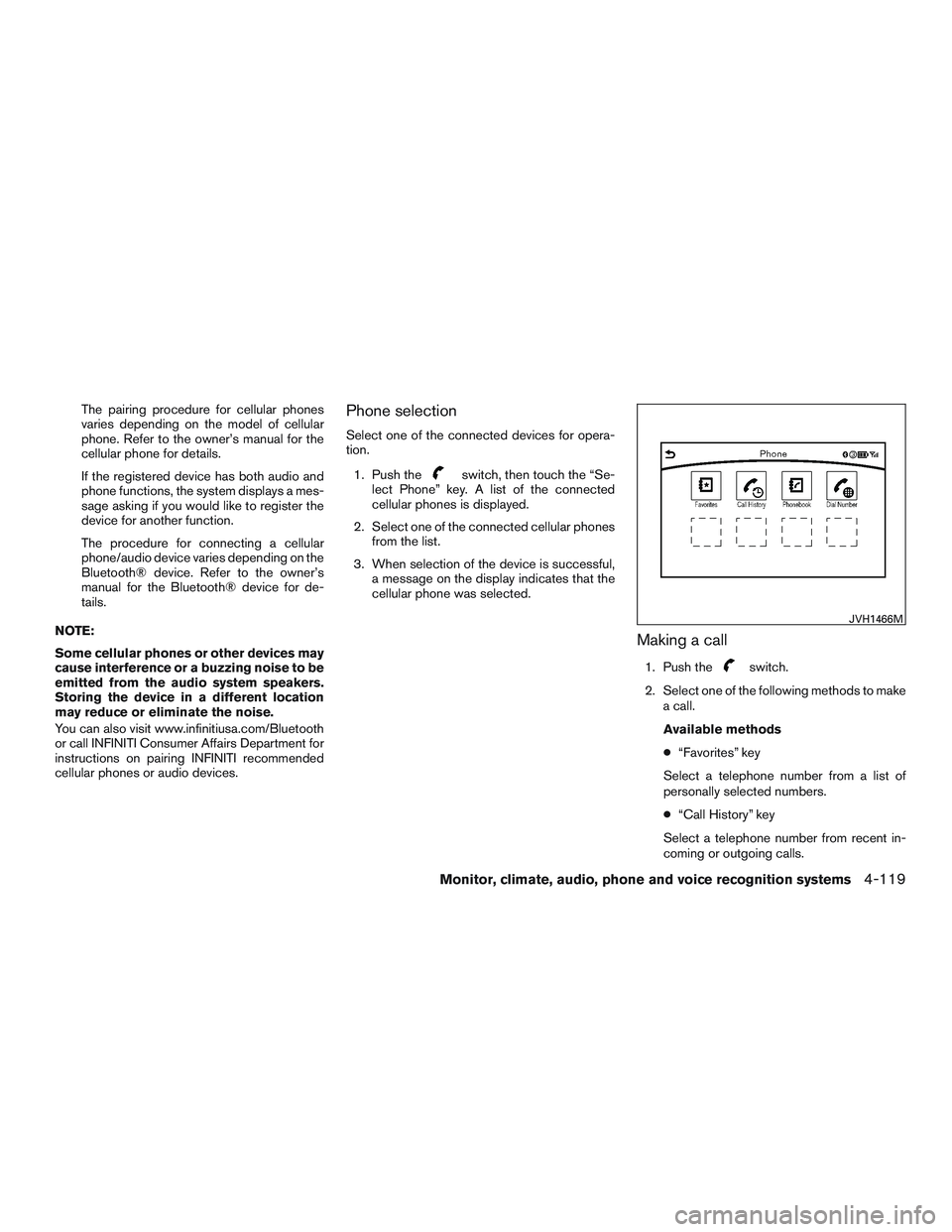
1. Push theswitch.
2. Select one of the following methods to make a call.
Available methods
● “Favorites” key
Select a telephone number from a list of
personally selected numbers.
● “Call History” key
Select a telephone number from recent in-
coming or outgoing calls.
JVH1466M
Monitor, climate, audio, phone and voice recognition systems4-119
Page 339 of 655
●To adjust the volume of the person’s voice to
be louder or quieter, push the —/+switch on
the steering wheel or turn the VOL/ON •
OFF knob on the audio main button, while
talking on the phone.
● Touch the “Mute” key if you do not want your
voice to be heard by the person on the other
end of the line.
Bluetooth® settings
The Bluetooth® settings can be set in detail
according to the user’s preference.
1. Press the SETTING button.
2. Touch the “Bluetooth” key.
3. Touch the preferred item.● “Bluetooth” key
Turns the Bluetooth® connection to the ve-
hicle on/off.
● “Connect Device” key
Touch this item to connect to the
Bluetooth® device. You can also delete a
registered device and display information for
the registered device. ●
“Select Phone” key
Registered Bluetooth® Hands-Free
Phones are shown on the list. Select a de-
vice from the list to disconnect or connect a
Bluetooth® device.
● “Select Audio Device” key
Registered Bluetooth® audio players are
shown on the list. Select a device from the
list to disconnect or connect a Bluetooth®
device.
● “Vehicle Bluetooth Device Info” key
The registered device name and the PIN
code can be changed.
HANDS-FREE TEXT MESSAGING
ASSISTANT
WARNING
Use the text messaging feature after park-
ing your vehicle in a safe location. If you
have to use the feature while driving, ex-
ercise extreme caution at all times so full
attention may be given to vehicle
operation.
CAUTION
This feature is disabled if the connected
device does not support the Message Ac-
cess Profile (MAP) . For additional infor-
mation, refer to the owner’s manual for
your phone.
Laws in some jurisdictions may restrict the use of
“Text-to-Speech”. Check local regulations before
using this feature.
The text messaging assistant system allows the
sending and receiving of the text messages
through the vehicle interface.
Depending on the device that is connected to the
vehicle, some of the items may not be displayed.
4-122Monitor, climate, audio, phone and voice recognition systems
Page 340 of 655
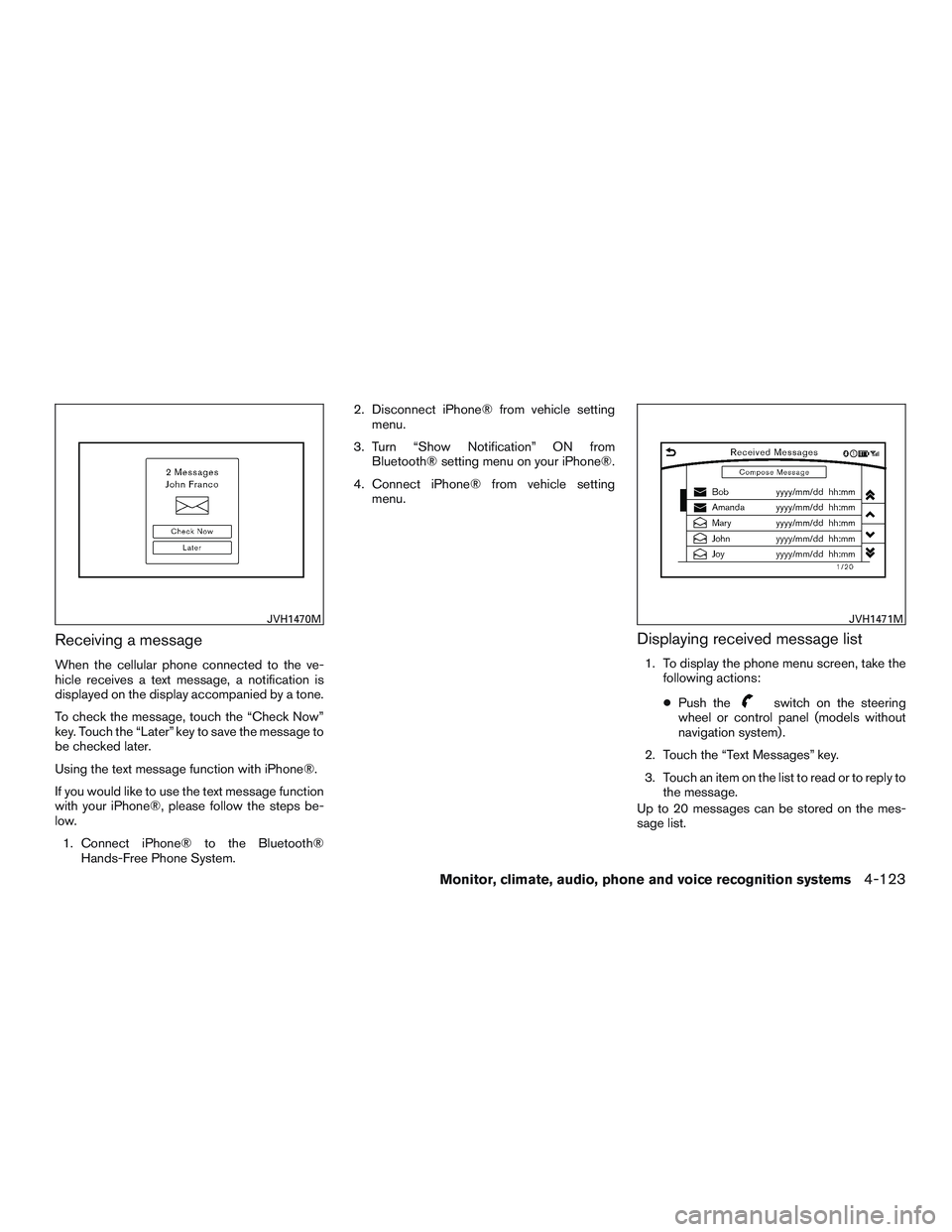
Receiving a message
When the cellular phone connected to the ve-
hicle receives a text message, a notification is
displayed on the display accompanied by a tone.
To check the message, touch the “Check Now”
key. Touch the “Later” key to save the message to
be checked later.
Using the text message function with iPhone®.
If you would like to use the text message function
with your iPhone®, please follow the steps be-
low.1. Connect iPhone® to the Bluetooth® Hands-Free Phone System. 2. Disconnect iPhone® from vehicle setting
menu.
3. Turn “Show Notification” ON from Bluetooth® setting menu on your iPhone®.
4. Connect iPhone® from vehicle setting menu.
Displaying received message list
1. To display the phone menu screen, take thefollowing actions:
● Push the
switch on the steering
wheel or control panel (models without
navigation system) .
2. Touch the “Text Messages” key.
3. Touch an item on the list to read or to reply to the message.
Up to 20 messages can be stored on the mes-
sage list.
JVH1470MJVH1471M
Monitor, climate, audio, phone and voice recognition systems4-123
Page 343 of 655
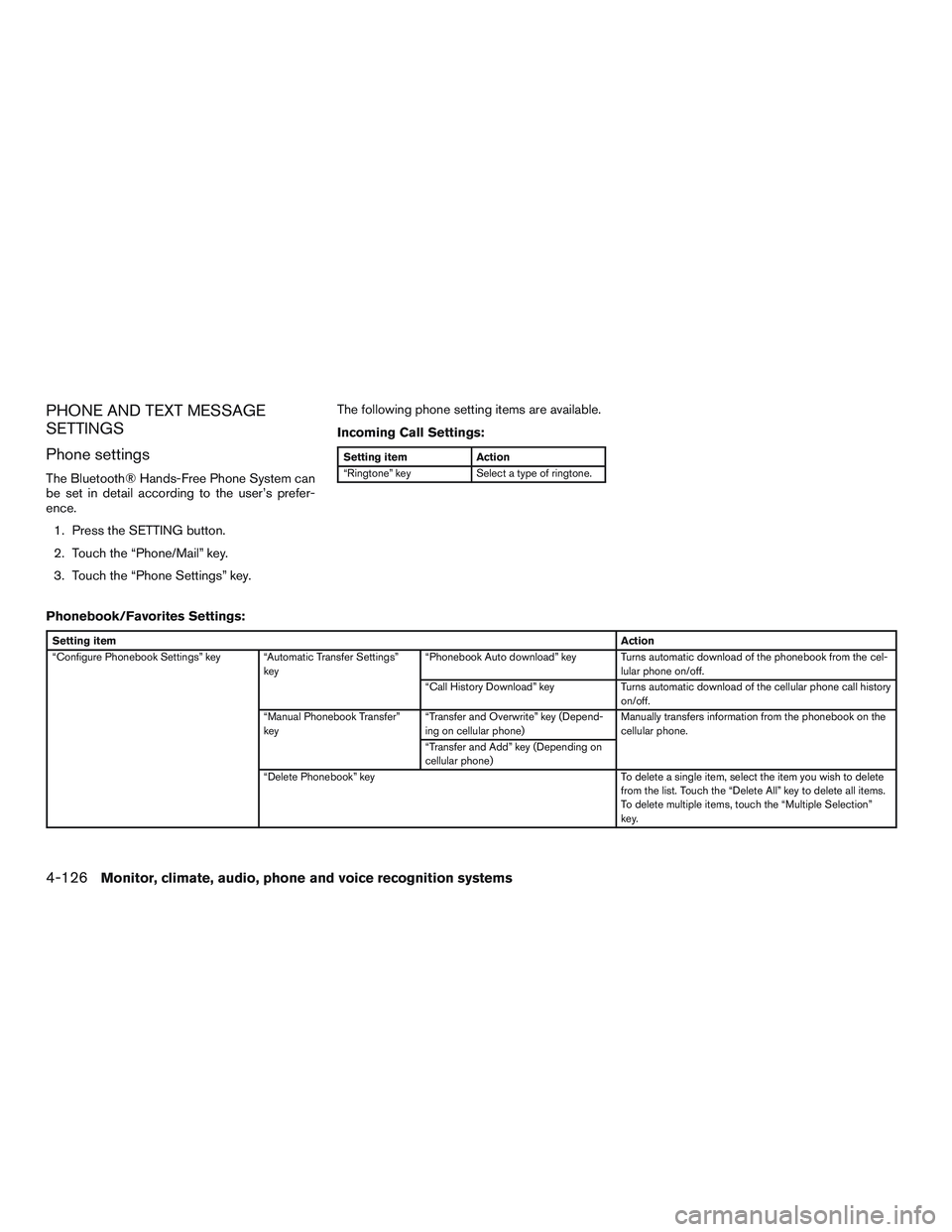
PHONE AND TEXT MESSAGE
SETTINGS
Phone settings
The Bluetooth® Hands-Free Phone System can
be set in detail according to the user’s prefer-
ence.1. Press the SETTING button.
2. Touch the “Phone/Mail” key.
3. Touch the “Phone Settings” key. The following phone setting items are available.
Incoming Call Settings:
Setting item
Action
“Ringtone” key Select a type of ringtone.
Phonebook/Favorites Settings:
Setting item Action
“Configure Phonebook Settings” key “Automatic Transfer Settings” key“Phonebook Auto download” key Turns automatic download of the phonebook from the cel-
lular phone on/off.
“Call History Download” key Turns automatic download of the cellular phone call history
on/off.
“Manual Phonebook Transfer”
key “Transfer and Overwrite” key (Depend-
ing on cellular phone) Manually transfers information from the phonebook on the
cellular phone.
“Transfer and Add” key (Depending on
cellular phone)
“Delete Phonebook” key To delete a single item, select the item you wish to delete
from the list. Touch the “Delete All” key to delete all items.
To delete multiple items, touch the “Multiple Selection”
key.
4-126Monitor, climate, audio, phone and voice recognition systems
Page 347 of 655
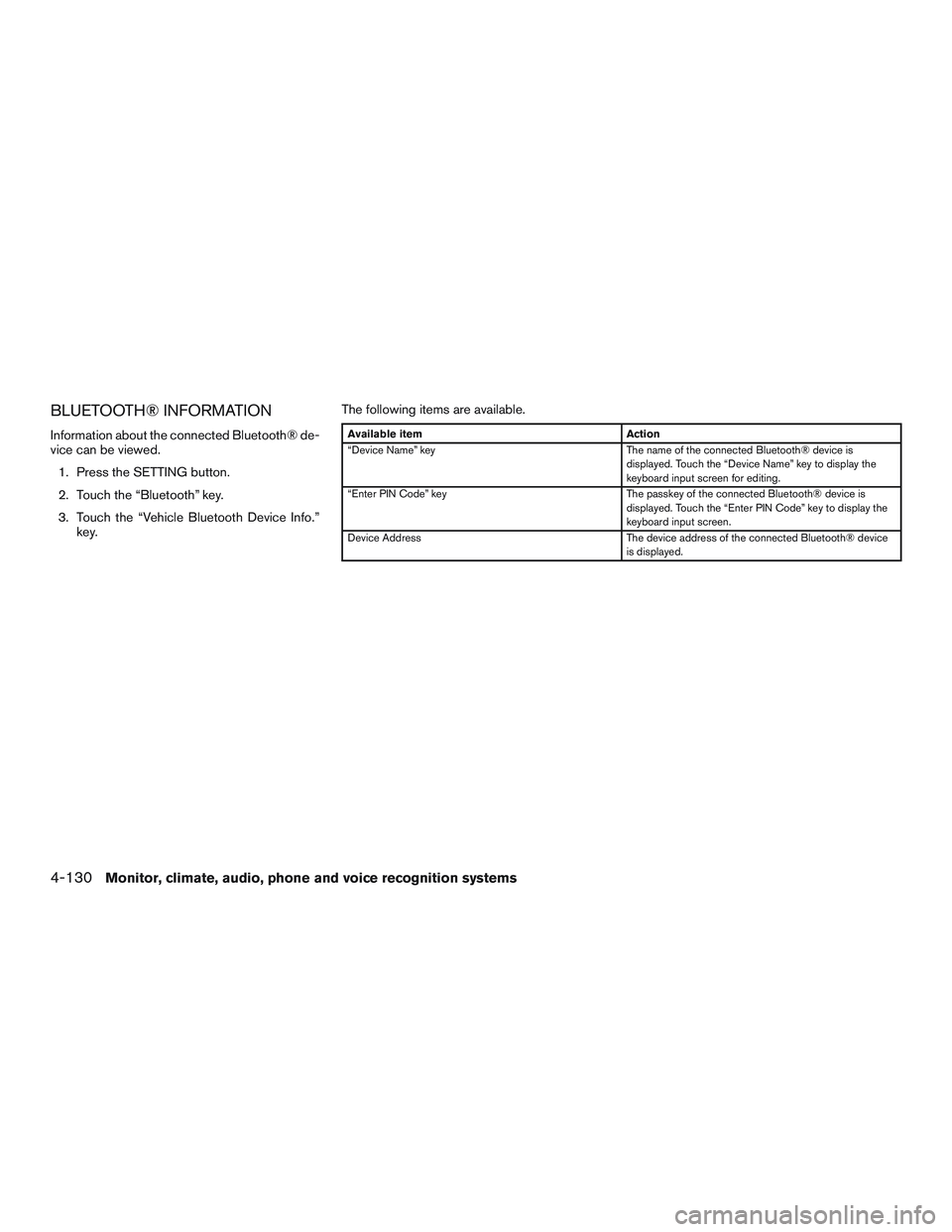
BLUETOOTH® INFORMATION
Information about the connected Bluetooth® de-
vice can be viewed.1. Press the SETTING button.
2. Touch the “Bluetooth” key.
3. Touch the “Vehicle Bluetooth Device Info.” key. The following items are available.Available item
Action
“Device Name” key The name of the connected Bluetooth® device is
displayed. Touch the “Device Name” key to display the
keyboard input screen for editing.
“Enter PIN Code” key The passkey of the connected Bluetooth® device is
displayed. Touch the “Enter PIN Code” key to display the
keyboard input screen.
Device Address The device address of the connected Bluetooth® device
is displayed.
4-130Monitor, climate, audio, phone and voice recognition systems
Page 348 of 655

INFINITI INTOUCHTMAPPS
OVERVIEW
Laws in some jurisdictions may restrict the use of
some of the applications and features, such as
social networking and texting. Check local regu-
lations for any requirements.
Infiniti InTouch
TMApps provides in-vehicle ac-
cess to two types of applications: Vehicle Apps
and Mobile Apps (if so equipped) .
Some pre-installed Vehicle Apps can be used
without taking any extra steps.
CAUTION
● While driving, some operations are lim-
ited in order to prevent distracting the
driver. While driving, avoid keeping a
close watch on the display.
● Some application services may be sub-
ject to change or termination without
prior notice. For Canada:
The system allows you to download new applica-
tions, update downloaded applications and de-
lete downloaded applications in a similar manner
as popular smartphone operating systems.
You will need to connect a compatible smart-
phone to the vehicle in order to update Vehicle
Apps or use Mobile Apps.
The usage of applications is only guaranteed for
smartphones that have been tested and ap-
proved for use with Infiniti InTouch
TMApps. Only
iPhone® and Android devices are currently sup-
ported. Android smartphones must support
Bluetooth® and SPP (Serial Port Profile) .
USING APPLICATIONS
NOTE:
To use APP functions on the models with-
out a navigation system, the calendar set-
ting is necessary for checking the SSL ex-
piration date. For additional information,
refer to “Clock settings” in this section.
Main operation
Push the APPS button to display the menu
screen.
Touch the icon for the desired application. The
selected application will be launched.
The applications shown on the menu screen and
the display order can be customized. For addi-
tional information, refer to “App Garage Settings
screen” in this section.
Some applications can be set to launch automati-
cally upon vehicle ignition.
VEHICLE APPS
Vehicle Apps are unique applications developed
by INFINITI.
INFINITI INTOUCHTMAPPS
Monitor, climate, audio, phone and voice recognition systems4-131
Page 352 of 655
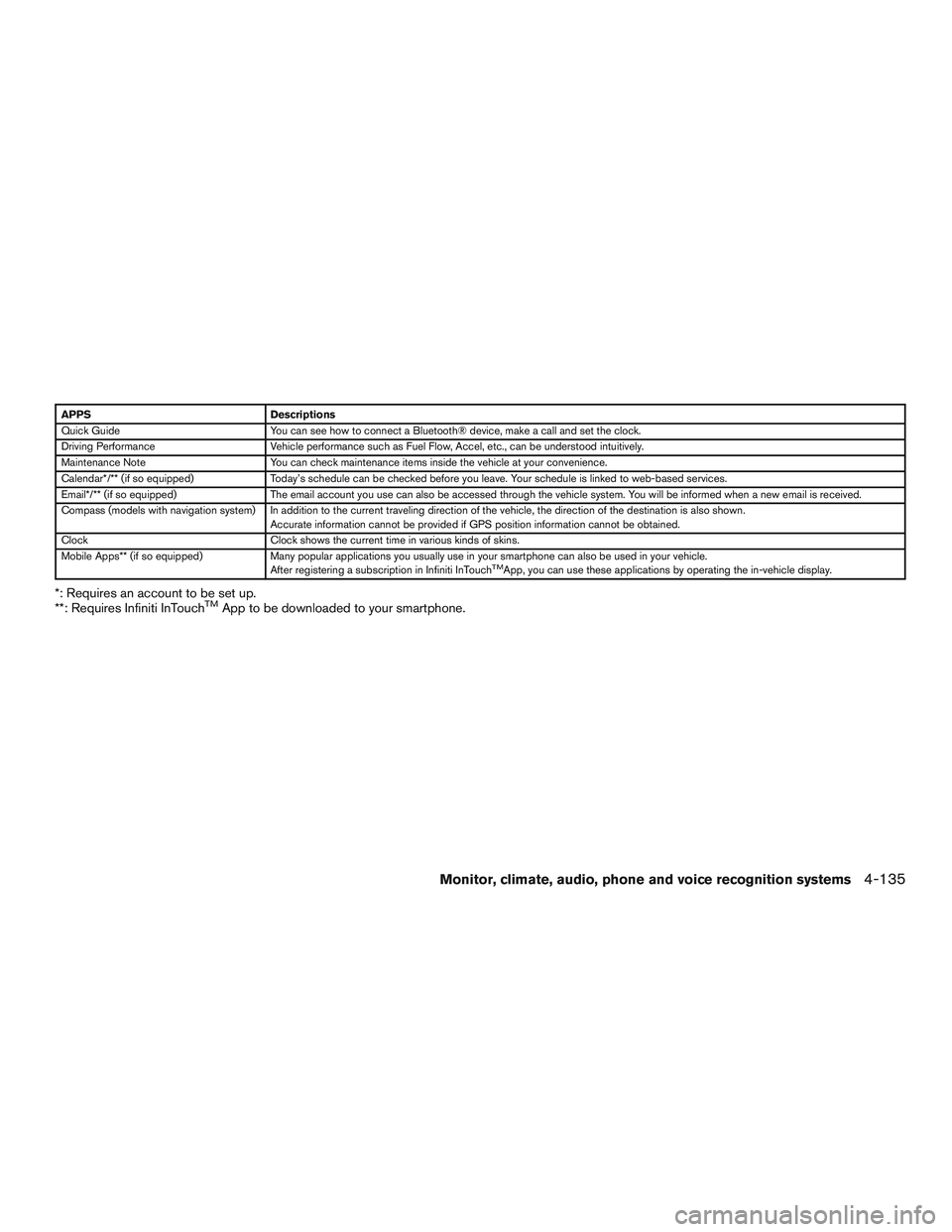
APPSDescriptions
Quick Guide You can see how to connect a Bluetooth® device, make a call and set the clock.
Driving Performance Vehicle performance such as Fuel Flow, Accel, etc., can be understood intuitively.
Maintenance Note You can check maintenance items inside the vehicle at your convenience.
Calendar*/** (if so equipped) Today’s schedule can be checked before you leave. Your schedule is linked to web-based services.
Email*/** (if so equipped) The email account you use can also be accessed through the vehicle system. You will be informed when a new email is received.
Compass (models with navigation system) In addition to the current traveling direction of the vehicle, the direction of the destination is also shown .
Accurate information cannot be provided if GPS position information cannot be obtained.
Clock Clock shows the current time in various kinds of skins.
Mobile Apps** (if so equipped) Many popular applications you usually use in your smartphone can also be used in your vehicle.
After registering a subscription in Infiniti InTouch
TMApp, you can use these applications by operating the in-vehicle display.
*: Requires an account to be set up.
**: Requires Infiniti InTouchTMApp to be downloaded to your smartphone.
Monitor, climate, audio, phone and voice recognition systems4-135
Page 355 of 655
Using with iPhone®:
To use Infiniti InTouchTMApps with your iPhone®,
the iPhone®, must be connected with a USB
cable. If an additional iPhone®, is connected by
wired connection while an iPod®, is being used
via a wired connection, the service will not be
available. To use the service, it is first necessary
to unplug the iPod® cable from the USB port
where the iPod®, is connected. For additional
information, refer to “USB/iPod® connection
port” in this section.
Using with an Android smartphone:
To use Infiniti InTouch
TMApps with your Android
smartphone, the device must be connected via
Bluetooth® and registered as a hands-free de-
vice. For additional information, refer to “Con-
necting Bluetooth® device” in this section.
A compatible smartphone is required to
use Mobile Apps.
CAUTION
● To use Mobile Apps, the Infiniti
InTouchTMApp must be installed and
running on the compatible smartphone.
This app can be downloaded from the
iTunes App Store or Google Play store. ●
Mobile Apps also requires an active
subscription and valid INFINITI Owner
Portal account. Please see
www.Infiniti.ca/InfinitiIntouch for more
information..
● Communication fees may be charged
depending on the contents of the con-
tract between the user and the mobile
phone carrier.
● Before using this service, some applica-
tions may require individual subscrip-
tions (e.g., Facebook, etc.) .
● For some applications, the system may
not support all of the functions of appli-
cations that are installed on your smart-
phone. Additionally, due to service pro-
vider policies, the contents of
application services may be changed or
terminated.
● If the smartphone is out of the range of
communication, some functions cannot
be used.
● Before exchanging ownership of the ve-
hicle, delete application data (email
data, etc.) stored in the in-vehicle
device.
Getting user ID and password
When you activate the Infiniti InTouchTMApp
service for the first time, you should acquire the
user ID and password in advance. The acquisi-
tion of a user ID and the setup of a password
which logs in to exclusive applications is re-
quired.
INFO:
● It is also possible to acquire an ID and a
password directly from an INFINITI portal
site.
● The vehicle information is required for enter-
ing the user information.
NOTE:
Other applications may not operate as a
result of installing Infiniti InTouch
TMApps.
(It is impossible to perform verification
tests that combine the system with all pos-
sible applications available for a smart-
phone.)
For details of Mobile Apps, please refer to
www.Infiniti.ca/InfinitiIntouch.
4-138Monitor, climate, audio, phone and voice recognition systems