Pin JAGUAR XF 2011 1.G User Guide
[x] Cancel search | Manufacturer: JAGUAR, Model Year: 2011, Model line: XF, Model: JAGUAR XF 2011 1.GPages: 225, PDF Size: 7.32 MB
Page 87 of 225
R
(FM8) SEMCON JLR OWNER GUIDE VER 1.00 EURO
LANGUAGE: english-en; MARQUE: jaguar; MODEL: XF
Brakes
87
BrakesIMPORTANT INFORMATION
Do not rest your foot on the brake
pedal whilst the vehicle is in motion.
Never allow the vehicle to coast
(freewheel) with the engine turned off.
The engine must be running to provide
full braking assistance. The brakes
will still function wi th the engine off,
but far more pressure will be required
to operate them.
If the red brake warning lamp
illuminates, safely bring the vehicle to
a stop, as quickly as possible and
seek qualified assistance.
Never place non-approved floor
matting or any other obstructions
under the brake pedal. This restricts
pedal travel and braking efficiency.
Driving through heavy rain or water can have
an adverse effect on braking efficiency. Under
such circumstances, it is recommended that
you lightly apply the brak es intermittently to
dry the brakes.
BRAKE WARNING LAMPS
Note: This warning lamp will also illuminate if
there is a fault with the parking brake. See 88,
ELECTRIC PARKIN G BRAKE (EPB).
ELECTRONIC BRAKE FORCE
DISTRIBUTION (EBD)
EBD balances the distribution of braking forces
between the wheels on the front and rear axles,
to maintain maximum braking under all vehicle
loading conditions.
For example; Under light loads, EBD applies
less braking effort to the rear wheels, to
maintain stability. Conv ersely, it allows full
braking effort to the rear wheels when the
vehicle is heavily laden.
A fault with the EBD system is indicated by the
red brake warning lamp and the message EBD
FAULT . The braking system will still operate,
but without EBD assist ance. Seek qualified
assistance to have the fault rectified.
EMERGENCY BRAKE ASSIST (EBA)
The EBA system measures the rate at which the
brake pressure increases. If the system detects
an emergency braki ng situation, EBA
automatically initiates fu ll braking effect. This
can reduce stopping distances in critical
situations.
A fault with the EBA system is indicated by the
brake warning lamp illuminating and
Emergency Brake Assist Not Available
displaying in the message centre. The braking
system will still func tion, but without EBA
assistance. Seek qualified assistance to have
the fault rectified.
EMERGENCY STOP SIGNAL (ESS)
ESS (Emergency Stop Signal) automatically
activates the hazard warning lights during
emergency braking to warn other road users
and reduce the risk of a collision.
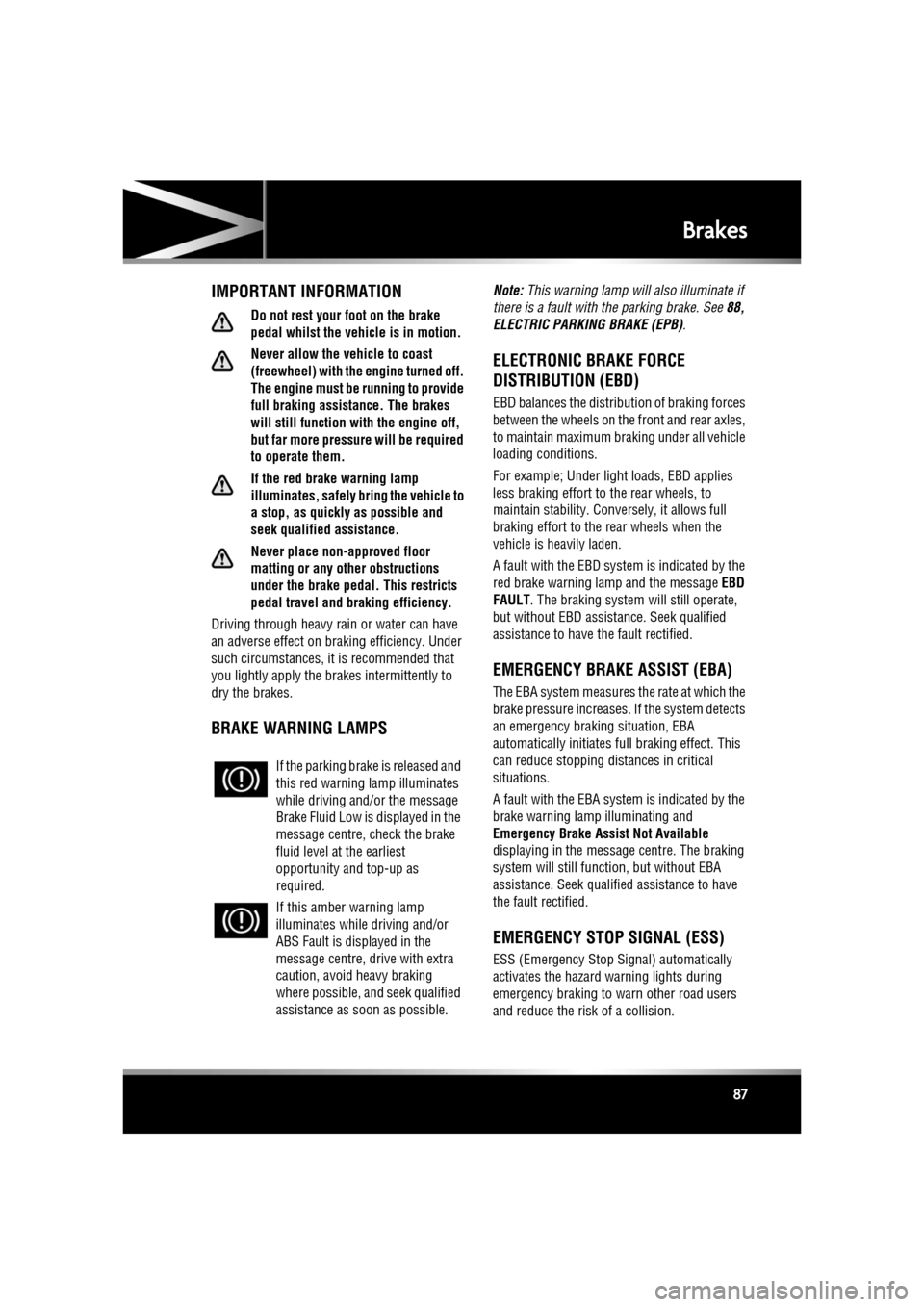
If the parking brake
is released and
this red warning lamp illuminates
while driving and/or the message
Brake Fluid Low is displayed in the
message centre, check the brake
fluid level at the earliest
opportunity and top-up as
required.
If this amber warning lamp
illuminates while driving and/or
ABS Fault is displayed in the
message centre, drive with extra
caution, avoid heavy braking
where possible, and seek qualified
assistance as soon as possible.
Page 117 of 225
R
(FM8) SEMCON JLR OWNER GUIDE VER 1.00 EURO
LANGUAGE: english-en; MARQUE: jaguar; MODEL: XF
Portable media
117
PLAYING A PORTABLE DEVICE
If you are using a USB mass storage device or
approved iPod, you can control playback using
the touch screen controls.
If you are using a Blue tooth® device, you can
control playback using the touch screen, but
some controls are unavailable.
If you are using any portable media device via
the AUX socket, then you must control
playback from the device itself.
Jaguar does not recommend the use of
a Hard Disc Drive via the USB link while
the vehicle is in motion. These devices
are not designed for in car use and may
be damaged.
CONNECTING MULTIPLE DEVICES
Do not plug non-audio devices into the
USB port.
You can connect multiple devices
simultaneously to the portable media interface
and switch between th em using the touch
screen. Select iPod, USB , Bluetooth or AUX, to
switch between modes.
The device docked first will remain the active
device until you choose to change.
If, after changing to the newly-docked device,
you change back to the first device, play will
resume at the point you left it (USB and iPod
only).
Note: You cannot use a USB hub to connect
more than one USB devi ce to the audio unit.
Note: Devices connected to the iPod and USB
ports will be charged, but devices that are fully
discharged will not play.
Note: Options such as Repeat and Shuffle
relate to the device curre ntly playing, they will
not apply to any subsequent device.
PAIRING AND CONNECTING USING
THE MEDIA PLAYER
For further information on Bluetooth®, see
129, BLUETOOTH® INFORMATION .
Note: The process of pairing and connecting
your media device with the vehicle, using the
media device, will vary depending on the type
of media device.
1. Switch on the ignition and ensure the touch
screen is active.
2. From the Home menu, select Audio/Video,
then My Music .
3. A menu will appear. Select Search new.
4. Select Device to vehicle option.
Note: The vehicle’s Bluetooth® system is
only discoverable for 3 minutes.
5. Using the media device, search for
Bluetooth® devices. On some media
devices, this is referred to as new paired
device. See your medi a device’s operating
instructions for further information.
6. When the vehicle’s Bluetooth® system is
discovered, follow the on-screen
instructions. Select Yes when prompted, to
confirm the pairing.
Either your device or the vehicle system
will ask for a PIN (Personal Identification
Number). When prompted, enter a PIN of
your choice and select OK to confirm.
7. Enter the same PIN into the other device.
8. Once your device is paired and connected
to the system, a confirmation message will
be displayed, before switching to the My
music: Bluetooth screen.
Note: Some media devices do not
automatically connect and need to be
manually connected, via the device or by
using the Change device option.
Page 118 of 225

L
(FM8) SEMCON JLR OWNER GUIDE VER 1.00 EURO
LANGUAGE: english-en; MARQUE: jaguar; MODEL: XF
Portable media
118
PAIRING AND CONNECTING A
BLUETOOTH® DEVICE USING THE
TOUCH SCREEN
For further informatio n on Bluetooth®, see
129, BLUETOOTH® INFORMATION .
1. Switch on your device’s Bluetooth®
connection. Make sure that it is in
Bluetooth® discov erable mode,
sometimes referred to as find me mode
(see your device’s operating instructions
for more information).
2. Switch on the ignition and ensure the touch
screen is active.
3. From the Home menu, select Audio/Video,
then My Music .
4. A menu will appear. Select Search new.
5. Select Vehicle to device option.
6. Identify your device fr om the displayed list
and select the corresponding Pair and
connect option.
Note: If more than 5 devices are detected,
it may be necessary to use the scroll bar to
see the entire list.
7. When prompted, enter the PIN (Personal
Identification Number) code into your
device. See your device's operating
instructions for more information.
8. Once your device is paired and connected
to the system, a confirmation message will
be displayed before switching to the My
music: Bluetooth screen.
Note: Due to the duration of a Bluetooth®
search, it is advised that the time-out to home
screen feature is switched off before
attempting to search fo r Bluetooth® devices.
This setting can be changed within Set-up,
Screen, Time out home .
AUTOMATIC BLUETOOTH®
RECONNECTION
If devices have already been paired and
connected, when Bluetoot h® is selected from
the My music menu, the system will
automatically connect to th e last used device (a
confirmation pop-up appears) . If the last used
device is not present, then the system will
search for other previously connected devices
and automatically conne ct if one is found.
If no previously connect ed device is found,
Please connect device is displayed and the
Change device option is given.
LOSS OF CONNECTION
If a loss of connection between the vehicle and
the Bluetooth® device occurs, a pop-up is
displayed. Select Reconnect to automatically
restore the connection. A confirmation pop-up
will appear before the touch screen reverts to
its previous mode.
CHANGING/DISCONNECTING A
DEVICE
1. From the menu, select Change device.
2. Select Disconnect . A confirmation pop-up
will appear and then you will be given the
option to Search new or select a different
device from the list of paired devices.
Page 127 of 225

R
(FM8) SEMCON JLR OWNER GUIDE VER 1.00 EURO
LANGUAGE: english-en; MARQUE: jaguar; MODEL: XF
Voice control
127
The voice tutorial can be cancelled at any time
by touching the on-screen pop-up or by
pressing and holding the Voice button.
VOICE TRAINING
This is a feature designed to enable the system
to better recognise the vocal characteristics of
a user, once the training has been completed.
To carry out Voice training:
1. Select Setup from the Home menu.
2. Select Voice and from the Setup menu.
3. Select Voice training from the Voice
settings menu.
4. Select User 1 or User 2 , to start the
training.
5. Follow the on-screen and audible
instructions.
The training session can be cancelled at any
time by touching the on-screen pop-up or by
pressing and holding the Voice button.
VOICETAGS
Voicetags enable the user to personalise the
Voice system so that a single name can be used
to call-up a navigation destination, telephone
number or radio channel.
To add a Voicetag:
1. Briefly press the Voice button to start a
Voice session.
2. Wait for the tone to sound then say Phone,
Navigation or Radio .
3. Say Store voicetag .
Alternatively, Voicetag s can be managed via
the touch screen as follows:
1. Select Setup from the Home menu.
2. Select Voice from the Setup menu.
3. Select Voicetags from the Voice settings
menu. 4.
Select the system which the Voicetag is to
activate ( Phone, Navigation or Radio ).
Follow the on-screen and audible instructions.
NAVIGATION POI VOICE COMMANDS
To request the display of POI (Point Of Interest)
identifiers on the navi gation display, say
Navigation , followed by the name of the
desired POI category from the following list:
• Petrol station/Petrol.
• Parking/Car park.
• Jaguar Dealer.
• Hospital.
• Golf course.
• Tourist information.
• Restaurant/I’m hungry.
• Shopping centre.
• Hotel.
• Motorway service.
• Town centre.
Icons will appear on th e navigation display,
indicating the locations of the selected POI. For
further information about POIs, see 141,
CATEGORIES AND SUB-CATEGORIES.
Page 130 of 225

L
(FM8) SEMCON JLR OWNER GUIDE VER 1.00 EURO
LANGUAGE: english-en; MARQUE: jaguar; MODEL: XF
Telephone
130
TELEPHONE COMPATIBILITY
Please refer to the Ow nership section of the
Jaguar website at www.jaguar.com, for a list
of compatible phones.
Note: The Bluetooth® equipped phones listed
on Jaguar.com, have been tested for
compatibility with Jaguar vehicles.
Performance will vary, based on the phone’s
software version, batte ry condition, coverage
and your network provider. Phones are
warranted by their ma nufacturer, not Jaguar.
If the mobile phone supports Bluetooth®
Hands Free Profile 1.5 (HFP 1.5), additional
features will be displa yed on the vehicle touch
screen, such as battery meter, signal strength
and network operator.
PAIRING AND CONNECTING USING
THE MOBILE PHONE
Note: The process of pairing and connecting
your phone with the vehi cle using the mobile
phone will vary depending on the type of
mobile phone used.
1. Switch the ignition on and ensure that the
touch screen is active.
2. From the home menu, select Phone.
3. A menu will appear. Select Search new.
4. Select Device to vehicle option.
Note: The vehicle’s Blue tooth® system is
discoverable for only 3 minutes.
5. Using the mobile phone, search for
Bluetooth® devices.
On s ome phone s, t hi s i s ref e rre d to a s ne w
paired device. See your phone's operating
instructions for further information. 6.
When the vehicle's Bluetooth® system is
discovered, begin the pairing process
using your mobile phone and follow any
directions shown on the touch screen.
Select Yes when prompted, to confirm the
pairing.
Either the phone or th e vehicle system will
ask for a PIN (Personal Identification
Number). When prompted, enter a PIN of
your choice and select OK to confirm.
7. Enter the same PIN into the other device.
8. Once your phone is paired and connected
to the system, a confirmation message will
be displayed before sw itching to the Digit
Dial screen.
Note: Some mobile phones require the
Bluetooth® pairing to be set as
‘authorised’ or ‘trusted’ in order to
automatically connect. Pl ease refer to your
phone’s operating instructions for further
information.
PAIRING AND CONNECTING USING
THE TOUCH SCREEN
1. Switch on your mobile phone’s
Bluetooth® connection. Make sure that
your mobile phone is in Bluetooth®
discoverable mode, sometimes referred to
as find me mode (see your phone’s
operating instructions for more
information).
2. Switch the ignition on and ensure the touch
screen is active.
3. From the home menu select Phone.
4. A menu will appear. Select Search new.
5. Select Vehicle to device option.
6. Identify your phone from the displayed list
and select the corresponding Pair and
connect option.
Page 131 of 225
R
(FM8) SEMCON JLR OWNER GUIDE VER 1.00 EURO
LANGUAGE: english-en; MARQUE: jaguar; MODEL: XF
Telephone
131
Note: If more than 5 phones are detected,
it may be necessary to use the scroll bar to
see the entire list.
7. When prompted, enter the PIN code into
your phone. See your phone’s operating
instructions for more information.
8. Once your phone is paired and connected
to the system, a confirmation message will
be displayed before sw itching to the Digit
Dial screen.
Note: Due to the duration of a Bluetooth®
search, it is advised that the timeout to home
screen feature is switched off before
attempting to search fo r Bluetooth® devices.
This setting can be changed within Vehicle,
Syst settings , Display set, Timeout to home
screen .
CHANGING THE CONNECTED PHONE
Up to 10 mobile phones can be paired with the
vehicle in the same way. However, only one can
be connected and ready for use as a phone at
any one time.
To connect a different paired phone to the
vehicle, follow the steps below:
1.From the home menu, select Phone.
2. A menu will appear. Select Change phone.
3. Identify and select your phone from the
displayed list.
4. Once your phone is connected to the
system, a confirmation message will be
displayed before switch ing to the Digit Dial
screen.
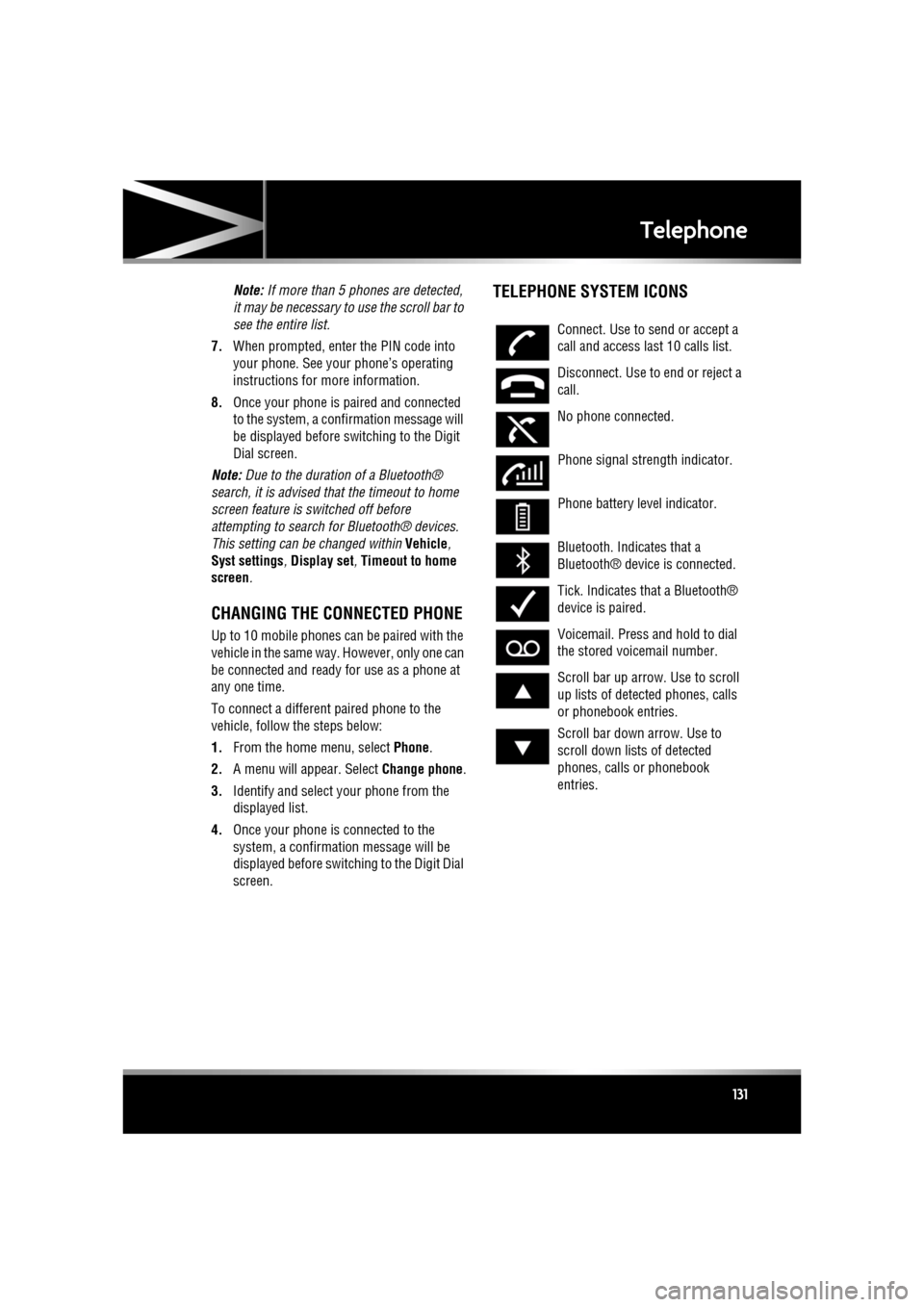
TELEPHONE SYSTEM ICONS
Connect. Use to send or accept a
call and access last 10 calls list.
Disconnect. Use to end or reject a
call.
No phone connected.
Phone signal strength indicator.
Phone battery level indicator.
Bluetooth. Indicates that a
Bluetooth® device is connected.
Tick. Indicates that a Bluetooth®
device is paired.
Voicemail. Press and hold to dial
the stored voicemail number.
Scroll bar up arrow. Use to scroll
up lists of detected phones, calls
or phonebook entries.
Scroll bar down arrow. Use to
scroll down lists of detected
phones, calls or phonebook
entries.
Page 134 of 225
L
(FM8) SEMCON JLR OWNER GUIDE VER 1.00 EURO
LANGUAGE: english-en; MARQUE: jaguar; MODEL: XF
Navigation system
134
Navigation systemTHE NAVIGATION SYSTEM
Navigation instruction is by map and turn
information displayed on the touch screen and
can be complemented by voice guidance if
required. The system uses signals from Global
Positioning System (GPS) satellites combined
with information from vehicle sensors and
from data stored on the hard drive, to establish
the true vehicle position.
Note: Mapping data loaded on the hard drive is
relevant to the market in which the vehicle is
first sold and will provide guidance and
information only for that area. Your local Dealer
will have details of software updates.
Using this combination of data sources the
vehicle navigation com puter enables you to
plan and follow a route map to your desired
destination.
The touch screen is used to control navigation
via menus, text screens and map displays.
Operate the system only when it is
safe to do so.
The requirements of na tional Road Traffic
Regulations always apply.
Observation of traffic signs and local traffic
regulations always take priority.
The navigation system serves solely as an aid
to navigation. In part icular, the navigation
system cannot be used as an aid to orientation
when visibility is poor.
GPS signals may occasion ally be interrupted
due to physical barriers such as tunnels and
roads under raised highways.
However, direction and speed sensors on the
vehicle will minimise any adverse effect on the
navigation system. Normal operation will
resume once the obstruc tion has been passed. Under certain conditions it is possible for the
vehicle position show
n on screen to be
incorrect. This may happen when:
• Driving on a spiral ramp in a building.
• Driving on or beneath elevated roads.
• Two roads are close and parallel.
• The vehicle is transported to another
destination.
• After the vehicle is rotated on a turntable.
• After vehicle batte ry disconnection.
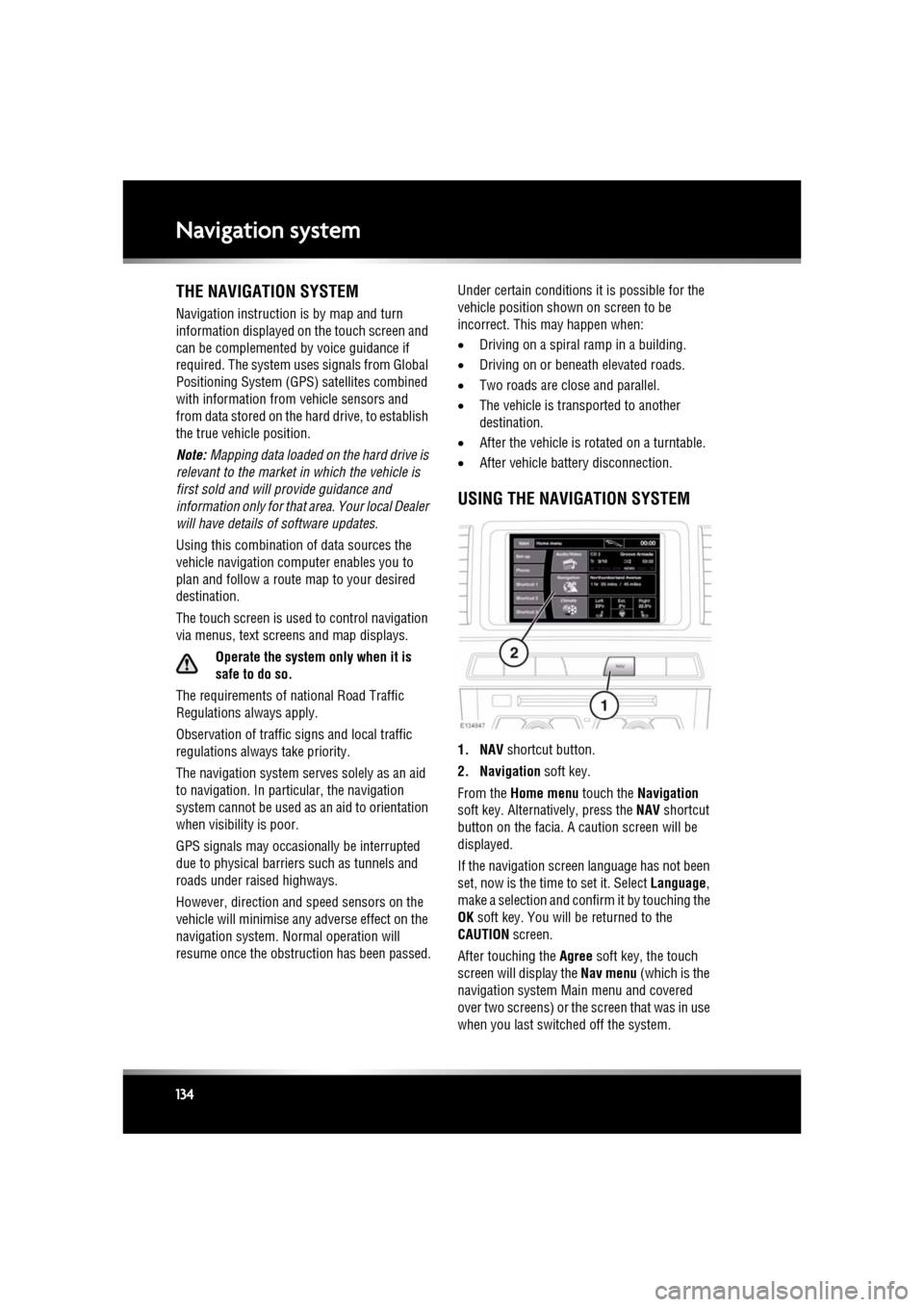
USING THE NAVIGATION SYSTEM
1. NAV shortcut button.
2. Navigation soft key.
From the Home menu touch the Navigation
soft key. Alternatively, press the NAV shortcut
button on the facia. A caution screen will be
displayed.
If the navigation screen language has not been
set, now is the time to set it. Select Language,
make a selection and confirm it by touching the
OK soft key. You will be returned to the
CAUTION screen.
After touching the Agree soft key, the touch
screen will display the Nav menu (which is the
navigation system Ma in menu and covered
over two screens) or the screen that was in use
when you last switched off the system.
Page 143 of 225
R
(FM8) SEMCON JLR OWNER GUIDE VER 1.00 EURO
LANGUAGE: english-en; MARQUE: jaguar; MODEL: XF
Navigation system
143
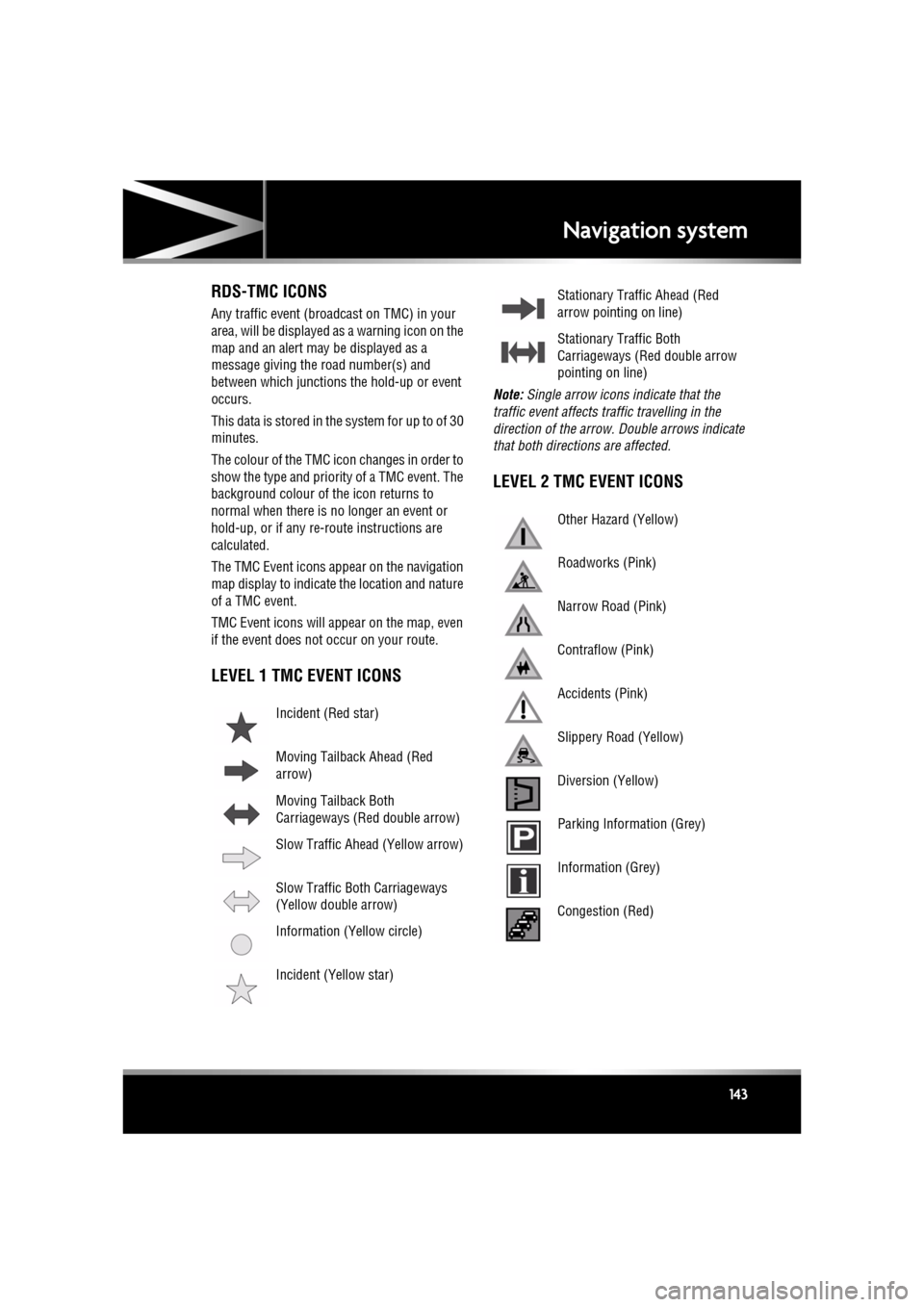
RDS-TMC ICONS
Any traffic event (broadcast on TMC) in your
area, will be displayed as a warning icon on the
map and an alert may be displayed as a
message giving the road number(s) and
between which junctions the hold-up or event
occurs.
This data is stored in th e system for up to of 30
minutes.
The colour of the TMC icon changes in order to
show the type and priority of a TMC event. The
background colour of the icon returns to
normal when there is no longer an event or
hold-up, or if any re-route instructions are
calculated.
The TMC Event icons appear on the navigation
map display to indicate the location and nature
of a TMC event.
TMC Event icons will appear on the map, even
if the event does not occur on your route.
LEVEL 1 TMC EVENT ICONS
Note: Single arrow icons i ndicate that the
traffic event affects traffic travelling in the
direction of the arrow. Double arrows indicate
that both directions are affected.
LEVEL 2 TMC EVENT ICONS
Incident (Red star)
Moving Tailback Ahead (Red
arrow)
Moving Tailback Both
Carriageways (Red double arrow)
Slow Traffic Ahead (Yellow arrow)
Slow Traffic Both Carriageways
(Yellow double arrow)
Information (Yellow circle)
Incident (Yellow star)
Stationary Traffic Ahead (Red
arrow pointing on line)
Stationary Traffic Both
Carriageways (Red double arrow
pointing on line)
Other Hazard (Yellow)
Roadworks (Pink)
Narrow Road (Pink)
Contraflow (Pink)
Accidents (Pink)
Slippery Road (Yellow)
Diversion (Yellow)
Parking Information (Grey)
Information (Grey)
Congestion (Red)
Page 149 of 225
R
(FM8) SEMCON JLR OWNER GUIDE VER 1.00 EURO
LANGUAGE: english-en; MARQUE: jaguar; MODEL: XF
Tyre repair kit
149
USING THE TYRE REPAIR KIT
Avoid skin contact with the sealant
which contains natural rubber latex.
If the tyre inflation pressure does not
reach 1.8 bar (26 psi, 180 kPa) within
seven minutes, the tyre may have
suffered excessive damage. A
temporary repair will not be possible,
and the vehicle should not be driven
until the tyre has been replaced.
Before attempting a tyre repair, ensure
that the vehicle is parked safely, as far
away from passing traffic as possible.
Ensure that the parking brake is applied
and P (Park) is selected.
Do not attempt to remove foreign
objects such as nails, screws, etc. from
the tyre.
Always run the engine when using the
compressor, unless the vehicle is in an
enclosed or poorly ventilated space, as
this may cause asphyxiation.
To prevent overheatin g, do not operate
the compressor continuously for longer
than ten minutes.
Note: All vehicle drivers and occupants should
be made aware that a temporary repair has
been made to a tyre fitt ed to the vehicle. They
should also be made aware of the special
driving conditions im posed when using a
repaired tyre.
REPAIR PROCEDURE
Check the tyre sidewall prior to
inflation. If there are any cracks,
bumps or similar damage, do not
attempt to inflate the tyre. Do not
stand directly besi de the tyre while
the compressor is pumping. Watch the
tyre sidewall. If any cracks, bumps or
similar damage appear, turn off the
compressor and let the air out by
means of the pressure relief valve. Do
not continue to use the tyre.
1. Open the tyre repair kit and peel off the
maximum speed label. Attach the label to
the facia in the driver's field of vision. Take
care not to obstruct an y of the instruments
or warning lights.
2. Uncoil the compressor power cable and
the inflation hose.
3. Unscrew the orange cap from the sealant
bottle receiver and the sealant bottle cap.
4. Screw the sealant bottle into the receiver
(clockwise) until tight.
•Screwing the bottle onto the receiver
will pierce the bottle's seal. Once the
receiver has been fitted, a ratchet
prevents it from being removed.
5. Remove the valve cap from the damaged
tyre.
6. Remove the protective cap from the
inflation hose and connect the inflation
hose to the tyre valve. Ensure that the hose
is screwed on firmly.
7. Ensure that the compressor switch is in the
off ( 0) position.
8. Insert the power cable connector into the
auxiliary power socket.
9. Unless the vehicle is in an enclosed area,
start the engine.
Page 150 of 225

L
(FM8) SEMCON JLR OWNER GUIDE VER 1.00 EURO
LANGUAGE: english-en; MARQUE: jaguar; MODEL: XF
Tyre repair kit
150
10. Set the compressor switch to the on ( I)
position.
11. Inflate the tyre to a minimum of 1.9 bar
(26 psi) and a maximum of 3.5 bar
(51 psi).
•When pumping the sealant through the
tyre valve, the pressure may rise up to
6 bar (87 psi). The pressure will drop
again after approx imately 30 seconds.
12. During the inflation, switch the
compressor off briefly, to check the tyre
pressure using the gauge mounted on the
compressor.
•It should not take longer than 7
minutes to inflate the tyre. If, after 7
minutes, the tyre ha s not yet reached
minimum pressure, the tyre should not
be used.
13. Once the tyre has been inflated, switch off
the compressor. If desired, the engine may
be turned off after the compressor has
been turned off.
14. Remove the power connector from the
auxiliary power socket.
15. Remove the inflation hose from the tyre
valve, by unscrewing it as quickly as
possible (anticlockwise).
16. Replace the inflation hose protective cap
and the tyre valve cap.
17. Ensure that the tyre repair kit (including the
bottle and receiver caps) are placed
securely in the vehicle. You will need to use
the kit to check the tyre pressure after
approximately 3 km (2 miles), so ensure
they are easily accessible.
18. Immediately drive the vehicle for
approximately 3 km (2 miles), to allow the
sealant to coat the inner surface of the tyre
and form a seal at the puncture.CHECKING THE TYRE PRESSURE
AFTER A REPAIR
When driving the vehicle, if you
experience vibrations, abnormal
steering, or noises, reduce speed
immediately. Drive with extreme
caution and reduced speed, to the first
safe place to stop the vehicle. Visually
examine the tyre and check its
pressure. If there are any signs of
damage or deformity to the tyre, or the
tyre pressure is below 1.3 bar (19
psi), do not continue driving.
Consult a tyre repair centre or your
Dealer/Authorised Repairer, for
advice concerning the replacement of
a tyre after using a tyre repair kit.
1. Drive the vehicle for 3 km (2 miles) then
stop in a safe place. Carry out a visual
examination of the tyre’s condition.
2. Make sure that the sealant container
section is in its original position.
3. Screw the inflation hos e connector firmly
onto the tyre valve.
4. Read the tyre pressure from the gauge.
5. If the pressure of the sealant filled tyre is
above 1.3 bar (19 psi) adjust the pressure
to the correct value.
6. Ensure that the compressor switch is in the
Off ( O) position and insert the power cable
connector into the au xiliary power socket.
If the vehicle is in a well ventilated area,
start the engine.
7. Switch the compressor to On ( I) and inflate
the tyre to the correct pressure.
8. To check the tyre pressure, turn off the
compressor then read the pressure from
the gauge.