light JEEP CHEROKEE 2015 KL / 5.G Owners Manual
[x] Cancel search | Manufacturer: JEEP, Model Year: 2015, Model line: CHEROKEE, Model: JEEP CHEROKEE 2015 KL / 5.GPages: 772, PDF Size: 18.21 MB
Page 378 of 772
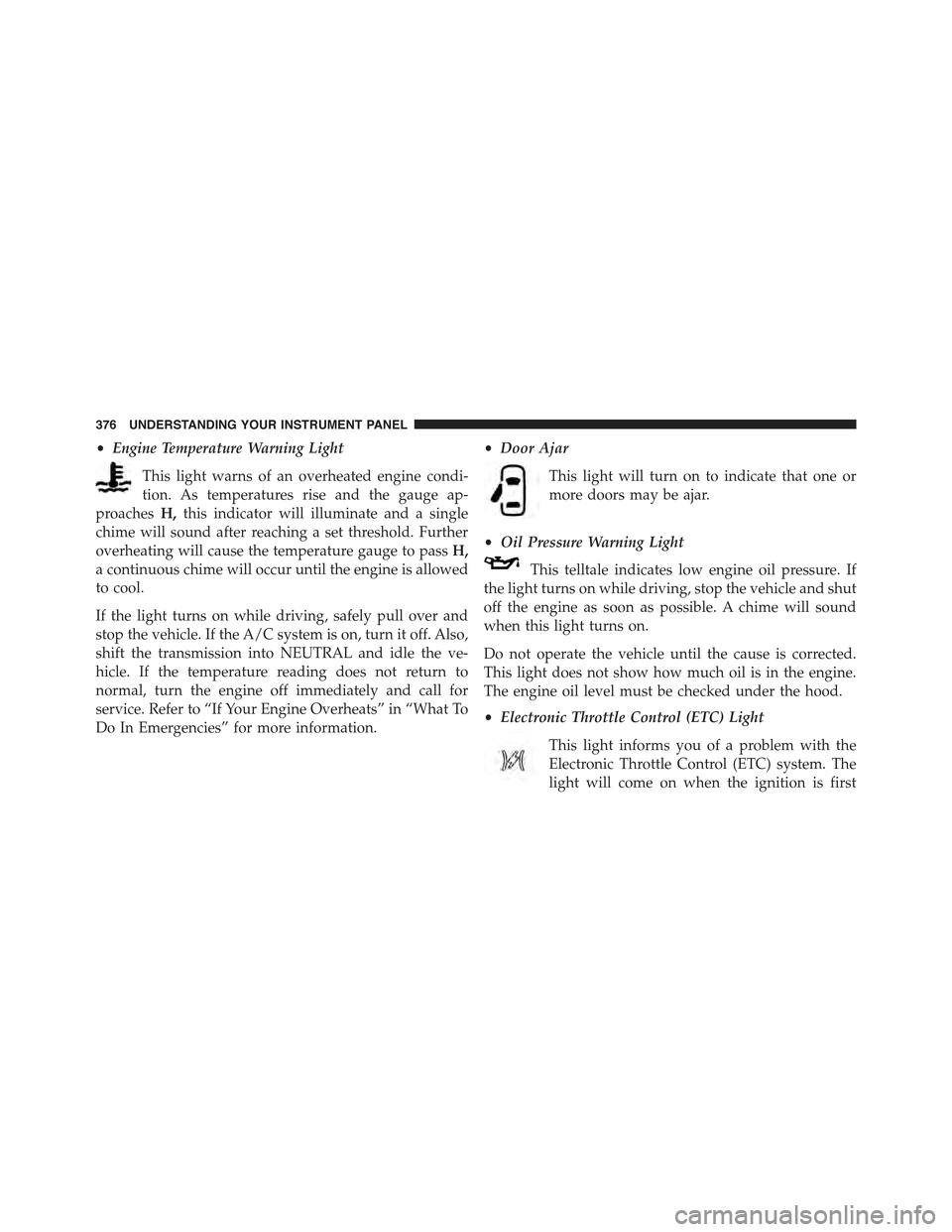
•Engine Temperature Warning Light
This light warns of an overheated engine condi-
tion. As temperatures rise and the gauge ap-
proachesH,this indicator will illuminate and a single
chime will sound after reaching a set threshold. Further
overheating will cause the temperature gauge to passH,
a continuous chime will occur until the engine is allowed
to cool.
If the light turns on while driving, safely pull over and
stop the vehicle. If the A/C system is on, turn it off. Also,
shift the transmission into NEUTRAL and idle the ve-
hicle. If the temperature reading does not return to
normal, turn the engine off immediately and call for
service. Refer to “If Your Engine Overheats” in “What To
Do In Emergencies” for more information.
•Door Ajar
This light will turn on to indicate that one or
more doors may be ajar.
•Oil Pressure Warning Light
This telltale indicates low engine oil pressure. If
the light turns on while driving, stop the vehicle and shut
off the engine as soon as possible. A chime will sound
when this light turns on.
Do not operate the vehicle until the cause is corrected.
This light does not show how much oil is in the engine.
The engine oil level must be checked under the hood.
•Electronic Throttle Control (ETC) Light
This light informs you of a problem with the
Electronic Throttle Control (ETC) system. The
light will come on when the ignition is first
376 UNDERSTANDING YOUR INSTRUMENT PANEL
Page 379 of 772
turned ON and remain on briefly as a bulb check. If the
light does not come on during starting, have the system
checked by an authorized dealer.
If a problem is detected, the light will come on while the
engine is running. Cycle the ignition key when the
vehicle has completely stopped and the shift lever is
placed in the PARK position. The light should turn off.
If the light remains lit with the engine running, your
vehicle will usually be drivable. However, see an autho-
rized dealer for service as soon as possible. If the light is
flashing when the engine is running, immediate service is
required. You may experience reduced performance, an
elevated/rough idle or engine stall and your vehicle may
require towing.
•Electric Power Steering Malfunction Warning Light
This telltale is on when the Electric Power
Steering is not operating and needs service.
•Air Bag Warning Light
This light will turn on for four to eight seconds
as a bulb check when the ignition switch is first
turned to ON/RUN. If the light is either not on
during starting, stays on, or turns on while
driving, have the system inspected at an authorized
dealer as soon as possible. Refer to “Occupant Restraints”
in “Things To Know Before Starting Your Vehicle” for
further information.
4
UNDERSTANDING YOUR INSTRUMENT PANEL 377
Page 380 of 772
•Oil Temperature Warning Light
This telltale indicates engine oil temperature is
high. If the light turns on while driving, stop
the vehicle and shut off the engine as soon as
possible.
•Liftgate Open Warning Light
This telltale is on when the Trailer Brake has
been disconnected.
DID Yellow Telltales
This area will show reconfigurable yellow caution tell-
tales. These telltales include:
•Forward Collision Telltale
This telltale will turn on warn you of a possible
collision with the vehicle in front of you.
•Service Stop/Start System Telltale — If Equipped
This telltale will turn on to indicate the Stop/
Start system is not functioning properly and
service is required.
•Service Adaptive Cruise Control Telltale
This light will turn on when a ACC is not
operating and needs service. For further infor-
mation, refer to “Adaptive Cruise Control
(ACC)” in “Understanding The Features Of
Your Vehicle”.
•Low Fuel Telltale
When the fuel level reaches approximately 3.0 gal
(11.0 L) this light will turn on, and remain on until
fuel is added.
378 UNDERSTANDING YOUR INSTRUMENT PANEL
Page 381 of 772
•Transmission Over Temperature Telltale — If
Equipped
This telltale indicates that the transmission
fluid temperature is running hot. This may
occur with severe usage, such as trailer towing.
If this telltale turns on, safely pull over and
stop the vehicle. Then, shift the transmission into NEU-
TRAL and run the engine at idle or faster until the light
turns off.
•Service 4WD Telltale
If the light stays on or comes on during driv-
ing, it means that the 4WD system is not
functioning properly and that service is re-
quired. We recommend you drive to the near-
est service center and have the vehicle serviced
immediately.
•Diesel Wait To Start Telltale — If Equipped
The “Wait To Start” telltale will illuminate for
approximately two seconds when the ignition is
turned to the RUN position. It’s duration may be longer
based on colder operating conditions. Vehicle will not
initiate start until telltale is out. Refer to “Starting Proce-
dures” in “Starting and Operating” for further
information.
•LaneSence Failure Telltale
This telltale will turn on to indicate that the
LaneSense Departure has detected a failure.
•Diesel Low Diesel Exhaust Telltale — If Equipped
This telltale will turn on to indicate the Diesel
Exhaust Fluid (DEF) is low
4
UNDERSTANDING YOUR INSTRUMENT PANEL 379
Page 382 of 772
•rear Axle Locker Telltale
This light indicates when the rear axle lock has
been activated.
•Washer Fluid Telltale
This telltale will turn on to indicate the wind-
shield washer fluid is low.
•Diesel water In Fuel Telltale — If Equipped
The “Water In Fuel Indicator Light” will illu-
minate when there is water detected in the fuel
filters. If this light remains on, DO NOT start
the vehicle before you drain the water from the
fuel filters to prevent engine damage. Refer to “Mainte-
nance Procedures/Draining Fuel/Water Separator Fil-
ters” in “Maintaining Your Vehicle” for further
information.
•Loose Fuel Filler Cap
This telltale will turn on to indicate that the fuel
filler cap may be loose.
DID Selectable Menu Items
Push and release the UP or DOWN arrow buttons until
the desired Selectable Menu item is highlighted in the
DID.
Follow the Menu or submenu prompts as desired.
Speedometer
Push and release the UP or DOWN arrow button until
the Speedometer Menu item is highlighted in the DID.
Push and release the OK button to change the speedom-
eter scale from mph to km/h (or vice versa).
380 UNDERSTANDING YOUR INSTRUMENT PANEL
Page 383 of 772
Vehicle Info (Customer Information Features)
Push and release the UP or DOWN arrow button until
the Vehicle Info Menu item is highlighted in the DID.
Push and release the RIGHT/LEFT arrow button to cycle
through the Vehicle Info sub-menus, follow the prompts
on each screen as needed.
Tire Pressure
Push and release the UP or DOWN arrow button until
“Tire Pressure” is highlighted in the DID. Push and
release the RIGHT arrow button and one of the following
will be displayed:
•If tire pressure is OK for all tires a vehicle ICON is
displayed with tire pressure values in each corner of
the ICON.
•If one or more tires have low pressure, “Inflate Tire To
XX” is displayed with the vehicle ICON and the tire
pressure values in each corner of the ICON with the
pressure value of the low tire displayed in a different
color than the other tire pressure value.
•If the Tire Pressure system requires service, “Service
Tire Pressure System” is displayed.
Tire PSI is an information only function and cannot be
reset. Push and release the LEFT arrow button to return
to the main menu.
Refer to “Tire Pressure Monitoring System (TPMS)”
under “Starting and Operating” for further information.
Coolant Temperature
Transmission Temp
Oil Temp
Oil Life
Battery Voltage
4
UNDERSTANDING YOUR INSTRUMENT PANEL 381
Page 385 of 772
•The DID will return to the last display selected after
five seconds of no ACC display activity.
For further information, refer to “Adaptive Cruise Con-
trol (ACC) — If Equipped” in “Understanding The
Features Of Your Vehicle”.
LaneSense
The DID displays the current LaneSense system settings.
The information displayed depends on LaneSense sys-
tem status and the conditions that need to be met. For
further information, refer to “LaneSense — If Equipped”
in “Understanding The Features Of Your Vehicle”.
Fuel Economy
Push and release the UP or DOWN arrow button until
the Fuel Economy Menu item is highlighted in the DID.
Push and Hold the OK button to reset feature.
•Range
•Average Fuel Economy
•Current Fuel Economy (MPG or L/100 km)
Trip Info
Push and release the UP or DOWN arrow button until
the Trip Menu item is highlighted in the DID (Toggle left
or right to select Trip A or Trip B). The Trip information
will display the following:
•Distance
•Average Fuel Economy
•Elapsed Time
Hold the OK button to reset feature information.
4
UNDERSTANDING YOUR INSTRUMENT PANEL 383
Page 386 of 772
Audio
Push and release the UP or DOWN arrow button until
the Audio Menu displays in the DID.
Stored Messages
Push and release the UP or DOWN arrow button until
the Messages Menu item is highlighted in the DID. This
feature shows the number of stored warning messages.
Pushing the RIGHT arrow button will allow you to see
what the stored messages are.
Screen Setup
Push and release the UP or DOWN arrow button until
the Screen Setup Menu displays in the DID. Push and
release the OK button to enter the sub-menus. The Screen
Setup feature allows you to change what information is
displayed in the instrument cluster as well as the location
that information is displayed.
Uconnect® SETTINGS
The Uconnect® system uses a combination of buttons on
the touchscreen and buttons on the faceplate located on
the center of the instrument panel that allow you to
access and change the customer programmable features.
Many features can vary by vehicle.
384 UNDERSTANDING YOUR INSTRUMENT PANEL
Page 388 of 772
side of the Climate Controls in the center of the instru-
ment panel. Turn the control knob to scroll through
menus and change settings (i.e., 30, 60, 90), push the
center of the control knob one or more times to select or
change a setting (i.e., ON, OFF).
Your Uconnect® system may also have a Screen Off and
Back buttons located below the system.
Push the Screen Off button to turn off the Uconnect®
screen. Push the Screen Off button a second time to turn
the screen on.
Push the Back button to exit out of a Menu or certain
option on the Uconnect® system.
Buttons On The Touchscreen
Buttons on the touchscreen are accessible on the
Uconnect® display.
Customer Programmable Features/Personal
Settings — Uconnect® 5.0 Settings
Push the MORE button on the faceplate to display the
menu setting screen. In this mode the Uconnect® system
allows you to access programmable features that may be
equipped such as Display, Voice, Clock & Date, Safety &
Assistance, Lights, Doors & Locks, Auto-On Comfort,
Engine Off Options, Compass Settings, Audio, Phone/
Bluetooth®, Sirius Setup, Restore Settings, and Clear
Personal Data.
NOTE:Only one category may be selected at a time.
When making a selection, press the button on the touch-
screen to enter the desired mode. Once in the desired
mode, press and release the preferred setting and make
your selection. Once the setting is complete, either press
the Back Arrow/Done button on the touchscreen or the
Back button on the faceplate to return to the previous
menu or press the “X” button on the touchscreen to close
386 UNDERSTANDING YOUR INSTRUMENT PANEL
Page 389 of 772
out of the settings screen. Pressing the Up or Down
Arrow buttons on the right side of the screen will allow
you to toggle up or down through the available settings.
Display
After pressing the “Display” button on the touchscreen
the following settings will be available.
•Display Mode
When in this display you may select the “Auto” or
“Manual” display settings. To change Mode status, press
and release the “Auto” or “Manual” button on the
touchscreen. Then press the arrow back button on the
touchscreen.
NOTE:When Day or Night is selected for the Display
Mode, the usage of the Parade Mode feature will cause
the radio to activate the Display Brightness Day control
even though the headlights are on.
•Display Brightness With Headlights ON
When in this display, you may select the overall screen
brightness with the headlights on. Adjust the brightness
with the “+” and “–” setting buttons on the touchscreen
or by selecting any point on the scale between the “+”
and “–” buttons on the touchscreen. Then press the arrow
back button on the touchscreen.
NOTE:To make changes to the#Display Brightness with
Headlights ON#setting, the headlights must be on and
the interior dimmer switch must not be in the#party#or
#parade#positions.
•Display Brightness With Headlights OFF
When in this display, you may select the overall screen
brightness with the headlights off. Adjust the brightness
with the “+” and “–” setting buttons on the touchscreen
4
UNDERSTANDING YOUR INSTRUMENT PANEL 387