light JEEP COMPASS 2023 Repair Manual
[x] Cancel search | Manufacturer: JEEP, Model Year: 2023, Model line: COMPASS, Model: JEEP COMPASS 2023Pages: 344, PDF Size: 18.8 MB
Page 124 of 344
122STARTING AND OPERATING
To Resume
If there is a set speed in memory, push the RES
(resume) button and remove your foot from the
accelerator pedal. The instrument cluster display
will show the last set speed.
Resume can be used at any speed above 20 mph
(32 km/h) when only Fixed Speed Cruise Control is
being used.
Resume can be used at any speed above 0 mph
(0 km/h) when ACC is active.
NOTE:
If your vehicle is at standstill longer than two
seconds, the driver will either have to push the
RES (resume) button, or apply the accelerator
pedal to reengage the Adaptive Cruise Control
(ACC) to the existing set speed
ACC cannot be resumed if there is a stationary
vehicle in front of your vehicle in close proximity.
To Vary The Speed Setting
To Increase Or Decrease The Set Speed
After setting a speed, you can increase the set
speed by pushing the SET (+) button, or decrease
speed by pushing the SET (-) button.
U.S. Speed (mph)
Pushing the SET (+) , or SET (-) button once will
result in a 1 mph speed adjustment. Each
subsequent tap of the button results in an
adjustment of 1 mph.
If the button is continually pushed, the set
speed will continue to adjust in 5 mph incre -
ments until the button is released. The new set
speed is reflected in the instrument cluster
display.
Metric Speed (km/h)
Pushing the SET (+) , or SET (-) button once will
result in a 1 km/h speed adjustment. Each
subsequent tap of the button results in an
adjustment of 1 km/h.
If the button is continually pushed, the set
speed will continue to adjust in 10 km/h incre -
ments until the button is released. The new set
speed is reflected in the instrument cluster
display.
NOTE:When you override and push the SET (+) button or
SET (-) button, the new set speed will be the current
speed of the vehicle.
When ACC Is Active
When you use the SET (-) button to decelerate, if
the engine’s braking power does not slow the
vehicle sufficiently to reach the set speed, the
brake system will automatically slow the
vehicle.
The ACC system decelerates the vehicle to a full
stop when following the vehicle in front. If your
vehicle follows the vehicle in front to a standstill,
after two seconds the driver will either have to
push the RES (resume) button, or apply the
accelerator pedal to reengage the ACC to the
existing set speed.
The ACC system maintains set speed when
driving uphill and downhill. However, a slight
speed change on moderate hills is normal. In
addition, downshifting may occur while climbing
uphill or descending downhill. This is normal
operation and necessary to maintain set speed.
When driving uphill and downhill, the ACC
system will cancel if the braking temperature
exceeds normal range (overheated).
WARNING!
The Resume function should only be used if
traffic and road conditions permit. Resuming a
set speed that is too high or too low for
prevailing traffic and road conditions could
cause the vehicle to accelerate or decelerate too
sharply for safe operation. Failure to follow these
warnings can result in a collision and death or
serious personal injury.
22_MP_OM_EN_USC_t.book Page 122
Page 125 of 344
STARTING AND OPERATING123
Setting The Following Distance In ACC
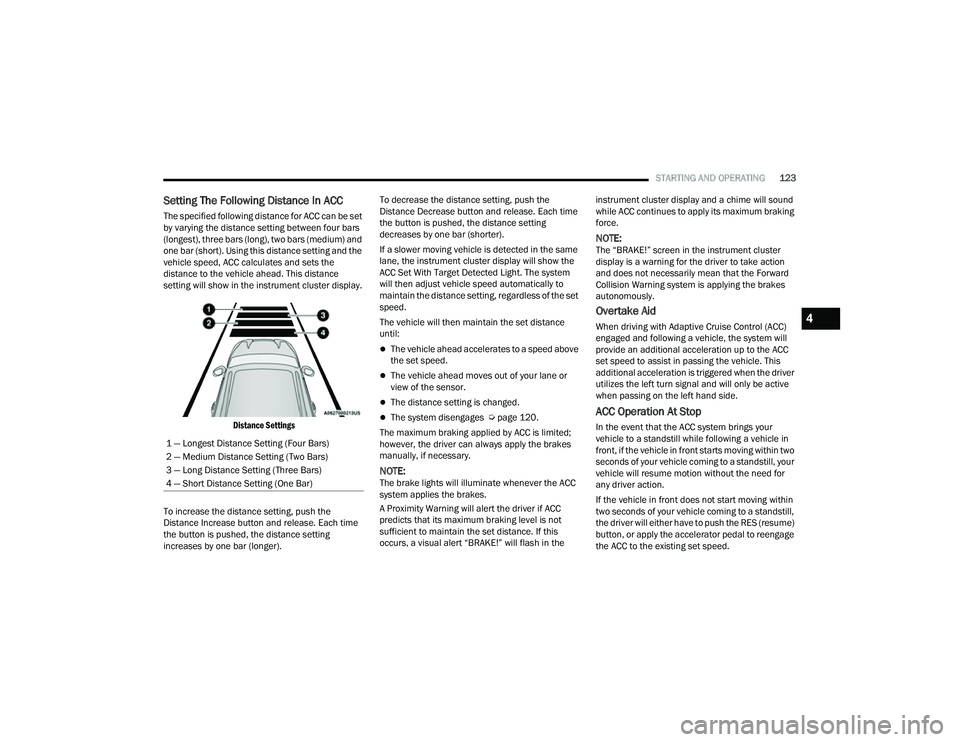
The specified following distance for ACC can be set
by varying the distance setting between four bars
(longest), three bars (long), two bars (medium) and
one bar (short). Using this distance setting and the
vehicle speed, ACC calculates and sets the
distance to the vehicle ahead. This distance
setting will show in the instrument cluster display.
Distance Settings
To increase the distance setting, push the
Distance Increase button and release. Each time
the button is pushed, the distance setting
increases by one bar (longer). To decrease the distance setting, push the
Distance Decrease button and release. Each time
the button is pushed, the distance setting
decreases by one bar (shorter).
If a slower moving vehicle is detected in the same
lane, the instrument cluster display will show the
ACC Set With Target Detected Light. The system
will then adjust vehicle speed automatically to
maintain the distance setting, regardless of the set
speed.
The vehicle will then maintain the set distance
until:
The vehicle ahead accelerates to a speed above
the set speed.
The vehicle ahead moves out of your lane or
view of the sensor.
The distance setting is changed.
The system disengages Ú
page 120.
The maximum braking applied by ACC is limited;
however, the driver can always apply the brakes
manually, if necessary.
NOTE:The brake lights will illuminate whenever the ACC
system applies the brakes.
A Proximity Warning will alert the driver if ACC
predicts that its maximum braking level is not
sufficient to maintain the set distance. If this
occurs, a visual alert “BRAKE!” will flash in the instrument cluster display and a chime will sound
while ACC continues to apply its maximum braking
force.
NOTE:The “BRAKE!” screen in the instrument cluster
display is a warning for the driver to take action
and does not necessarily mean that the Forward
Collision Warning system is applying the brakes
autonomously.
Overtake Aid
When driving with Adaptive Cruise Control (ACC)
engaged and following a vehicle, the system will
provide an additional acceleration up to the ACC
set speed to assist in passing the vehicle. This
additional acceleration is triggered when the driver
utilizes the left turn signal and will only be active
when passing on the left hand side.
ACC Operation At Stop
In the event that the ACC system brings your
vehicle to a standstill while following a vehicle in
front, if the vehicle in front starts moving within two
seconds of your vehicle coming to a standstill, your
vehicle will resume motion without the need for
any driver action.
If the vehicle in front does not start moving within
two seconds of your vehicle coming to a standstill,
the driver will either have to push the RES (resume)
button, or apply the accelerator pedal to reengage
the ACC to the existing set speed.
1 — Longest Distance Setting (Four Bars)
2 — Medium Distance Setting (Two Bars)
3 — Long Distance Setting (Three Bars)
4 — Short Distance Setting (One Bar)
4
22_MP_OM_EN_USC_t.book Page 123
Page 130 of 344
128STARTING AND OPERATING
NOTE:Whenever an audible alert is requested by the TSA
system, the radio is also muted.
TSA Off
When the TSA system is turned off, the system will
not show any traffic signs (unless selected in the
HOME screen, which will show detected speed
limit signs), and no alerts will be issued to the
driver.
INDICATIONS ON THE DISPLAY
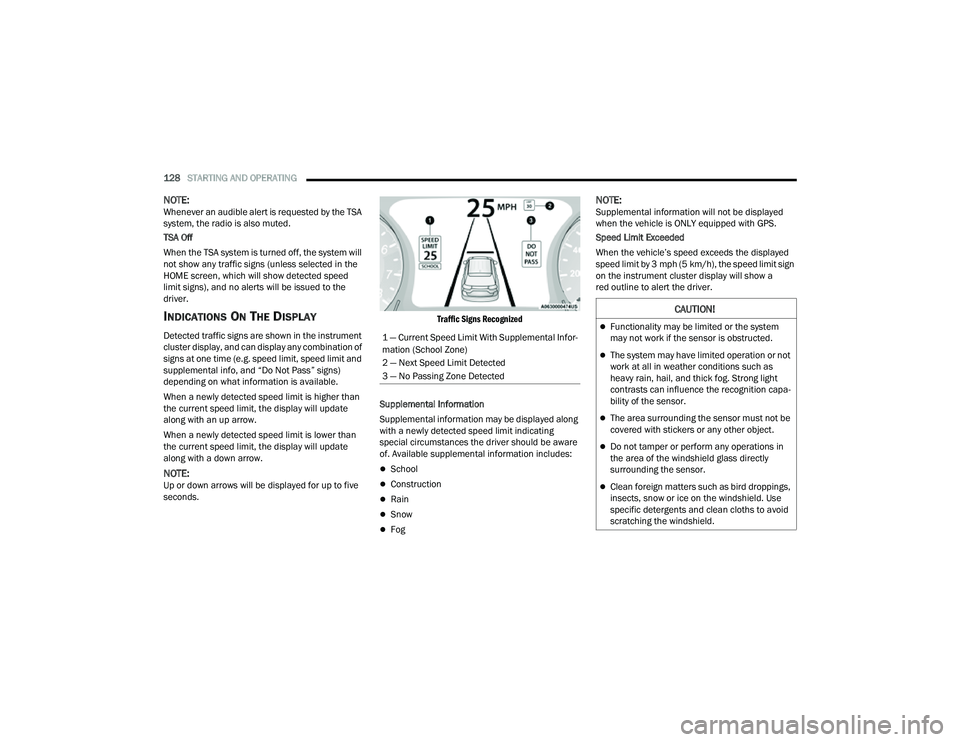
Detected traffic signs are shown in the instrument
cluster display, and can display any combination of
signs at one time (e.g. speed limit, speed limit and
supplemental info, and “Do Not Pass” signs)
depending on what information is available.
When a newly detected speed limit is higher than
the current speed limit, the display will update
along with an up arrow.
When a newly detected speed limit is lower than
the current speed limit, the display will update
along with a down arrow.
NOTE:Up or down arrows will be displayed for up to five
seconds.
Traffic Signs Recognized
Supplemental Information
Supplemental information may be displayed along
with a newly detected speed limit indicating
special circumstances the driver should be aware
of. Available supplemental information includes:
School
Construction
Rain
Snow
Fog
NOTE:Supplemental information will not be displayed
when the vehicle is ONLY equipped with GPS.
Speed Limit Exceeded
When the vehicle’s speed exceeds the displayed
speed limit by 3 mph (5 km/h), the speed limit sign
on the instrument cluster display will show a
red outline to alert the driver.
1 — Current Speed Limit With Supplemental Infor -
mation (School Zone)
2 — Next Speed Limit Detected
3 — No Passing Zone Detected
CAUTION!
Functionality may be limited or the system
may not work if the sensor is obstructed.
The system may have limited operation or not
work at all in weather conditions such as
heavy rain, hail, and thick fog. Strong light
contrasts can influence the recognition capa -
bility of the sensor.
The area surrounding the sensor must not be
covered with stickers or any other object.
Do not tamper or perform any operations in
the area of the windshield glass directly
surrounding the sensor.
Clean foreign matters such as bird droppings,
insects, snow or ice on the windshield. Use
specific detergents and clean cloths to avoid
scratching the windshield.
22_MP_OM_EN_USC_t.book Page 128
Page 133 of 344
STARTING AND OPERATING131
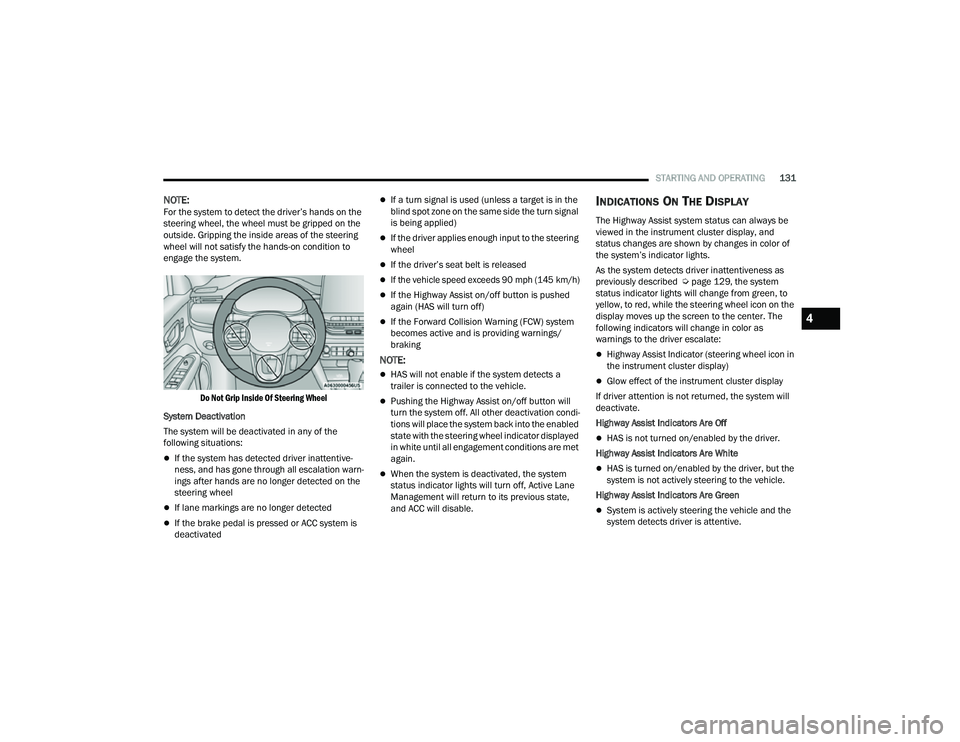
NOTE:For the system to detect the driver’s hands on the
steering wheel, the wheel must be gripped on the
outside. Gripping the inside areas of the steering
wheel will not satisfy the hands-on condition to
engage the system.
Do Not Grip Inside Of Steering Wheel
System Deactivation
The system will be deactivated in any of the
following situations:
If the system has detected driver inattentive -
ness, and has gone through all escalation warn -
ings after hands are no longer detected on the
steering wheel
If lane markings are no longer detected
If the brake pedal is pressed or ACC system is
deactivated
If a turn signal is used (unless a target is in the
blind spot zone on the same side the turn signal
is being applied)
If the driver applies enough input to the steering
wheel
If the driver’s seat belt is released
If the vehicle speed exceeds 90 mph (145 km/h)
If the Highway Assist on/off button is pushed
again (HAS will turn off)
If the Forward Collision Warning (FCW) system
becomes active and is providing warnings/
braking
NOTE:
HAS will not enable if the system detects a
trailer is connected to the vehicle.
Pushing the Highway Assist on/off button will
turn the system off. All other deactivation condi -
tions will place the system back into the enabled
state with the steering wheel indicator displayed
in white until all engagement conditions are met
again.
When the system is deactivated, the system
status indicator lights will turn off, Active Lane
Management will return to its previous state,
and ACC will disable.
INDICATIONS ON THE DISPLAY
The Highway Assist system status can always be
viewed in the instrument cluster display, and
status changes are shown by changes in color of
the system’s indicator lights.
As the system detects driver inattentiveness as
previously described Ú page 129, the system
status indicator lights will change from green, to
yellow, to red, while the steering wheel icon on the
display moves up the screen to the center. The
following indicators will change in color as
warnings to the driver escalate:
Highway Assist Indicator (steering wheel icon in
the instrument cluster display)
Glow effect of the instrument cluster display
If driver attention is not returned, the system will
deactivate.
Highway Assist Indicators Are Off
HAS is not turned on/enabled by the driver.
Highway Assist Indicators Are White
HAS is turned on/enabled by the driver, but the
system is not actively steering to the vehicle.
Highway Assist Indicators Are Green
System is actively steering the vehicle and the
system detects driver is attentive.
4
22_MP_OM_EN_USC_t.book Page 131
Page 134 of 344
132STARTING AND OPERATING
(Continued)
Highway Assist Indicators Are Yellow
Driver inattentiveness has been detected,
warning the driver to place hands on the
steering wheel.
Highway Assist Indicators Are Red
Driver inattentiveness is still being detected,
warning the driver to place hands on the
steering wheel.
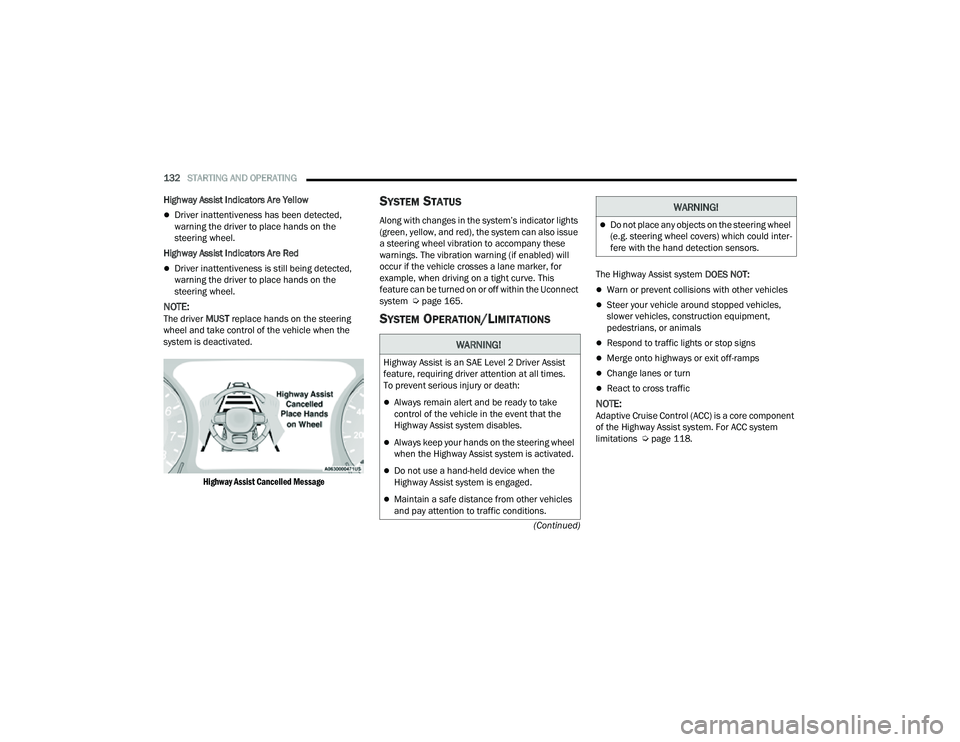
NOTE:The driver MUST replace hands on the steering
wheel and take control of the vehicle when the
system is deactivated.
Highway Assist Cancelled Message
SYSTEM STATUS
Along with changes in the system’s indicator lights
(green, yellow, and red), the system can also issue
a steering wheel vibration to accompany these
warnings. The vibration warning (if enabled) will
occur if the vehicle crosses a lane marker, for
example, when driving on a tight curve. This
feature can be turned on or off within the Uconnect
system Ú page 165.
SYSTEM OPERATION/LIMITATIONS
The Highway Assist system DOES NOT:
Warn or prevent collisions with other vehicles
Steer your vehicle around stopped vehicles,
slower vehicles, construction equipment,
pedestrians, or animals
Respond to traffic lights or stop signs
Merge onto highways or exit off-ramps
Change lanes or turn
React to cross traffic
NOTE:Adaptive Cruise Control (ACC) is a core component
of the Highway Assist system. For ACC system
limitations Úpage 118.
WARNING!
Highway Assist is an SAE Level 2 Driver Assist
feature, requiring driver attention at all times.
To prevent serious injury or death:
Always remain alert and be ready to take
control of the vehicle in the event that the
Highway Assist system disables.
Always keep your hands on the steering wheel
when the Highway Assist system is activated.
Do not use a hand-held device when the
Highway Assist system is engaged.
Maintain a safe distance from other vehicles
and pay attention to traffic conditions.
Do not place any objects on the steering wheel
(e.g. steering wheel covers) which could inter -
fere with the hand detection sensors.
WARNING!
22_MP_OM_EN_USC_t.book Page 132
Page 155 of 344
STARTING AND OPERATING153
4. Keep the nozzle in the filler for five seconds after nozzle clicks to allow fuel to drain from
the nozzle.
5. Remove the fuel nozzle and close the fuel door.
VEHICLE LOADING
CERTIFICATION LABEL
As required by National Highway Traffic Safety
Administration regulations, your vehicle has a
certification label affixed to the driver's side door or
pillar. This label contains the month and year of
manufacture, Gross Vehicle Weight Rating
(GVWR), front and rear Gross Axle Weight Rating
(GAWR), and Vehicle Identification Number (VIN).
A Month-Day-Hour (MDH) number is included on
this label and indicates the Month, Day and Hour of
manufacture. The bar code that appears on the
bottom of the label is your VIN.
Gross Vehicle Weight Rating (GVWR)
The GVWR is the total permissible weight of your
vehicle including driver, passengers, vehicle,
options and cargo. The label also specifies
maximum capacities of front and rear Gross Axle
Weight Rating (GAWR). Total load must be limited so
GVWR and front and rear GAWR are not exceeded.
Payload
The payload of a vehicle is defined as the allowable
load weight a truck can carry, including the weight
of the driver, all passengers, options and cargo.
Gross Axle Weight Rating (GAWR)
The GAWR is the maximum permissible load on the
front and rear axles. The load must be distributed
in the cargo area so that the GAWR of each axle is
not exceeded.
Each axle GAWR is determined by the components
in the system with the lowest load carrying capacity
(axle, springs, tires or wheels). Heavier axles or suspension components sometimes specified by
purchasers for increased durability does not
necessarily increase the vehicle's GVWR.
Tire Size
The tire size on the Vehicle Certification Label
represents the actual tire size on your vehicle.
Replacement tires must be equal to the load
capacity of this tire size.
Rim Size
This is the rim size that is appropriate for the tire
size listed.
Inflation Pressure
This is the cold tire inflation pressure for your
vehicle for all loading conditions up to full GAWR.
Curb Weight
The curb weight of a vehicle is defined as the total
weight of the vehicle with all fluids, including
vehicle fuel, at full capacity conditions, and with no
occupants or cargo loaded into the vehicle. The
front and rear curb weight values are determined
by weighing your vehicle on a commercial scale
before any occupants or cargo are added.
Loading
The actual total weight and the weight of the front
and rear of your vehicle at the ground can best be
determined by weighing it when it is loaded and
ready for operation.
WARNING!
Never have any smoking materials lit in or
near the vehicle when the fuel door is open or
the tank is being filled.
Never add fuel when the engine is running.
This is in violation of most state and federal
fire regulations and may cause the Malfunc
-
tion Indicator Light to turn on.
A fire may result if fuel is pumped into a
portable container that is inside of a vehicle.
You could be burned. Always place fuel
containers on the ground while filling.
4
22_MP_OM_EN_USC_t.book Page 153
Page 160 of 344
158STARTING AND OPERATING
Towing Requirements — Trailer Lights And
Wiring
Whenever you pull a trailer, regardless of the trailer
size, stoplights and turn signals on the trailer are
required for motoring safety.
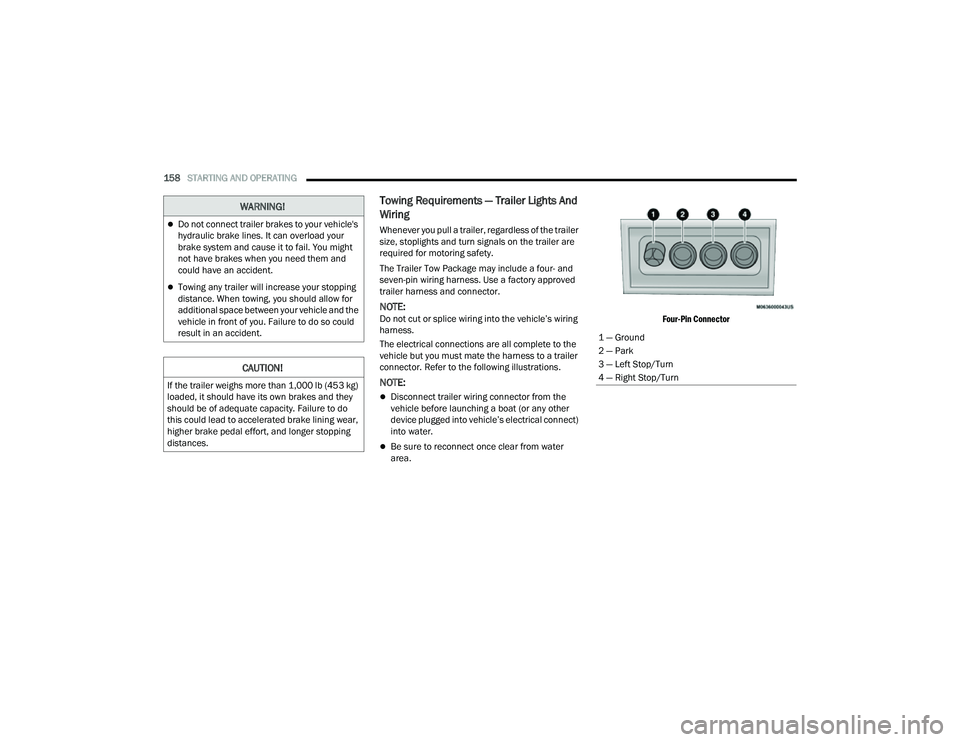
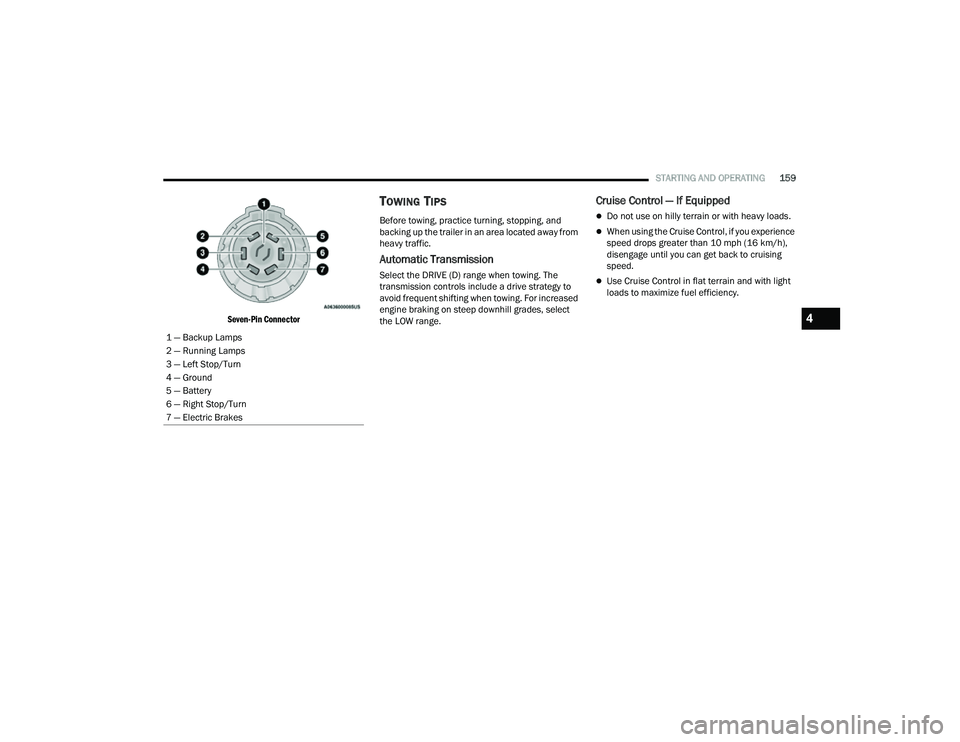
The Trailer Tow Package may include a four- and
seven-pin wiring harness. Use a factory approved
trailer harness and connector.
NOTE:Do not cut or splice wiring into the vehicle’s wiring
harness.
The electrical connections are all complete to the
vehicle but you must mate the harness to a trailer
connector. Refer to the following illustrations.
NOTE:
Disconnect trailer wiring connector from the
vehicle before launching a boat (or any other
device plugged into vehicle’s electrical connect)
into water.
Be sure to reconnect once clear from water
area.
Four-Pin Connector
WARNING!
Do not connect trailer brakes to your vehicle's
hydraulic brake lines. It can overload your
brake system and cause it to fail. You might
not have brakes when you need them and
could have an accident.
Towing any trailer will increase your stopping
distance. When towing, you should allow for
additional space between your vehicle and the
vehicle in front of you. Failure to do so could
result in an accident.
CAUTION!
If the trailer weighs more than 1,000 lb (453 kg)
loaded, it should have its own brakes and they
should be of adequate capacity. Failure to do
this could lead to accelerated brake lining wear,
higher brake pedal effort, and longer stopping
distances.
1 — Ground
2 — Park
3 — Left Stop/Turn
4 — Right Stop/Turn
22_MP_OM_EN_USC_t.book Page 158
Page 161 of 344
STARTING AND OPERATING159
Seven-Pin Connector
TOWING TIPS
Before towing, practice turning, stopping, and
backing up the trailer in an area located away from
heavy traffic.
Automatic Transmission
Select the DRIVE (D) range when towing. The
transmission controls include a drive strategy to
avoid frequent shifting when towing. For increased
engine braking on steep downhill grades, select
the LOW range.
Cruise Control — If Equipped
Do not use on hilly terrain or with heavy loads.
When using the Cruise Control, if you experience
speed drops greater than 10 mph (16 km/h),
disengage until you can get back to cruising
speed.
Use Cruise Control in flat terrain and with light
loads to maximize fuel efficiency.
1 — Backup Lamps
2 — Running Lamps
3 — Left Stop/Turn
4 — Ground
5 — Battery
6 — Right Stop/Turn
7 — Electric Brakes
4
22_MP_OM_EN_USC_t.book Page 159
Page 164 of 344
162STARTING AND OPERATING
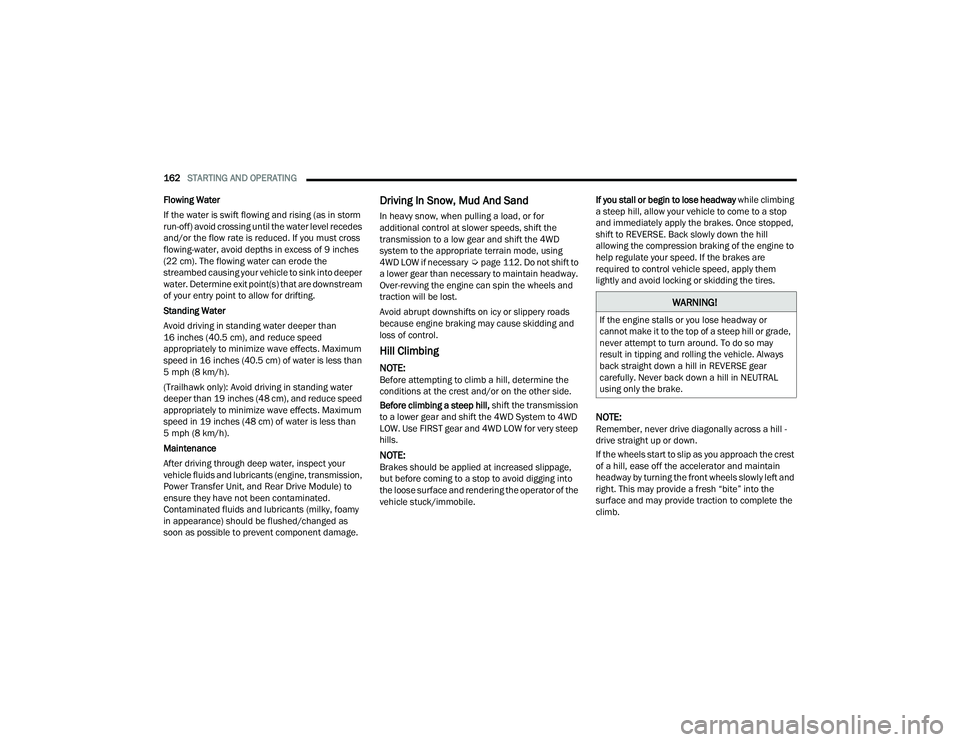
Flowing Water
If the water is swift flowing and rising (as in storm
run-off) avoid crossing until the water level recedes
and/or the flow rate is reduced. If you must cross
flowing-water, avoid depths in excess of 9 inches
(22 cm). The flowing water can erode the
streambed causing your vehicle to sink into deeper
water. Determine exit point(s) that are downstream
of your entry point to allow for drifting.
Standing Water
Avoid driving in standing water deeper than
16 inches (40.5 cm), and reduce speed
appropriately to minimize wave effects. Maximum
speed in 16 inches (40.5 cm) of water is less than
5 mph (8 km/h).
(Trailhawk only): Avoid driving in standing water
deeper than 19 inches (48 cm), and reduce speed
appropriately to minimize wave effects. Maximum
speed in 19 inches (48 cm) of water is less than
5 mph (8 km/h).
Maintenance
After driving through deep water, inspect your
vehicle fluids and lubricants (engine, transmission,
Power Transfer Unit, and Rear Drive Module) to
ensure they have not been contaminated.
Contaminated fluids and lubricants (milky, foamy
in appearance) should be flushed/changed as
soon as possible to prevent component damage.
Driving In Snow, Mud And Sand
In heavy snow, when pulling a load, or for
additional control at slower speeds, shift the
transmission to a low gear and shift the 4WD
system to the appropriate terrain mode, using
4WD LOW if necessary Úpage 112. Do not shift to
a lower gear than necessary to maintain headway.
Over-revving the engine can spin the wheels and
traction will be lost.
Avoid abrupt downshifts on icy or slippery roads
because engine braking may cause skidding and
loss of control.
Hill Climbing
NOTE:Before attempting to climb a hill, determine the
conditions at the crest and/or on the other side.
Before climbing a steep hill, shift the transmission
to a lower gear and shift the 4WD System to 4WD
LOW. Use FIRST gear and 4WD LOW for very steep
hills.
NOTE:Brakes should be applied at increased slippage,
but before coming to a stop to avoid digging into
the loose surface and rendering the operator of the
vehicle stuck/immobile. If you stall or begin to lose headway
while climbing
a steep hill, allow your vehicle to come to a stop
and immediately apply the brakes. Once stopped,
shift to REVERSE. Back slowly down the hill
allowing the compression braking of the engine to
help regulate your speed. If the brakes are
required to control vehicle speed, apply them
lightly and avoid locking or skidding the tires.
NOTE:Remember, never drive diagonally across a hill -
drive straight up or down.
If the wheels start to slip as you approach the crest
of a hill, ease off the accelerator and maintain
headway by turning the front wheels slowly left and
right. This may provide a fresh “bite” into the
surface and may provide traction to complete the
climb.
WARNING!
If the engine stalls or you lose headway or
cannot make it to the top of a steep hill or grade,
never attempt to turn around. To do so may
result in tipping and rolling the vehicle. Always
back straight down a hill in REVERSE gear
carefully. Never back down a hill in NEUTRAL
using only the brake.
22_MP_OM_EN_USC_t.book Page 162
Page 168 of 344
166MULTIMEDIA
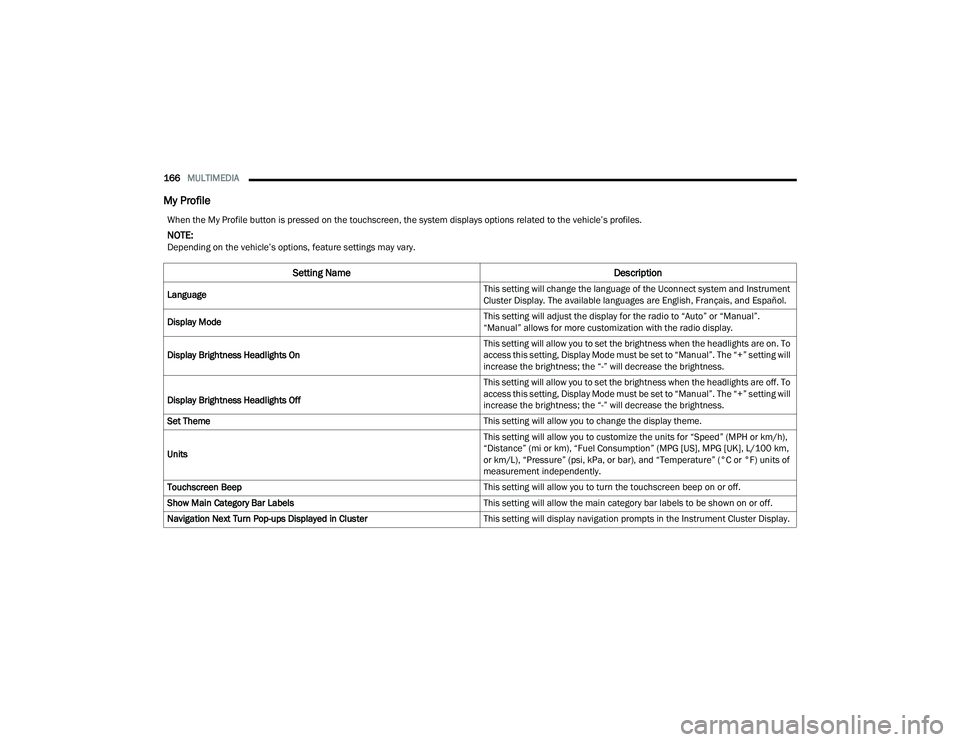
My Profile
When the My Profile button is pressed on the touchscreen, the system displays options related to the vehicle’s profiles.
NOTE:Depending on the vehicle’s options, feature settings may vary.
Setting Name Description
Language This setting will change the language of the Uconnect system and Instrument
Cluster Display. The available languages are English, Français, and Español.
Display Mode This setting will adjust the display for the radio to “Auto” or “Manual”.
“Manual” allows for more customization with the radio display.
Display Brightness Headlights On This setting will allow you to set the brightness when the headlights are on. To
access this setting, Display Mode must be set to “Manual”. The “+” setting will
increase the brightness; the “-” will decrease the brightness.
Display Brightness Headlights Off This setting will allow you to set the brightness when the headlights are off. To
access this setting, Display Mode must be set to “Manual”. The “+” setting will
increase the brightness; the “-” will decrease the brightness.
Set Theme This setting will allow you to change the display theme.
Units This setting will allow you to customize the units for “Speed” (MPH or km/h),
“Distance” (mi or km), “Fuel Consumption” (MPG [US], MPG [UK], L/100 km,
or km/L), “Pressure” (psi, kPa, or bar), and “Temperature” (°C or °F) units of
measurement independently.
Touchscreen Beep This setting will allow you to turn the touchscreen beep on or off.
Show Main Category Bar Labels This setting will allow the main category bar labels to be shown on or off.
Navigation Next Turn Pop-ups Displayed in Cluster This setting will display navigation prompts in the Instrument Cluster Display.
22_MP_OM_EN_USC_t.book Page 166