lights JEEP GLADIATOR 2023 Owner's Guide
[x] Cancel search | Manufacturer: JEEP, Model Year: 2023, Model line: GLADIATOR, Model: JEEP GLADIATOR 2023Pages: 448, PDF Size: 17.37 MB
Page 182 of 448
180STARTING AND OPERATING
Setting The Following Distance In ACC
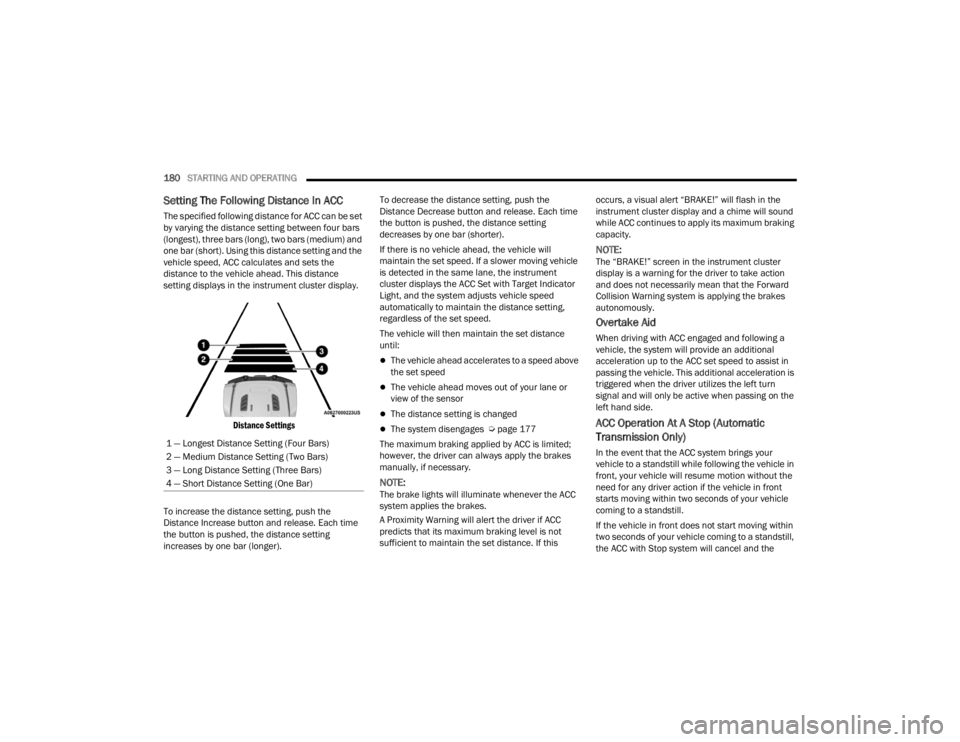
The specified following distance for ACC can be set
by varying the distance setting between four bars
(longest), three bars (long), two bars (medium) and
one bar (short). Using this distance setting and the
vehicle speed, ACC calculates and sets the
distance to the vehicle ahead. This distance
setting displays in the instrument cluster display.
Distance Settings
To increase the distance setting, push the
Distance Increase button and release. Each time
the button is pushed, the distance setting
increases by one bar (longer). To decrease the distance setting, push the
Distance Decrease button and release. Each time
the button is pushed, the distance setting
decreases by one bar (shorter).
If there is no vehicle ahead, the vehicle will
maintain the set speed. If a slower moving vehicle
is detected in the same lane, the instrument
cluster displays the ACC Set with Target Indicator
Light, and the system adjusts vehicle speed
automatically to maintain the distance setting,
regardless of the set speed.
The vehicle will then maintain the set distance
until:
The vehicle ahead accelerates to a speed above
the set speed
The vehicle ahead moves out of your lane or
view of the sensor
The distance setting is changed
The system disengages Ú
page 177
The maximum braking applied by ACC is limited;
however, the driver can always apply the brakes
manually, if necessary.
NOTE:The brake lights will illuminate whenever the ACC
system applies the brakes.
A Proximity Warning will alert the driver if ACC
predicts that its maximum braking level is not
sufficient to maintain the set distance. If this occurs, a visual alert “BRAKE!” will flash in the
instrument cluster display and a chime will sound
while ACC continues to apply its maximum braking
capacity.
NOTE:The “BRAKE!” screen in the instrument cluster
display is a warning for the driver to take action
and does not necessarily mean that the Forward
Collision Warning system is applying the brakes
autonomously.
Overtake Aid
When driving with ACC engaged and following a
vehicle, the system will provide an additional
acceleration up to the ACC set speed to assist in
passing the vehicle. This additional acceleration is
triggered when the driver utilizes the left turn
signal and will only be active when passing on the
left hand side.
ACC Operation At A Stop (Automatic
Transmission Only)
In the event that the ACC system brings your
vehicle to a standstill while following the vehicle in
front, your vehicle will resume motion without the
need for any driver action if the vehicle in front
starts moving within two seconds of your vehicle
coming to a standstill.
If the vehicle in front does not start moving within
two seconds of your vehicle coming to a standstill,
the ACC with Stop system will cancel and the
1 — Longest Distance Setting (Four Bars)
2 — Medium Distance Setting (Two Bars)
3 — Long Distance Setting (Three Bars)
4 — Short Distance Setting (One Bar)
23_JT_OM_EN_USC_t.book Page 180
Page 205 of 448

STARTING AND OPERATING203
Towing Requirements — Tires
Proper tire inflation pressures are essential to
the safe and satisfactory operation of your
vehicle.
Check the trailer tires for proper tire inflation
pressures before trailer usage.
Check for signs of tire wear or visible tire
damage before towing a trailer.
Replacing tires with a higher load carrying
capacity will not increase the vehicle's GVWR
and GAWR limits.
For further information Úpage 395.
Towing Requirements — Trailer Brakes
Do not interconnect the hydraulic brake system
or vacuum system of your vehicle with that of
the trailer. This could cause inadequate braking
and possible personal injury.
An electronically actuated trailer brake
controller is required when towing a trailer with
electronically actuated brakes. When towing a
trailer equipped with a hydraulic surge actuated
brake system, an electronic brake controller is
not required.
NOTE:This vehicle has an aftermarket brake controller
connector under the dash to the left of the brake
pedal. This will be a four pin connector and will be
gray in color.
Trailer brakes are recommended for trailers
over 1,000 lb (453 kg) and required for trailers
in excess of 2,000 lb (907 kg).Towing Requirements — Trailer Lights And
Wiring
Whenever you pull a trailer, regardless of the trailer
size, stop lights and turn signals on the trailer are
required for motoring safety.
The Trailer Tow Package may include a four- and
seven-pin wiring harness. Use a factory approved
trailer harness and connector.
NOTE:Do not cut or splice wiring into the vehicle’s wiring
harness.
The electrical connections are all complete to the
vehicle but you must mate the harness to a trailer
connector. Refer to the following illustrations.
NOTE:
Disconnect the trailer wiring connector from the
vehicle (or any other device plugged into
vehicle’s electrical connectors) before
launching a boat into water.
Be sure to reconnect once clear from water
area.
WARNING!
Do not connect trailer brakes to your vehicle's
hydraulic brake lines. It can overload your
brake system and cause it to fail. You might
not have brakes when you need them and
could have an accident.
Towing any trailer will increase your stopping
distance. When towing, you should allow for
additional space between your vehicle and the
vehicle in front of you. Failure to do so could
result in an accident.
CAUTION!
If the trailer weighs more than 1,000 lb (453 kg)
loaded, it should have its own brakes and they
should be of adequate capacity. Failure to do
this could lead to accelerated brake lining wear,
higher brake pedal effort, and longer stopping
distances.
4
23_JT_OM_EN_USC_t.book Page 203
Page 210 of 448
208STARTING AND OPERATING
3. After all bolts and nuts have been removed, pull the side step assembly off of the vehicle.
4. To reinstall the side steps align the studs to the body side holes and fasten all nuts on all four
brackets. Then secure all four bolts to the
underbody. Repeat the reassembly procedure
for the other side.
Bumper End Cap Removal — If Equipped
The end caps on your vehicle’s front bumper can
be removed by following the steps below:
NOTE:Bumper end caps are removable on steel bumpers
only.
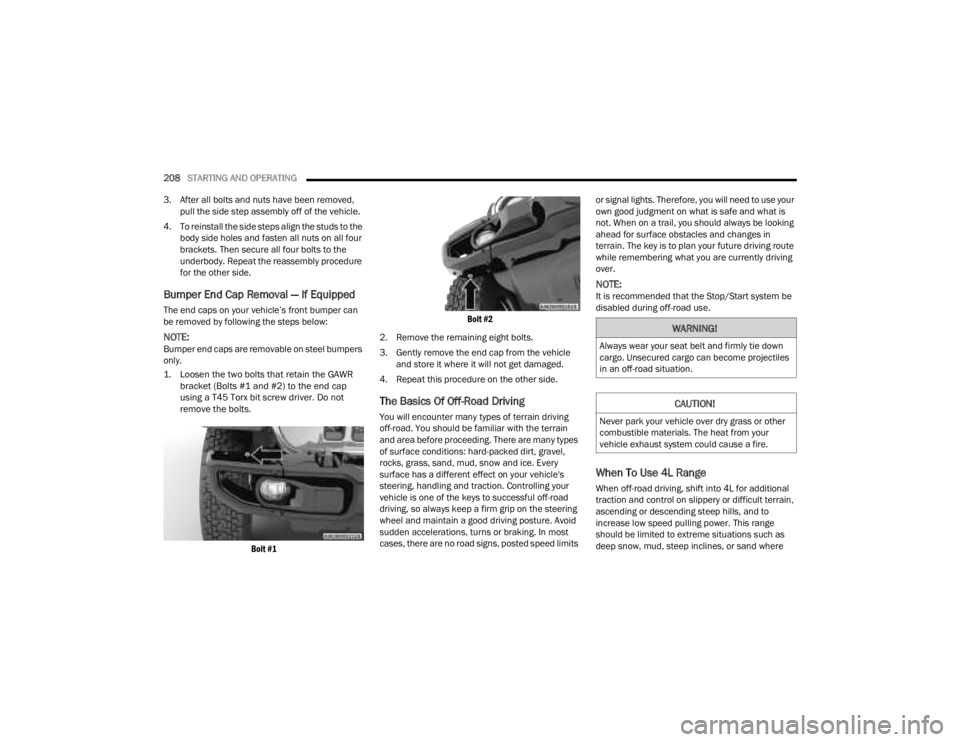
1. Loosen the two bolts that retain the GAWR bracket (Bolts #1 and #2) to the end cap
using a T45 Torx bit screw driver. Do not
remove the bolts.
Bolt #1 Bolt #2
2. Remove the remaining eight bolts.
3. Gently remove the end cap from the vehicle and store it where it will not get damaged.
4. Repeat this procedure on the other side.
The Basics Of Off-Road Driving
You will encounter many types of terrain driving
off-road. You should be familiar with the terrain
and area before proceeding. There are many types
of surface conditions: hard-packed dirt, gravel,
rocks, grass, sand, mud, snow and ice. Every
surface has a different effect on your vehicle's
steering, handling and traction. Controlling your
vehicle is one of the keys to successful off-road
driving, so always keep a firm grip on the steering
wheel and maintain a good driving posture. Avoid
sudden accelerations, turns or braking. In most
cases, there are no road signs, posted speed limits or signal lights. Therefore, you will need to use your
own good judgment on what is safe and what is
not. When on a trail, you should always be looking
ahead for surface obstacles and changes in
terrain. The key is to plan your future driving route
while remembering what you are currently driving
over.
NOTE:It is recommended that the Stop/Start system be
disabled during off-road use.
When To Use 4L Range
When off-road driving, shift into 4L for additional
traction and control on slippery or difficult terrain,
ascending or descending steep hills, and to
increase low speed pulling power. This range
should be limited to extreme situations such as
deep snow, mud, steep inclines, or sand where
WARNING!
Always wear your seat belt and firmly tie down
cargo. Unsecured cargo can become projectiles
in an off-road situation.
CAUTION!
Never park your vehicle over dry grass or other
combustible materials. The heat from your
vehicle exhaust system could cause a fire.
23_JT_OM_EN_USC_t.book Page 208
Page 218 of 448

216MULTIMEDIA
Language
Display
When the Language button is pressed on the touchscreen, the system displays the different language options. Once an option is selected, the system will
display in the chosen language. The available setting is:
NOTE:Depending on the vehicle’s options, feature settings may vary.
Setting Name Description
Language
This setting will change the language of the Uconnect system and Instrument
Cluster Display. The available languages are “English”, “Français”, and “Español”.
When the Display button is pressed on the touchscreen, the system will display the options related to the theme (if equipped), brightness, and color of the
touchscreen. The available settings are:
NOTE:Depending on the vehicle’s options, feature settings may vary.
Setting Name
Description
Display Mode This setting will allow you to set the brightness manually or have the system
set it automatically. The “Auto” setting has the system automatically adjust
the display brightness. The “Manual” setting will allow the user to adjust the
brightness of the display.
Display Brightness With Headlights ON/Brightness This setting will allow you to set the brightness when the headlights are on. To
access this setting, Display Mode must be set to Manual. The “+” setting will
increase the brightness; the “-” will decrease the brightness.
Display Brightness With Headlights OFF/Brightness This setting will allow you to set the brightness when the headlights are off. To
access this setting, Display Mode must be set to Manual. The “+” setting will
increase the brightness; the “-” will decrease the brightness.
23_JT_OM_EN_USC_t.book Page 216
Page 223 of 448

MULTIMEDIA221
Mirrors & Wipers
Blind Spot Alert This setting will change the type of alert provided when an object is detected
in a vehicle’s blind spot. The “Off” setting will turn off Blind Spot Alert. The
“Lights” setting will activate the Blind Spot Alert lights on the outside mirrors.
The “Lights & Chime” setting will activate both the lights on the outside
mirrors and an audible chime.
Hill Start Assist This setting will turn the Hill Start Assist system on or off.
ParkView Backup Camera Active Guidelines This setting will turn the ParkView Backup Camera Active Guidelines on or off.
ParkView Backup Camera Delay This setting will add a timed delay to the ParkView Backup Camera when
shifting out of REVERSE.
Fixed ParkView Backup Camera Guidelines This setting will turn the Fixed ParkView Backup Camera Guidelines on or off.
Front Camera Gridlines This setting will turn the Front Camera Gridlines on or off.
Tire Fill Assist This setting will turn Tire Fill Assist on or off.
Setting NameDescription
When the Mirrors & Wipers button is pressed on the touchscreen, the system displays the option related to the vehicle’s mirrors and wipers.
NOTE:Depending on the vehicle’s options, feature settings may vary.
Setting NameDescription
Headlights With Wipers This setting will turn the headlights on when the wipers are activated.
5
23_JT_OM_EN_USC_t.book Page 221
Page 224 of 448

222MULTIMEDIA
Lights
When the Lights button is pressed on the touchscreen, the system displays the options related to the vehicle’s exterior and interior lights.
NOTE:
When the “Daytime Running Lights” feature is selected, the daytime running lights can be turned on or off. This feature is only allowed by law in the country
of the vehicle purchase.
Depending on the vehicle’s options, feature settings may vary.
Setting Name Description
Headlight Off Delay This setting will allow you to set the amount of time it takes for the headlights
to shut off after the vehicle is turned off. The available settings are “0 sec”,
“30 sec”, “60 sec”, and “90 sec”.
Headlight Illumination On Approach This setting will allow you to set the amount of time it takes for the headlights
to shut off after the vehicle is unlocked. The available settings are “0 sec”,
“30 sec”, “60 sec”, and “90 sec”.
Headlights with Wipers This setting will turn the headlights on when the wipers are activated.
Daytime Running Lights This setting will allow you to turn the Daytime Running Lights on or off.
Flash Lights With Lock This setting will allow you to turn the flashing of the lights when the Lock
button is pushed on the key fob on or off.
Auto Dim High Beams This setting will allow you to turn the Auto Dim High Beams on or off.
23_JT_OM_EN_USC_t.book Page 222
Page 225 of 448

MULTIMEDIA223
Doors & Locks
When the Doors & Locks button is pressed on the touchscreen, the system displays the options related to locking and unlocking the vehicle’s doors.
NOTE:Depending on the vehicle’s options, feature settings may vary.
Setting Name Description
Auto Unlock On Exit This setting will unlock the doors when any of the doors are opened from the
inside.
Flash Lights With Lock This setting will allow you to turn the flashing of the lights when the Lock
button is pushed on the key fob on or off.
Sound Horn With Lock This setting will sound the horn when the Lock button is pushed on the key
fob. The “Off” setting will not sound the horn when the Lock button is pushed.
The “1st Press” setting will sound the horn when the Lock button is pushed
once. The “2nd Press” setting will sound the horn when the Lock button is
pushed twice.
Sound Horn With Remote Start This setting will sound the horn when the remote start is activated from the
key fob.
Remote Door Unlock, Door Lock/1st Press Of Key Fob Unlocks This setting will change how many pushes of the Unlock button on the key fob
are needed to unlock all the doors. The “Driver Door” setting will only unlock
the driver door on the first push on the Unlock button. The “All Doors” setting
will unlock all doors with only one push of the Unlock button.
Passive Entry This setting will allow you to turn the Passive Entry feature (Keyless
Enter ‘n Go™) on or off.
Personal Settings Linked To Key Fob This setting will recall preset radio stations and driver seat position that have
been linked to the key fob.
5
23_JT_OM_EN_USC_t.book Page 223
Page 227 of 448

MULTIMEDIA225
Key Off Options/Engine Off Options
When the Key Off Options/Engine Off Options button is pressed on the touchscreen, the system displays the options related to vehicle shutoff. These settings
will only activate when the ignition is set to OFF.
NOTE:Depending on the vehicle’s options, feature settings may vary.
Setting Name Description
Easy Exit Seat This setting adjusts the seats to make exiting the vehicle easier.
Doors On Engine Off Power Delay This setting will keep certain electrical features running after the engine is
turned on. When any door is opened, the electronics will deactivate. The
available settings are “0 sec”, “45 sec”, “5 min”, and “10 min”.
Doors Off Engine Off Power Delay This setting will keep certain electrical features running after the engine is
turned off. When any door is opened, the electronics will deactivate. The
available settings are “0 sec”, “45 sec”, “5 min”, and “10 min”.
Headlight Off Delay This setting will allow you to set the amount of time the headlights remain on
after the vehicle has been turned off. The “+” will increase the amount of
time. The “-” will decrease the amount of time.
Auto Entry/Exit Suspension This setting will automatically lower the vehicle ride height for easier entry and
exit of the vehicle.
5
23_JT_OM_EN_USC_t.book Page 225
Page 262 of 448
260MULTIMEDIA
GETTING STARTED WITH CONNECTED
V
EHICLE SERVICES
Download The Vehicle Branded App
Once you have activated your services, you’re only
a few steps away from using connected services.
Download the Vehicle Branded App to your
mobile device.
Use your Owner Account login and password to
open the app and then set up a PIN.
For customers in the United States, if your
vehicle is not registered at the dealership, you
will have to call the Customer Care call center
from inside your vehicle or press the in-vehicle
registration button. From there, you will be able
to register your vehicle and add your vehicle’s
VIN to your account.
For customers in Canada, register your account
via your vehicle.
a. Press the Apps button in the bottom menu bar.
b. Press the Activate Services button from the apps list.
c. Enter your email and press “OK”. A confir -
mation email will be sent to the provided
email address.
d. Press “Continue Activation” from the confir -
mation email. It may take a short time
before remote services will be available, but
you will be able to log into the Vehicle
Branded App and the Owner’s Site.
Once on the Remote screen and you have set up
your four-digit PIN, you can begin using Remote
Door Lock/Unlock, Remote Vehicle Start, and
activate your horn and lights remotely, if
equipped.
Press the Location button on the bottom menu
bar of the app to bring up a map to locate your
vehicle or send a location to your Mobile Naviga -
tion, if equipped.
Press the Settings side menu in the upper left
corner of the app to bring up app settings and
access the Assist Call Centers.
Using Your Owner’s Site
Your Owner’s Site website https://
www.mopar.com/en-us.html (US Residents), or
www.mopar.ca (Canadian Residents) provides you
with all the information you need, all in one place.
You can track your service history, find
recommended accessories for your vehicle, watch
videos about your vehicle's features, and easily
access your manuals. It is also where you can
manage your SiriusXM Guardian™ account. This
section will familiarize you with the key elements of
the website that will help you get the most of your
SiriusXM Guardian™ connected services.
For customers in the United States, press the Sign
In/Register button and enter your email address
and password.
For customers in Canada, press the My Vehicle
button. Select from “Dashboard”, “Vehicle Health
Report”, and “Recalls”. The website will then
prompt you to log in using your email address and
password.
23_JT_OM_EN_USC_t.book Page 260
Page 263 of 448
MULTIMEDIA261
Edit/Edit Profile:
To manage the details of your SiriusXM
Guardian™ account, such as your contact infor -
mation, password and SiriusXM Guardian™ PIN,
click on the Edit/Edit Profile button to access
the details of your account.
Connected Services Status:
This statement will indicate your SiriusXM
Guardian™-equipped vehicle.
Remote Commands:
For vehicles with an active SiriusXM Guardian™
subscription, press one of these icons and enter
your four-digit SiriusXM Guardian™ Security PIN
to remotely start (if equipped), lock/unlock
doors or sound the horn and flash the lights.
Editing Your Notifications
Notifications are an important element of your
SiriusXM Guardian™ account. For example, any
time you use your remote services (such as
Remote Door Unlock), you can elect to receive a
text message, push notification, and/or E-mail to
notify you of the event. To set up the notifications,
please follow these instructions.
1. Log on to your Owner’s Account at
https:// www.mopar.com/en-us.html (US Residents)
and select “Dashboard”, or www.mopar.ca
(Canadian Residents), select “My Vehicle”
and then “Dashboard”.
2. Click the Edit/Edit Profile button.
3. Once there, select “SiriusXM Guardian™”
where you can edit Notification Preferences.
4. You can enter a mobile phone and/or email address to notify you, and you can customize
the types of messages.
USING SIRIUSXM GUARDIAN™
SOS Call — If Equipped
Access To Emergency Services At The Push Of A
Button SiriusXM Guardian™ In-Vehicle Assistance
Features
With SiriusXM Guardian™, your vehicle has
onboard assistance features located on the
rearview mirror or overhead console designed to
enhance your driving experience if you should ever
need assistance or support.
Description
SOS Call offers a convenient way to get in contact
with a SiriusXM Guardian™ Customer Care agent
in the event of an emergency. When the
connection between the vehicle and the live agent
is made, your vehicle will automatically transmit
location information. In the event of a minor
collision, medical or any other emergency, press
the SOS button to be connected to a call center
agent who can send emergency assistance to your
vehicle’s location.
NOTE:Certain SiriusXM Guardian™ connected services
are dependent on an operational Uconnect
system, cellular network availability that is
compatible with the device in your vehicle, and
GPS network availability. Not all features of
SiriusXM Guardian™ are available everywhere at
all times, particularly in remote or enclosed areas.
WARNING!
Some SiriusXM Guardian™ connected services,
including SOS Call and Roadside Assistance
Call, will NOT work without a network connection
compatible with your device.
Center Light Status Description
Off
No call activated
Green Active call in progress Red System error
5
23_JT_OM_EN_USC_t.book Page 261