wheel JEEP GLADIATOR 2023 Workshop Manual
[x] Cancel search | Manufacturer: JEEP, Model Year: 2023, Model line: GLADIATOR, Model: JEEP GLADIATOR 2023Pages: 448, PDF Size: 17.37 MB
Page 213 of 448

STARTING AND OPERATING211
Hill Climbing
Hill climbing requires good judgment and a good
understanding of your abilities and your vehicle's
limitations. Hills can cause serious problems.
Some are just too steep to climb and should not be
attempted. You should always feel confident with
the vehicle and your abilities. You should always
climb hills straight up and down. Never attempt to
climb a hill on an angle.
BEFORE CLIMBING A STEEP HILL
As you approach a hill, consider its grade or
steepness. Determine if it is too steep. Look to see
what the traction is on the hill side trail. Is the trail
straight up and down? What is on top and the other
side? Are there ruts, rocks, branches or other
obstacles on the path? Can you safely recover the
vehicle if something goes wrong? If everything
looks good and you feel confident, shift the
transmission into a lower gear with 4L engaged,
and proceed with caution, maintaining your
momentum as you climb the hill.
DRIVING UP HILL
Once you have determined your ability to proceed
and have shifted into the appropriate gear, line
your vehicle up for the straightest possible run.
Accelerate with an easy constant throttle and apply
more power as you start up the hill. Do not race
forward into a steep grade; the abrupt change of grade could cause you to lose control. If the front
end begins to bounce, ease off the throttle slightly
to bring all four tires back on the ground. As you
approach the crest of the hill, ease off the throttle
and slowly proceed over the top. If the wheels start
to slip as you approach the crest of a hill, ease off
the accelerator and maintain headway by turning
the steering wheel no more than a quarter turn
quickly back and forth. This will provide a fresh
"bite" into the surface and will usually provide
enough traction to complete the climb. If you do
not make it to the top, place the vehicle in
REVERSE and back straight down the grade using
engine resistance along with the vehicle brakes.
DRIVING DOWNHILL
Before driving down a steep hill, you need to
determine if it is too steep for a safe descent. What
is the surface traction? Is the grade too steep to
maintain a slow, controlled descent? Are there
obstacles? Is it a straight descent? Is there plenty
of distance at the base of the hill to regain control
if the vehicle descends too fast? If you feel
confident in your ability to proceed, then make sure you are in 4L and proceed with caution. Allow
engine braking to control the descent and apply
your brakes, if necessary, but do not allow the tires
to lock.
DRIVING ACROSS AN INCLINE
If at all possible, avoid driving across an incline. If
it is necessary, know your vehicle's abilities. Driving
across an incline places more weight on the
downhill wheels, which increases the possibilities
of a downhill slide or rollover. Make sure the
surface has good traction with firm and stable
soils. If possible, transverse the incline at an angle
heading slightly up or down.WARNING!
Never attempt to climb a hill at an angle or turn
around on a steep grade. Driving across an
incline increases the risk of a rollover, which may
result in severe injury.
WARNING!
Do not descend a steep grade in NEUTRAL. Use
vehicle brakes in conjunction with engine
braking. Descending a grade too fast could
cause you to lose control and be seriously
injured or killed.
WARNING!
Driving across an incline increases the risk of a
rollover, which may result in severe injury.
4
23_JT_OM_EN_USC_t.book Page 211
Page 215 of 448
STARTING AND OPERATING213
CROSSING DITCHES, STREAMS, SHALLOW
RIVERS OR OTHER FLOWING WATER
Flowing water can be extremely dangerous. Never
attempt to cross a fast running stream or river
even in shallow water. Fast moving water can
easily push your vehicle downstream, sweeping it
out of control. Even in very shallow water, a high
current can still wash the dirt out from around your
tires putting you and your vehicle in jeopardy.
There is still a high risk of personal injury and
vehicle damage with slower water currents in
depths greater than the vehicle's running ground
clearance. You should never attempt to cross
flowing water which is deeper than the vehicle's
running ground clearance. Even the slowest
current can push the heaviest vehicle downstream
and out of control if the water is deep enough to
push on the large surface area of the vehicle's
body. Before you proceed, determine the speed of
the current, the water's depth, approach angle,
bottom condition and if there are any obstacles.
Then cross at an angle heading slightly upstream
using the low and slow technique.
After Driving Off-Road
Off-road operation puts more stress on your
vehicle than does most on-road driving. After going
off-road, it is always a good idea to check for
damage. That way you can get any problems taken
care of right away and have your vehicle ready
when you need it.
Completely inspect the underbody of your
vehicle. Check tires, body structure, steering,
suspension, driveline, and exhaust system for
damage.
Inspect the radiator for mud and debris and
clean as required.
Check threaded fasteners for looseness, partic -
ularly on the chassis, drivetrain components,
steering, and suspension. Retighten them, if
required, and torque to the values specified in
the Service Manual.
Check for accumulations of plants or brush.
These things could be a fire hazard. They might
hide damage to fuel lines, brake hoses, axle
pinion seals, and propeller shafts.
After extended operation in mud, sand, water, or
similar dirty conditions, have the radiator, fan,
brake rotors, wheels, brake linings, and axle
yokes inspected and cleaned as soon as
possible.
NOTE:Inspect the clutch vent holes in the manual trans -
mission bell housing for mud and debris and clean
as required.
If you experience unusual vibration after driving
in mud, slush or similar conditions, check the
wheels for impacted material. Impacted mate -
rial can cause a wheel imbalance and freeing
the wheels of it will correct the situation.
CAUTION!
Muddy waters can reduce the cooling system
effectiveness by depositing debris onto the
radiator.
WARNING!
Never drive through fast moving deep water. It
can push your vehicle downstream, sweeping it
out of control. This could put you and your
passengers at risk of injury or drowning.
WARNING!
Abrasive material in any part of the brakes may
cause excessive wear or unpredictable braking.
You might not have full braking power when you
need it to prevent a collision. If you have been
operating your vehicle in dirty conditions, get
your brakes checked and cleaned as necessary.
4
23_JT_OM_EN_USC_t.book Page 213
Page 226 of 448

224MULTIMEDIA
Seats & Comfort/Auto-On Comfort Systems
AUX Switches
When Seats & Comfort/Auto-On Comfort Systems button is pressed on the touchscreen, the system displays the options related to the vehicle’s comfort
systems when remote start has been activated or the vehicle has been started.
NOTE:Depending on the vehicle’s options, feature settings may vary.
Setting Name Description
Auto-On Driver Heated/Ventilated Seat & Heated Steering Wheel With Vehicle
Start This setting will activate the vehicle’s comfort system and heated seats or
heated steering wheel when the vehicle is remote started or ignition is
started. The “Off” setting will not activate the comfort systems. The “Remote
Start” setting will only activate the comfort systems when using Remote Start.
The “All Start” setting will activate the comfort systems whenever the vehicle
is started.
When the AUX button is pressed on the touchscreen, the system displays the options related to the four vehicle AUX switches:
NOTE:Depending on the vehicle’s options, feature settings may vary.
Setting Name
Description
AUX 1-4 This setting will adjust the type and power source for the four vehicle AUX
switches. There are two types: “Latching” and “Momentary”. The power
source for the AUX switches can either be set to run off the “Battery” or from
the “Ignition”. In addition to setting the type and power source, you can set if
the vehicle will recall the previous state at which the AUX switches were set.
The Recalled Last State setting can be set to “On” or “Off”. Last state
conditions are met only if the type is set to Latching and the power source is
set to Ignition.
23_JT_OM_EN_USC_t.book Page 224
Page 234 of 448
232MULTIMEDIA
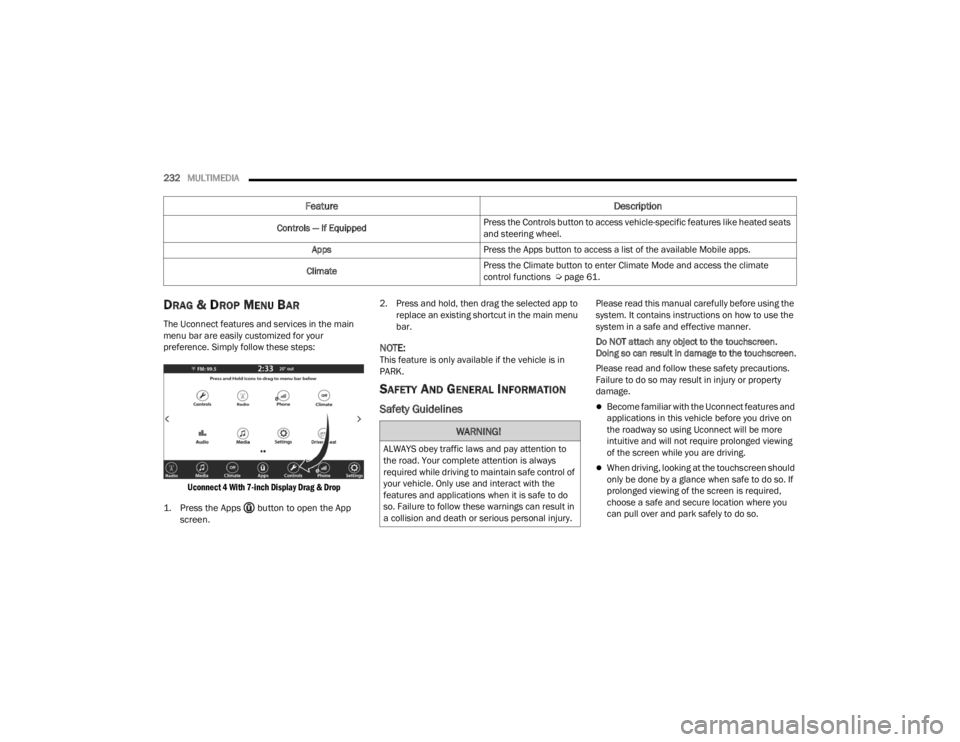
DRAG & DROP MENU BAR
The Uconnect features and services in the main
menu bar are easily customized for your
preference. Simply follow these steps:
Uconnect 4 With 7-inch Display Drag & Drop
1. Press the Apps button to open the App screen.
2. Press and hold, then drag the selected app to
replace an existing shortcut in the main menu
bar.
NOTE:This feature is only available if the vehicle is in
PARK.
SAFETY AND GENERAL INFORMATION
Safety Guidelines
Please read this manual carefully before using the
system. It contains instructions on how to use the
system in a safe and effective manner.
Do NOT attach any object to the touchscreen.
Doing so can result in damage to the touchscreen.
Please read and follow these safety precautions.
Failure to do so may result in injury or property
damage.
Become familiar with the Uconnect features and
applications in this vehicle before you drive on
the roadway so using Uconnect will be more
intuitive and will not require prolonged viewing
of the screen while you are driving.
When driving, looking at the touchscreen should
only be done by a glance when safe to do so. If
prolonged viewing of the screen is required,
choose a safe and secure location where you
can pull over and park safely to do so.
Feature Description
Controls — If EquippedPress the Controls button to access vehicle-specific features like heated seats
and steering wheel.
Apps Press the Apps button to access a list of the available Mobile apps.
Climate Press the Climate button to enter Climate Mode and access the climate
control functions Ú
page 61.
WARNING!
ALWAYS obey traffic laws and pay attention to
the road. Your complete attention is always
required while driving to maintain safe control of
your vehicle. Only use and interact with the
features and applications when it is safe to do
so. Failure to follow these warnings can result in
a collision and death or serious personal injury.
23_JT_OM_EN_USC_t.book Page 232
Page 235 of 448
MULTIMEDIA233
Stop use immediately if a problem occurs.
Failure to do so may cause injury or damage to
the product. See an authorized dealer for repair.
Ensure the volume level of the system is set to a
level that still allows you to hear outside traffic
and emergency vehicles.
Safe Usage Of The Uconnect System
The Uconnect system is a sophisticated elec -
tronic device. Do not let young children use the
system.
Permanent hearing loss may occur if you play
your music or sound system at loud volumes.
Exercise caution when setting the volume on the
system.
Keep drinks, rain and other sources of moisture
away from the system. Besides damage to the
system, moisture can cause electric shocks as
with any electronic device.
NOTE:Many features of this system are speed
dependent. For your own safety, it is not possible to
use some of the touchscreen features while the
vehicle is in motion.
Care And Maintenance
Do not press the touchscreen with any hard or
sharp objects (pen, USB stick, jewelry, etc.),
which could scratch the surface.
Do not spray any liquid or chemicals directly on
the screen! Use a clean and dry microfiber lens
cleaning cloth in order to clean the touchscreen.
If necessary, use a lint-free cloth dampened
with a cleaning solution, such as isopropyl
alcohol or an isopropyl alcohol and water solu -
tion ratio of 50:50. Be sure to follow the solvent
manufacturer's precautions and directions
Ú page 432.
UCONNECT MODES
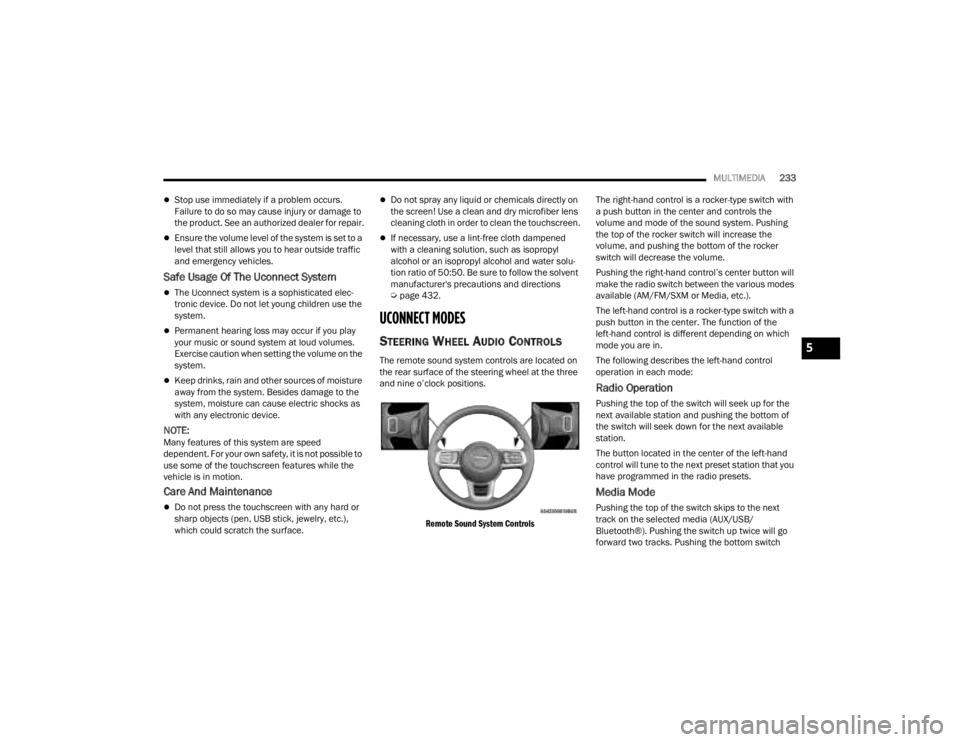
STEERING WHEEL AUDIO CONTROLS
The remote sound system controls are located on
the rear surface of the steering wheel at the three
and nine o’clock positions.
Remote Sound System Controls
The right-hand control is a rocker-type switch with
a push button in the center and controls the
volume and mode of the sound system. Pushing
the top of the rocker switch will increase the
volume, and pushing the bottom of the rocker
switch will decrease the volume.
Pushing the right-hand control’s center button will
make the radio switch between the various modes
available (AM/FM/SXM or Media, etc.).
The left-hand control is a rocker-type switch with a
push button in the center. The function of the
left-hand control is different depending on which
mode you are in.
The following describes the left-hand control
operation in each mode:
Radio Operation
Pushing the top of the switch will seek up for the
next available station and pushing the bottom of
the switch will seek down for the next available
station.
The button located in the center of the left-hand
control will tune to the next preset station that you
have programmed in the radio presets.
Media Mode
Pushing the top of the switch skips to the next
track on the selected media (AUX/USB/
Bluetooth®). Pushing the switch up twice will go
forward two tracks. Pushing the bottom switch
5
23_JT_OM_EN_USC_t.book Page 233
Page 236 of 448
234MULTIMEDIA
goes to the beginning of the current track, or the
beginning of the previous track if it is within eight
seconds after the current track begins to play.
Double pressing the bottom button switch will skip
to the previous track if it is after eight seconds into
the current track.
RADIO MODE
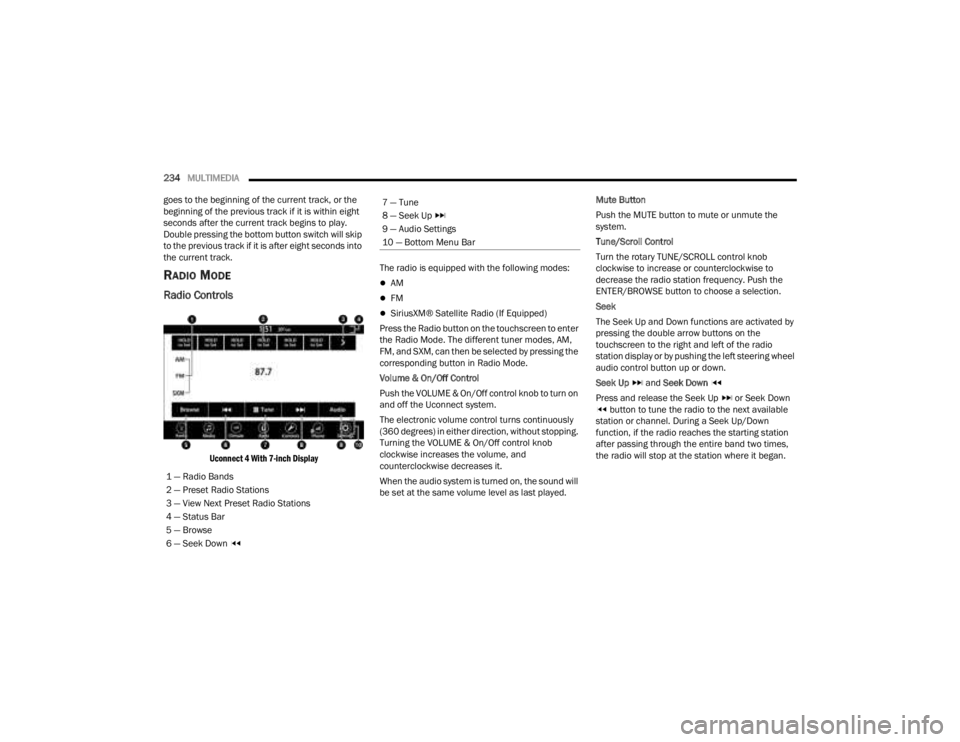
Radio Controls
Uconnect 4 With 7-inch Display
The radio is equipped with the following modes:
AM
FM
SiriusXM® Satellite Radio (If Equipped)
Press the Radio button on the touchscreen to enter
the Radio Mode. The different tuner modes, AM,
FM, and SXM, can then be selected by pressing the
corresponding button in Radio Mode.
Volume & On/Off Control
Push the VOLUME & On/Off control knob to turn on
and off the Uconnect system.
The electronic volume control turns continuously
(360 degrees) in either direction, without stopping.
Turning the VOLUME & On/Off control knob
clockwise increases the volume, and
counterclockwise decreases it.
When the audio system is turned on, the sound will
be set at the same volume level as last played. Mute Button
Push the MUTE button to mute or unmute the
system.
Tune/Scroll Control
Turn the rotary TUNE/SCROLL control knob
clockwise to increase or counterclockwise to
decrease the radio station frequency. Push the
ENTER/BROWSE button to choose a selection.
Seek
The Seek Up and Down functions are activated by
pressing the double arrow buttons on the
touchscreen to the right and left of the radio
station display or by pushing the left steering wheel
audio control button up or down.
Seek Up
and Seek Down
Press and release the Seek Up or Seek Down button to tune the radio to the next available
station or channel. During a Seek Up/Down
function, if the radio reaches the starting station
after passing through the entire band two times,
the radio will stop at the station where it began.
1 — Radio Bands
2 — Preset Radio Stations
3 — View Next Preset Radio Stations
4 — Status Bar
5 — Browse
6 — Seek Down
7 — Tune
8 — Seek Up
9 — Audio Settings
10 — Bottom Menu Bar
23_JT_OM_EN_USC_t.book Page 234
Page 237 of 448
MULTIMEDIA235
Fast Seek Up and Fast Seek Down
Press and hold, and then release the Seek Up
or Seek Down button to advance the radio
through the available stations or channels at a
faster rate. The radio stops at the next available
station or channel when the button on the
touchscreen is released.
NOTE:Pressing and holding either the Seek Up or
Seek Down button will scan the different
frequency bands at a slower rate.
Direct Tune
Press the Tune button located at the bottom of the
radio screen to directly tune to a desired radio
station or channel.
Press the available number button on the
touchscreen to begin selecting a desired station.
Once a number has been entered, any numbers
that are no longer possible (stations that cannot be
reached) will become deactivated/grayed out.
Undo
You can backspace an entry by pressing the
Back button on the touchscreen.
GO
Once the last digit of a station has been entered,
press “Ok”. The Direct Tune screen will close, and
the system will automatically tune to that station.
RADIO VOICE COMMANDS
Use your voice to quickly get to the AM, FM, or
SiriusXM® Satellite Radio stations you would like
to hear. (Subscription or included SiriusXM®
Satellite Radio trial required.)
Push the VR button on the steering wheel and
wait for the beep to say a command. See an
example:
“ Tune to ninety-five-point-five FM”
“Tune to Satellite Channel Hits 1”
Did You Know: At any time, if you are not sure of
what to say or want to learn a Voice Command,
push the VR button and say “ Help”. The system
provides you with a list of commands.
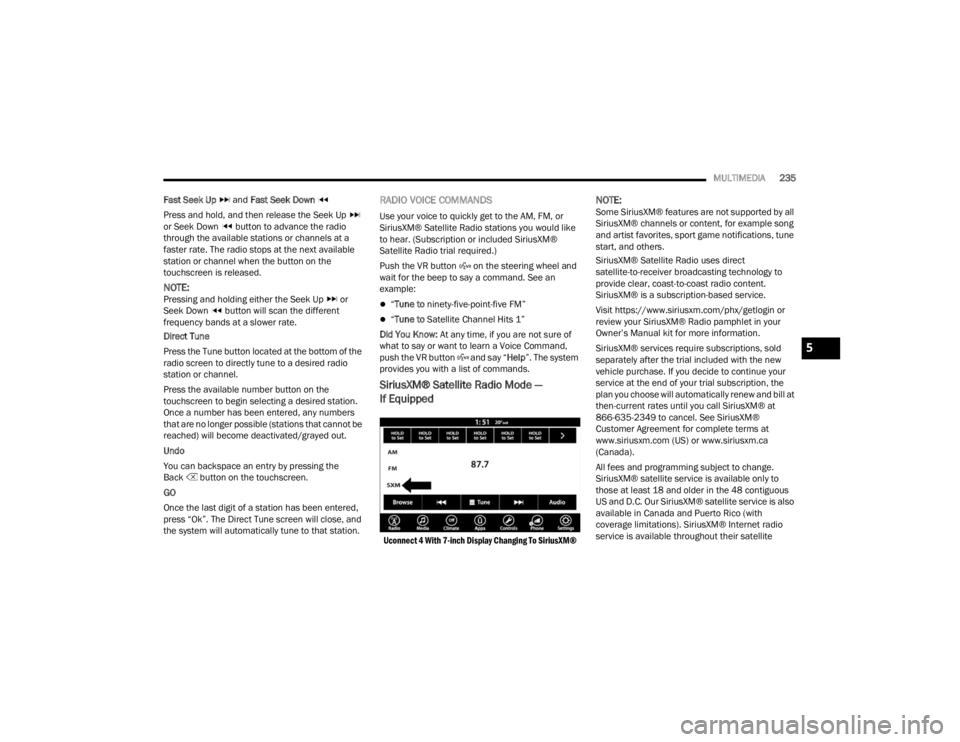
SiriusXM® Satellite Radio Mode —
If Equipped
Uconnect 4 With 7-inch Display Changing To SiriusXM®
NOTE:Some SiriusXM® features are not supported by all
SiriusXM® channels or content, for example song
and artist favorites, sport game notifications, tune
start, and others.
SiriusXM® Satellite Radio uses direct
satellite-to-receiver broadcasting technology to
provide clear, coast-to-coast radio content.
SiriusXM® is a subscription-based service.
Visit https://www.siriusxm.com/phx/getlogin or
review your SiriusXM® Radio pamphlet in your
Owner’s Manual kit for more information.
SiriusXM® services require subscriptions, sold
separately after the trial included with the new
vehicle purchase. If you decide to continue your
service at the end of your trial subscription, the
plan you choose will automatically renew and bill at
then-current rates until you call SiriusXM® at
866-635-2349 to cancel. See SiriusXM®
Customer Agreement for complete terms at
www.siriusxm.com (US) or www.siriusxm.ca
(Canada).
All fees and programming subject to change.
SiriusXM® satellite service is available only to
those at least 18 and older in the 48 contiguous
US and D.C. Our SiriusXM® satellite service is also
available in Canada and Puerto Rico (with
coverage limitations). SiriusXM® Internet radio
service is available throughout their satellite
5
23_JT_OM_EN_USC_t.book Page 235
Page 246 of 448

244MULTIMEDIA
Info
In USB Mode, press the Info button on the
touchscreen to display the current track
information. Press the Info or X button on the
touchscreen a second time to cancel this feature.
Tracks
In USB Mode, press the Tracks button on the
touchscreen to display a pop-up with the Song List.
The song currently playing is indicated by an arrow
and lines above and below the song title. When in
the Tracks List screen you can rotate the TUNE/
SCROLL knob to highlight a track (indicated by the
line above and below the track name) and then
push the ENTER/BROWSE knob to start playing
that track.
In Bluetooth® Mode, if the Bluetooth® device
supports this feature, press the Tracks button on
the touchscreen to display a pop-up with the Song
List. The currently playing song is indicated by a red
arrow and lines above and below the song title.
Pressing the Tracks button on the touchscreen
while the pop-up is displayed will close the pop-up.
MEDIA VOICE COMMANDS
Uconnect offers connections via USB, Bluetooth®,
and auxiliary (AUX) ports. Voice operation is only
available for connected USB and AUX devices. Push the VR button located on the steering
wheel. After the beep, say one of the following
commands and follow the prompts to switch your
media source or choose an artist:
“
Change source to Bluetooth®”
“Change source to AUX”
“Change source to USB”
“Play artist Beethoven”; “ Play album Greatest
Hits”; “ Play song Moonlight Sonata”; “ Play genre
Classical”
Did You Know: Press the Browse button on the
touchscreen to see all of the music on your USB
device. Your Voice Command must match exactly
how the artist, album, song, and genre information
is displayed.
PHONE MODE
Overview
Uconnect Phone is a voice-activated, hands-free,
in-vehicle communications system. It allows you to
dial a phone number with your mobile phone.
The feature supports the following:
Voice Activated Features
Hands-Free dialing via Voice (“Call John Smith
Mobile” or “Dial 248-555-1212”).
Hands-Free text-to-speech listening of your
incoming SMS messages.
Hands-Free Text Message Replying: Forward
one of 18 predefined SMS messages to
incoming calls/text messages.
Redialing last dialed numbers (“Redial”).
Calling Back the last incoming call number
(“Call Back”).
Viewing call logs on screen (“Show Incoming
Calls,” “Show Outgoing Calls,” “Show Missed
Calls,” or “Show Recent Calls”).
Searching Contacts phone number (“Search for
John Smith Mobile”).
Screen Activated Features
Dialing via Keypad using touchscreen.
Viewing and Calling contacts from Phonebooks
displayed on the touchscreen.
Setting Favorite Contact phone numbers so they
are easily accessible on the Main Phone screen.
Viewing and Calling contacts from Recent Call
logs.
Reviewing your recent Incoming SMS
Messages.
Pairing up to 10 phones/audio devices for easy
access to connect to them quickly.
NOTE:Your phone must be capable of SMS messaging via
Bluetooth® for messaging features to work
properly.
23_JT_OM_EN_USC_t.book Page 244
Page 247 of 448
MULTIMEDIA245
Your mobile phone’s audio is transmitted through
your vehicle’s audio system; the system will
automatically mute your radio when using the
Uconnect Phone.
For Uconnect customer support:
US visit UconnectPhone.com or call 877-855-8400
Canada visit UconnectPhone.com or call
800-465-2001 (English) or (French) call
800-387-9983
Uconnect Phone allows you to transfer calls
between the system and your mobile phone as you
enter or exit your vehicle and enables you to mute
the system's microphone for private conversation.
The Phone feature is driven through your
Bluetooth® “Hands-Free Profile” mobile phone.
Uconnect features Bluetooth® technology — the
global standard that enables different electronic
devices to connect to each other without wires or a docking station. Ensure you phone is turned on with
Bluetooth® active and has been paired to the
Uconnect system. Up to 10 mobile phones or audio
devices are allowed to be linked to the system. Only
one linked (or paired) mobile phone and one audio
device can be used with the system at a time.
Phone Button
The Phone button on your steering wheel
is used to get into the Phone Mode and
make calls, show recent, incoming or
outgoing calls, view phonebook, etc.
When you push the button you will hear a BEEP.
The BEEP is your signal to give a command.
Voice Command Button
The Voice Command button on your
steering wheel is only used for “barge in”
and when you are already in a call or
want to make another call.
The button on your steering wheel is also used to
access the Voice Commands for the Uconnect Voice
Command features if your vehicle is equipped.
Phone Operation
OPERATION
Voice commands can be used to operate the
Uconnect Phone and to navigate its menu
structure. Voice commands are required after
most Uconnect Phone prompts. There are two
general methods for how Voice Command works:
1. Say compound commands like “Call John
Smith mobile”.
2. Say the individual commands and allow the system to guide you to complete the task.
You will be prompted for a specific command and
then guided through the available options.
Prior to giving a voice command, one must wait
for the beep, which follows the “Listen” prompt
or another prompt.
For certain operations, compound commands
can be used. For example, instead of saying
“Call” and then “John Smith” and then “mobile”,
the following compound command can be said:
“Call John Smith mobile.”
For each feature explanation in this section,
only the compound command form of the voice
command is given. You can also break the
commands into parts and say each part of the
command when you are asked for it. For
example, you can use the compound command
form voice command “Search for John Smith,”
or you can break the compound command form
into two voice commands: “Search Contacts”
and when asked, “John Smith.” Please
remember, the Uconnect Phone works best
when you talk in a normal conversational tone,
as if speaking to someone sitting a few feet/
meters away from you.WARNING!
ALWAYS drive safely with your hands on the
steering wheel. You have full responsibility and
assume all risks related to the use of the
Uconnect features and applications in this vehi -
cle. Only use Uconnect when it is safe to do so.
Failure to do so may result in an accident involv -
ing serious injury or death.
5
23_JT_OM_EN_USC_t.book Page 245
Page 248 of 448
246MULTIMEDIA
NATURAL SPEECH
Your Uconnect Phone Voice system uses a Natural
Language Voice Recognition (VR) engine.
Natural speech allows the user to speak
commands in phrases or complete sentences. The
system filters out certain non-word utterances and
sounds such as “ah” and “eh.” The system handles
fill-in words such as “I would like to”.
The system handles multiple inputs in the same
phrase or sentence such as “make a phone call”
and “to Kelly Smith”. For multiple inputs in the
same phrase or sentence, the system identifies
the topic or context and provides the associated
follow-up prompt such as “Who do you want to
call?” in the case where a phone call was
requested but the specific name was not
recognized.
The system utilizes continuous dialog. When the
system requires more information from the user, it
will ask a question to which the user can respond
without pushing the Voice Command button on the
steering wheel.
HELP COMMAND
If you need assistance at any prompt, or if you want
to know your options at any prompt, say “Help”
following the beep. To activate the Uconnect Phone from idle, simply
push the Phone button (if active) on your steering
wheel and say a command or say “Help”. All Phone
sessions begin with a push of the VR button or the
Phone button.
CANCEL COMMAND
At any prompt, after the beep, you can say “Cancel”
and you will be returned to the main menu.
You can also push the VR button or Phone button
on your steering wheel when the system is listening
for a command and be returned to the main or
previous menu.
PAIR (LINK) UCONNECT PHONE TO A MOBILE
PHONE
Use this QR code to access your
digital experience.
To begin using your Uconnect
Phone, you must pair your
compatible Bluetooth®-enabled
mobile phone. Mobile phone
pairing is the process of
establishing a wireless connection between a
cellular phone and the Uconnect system.
To complete the pairing process, you will need to
reference your mobile phone’s manual. Please
visit UconnectPhone.com for complete mobile
phone compatibility information.
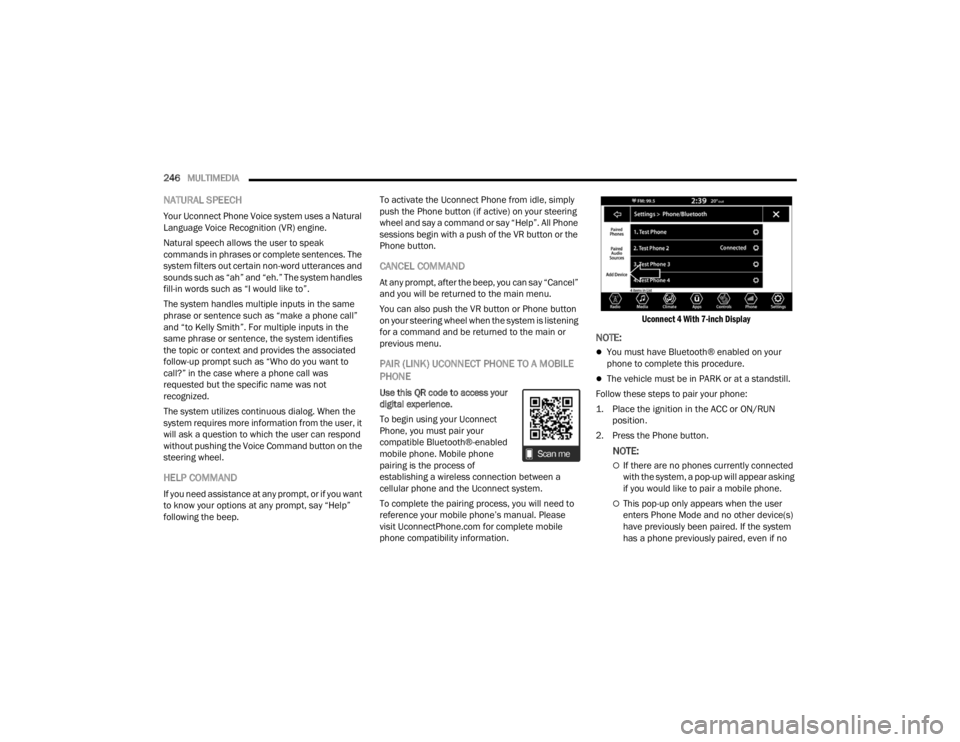
Uconnect 4 With 7-inch Display
NOTE:
You must have Bluetooth® enabled on your
phone to complete this procedure.
The vehicle must be in PARK or at a standstill.
Follow these steps to pair your phone:
1. Place the ignition in the ACC or ON/RUN position.
2. Press the Phone button.
NOTE:
If there are no phones currently connected
with the system, a pop-up will appear asking
if you would like to pair a mobile phone.
This pop-up only appears when the user
enters Phone Mode and no other device(s)
have previously been paired. If the system
has a phone previously paired, even if no
23_JT_OM_EN_USC_t.book Page 246