wheel JEEP GLADIATOR 2023 Repair Manual
[x] Cancel search | Manufacturer: JEEP, Model Year: 2023, Model line: GLADIATOR, Model: JEEP GLADIATOR 2023Pages: 448, PDF Size: 17.37 MB
Page 252 of 448
250MULTIMEDIA
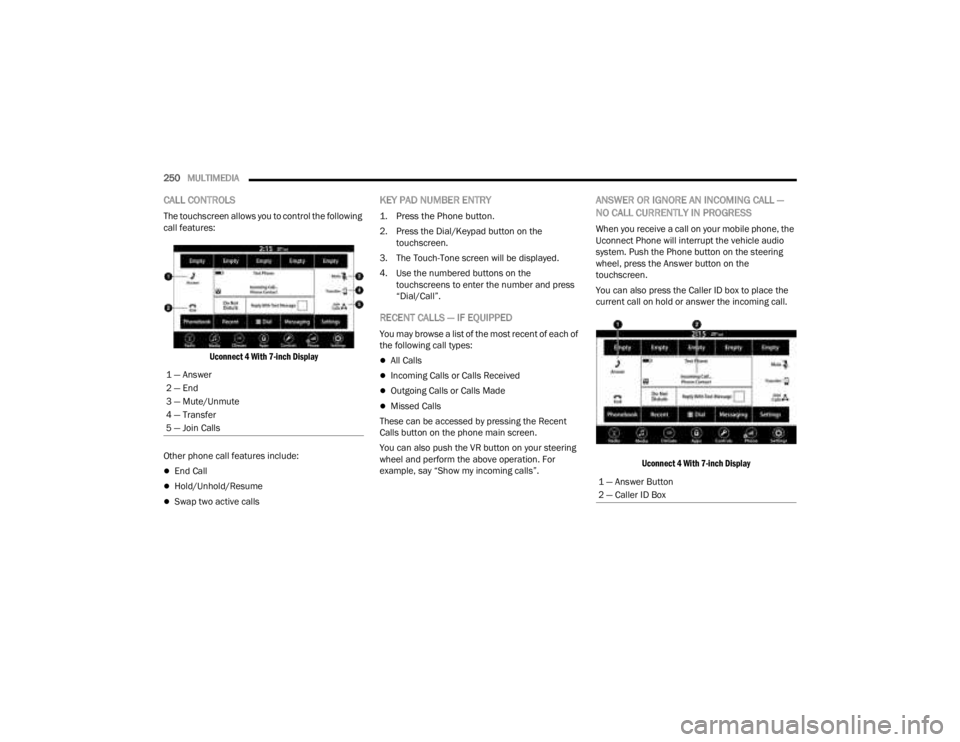
CALL CONTROLS
The touchscreen allows you to control the following
call features:
Uconnect 4 With 7-inch Display
Other phone call features include:
End Call
Hold/Unhold/Resume
Swap two active calls
KEY PAD NUMBER ENTRY
1. Press the Phone button.
2. Press the Dial/Keypad button on the touchscreen.
3. The Touch-Tone screen will be displayed.
4. Use the numbered buttons on the touchscreens to enter the number and press
“Dial/Call”.
RECENT CALLS — IF EQUIPPED
You may browse a list of the most recent of each of
the following call types:
All Calls
Incoming Calls or Calls Received
Outgoing Calls or Calls Made
Missed Calls
These can be accessed by pressing the Recent
Calls button on the phone main screen.
You can also push the VR button on your steering
wheel and perform the above operation. For
example, say “Show my incoming calls”.
ANSWER OR IGNORE AN INCOMING CALL —
NO CALL CURRENTLY IN PROGRESS
When you receive a call on your mobile phone, the
Uconnect Phone will interrupt the vehicle audio
system. Push the Phone button on the steering
wheel, press the Answer button on the
touchscreen.
You can also press the Caller ID box to place the
current call on hold or answer the incoming call.
Uconnect 4 With 7-inch Display
1 — Answer
2 — End
3 — Mute/Unmute
4 — Transfer
5 — Join Calls
1 — Answer Button
2 — Caller ID Box
23_JT_OM_EN_USC_t.book Page 250
Page 253 of 448
MULTIMEDIA251
ANSWER OR IGNORE AN INCOMING CALL —
CALL CURRENTLY IN PROGRESS
If a call is currently in progress and you have
another incoming call, you will hear the same
network tones for call waiting that you normally
hear when using your mobile phone. Push the
Phone button on the steering wheel, press the
Answer button on the touchscreen, or press the
Caller ID box to place the current call on hold and
answer the incoming call.
NOTE:Phones that are compatible with the Uconnect
system in the market today do not support
rejecting an incoming call when another call is in
progress. Therefore, the user can only answer an
incoming call or ignore it.
DO NOT DISTURB
With Do Not Disturb, you can disable notifications
from incoming calls and texts, allowing you to keep
your eyes on the road and hands on the wheel. For
your convenience, there is a counter display to
keep track of your missed calls and text messages
while Do Not Disturb is active.
Do Not Disturb can automatically reply with a text
message, a call, or both when declining an
incoming call and send it to voicemail. Automatic reply messages can be:
“I am driving right now, I will get back to you
shortly”.
Create a custom auto reply message up to
160 characters.
NOTE:Only the first 25 characters can be seen on the
touchscreen while typing a custom message.
While in Do Not Disturb, “Conference Call” can be
selected so you can still place a second call
without being interrupted by incoming calls.
NOTE:
Reply with text message is not compatible with
iPhone® devices.
Auto reply with text message is only available on
phones that support Bluetooth® Message
Access Profile (MAP).
PLACE/RETRIEVE A CALL FROM HOLD
During an active call, press the Hold or Call On Hold
button on the Phone main screen.
MAKING A SECOND CALL WHILE CURRENT
CALL IS IN PROGRESS
You can place a call on hold by pressing the Hold
button on the Phone main screen, then dial a
number from the keypad (if supported by your
mobile phone), recent calls, SMS Inbox or from the
phonebooks.
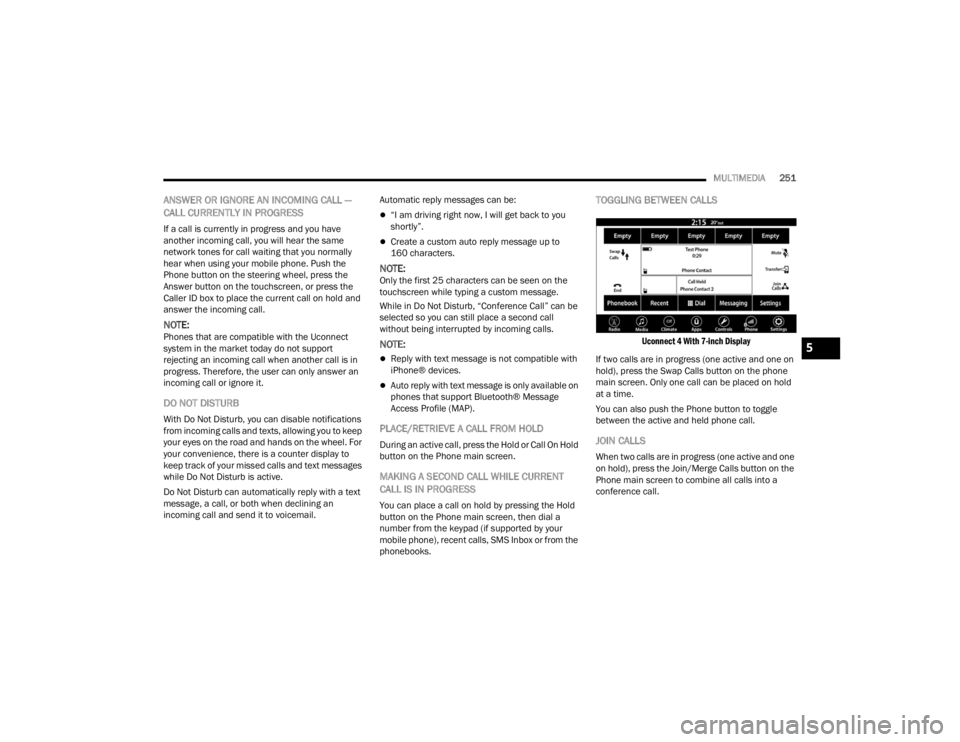
TOGGLING BETWEEN CALLS
Uconnect 4 With 7-inch Display
If two calls are in progress (one active and one on
hold), press the Swap Calls button on the phone
main screen. Only one call can be placed on hold
at a time.
You can also push the Phone button to toggle
between the active and held phone call.
JOIN CALLS
When two calls are in progress (one active and one
on hold), press the Join/Merge Calls button on the
Phone main screen to combine all calls into a
conference call.
5
23_JT_OM_EN_USC_t.book Page 251
Page 254 of 448

252MULTIMEDIA
CALL TERMINATION
To end a call in progress, momentarily press the
End Call button on the touchscreen or the Phone
End button on the steering wheel. Only the active
call(s) will be terminated and if there is a call on
hold, it will become the new active call.
REDIAL
Push the VR button and after the
“Listening” prompt and the following
beep, say “Redial.”
The Uconnect Phone will call the last number that
was dialed from your mobile phone.
CALL CONTINUATION
Call continuation is the progression of a phone call
on the Uconnect Phone after the vehicle ignition
has been switched to OFF.
NOTE:The call will remain within the vehicle audio system
until the phone becomes out of range for the
Bluetooth® connection. It is recommended to
press the Transfer button on the touchscreen
when leaving the vehicle.
Advanced Phone Connectivity
TRANSFER CALL TO AND FROM MOBILE
PHONE
The Uconnect Phone allows ongoing calls to be
transferred from your mobile phone without
terminating the call. To transfer an ongoing call
from your connected mobile phone to the
Uconnect Phone or vice versa, press the Transfer
button on the Phone main screen.
Things You Should Know About Uconnect
Phone
VOICE COMMAND
For the best performance:
Always wait for the beep before speaking
Speak normally, without pausing, just as you
would speak to a person sitting a few feet/
meters away from you
Ensure that no one other than you is speaking
during a voice command period
Low-To-Medium Blower Setting
Low-To-Medium Vehicle Speed
Low Road Noise
Smooth Road Surface
Fully Closed Windows
Dry Weather Conditions Even though the system is designed for many
languages and accents, the system may not always
work for some.
NOTE:It is recommended that you do not store names in
your Favorites phonebook while the vehicle is in
motion.
Number and name recognition rate is optimized
when the entries are not similar. You can say “O”
(letter “O”) for “0” (zero).
Even though international dialing for most number
combinations is supported, some shortcut dialing
number combinations may not be supported.
Audio Performance
Audio quality is maximized under:
Low-To-Medium Blower Setting
Low-To-Medium Vehicle Speed
Low Road Noise
WARNING!
ALWAYS drive safely with your hands on the
wheel. You have full responsibility and assume
all risks related to the use of the Uconnect
features and applications in this vehicle. Only
use Uconnect when it is safe to do so. Failure to
do so may result in an accident involving serious
injury or death.
23_JT_OM_EN_USC_t.book Page 252
Page 256 of 448
254MULTIMEDIA
SIRI® EYES FREE — IF EQUIPPED
When used with your Apple® iPhone® connected
to your vehicle via Bluetooth®, Siri lets you use
your voice to send text messages, select media,
place phone calls and much more. Siri uses your
natural language to understand what you mean
and responds back to confirm your requests. The
system is designed to keep your eyes on the road
and your hands on the wheel by letting Siri help you
perform useful tasks.
To enable Siri, push and hold, then release the
Uconnect Voice Recognition (VR) button on the
steering wheel. After you hear a double beep, you
can ask Siri to play podcasts and music, get
directions, read text messages, and many other
useful requests.
BLUETOOTH® COMMUNICATION LINK
Mobile phones may lose connection to the
Uconnect Phone. When this happens, the
connection can generally be re-established by
restarting the mobile phone. Your mobile phone is
recommended to remain in Bluetooth® ON mode.
POWER-UP
After switching the ignition key from OFF to either
the ON/RUN or ACC position, or after a language
change, you must wait at least 15 seconds prior to
using the system Ú page 432.
ANDROID AUTO™ & APPLE CARPLAY® —
IF EQUIPPED
ANDROID AUTO™
Use this QR code to access your
digital experience.
Android Auto™ is a feature of your
Uconnect system, and your
Android™ 6.0 or higher powered
smartphone with a data plan, that
allows you to project your
smartphone and a number of its apps onto the
touchscreen radio display. Android Auto™ brings
you useful information, and organizes it into simple
cards that appear just when they are needed.
Android Auto™ can be used with speech
technology, the steering wheel controls, the knobs
and buttons on your radio faceplate, and the radio
display’s touchscreen to control many of your
apps. To use Android Auto™, perform the following
procedure:
NOTE:Feature availability depends on your carrier and
mobile phone manufacturer. Some Android Auto™
features may or may not be available in every
region and/or language.
1. Download the Android Auto™ app from the
Google Play store on your Android™-powered
smartphone.
2. Connect your Android™-powered smartphone to one of the media USB ports in your vehicle.
If the Android Auto™ app was not downloaded,
the first time you plug your device in the app
begins to download. Your vehicle should be in
PARK the first time you use the app.
NOTE:Be sure to use the factory-provided USB cable that
came with your phone, as aftermarket cables may
not work.
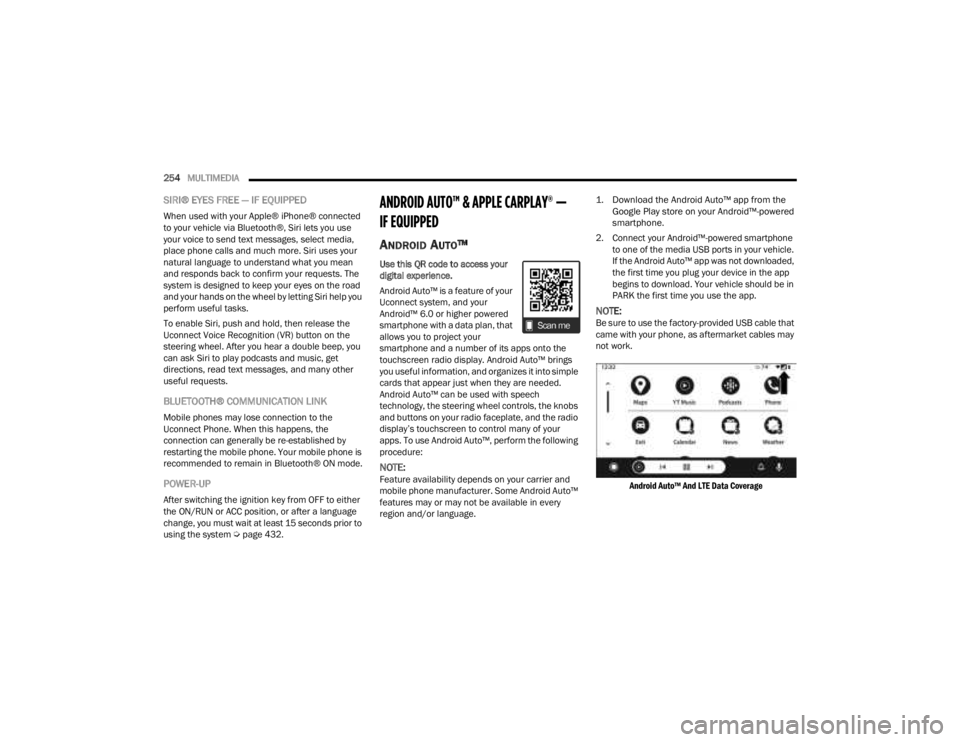
Android Auto™ And LTE Data Coverage
23_JT_OM_EN_USC_t.book Page 254
Page 257 of 448
MULTIMEDIA255
NOTE:To use Android Auto™, make sure you are in an
area with cellular coverage. Android Auto™ may
use cellular data and your cellular coverage is
shown in the upper right corner of the radio screen.
Data plan rates apply.
3. Once the device is connected and recognized,
the Phone icon on the drag & drop menu bar
changes to the Android Auto™ icon.
NOTE:Android Auto™ is set to launch immediately once a
compatible device is connected. You can also
launch it by pressing the Android Auto™ icon on the
touchscreen.
Once Android Auto™ is up and running on your
Uconnect system, the following features can be
utilized using your smartphone’s data plan:
Google Maps™ for navigation
YouTube Music, Spotify, iHeart Radio, etc. for
music
Hands-free calling and texting for communica -
tion
Various compatible apps
Maps
Push and hold the Voice Recognition (VR)
button on the steering wheel until the
beep or tap the Microphone icon to ask
Google to take you to a desired destination by voice. You can also touch the Navigation icon in
Android Auto™ to access other navigation apps.
While using Android Auto™, Google Maps™
provides voice-guided:
Navigation
Live traffic information
Lane guidance
For further information, refer to www.android.com/
auto (US) or https://www.android.com/intl/
en_ca/auto (Canada).
For further information on the navigation function,
please refer to https://support.google.com/
android or https://support.google.com/
androidauto.
Music
Android Auto™ allows you to access and
stream your favorite music with apps like
YouTube Music, iHeartRadio, and Spotify.
Using your smartphone’s data plan, you
can stream endless music on the road.
NOTE:Music apps, playlists, and stations must be set up
on your smartphone prior to using Android Auto™
for them to work with Android Auto™.
NOTE:To see the track details for the music playing
through Android Auto™, select the Uconnect
system’s media screen. For further information, refer to https://
support.google.com/androidauto.
Communication
With Android Auto™ connected, push and
hold the VR button on the steering wheel
to activate voice recognition specific to
Android Auto™. This allows you to send
and reply to text messages, have incoming text
messages read out loud, and place and receive
hands-free calls.
Apps
The Android Auto™ App displays all the compatible
apps that are available to use with Android Auto™,
every time it is launched. You must have the
compatible app downloaded, and you must be
signed in to the app through your mobile device for
it to work with Android Auto™.
Refer to https://play.google.com/store/apps to
see the latest list of available apps for Android
Auto™.
Android Auto™ Voice Command
NOTE:Feature availability depends on your carrier and
mobile phone manufacturer. Some Android Auto™
features may or may not be available in every
region and/or language.
5
23_JT_OM_EN_USC_t.book Page 255
Page 258 of 448
256MULTIMEDIA
Android Auto™ allows you to use your voice to
interact with its best-in-class speech technology
through your vehicle’s voice recognition system,
and use your smartphone’s data plan to project
your Android™-powered smartphone and a
number of its apps onto your Uconnect
touchscreen. Connect your Android™ 6.0 or higher
to one of the media USB ports, using the
factory-provided USB cable, and press the new
Android Auto™ icon that replaces your Phone icon
on the main menu bar to begin Android Auto™.
Push and hold the VR button on the steering wheel,
or press and hold the Microphone icon within
Android Auto™, to activate its VR, which recognizes
natural voice commands, to use a list of your
smartphone’s features:
Maps
Music
Phone
Text Messages
Additional Apps
NOTE:
To use Android Auto™ on your car display, you’ll
need an Android™ phone running Android™ 6.0
or higher, an active data plan, and the Android
Auto™ app.
To wirelessly use Android Auto™ on your car
display, you need a compatible Android™ smart -
phone with an active data plan. You can check which smartphones are compatible at g.co/
androidauto/requirements.
Android™ is a trademark of Google Inc.
APPLE CARPLAY®
Use this QR code to access your
digital experience.
Uconnect works seamlessly with
Apple CarPlay®, the smarter,
more secure way to use your
iPhone® in the car, and stay
focused on the road. Use your
Uconnect Touchscreen display, the vehicle's knobs
and controls, and your voice with Siri to get access
to Apple Music®, Maps, Messages, and more.
NOTE:Feature availability depends on your carrier and
mobile phone manufacturer. Some Apple
CarPlay® features may or may not be available in
every region and/or language.
To use Apple CarPlay®, make sure you are using
iPhone® 5 or later, have Siri enabled in Settings,
ensure your iPhone® is unlocked for the very first
connection only, and then use the following
procedure:
1. Connect your iPhone® to one of the media USB ports in your vehicle.
NOTE:Be sure to use the factory-provided Lightning cable
that came with your phone, as aftermarket cables
may not work.
2. Once the device is connected and recognized, the Phone icon on the drag & drop menu bar
changes to the Apple CarPlay® Icon.
NOTE:Apple CarPlay® is set to launch immediately. You
can also launch it by pressing the Apple CarPlay®
icon on the touchscreen.
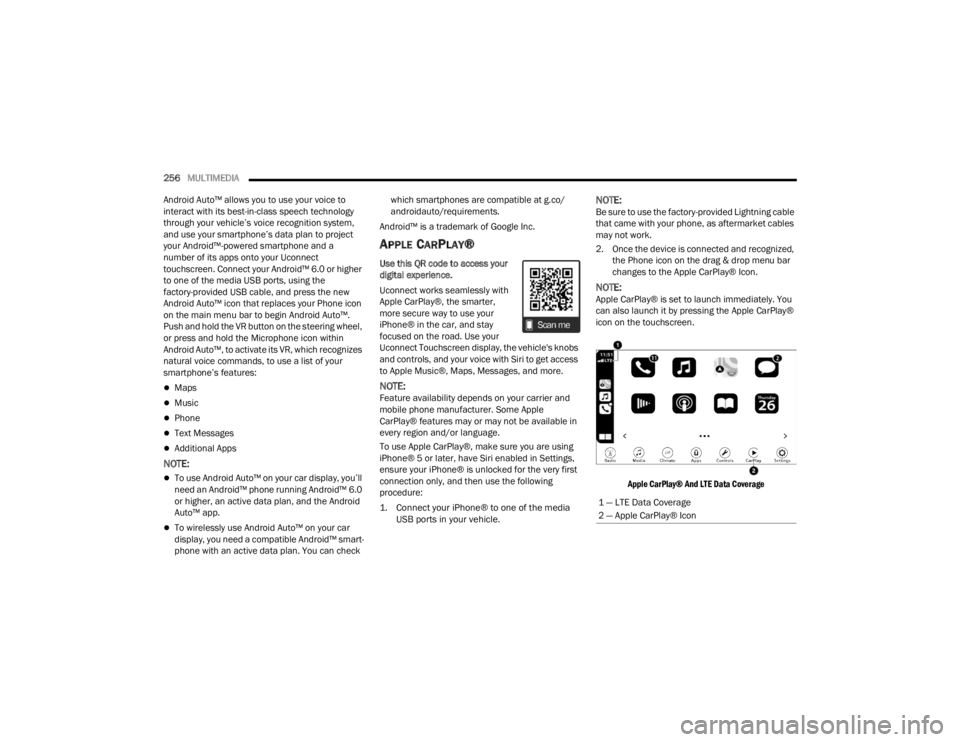
Apple CarPlay® And LTE Data Coverage
1 — LTE Data Coverage
2 — Apple CarPlay® Icon
23_JT_OM_EN_USC_t.book Page 256
Page 259 of 448

MULTIMEDIA257
NOTE:To use Apple CarPlay®, make sure that cellular
data is turned on, and that you are in an area with
cellular coverage. Your data and cellular coverage
is shown on the left side of the radio screen. Data
plan rates apply.
Once Apple CarPlay® is up and running on your
Uconnect system, the following features can be
utilized using your iPhone® data plan:
Phone
Music
Messages
Maps
Phone
With Apple CarPlay®, push and hold the
VR button on the steering wheel to
activate a Siri voice recognition session.
You can also press and hold the Home
button within Apple CarPlay® to start talking to Siri.
This allows you to make calls or listen to voicemail
as you normally would using Siri on your iPhone®.
NOTE:Only temporarily pushing the VR button on the
steering wheel launches a built-in Uconnect VR
session, not a Siri session, and it will not function
with Apple CarPlay®.
Music
Apple CarPlay® allows you to access all
your artists, playlists, and music from
iTunes® or any third party application
installed on your device. Using your
iPhone® data plan, you can also use select third
party audio apps including music, news, sports,
podcasts, and more.
Messages
Push and hold the VR button on the
steering wheel to activate a Siri voice
recognition session. Apple CarPlay®
allows you to use Siri to send or reply to
text messages. Siri can also read incoming text
messages, but drivers will not be able to read
messages, as everything is done via voice.
Maps
Push and hold the VR button on the
steering wheel until the beep or tap the
Microphone icon to ask Apple® Siri to
take you to a desired destination by
voice. You can also touch the Navigation icon in
Apple CarPlay® to access Apple® Maps.
Apps
The Apple CarPlay® App plays all compatible apps
that are available to use, every time it is launched.
You must have the compatible app downloaded,
and you must be signed in to the app through your
mobile device for it to work with Apple CarPlay®. Refer to http://www.apple.com/ios/carplay (US) or
https://www.apple.com/ca/ios/carplay (Canada)
to see the latest list of available apps for Apple
CarPlay®.
Apple CarPlay® Voice Command
NOTE:Feature availability depends on your carrier and
mobile phone maker. Some Apple CarPlay®
features may not be available in every region and/
or language.
Apple CarPlay® allows you to use your voice to
interact with Siri through your vehicle’s voice
recognition system, and use your smartphone’s
data plan to project your iPhone® and a number of
its apps onto your Uconnect touchscreen. Connect
your iPhone® 5 or higher to one of the media USB
ports, using the factory-provided Lightning cable,
and press the new Apple CarPlay® icon that
replaces your Phone icon on the main menu bar to
begin Apple CarPlay®. Push and hold the VR
button on the steering wheel, or press and hold the
Home button within Apple CarPlay®, to activate
Siri, which recognizes natural voice commands to
use a list of your iPhone® features:
Phone
Music
Messages
Maps — If Equipped
Additional Apps — If Equipped
5
23_JT_OM_EN_USC_t.book Page 257
Page 270 of 448

268MULTIMEDIA
After you've made your purchase, turn on your
device’s Wi-Fi and connect your devices.
Enables all your passengers to be simultane -
ously connected to the web.
Connect several devices at one time.
Any Wi-Fi-enabled device — such as a laptop or
any other portable-enabled media — can
connect over your private in-vehicle network.
A high-speed, secured connection lets anyone
on your private network access the Web — great
for working and relaxing.
Create A 4G Wi-Fi Hotspot For Use In Your Vehicle
How It Works The 4G Wi-Fi Hotspot feature provides
the vehicle passengers with an internet
access hotspot in the vehicle, using the
radio as an access point. The hotspot will
allow Wi-Fi-enabled in-vehicle devices (such as a
laptop or any other portable-enabled media device) to wirelessly connect to the internet.
Uconnect offers a complimentary 3-month trial
period that includes 1GB of total data. The trial can
be activated any time within the first year of new
vehicle ownership.
Use one of these three ways to purchase a
subscription to the 4G Wi-Fi Hotspot:
1. From your vehicle’s touchscreen, select the
4G Wi-Fi Hotspot App, and press the How To
Purchase button and follow the instructions.
2. Log onto your Owner’s Site and click the link to the AT&T portal to get set up.
3. For existing Connected Car customers: Push
the ASSIST button to be routed to an AT&T
Customer Care agent who will assist you.
Once the 4G Wi-Fi Hotspot is purchased, you can
change its name and the password by selecting the
Wi-Fi Hotspot App and pressing the Setup Wi-Fi
Hotspot button. You can also view the connected
devices from the app screen by pressing the View
Connected Devices button.
NOTE:A SiriusXM Guardian™ subscription is not required
in order to purchase and use the 4G Wi-Fi Hotspot.
Stolen Vehicle Assistance — If Equipped
Description
If your vehicle is stolen, the SiriusXM Guardian™
Customer Care agent may be able to locate the
stolen vehicle and work with law enforcement to
help recover it.
How It Works
1. If your vehicle is stolen, contact local law enforcement as soon as possible. They will
work with you to file a stolen vehicle report.
2. Next, inform SiriusXM Guardian™ Customer Care that your vehicle has been stolen.
The SiriusXM Guardian™ Customer Care Agent
will ask for the stolen vehicle report number
(as issued by your local law enforcement). If
you have downloaded the Vehicle Branded
App, you can push the Settings menu button WARNING!
The driver should NEVER use the 4G Wi-Fi
Hotspot while driving the vehicle as doing so
may result in an accident involving serious injury
or death.
WARNING!
Always drive safely with your hands on the
steering wheel and obey all applicable laws. You
have full responsibility and assume all risks
related to the use of the features and
applications in this vehicle. Only use the
features and applications in this vehicle when it
is safe to do so. Failure to comply may result in
an accident involving in serious injury or death.
23_JT_OM_EN_USC_t.book Page 268
Page 281 of 448
279
(Continued)
SAFETY
SAFETY FEATURES
ANTI-LOCK BRAKE SYSTEM (ABS)
The ABS provides increased vehicle stability and
brake performance under most braking conditions.
The system automatically prevents wheel lock and
enhances vehicle control during braking.
The ABS performs a self-check cycle to ensure that
the ABS is working properly each time the vehicle
is started and driven. During this self-check, you
may hear a slight clicking sound, as well as some
related motor noises.
The ABS is activated during braking when the
system detects one or more wheels are beginning
to lock. Road conditions such as ice, snow, gravel,
bumps, railroad tracks, loose debris, or panic stops
may increase the likelihood of ABS activation(s).
You also may experience the following normal
characteristics when the ABS activates:
ABS motor noise or clicking sounds (you may
continue to hear for a short time after the stop)
Brake pedal pulsations
A slight drop of the brake pedal at the end of the
stop
NOTE:The ABS is designed to function with the Original
Equipment Manufacturer (OEM) tires. Modification
may result in degraded ABS performance.
Anti-Lock Brake System (ABS) Warning
Light
The yellow ABS Warning Light will turn on when the
ignition is placed in the ON/RUN mode and may
stay on for as long as four seconds.
If the ABS Warning Light remains on or comes on
while driving, it indicates that the anti-lock portion
of the brake system is not functioning and that
service is required. However, the conventional
brake system will continue to operate normally if
the ABS Warning Light is on.
WARNING!
The ABS contains sophisticated electronic
equipment that may be susceptible to interfer-
ence caused by improperly installed or high
output radio transmitting equipment. This
interference can cause possible loss of
anti-lock braking capability. Installation of
such equipment should be performed by qual -
ified professionals.
Pumping of the Anti-Lock Brakes will diminish
their effectiveness and may lead to a collision.
Pumping makes the stopping distance longer.
Just press firmly on your brake pedal when you
need to slow down or stop.
The ABS cannot prevent the natural laws of
physics from acting on the vehicle, nor can it
increase braking or steering efficiency beyond
that afforded by the condition of the vehicle
brakes and tires or the traction afforded.
The ABS cannot prevent collisions, including
those resulting from excessive speed in turns,
following another vehicle too closely, or hydro -
planing.
The capabilities of an ABS equipped vehicle
must never be exploited in a reckless or
dangerous manner that could jeopardize the
user’s safety or the safety of others.
WARNING!
6
23_JT_OM_EN_USC_t.book Page 279
Page 282 of 448

280SAFETY
If the ABS Warning Light is on, the brake system
should be serviced as soon as possible to restore
the benefits of Anti-Lock Brakes. If the ABS
Warning Light does not come on when the ignition
is placed in the ON/RUN mode, have the light
repaired as soon as possible.
ELECTRONIC BRAKE CONTROL (EBC)
S
YSTEM
Your vehicle is equipped with an advanced
Electronic Brake Control (EBC) system. This system
includes Anti-Lock Brake System (ABS), Brake
Assist System (BAS), Electronic Brake Force
Distribution (EBD), Electronic Roll Mitigation
(ERM), Electronic Stability Control (ESC), Hill Start
Assist (HSA), and Traction Control System (TCS).
These systems work together to enhance both
vehicle stability and control in various driving
conditions.
Your vehicle may also be equipped with Rain Brake
Support (RBS), Ready Alert Braking (RAB),
Selec-Speed Control (SSC), and Trailer Sway
Control (TSC).
Brake System Warning Light
The red Brake System Warning Light will turn on
when the ignition is placed in the ON/RUN mode,
and may stay on for as long as four seconds. If the Brake System Warning Light remains on or
comes on while driving, it indicates that the brake
system is not functioning properly and that
immediate service is required. If the Brake System
Warning Light does not come on when the ignition
is placed in the ON/RUN mode, have the light
repaired as soon as possible.
Brake Assist System (BAS)
The BAS is designed to optimize the vehicle’s
braking capability during emergency braking
maneuvers. The system detects an emergency
braking situation by sensing the rate and amount
of brake application, and then applies optimum
pressure to the brakes. This can help reduce
braking distances. The BAS complements the
Anti-Lock Brake System (ABS) by applying the
brakes very quickly, creating the most efficient
braking assistance possible. To receive the benefit
of the system, you must apply continuous braking
pressure during the stopping sequence (do not
“pump” the brakes). Do not reduce brake pedal
pressure unless braking is no longer desired. Once
the brake pedal is released, the BAS is
deactivated.
Electronic Brake Force Distribution (EBD)
The EBD function manages the distribution of the
braking torque between the front and rear axles by
limiting braking pressure to the rear axle. This is
done to prevent overslip of the rear wheels to avoid
vehicle instability, and to prevent the rear axle from
entering ABS before the front axle.
Electronic Roll Mitigation (ERM)
The ERM system anticipates the potential for
wheel lift by monitoring the driver’s steering wheel
input and the speed of the vehicle. When ERM
determines that the rate of change of the steering
wheel angle and vehicle’s speed are sufficient to
potentially cause wheel lift, it then applies the
appropriate brake and may also reduce engine
WARNING!
The Brake Assist System (BAS) cannot prevent
the natural laws of physics from acting on the
vehicle, nor can it increase the traction afforded
by prevailing road conditions. BAS cannot
prevent collisions, including those resulting from
excessive speed in turns, driving on very slippery
surfaces, or hydroplaning. The capabilities of a
BAS-equipped vehicle must never be exploited in
a reckless or dangerous manner, which could
jeopardize the user's safety or the safety of
others.
23_JT_OM_EN_USC_t.book Page 280