door lock JEEP GRAND CHEROKEE 2016 WK2 / 4.G Owner's Manual
[x] Cancel search | Manufacturer: JEEP, Model Year: 2016, Model line: GRAND CHEROKEE, Model: JEEP GRAND CHEROKEE 2016 WK2 / 4.GPages: 276, PDF Size: 10.84 MB
Page 83 of 276
Download The Uconnect Access App
You’re only a few steps away from using remote commands and playing your favorite
music in your vehicle.
To link your internet radio accounts:
1. Download theUconnect Access App on
your device.
2. Press the Via Mobile icon on the navi- gation bar at the bottom of the app.
3. Press the app you’d like to connect to your vehicle.
4. Enter your login information for the selected app and press Link.
5. Next time you’re in your vehicle, en- able Bluetooth, pair your device and
select the Via Mobile app you want to
play from the Uconnect touchscreen
to stream your personalized music.
NOTE:
•
You can also complete this process on the web. Simply visitmoparownerconnect.com
log in and click Set Up Via Mobile Profile (under Quick Links).
• Once you download the app to your compatible device, you will also be able to start your vehicle and lock/unlock its doors from virtually anywhere.
Via Mobile Apps — If Equipped
• Aha by HARMAN — Aha by HARMAN makes it easy to instantly access your favorite
Web content on the go. Choose from over 40,000+ stations spanning internet
radio, personalized music, news, entertainment, hotels, weather, audiobooks,
Facebook, Twitter, and more.
• iHeartRadio — iHeartRadio provides instant access to more than 1,500 live radio
stations from across the country and allows listeners to create custom music
stations inspired by their favorite artists or songs.
• Pandora — Pandora gives people the music and comedy they love anytime,
anywhere. Personalized stations launch instantly, with the input of a favorite artist,
track, comedian, or genre.
Mobile App
ELECTRONICS
81
Page 89 of 276
Uconnect Access Remote Features
If you own a compatible iPhone or Android powered device, the Uconnect Access App
allows you to remotely lock or unlock your doors, start your engine or activate your
horn and lights from virtually anywhere. Your vehicle must be equipped with remote
start and your vehicle must have an operable 1X (voice/data) or 3G (data) network
connection). Services can only be used where coverage is available; see coverage
map for details. You can download the App from Mopar Owner Connect or from the
App Store (iPhone) or Google Play store. Visit UconnectPhone.com to determine if
your device is compatible. For Uconnect Phone customer support and to determine
if your device is compatible.
U.S. residents - visit UconnectPhone.com or call 1-877-855-8400.
Remote Start (If Equipped)— This feature provides the ability to start the engine on
your vehicle, without the keys and from virtually any distance. You can send a request
to your vehicle in one of two ways:
1. Using the Uconnect Access App from a compatible device.
2. From the Mopar Owner Connect website.
• After 15 minutes if you have not entered your vehicle with the key, the enginewill shut off automatically.
• You can also send a command to turn-off an engine that has been remote started.
• This remote function requires your vehicle to be equipped with a factory- installed Remote Start system. To utilize this feature after the Uconnect Access
App is downloaded, login with your user name and password.
NOTE:
Your four digit Uconnect Security PIN is required to confirm the request. • You can set-up notifications for your account to receive an email or text (SMS)message every time a command is sent. Login to Mopar Owner Connect
moparownerconnect.com and click on Edit Profile to manage Uconnect
Notifications.
Remote Door Lock/Unlock — This feature provides the ability to lock or unlock the door
on your vehicle, without the keys and from virtually any distance. You can send a
request to your vehicle in one of three ways:
1. Using the Uconnect Access App from a compatible device.
2. From the Mopar Owner Connect website.
3. By contacting the Uconnect Care on the phone.
To use this feature after the Uconnect Access App is downloaded, login using your
user name and password. You will need your four digit Uconnect Security PIN to
confirm the request. Press the “closed lock” icon on your Uconnect Access App to
lock the doors, and press the “open Lock” icon to unlock the driver’s door.
ELECTRONICS
87
Page 129 of 276
Uconnect Access — If Equipped (8.4A/8.4AN)
WARNING!
ALWAYS obey traffic laws and pay attention to the road. Some Uconnect Access
services, including 9-1-1 and Assist, will NOT work without an operable 1X
(voice/data) or 3G (data) network connection.
NOTE:
Your vehicle may be transmitting data as authorized by the subscriber.
An included trial and/or subscription is required to take advantage of the Uconnect
Access services in the next section of this guide. To register with Uconnect Access,
press the “Apps” button on the 8.4-inch touchscreen to get started. Detailed
registration instructions can be found on the next page.
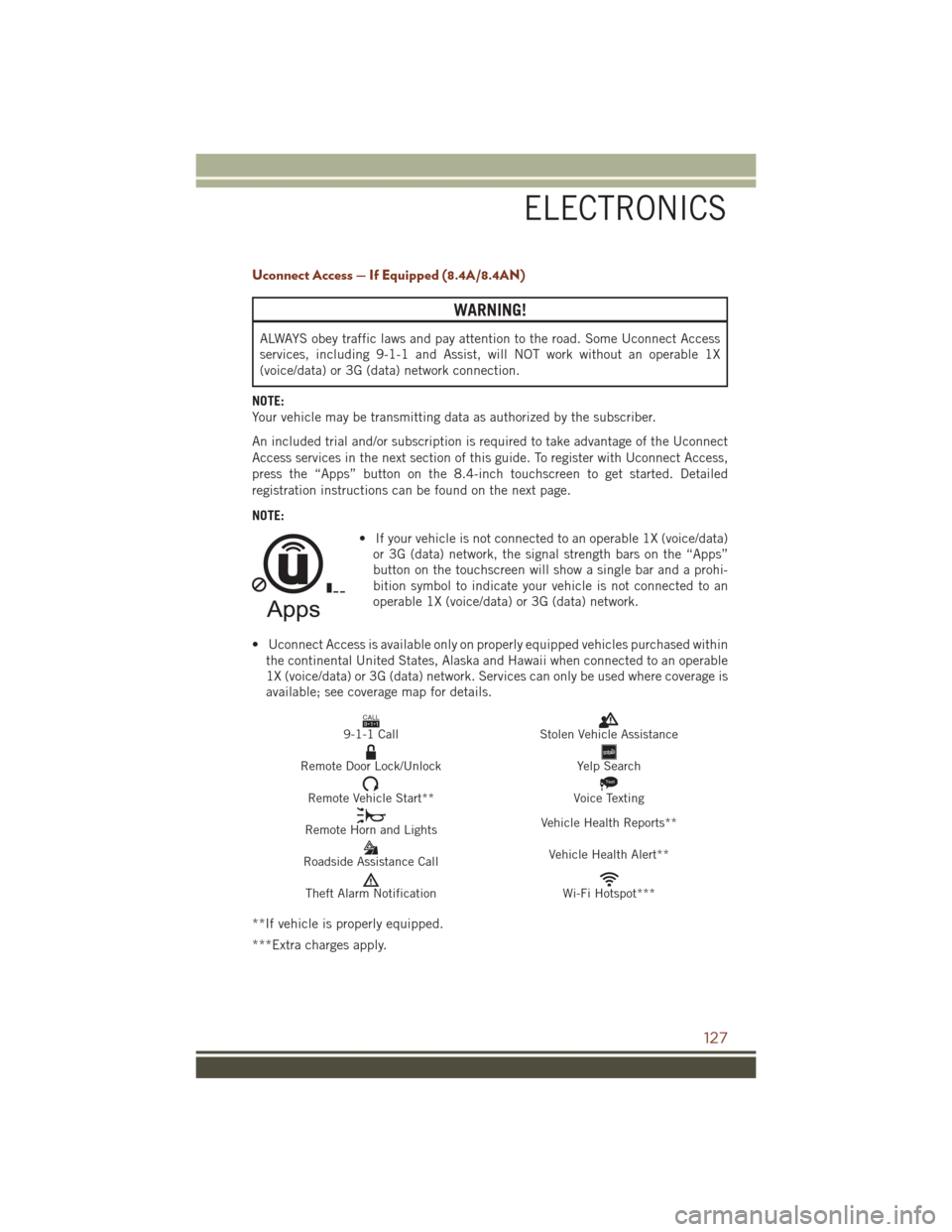
NOTE: • If your vehicle is not connected to an operable 1X (voice/data)or 3G (data) network, the signal strength bars on the “Apps”
button on the touchscreen will show a single bar and a prohi-
bition symbol to indicate your vehicle is not connected to an
operable 1X (voice/data) or 3G (data) network.
• Uconnect Access is available only on properly equipped vehicles purchased within the continental United States, Alaska and Hawaii when connected to an operable
1X (voice/data) or 3G (data) network. Services can only be used where coverage is
available; see coverage map for details.
CALL9119-1-1 CallStolen Vehicle Assistance
Remote Door Lock/UnlockYelp Search
Remote Vehicle Start**
Text
Voice Texting
Remote Horn and Lights Vehicle Health Reports**
Roadside Assistance Call Vehicle Health Alert**
Theft Alarm NotificationWi-Fi Hotspot***
**If vehicle is properly equipped.
***Extra charges apply.
ELECTRONICS
127
Page 131 of 276
Mobile App (8.4A/8.4AN)
You’re only a few steps away from using remote commands and playing your favorite
music in your vehicle.
To link your internet radio accounts:
1. Download theUconnect Access App on
your device.
2. Press the Via Mobile icon on the navi- gation bar at the bottom of the app.
3. Press the app you’d like to connect to your vehicle.
4. Enter your login information for the selected app and press Link.
5. Next time you’re in your vehicle, en- able Bluetooth, pair your device and
select the Via Mobile app you want to
play from the Uconnect touchscreen
to stream your personalized music.
NOTE:
• You can also complete this process on the web. Simply visit
moparownerconnect.com log in and
click Set Up Via Mobile Profile (under
Quick Links).
• Once you download the app to your compatible device, you will also be
able to start your vehicle and lock/unlock its doors from virtually anywhere.
Mobile App
ELECTRONICS
129
Page 150 of 276
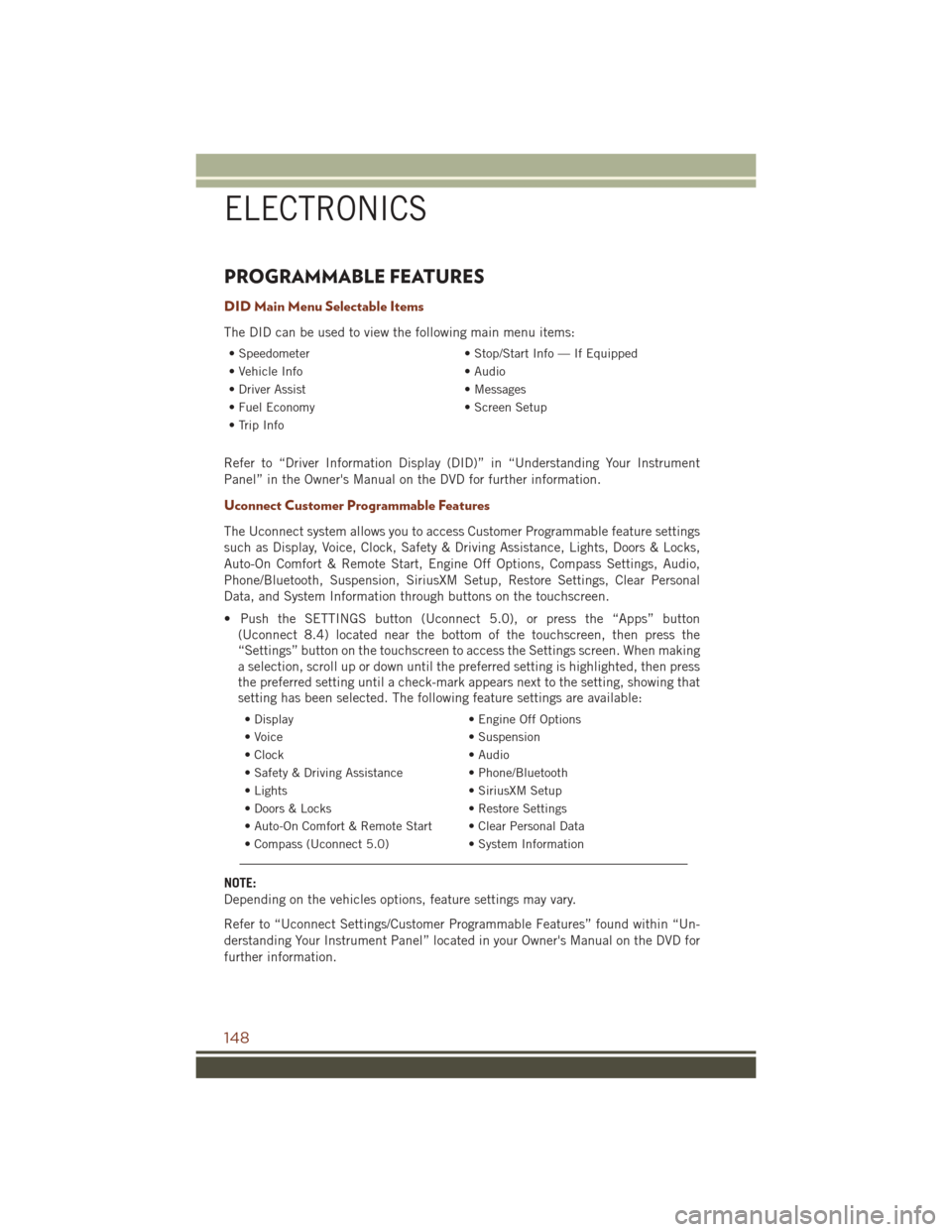
PROGRAMMABLE FEATURES
DID Main Menu Selectable Items
The DID can be used to view the following main menu items:
• Speedometer• Stop/Start Info — If Equipped
• Vehicle Info • Audio
• Driver Assist • Messages
• Fuel Economy • Screen Setup
• Trip Info
Refer to “Driver Information Display (DID)” in “Understanding Your Instrument
Panel” in the Owner's Manual on the DVD for further information.
Uconnect Customer Programmable Features
The Uconnect system allows you to access Customer Programmable feature settings
such as Display, Voice, Clock, Safety & Driving Assistance, Lights, Doors & Locks,
Auto-On Comfort & Remote Start, Engine Off Options, Compass Settings, Audio,
Phone/Bluetooth, Suspension, SiriusXM Setup, Restore Settings, Clear Personal
Data, and System Information through buttons on the touchscreen.
• Push the SETTINGS button (Uconnect 5.0), or press the “Apps” button (Uconnect 8.4) located near the bottom of the touchscreen, then press the
“Settings” button on the touchscreen to access the Settings screen. When making
a selection, scroll up or down until the preferred setting is highlighted, then press
the preferred setting until a check-mark appears next to the setting, showing that
setting has been selected. The following feature settings are available:
• Display • Engine Off Options
• Voice • Suspension
• Clock • Audio
• Safety & Driving Assistance • Phone/Bluetooth
• Lights • SiriusXM Setup
• Doors & Locks • Restore Settings
• Auto-On Comfort & Remote Start • Clear Personal Data
• Compass (Uconnect 5.0) • System Information
NOTE:
Depending on the vehicles options, feature settings may vary.
Refer to “Uconnect Settings/Customer Programmable Features” found within “Un-
derstanding Your Instrument Panel” located in your Owner's Manual on the DVD for
further information.
ELECTRONICS
148
Page 154 of 276
5. Push and hold the programmed HomeLink button and observe the indicator light.If the indicator light stays on constantly, programming is complete and the garage
door (or device) should activate when the HomeLink button is pushed.
6. To program the two remaining HomeLink buttons, repeat each step for each remaining button. DO NOT erase the channels.
Using HomeLink
To operate, push and release the programmed HomeLink button. Activation will now
occur for the programmed device (i.e., garage door opener, gate operator, security
system, entry door lock, home/office lighting, etc.,). The hand-held transmitter of the
device may also be used at any time.
WARNING!
• Your motorized door or gate will open and close while you are programming theuniversal transceiver. Do not program the transceiver if people or pets are in the
path of the door or gate.
• Do not run your vehicle in a closed garage or confined area while programming
the transceiver. Exhaust gas from your vehicle contains Carbon Monoxide (CO)
which is odorless and colorless. Carbon Monoxide is poisonous when inhaled
and can cause you and others to be severely injured or killed.
POWER INVERTER
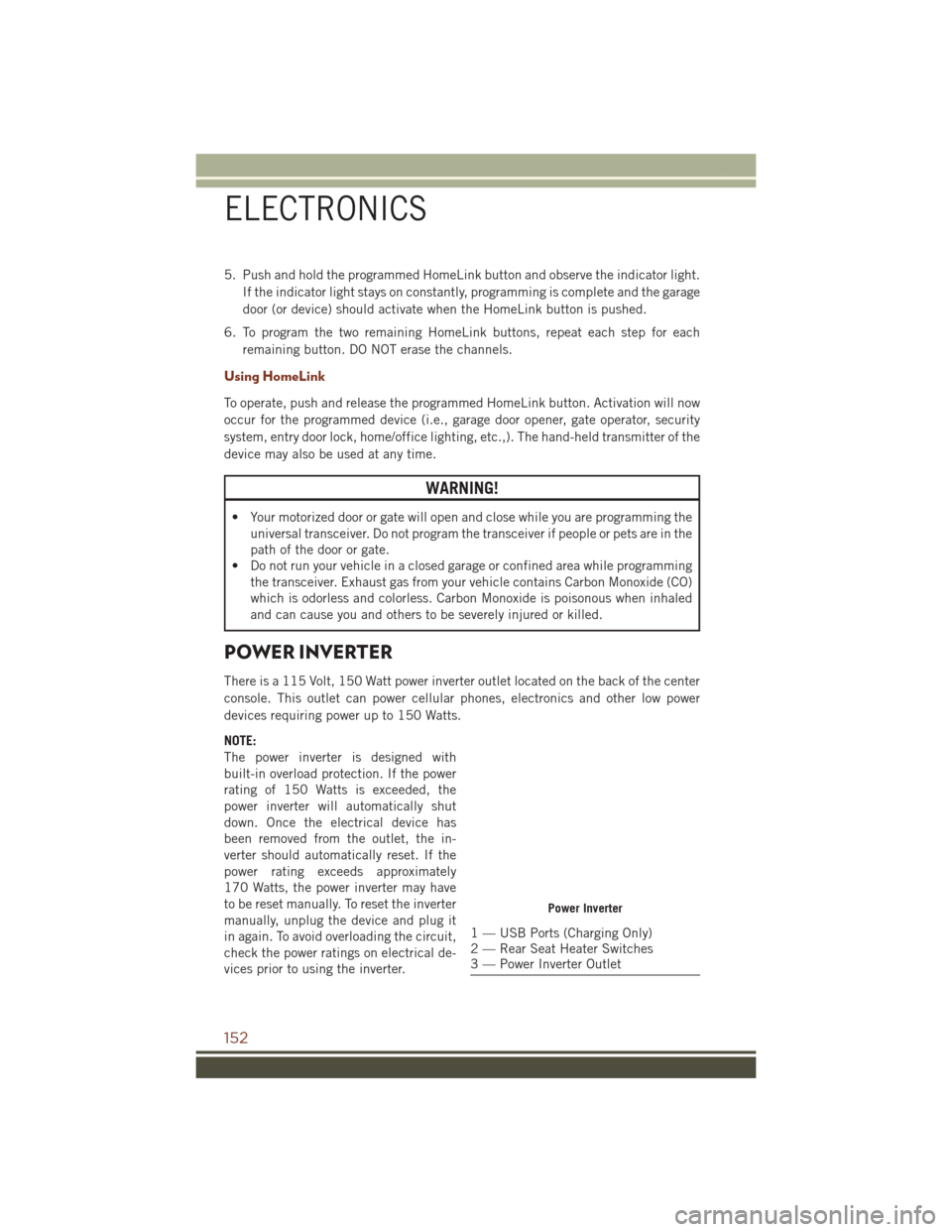
There is a 115 Volt, 150 Watt power inverter outlet located on the back of the center
console. This outlet can power cellular phones, electronics and other low power
devices requiring power up to 150 Watts.
NOTE:
The power inverter is designed with
built-in overload protection. If the power
rating of 150 Watts is exceeded, the
power inverter will automatically shut
down. Once the electrical device has
been removed from the outlet, the in-
verter should automatically reset. If the
power rating exceeds approximately
170 Watts, the power inverter may have
to be reset manually. To reset the inverter
manually, unplug the device and plug it
in again. To avoid overloading the circuit,
check the power ratings on electrical de-
vices prior to using the inverter.
Power Inverter
1 — USB Ports (Charging Only)
2 — Rear Seat Heater Switches
3 — Power Inverter Outlet
ELECTRONICS
152
Page 198 of 276
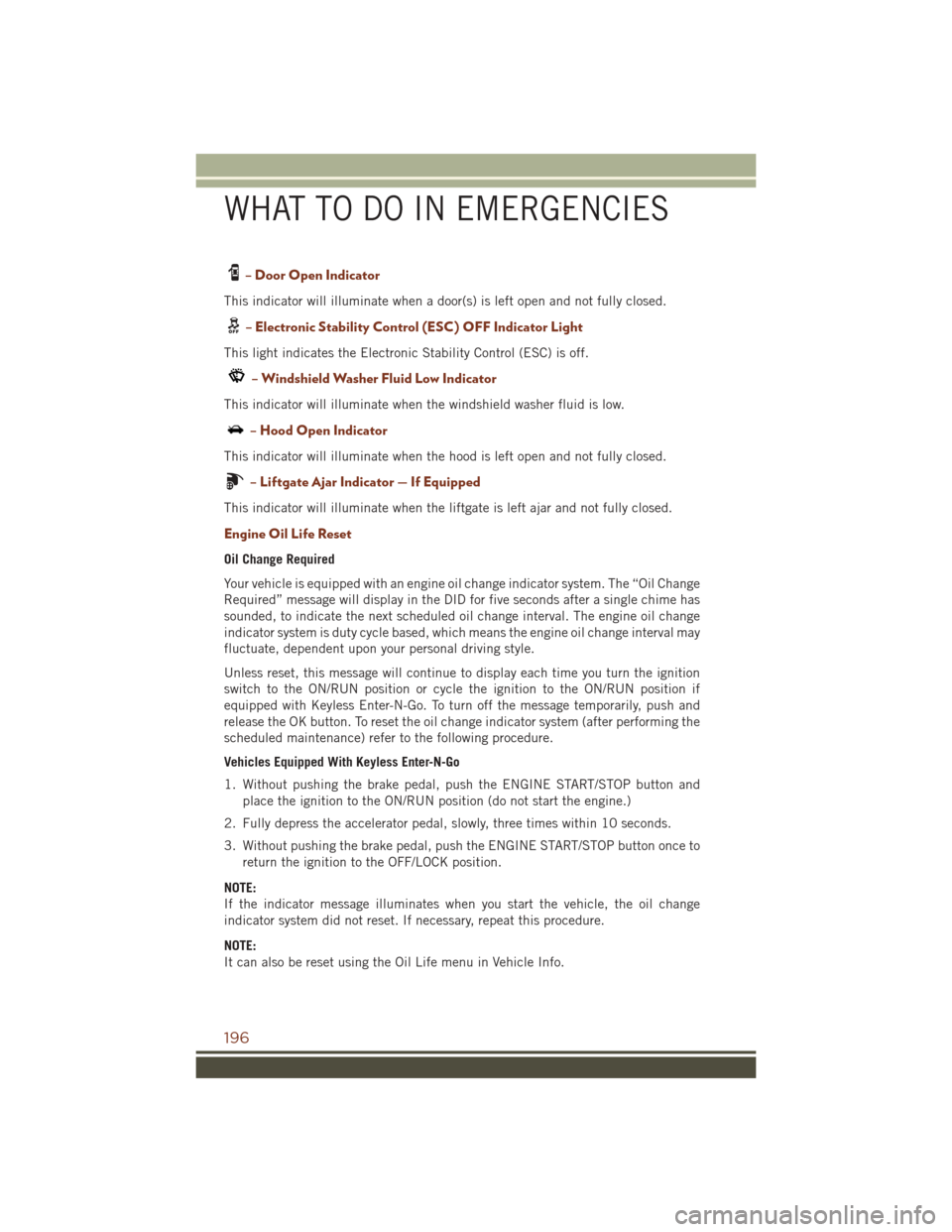
– Door Open Indicator
This indicator will illuminate when a door(s) is left open and not fully closed.
– Electronic Stability Control (ESC) OFF Indicator Light
This light indicates the Electronic Stability Control (ESC) is off.
– Windshield Washer Fluid Low Indicator
This indicator will illuminate when the windshield washer fluid is low.
– Hood Open Indicator
This indicator will illuminate when the hood is left open and not fully closed.
– Liftgate Ajar Indicator — If Equipped
This indicator will illuminate when the liftgate is left ajar and not fully closed.
Engine Oil Life Reset
Oil Change Required
Your vehicle is equipped with an engine oil change indicator system. The “Oil Change
Required” message will display in the DID for five seconds after a single chime has
sounded, to indicate the next scheduled oil change interval. The engine oil change
indicator system is duty cycle based, which means the engine oil change interval may
fluctuate, dependent upon your personal driving style.
Unless reset, this message will continue to display each time you turn the ignition
switch to the ON/RUN position or cycle the ignition to the ON/RUN position if
equipped with Keyless Enter-N-Go. To turn off the message temporarily, push and
release the OK button. To reset the oil change indicator system (after performing the
scheduled maintenance) refer to the following procedure.
Vehicles Equipped With Keyless Enter-N-Go
1. Without pushing the brake pedal, push the ENGINE START/STOP button andplace the ignition to the ON/RUN position (do not start the engine.)
2. Fully depress the accelerator pedal, slowly, three times within 10 seconds.
3. Without pushing the brake pedal, push the ENGINE START/STOP button once to return the ignition to the OFF/LOCK position.
NOTE:
If the indicator message illuminates when you start the vehicle, the oil change
indicator system did not reset. If necessary, repeat this procedure.
NOTE:
It can also be reset using the Oil Life menu in Vehicle Info.
WHAT TO DO IN EMERGENCIES
196
Page 251 of 276
FUSES
Power Distribution Center
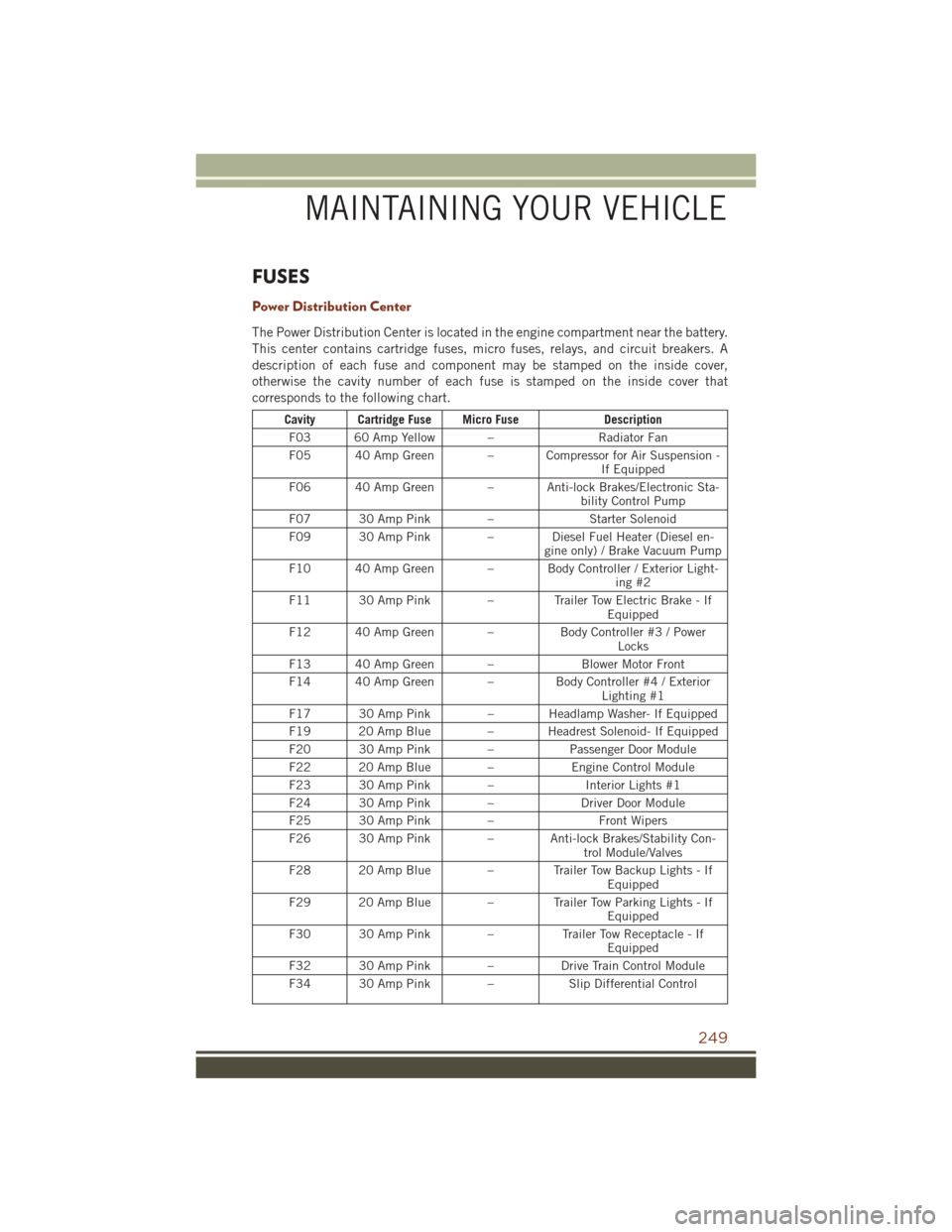
The Power Distribution Center is located in the engine compartment near the battery.
This center contains cartridge fuses, micro fuses, relays, and circuit breakers. A
description of each fuse and component may be stamped on the inside cover,
otherwise the cavity number of each fuse is stamped on the inside cover that
corresponds to the following chart.
Cavity Cartridge Fuse Micro FuseDescription
F03 60 Amp Yellow – Radiator Fan
F05 40 Amp Green – Compressor for Air Suspension - If Equipped
F06 40 Amp Green – Anti-lock Brakes/Electronic Sta- bility Control Pump
F07 30 Amp Pink – Starter Solenoid
F09 30 Amp Pink – Diesel Fuel Heater (Diesel en- gine only) / Brake Vacuum Pump
F10 40 Amp Green – Body Controller / Exterior Light- ing #2
F11 30 Amp Pink – Trailer Tow Electric Brake - If Equipped
F12 40 Amp Green – Body Controller #3 / Power
Locks
F13 40 Amp Green – Blower Motor Front
F14 40 Amp Green – Body Controller #4 / Exterior
Lighting #1
F17 30 Amp Pink – Headlamp Washer- If Equipped
F19 20 Amp Blue – Headrest Solenoid- If Equipped
F20 30 Amp Pink – Passenger Door Module
F22 20 Amp Blue – Engine Control Module
F23 30 Amp Pink – Interior Lights #1
F24 30 Amp Pink – Driver Door Module
F25 30 Amp Pink – Front Wipers
F26 30 Amp Pink – Anti-lock Brakes/Stability Con- trol Module/Valves
F28 20 Amp Blue – Trailer Tow Backup Lights - If Equipped
F29 20 Amp Blue – Trailer Tow Parking Lights - If Equipped
F30 30 Amp Pink – Trailer Tow Receptacle - If
Equipped
F32 30 Amp Pink – Drive Train Control Module
F34 30 Amp Pink – Slip Differential Control
MAINTAINING YOUR VEHICLE
249
Page 253 of 276
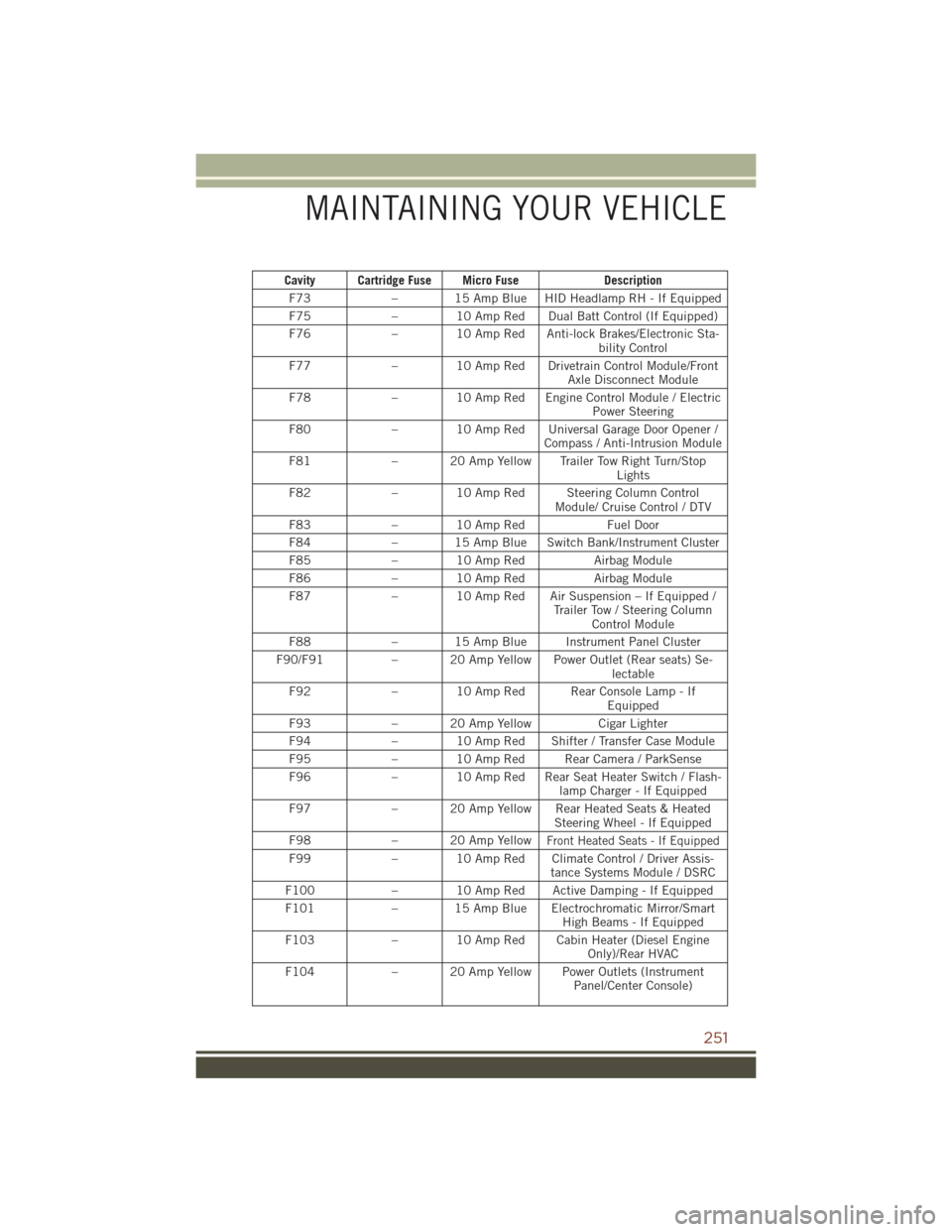
Cavity Cartridge Fuse Micro FuseDescription
F73 – 15 Amp Blue HID Headlamp RH - If Equipped
F75 – 10 Amp Red Dual Batt Control (If Equipped)
F76 – 10 Amp Red Anti-lock Brakes/Electronic Sta-
bility Control
F77 – 10 Amp Red Drivetrain Control Module/Front
Axle Disconnect Module
F78 – 10 Amp Red Engine Control Module / Electric
Power Steering
F80 – 10 Amp Red Universal Garage Door Opener /
Compass / Anti-Intrusion Module
F81 – 20 Amp Yellow Trailer Tow Right Turn/Stop
Lights
F82 – 10 Amp Red Steering Column Control
Module/ Cruise Control / DTV
F83 – 10 Amp Red Fuel Door
F84 – 15 Amp Blue Switch Bank/Instrument Cluster
F85 – 10 Amp Red Airbag Module
F86 – 10 Amp Red Airbag Module
F87 – 10 Amp Red Air Suspension – If Equipped /
Trailer Tow / Steering ColumnControl Module
F88 – 15 Amp Blue Instrument Panel Cluster
F90/F91 – 20 Amp Yellow Power Outlet (Rear seats) Se-
lectable
F92 – 10 Amp Red Rear Console Lamp - If
Equipped
F93 – 20 Amp Yellow Cigar Lighter
F94 – 10 Amp Red Shifter / Transfer Case Module
F95 – 10 Amp Red Rear Camera / ParkSense
F96 – 10 Amp Red Rear Seat Heater Switch / Flash-
lamp Charger - If Equipped
F97 – 20 Amp Yellow Rear Heated Seats & Heated
Steering Wheel - If Equipped
F98 – 20 Amp Yellow
Front Heated Seats - If Equipped
F99– 10 Amp Red Climate Control / Driver Assis-
tance Systems Module / DSRC
F100 – 10 Amp Red Active Damping - If Equipped
F101 – 15 Amp Blue Electrochromatic Mirror/Smart
High Beams - If Equipped
F103 – 10 Amp Red Cabin Heater (Diesel Engine
Only)/Rear HVAC
F104 – 20 Amp Yellow Power Outlets (Instrument
Panel/Center Console)
MAINTAINING YOUR VEHICLE
251
Page 263 of 276
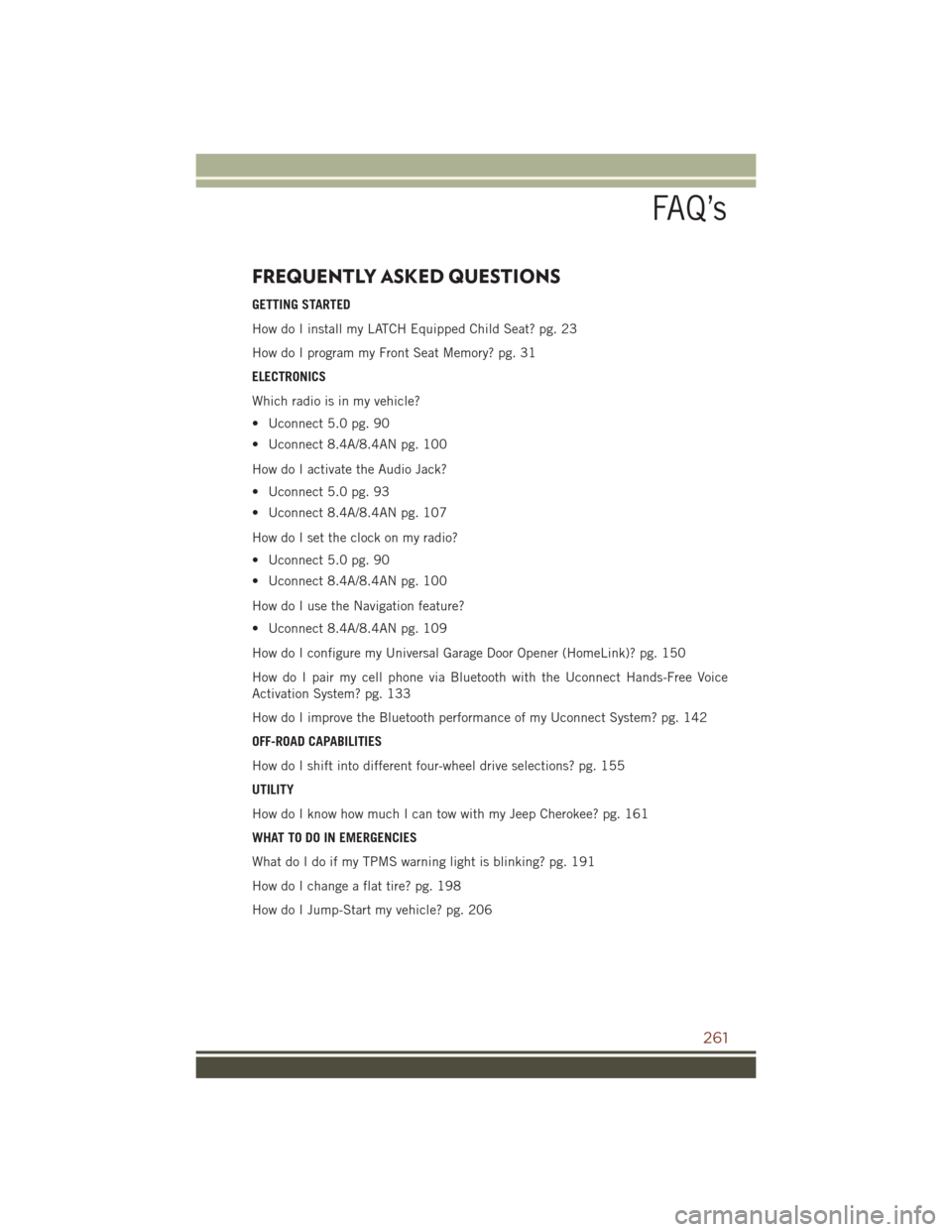
FREQUENTLY ASKED QUESTIONS
GETTING STARTED
How do I install my LATCH Equipped Child Seat? pg. 23
How do I program my Front Seat Memory? pg. 31
ELECTRONICS
Which radio is in my vehicle?
• Uconnect 5.0 pg. 90
• Uconnect 8.4A/8.4AN pg. 100
How do I activate the Audio Jack?
• Uconnect 5.0 pg. 93
• Uconnect 8.4A/8.4AN pg. 107
How do I set the clock on my radio?
• Uconnect 5.0 pg. 90
• Uconnect 8.4A/8.4AN pg. 100
How do I use the Navigation feature?
• Uconnect 8.4A/8.4AN pg. 109
How do I configure my Universal Garage Door Opener (HomeLink)? pg. 150
How do I pair my cell phone via Bluetooth with the Uconnect Hands-Free Voice
Activation System? pg. 133
How do I improve the Bluetooth performance of my Uconnect System? pg. 142
OFF-ROAD CAPABILITIES
How do I shift into different four-wheel drive selections? pg. 155
UTILITY
How do I know how much I can tow with my Jeep Cherokee? pg. 161
WHAT TO DO IN EMERGENCIES
What do I do if my TPMS warning light is blinking? pg. 191
How do I change a flat tire? pg. 198
How do I Jump-Start my vehicle? pg. 206
FAQ’s
261