set current time JEEP GRAND CHEROKEE 2023 User Guide
[x] Cancel search | Manufacturer: JEEP, Model Year: 2023, Model line: GRAND CHEROKEE, Model: JEEP GRAND CHEROKEE 2023Pages: 424, PDF Size: 15.48 MB
Page 141 of 424

STARTING AND OPERATING139
pushed multiple times. Each toggle down will lower
the requested level by one position down to a
minimum of Entry/Exit Height or the lowest
position allowed based on current conditions (i.e.
vehicle speed, etc.)
Automatic height changes will occur based on
vehicle speed and the current vehicle height. The
indicator lamps and instrument cluster display
messages will operate the same for automatic
changes and user requested changes.
Off-Road 2 (OR2) Ride Height – Indicator lamps
1 through 5 will be illuminated.
Off-Road 1 (OR1) Ride Height – Indicator lamps
2 through 5 will be illuminated.
Normal Ride Height (NRH) – Indicator lamps 3
through 5 will be illuminated.
Aero Ride Height– Indicator lamps 4 and 5 will
be illuminated.
Entry/Exit Ride Height– Indicator lamp 5 will be
illuminated.
Transport Mode – Indicator lamp 5 will be illumi -
nated. Driving above 3 mph (5 km/h) or dese -
lecting setting in the radio will disable Transport
Mode.
Tire/Jack Mode – Indicator lamps 3 through
5 will be illuminated. Driving above 5 mph
(8 km/h) or deselecting setting in the radio will
disable Tire/Jack Mode.
Wheel Alignment Mode – Indicator lamps 3
through 5 will be illuminated. Driving above
5 mph (8 km/h) or deselecting setting in the
radio will disable Wheel Alignment Mode.
FUEL SAVER TECHNOLOGY 5.7L ONLY —
IF EQUIPPED
This feature offers improved fuel economy by
shutting off four of the engine's eight cylinders
during light load and cruise conditions. The system
is automatic with no driver inputs or additional
driving skills required.
NOTE:This system may take some time to return to full
functionality after a battery disconnect.
POWER STEERING
The electric power steering system provides
enhanced vehicle response and increased ease of
maneuverability in tight spaces. The power
steering system adapts to different driving
conditions. If the electric power steering system
experiences a fault that prevents it from providing
assistance, you will still have the ability to steer the
vehicle manually.
NOTE:Alternate electric power steering efforts (Normal,
Comfort and Sport) can be selected through the
Uconnect System Ú page 204. If SPORT mode is
selected, steering efforts are optimized for sporty
driving.
If the Electric Power Steering warning
icon is displayed and the “Service Power
Steering” or the “Power Steering Assist
Off – Service System” message is
displayed within the instrument cluster display,
this indicates the vehicle needs to be taken to the
dealer for service Ú page 108.
NOTE:
Even if the power steering assistance is no
longer operational, it is still possible to steer the
vehicle. Under these conditions there will be a
substantial increase in steering effort, espe -
cially at low speeds and during parking maneu -
vers.
If the condition persists, see an authorized
dealer for service.
WARNING!
Continued operation with reduced assist could
pose a safety risk to yourself and others. Service
should be obtained as soon as possible.
4
23_WL_OM_EN_USC_t.book Page 139
Page 146 of 424
144STARTING AND OPERATING
Adaptive Cruise Control Off
When ACC is deactivated, the display will read
“Adaptive Cruise Control Off”.
The instrument cluster display will return to the last
display selected after five seconds of no ACC
display activity.
Activating Adaptive Cruise Control (ACC)
The minimum set speed for the ACC system is
20 mph (32 km/h).
When the system is turned on and in the ready
state, the instrument cluster display will read “ACC
Ready.”
When the system is off, the instrument cluster
display will read “Adaptive Cruise Control (ACC)
Off.”
NOTE:You cannot engage ACC under the following condi -
tions:
When in 4WD Low
When the brakes are applied
When the parking brake is applied
When the transmission is in PARK, REVERSE or
NEUTRAL
When the brakes are overheated
When the driver’s door is open at low speeds
When the driver’s seat belt is unbuckled at low
speeds
When there is a stationary vehicle in front of
your vehicle in close proximity
When Electronic Stability Control (ESC) Full Off
mode is active
To Activate/Deactivate
Push and release the Adaptive Cruise Control
(ACC) on/off button. The ACC menu in the
instrument cluster displays “ACC Ready.”
To turn the system off, push and release the
Adaptive Cruise Control (ACC) on/off button again.
At this time, the system will turn off and the
instrument cluster displays “Adaptive Cruise
Control (ACC) Off.”
To Set A Desired Speed
When the vehicle reaches the speed desired, push
the SET (+) button or the SET (-) button and
release. The instrument cluster display will show
the set speed.
NOTE:Fixed Speed Cruise Control (if equipped) is used
without ACC enabled. To change between Adaptive
Cruise Control (ACC) and Fixed Speed Cruise
Control features, first turn off ACC by pushing the
ACC on/off button. Then, turn on Fixed Speed
Cruise Control by pushing the Fixed Speed Cruise
Control on/off button.
If ACC is set when the vehicle speed is below
20 mph (32 km/h), the set speed will default to
20 mph (32 km/h).
NOTE:Fixed Speed Cruise Control cannot be set below
20 mph (32 km/h).
If either system is set when the vehicle speed is
above 20 mph (32 km/h), the set speed shall be
the current speed of the vehicle.
WARNING!
Leaving the Adaptive Cruise Control (ACC)
system on when not in use is dangerous. You
could accidentally set the system or cause it to
go faster than you want. You could lose control
and have a collision. Always leave the system off
when you are not using it.
WARNING!
In Fixed Speed Cruise Control mode, the system
will not react to vehicles ahead. In addition, the
proximity warning does not activate and no
alarm will sound even if you are too close to the
vehicle ahead since neither the presence of the
vehicle ahead nor the vehicle-to-vehicle distance
is detected. Be sure to maintain a safe distance
between your vehicle and the vehicle ahead.
Always be aware which mode is selected.
23_WL_OM_EN_USC_t.book Page 144
Page 148 of 424
146STARTING AND OPERATING
To Vary The Speed Setting
To Increase Or Decrease The Set Speed
After setting a speed, you can increase the set
speed by pushing the SET (+) button, or decrease
speed by pushing the SET (-) button.
U.S. Speed (mph)
Pushing the SET (+) , or SET (-) button once will
result in a 1 mph speed adjustment. Each
subsequent tap of the button results in an
adjustment of 1 mph.
If the button is continually pushed, the set
speed will continue to adjust in 5 mph incre -
ments until the button is released. The new set
speed is reflected in the instrument cluster
display.
Metric Speed (km/h)
Pushing the SET (+) , or SET (-) button once will
result in a 1 km/h speed adjustment. Each
subsequent tap of the button results in an
adjustment of 1 km/h.
If the button is continually pushed, the set
speed will continue to adjust in 10 km/h incre -
ments until the button is released. The new set
speed is reflected in the instrument cluster
display.
NOTE:When you override and push the SET (+) button or
SET (-) button, the new set speed will be the current
speed of the vehicle.
When ACC Is Active
When you use the SET (-) button to decelerate, if
the engine’s braking power does not slow the
vehicle sufficiently to reach the set speed, the
brake system will automatically slow the
vehicle.
The ACC system decelerates the vehicle to a full
stop when following the vehicle in front. If your
vehicle follows the vehicle in front to a standstill,
after two seconds the driver will either have to
push the RES (resume) button, or apply the
accelerator pedal to reengage the ACC to the
existing set speed.
The ACC system maintains set speed when
driving uphill and downhill. However, a slight
speed change on moderate hills is normal. In
addition, downshifting may occur while climbing
uphill or descending downhill. This is normal
operation and necessary to maintain set speed.
When driving uphill and downhill, the ACC
system will cancel if the braking temperature
exceeds normal range (overheated).
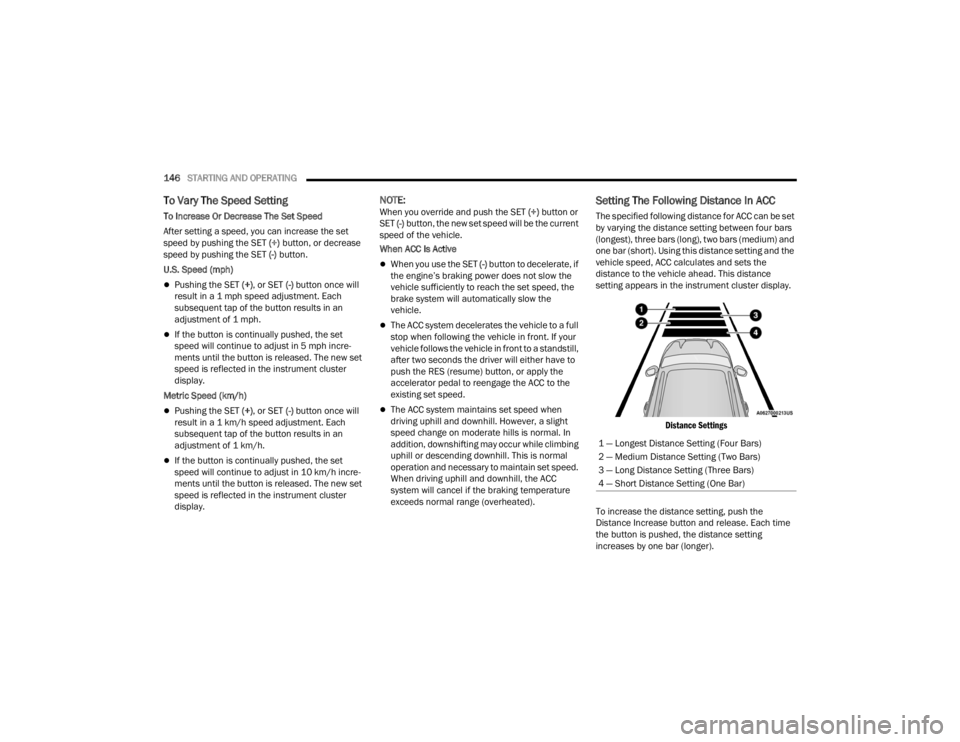
Setting The Following Distance In ACC
The specified following distance for ACC can be set
by varying the distance setting between four bars
(longest), three bars (long), two bars (medium) and
one bar (short). Using this distance setting and the
vehicle speed, ACC calculates and sets the
distance to the vehicle ahead. This distance
setting appears in the instrument cluster display.
Distance Settings
To increase the distance setting, push the
Distance Increase button and release. Each time
the button is pushed, the distance setting
increases by one bar (longer). 1 — Longest Distance Setting (Four Bars)
2 — Medium Distance Setting (Two Bars)
3 — Long Distance Setting (Three Bars)
4 — Short Distance Setting (One Bar)
23_WL_OM_EN_USC_t.book Page 146
Page 174 of 424
172STARTING AND OPERATING
If the Blind Spot Monitoring (BSM) system
detects a vehicle in the adjacent lane, and the
turn signal is applied in that direction, the BSM
LED on the mirror will flash. If the driver
continues to attempt the lane change, steering
wheel torque will be provided to keep the
vehicle within its lane markings.
The driver may manually override the steering
assist warning by applying force to the steering
wheel at any time.
When only a single lane marking is detected and
the driver drifts across the lane marking (no turn
signal applied), the Active Lane Management
system provides a visual warning in the instrument
cluster, as well as a steering assist torque (if
configured in Uconnect Settings), to prompt the
driver to remain within the lane boundaries. If the
driver continues to drift out of the lane, the system
provides a flashing visual warning through the
instrument cluster display as well as a haptic
steering wheel vibration (if configured in Uconnect
Settings) when the vehicle crosses the lane
boundary.
NOTE:When operating conditions have been met, the
Active Lane Management system will monitor if the
driver’s hands are on the steering wheel and
provides an audible and visual warning to the
driver if removed. The system will cancel if the
driver does not return their hands to the wheel.
TURNING ACTIVE LANE MANAGEMENT
O
N OR OFF
The Active Lane Management button is
located on the switch panel above the
Uconnect display.
To turn the system on, push the Active Lane
Management button (LED turns off). A message is
shown in the instrument cluster display.
To turn the system off, push the button again (LED
turns on).
NOTE:The Active Lane Management system will retain
the last system state on or off from the last ignition
cycle when the ignition is placed in the ON/RUN
position.
ACTIVE LANE MANAGEMENT WARNING
M
ESSAGE
The Active Lane Management system will indicate
the current lane drift condition through the
instrument cluster display.
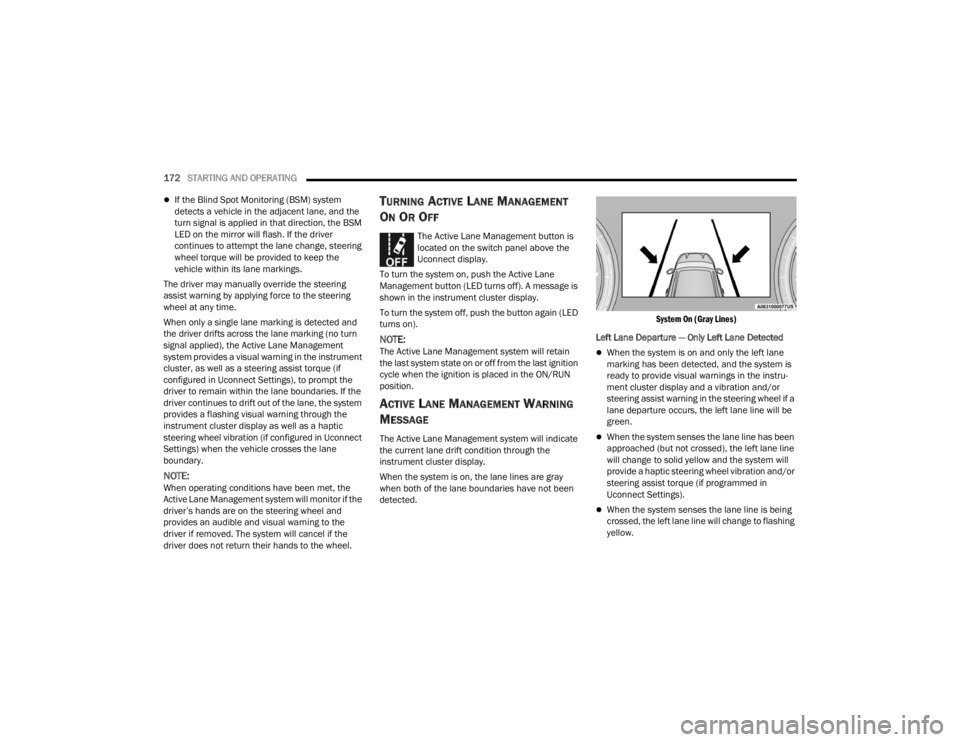
When the system is on, the lane lines are gray
when both of the lane boundaries have not been
detected.
System On (Gray Lines)
Left Lane Departure — Only Left Lane Detected
When the system is on and only the left lane
marking has been detected, and the system is
ready to provide visual warnings in the instru-
ment cluster display and a vibration and/or
steering assist warning in the steering wheel if a
lane departure occurs, the left lane line will be
green.
When the system senses the lane line has been
approached (but not crossed), the left lane line
will change to solid yellow and the system will
provide a haptic steering wheel vibration and/or
steering assist torque (if programmed in
Uconnect Settings).
When the system senses the lane line is being
crossed, the left lane line will change to flashing
yellow.
23_WL_OM_EN_USC_t.book Page 172
Page 202 of 424
200STARTING AND OPERATING
OFF-ROAD DRIVING TIPS
Quadra-Lift — If Equipped
When off-roading, it is recommended that the
lowest useable vehicle height that will clear the
current obstacle or terrain be selected. The vehicle
height should then be raised as required by the
changes in terrain.
The Selec-Terrain switch will automatically change
the vehicle to the optimized height based on the
Selec-Terrain switch position. The vehicle height
can be changed from the default height for each
Selec-Terrain mode by normal use of the air
suspension switches Úpage 131.
When To Use 4WD LOW Range —
If Equipped
When off-road driving, shift to 4WD LOW for
additional traction. This range should be limited to
extreme situations such as deep snow, mud, or
sand where additional low speed pulling power is
needed. Vehicle speeds in excess of 25 mph
(40 km/h) should be avoided when in 4WD LOW
range.
Driving Through Water
Although your vehicle is capable of driving through
water, there are a number of precautions that
must be considered before entering the water.
NOTE:Your vehicle is capable of water fording in up to
24 inches (61 cm) with air suspension or
21 inches (53 cm) without air suspension, of water
while crossing small rivers or streams. To maintain
optimal performance of your vehicle's heating and
ventilation system it is recommended to switch the
system into recirculation mode during water
fording. Be sure to avoid lowering the vehicle in
water, ensure that the easy exit entry setting is
turned off in Uconnect settings. Driving through water more than a few inches/
centimeters deep will require extra caution to
ensure safety and prevent damage to your vehicle.
If you must drive through water, try to determine
the depth and the bottom condition (and location
of any obstacles) prior to entering. Proceed with
caution and maintain a steady controlled speed
less than 5 mph (8 km/h) in deep water to
minimize wave effects.
Flowing Water
If the water is swift flowing and rising (as in storm
run-off), avoid crossing until the water level
recedes and/or the flow rate is reduced. If you
must cross flowing water avoid depths in excess of
9 inches (23 cm). The flowing water can erode the
streambed, causing your vehicle to sink into
deeper water. Determine exit point(s) that are
downstream of your entry point to allow for drifting.
WARNING!
Do not drive in 4WD LOW range on dry
pavement; driveline damage may result. 4WD
LOW range locks front and rear drivelines
together and does not allow for differential
action between the front to rear driveshafts.
Driving in 4WD LOW on pavement will cause
driveline binding; use only on wet or slippery
surfaces.
CAUTION!
When driving through water, do not exceed
5 mph (8 km/h). Always check water depth
before entering as a precaution, and check all
fluids afterward. Driving through water may
cause damage that may not be covered by the
New Vehicle Limited Warranty.
23_WL_OM_EN_USC_t.book Page 200
Page 207 of 424

MULTIMEDIA205
Display
When the Display button is pressed on the touchscreen, the system will display the options related to the theme (if equipped), brightness, and color of the
touchscreen. The available settings are:
NOTE:Depending on the vehicle’s options, feature settings may vary.
Setting Name Description
Language This setting will change the language of the Uconnect system. The available
languages are English, French, Spanish, and Italian.
Display Mode This setting will allow you to set the brightness manually or have the system
set it automatically. The “Auto” setting has the system automatically adjust
the display brightness. The “Manual” setting will allow the user to adjust the
brightness of the display.
Display Brightness With Headlights ON This setting will allow you to set the brightness when the headlights are on. To
access this setting, Display Mode must be set to Manual. The “+” setting will
increase the brightness; the “-” will decrease the brightness.
Display Brightness With Headlights OFF This setting will allow you to set the brightness when the headlights are off. To
access this setting, Display Mode must be set to Manual. The “+” setting will
increase the brightness; the “-” will decrease the brightness.
Set Theme This setting will allow you to change the display theme.
Units This setting will allow you to change the units. The available options are
“Speed” (MPH or km/h), “Distance” (mi or km), “Current Consumption” (MPG
[US], MPG [UK], L/100 km, or km/L), “Pressure” (psi, kPa, or bar), and
“Temperature” (°C or °F) units of measurement independently.
5
23_WL_OM_EN_USC_t.book Page 205
Page 209 of 424

MULTIMEDIA207
My Profile
When the My Profile button is pressed on the touchscreen, the system displays options related to the vehicle’s profiles.
NOTE:Depending on the vehicle’s options, feature settings may vary.
Setting Name Description
Language This setting will change the language of the Uconnect system. The available
languages are English, French, Spanish, and Italian.
Display Mode This setting will allow you to set the brightness manually or have the system
set it automatically. The “Auto” setting has the system automatically adjust
the display brightness. The “Manual” setting will allow the user to adjust the
brightness of the display.
Display Brightness Headlights On This setting will allow you to set the brightness when the headlights are on. To
access this setting, Display Mode must be set to “Manual”. The “+” setting will
increase the brightness; the “-” will decrease the brightness.
Display Brightness Headlights Off This setting will allow you to set the brightness when the headlights are off. To
access this setting, Display Mode must be set to “Manual”. The “+” setting will
increase the brightness; the “-” will decrease the brightness.
Theme Mode This setting will allow you to adjust the brightness of your theme. Setting
options are “Light”, “Dark” and “Auto”. Select to show themes in Light or Dark
mode. “Auto” changes the theme with the headlights.
Units This setting will allow you to change the units. The available options are
“Speed” (MPH or km/h), “Distance” (mi or km), “Current Consumption” (MPG
[US], MPG [UK], L/100 km, or km/L), “Pressure” (psi, kPa, or bar), and
“Temperature” (°C or °F) units of measurement independently.
Touchscreen Beep This setting will allow you to turn the touchscreen beep on or off.
5
23_WL_OM_EN_USC_t.book Page 207
Page 230 of 424
228MULTIMEDIA
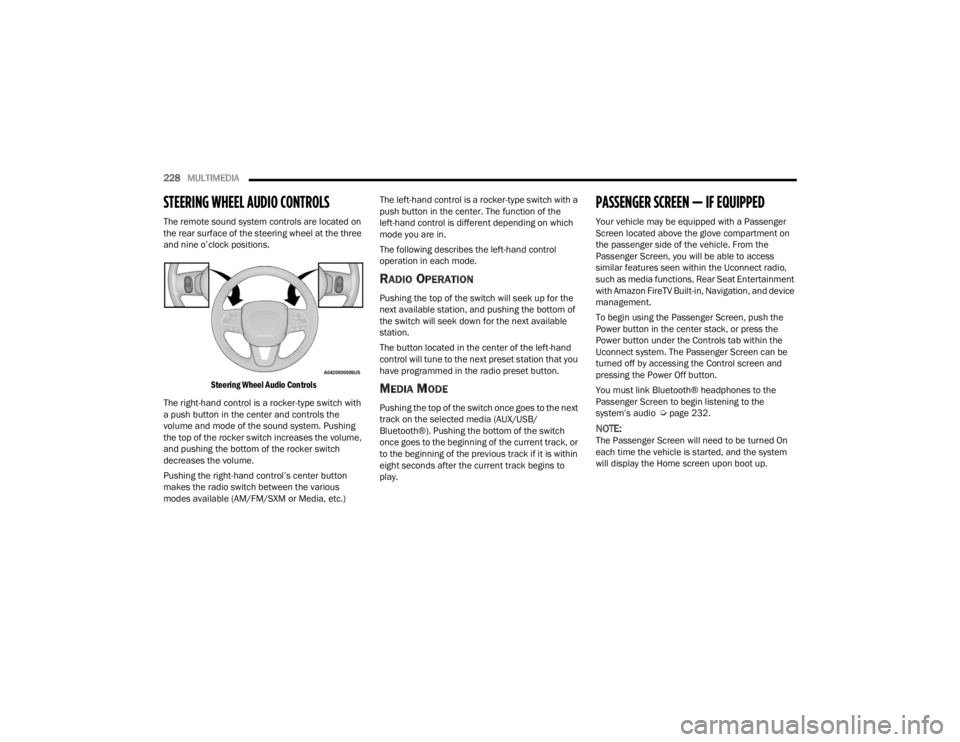
STEERING WHEEL AUDIO CONTROLS
The remote sound system controls are located on
the rear surface of the steering wheel at the three
and nine o’clock positions.
Steering Wheel Audio Controls
The right-hand control is a rocker-type switch with
a push button in the center and controls the
volume and mode of the sound system. Pushing
the top of the rocker switch increases the volume,
and pushing the bottom of the rocker switch
decreases the volume.
Pushing the right-hand control’s center button
makes the radio switch between the various
modes available (AM/FM/SXM or Media, etc.) The left-hand control is a rocker-type switch with a
push button in the center. The function of the
left-hand control is different depending on which
mode you are in.
The following describes the left-hand control
operation in each mode.
RADIO OPERATION
Pushing the top of the switch will seek up for the
next available station, and pushing the bottom of
the switch will seek down for the next available
station.
The button located in the center of the left-hand
control will tune to the next preset station that you
have programmed in the radio preset button.
MEDIA MODE
Pushing the top of the switch once goes to the next
track on the selected media (AUX/USB/
Bluetooth®). Pushing the bottom of the switch
once goes to the beginning of the current track, or
to the beginning of the previous track if it is within
eight seconds after the current track begins to
play.
PASSENGER SCREEN — IF EQUIPPED
Your vehicle may be equipped with a Passenger
Screen located above the glove compartment on
the passenger side of the vehicle. From the
Passenger Screen, you will be able to access
similar features seen within the Uconnect radio,
such as media functions, Rear Seat Entertainment
with Amazon FireTV Built-in, Navigation, and device
management.
To begin using the Passenger Screen, push the
Power button in the center stack, or press the
Power button under the Controls tab within the
Uconnect system. The Passenger Screen can be
turned off by accessing the Control screen and
pressing the Power Off button.
You must link Bluetooth® headphones to the
Passenger Screen to begin listening to the
system’s audio Ú
page 232.
NOTE:The Passenger Screen will need to be turned On
each time the vehicle is started, and the system
will display the Home screen upon boot up.
23_WL_OM_EN_USC_t.book Page 228
Page 233 of 424
MULTIMEDIA231
To change the media source, press the Source
button and then press on the desired source. The
available sources are:
Live Radio (FM, AM, SXM)
Bluetooth®
USB 1
USB 2
AUX
AV 1 — If Equipped
AV 2 — If Equipped
Rear Screen 1 Listen In — If Equipped
Rear Screen 2 Listen In — If Equipped
NOTE:
Audio devices connected via Bluetooth® must
be done through the Device Manager in the
radio. For more information on pairing a device,
refer to your Uconnect Radio Instruction
Manual.
If the driver is listening to “Live Radio”, the
option will not be available in the Passenger
Screen. Select “Now Playing On Radio” to listen
to the currently playing station. If the driver
selects a radio station while the Passenger
Screen is playing live radio content, the feed will
end on the Passenger Screen and control will be
given to the Uconnect system. On the Preset menu, you will be able to listen to
saved radio presets. Press the desired preset to
begin listening.
The Browse tab will let you browse through
different radio stations or audio saved onto a USB
or audio device. Press “Browse” and select from
the different folders. You can scroll up and down to
view the options within those folders. Press on the
desired radio station or audio track to begin
playing it.
When the USB source is selected, you can chose a
video file to play if saved to a USB device. Press
“Browse” and locate the folder with the video file.
Press the video file name, and it will begin to play
on the Passenger Screen.
NOTE:Not all video files will be supported from a USB.
Certain video files may require digital rights to view
or play. These may be unavailable for playback on
the Passenger Screen.
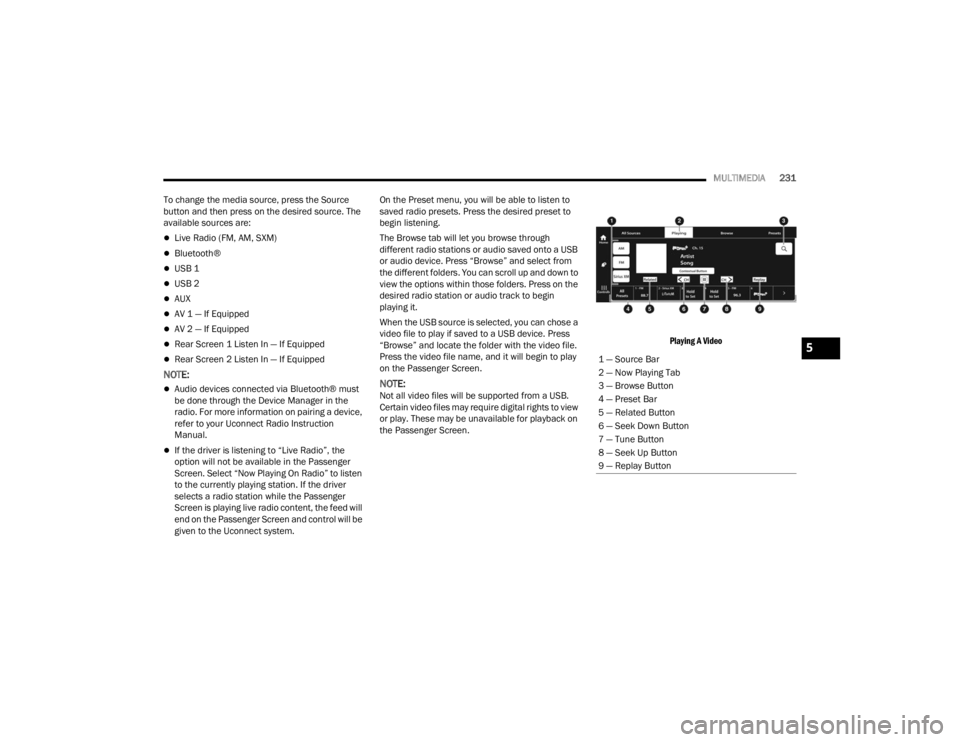
Playing A Video
1 — Source Bar
2 — Now Playing Tab
3 — Browse Button
4 — Preset Bar
5 — Related Button
6 — Seek Down Button
7 — Tune Button
8 — Seek Up Button
9 — Replay Button
5
23_WL_OM_EN_USC_t.book Page 231
Page 241 of 424
MULTIMEDIA239
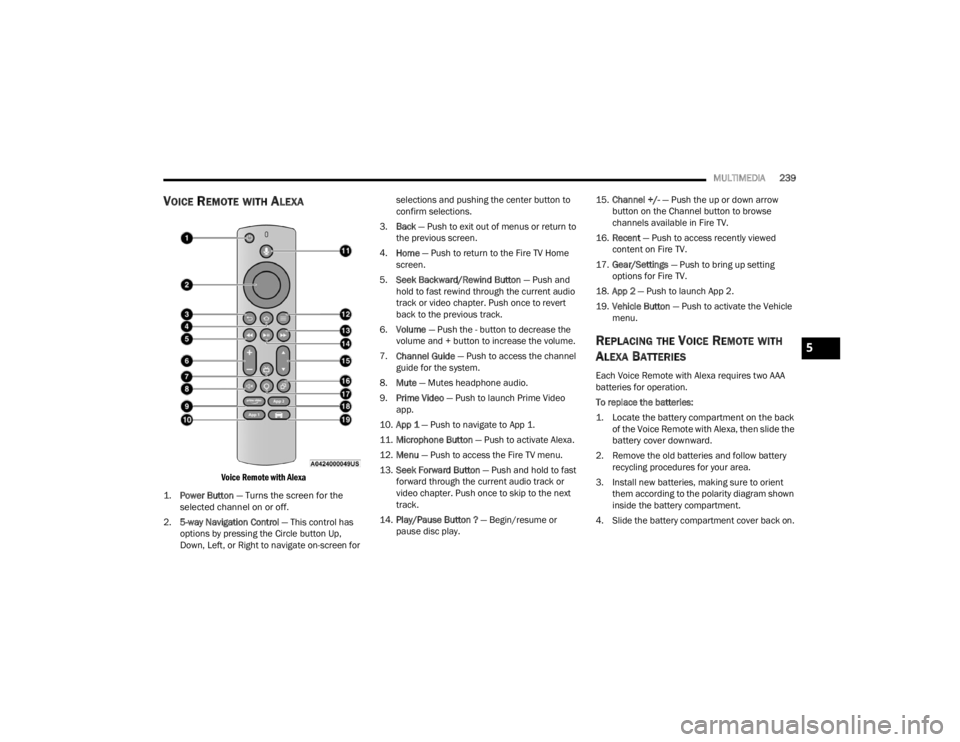
VOICE REMOTE WITH ALEXA
Voice Remote with Alexa
1.
Power Button
— Turns the screen for the
selected channel on or off.
2. 5-way Navigation Control — This control has
options by pressing the Circle button Up,
Down, Left, or Right to navigate on-screen for selections and pushing the center button to
confirm selections.
3. Back — Push to exit out of menus or return to
the previous screen.
4. Home — Push to return to the Fire TV Home
screen.
5. Seek Backward/Rewind Button — Push and
hold to fast rewind through the current audio
track or video chapter. Push once to revert
back to the previous track.
6. Volume — Push the - button to decrease the
volume and + button to increase the volume.
7. Channel Guide — Push to access the channel
guide for the system.
8. Mute — Mutes headphone audio.
9. Prime Video — Push to launch Prime Video
app.
10. App 1 — Push to navigate to App 1.
11. Microphone Button — Push to activate Alexa.
12. Menu — Push to access the Fire TV menu.
13. Seek Forward Button — Push and hold to fast
forward through the current audio track or
video chapter. Push once to skip to the next
track.
14. Play/Pause Button ? — Begin/resume or
pause disc play. 15.
Channel +/- — Push the up or down arrow
button on the Channel button to browse
channels available in Fire TV.
16. Recent — Push to access recently viewed
content on Fire TV.
17. Gear/Settings — Push to bring up setting
options for Fire TV.
18. App 2 — Push to launch App 2.
19. Vehicle Button — Push to activate the Vehicle
menu.
REPLACING THE VOICE REMOTE WITH
A
LEXA BATTERIES
Each Voice Remote with Alexa requires two AAA
batteries for operation.
To replace the batteries:
1. Locate the battery compartment on the back
of the Voice Remote with Alexa, then slide the
battery cover downward.
2. Remove the old batteries and follow battery recycling procedures for your area.
3. Install new batteries, making sure to orient them according to the polarity diagram shown
inside the battery compartment.
4. Slide the battery compartment cover back on.
5
23_WL_OM_EN_USC_t.book Page 239