reset JEEP GRAND CHEROKEE 2023 Owner's Manual
[x] Cancel search | Manufacturer: JEEP, Model Year: 2023, Model line: GRAND CHEROKEE, Model: JEEP GRAND CHEROKEE 2023Pages: 424, PDF Size: 15.48 MB
Page 143 of 424
STARTING AND OPERATING141
TO START THE ENGINE WHILE IN
A
UTOSTOP MODE
While in a forward gear, the engine will start when
the brake pedal is released or the throttle pedal is
pressed. The transmission will automatically
re-engage upon engine restart.
Conditions That Will Cause The Engine To Start
Automatically While In Autostop Mode:
The transmission selector is moved out of
DRIVE.
To maintain cabin temperature comfort.
HVAC is set to full defrost mode.
HVAC system temperature or fan speed is
manually adjusted.
Battery voltage drops too low.
Stop/Start OFF switch is pushed.
A Stop/Start system error occurs.
Steering angle is beyond threshold.
TO MANUALLY TURN OFF THE STOP/
S
TART SYSTEM
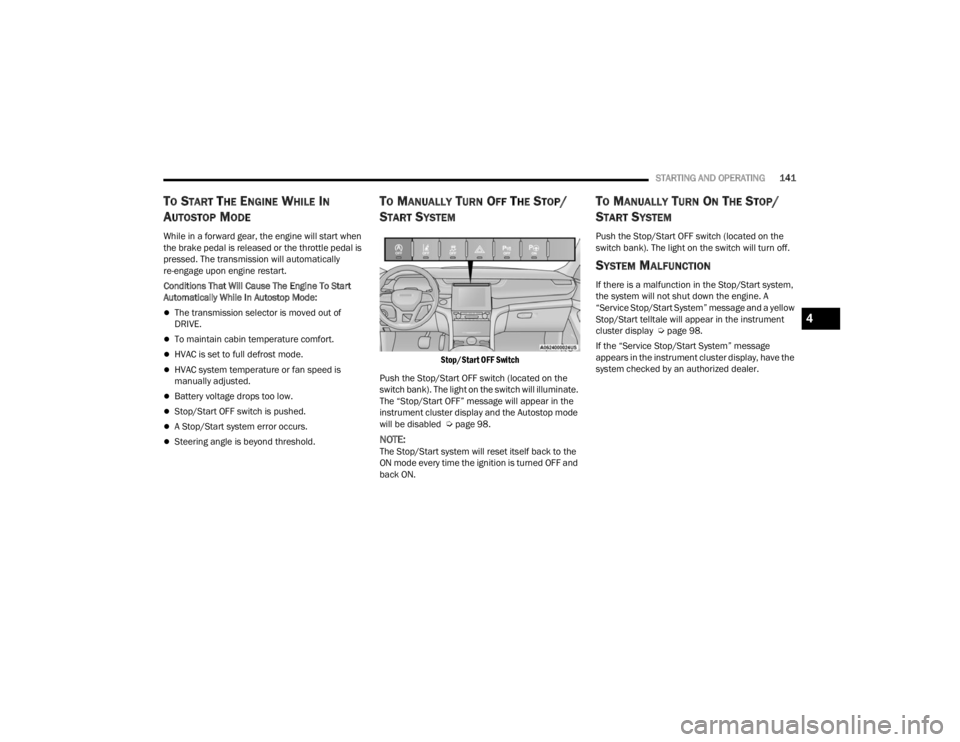
Stop/Start OFF Switch
Push the Stop/Start OFF switch (located on the
switch bank). The light on the switch will illuminate.
The “Stop/Start OFF” message will appear in the
instrument cluster display and the Autostop mode
will be disabled Ú page 98.
NOTE:The Stop/Start system will reset itself back to the
ON mode every time the ignition is turned OFF and
back ON.
TO MANUALLY TURN ON THE STOP/
S
TART SYSTEM
Push the Stop/Start OFF switch (located on the
switch bank). The light on the switch will turn off.
SYSTEM MALFUNCTION
If there is a malfunction in the Stop/Start system,
the system will not shut down the engine. A
“Service Stop/Start System” message and a yellow
Stop/Start telltale will appear in the instrument
cluster display Ú page 98.
If the “Service Stop/Start System” message
appears in the instrument cluster display, have the
system checked by an authorized dealer.
4
23_WL_OM_EN_USC_t.book Page 141
Page 144 of 424

142STARTING AND OPERATING
(Continued)
CRUISE CONTROL SYSTEMS
Your vehicle is equipped with the Adaptive Cruise
Control (ACC) system which will adjust the vehicle
speed up to the preset speed to maintain a
distance with the vehicle ahead.
NOTE:In vehicles NOT equipped with the Active Driving
Assist (ADA) system:
Fixed Speed Cruise Control can be used when
ACC is not enabled, and functions as normal
cruise control.
Fixed Speed Cruise Control will not detect vehi -
cles directly ahead of you. Always be aware of
the feature selected.
Only one Cruise Control feature can operate at a
time. For example, if Fixed Speed Cruise Control
is enabled, Adaptive Cruise Control will be
unavailable, and vice versa.
ADAPTIVE CRUISE CONTROL (ACC)
Adaptive Cruise Control (ACC) increases the driving
convenience provided by Cruise Control while
traveling on highways and major roadways.
However, it is not a safety system and not designed
to prevent collisions. ACC will allow you to keep Cruise Control engaged
in light to moderate traffic conditions without the
constant need to reset your Cruise Control. ACC
utilizes a radar sensor and a forward facing
camera designed to detect a vehicle directly ahead
of you.
NOTE:
If the ACC sensor detects a vehicle ahead, ACC
will apply limited braking or acceleration (not to
exceed the original set speed) automatically to
maintain a preset following distance, while
matching the speed of the vehicle ahead.
Any chassis/suspension or tire size modifica
-
tions to the vehicle will affect the performance
of the Adaptive Cruise Control and Forward Colli -
sion Warning system.
In vehicles NOT equipped with the Active Driving
Assist system, Fixed Speed Cruise Control (ACC
not enabled) will not detect vehicles directly
ahead of you. Always be aware of the feature
selected Ú page 408.
WARNING!
Adaptive Cruise Control (ACC) is a conve -
nience system. It is not a substitute for active
driver involvement. It is always the driver’s
responsibility to be attentive of road, traffic,
and weather conditions, vehicle speed,
distance to the vehicle ahead and, most
importantly, brake operation to ensure safe
operation of the vehicle under all road condi -
tions. Your complete attention is always
required while driving to maintain safe control
of your vehicle. Failure to follow these warn -
ings can result in a collision and death or
serious personal injury.
The ACC system:
Does not react to pedestrians, oncoming
vehicles, and stationary objects (e.g., a
stationary vehicle in a traffic jam or a
disabled vehicle).
Cannot take street, traffic, and weather
conditions into account, and may be limited
upon adverse sight distance conditions.
Does not always fully recognize complex
driving conditions, which can result in
wrong or missing distance warnings.
23_WL_OM_EN_USC_t.book Page 142
Page 206 of 424
204MULTIMEDIA
UCONNECT SETTINGS
The Uconnect system uses a combination of
buttons on the touchscreen and buttons on the
faceplate located on the center of the instrument
panel. These buttons allow you to access and
change the customer programmable features.
Many features can vary by vehicle.
Buttons on the faceplate are located below and/or
beside the Uconnect system in the center of the
instrument panel. In addition, there is a SCROLL/
ENTER control knob located on the right side. Turn
the control knob to scroll through menus and
change settings. Push the center of the control
knob one or more times to select or change a
setting.
Your Uconnect system may also have SCREEN OFF
and MUTE buttons on the faceplate.
Push the SCREEN OFF button on the faceplate to
turn off the Uconnect screen. Push the button
again or tap the screen to turn the screen on.
Press the Back Arrow button to exit out of a Menu
or certain option on the Uconnect system.
Push and hold the Power button on the radio’s
faceplate for a minimum of 15 seconds to reset
the radio.
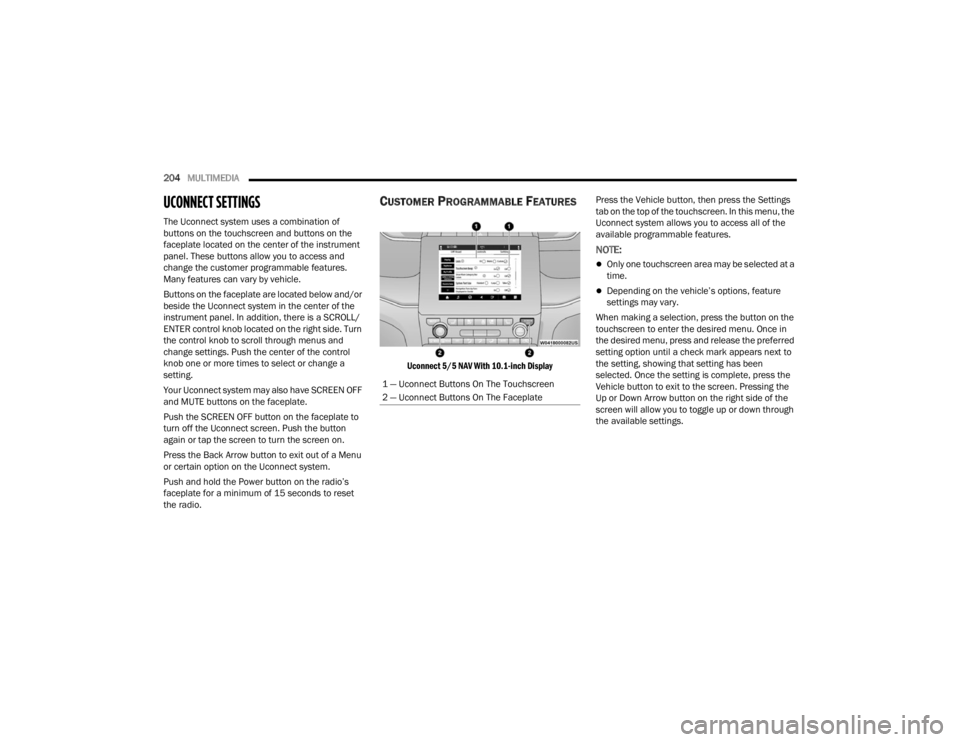
CUSTOMER PROGRAMMABLE FEATURES
Uconnect 5/5 NAV With 10.1-inch Display
Press the Vehicle button, then press the Settings
tab on the top of the touchscreen. In this menu, the
Uconnect system allows you to access all of the
available programmable features.
NOTE:
Only one touchscreen area may be selected at a
time.
Depending on the vehicle’s options, feature
settings may vary.
When making a selection, press the button on the
touchscreen to enter the desired menu. Once in
the desired menu, press and release the preferred
setting option until a check mark appears next to
the setting, showing that setting has been
selected. Once the setting is complete, press the
Vehicle button to exit to the screen. Pressing the
Up or Down Arrow button on the right side of the
screen will allow you to toggle up or down through
the available settings.
1 — Uconnect Buttons On The Touchscreen
2 — Uconnect Buttons On The Faceplate
23_WL_OM_EN_USC_t.book Page 204
Page 211 of 424

MULTIMEDIA209
Auto-On Driver Heated/Ventilated Seat & Heated Steering Wheel This setting will activate the vehicle’s comfort system and heated seats or
heated steering wheel when the vehicle is remote started or ignition is
started. The “Off” setting will not activate the comfort systems. The “Remote
Start” setting will only activate the comfort systems when using Remote Start.
The “All Start” setting will activate the comfort systems whenever the vehicle
is started.
Radio Off Delay This setting will keep certain electrical features running after the engine is
turned off. When any door is opened, the electronics will deactivate. The
available settings are “0 sec”, “45 sec”, “5 min”, and “10 min”.
Radio Off With Door This setting will allow you to determine if the radio shuts off when any of the
doors are opened.
Audio Settings This setting will open the submenu, containing the audio settings
Ú
page 223.
App Drawer Favoriting Pop-ups This setting will allow you to favorite app drawer pop-ups with “On” and “Off”
options.
App Drawer Unfavoritings Pop-ups This setting will allow you to unfavorite app drawer pop-ups with “On” and
“Off” options.
New Text Message Pop-ups This setting will allow you to have pop-up notifications for new text messages.
Setting options are “On” and “Off”.
Missed Calls Message This setting will allow you to have pop-up notifications for missed calls. Setting
options are “On” and “Off”.
Navigation Pop-ups This setting will allow you to have pop-up notifications for Navigation. Setting
options are “On” and “Off”.
Reset App Drawer to Default Order This setting will reset the app drawer to its factory default layout.
Setting NameDescription
5
23_WL_OM_EN_USC_t.book Page 209
Page 222 of 424

220MULTIMEDIA
Seats & Comfort
Passive Entry This setting will allow you to turn the Passive Entry feature
(Keyless Enter ‘n Go™) on or off.
Personal Settings Linked To Key Fob This setting will recall preset radio stations and driver seat position that have
been linked to the key fob.
Power Liftgate Alert This setting will chime an audible alert when the power liftgate is raising or
lowering. Selectable options are “On” and “Off”.
Hands-Free Power Liftgate This setting will use hands-free technology to automatically open or close the
power liftgate. Selectable options are “On” and “Off”.
Auto Relock This setting will lock the doors after 30 seconds of the doors remaining
unlocked. The available options are “On” and “Off”.
Setting Name
Description
When Seats & Comfort button is pressed on the touchscreen, the system displays the options related to the vehicle’s comfort systems when remote start has
been activated or the vehicle has been started.
NOTE:Depending on the vehicle’s options, feature settings may vary.
Setting NameDescription
Easy Exit Seats This setting will automatically move the driver seat rearward when the engine
is shut off. The available settings are “On” and “Off”.
23_WL_OM_EN_USC_t.book Page 220
Page 229 of 424

MULTIMEDIA227
Reset
When the Reset button is pressed on the touchscreen, the system displays the options related to resetting the Uconnect system back to its default settings.
These settings can clear personal data and reset selected settings from other menus.
NOTE:Depending on the vehicle’s options, feature settings may vary.
Setting Name Description
Restart Radio This setting will reboot the radio.
Reset Apps Drawer To Default Order This setting will return the apps drawer to the default order. The available
options are “Yes” and “Cancel”. The X button can also be pressed to cancel
the screen.
Restore Settings to Default This setting will return all the previously changed settings to their factory
defaults.
Clear Personal Data This setting will display a pop-up that gives you the option to clear all personal
data from the system, including Bluetooth® devices and presets.
Reset Wi-Fi Password For Projection This setting will allow you to reset the vehicle’s Wi-Fi password for smartphone
projection. The available options are “Yes” and “Cancel”. The X button can
also be pressed to cancel the screen.
Reset Performance Values This setting will reset the performance values for your vehicle.
Factory Reset This setting will restore the radio to its factory default settings.
5
23_WL_OM_EN_USC_t.book Page 227
Page 230 of 424
228MULTIMEDIA
STEERING WHEEL AUDIO CONTROLS
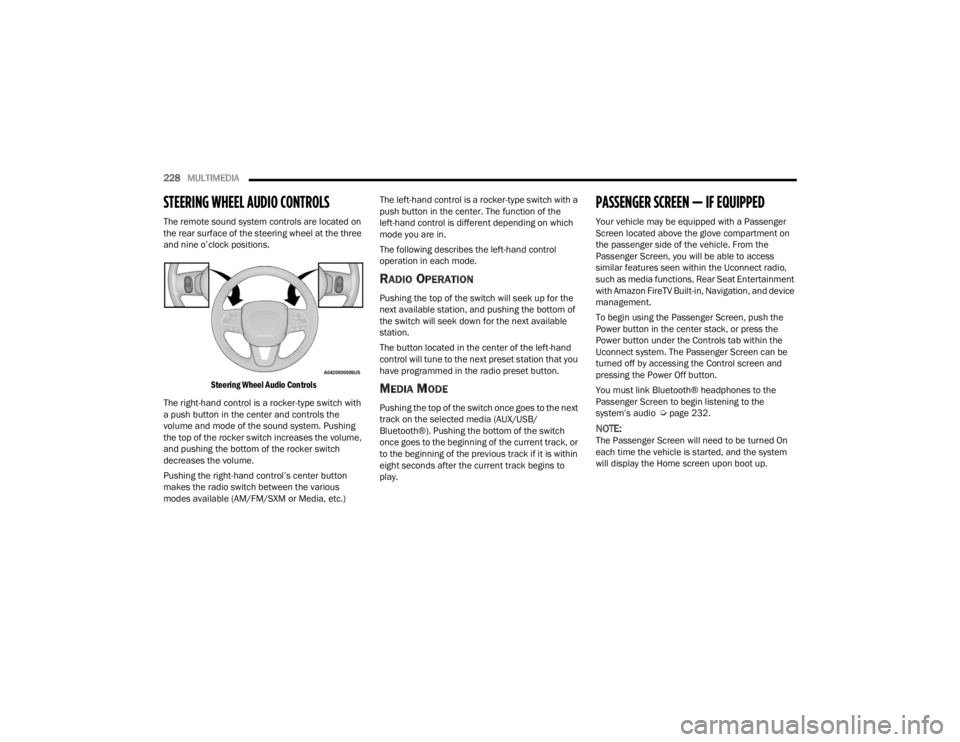
The remote sound system controls are located on
the rear surface of the steering wheel at the three
and nine o’clock positions.
Steering Wheel Audio Controls
The right-hand control is a rocker-type switch with
a push button in the center and controls the
volume and mode of the sound system. Pushing
the top of the rocker switch increases the volume,
and pushing the bottom of the rocker switch
decreases the volume.
Pushing the right-hand control’s center button
makes the radio switch between the various
modes available (AM/FM/SXM or Media, etc.) The left-hand control is a rocker-type switch with a
push button in the center. The function of the
left-hand control is different depending on which
mode you are in.
The following describes the left-hand control
operation in each mode.
RADIO OPERATION
Pushing the top of the switch will seek up for the
next available station, and pushing the bottom of
the switch will seek down for the next available
station.
The button located in the center of the left-hand
control will tune to the next preset station that you
have programmed in the radio preset button.
MEDIA MODE
Pushing the top of the switch once goes to the next
track on the selected media (AUX/USB/
Bluetooth®). Pushing the bottom of the switch
once goes to the beginning of the current track, or
to the beginning of the previous track if it is within
eight seconds after the current track begins to
play.
PASSENGER SCREEN — IF EQUIPPED
Your vehicle may be equipped with a Passenger
Screen located above the glove compartment on
the passenger side of the vehicle. From the
Passenger Screen, you will be able to access
similar features seen within the Uconnect radio,
such as media functions, Rear Seat Entertainment
with Amazon FireTV Built-in, Navigation, and device
management.
To begin using the Passenger Screen, push the
Power button in the center stack, or press the
Power button under the Controls tab within the
Uconnect system. The Passenger Screen can be
turned off by accessing the Control screen and
pressing the Power Off button.
You must link Bluetooth® headphones to the
Passenger Screen to begin listening to the
system’s audio Ú
page 232.
NOTE:The Passenger Screen will need to be turned On
each time the vehicle is started, and the system
will display the Home screen upon boot up.
23_WL_OM_EN_USC_t.book Page 228
Page 233 of 424
MULTIMEDIA231
To change the media source, press the Source
button and then press on the desired source. The
available sources are:
Live Radio (FM, AM, SXM)
Bluetooth®
USB 1
USB 2
AUX
AV 1 — If Equipped
AV 2 — If Equipped
Rear Screen 1 Listen In — If Equipped
Rear Screen 2 Listen In — If Equipped
NOTE:
Audio devices connected via Bluetooth® must
be done through the Device Manager in the
radio. For more information on pairing a device,
refer to your Uconnect Radio Instruction
Manual.
If the driver is listening to “Live Radio”, the
option will not be available in the Passenger
Screen. Select “Now Playing On Radio” to listen
to the currently playing station. If the driver
selects a radio station while the Passenger
Screen is playing live radio content, the feed will
end on the Passenger Screen and control will be
given to the Uconnect system. On the Preset menu, you will be able to listen to
saved radio presets. Press the desired preset to
begin listening.
The Browse tab will let you browse through
different radio stations or audio saved onto a USB
or audio device. Press “Browse” and select from
the different folders. You can scroll up and down to
view the options within those folders. Press on the
desired radio station or audio track to begin
playing it.
When the USB source is selected, you can chose a
video file to play if saved to a USB device. Press
“Browse” and locate the folder with the video file.
Press the video file name, and it will begin to play
on the Passenger Screen.
NOTE:Not all video files will be supported from a USB.
Certain video files may require digital rights to view
or play. These may be unavailable for playback on
the Passenger Screen.
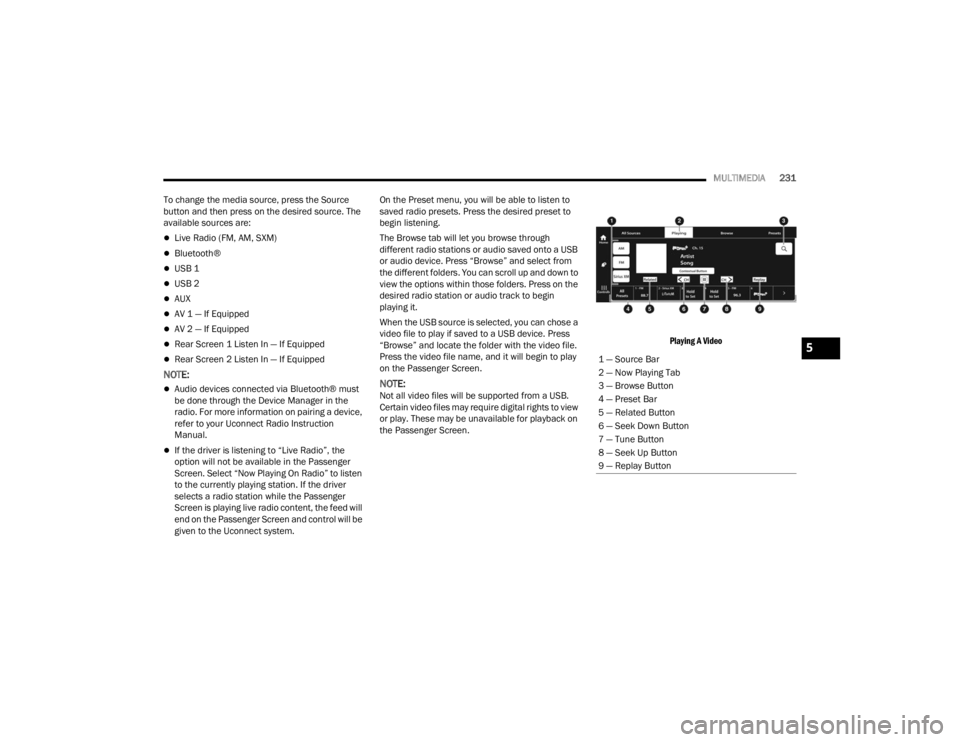
Playing A Video
1 — Source Bar
2 — Now Playing Tab
3 — Browse Button
4 — Preset Bar
5 — Related Button
6 — Seek Down Button
7 — Tune Button
8 — Seek Up Button
9 — Replay Button
5
23_WL_OM_EN_USC_t.book Page 231
Page 266 of 424

264SAFETY
Turning PEB On Or Off
NOTE:The default status of PEB is “On.” This allows the
system to warn you of a possible frontal collision
with the pedestrian.
The PEB button is located in the Uconnect display
in the Control settings Ú page 204.
To turn the PEB system off, push the Pedestrian
Emergency Braking button.
To turn the PEB system back on, push the Warning
Active Braking button.
Changing the PEB status to “Off” deactivates the
system, so no warning or active braking will be
available in case of a possible frontal collision with
the pedestrian/cyclist.
NOTE:The PEB system will retain the last setting selected
by the driver after ignition shut down. The system
will not reset to the default setting when the
vehicle is restarted.
Intersection Collision Assist (ICA) —
If Equipped
ICA uses three front radar sensors located in the
front fascia/bumper, to detect oncoming vehicles
from the front or side when driving through an
intersection. When the system determines that a
collision is probable when turning across
oncoming traffic, the system will attempt to
mitigate a possible collision by decelerating the
vehicle. When the system determines that a
collision with a crossing vehicle is probable, the
system may apply additional braking to
supplement the driver braking input to attempt to
mitigate a possible collision. The system will also
provide audible warnings and visual warnings
(shown in the instrument cluster). If the driver
determines acceleration is needed to avoid a
collision, when the accelerator is pressed ICA will
cancel.
TIRE PRESSURE MONITORING SYSTEM
(TPMS)
The TPMS will warn the driver of a low tire pressure
based on the vehicle recommended cold tire
pressure Ú page 408.
The tire pressure will vary with temperature by about
1 psi (7 kPa) for every 12°F (6.5°C). This means that
when the outside temperature decreases, the tire
pressure will decrease. Tire pressure should always
be set based on cold inflation tire pressure. This is
defined as the tire pressure after the vehicle has not
been driven for at least three hours, or driven less
than 1 mile (1.6 km) after a three-hour period. The
tire pressure will also increase as the vehicle is
driven — this is normal and there should be no
adjustment for this increased pressure.
For information on how to properly inflate the
vehicle’s tires, see Ú
page 374.
The TPMS will warn the driver of a low tire pressure
if the tire pressure falls below the low pressure
warning threshold for any reason, including low
temperature effects, or natural pressure loss
through the tire.
The TPMS will continue to warn the driver of low
tire pressure as long as the condition exists, and
will not turn off until the tire pressure is at or above
recommended cold tire pressure. Once the low tire
pressure warning has been illuminated, the tire
pressure must be increased to the recommended
cold tire pressure in order for the TPMS Warning
Light to be turned off.
WARNING!
Pedestrian Emergency Braking (PEB) is not
intended to avoid a collision on its own, nor can
PEB detect every type of potential collision with
a pedestrian. The driver has the responsibility to
avoid a collision by controlling the vehicle via
braking and steering. Failure to follow this
warning could lead to serious injury or death.
23_WL_OM_EN_USC_t.book Page 264
Page 271 of 424

SAFETY269
In the Selectable Tire Fill Alert application, which is
located in the apps menu of the Uconnect system,
you will be able to select a pressure setting for both
the front and rear axle tire pressures by scrolling
through a pressure range from ≥15 psi to XX in
1 psi increments for each axle setting.
XX = the vehicle's cold placard pressure values for
the front and rear axles as shown on the vehicle
placard pressure label.
You may also store pressure values chosen for
each axle in the Uconnect system application as
preset pressure values. Up to two sets of preset
pressure values can be stored in the Uconnect
system for the front and rear axle. Once you select
the tire pressures for the front and rear axles that
you want to inflate or deflate to, you can begin
inflating or deflating one tire at a time.
NOTE:The STFA system will only support inflating or
deflating one tire at a time. The user is required to
wait until the hazard lights STOP flashing or 26-30
seconds after the desired pressure is achieved in
one wheel before switching to another.
The system will be activated when the TPMS
receiver module detects a change in tire pressure.
The ignition must be in the ON/RUN mode, with the
transmission in PARK in vehicles with an automatic
transmission, and in NEUTRAL with the parking
brake engaged in vehicles with a manual transmission. The hazard lamps will come on to
confirm the vehicle is in Tire Fill Alert mode.
When Tire Fill Alert mode is entered, the tire
pressure screen will be displayed in the instrument
cluster. If the hazard lamps do not come on while
inflating or deflating the tire, the Tire Pressure
Monitoring System sensor may be in an
inoperative position, preventing the TPMS sensor
signal from being received. In this case, the vehicle
may need to be moved slightly forward or
backward.
Horn chirps will indicate STFA status as tires are
inflated/deflated. The horn will chirp under the
following STFA states:
1. The horn will chirp once when the selected
pressure is reached to let you know when to
stop inflating or deflating the tire.
2. The horn will chirp three times if the tire is overinflated or over-deflated.
3. The horn will chirp once again when enough air is added or removed to reach proper selected
pressure level.
OCCUPANT RESTRAINT SYSTEMS
Some of the most important safety features in your
vehicle are the restraint systems:
OCCUPANT RESTRAINT SYSTEMS
F
EATURES
Seat Belt Systems
Supplemental Restraint Systems (SRS) Air Bags
Child Restraints
Some of the safety features described in this
section may be standard equipment on some
models, or may be optional equipment on others. If
you are not sure, ask an authorized dealer.
IMPORTANT SAFETY PRECAUTIONS
Please pay close attention to the information in
this section. It tells you how to use your restraint
system properly, to keep you and your passengers
as safe as possible.
Here are some simple steps you can take to
minimize the risk of harm from a deploying air bag:
1. Children 12 years old and under should always ride buckled up in the rear seat of a
vehicle with a rear seat.
2. A child who is not big enough to wear the vehicle seat belt properly must be secured in
the appropriate child restraint or
belt-positioning booster seat in a rear seating
position Ú page 289.
6
23_WL_OM_EN_USC_t.book Page 269