phone JEEP PATRIOT 2013 1.G User Guide
[x] Cancel search | Manufacturer: JEEP, Model Year: 2013, Model line: PATRIOT, Model: JEEP PATRIOT 2013 1.GPages: 108, PDF Size: 3.17 MB
Page 1 of 108
User GuideJeep.com
13MK74-926-AA
Patriot
T\fird Edition
\bser Guide
Download a FREE elec\ftronic copy
of the O\fner’s M\bnu\bl or W\brr\bnty Booklet by
visiting the O\fners \Ot\bb \bt:
\f\f\f.Jeep.com (U.S.) or
\f\f\f.Jeep.c\b (C\bn\bd\b).
U.S. Only
Download a free
\fehicle Information
\bpp
by visiting your
\bpplic\btion store,
Key\ford (Jeep Vehicle
Info), or sc\bnning the
Microsoft T\bg. To put
Microsoft T\bgs to \fork
for you, use your mobile phone’s bro\fser or App
store to do\fnlo\bd \b Microsoft T\bg re\bder, like the
free one \bt \f\f\f.gett\bg.mobi. Then follo\f the
directions to sc\bn the code.
2013
P\btriot
G et the f r ee m o bile app f o r y o ur pho ne
http:/ / gettag.mobi
1118478_13c_Patriot_User_Guide_102212.indd 110/22/12 12:28 PMChrysler PDF maker.indd 110/22/12 12:42 PM
Page 2 of 108
The driver’s primary responsibility is th\te sa\fe operation o\f the vehicle.
Drivin\b while distracted can result in loss o\f vehicle control, resultin\b
in a collision and perso\tnal injury. Chrysler Group LLC stron\bly
recommends that the driver use extreme caution when us\tin\b any
device or \feature that may take their attention off the road. Use o\f any
electrical devices such as cell phones, computers, portable radios,
vehicle navi\bation or other devices by the driver while the vehicle is
movin\b is dan\berous and could lead to a serious collision. Textin\b while
drivin\b is also dan\t\berous and should never be done while th\te vehicle is
movin\b. I\f you find yoursel\f unable to devote your \full attention to
vehicle operation, pull off the r\toad to a sa\fe location and stop your
vehicle. Some States or Provinces prohibit the use o\f cellular
telephones or textin\b while drivin\b. \tIt is always the driver’s
responsibility to comply with all loca\tl laws.
Important:
This User Guide is \tintended to \familiarize you with the importan\tt \features
o\f your vehicle. The DVD enclosed conta\fns your O\bner’s Manual,
Nav\fgat\fon/Uconnect
® Manuals, Warranty Booklets, T\fre Warranty
and Roads\fde Ass\fstance (ne\b veh\fcles purchased \fn the U.S.) or
Roads\fde Ass\fstance (ne\b veh\fcles purchased \fn Canada) \fn\d electron\fc
format. We hope you find it use\ful. Replacement DVD kits may be
purchased by visitin\b www.techauthority.com. Jeep
® is a re\bistered
trademark o\f Chrysler Group LLC. © 2012 Chrysler Group LLC.
Dr\fv\fng and Alcohol:
Drunken drivin\b is one o\t\f the most \frequent causes o\f collisions. Your
drivin\b ability can\t be seriously impa\tired with blood alcohol levels \far below
the le\bal minimum. I\t\f you are drinkin\b, don’t d\trive. Ride with a desi\bn\tated
non-drinkin\b driver, call a cab, a \friend, or use \tpublic transportation.
WARNING!
Drivin\b a\fter drinkin\b can lea\td to a collision. Your perceptions are
less sharp, your reflexes are slower, and your jud\bment is imp\taired
when you have been drinkin\b. Ne\tver drink and then d\trive.
This \buide has been \tprepared to help you \bet quickly
acquainted with your new Jeep and to provide a convenient
re\ference source \for common questions. However, it is not a
substitute \for your Owner’s Manual.
For complete operational instructions, maintenance procedures
and important sa\fety messa\bes, please consult your Owner’s
Manual, Navi\bation/Uconnect
® Manuals and other \tWarnin\b
Labels in your vehicle.
Not all \features shown in this \buide ma\ty apply to your vehicle.
For additional in\formation on accessories to help personalize
your vehicle, visit www.mopar.com or your local Jeep dea\tler.
If you are the first registered retail owner of
your \fehicle, you may o\btain a complimentary
printed copy of the Owner’s Manual, Na\figation/
Uconnect
® Manuals or Warranty Booklet \by calling
1-877-426-5337 (U.S.) or 1-800-387-1143 (Canada)
or \by contacting your dealer.
1118478_13c_Patriot_User_Guide_102212.indd 210/22/12 12:28 PMChrysler PDF maker.indd 210/22/12 12:42 PM
Page 3 of 108
INTRODUCTION/WELCOME
WELCOME FROM
CHRYSLER GROUP LLC.......... 2
CONTROLS AT A GLANCE
DRIVER COCKPIT............... 6
INSTRUMENT CLUSTER .......... 8
GETTING STARTED
KEYFOB ................... 10
REMOTE START............... 10
THEFT ALARM ................ 11
SEATBELT .................. 11
SUPPLEMENTAL RESTRAINT SYSTEM
(SRS) — AIR BAGS ............ 12
CHILD RESTRAINTS ............ 13
FRONT SEATS ................ 15
REAR SEATS ................ 17
HEATEDSEATS ............... 18
TILT STEERING COLUMN ......... 19
OPERATING YOUR VEHICLE
ENGINE BREAK-IN
RECOMMENDATIONS........... 20
TURN SIGNAL/LIGHTS LEVER ...... 20
WIPER/WASHER LEVER .......... 22
SPEED CONTROL .............. 23
CONTINUOUSLY VARIABLE AUTOMATIC
TRANSMISSION (CVT) ........... 24
MANUAL CLIMATE CONTROLS ...... 24
AUTOMATIC TEMPERATURE
CONTROLS (ATC) .............. 25
POWER SUNROOF ............. 26
WIND BUFFETING ............. 27
ELECTRONICS
YOUR VEHICLE'S SOUND SYSTEM . . . 28
Uconnect®130 ............... 30
Uconnect®130 WITH
SiriusXM SATELLITE RADIO ........ 32
Uconnect
®230 ............... 35
Uconnect®430/430N ........... 38
SiriusXM SATELLITE RADIO/TRAVEL
LINK ...................... 47
STEERING WHEEL AUDIO CONTROLS.. 50
iPod®/USB/MP3 CONTROL ........ 51
Uconnect®Phone .............. 51
Uconnect®VOICE COMMAND ....... 54
Bluetooth®STREAMING AUDIO ..... 57
ELECTRONIC VEHICLE INFORMATION
CENTER (EVIC) ............... 57
PROGRAMMABLE FEATURES ....... 58
UNIVERSAL GARAGE DOOR OPENER
(HomeLink
®) ................. 59
POWER INVERTER ............. 61
POWER OUTLET .............. 62
OFF-ROAD CAPABILITIES
FOUR-WHEEL DRIVE OPERATION . . . 63
UTILITY
TRAILER TOWING WEIGHTS
(MAXIMUM TRAILER WEIGHT
RATINGS).................. 65
RECREATIONAL TOWING
(BEHIND MOTORHOME, ETC.) ..... 65
WHATTODOIN
EMERGENCIES
ROADSIDE ASSISTANCE.......... 66
INSTRUMENT CLUSTER WARNING
LIGHTS .................... 66
IF YOUR ENGINE OVERHEATS ...... 70
AUTOMATIC TRANSMISSION
OVERHEATING ............... 71
JACKING AND TIRE CHANGING ..... 71
JUMP-STARTING PROCEDURES ..... 76
SHIFT LEVER OVERRIDE ......... 79
TOWING A DISABLED VEHICLE ..... 80
FREEING A STUCK VEHICLE ....... 81
EVENT DATA RECORDER (EDR) ..... 82
MAINTAINING YOUR VEHICLE
OPENING THE HOOD........... 83
ENGINE COMPARTMENT ......... 84
FLUIDS AND CAPACITIES ........ 86
MAINTENANCE SCHEDULE ....... 87
MAINTENANCE RECORD ......... 91
FUSES ..................... 92
TIRE PRESSURES ............. 94
WHEEL AND WHEEL TRIM CARE .... 95
EXTERIOR BULBS ............. 95
MOPAR ACCESSORIES
AUTHENTIC ACCESSORIES
BY MOPAR®................. 96
INDEX................... 97
FAQ(HowTo?)
FREQUENTLY ASKED QUESTIONS . . . 100
TABLE OF CONTENTS
Page 7 of 108
USE OF AFTERMARKET PRODUCTS (ELECTRONICS)
The use of aftermarket devices including cell phones, MP3 players, GPS systems, or
chargers may affect the performance of on-board wireless features including Keyless
Enter-N-Go™ and Remote Start range. If you are experiencing difficulties with any of
your wireless features, try disconnecting your aftermarket devices to see if the
situation improves. If your symptoms persist, please see an authorized dealer.
CHRYSLER, DODGE, JEEP, RAM TRUCK, SRT, ATF+4, MOPAR and Uconnect are
registered trademarks of Chrysler Group LLC.
COPYRIGHT ©2012 CHRYSLER GROUP LLC
INTRODUCTION/WELCOME
5
Page 34 of 108
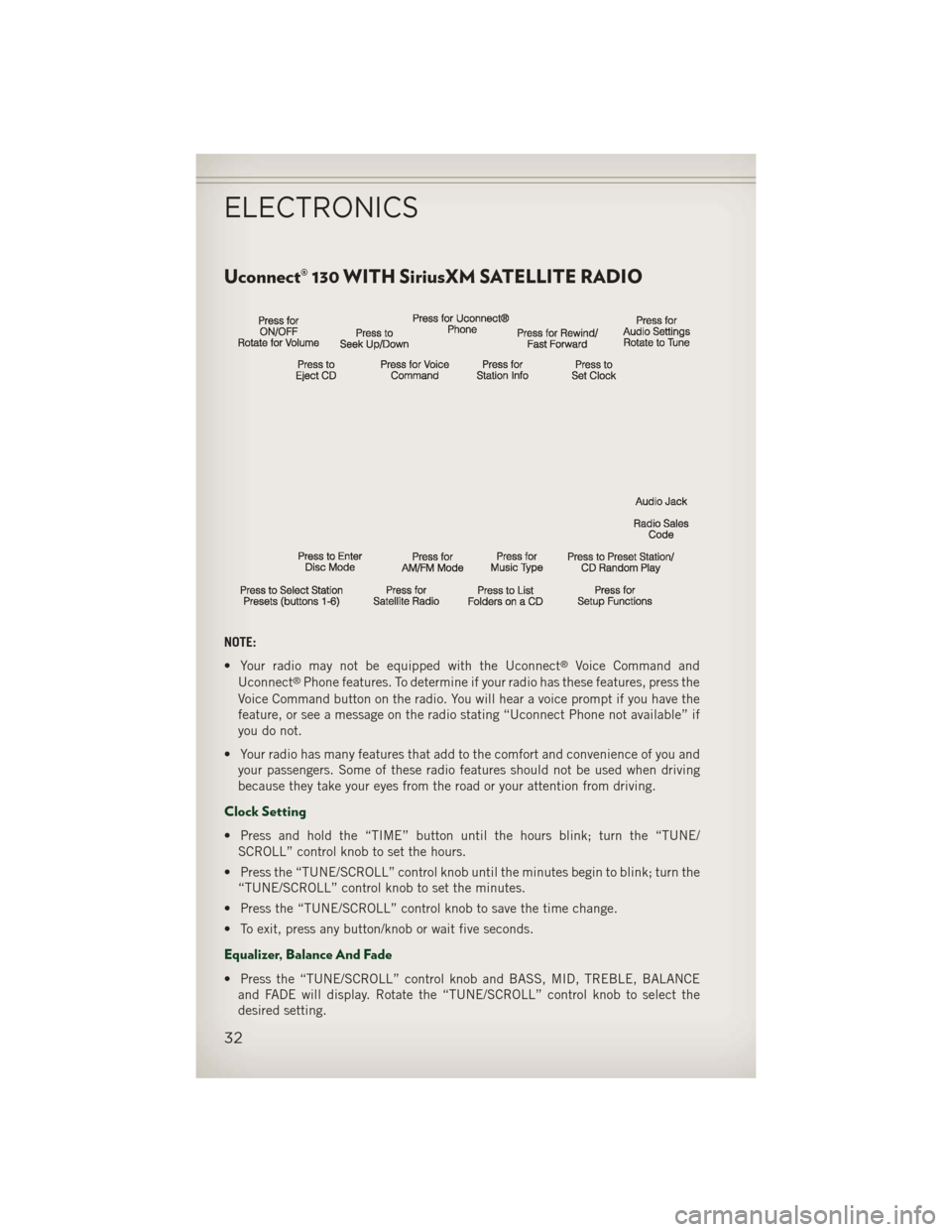
Uconnect® 130 WITH SiriusXM SATELLITE RADIO
NOTE:
• Your radio may not be equipped with the Uconnect
®Voice Command and
Uconnect®Phone features. To determine if your radio has these features, press the
Voice Command button on the radio. You will hear a voice prompt if you have the
feature, or see a message on the radio stating “Uconnect Phone not available” if
you do not.
• Your radio has many features that add to the comfort and convenience of you and your passengers. Some of these radio features should not be used when driving
because they take your eyes from the road or your attention from driving.
Clock Setting
• Press and hold the “TIME” button until the hours blink; turn the “TUNE/SCROLL” control knob to set the hours.
• Press the “TUNE/SCROLL” control knob until the minutes begin to blink; turn the “TUNE/SCROLL” control knob to set the minutes.
• Press the “TUNE/SCROLL” control knob to save the time change.
• To exit, press any button/knob or wait five seconds.
Equalizer, Balance And Fade
• Press the “TUNE/SCROLL” control knob and BASS, MID, TREBLE, BALANCE and FADE will display. Rotate the “TUNE/SCROLL” control knob to select the
desired setting.
ELECTRONICS
32
Page 37 of 108
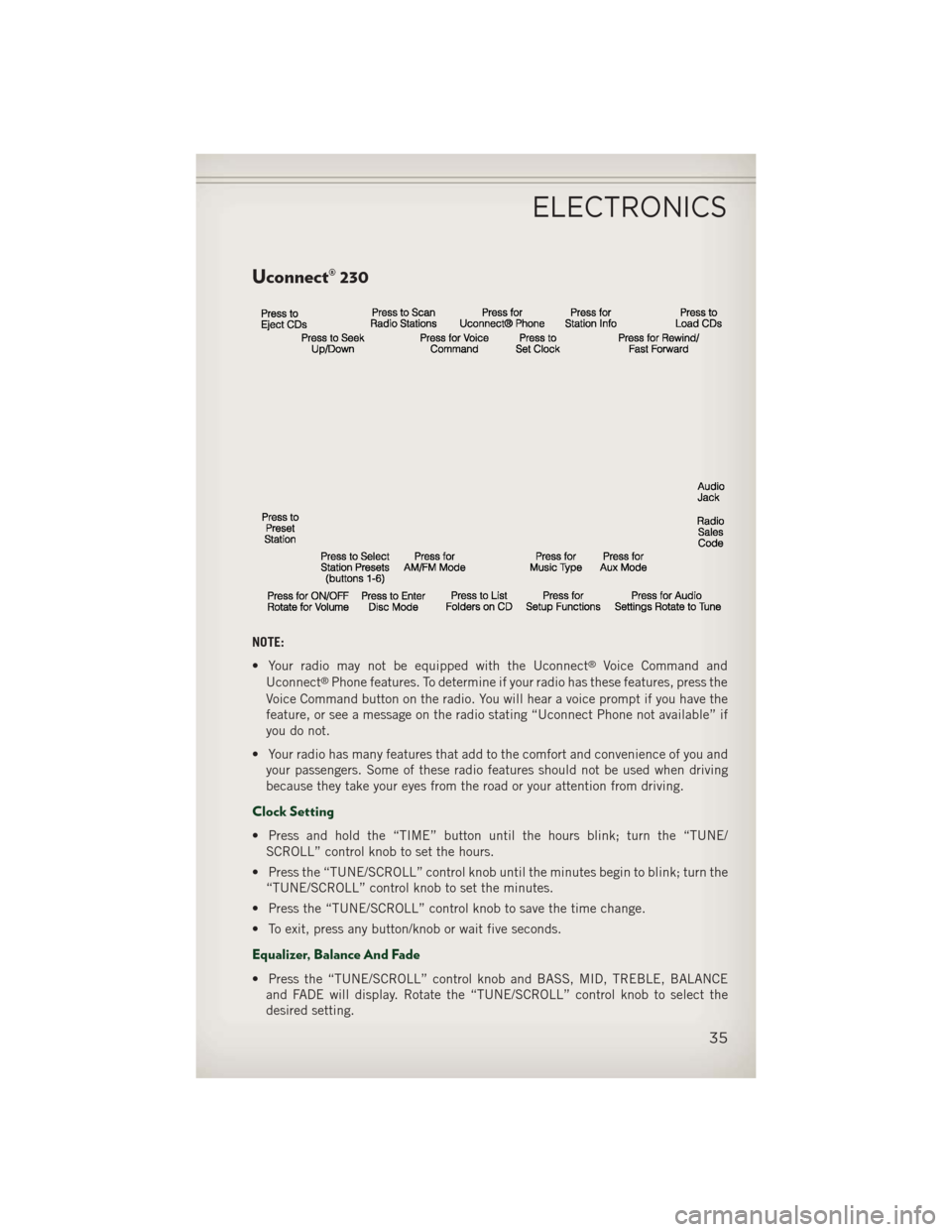
Uconnect® 230
NOTE:
• Your radio may not be equipped with the Uconnect
®Voice Command and
Uconnect®Phone features. To determine if your radio has these features, press the
Voice Command button on the radio. You will hear a voice prompt if you have the
feature, or see a message on the radio stating “Uconnect Phone not available” if
you do not.
• Your radio has many features that add to the comfort and convenience of you and your passengers. Some of these radio features should not be used when driving
because they take your eyes from the road or your attention from driving.
Clock Setting
• Press and hold the “TIME” button until the hours blink; turn the “TUNE/SCROLL” control knob to set the hours.
• Press the “TUNE/SCROLL” control knob until the minutes begin to blink; turn the “TUNE/SCROLL” control knob to set the minutes.
• Press the “TUNE/SCROLL” control knob to save the time change.
• To exit, press any button/knob or wait five seconds.
Equalizer, Balance And Fade
• Press the “TUNE/SCROLL” control knob and BASS, MID, TREBLE, BALANCE and FADE will display. Rotate the “TUNE/SCROLL” control knob to select the
desired setting.
ELECTRONICS
35
Page 40 of 108
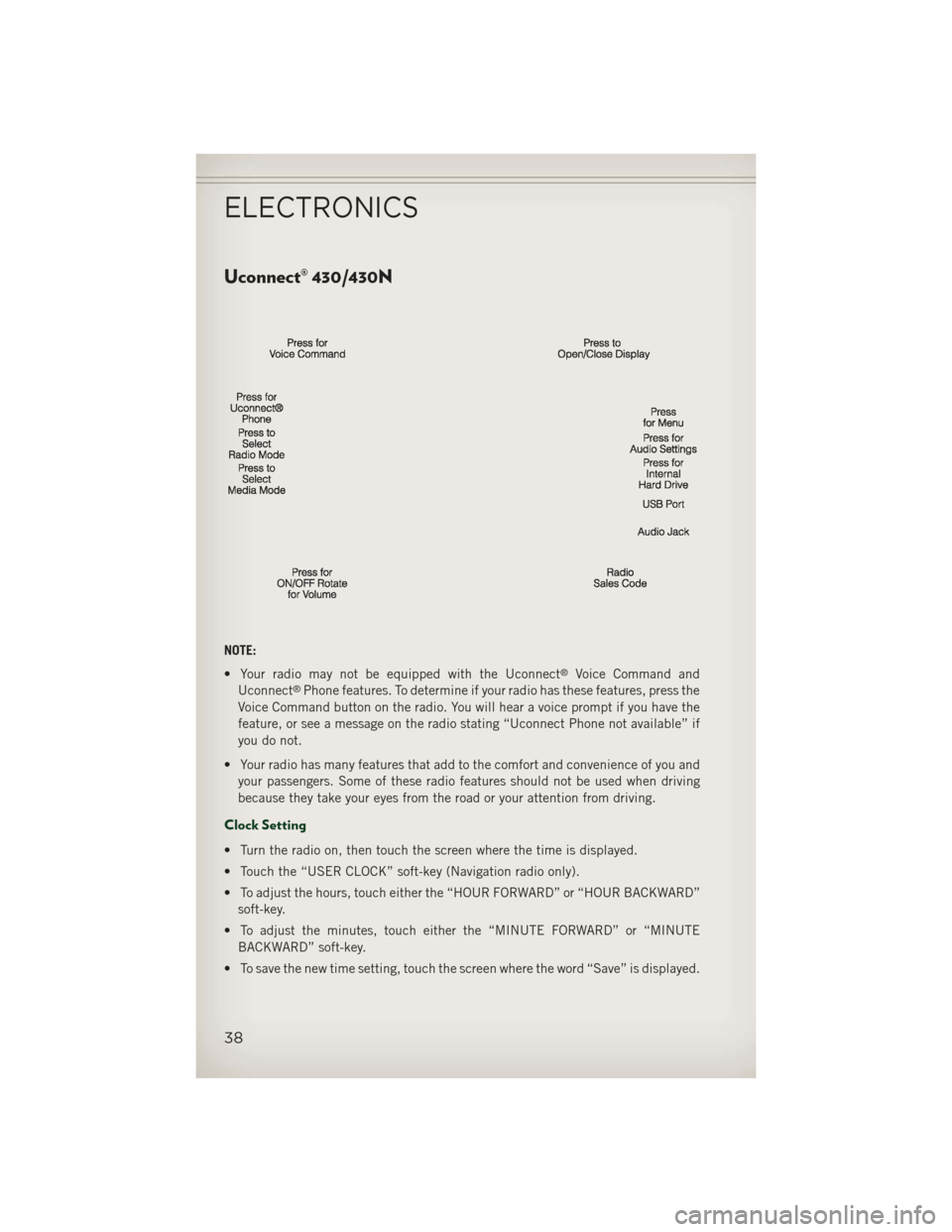
Uconnect® 430/430N
NOTE:
• Your radio may not be equipped with the Uconnect
®Voice Command and
Uconnect®Phone features. To determine if your radio has these features, press the
Voice Command button on the radio. You will hear a voice prompt if you have the
feature, or see a message on the radio stating “Uconnect Phone not available” if
you do not.
• Your radio has many features that add to the comfort and convenience of you and your passengers. Some of these radio features should not be used when driving
because they take your eyes from the road or your attention from driving.
Clock Setting
• Turn the radio on, then touch the screen where the time is displayed.
• Touch the “USER CLOCK” soft-key (Navigation radio only).
• To adjust the hours, touch either the “HOUR FORWARD” or “HOUR BACKWARD”soft-key.
• To adjust the minutes, touch either the “MINUTE FORWARD” or “MINUTE BACKWARD” soft-key.
• To save the new time setting, touch the screen where the word “Save” is displayed.
ELECTRONICS
38
Page 53 of 108
iPod®/USB/MP3 CONTROL
• There are many ways to play music from iPod®/MP3 players or USB devices
through your vehicle's sound system.
• The remote USB port, located within the front storage area, allows you to plug an iPod
®into the vehicle's sound system.
• Non-Touch-Screen Radios: To hear audio from devices connected to the USB port, press the “AUX” button on the radio faceplate
• Touch-Screen Radios: To hear audio from devices connected to the USB port, press the “MEDIA” hard-key, then touch the “AUX” or “iPod
®” soft-key.
• When connected to this feature: • The iPod
®can be controlled using
the radio buttons to Play, Browse,
and List the iPod
®or external de-
vices contents.
• The iPod
®battery charges when
plugged into the USB port (if sup-
ported by the specific audio device).
• Compatible iPod
®devices may also
be controllable using voice commands. Refer to the Owner's Manual on the DVD
for details.
NOTE:
The USB port supports certain Mini, Classic, Nano, Touch, and iPhone
®devices. The
USB port also supports playing music from compatible external USB Mass Storage
Class memory devices. For supported audio file formats, refer to the USB Port section
in the Owner's Manual on the DVD. Refer to www.UconnectPhone.com website for a
list of tested iPod
®s. Some iPod®software versions may not fully support the USB
port features. Please visit Apple’s website for iPod®software updates.
WARNING!
Do not plug in or remove the iPod®or external device while driving. Failure to
follow this warning could result in a collision.
Uconnect® Phone
• To determine if your vehicle is equipped with Uconnect®Phone, press the
“Uconnect®Phone” button. If your vehicle has this feature, you will hear a
voice prompt. If not, you will see a message on the radio “Uconnect phone not
available”.
• The Uconnect
®Phone is a voice-activated, hands-free, in-vehicle communica-
tions system with Voice Command Capability (see Voice Command section).
ELECTRONICS
51
Page 54 of 108
NOTE:
To access the tutorial, press the “Uconnect®Phone” button. After the BEEP,
say “tutorial.” Press any hard-key/button or touch the display (Touch-Screen radio) to
cancel the “tutorial”.
• The Uconnect
®Phone allows you to dial a phone number with your mobile phone
using simple voice commands.
• Refer to your vehicle Owner's Manual on the DVD for further details.
NOTE:
The Uconnect
®Phone requires a mobile phone equipped with the Bluetooth®
Hands-Free Profile, Version 1.0 or higher. For Uconnect®Customer Support: U.S.
residents - visit www.UconnectPhone.com or call 1–877–855–8400. Canadian
Residents - call, 1-800-465–2001 (English) or 1-800-387-9983 (French). This site
will provide specific instructions based on the type of mobile phone being paired.
Phone Pairing
NOTE:
• Pairing is a one-time initial setup before using the phone.
• Prior to starting the pairing procedure ensure all additional phones within the vehicle have their Bluetooth
®disabled.
• The Uconnect
®Phone requires a mobile phone equipped with the Bluetooth®
Hands-Free Profile, Version 1.0 or higher. For Uconnect®customer support: U.S.
residents - visit www.UconnectPhone.com or call 1–877–855–8400. Canadian
Residents - call 1-800-465–2001 (English) or 1-800-387-9983 (French). This
site will provide specific instructions based on the type of mobile phone being
paired.
• Press the “Phone”
button to begin.
• Wait for the “ready” prompt and BEEP.
• (After the BEEP), say ”setup” or “Uconnect device setup”.
• (After the BEEP), say “device pairing”.
• (After the BEEP), say “pair a device”.
• Follow the audible prompts.
• You will be asked to say a four-digit Personal Identification Number (PIN),
which you will later need to enter into
your mobile phone. You can say any
four-digit PIN. You will not need to
remember this PIN after the initial
pairing process.
• You will then be prompted to give the phone pairing a name (each phone paired should have a unique name).
ELECTRONICS
52
Page 55 of 108
• Next you will be asked to give this new pairing a priority of 1 thru 7 (up to sevenphones may be paired); 1 is the highest and 7 is the lowest priority. The system will
only connect to the highest priority phone that exists within the proximity of the
vehicle.
• You will then need to start the pairing procedure on your cell phone. Follow the Bluetooth
®instructions in your cell phone Owner's Manual to complete the phone
pairing setup.
Phonebook
Phonebook Download – Automatic Phonebook Transfer From Mobile Phone
If equipped and specifically supported by your phone, Uconnect
®Phone automati-
cally downloads names (text names) and number entries from your mobile phone’s
phonebook. Specific Bluetooth
®Phones with Phone Book Access Profile may
support this feature. Automatic Transfer is indicated by a green arrow at the bottom
of the screen. See www.UconnectPhone.com for supported phones.
• Automatic download and update, if supported, begins as soon as the
Bluetooth
®wireless phone connection
is made to the Uconnect®Phone, for
example, after you start the vehicle.
NOTE:
The mobile phone may require authori-
zation prior to download.
• A maximum of 1000 entries per phone will be downloaded and updated every time a phone is connected to the Uconnect
®Phone.
• Depending on the maximum number of entries downloaded, there may be a short delay before the latest downloaded names can be used. Until then, if available, the
previously downloaded phonebook is available for use.
• Only the phonebook of the currently connected mobile phone is accessible.
• Only the mobile phone’s phonebook is downloaded. The SIM card phonebook is not part of the Mobile phonebook.
• This downloaded phonebook cannot be edited or deleted on the Uconnect
®
Phone. These can only be edited on the mobile phone. The changes are transferred
and updated to Uconnect®Phone on the next phone connection.
Making A Phone Call
• Press the “Phone” button.
• (After the BEEP), say “dial” (or “call” a name).
• (After the BEEP), say number (or name).
ELECTRONICS
53