phone JEEP RENEGADE 2014 1.G User Guide
[x] Cancel search | Manufacturer: JEEP, Model Year: 2014, Model line: RENEGADE, Model: JEEP RENEGADE 2014 1.GPages: 212, PDF Size: 17.48 MB
Page 186 of 212
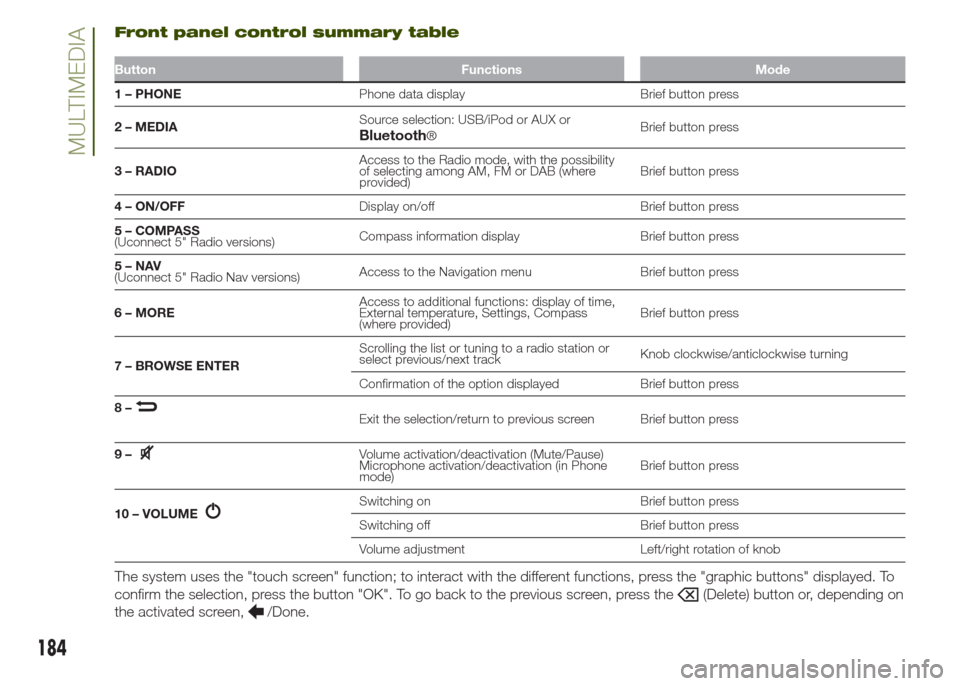
Front panel control summary table
Button Functions Mode
1 – PHONEPhone data display Brief button press
2 – MEDIASource selection: USB/iPod or AUX or
®Brief button press
3 – RADIOAccess to the Radio mode, with the possibility
of selecting among AM, FM or DAB (where
provided)Brief button press
4 – ON/OFFDisplay on/off Brief button press
5 – COMPASS
(Uconnect 5" Radio versions)Compass information display Brief button press
5–NAV
(Uconnect 5" Radio Nav versions)Access to the Navigation menu Brief button press
6 – MOREAccess to additional functions: display of time,
External temperature, Settings, Compass
(where provided)Brief button press
7 – BROWSE ENTERScrolling the list or tuning to a radio station or
select previous/next trackKnob clockwise/anticlockwise turning
Confirmation of the option displayed Brief button press
8–
Exit the selection/return to previous screen Brief button press
9–
Volume activation/deactivation (Mute/Pause)
Microphone activation/deactivation (in Phone
mode)Brief button press
10 – VOLUME
Switching on Brief button press
Switching off Brief button press
Volume adjustment Left/right rotation of knob
The system uses the "touch screen" function; to interact with the different functions, press the "graphic buttons" displayed. To
confirm the selection, press the button "OK". To go back to the previous screen, press the
(Delete) button or, depending on
the activated screen,
/Done.
184
MULTIMEDIABluetooth
Page 187 of 212
STEERING WHEEL CONTROLS
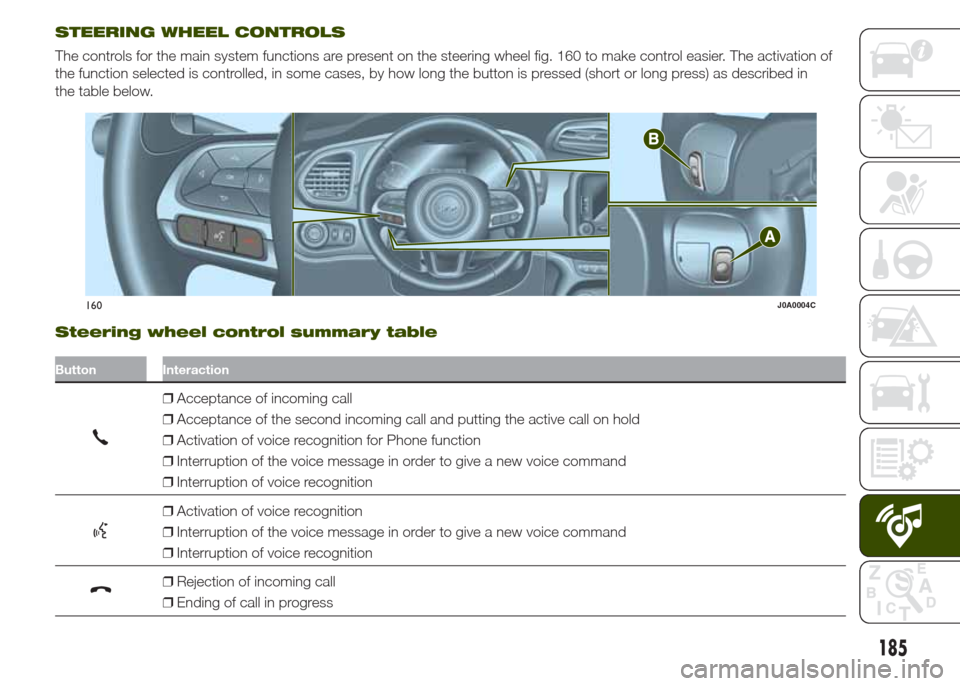
The controls for the main system functions are present on the steering wheel fig. 160 to make control easier. The activation of
the function selected is controlled, in some cases, by how long the button is pressed (short or long press) as described in
the table below.
Steering wheel control summary table
Button Interaction
❒Acceptance of incoming call
❒Acceptance of the second incoming call and putting the active call on hold
❒Activation of voice recognition for Phone function
❒Interruption of the voice message in order to give a new voice command
❒Interruption of voice recognition
❒Activation of voice recognition
❒Interruption of the voice message in order to give a new voice command
❒Interruption of voice recognition
❒Rejection of incoming call
❒Ending of call in progress
160J0A0004C
185
Page 190 of 212
❒when requested by the audio device,
enter the PIN code shown on the
system display or confirm on the device
the PIN displayed;
❒if the pairing procedure is completed
successfully, a screen is displayed.
Answer "Yes" to the question to pair the
Bluetooth® audio device as favourite
(the device will have priority over all
other devices that will be paired subse-
quently). If "No" is selected, the priority
is determined according to the order of
pairing. The last device connected will
have the highest priority;
❒an audio device can also be paired
by pressing the
PHONE button
on the front panel and by selecting
"Settings" or, from the "Settings" menu,
selecting "Phone/Bluetooth".
IMPORTANT If theBluetooth® pairing
between mobile phone and system is
lost, consult the mobile phone owner's
handbook.
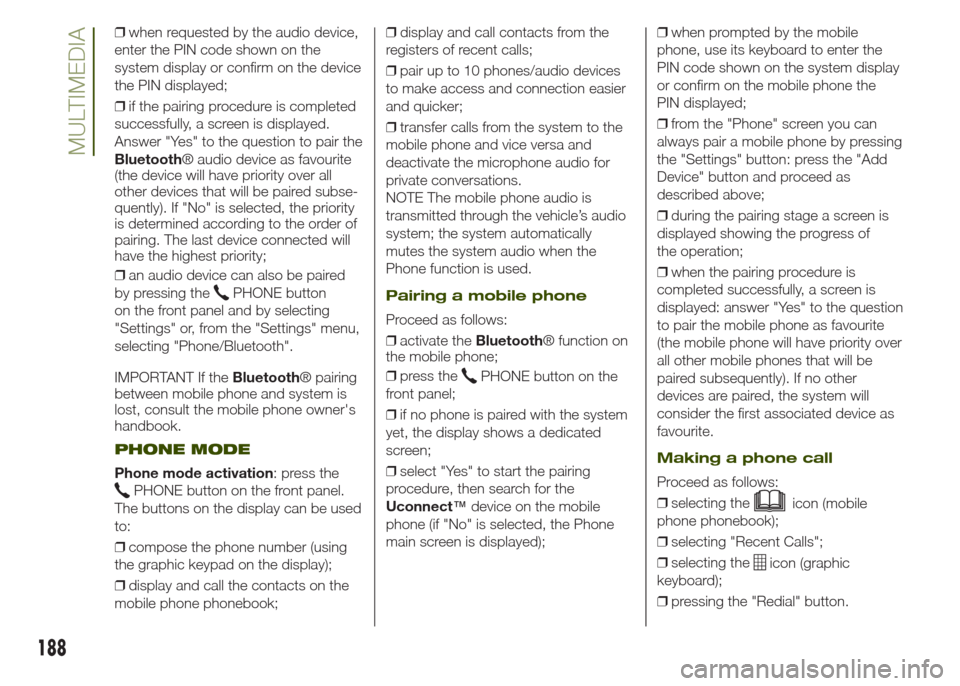
PHONE MODE
Phone mode activation: press the
PHONE button on the front panel.
The buttons on the display can be used
to:
❒compose the phone number (using
the graphic keypad on the display);
❒display and call the contacts on the
mobile phone phonebook;❒display and call contacts from the
registers of recent calls;
❒pair up to 10 phones/audio devices
to make access and connection easier
and quicker;
❒transfer calls from the system to the
mobile phone and vice versa and
deactivate the microphone audio for
private conversations.
NOTE The mobile phone audio is
transmitted through the vehicle’s audio
system; the system automatically
mutes the system audio when the
Phone function is used.
Pairing a mobile phone
Proceed as follows:
❒activate theBluetooth® function on
the mobile phone;
❒press the
PHONE button on the
front panel;
❒if no phone is paired with the system
yet, the display shows a dedicated
screen;
❒select "Yes" to start the pairing
procedure, then search for the
Uconnect™device on the mobile
phone (if "No" is selected, the Phone
main screen is displayed);❒when prompted by the mobile
phone, use its keyboard to enter the
PIN code shown on the system display
or confirm on the mobile phone the
PIN displayed;
❒from the "Phone" screen you can
always pair a mobile phone by pressing
the "Settings" button: press the "Add
Device" button and proceed as
described above;
❒during the pairing stage a screen is
displayed showing the progress of
the operation;
❒when the pairing procedure is
completed successfully, a screen is
displayed: answer "Yes" to the question
to pair the mobile phone as favourite
(the mobile phone will have priority over
all other mobile phones that will be
paired subsequently). If no other
devices are paired, the system will
consider the first associated device as
favourite.
Making a phone call
Proceed as follows:
❒selecting the
icon (mobile
phone phonebook);
❒selecting "Recent Calls";
❒selecting the
icon (graphic
keyboard);
❒pressing the "Redial" button.
188
MULTIMEDIA
Page 191 of 212
NOTE The operations described above
can only be accessed if supported by
the mobile phone in use.
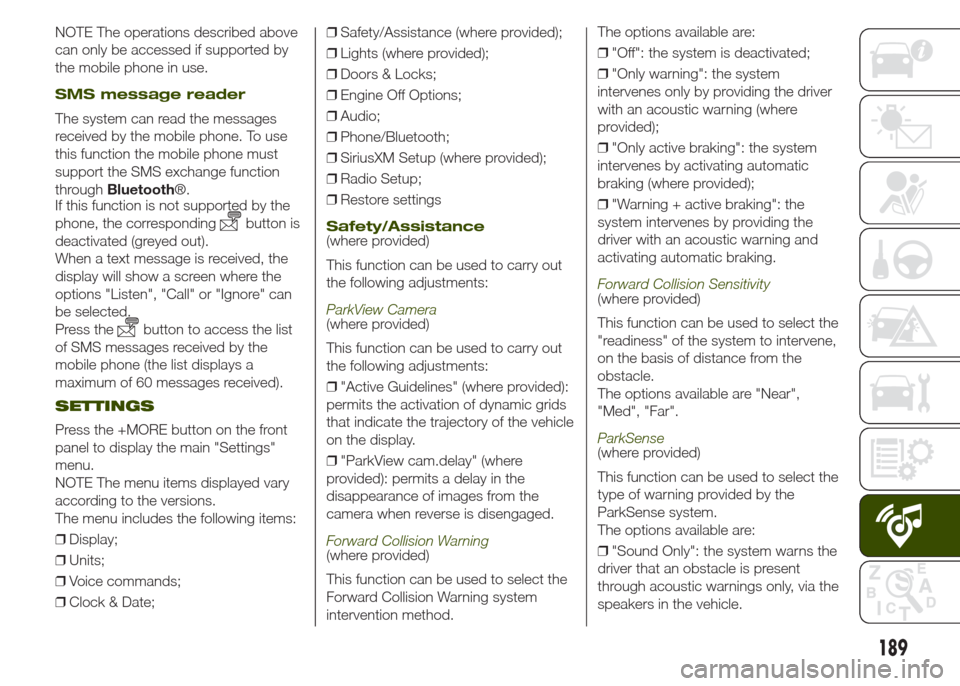
SMS message reader
The system can read the messages
received by the mobile phone. To use
this function the mobile phone must
support the SMS exchange function
throughBluetooth®.
If this function is not supported by the
phone, the corresponding
button is
deactivated (greyed out).
When a text message is received, the
display will show a screen where the
options "Listen", "Call" or "Ignore" can
be selected.
Press the
button to access the list
of SMS messages received by the
mobile phone (the list displays a
maximum of 60 messages received).
SETTINGS
Press the +MORE button on the front
panel to display the main "Settings"
menu.
NOTE The menu items displayed vary
according to the versions.
The menu includes the following items:
❒Display;
❒Units;
❒Voice commands;
❒Clock & Date;❒Safety/Assistance (where provided);
❒Lights (where provided);
❒Doors & Locks;
❒Engine Off Options;
❒Audio;
❒Phone/Bluetooth;
❒SiriusXM Setup (where provided);
❒Radio Setup;
❒Restore settings
Safety/Assistance(where provided)
This function can be used to carry out
the following adjustments:
ParkView Camera(where provided)
This function can be used to carry out
the following adjustments:
❒"Active Guidelines" (where provided):
permits the activation of dynamic grids
that indicate the trajectory of the vehicle
on the display.
❒"ParkView cam.delay" (where
provided): permits a delay in the
disappearance of images from the
camera when reverse is disengaged.
Forward Collision Warning(where provided)
This function can be used to select the
Forward Collision Warning system
intervention method.The options available are:
❒"Off": the system is deactivated;
❒"Only warning": the system
intervenes only by providing the driver
with an acoustic warning (where
provided);
❒"Only active braking": the system
intervenes by activating automatic
braking (where provided);
❒"Warning + active braking": the
system intervenes by providing the
driver with an acoustic warning and
activating automatic braking.
Forward Collision Sensitivity(where provided)
This function can be used to select the
"readiness" of the system to intervene,
on the basis of distance from the
obstacle.
The options available are "Near",
"Med", "Far".
ParkSense(where provided)
This function can be used to select the
type of warning provided by the
ParkSense system.
The options available are:
❒"Sound Only": the system warns the
driver that an obstacle is present
through acoustic warnings only, via the
speakers in the vehicle.
189
Page 193 of 212
❒tap the screen to open the Main
menu;
❒select "Navigate to" or "Drive to";
❒select "Address": you can change the
country or state setting by tapping the
flag before you select a city;
❒enter the town or city name, or the
postcode. Towns with similar names
are shown in the list while you type;
Tip: tap the arrow to the right of the list
to expand the list of suggested towns.
When the correct city or town appears
in the list, tap the name to select the
destination.
❒enter the street name. Streets with
similar names are shown in the list while
you type. When the correct street
name appears in the list, tap the name
to select the destination;
❒enter the house number, then tap
"Done";
❒the location is shown on the map.
Tap "Select" to continue or tap "Back"
to enter another address;
❒when the new route is shown, tap
"Done". For more information about the
route, tap "Details". To change your
route, for example, to travel via a
particular location or to select a new
destination, tap "Change route". You
are guided to your destination, using
spoken instructions and on-screen
directions.
MAP UPDATE(Uconnect 5" Radio Nav versions only)
The map can be updated in two
different ways:
❒most recent maps guarantee:ifa
new map is available for your system
within 90 day of initial use, it can be
downloaded once free of charge.
❒map update: it is possible to
purchase a new version of the map
installed on your system.
Preparing a USB device
To update the map, a USB device that
meets the following requirements must
be used:
❒ideally, the USB device should be
empty;
❒the USB device must have at least
8 GB of memory free;
❒the USB must use a FAT-32 file
system;
❒the USB device must not be blocked
and must allow files to be saved.
NOTE The use of a memory stick is
recommended, while the use of mass
storage devices, such as mobile
phones or multimedia players, is not
recommended.
To prepare a USB device, proceed as
follows:❒ensure that the map you wish to
update is active in the navigation
system. If the navigation system has
several maps and you wish to update a
map which is not currently active,
activate the map. To do this, select
"Change map" in the "Settings" menu
of the navigation application;
❒select "Navigation updates" in the
"Settings" menu. You are asked
whether you wish to prepare a USB
device for downloading updates;
❒select "Yes";
❒insert the USB device.
The system starts to prepare the USB
device.
When the USB device is ready, the
display shows a dedicated message.
Remove the USB device and connect it
to the computer. The new map can
now be downloaded to the USB
device.
TomTom HOME installation
To install TomTom HOME and create
a MyTomTom account, proceed as
follows:
❒download and install the TomTom
HOME application on the computer. On
the computer, access
www.tomtom.com/getstarted. Select
"Download TomTom HOME", then
follow the instructions provided.
191
To plan a route, do the following:
Page 195 of 212
VOICE COMMANDS
NOTE For languages not supported by
the system, voice commands are not
available.
To use the voice commands, press the
button ("Voice" button) or
("Phone" button) on the controls of
the steering wheel and give the
command you want to activate, out
loud.
Phone functions
Thebutton activates the following
functions:
❒Call
❒Dial
❒Redial
❒Call back
❒Last calls
❒Outgoing calls
❒Missed calls
❒Incoming calls
❒Phonebook
❒Search
❒Show SMS
Radio functions
Thebutton activates the following
functions:
❒Tune to XXX-FM
❒Tune to XXX AM
❒Tune to Radio XXX
❒Tune to DAB channel
Media Functions
Thebutton activates the following
functions:
❒Play song...
❒Play album…
❒Play artist…
❒Play genre…
❒Play playlist…
❒Play podcast…
❒Play audiobook…
❒Play track number…
❒Select the media
❒Display
Navigation functions(only versions with Uconnect 5" Radio
Nav and Uconnect 6.5" Radio Nav)
The
button activates the following
functions:
❒Drive Home
❒2D view
❒3D view
❒Clear route
❒Add Favourite
❒Repeat instruction
193
Page 197 of 212
Front panel control summary table
Button Functions Mode
1–Switching on Brief button press
Switching off Brief button press
Volume adjustment Left/right rotation of knob
2–
Volume activation/deactivation (Mute/Pause) Brief button press
3–
Display on/off Brief button press
4–
Access to the Vehicle Settings menu Brief button press
5–
Exit the selection/return to previous screen Brief button press
6 – BROWSE ENTERScrolling the list or tuning to a radio station Left/right rotation of knob
Confirmation of the option displayed Brief button press
7 – MOREAccess to the additional functions: display of
Time, Compass, Outside temperature, Media
PlayerBrief button press
8 – PHONEPhone data display Brief button press
9–NAVAccess to the Navigation menu Brief button press
10 – MEDIASource selection Brief button press
11 – RADIOAccess to the Radio mode Brief button press
The system uses the "touch screen" function; to interact with the different functions, press the "graphic buttons" displayed. To
confirm the selection, press the button "OK". To go back to the previous screen, press the
(Delete) button or, depending on
the activated screen,
/Done.
195
Page 199 of 212
❒if the pairing procedure is completed
successfully, a screen is displayed.
Answer "Yes" to the question to pair the
Bluetooth® audio device as favourite
(the device will have priority over all
other devices that will be paired subse-
quently). If "No" is selected, the priority
is determined according to the order of
pairing. The last device connected will
have the highest priority;
❒an audio device can also be paired
by pressing the MORE button on the
front panel and then selecting the
options "Settings" and "Bluetooth", or
pressing the MEDIA button on the front
panel and then selecting "Media" and
"Bluetooth".
IMPORTANT If theBluetooth® pairing
between mobile phone and system is
lost, consult the mobile phone owner's
handbook.
PHONE MODE
Phone mode activation: press the
PHONE button on the front panel.
The buttons on the display can be used
to:
❒compose the phone number (using
the graphic keypad on the display);
❒display and call the contacts on the
mobile phone phonebook;
❒display and call contacts from the
registers of recent calls;❒pair up to 10 phones/audio devices
to make access and connection easier
and quicker;
❒transfer calls from the system to the
mobile phone and vice versa and
deactivate the microphone audio for
private conversations.
NOTE The mobile phone audio is
transmitted through the vehicle’s audio
system; the system automatically
mutes the system audio when the
Phone function is used.
Pairing a mobile phone
Proceed as follows:
❒activate theBluetooth® function on
the mobile phone;
❒press the PHONE button on the front
panel;
❒if no phone is paired with the system
yet, the display shows a dedicated
screen;
❒select "Yes" to start the pairing
procedure, then search for the
Uconnect™device on the mobile
phone (if "No" is selected, the Phone
main screen is displayed);
❒when prompted by the mobile
phone, use its keyboard to enter the
PIN code shown on the system display
or confirm on the mobile phone the
PIN displayed;❒from the "Phone" screen you can
always pair a mobile phone by pressing
the "Settings" button: press the "Add
Device" button and proceed as
described above;
❒during the pairing stage a screen is
displayed showing the progress of
the operation;
❒when the pairing procedure is
completed successfully, a screen is
displayed: answer "Yes" to the question
to pair the mobile phone as favourite
(the mobile phone will have priority over
all other mobile phones that will be
paired subsequently). If no other
devices are paired, the system will
consider the first associated device as
favourite.
Making a phone call
Proceed as follows:
❒selecting the
icon (mobile
phone phonebook);
❒selecting "Recent Calls";
❒selecting the
icon (graphic
keyboard);
❒pressing the "Redial" button.
NOTE The operations described above
can only be accessed if supported by
the mobile phone in use.
197
Page 200 of 212
SMS message reader
The system can read the messages
received by the mobile phone. To use
this function the mobile phone must
support the SMS exchange function
throughBluetooth®.
If this function is not supported by the
phone, the corresponding
button is
deactivated (greyed out).
When a text message is received, the
display will show a screen where the
options "Listen", "Call" or "Ignore" can
be selected.
Press the
button to access the list
of SMS messages received by the
mobile phone (the list displays a
maximum of 60 messages received).
SETTINGS
Press the +MORE button on the front
panel to display the main "Settings"
menu.
NOTE The menu items displayed vary
according to the versions.
The menu includes the following items:
❒Display;
❒Units;
❒Voice commands;
❒Clock & Date;
❒Safety & Driving Assistance;
❒Lights;
❒Doors & Locks;❒Vehicle shutdown options;
❒Audio;
❒Phone/Bluetooth;
❒Sirius XM configuration (where
available);
❒Radio Setup;
❒System Information;
❒Restore defaults;
❒Clear Personal Data.
Safety & Driving Assistance
This function can be used to carry
out the following adjustments:
ParkView camera(where provided)
Allows you to activate the display of the
shooting of the ParkView camera when
the reverse gear is engaged.
Delayed ParkView deactivation(where provided)
Allows you to delay the switching off of
the shooting of the ParkView camera
when the reverse gear is disengaged.
Guidelines for load platform camera(where provided)
Allows you to activate the display of the
dynamic guidelines that indicate the
route of the vehicle.
Forward Collision Warning(where provided)
Allows you to select the intervention
mode for the Forward Collision Warning
system. The options available are:
❒"Off": the system is deactivated;
❒"Only warning": the system
intervenes only by providing the driver
with a warning (option available for
versions/markets, where provided);
❒"Only active braking": the system
intervenes by activating automatic
braking (option available for
versions/markets, where provided);
❒"Alarm + active braking": the system
intervenes by providing the driver with
a warning and activating automatic
braking;
Forward Collision Sensitivity(where provided)
Allows you to select the intervention
readiness for the system according to
the distance of the obstacle. The
options available are "Near", "Med",
"Far".
ParkSense(where provided)
Allows you to select the type of warning
provided by the ParkSense system.
The options available are:
198
MULTIMEDIA