wheel JEEP RENEGADE 2015 1.G Owners Manual
[x] Cancel search | Manufacturer: JEEP, Model Year: 2015, Model line: RENEGADE, Model: JEEP RENEGADE 2015 1.GPages: 678, PDF Size: 29.84 MB
Page 585 of 678
WARNING!(Continued)
•Never use a tire with a smaller load index or
capacity, other than what was originally equipped
on your vehicle. Using a tire with a smaller load
index could result in tire overloading and failure.
You could lose control and have a collision.
•Failure to equip your vehicle with tires having
adequate speed capability can result in sudden tire
failure and loss of vehicle control.
CAUTION!
Replacing original tires with tires of a different size
may result in false speedometer and odometer read-
ings.
TIRE CHAINS (TRACTION DEVICES)
Use of traction devices require sufficient tire-to-body
clearance. Follow these recommendations to guard
against damage.
•Traction device must be of proper size for the tire, as
recommended by the traction device manufacturer.
•Install on front tires only
•Due to limited clearance, the following traction de-
vices are recommended:
Front Wheel Drive (FWD) Models
•Original equipment 215/60R17 and 225/55R18 tire
sizes are not chainable.
•The use of 7mm snow chains is permitted with the use
of 215/60R16 tires.
9
MAINTAINING AND CARING FOR YOUR VEHICLE 583
Page 586 of 678
Four Wheel Drive (4WD) Non-Trailhawk Models with-
out a Two-Speed Power Takeoff Unit
•Original equipment 215/60R17 and 225/55R18 tire
sizes are not chainable.
•The use of 9mm snow chains is permitted with the use
of 215/60R16 tires.
Four Wheel Drive (4WD) Non-Trailhawk Models with a
Two-Speed Power Takeoff Unit
•The use of 7mm snow chains is permitted with the use
of 215/60R17 and 225/55R18 tires.
Four Wheel Drive (4WD) Trailhawk Models
•The use of 9mm snow chains is permitted with the use
of 215/60R17 tires.
CAUTION!
•Use on Front Tires Only
•Damage to Front Wheel Drive (FWD) Models may
result if tire chains or traction devices are used with
original equipment size tires.
•Damage to Four Wheel Drive (4WD) Models with-
out a Two-Speed Power Takeoff Unit may result if
tire chains or traction devices are used with origi-
nal equipment size tires.
•Damage to Four Wheel Drive (4WD) Trailhawk
Models may result if tire chains or traction devices
are used with original equipment size tires.
WARNING!
Using tires of different size and type (M+S, Snow)
between front and rear axles can cause unpredictable
handling. You could lose control and have a collision.
584 MAINTAINING AND CARING FOR YOUR VEHICLE
Page 588 of 678
type tires. Rotation will increase tread life, help to main-
tain mud, snow, and wet traction levels, and contribute to
a smooth, quiet ride.
Refer to the “Maintenance Schedule” for the proper
maintenance intervals. The reasons for any rapid or
unusual wear should be corrected prior to rotation being
performed.
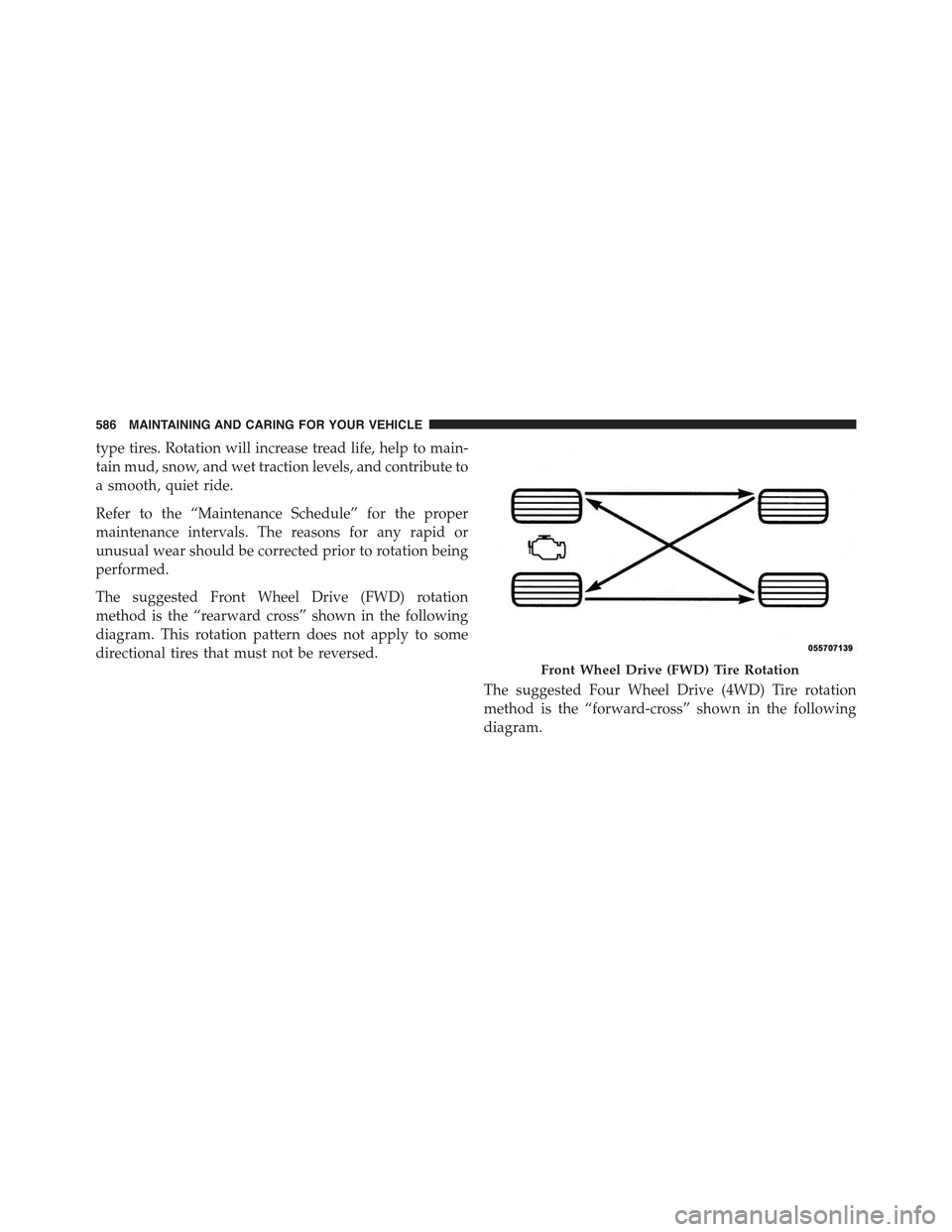
The suggested Front Wheel Drive (FWD) rotation
method is the “rearward cross” shown in the following
diagram. This rotation pattern does not apply to some
directional tires that must not be reversed.
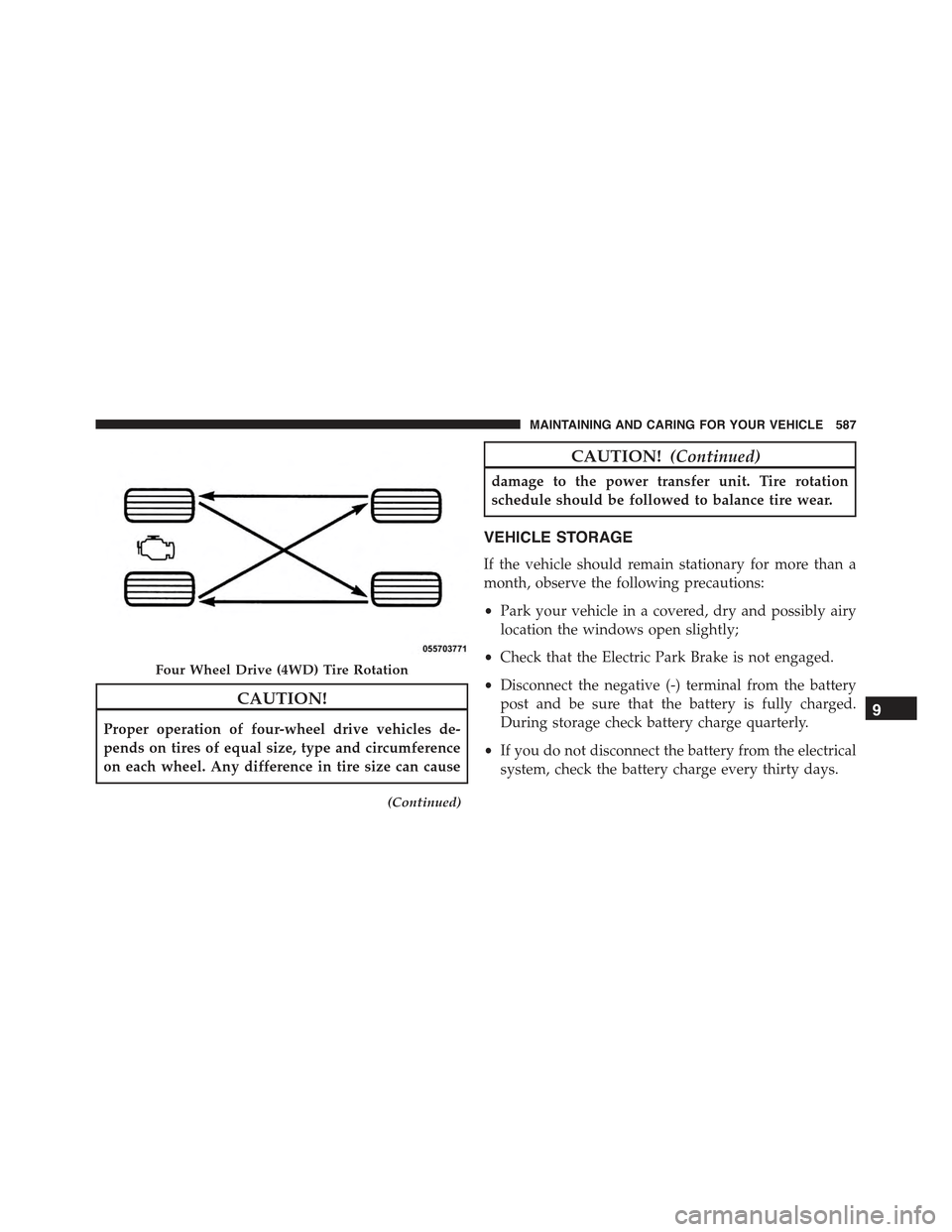
The suggested Four Wheel Drive (4WD) Tire rotation
method is the “forward-cross” shown in the following
diagram.
Front Wheel Drive (FWD) Tire Rotation
586 MAINTAINING AND CARING FOR YOUR VEHICLE
Page 589 of 678
CAUTION!
Proper operation of four-wheel drive vehicles de-
pends on tires of equal size, type and circumference
on each wheel. Any difference in tire size can cause
(Continued)
CAUTION!(Continued)
damage to the power transfer unit. Tire rotation
schedule should be followed to balance tire wear.
VEHICLE STORAGE
If the vehicle should remain stationary for more than a
month, observe the following precautions:
•Park your vehicle in a covered, dry and possibly airy
location the windows open slightly;
•Check that the Electric Park Brake is not engaged.
•Disconnect the negative (-) terminal from the battery
post and be sure that the battery is fully charged.
During storage check battery charge quarterly.
•If you do not disconnect the battery from the electrical
system, check the battery charge every thirty days.
Four Wheel Drive (4WD) Tire Rotation
9
MAINTAINING AND CARING FOR YOUR VEHICLE 587
Page 597 of 678
MULTIMEDIA
CONTENTS
!Uconnect® SETTINGS....................597
▫Buttons On The Faceplate................598
▫Buttons On The Touchscreen..............599
▫Customer Programmable Features — Uconnect®
5.0 Settings.........................599
▫Customer Programmable Features — Uconnect®
6.5A/6.5AN Settings...................617
!Uconnect® RADIOS.....................634
!iPod®/USB/MEDIA PLAYER CONTROL.....635
!STEERING WHEEL AUDIO CONTROLS......636
▫Radio Operation......................637
▫Media Mode.........................637
!RADIO OPERATION AND MOBILE PHONES . .637
▫Regulatory And Safety Information.........638
!Uconnect® VOICE RECOGNITION QUICK
TIPS................................640
▫Introducing Uconnect®.................640
▫Get Started..........................641
▫Basic Voice Commands..................643
▫Radio..............................64411
Page 605 of 678
Safety/Assistance
After pressing the “Safety/Assistance” button on the
touchscreen the following settings will be available:
•ParkView® Backup Camera Delay — If Equipped
When the vehicle is shifted out of REVERSE (with camera
delay turned OFF), the rear camera mode is exited and
the navigation or audio screen appears again. When the
vehicle is shifted out of REVERSE (with camera delay
turned ON), the rear view image with dynamic grid lines
will be displayed for up to 10 seconds after shifting out of
“REVERSE” unless the forward vehicle speed exceeds
8 mph (12 km/h), the transmission is shifted into PARK
or the ignition is switched to the OFF position. To set the
ParkView® Backup Camera Delay press the “+ MORE”
button on the faceplate, the “settings” button on the
touchscreen, then the “Safety & Driving Assistance”
button on the touchscreen. Press the “Parkview Backup
camera Delay” button on the touchscreen to turn the
ParkView® Delay ON or OFF.
•ParkView® Backup Camera Active Guide Lines — If
Equipped
When this feature is enabled, active (dynamic) grid lines
are overlaid on the Rear Backup Camera image to
illustrate the width of the vehicle and its projected back
up path based on the steering wheel position. A dashed
center line overlay indicates the center of the vehicle to
assist with parking or aligning to a hitch/receiver.
•ParkView® Backup Camera Fixed Guide Lines — If
Equipped
When this feature is enabled, fixed (static) grid lines are
overlaid on the Rear Backup Camera image to illustrate
the width of the vehicle.11
MULTIMEDIA 603
Page 607 of 678
•Front ParkSense® Volume — If Equipped
Front Park Assist chime volume settings can be selected
from the EVIC/DID or Uconnect® System (if equipped).
The chime volume settings include “LOW,” “MEDIUM,”
and “HIGH.” The factory default volume setting is
MEDIUM.
•Rear ParkSense® Volume — If Equipped
Rear Park Assist chime volume settings can be selected
from the EVIC/DID or Uconnect® System (if equipped).
The chime volume settings include “LOW,” “MEDIUM,”
and “HIGH.” The factory default volume setting is
MEDIUM.
•Rear ParkSense® Braking Assist — If Equipped
When this feature is selected, the park assist system will
detect objects located behind the vehicle and utilize
autonomous braking to stop the vehicle.
Refer to “ParkSense® Rear Park Assist” in “Starting and
Operating” for system function and operating informa-
tion.
•LaneSense Warning — If Equipped
When this feature is selected, it sets the distance at which
the steering wheel will provide feedback for potential
lane departures. The LDW sensitivity can be set to
provide either an “early,” “medium,” or “late” warning
zone start point.
For further information, refer to “LaneSense Warning
(LDW)” in “Starting and Operating.”
•LaneSense Strength — If Equipped
When this feature is selected, it sets the strength of the
steering wheel feedback for potential lane departures.
The amount of directional torque the steering system can
apply to the steering wheel to correct for vehicle lane
departure can be set at “Low,” “Medium” or “High.”
11
MULTIMEDIA 605
Page 610 of 678
that the setting has been selected. Press the back arrow
button on the touchscreen to return to the previous
menu.
•Greeting Lights
When this feature is selected, it allows the greeting lights
to be turned On or Off. To change the Greeting Lights
setting, press the “On” or “Off” button on the touch-
screen to select your desired Greeting Light setting. Press
the back arrow button on the touchscreen to return to the
previous menu.
•Auto High Beams — If Equipped
When this feature is selected, the high beam headlights
will activate/deactivate automatically under certain con-
ditions. To make your selection, press the “Auto High
Beams” button on the touchscreen, then select from “On”
or “Off.” Press the back arrow button on the touchscreen
to return to the previous menu.
•Daytime Running Lights
When this feature is selected, the headlights will turn on
while the engine is running. To make your selection,
press the “Daytime Running Lights” button on the touch-
screen, then choose “Yes” or “No.” The button will
highlight indicating that the setting has been selected.
Press the back arrow button on the touchscreen to return
to the previous menu.
•Cornering Lights
When this feature is selected, if the steering wheel
rotation angle is large or the turn signal indicators are on,
a light (incorporated in the fog light) will turn on, on the
relevant side to improve visibility at night. To change the
Cornering Lights setting, press the “On” or “Off” button
on the touchscreen to select your desired Cornering
Lights setting. Press the back arrow button on the touch-
screen to return to the previous menu.
608 MULTIMEDIA
Page 624 of 678
the “Fwd Collision Warning” button and select the
“Near” or “Far” button. Press the back arrow/Done
button on the touchscreen to return to the previous
menu.
•Forward Collision Warning-Plus (FCW+) Active
Braking — If Equipped
The FCW+ system includes Advanced Brake Assist
(ABA). When this feature is selected, it will apply the
brakes to slow your vehicle in case of potential forward
collision. The ABA applies additional brake pressure
when the driver requests insufficient brake pressure to
avoid a potential frontal collision. The ABA system
becomes active at 5 mph (8 km/h). To change the Active
Braking status, press the “Active Braking” button and
select the “On” or “Off” button. Press the back arrow/
Done button on the touchscreen to return to the previous
menu.
For further information, refer to “Forward Collision
Warning-Plus (FCW+) With Mitigation” in “Safety.”
•LaneSense Warning — If Equipped
When this feature is selected, it sets the distance at which
the steering wheel will provide feedback for potential
lane departures. The LDW sensitivity can be set to
provide either an “early,” “medium,” or “late” warning
zone start point. To change the LaneSense Warning
status, press the “LaneSense Warning” button and select
from the “Early,” “Med,” or “Late” buttons. Press the
back arrow/Done button on the touchscreen to return to
the previous menu.
For further information, refer to “LaneSense Warning
(LDW)” in “Starting And Operating.”
•LaneSense Strength — If Equipped
When this feature is selected, it sets the strength of the
steering wheel feedback for potential lane departures.
622 MULTIMEDIA
Page 625 of 678
The amount of directional torque the steering system can
apply to the steering wheel to correct for vehicle lane
departure can be set at “Low,” “Med” or “High.” To
change the LaneSense Strength status, Press the “La-
neSense Strength” button and select from the “Low,”
“Medium” or “High” buttons. Press the back arrow/
Done button on the touchscreen to return to the previous
menu.
For further information, refer to “Lane Departure Warn-
ing (LDW)” in “Starting And Operating.”
•ParkSense® — If Equipped
The ParkSense® system will scan for objects behind the
vehicle when the transmission shift lever/gear selector is
in REVERSE and the vehicle speed is less than 11 mph
(18 km/h). It will provide an alert (audible and/or
visual) to indicate the proximity to other objects. The
system can be enabled with Sound Only, or Sound and
Display. To change the ParkSense® status, press and
release the “Off,” “Sound Only,” or “Sound & Display”
button. Press the back arrow/Done button on the touch-
screen to return to the previous menu. Refer to
“ParkSense®” in “Starting And Operating” for system
function and operating information.
Refer to “ParkSense® Rear Park Assist” in “Starting And
Operating” for system function and operating informa-
tion.
•Front ParkSense® Volume — If Equipped
Front Park Assist chime volume settings can be selected
from the EVIC or Uconnect® System (if equipped). The
chime volume settings include “LOW,” “MEDIUM,” and
“HIGH.” The factory default volume setting is MEDIUM.
•Blind Spot Alert — If Equipped
When this feature is selected, the Blind Spot Alert feature
can be set to Off, Lights or Lights and Chime. The Blind
Spot Alert feature can be activated in Lights mode. When
11
MULTIMEDIA 623