reset JEEP RENEGADE 2015 1.G Owner's Manual
[x] Cancel search | Manufacturer: JEEP, Model Year: 2015, Model line: RENEGADE, Model: JEEP RENEGADE 2015 1.GPages: 678, PDF Size: 29.84 MB
Page 614 of 678
•Headlight Off Delay
When this feature is selected, the driver can choose to
have the headlights remain on for 0, 30, 60, or 90 seconds
when exiting the vehicle. To change the Headlight Off
Delay status press the “+” or “–” button on the touch-
screen to select your desired time interval. Press the back
arrow/Done button on the touchscreen to return to the
previous menu.
•Radio Off Delay
When this feature is selected, the radio will stay on for a
preset time after the ignition key is turned to STOP/OFF.
To change the Radio Off Delay status, press the “0 MIN”
or “20 MIN” button on the touchscreen to select your
desired time interval. Press the back arrow/Done button
on the touchscreen to return to the previous menu.
Compass Settings — If Equipped
After pressing the “Compass Settings” button on the
touchscreen the following settings will be available:
•Variance
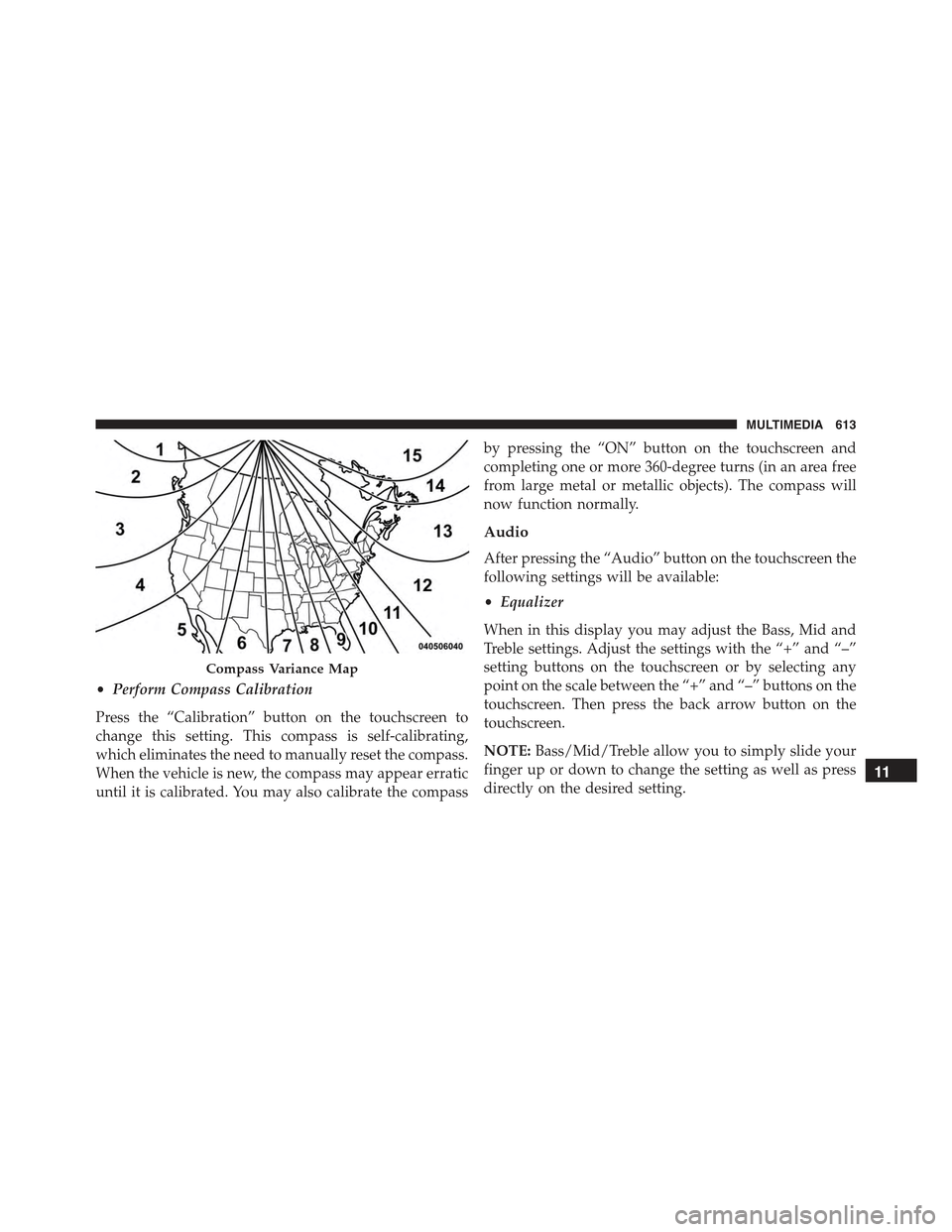
Compass Variance is the difference between Magnetic
North and Geographic North. To compensate for the
differences the variance should be set for the zone where
the vehicle is driven, per the zone map. Once properly
set, the compass will automatically compensate for the
differences, and provide the most accurate compass
heading.
NOTE:Keep magnetic materials away from the top of the
instrument panel, such as iPod’s, Mobile Phones, Lap-
tops and Radar Detectors. This is where the compass
module is located, and it can cause interference with the
compass sensor, and it may give false readings.
612 MULTIMEDIA
Page 615 of 678
•Perform Compass Calibration
Press the “Calibration” button on the touchscreen to
change this setting. This compass is self-calibrating,
which eliminates the need to manually reset the compass.
When the vehicle is new, the compass may appear erratic
until it is calibrated. You may also calibrate the compass
by pressing the “ON” button on the touchscreen and
completing one or more 360-degree turns (in an area free
from large metal or metallic objects). The compass will
now function normally.
Audio
After pressing the “Audio” button on the touchscreen the
following settings will be available:
•Equalizer
When in this display you may adjust the Bass, Mid and
Treble settings. Adjust the settings with the “+” and “–”
setting buttons on the touchscreen or by selecting any
point on the scale between the “+” and “–” buttons on the
touchscreen. Then press the back arrow button on the
touchscreen.
NOTE:Bass/Mid/Treble allow you to simply slide your
finger up or down to change the setting as well as press
directly on the desired setting.
Compass Variance Map
11
MULTIMEDIA 613
Page 618 of 678
Restore Settings
After pressing the “Restore Settings” button on the
touchscreen the following settings will be available:
•Restore Settings
When this feature is selected it will reset the Display,
Clock, Audio, and Radio Settings to their default settings.
To restore the settings to their default setting, press the
Restore Settings button. A pop-up will appear asking
#Are you sure you want to reset your settings to default?”
select “Yes” to restore, or “Cancel” to exit. Once the
settings are restored, a pop up appears stating#settings
reset to default.#Press the okay button on the touchscreen
to exit.
Clear Personal Data
After pressing the “Clear Personal Data Settings” button
on the touchscreen the following settings will be avail-
able:
•Clear Personal Data
When this feature is selected it will remove personal data
including Bluetooth® devices and presets. To remove
personal information, press the “Clear Personal Data”
button and a pop-up will appear asking#Are you sure
you want to clear all personal data?” select “OK” to
Clear, or “Cancel” to exit. Once the data has been cleared,
a pop up appears stating#Personal data cleared”. Press
the back arrow button on the touchscreen to return to the
previous menu.
616 MULTIMEDIA
Page 632 of 678
touchscreen, then choose “On” or “Off.” The button will
highlight indicating that the setting has been selected.
Press the back arrow/Done button on the touchscreen to
return to the previous menu.
•Memory Linked To Key Fob — If Equipped
This feature provides automatic driver seat positioning to
enhance driver mobility when entering and exiting the
vehicle. To make your selection, press the “Memory
Linked To Key Fob” button on the touchscreen and select
from “On” or “Off.” Press the back arrow button on the
touchscreen to return to the previous menu.
NOTE:The seat will return to the memorized seat
location (if Recall Memory with Remote Key Unlock is set
to ON) when the Remote Keyless Entry (RKE) transmitter
is used to unlock the door.
Engine Off Options
After pressing the “Engine Off Options” button on the
touchscreen the following settings will be available:
•Radio Off Delay
When this feature is selected, the radio will stay on for a
preset time after the ignition key is turned to STOP/OFF.
To change the Radio Off Delay status, press the “0 MIN”
or “20 MIN” button on the touchscreen to select your
desired time interval. Press the back arrow button on the
touchscreen to return to the previous menu.
•Headlight Off Delay — If Equipped
When this feature is selected, the driver can choose to
have the headlights remain on for 0, 30, 60, or 90 seconds
when exiting the vehicle. To change the Headlight Off
630 MULTIMEDIA
Page 636 of 678
Restore Settings Defaults
After pressing the “Restore Settings Defaults” button on
the touchscreen the following settings will be available:
•Restore Settings
When this feature is selected it will reset Display, Clock,
Audio, and Radio Settings to their default. Once in the
desired mode, press and release the preferred setting and
make your selection. Press the back arrow button on the
touchscreen.
Clear Personal Data
After pressing the “Clear Personal Data Settings” button
on the touchscreen the following settings will be avail-
able:
•Clear Personal Data
When this feature is selected it will remove personal data
including Bluetooth® devices and presets. To Clear Personal
Data press the “Yes” or “No” button on the touchscreen.
Press the back arrow button on the touchscreen.
Uconnect® RADIOS
For detailed information about your Uconnect® radio,
refer to your Uconnect® Supplement Manual.
634 MULTIMEDIA
Page 639 of 678
Pushing the center button will make the radio switch
between the various modes available (AM/FM/SAT/
AUX/Media Player, etc.) and can also be used to select/
enter an item while scrolling through menu.
The left-hand control is a rocker-type switch with a
pushbutton in the center. The function of the left-hand
control is different depending on which mode you are in.
The following describes the left-hand control operation in
each mode.
Radio Operation
Pushing the top of the switch will “Seek” up for the next
listenable station and pushing the bottom of the switch
will “Seek” down for the next listenable station.
The button located in the center of the left-hand control
will tune to the next preset station that you have pro-
grammed in the radio preset button.
Media Mode
Pushing the top of the switch once will go to the next
track on the selected media (AUX/USB, Bluetooth®).
Pushing the bottom of the switch once will go to the
beginning of the current track, or to the beginning of the
previous track if it is within eight seconds after the
current track begins to play.
If you push the switch up or down twice, it plays the
second track; three times, it will play the third, etc.
RADIO OPERATION AND MOBILE PHONES
Under certain conditions, the mobile phone being on in
your vehicle can cause erratic or noisy performance from
your radio. This condition may be lessened or eliminated
by relocating the mobile phone antenna. This condition is
not harmful to the radio. If your radio performance does
not satisfactorily “clear” by the repositioning of the11
MULTIMEDIA 637