radio controls JEEP WAGONEER 2023 User Guide
[x] Cancel search | Manufacturer: JEEP, Model Year: 2023, Model line: WAGONEER, Model: JEEP WAGONEER 2023Pages: 396, PDF Size: 15.17 MB
Page 172 of 396
170STARTING AND OPERATING
NOTE:
The Active Lane Management system operates with
similar behavior for a right lane departure.
If the turn signal is activated, and the vehicle begins to
depart the lane at the same time the Blind Spot Moni -
toring (BSM) system detects another vehicle in the
BSM zones, the system will provide haptic steering
wheel vibration and/or steering assist torque (if
programmed in Uconnect Settings).
CHANGING ACTIVE LANE MANAGEMENT
S
TATUS
Configurable settings for the Active Lane Management
system are available within the Uconnect system
Úpage 197.
Selectable Warning Types:
Vibration Only
Steering Assist Only
Vibration And Steering Assist
Other configurable settings for this system are for the
intensity of the vibration (high/med/low), steering assist
strength (hi/med/low), and the warning zone sensitivity
(early/medium/late).
NOTE:
The system will not apply vibration and/or steering
assist to the steering wheel whenever a safety system
engages (Anti-Lock Brakes, Traction Control System,
Electronic Stability Control, Forward Collision Warning,
etc.).
The Blind Spot Monitoring system will be forced on
when the ALM system is enabled.
The ALM system will be suppressed when the Active
Driving Assist system (if equipped) is engaged.
PARKVIEW REAR BACK UP CAMERA
Your vehicle is equipped with the ParkView Rear Back Up
Camera that allows you to see an on-screen image of the
rear surroundings of your vehicle whenever the gear
selector is put into REVERSE. The image will be displayed
on the Navigation/Multimedia radio display screen along
with a caution note to “Check Entire Surroundings” across
the top of the screen. After five seconds this note will
disappear. The ParkView camera is located on the rear of
the vehicle above the rear license plate.
When the vehicle is shifted out of REVERSE with camera
delay turned off, the rear camera mode is exited and the
previous screen appears.
Manual Activation Of The Back Up Camera
1. Press the Vehicle button located on the bottom of
the Uconnect display and then select the Controls
menu.
2. Press the Back Up Camera icon to turn the Rear View Camera system on.
NOTE:
The Rear View camera can also be turned on manually
through the Apps menu within the Uconnect system.
The ParkView Rear Back Up Camera has program -
mable modes of operation that may be selected
through the Uconnect system
Úpage 197. When the vehicle is shifted out of REVERSE with camera
delay turned off, the rear camera mode is exited and the
previous screen appears. When the vehicle is shifted out
of REVERSE with camera delay turned on, the camera
image will continue to be displayed for up to 10 seconds
unless the following conditions occur: the vehicle speed
exceeds 8 mph (13 km/h), the vehicle is shifted into
PARK, the vehicle’s ignition is placed in the OFF position,
or the touchscreen X button to disable the display of the
Rear View Camera is pressed.
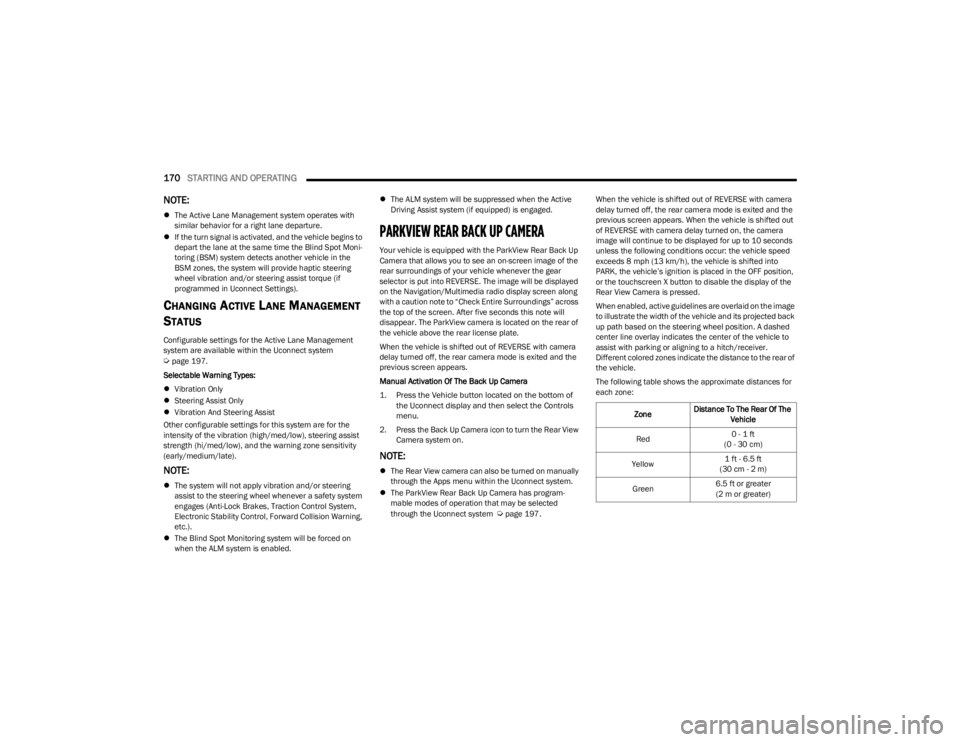
When enabled, active guidelines are overlaid on the image
to illustrate the width of the vehicle and its projected back
up path based on the steering wheel position. A dashed
center line overlay indicates the center of the vehicle to
assist with parking or aligning to a hitch/receiver.
Different colored zones indicate the distance to the rear of
the vehicle.
The following table shows the approximate distances for
each zone:
Zone Distance To The Rear Of The
Vehicle
Red 0 - 1 ft
(0 - 30 cm)
Yellow 1 ft - 6.5 ft
(30 cm - 2 m)
Green 6.5 ft or greater
(2 m or greater)
23_WS_OM_EN_USC_t.book Page 170
Page 191 of 396
STARTING AND OPERATING189
Seven-Pin Connector
TOWING TIPS
Before towing, practice turning, stopping, and backing up
the trailer in an area located away from heavy traffic. If
equipped with Quadra-Lift air suspension, the automatic
Entry/Exit feature may be disabled through the Uconnect
Touchscreen Radio to prevent vehicle and trailer
movement when gear selector is moved to PARK.
Automatic Transmission
Select the DRIVE (D) range when towing. The transmission
controls include a drive strategy to avoid frequent shifting
when towing. However, if frequent shifting does occur
while in DRIVE, you can use the Electronic Range Select
(ERS) shift control to manually select a lower gear.
NOTE:Using a lower gear while operating the vehicle under heavy
loading conditions, will improve performance and extend
transmission life by reducing excessive shifting and heat
build-up. This action will also provide better engine
braking.
Cruise Control — If Equipped
Do not use on hilly terrain or with heavy loads.
When using the Cruise Control, if you experience speed
drops greater than 10 mph (16 km/h), disengage until
you can get back to cruising speed.
Use Cruise Control in flat terrain and with light loads to
maximize fuel efficiency.
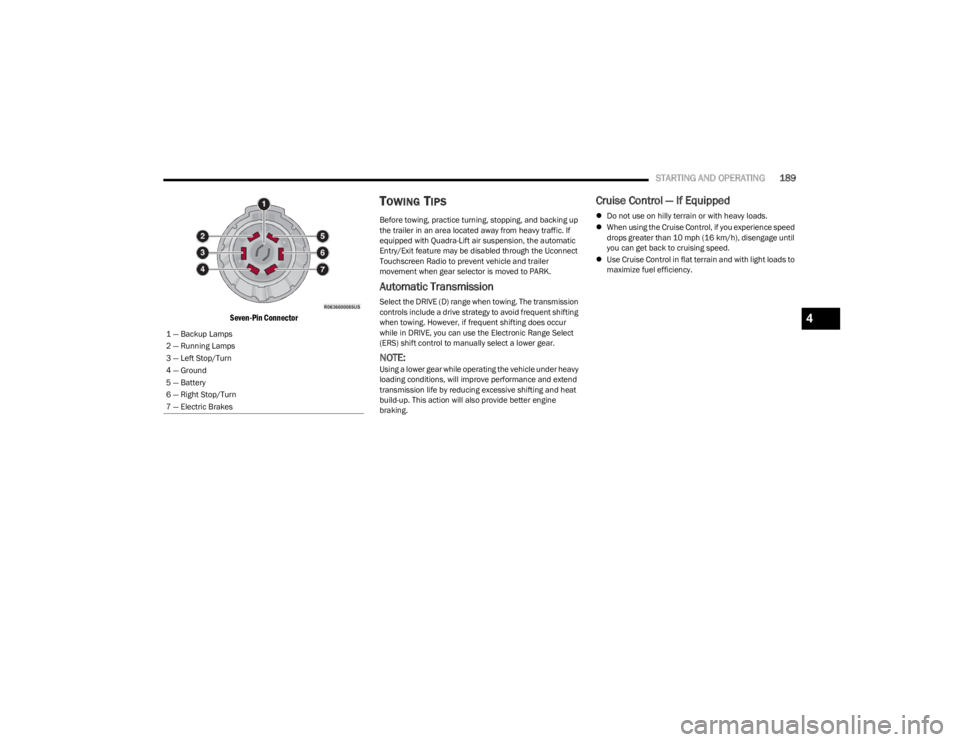
1 — Backup Lamps
2 — Running Lamps
3 — Left Stop/Turn
4 — Ground
5 — Battery
6 — Right Stop/Turn
7 — Electric Brakes
4
23_WS_OM_EN_USC_t.book Page 189
Page 223 of 396
MULTIMEDIA221
STEERING WHEEL AUDIO CONTROLS
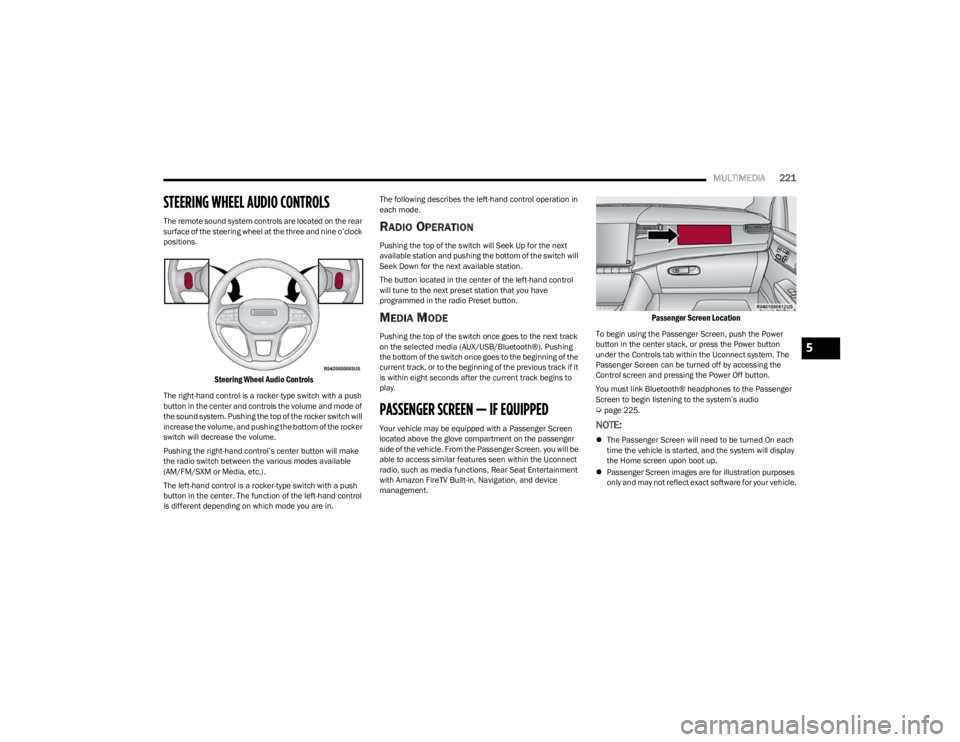
The remote sound system controls are located on the rear
surface of the steering wheel at the three and nine o’clock
positions.
Steering Wheel Audio Controls
The right-hand control is a rocker-type switch with a push
button in the center and controls the volume and mode of
the sound system. Pushing the top of the rocker switch will
increase the volume, and pushing the bottom of the rocker
switch will decrease the volume.
Pushing the right-hand control’s center button will make
the radio switch between the various modes available
(AM/FM/SXM or Media, etc.).
The left-hand control is a rocker-type switch with a push
button in the center. The function of the left-hand control
is different depending on which mode you are in. The following describes the left-hand control operation in
each mode.
RADIO OPERATION
Pushing the top of the switch will Seek Up for the next
available station and pushing the bottom of the switch will
Seek Down for the next available station.
The button located in the center of the left-hand control
will tune to the next preset station that you have
programmed in the radio Preset button.
MEDIA MODE
Pushing the top of the switch once goes to the next track
on the selected media (AUX/USB/Bluetooth®). Pushing
the bottom of the switch once goes to the beginning of the
current track, or to the beginning of the previous track if it
is within eight seconds after the current track begins to
play.
PASSENGER SCREEN — IF EQUIPPED
Your vehicle may be equipped with a Passenger Screen
located above the glove compartment on the passenger
side of the vehicle. From the Passenger Screen, you will be
able to access similar features seen within the Uconnect
radio, such as media functions, Rear Seat Entertainment
with Amazon FireTV Built-in, Navigation, and device
management.
Passenger Screen Location
To begin using the Passenger Screen, push the Power
button in the center stack, or press the Power button
under the Controls tab within the Uconnect system. The
Passenger Screen can be turned off by accessing the
Control screen and pressing the Power Off button.
You must link Bluetooth® headphones to the Passenger
Screen to begin listening to the system’s audio
Úpage 225.
NOTE:
The Passenger Screen will need to be turned On each
time the vehicle is started, and the system will display
the Home screen upon boot up.
Passenger Screen images are for illustration purposes
only and may not reflect exact software for your vehicle.
5
23_WS_OM_EN_USC_t.book Page 221
Page 224 of 396
222MULTIMEDIA
PASSENGER SCREEN PERMISSIONS
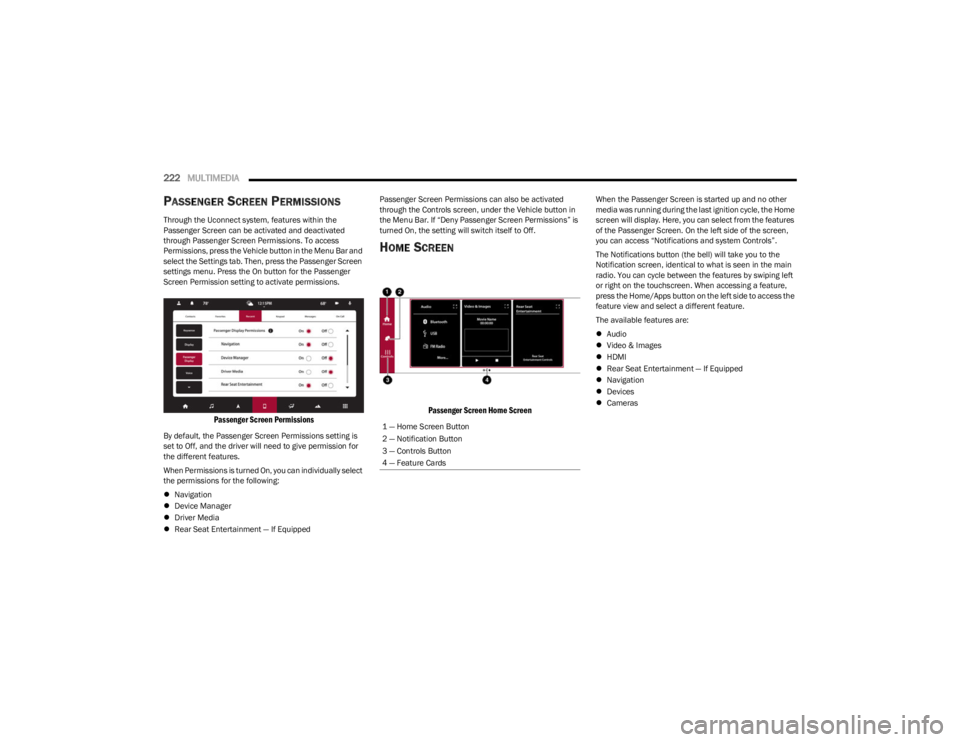
Through the Uconnect system, features within the
Passenger Screen can be activated and deactivated
through Passenger Screen Permissions. To access
Permissions, press the Vehicle button in the Menu Bar and
select the Settings tab. Then, press the Passenger Screen
settings menu. Press the On button for the Passenger
Screen Permission setting to activate permissions.
Passenger Screen Permissions
By default, the Passenger Screen Permissions setting is
set to Off, and the driver will need to give permission for
the different features.
When Permissions is turned On, you can individually select
the permissions for the following:
Navigation
Device Manager
Driver Media
Rear Seat Entertainment — If Equipped Passenger Screen Permissions can also be activated
through the Controls screen, under the Vehicle button in
the Menu Bar. If “Deny Passenger Screen Permissions” is
turned On, the setting will switch itself to Off.
HOME SCREEN
Passenger Screen Home Screen
When the Passenger Screen is started up and no other
media was running during the last ignition cycle, the Home
screen will display. Here, you can select from the features
of the Passenger Screen. On the left side of the screen,
you can access “Notifications and system Controls”.
The Notifications button (the bell) will take you to the
Notification screen, identical to what is seen in the main
radio. You can cycle between the features by swiping left
or right on the touchscreen. When accessing a feature,
press the Home/Apps button on the left side to access the
feature view and select a different feature.
The available features are:
Audio
Video & Images
HDMI
Rear Seat Entertainment — If Equipped
Navigation
Devices
Cameras
1 — Home Screen Button
2 — Notification Button
3 — Controls Button
4 — Feature Cards
23_WS_OM_EN_USC_t.book Page 222
Page 225 of 396
MULTIMEDIA223
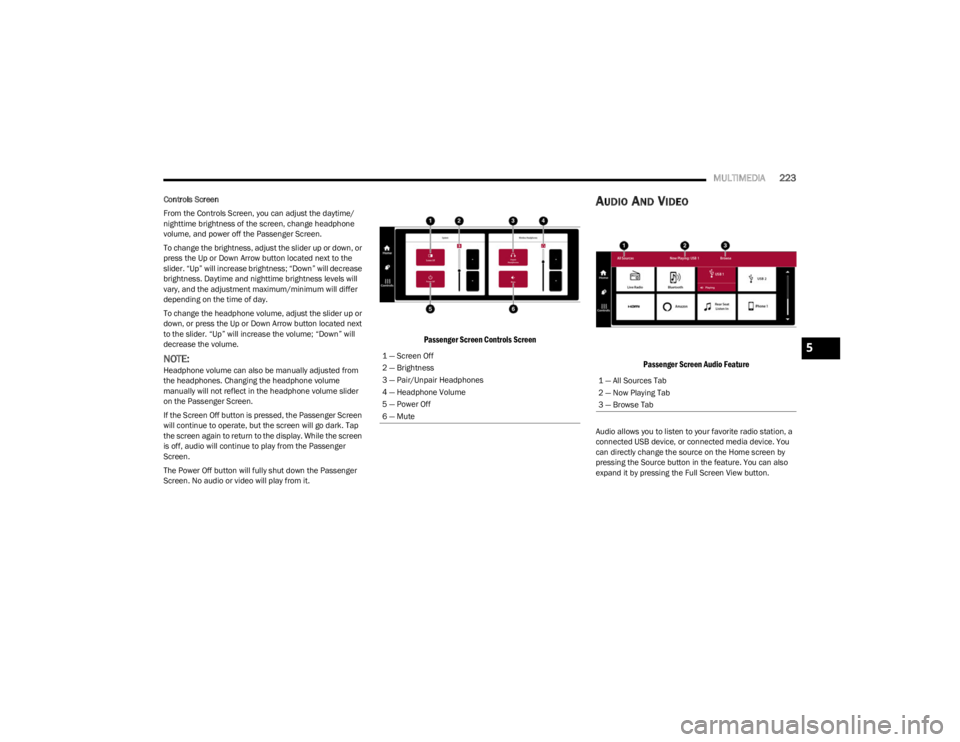
Controls Screen
From the Controls Screen, you can adjust the daytime/
nighttime brightness of the screen, change headphone
volume, and power off the Passenger Screen.
To change the brightness, adjust the slider up or down, or
press the Up or Down Arrow button located next to the
slider. “Up” will increase brightness; “Down” will decrease
brightness. Daytime and nighttime brightness levels will
vary, and the adjustment maximum/minimum will differ
depending on the time of day.
To change the headphone volume, adjust the slider up or
down, or press the Up or Down Arrow button located next
to the slider. “Up” will increase the volume; “Down” will
decrease the volume.
NOTE:Headphone volume can also be manually adjusted from
the headphones. Changing the headphone volume
manually will not reflect in the headphone volume slider
on the Passenger Screen.
If the Screen Off button is pressed, the Passenger Screen
will continue to operate, but the screen will go dark. Tap
the screen again to return to the display. While the screen
is off, audio will continue to play from the Passenger
Screen.
The Power Off button will fully shut down the Passenger
Screen. No audio or video will play from it.
Passenger Screen Controls Screen
AUDIO AND VIDEO
Passenger Screen Audio Feature
Audio allows you to listen to your favorite radio station, a
connected USB device, or connected media device. You
can directly change the source on the Home screen by
pressing the Source button in the feature. You can also
expand it by pressing the Full Screen View button.
1 — Screen Off
2 — Brightness
3 — Pair/Unpair Headphones
4 — Headphone Volume
5 — Power Off
6 — Mute
1 — All Sources Tab
2 — Now Playing Tab
3 — Browse Tab
5
23_WS_OM_EN_USC_t.book Page 223
Page 228 of 396
226MULTIMEDIA
Removing Bluetooth® Headphones
1. From the Controls screen, press the Manage
Headphones button.
2. Press the Settings button (gear icon) next to the set of headphones you wish to remove.
3. Press “Delete Device”; the Bluetooth® headphones will be removed from the system.
NAVIGATION
Navigation allows you to assist the driver in searching for
destinations using Uconnect’s built-in Navigation system.
For information on the full functionality of Navigation, refer
to your Uconnect Radio Instruction Manual.
When a new route is selected from the Passenger Screen,
a confirmation will be sent to the driver. The driver will be
able to confirm or deny the route.
NOTE:Using Navigation on the Passenger Screen will not affect
the Navigation screen in the Uconnect system. The Driver
can continue to use Navigation while the Passenger
Screen can “suggest” new routes or stops.
CAMERA
Camera will display the equipped vehicle camera feed.
When selected, press the desired Camera button. The
feed from that camera will display in the center of the
touchscreen. Press the X button or Back Arrow button to
return to the Home screen.
NOTE:The Passenger Screen will lose access to a camera if the
driver chooses to view it on the Uconnect system or if a
condition would activate the camera on the Uconnect
system (the rearview camera being activated when the
vehicle is shifted into REVERSE).
3RD PARTY APPS — IF EQUIPPED
If equipped, your vehicle may contain some 3rd party
apps, which will further enhance your Uconnect system.
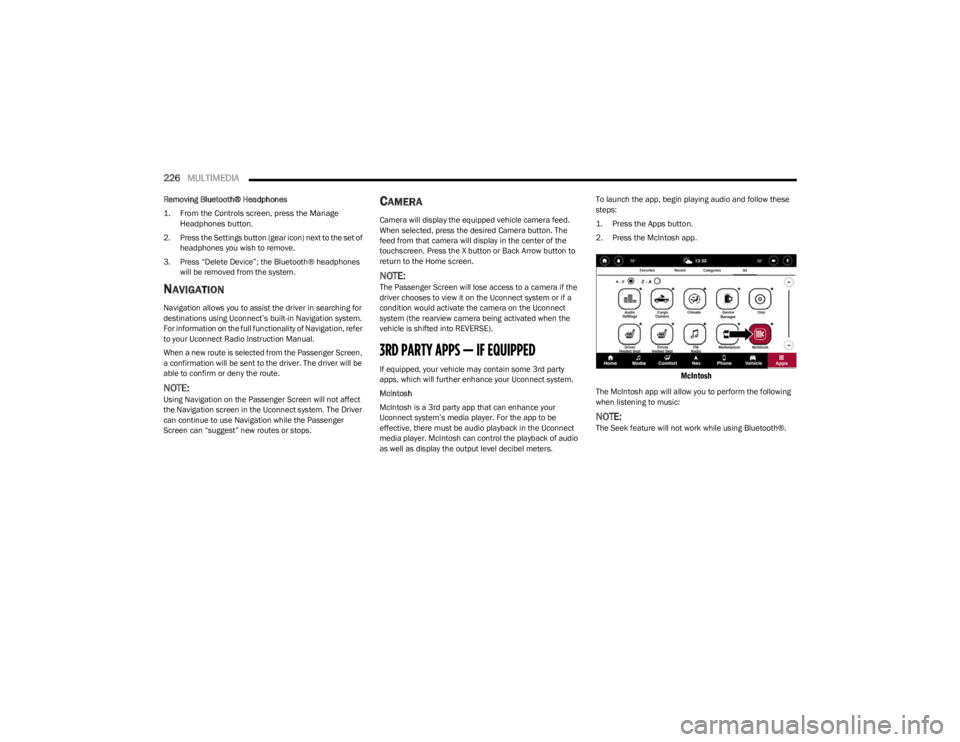
McIntosh
McIntosh is a 3rd party app that can enhance your
Uconnect system’s media player. For the app to be
effective, there must be audio playback in the Uconnect
media player. McIntosh can control the playback of audio
as well as display the output level decibel meters. To launch the app, begin playing audio and follow these
steps:
1. Press the Apps button.
2. Press the McIntosh app.
McIntosh
The McIntosh app will allow you to perform the following
when listening to music:
NOTE:The Seek feature will not work while using Bluetooth®.
23_WS_OM_EN_USC_t.book Page 226
Page 232 of 396

230MULTIMEDIA
ALEXA VOICE CONTROL
A feature with Rear Seat Entertainment with Fire TV
built-in that enhances your experience is Alexa. It is simple
to get started using this feature. Push the Microphone
button at the top of the Voice Remote with Alexa to
activate Alexa and get started.
LISTEN VIA VEHICLE SPEAKERS
A feature within Rear Seat Entertainment with Fire TV
built-in is the front radio Listen feature. On the front radio
Home screen for Fire TV, select the Listen button in the top
right corner on either card for Screen 1 or 2. This will allow
you to have either rear screen play audio through all the
speakers in the vehicle.
QUICK MENU
Accessing the quick menu will give you more options for
Fire TV.
To access the quick menu, tap the screen and it will
appear. The quick menu is also accessible by pushing the
Gear/Settings button on the Voice Remote with Alexa.
Some options of the quick menu are:
Power — This will power the screen off.
On-Screen Remote — This will bring up the on-screen
remote to use with the system.
Back — This will let you go back a page.
Home — This will take you to the Home screen.
Gear/Settings — This will let you access certain settings
in the system. For more setting options, select
“Settings” within the on-screen Gear/Settings menu.
Vehicle — This will bring up the Vehicle menu. From
here you can adjust rear climate controls and the Are
We There Yet? app.
PARENTAL CONTROLS (USING THE REAR
S
CREENS)
If parental controls were not set during the first time start
up of the system, they can be set by following these steps:
1. Push the Gear/Settings button on the Voice Remote
with Alexa or tap the screen to access Settings in the
“quick menu”.
2. Select the Gear/Settings icon on the screen.
3. Select “Settings” on the screen.
4. While in Settings, select “Preferences”.
5. Select “Parental Controls”; from here you can turn Parental Controls on or off and set up a PIN for the
controls using the Voice Remote with Alexa.
VOICE REMOTE WITH ALEXA PAIRING
(U
SING THE REAR SCREENS)
If the Voice Remote with Alexa needs to be paired again or
a new remote is being paired, follow these procedures:
1. Install batteries into the remote.
2. Tap the screen and Select the Gear/Settings icon on
the screen.
3. Select “Settings” on the screen. 4. In Settings, select “Controllers & Bluetooth®
Devices”.
5. From this menu, select “Add New Remote”.
6. Follow the on-screen steps for Voice Remote with Alexa pairing.
A long press on the Home button can also re-pair a Voice
Remote with Alexa that has become disconnected.
NOTE:Your vehicle is included with two Voice Remotes with
Alexa. A Voice Remote with Alexa can be paired to each
rear screen. It will function with the rear screen it was
paired with. The pairing steps will need to be done for each
rear screen.
MEDIA SOURCES INPUT (USING THE
F
RONT RADIO AND REAR SCREENS)
Front Radio Screen
Users can select inputs for each rear screen from the front
radio touchscreen by selecting the Rear Seat tab and
choosing the desired content by selecting “Launch
Source” on the Screen 1 or Screen 2 tab.
Inputs available within Launch Source under “Inputs” are
“Fire TV”, “HDMI”, and “USB”.
Rear Screens
To select inputs on the rear screen, scroll down on the Fire
TV Home screen and select your desired input under
“Input”.
Inputs can also be selected from the Brand tab in the top
menu. While in this tab, scroll down to “Inputs” for
selection options.
23_WS_OM_EN_USC_t.book Page 230
Page 234 of 396

232MULTIMEDIA
REAR SEAT ENTERTAINMENT WITH FIRE
TV B
UILT-IN STREAMING (USING THE
F
RONT RADIO AND REAR SCREENS)
Access Using Launch Source
To access Rear Seat Entertainment with Fire TV built-in
from the front radio, press the Media tab located on the
bottom menu bar. Then select the Rear Seat option
located on the top menu bar. Select “Launch Source”, and
then under “Inputs” select “Fire TV Home”.
Access Using Browse Media
Selecting “Browse Media” on the front radio screen will
give access to different media within Rear Seat
Entertainment with Fire TV built-in.
These options will be in the top menu of “Browse Media”
and include:
Fire TV — Selecting “Fire TV” will show streaming
options for categories and to select apps. This option
will be selectable on the left slider menu in “Browse
Media”. While in “Browse Media” under Fire TV, it will
display recent activity under “Recent”. This will display
recent videos viewed from Fire TV and recent down -
loads as well.
USB Video — Under “USB Videos”, videos will appear
that are options with a USB device connected to Rear
Seat Entertainment with Fire TV built-in.
USB Music — Under “USB Music”, music will appear
that are options with a USB device connected to Rear
Seat Entertainment with Fire TV built-in. Access Using the Voice Remote with Alexa and Rear
Screens
Rear passengers will be able to access some options for
streaming by pressing the “Prime Video”, “App 1”, or “App
2” button on the Voice Remote with Alexa. Selecting one
of those buttons on the Voice Remote with Alexa will take
you to the home page for that respective streaming
service. Turning on either of the rear screens will launch
Fire TV. By default, the rear screens will always launch in
Fire TV. More streaming options can be selected on the
Fire TV home page.
Fire TV
Fire TV is your source for online streaming with Rear Seat
Entertainment with Fire TV built-in.
NOTE:A data source needs to be connected to the system for
streaming to be accessible. This can be set up when Fire
TV is turned on for the first time on the rear screens. Some
options can be an in-vehicle 4G Wi-Fi hot spot, capable
Wi-Fi hot spot from a mobile device, or Wi-Fi from an
outside source like a home or a garage.
To access Fire TV on the front screen, select “Launch
Source” on the front radio, Rear Seat screen and then
“Fire TV Home” under “Inputs”.
Viewing from the front radio screen or passenger screen
mirrors or controls the Fire TV experience from one of the
rear Fire TV displays.
The menu bar for Fire TV will have the options for “Home”,
“Find”, “Library”, “Brand”, and “Live”.
Below the menu bar will be streaming options linked to
your Prime account like “Prime Video”. The front radio screen offers some options:
Power — This will turn Fire TV on or off.
Screen 1 and Screen 2 Toggle — This toggles between
the Rear Screens (for use with front radio screen only).
Collapse — While viewing on the front radio screen, this
will collapse the screen to dashboard view.
Source Drawer — This will open the “Source Drawer”
and the source logo will be displayed on the icon.
Browse Media — This will open the “Browse Media”
pop-up.
Back — This will let you go back the previous page.
Fire TV Home — This will take you back to the Fire TV
home page.
Menu — This will open the Fire TV menu.
Remote icon — This will display the on-screen remote.NOTE:Front radio screen mirroring and watching can only be
done when the vehicle is in PARK. The vehicle must be in
an active and usable cellular range and properly equipped
with a Uconnect 5 NAV system and Rear Seat Enter -
tainment with Fire TV package. For streaming, a Wi-Fi
connection and registered Amazon account are required
to run Fire TV in the vehicle. Streaming service subscrip -
tions are not included. Services and features are subject
to change or withdrawal at any time, may not be available
in all areas and languages, and may require separate
subscriptions.
23_WS_OM_EN_USC_t.book Page 232
Page 235 of 396
MULTIMEDIA233
FIRE TV APPS/GAMES
(U
SING THE REAR SCREENS)
Apps and games can be accessed using Rear Seat
Entertainment with Fire TV built-in.
To access Apps on the rear screen, turn on the system and
select “Find” in the top menu. On the Find page, select
“Appstore”. Within the Appstore® you can purchase apps
and games. From here you can also select from all the
apps and games that have been purchased.
ARE WE THERE YET?
When a navigation route has been set from the Uconnect
system, the second-row passengers can use “Are We
There Yet?” for an animated screen showing distance and
time remaining on navigation routes, as well as the
estimated time of arrival with pop-up notifications.
Some screen information includes:
Decrease Timing Between Notifications Button
Notifications ON/OFF Button
Increase Timing Between Notifications Button
Arrival Time
Time Remaining Until Destination Is Reached
Distance Remaining
To access “Are We There Yet?” from the rear screens,
follow these steps:
1. Tap one of the rear screens and select the Vehicle icon or push the Vehicle button on the Voice Remote
with Alexa.
2. Select “Are We There Yet?” near the bottom of the menu on the first page of options.
USING THE VIDEO USB PORT
Plug in a USB drive or mass storage device and play your
favorite music or movies.
NOTE:To view USB media on the rear screens, insert a USB drive
into the port. The USB drive port is located under the radio
controls in the instrument panel.
On the rear screen you can browse the content of the USB
device by going to the USB source in the inputs. Use the
search feature to find your media faster.
PLAY VIDEO GAMES
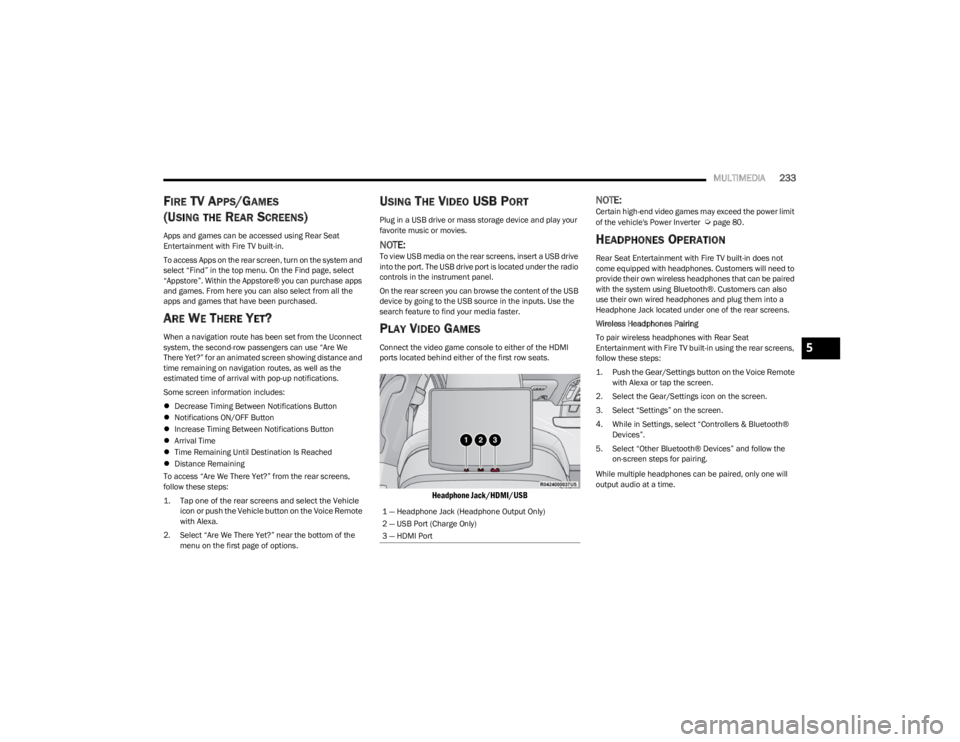
Connect the video game console to either of the HDMI
ports located behind either of the first row seats.
Headphone Jack/HDMI/USB
NOTE:Certain high-end video games may exceed the power limit
of the vehicle's Power Inverter Úpage 80.
HEADPHONES OPERATION
Rear Seat Entertainment with Fire TV built-in does not
come equipped with headphones. Customers will need to
provide their own wireless headphones that can be paired
with the system using Bluetooth®. Customers can also
use their own wired headphones and plug them into a
Headphone Jack located under one of the rear screens.
Wireless Headphones Pairing
To pair wireless headphones with Rear Seat
Entertainment with Fire TV built-in using the rear screens,
follow these steps:
1. Push the Gear/Settings button on the Voice Remote with Alexa or tap the screen.
2. Select the Gear/Settings icon on the screen.
3. Select “Settings” on the screen.
4. While in Settings, select “Controllers & Bluetooth® Devices”.
5. Select “Other Bluetooth® Devices” and follow the on-screen steps for pairing.
While multiple headphones can be paired, only one will
output audio at a time.
1 — Headphone Jack (Headphone Output Only)
2 — USB Port (Charge Only)
3 — HDMI Port
5
23_WS_OM_EN_USC_t.book Page 233
Page 318 of 396
316SERVICING AND MAINTENANCE
CHECKING OIL LEVEL — 3.0L ENGINES
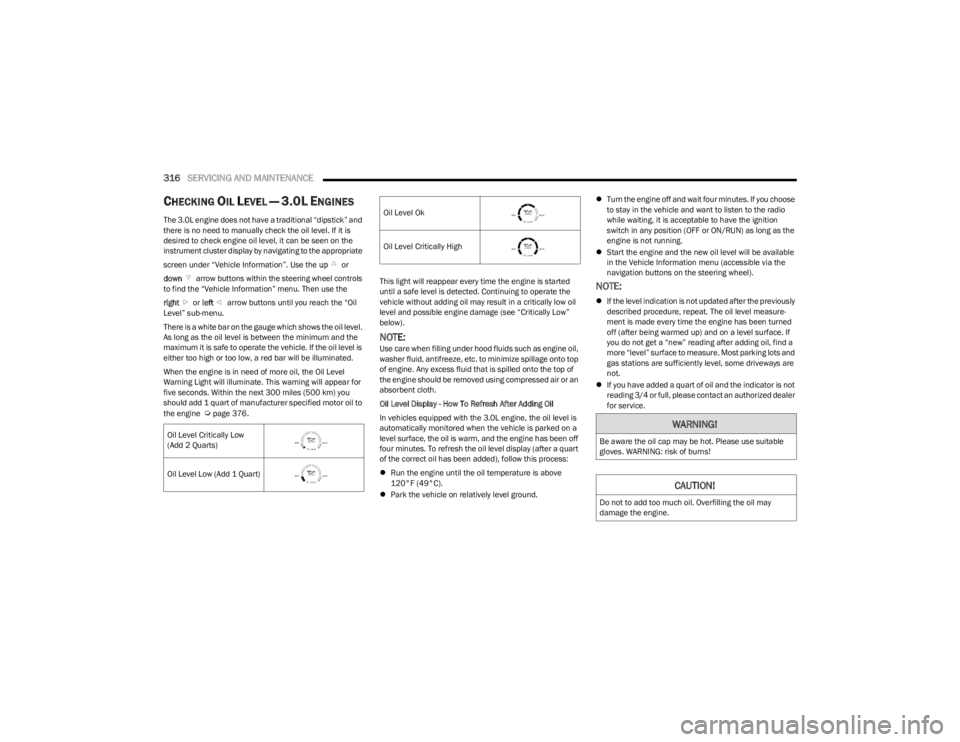
The 3.0L engine does not have a traditional “dipstick” and
there is no need to manually check the oil level. If it is
desired to check engine oil level, it can be seen on the
instrument cluster display by navigating to the appropriate
screen under “Vehicle Information”. Use the up or
down arrow buttons within the steering wheel controls
to find the “Vehicle Information” menu. Then use the
right or left arrow buttons until you reach the “Oil
Level” sub-menu.
There is a white bar on the gauge which shows the oil level.
As long as the oil level is between the minimum and the
maximum it is safe to operate the vehicle. If the oil level is
either too high or too low, a red bar will be illuminated.
When the engine is in need of more oil, the Oil Level
Warning Light will illuminate. This warning will appear for
five seconds. Within the next 300 miles (500 km) you
should add 1 quart of manufacturer specified motor oil to
the engine
Úpage 376. This light will reappear every time the engine is started
until a safe level is detected. Continuing to operate the
vehicle without adding oil may result in a critically low oil
level and possible engine damage (see “Critically Low”
below).
NOTE:Use care when filling under hood fluids such as engine oil,
washer fluid, antifreeze, etc. to minimize spillage onto top
of engine. Any excess fluid that is spilled onto the top of
the engine should be removed using compressed air or an
absorbent cloth.
Oil Level Display - How To Refresh After Adding Oil
In vehicles equipped with the 3.0L engine, the oil level is
automatically monitored when the vehicle is parked on a
level surface, the oil is warm, and the engine has been off
four minutes. To refresh the oil level display (after a quart
of the correct oil has been added), follow this process:
Run the engine until the oil temperature is above
120°F (49°C).
Park the vehicle on relatively level ground.
Turn the engine off and wait four minutes. If you choose
to stay in the vehicle and want to listen to the radio
while waiting, it is acceptable to have the ignition
switch in any position (OFF or ON/RUN) as long as the
engine is not running.
Start the engine and the new oil level will be available
in the Vehicle Information menu (accessible via the
navigation buttons on the steering wheel).
NOTE:
If the level indication is not updated after the previously
described procedure, repeat. The oil level measure -
ment is made every time the engine has been turned
off (after being warmed up) and on a level surface. If
you do not get a “new” reading after adding oil, find a
more “level” surface to measure. Most parking lots and
gas stations are sufficiently level, some driveways are
not.
If you have added a quart of oil and the indicator is not
reading 3/4 or full, please contact an authorized dealer
for service.
Oil Level Critically Low
(Add 2 Quarts)
Oil Level Low (Add 1 Quart)
Oil Level Ok
Oil Level Critically High
WARNING!
Be aware the oil cap may be hot. Please use suitable
gloves. WARNING: risk of burns!
CAUTION!
Do not to add too much oil. Overfilling the oil may
damage the engine.
23_WS_OM_EN_USC_t.book Page 316