change wheel JEEP WAGONEER 2023 Owner's Manual
[x] Cancel search | Manufacturer: JEEP, Model Year: 2023, Model line: WAGONEER, Model: JEEP WAGONEER 2023Pages: 396, PDF Size: 15.17 MB
Page 169 of 396
STARTING AND OPERATING167
Parallel Park Exit
Enable the ParkSense Active Park Assist system by
pressing the ParkSense Active Park Assist switch. To
initiate a parking space exit maneuver, the vehicle must
be stopped, and the driver must press “Exit” on the
Uconnect display.
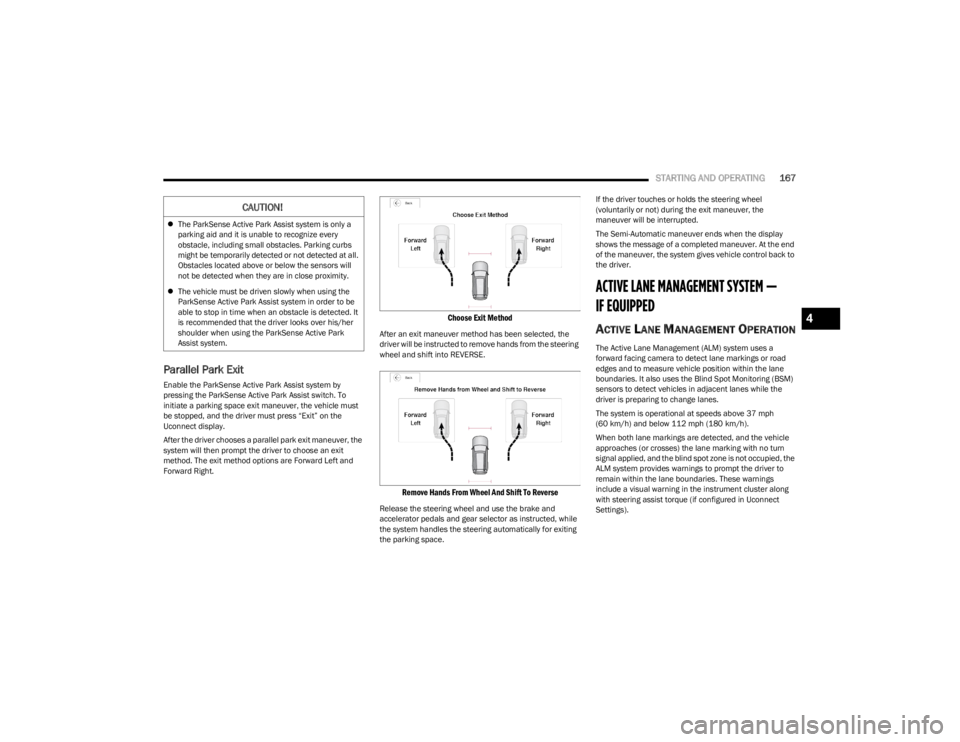
After the driver chooses a parallel park exit maneuver, the
system will then prompt the driver to choose an exit
method. The exit method options are Forward Left and
Forward Right.
Choose Exit Method
After an exit maneuver method has been selected, the
driver will be instructed to remove hands from the steering
wheel and shift into REVERSE.
Remove Hands From Wheel And Shift To Reverse
Release the steering wheel and use the brake and
accelerator pedals and gear selector as instructed, while
the system handles the steering automatically for exiting
the parking space. If the driver touches or holds the steering wheel
(voluntarily or not) during the exit maneuver, the
maneuver will be interrupted.
The Semi-Automatic maneuver ends when the display
shows the message of a completed maneuver. At the end
of the maneuver, the system gives vehicle control back to
the driver.
ACTIVE LANE MANAGEMENT SYSTEM —
IF EQUIPPED
ACTIVE LANE MANAGEMENT OPERATION
The Active Lane Management (ALM) system uses a
forward facing camera to detect lane markings or road
edges and to measure vehicle position within the lane
boundaries. It also uses the Blind Spot Monitoring (BSM)
sensors to detect vehicles in adjacent lanes while the
driver is preparing to change lanes.
The system is operational at speeds above 37 mph
(60 km/h) and below 112 mph (180 km/h).
When both lane markings are detected, and the vehicle
approaches (or crosses) the lane marking with no turn
signal applied, and the blind spot zone is not occupied, the
ALM system provides warnings to prompt the driver to
remain within the lane boundaries. These warnings
include a visual warning in the instrument cluster along
with steering assist torque (if configured in Uconnect
Settings).
CAUTION!
The ParkSense Active Park Assist system is only a
parking aid and it is unable to recognize every
obstacle, including small obstacles. Parking curbs
might be temporarily detected or not detected at all.
Obstacles located above or below the sensors will
not be detected when they are in close proximity.
The vehicle must be driven slowly when using the
ParkSense Active Park Assist system in order to be
able to stop in time when an obstacle is detected. It
is recommended that the driver looks over his/her
shoulder when using the ParkSense Active Park
Assist system.
4
23_WS_OM_EN_USC_t.book Page 167
Page 170 of 396
168STARTING AND OPERATING
If the driver crosses the lane marking, the system will
either guide the vehicle back to the center of the lane,
provide a vibration in the steering wheel, or both,
depending on radio settings.
When both lane markings are detected, and the driver
uses the turn signal to indicate a lane change, and a
vehicle is detected in the BSM zone on that side of the
vehicle, the ALM system provides a warning in the form of
steering assist and/or steering vibration (depending on
radio settings) to guide the vehicle back to the center of
the lane.
NOTE:
The system will suppress visual warnings, steering
vibration (if selected in radio settings), and steering
assistance (if selected in radio settings) when the
driver activates the turn signal, the blind spot zone is
clear of vehicles, and a lane change is occurring.
If the Blind Spot Monitoring (BSM) system detects a
vehicle in the adjacent lane, and the turn signal is
applied in that direction, the BSM LED on the mirror will
flash. If the driver continues to attempt the lane
change, steering wheel torque will be provided to keep
the vehicle within its lane markings.
The driver may manually override the steering assist
warning by applying force to the steering wheel at any
time.
When only a single lane marking is detected and the driver
drifts across the lane marking (no turn signal applied), the
Active Lane Management system provides a visual
warning in the instrument cluster, as well as a steering
assist torque (if configured in Uconnect Settings), to
prompt the driver to remain within the lane boundaries. If the driver continues to drift out of the lane, the system
provides a flashing visual warning through the instrument
cluster display as well as a haptic steering wheel vibration
(if configured in Uconnect Settings) when the vehicle
crosses the lane boundary.
NOTE:When operating conditions have been met, the Active
Lane Management system will monitor if the driver’s
hands are on the steering wheel and provides an audible
and visual warning to the driver if removed. The system
will cancel if the driver does not return their hands to the
wheel.
TURNING ACTIVE LANE MANAGEMENT
O
N OR OFF
The Active Lane Management button is located
on the switch panel on the forward part of the
center console, in front of the gear selector. To turn the system on, push the Active Lane
Management button (LED turns off). A message is
shown in the instrument cluster display.
To turn the system off, push the button again (LED turns
on.
NOTE:
The Active Lane Management system will retain the last
system state on or off from the last ignition cycle when the
ignition is placed in the ON/RUN position.
ACTIVE LANE MANAGEMENT WARNING
M
ESSAGE
The Active Lane Management system will indicate the
current lane drift condition through the instrument cluster
display.
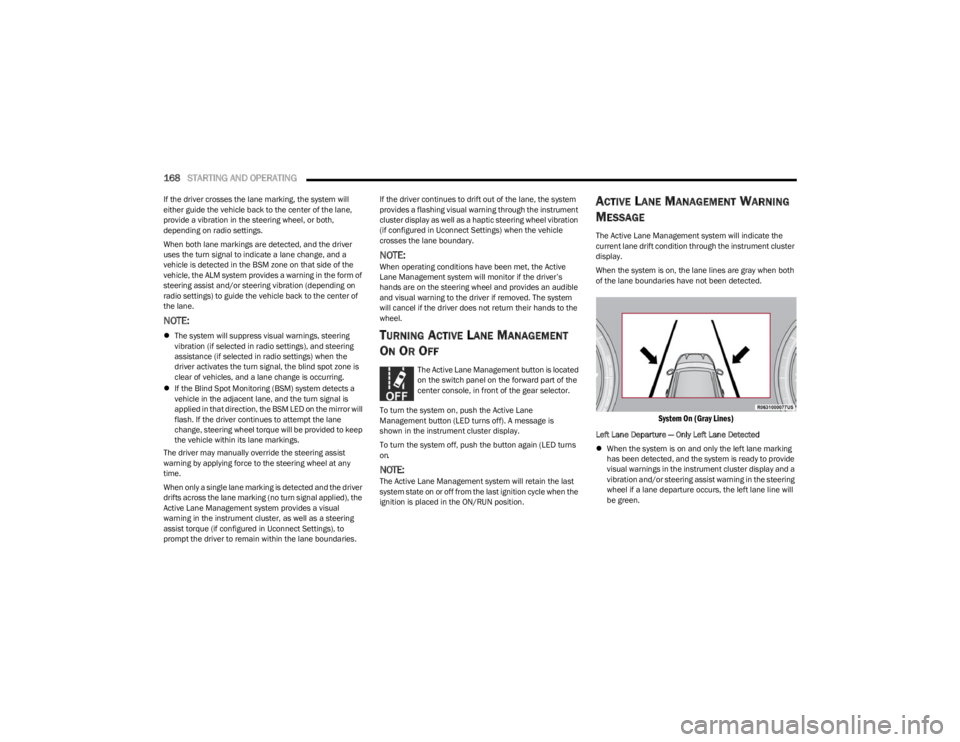
When the system is on, the lane lines are gray when both
of the lane boundaries have not been detected.
System On (Gray Lines)
Left Lane Departure — Only Left Lane Detected
When the system is on and only the left lane marking
has been detected, and the system is ready to provide
visual warnings in the instrument cluster display and a
vibration and/or steering assist warning in the steering
wheel if a lane departure occurs, the left lane line will
be green.
23_WS_OM_EN_USC_t.book Page 168
Page 171 of 396
STARTING AND OPERATING169
When the system senses the lane line has been
approached (but not crossed), the left lane line will
change to solid yellow and the system will provide
steering assist torque (if programmed in Uconnect
Settings).
When the system senses the lane line is being crossed,
the left lane line will change to flashing yellow, and the
system will provide haptic steering wheel vibration (if
programmed in Uconnect Settings).
Lane Crossed (Flashing Yellow Line)
NOTE:The Active Lane Management system operates with
similar behavior for a right lane departure when only the
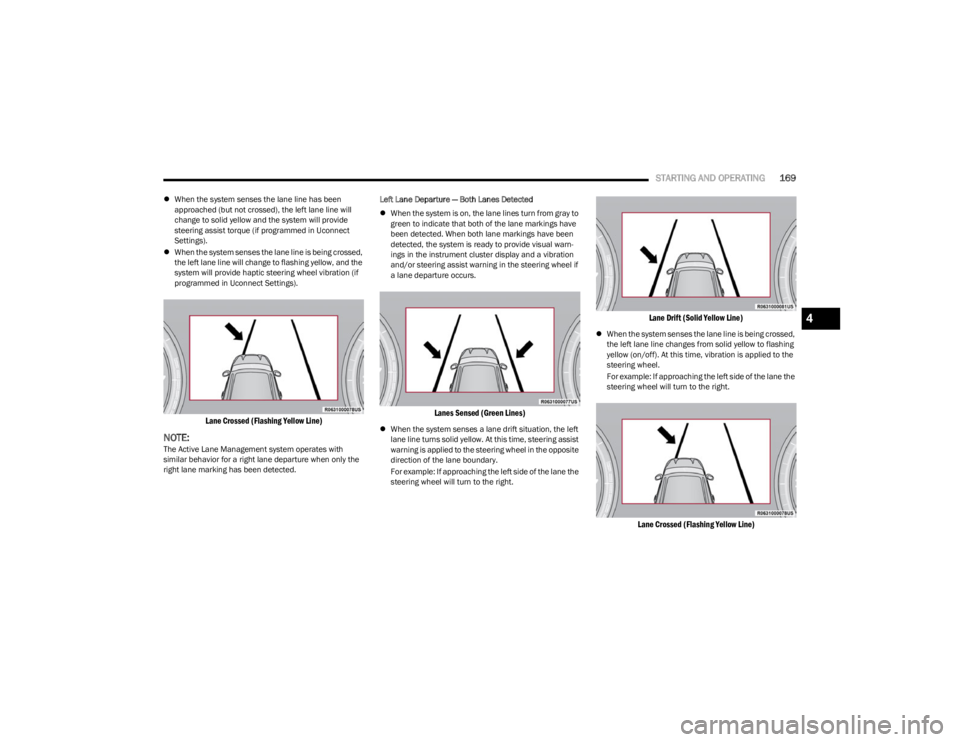
right lane marking has been detected. Left Lane Departure — Both Lanes Detected
When the system is on, the lane lines turn from gray to
green to indicate that both of the lane markings have
been detected. When both lane markings have been
detected, the system is ready to provide visual warn -
ings in the instrument cluster display and a vibration
and/or steering assist warning in the steering wheel if
a lane departure occurs.
Lanes Sensed (Green Lines)
When the system senses a lane drift situation, the left
lane line turns solid yellow. At this time, steering assist
warning is applied to the steering wheel in the opposite
direction of the lane boundary.
For example: If approaching the left side of the lane the
steering wheel will turn to the right.
Lane Drift (Solid Yellow Line)
When the system senses the lane line is being crossed,
the left lane line changes from solid yellow to flashing
yellow (on/off). At this time, vibration is applied to the
steering wheel.
For example: If approaching the left side of the lane the
steering wheel will turn to the right.
Lane Crossed (Flashing Yellow Line)
4
23_WS_OM_EN_USC_t.book Page 169
Page 177 of 396
STARTING AND OPERATING175
SURROUND VIEW CAMERA SYSTEM —
IF EQUIPPED
Your vehicle may be equipped with the Surround View
Camera system that allows you to see an on-screen image
of the surroundings and Top View of your vehicle whenever
the gear selector is put into REVERSE or a different view is
selected through the touchscreen buttons. The Top View
of the vehicle will show which doors are open. The image
will be displayed on the touchscreen display along with a
caution note “Check Entire Surroundings” across the top
of the screen. After five seconds, this note will disappear.
The Surround View Camera system is comprised of four
sequential cameras located in the front grille, rear liftgate
and side mirrors.
NOTE:The Surround View Camera system has programmable
settings that may be selected through the Uconnect
system
Úpage 197.
Press this button on the touchscreen to enter
the Surround View Camera menu in the
Uconnect system. When the vehicle is shifted into REVERSE, the
Rear View or Top View is the default view of the system.
When the vehicle is shifted out of REVERSE with camera
delay turned on, the camera image will continue to be
displayed for up to 10 seconds unless the vehicle speed
exceeds
8 mph (13 km/h, the vehicle is shifted into PARK
or the ignition is placed in the OFF position. There is a
touchscreen X button to disable the display of the camera
image.
When the vehicle is shifted out of REVERSE with camera
delay turned off, the Surround View Camera mode is
exited and the last known screen appears again.
When enabled, active guidelines are overlaid on the image
to illustrate the width of the vehicle, including the side
view mirrors and its projected back up path based on the
steering wheel position.
Different colored zones indicate the distance to the rear of
the vehicle.
The following table shows the approximate distances for
each zone:
Modes Of Operation
Manual activation of the Surround View Camera is
selected by pressing the Surround View Camera button
located in the Controls menu within the Uconnect system.
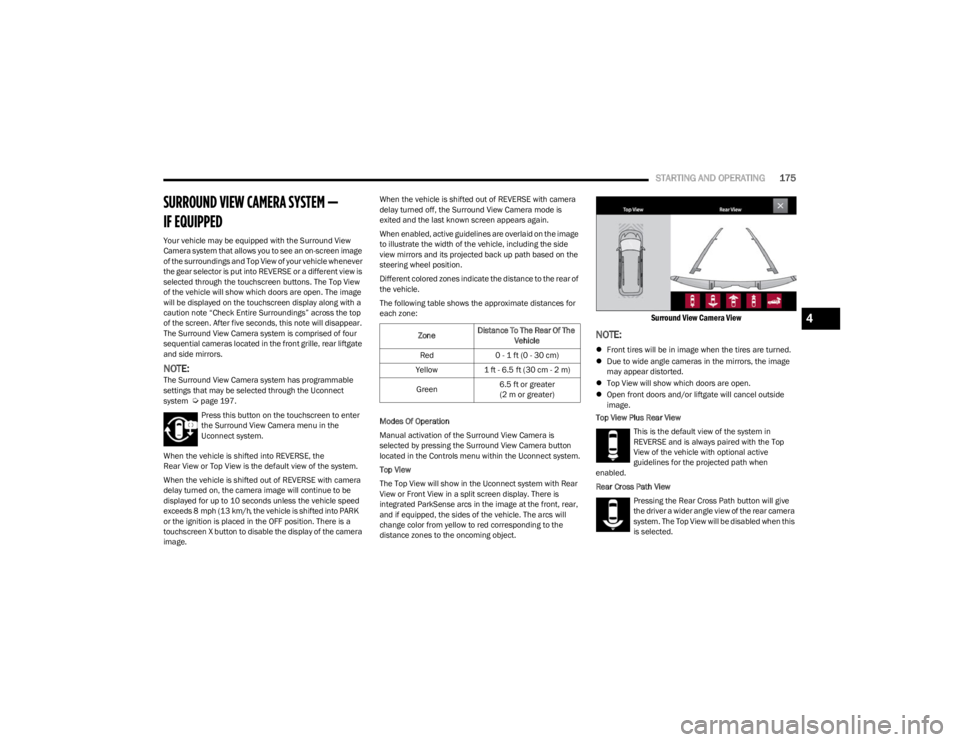
Top View
The Top View will show in the Uconnect system with Rear
View or Front View in a split screen display. There is
integrated ParkSense arcs in the image at the front, rear,
and if equipped, the sides of the vehicle. The arcs will
change color from yellow to red corresponding to the
distance zones to the oncoming object.
Surround View Camera View
NOTE:
Front tires will be in image when the tires are turned.
Due to wide angle cameras in the mirrors, the image
may appear distorted.
Top View will show which doors are open.
Open front doors and/or liftgate will cancel outside
image.
Top View Plus Rear View
This is the default view of the system in
REVERSE and is always paired with the Top
View of the vehicle with optional active
guidelines for the projected path when
enabled.
Rear Cross Path View
Pressing the Rear Cross Path button will give
the driver a wider angle view of the rear camera
system. The Top View will be disabled when this
is selected.
Zone Distance To The Rear Of The
Vehicle
Red 0 - 1 ft (0 - 30 cm)
Yellow 1 ft - 6.5 ft (30 cm - 2 m)
Green 6.5 ft or greater
(2 m or greater)
4
23_WS_OM_EN_USC_t.book Page 175
Page 180 of 396

178STARTING AND OPERATING
VEHICLE LOADING
GROSS VEHICLE WEIGHT RATING
(GVWR)
The GVWR is the total allowable weight of your vehicle.
This includes driver, passengers, cargo and tongue
weight. The total load must be limited so that you do not
exceed the GVWR.
PAYLOAD
The payload of a vehicle is defined as the allowable weight
a vehicle can carry, including the weight of the driver, all
passengers, options and cargo.
GROSS AXLE WEIGHT RATING (GAWR)
The GAWR is the maximum permissible load on the front
and rear axles. The load must be distributed in the cargo
area so that the GAWR of each axle is not exceeded.
Each axle GAWR is determined by the components in the
system with the lowest load carrying capacity (axle,
springs, tires or wheels). Heavier axles, or suspension
components sometimes specified by purchasers for
increased durability, do not necessarily increase the
vehicle's GVWR or GAWR.
TIRE SIZE
The tire size on the Vehicle Certification Label represents
the actual tire size on your vehicle. Replacement tires
must be equal to the load capacity of this tire size.
RIM SIZE
This is the rim size that is appropriate for the tire size
listed.
INFLATION PRESSURE
This is the cold tire inflation pressure for your vehicle for
all loading conditions up to full GAWR.
CURB WEIGHT
The curb weight of a vehicle is defined as the total weight
of the vehicle with all fluids, including vehicle fuel, at full
capacity conditions, and with no occupants or cargo
loaded into the vehicle. The front and rear curb weight
values are determined by weighing your vehicle on a
commercial scale before any occupants or cargo are
added.
LOADING
The actual total weight and the weight of the front and rear
of your vehicle at the ground can best be determined by
weighing it when it is loaded and ready for operation.
The entire vehicle should first be weighed on a commercial
scale to ensure that the GVWR has not been exceeded.
The weight on the front and rear of the vehicle should then
be determined separately to be sure that the load is
properly distributed over the front and rear axles.
Weighing the vehicle may show that the GAWR of either
the front or rear axles has been exceeded but the total
load is within the specified GVWR. If so, weight must be shifted from front to rear or rear to
front as appropriate until the specified weight limitations
are met. Store the heavier items down low and be sure
that the weight is distributed equally. Stow all loose items
securely before driving.
NOTE:
Improper weight distributions can have an adverse
effect on the way your vehicle steers and handles and
the way the brakes operate.
Air suspension vehicle may limit off-road heights if
loaded beyond recommended values for vehicle GVWR
and GAWR.
TRAILER TOWING
In this section you will find safety tips and information on
limits to the type of towing you can reasonably do with your
vehicle. Before towing a trailer, carefully review this
information to tow your load as efficiently and safely as
possible.
To maintain the New Vehicle Limited Warranty coverage,
follow the requirements and recommendations in this
manual concerning vehicles used for trailer towing.
WARNING!
Do not load your vehicle any heavier than the GVWR or
the maximum front and rear GAWR. If you do, parts on
your vehicle can break, or it can change the way your
vehicle handles. This could cause you to lose control.
Overloading can shorten the life of your vehicle.
23_WS_OM_EN_USC_t.book Page 178
Page 189 of 396
STARTING AND OPERATING187
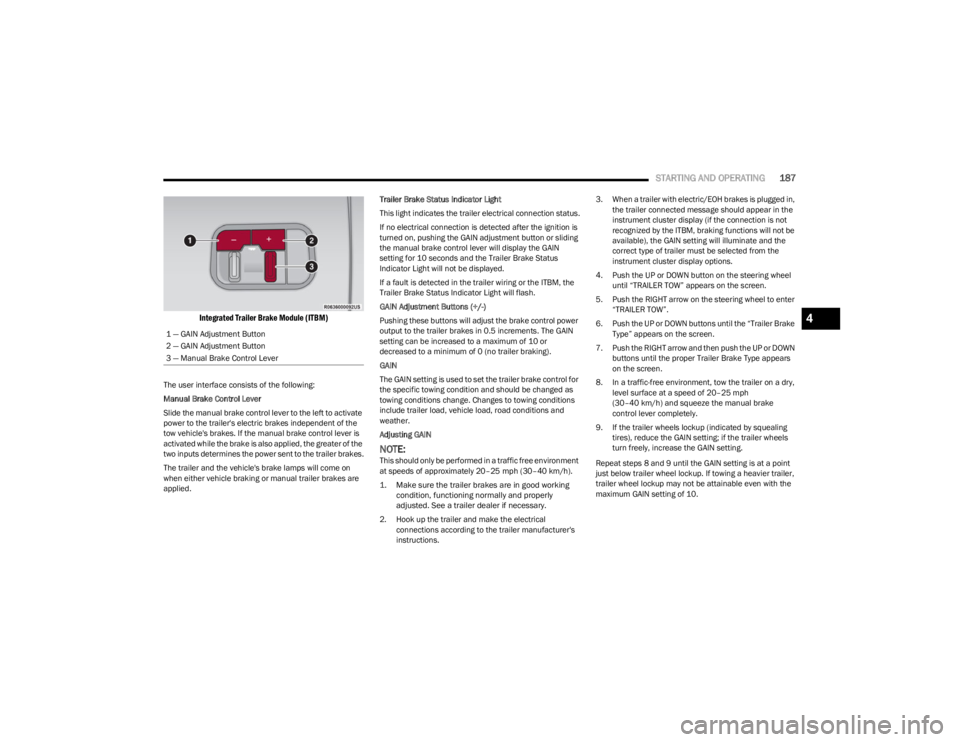
Integrated Trailer Brake Module (ITBM)
The user interface consists of the following:
Manual Brake Control Lever
Slide the manual brake control lever to the left to activate
power to the trailer's electric brakes independent of the
tow vehicle's brakes. If the manual brake control lever is
activated while the brake is also applied, the greater of the
two inputs determines the power sent to the trailer brakes.
The trailer and the vehicle's brake lamps will come on
when either vehicle braking or manual trailer brakes are
applied. Trailer Brake Status Indicator Light
This light indicates the trailer electrical connection status.
If no electrical connection is detected after the ignition is
turned on, pushing the GAIN adjustment button or sliding
the manual brake control lever will display the GAIN
setting for 10 seconds and the Trailer Brake Status
Indicator Light will not be displayed.
If a fault is detected in the trailer wiring or the ITBM, the
Trailer Brake Status Indicator Light will flash.
GAIN Adjustment Buttons (+/-)
Pushing these buttons will adjust the brake control power
output to the trailer brakes in 0.5 increments. The GAIN
setting can be increased to a maximum of 10 or
decreased to a minimum of 0 (no trailer braking).
GAIN
The GAIN setting is used to set the trailer brake control for
the specific towing condition and should be changed as
towing conditions change. Changes to towing conditions
include trailer load, vehicle load, road conditions and
weather.
Adjusting GAIN
NOTE:This should only be performed in a traffic free environment
at speeds of approximately 20–25 mph (30–40 km/h).
1. Make sure the trailer brakes are in good working condition, functioning normally and properly
adjusted. See a trailer dealer if necessary.
2. Hook up the trailer and make the electrical connections according to the trailer manufacturer's
instructions. 3. When a trailer with electric/EOH brakes is plugged in,
the trailer connected message should appear in the
instrument cluster display (if the connection is not
recognized by the ITBM, braking functions will not be
available), the GAIN setting will illuminate and the
correct type of trailer must be selected from the
instrument cluster display options.
4. Push the UP or DOWN button on the steering wheel until “TRAILER TOW” appears on the screen.
5. Push the RIGHT arrow on the steering wheel to enter “TRAILER TOW”.
6. Push the UP or DOWN buttons until the “Trailer Brake Type” appears on the screen.
7. Push the RIGHT arrow and then push the UP or DOWN buttons until the proper Trailer Brake Type appears
on the screen.
8. In a traffic-free environment, tow the trailer on a dry, level surface at a speed of 20–25 mph
(30–40 km/h) and squeeze the manual brake
control lever completely.
9. If the trailer wheels lockup (indicated by squealing tires), reduce the GAIN setting; if the trailer wheels
turn freely, increase the GAIN setting.
Repeat steps 8 and 9 until the GAIN setting is at a point
just below trailer wheel lockup. If towing a heavier trailer,
trailer wheel lockup may not be attainable even with the
maximum GAIN setting of 10.
1 — GAIN Adjustment Button
2 — GAIN Adjustment Button
3 — Manual Brake Control Lever
4
23_WS_OM_EN_USC_t.book Page 187
Page 196 of 396
194STARTING AND OPERATING
When To Use 4WD LOW — If Equipped
When off-road driving, shift to 4WD LOW for additional
traction. This range should be limited to extreme
situations such as deep snow, mud, or sand where
additional low speed pulling power is needed. Vehicle
speeds in excess of 25 mph (40 km/h) should be avoided
when in 4WD LOW.
Driving Through Water
Although your vehicle is capable of driving through water,
there are a number of precautions that must be
considered before entering the water.
NOTE:Your vehicle is capable of water fording in up to 20 inches
(51 cm) of water, while crossing small rivers or streams. To
maintain optimal performance of your vehicle's heating
and ventilation system it is recommended to switch the
system into recirculation mode during water fording. Driving through water more than a few inches/
centimeters deep will require extra caution to ensure
safety and prevent damage to your vehicle. If you must
drive through water, try to determine the depth and the
bottom condition (and location of any obstacles) prior to
entering. Proceed with caution and maintain a steady
controlled speed less than 5 mph (8 km/h) in deep water
to minimize wave effects.
Flowing Water
If the water is swift flowing and rising (as in storm run-off),
avoid crossing until the water level recedes and/or the
flow rate is reduced. If you must cross flowing water avoid
depths in excess of 9 inches (23 cm). The flowing water
can erode the streambed, causing your vehicle to sink into
deeper water. Determine exit point(s) that are
downstream of your entry point to allow for drifting.
Standing Water
Avoid driving in standing water deeper than 24 inches
(60 cm), and reduce speed appropriately to minimize
wave effects. Maximum speed is 5 mph (8 km/h).Maintenance
After driving through deep water, inspect your vehicle
fluids and lubricants (engine oil, transmission oil, axle,
transfer case) to ensure the fluids have not been
contaminated. Contaminated fluid (milky, foamy in
appearance) should be flushed/changed as soon as
possible to prevent component damage.
Driving In Snow, Mud And Sand
In heavy snow, when pulling a load, or for additional
control at slower speeds, shift the transmission to a low
gear and shift the transfer case to 4WD LOW if necessary
Úpage 129. Only shift into a lower gear to maintain
forward motion. Over-revving the engine can spin the
wheels and traction will be lost.
Avoid abrupt downshifts on icy or slippery roads, because
engine braking may cause skidding and loss of control.
Hill Climbing
NOTE:Before attempting to climb a hill, determine the conditions
at the crest and/or on the other side.
Before climbing a steep hill, shift the transmission to a
lower gear and shift the transfer case to 4WD LOW. Use
FIRST gear and 4WD LOW for very steep hills.
WARNING!
Do not drive in 4WD LOW on dry pavement; driveline
damage may result. 4WD LOW locks front and rear
drivelines together and does not allow for differential
action between the front to rear driveshafts. Driving in
4WD LOW on pavement will cause driveline binding;
use only on wet or slippery surfaces.
CAUTION!
When driving through water, do not exceed 5 mph
(8 km/h). Always check water depth before entering as
a precaution, and check all fluids afterward. Driving
through water may cause damage that may not be
covered by the New Vehicle Limited Warranty.
23_WS_OM_EN_USC_t.book Page 194
Page 204 of 396

202MULTIMEDIA
Missed Calls Message This setting will allow you to have pop-up notifications for missed calls. Setting options
are “On” and “Off”.
Navigation Pop-ups This setting will allow you to have pop-up notifications for Navigation. Setting options are
“On” and “Off”.
Navigation Settings This setting will redirect to the list of Navigation settings. Refer to your Uconnect Radio
Instruction Manual for further information.
Auto-On Driver Heated/Ventilated Seat & Heated Steering Wheel With Vehicle Start This setting will activate the vehicle’s comfort system and heated seats or heated
steering wheel when the vehicle is remote started or ignition is started. The “Off” setting
will not activate the comfort systems. The “Remote Start” setting will only activate the
comfort systems when using Remote Start. The “All Start” setting will activate the comfort
systems whenever the vehicle is started.
Audio Settings This setting will open the submenu containing the audio settings
Úpage 216.
TomTom Traffic And Travel Services This setting will turn TomTom® Traffic And Travel Services (if equipped) on or off. An
active subscription is required for this feature to work.
Reset App Drawer to Default Order This setting will reset the app drawer to its factory default layout.
Restore Settings to Default This setting will return all the previously changed settings to their factory defaults.
More Profile Options This setting will give access to more profile options.
Setting NameDescription
23_WS_OM_EN_USC_t.book Page 202
Page 205 of 396

MULTIMEDIA203
Safety & Driving Assistance
When the Safety & Driving Assistance button is pressed on the touchscreen, the system displays the options related to the vehicle’s safety settings. These options will differ
depending on the features equipped on the vehicle. The settings may display in list form or within subfolders on the screen. To access a subfolder, select the desired folder; the
available options related to that feature will then display on the screen.
NOTE:Depending on the vehicle’s options, feature settings may vary.
Setting Name Description
Forward Collision Warning — Located In Automatic Emergency Braking Submenu This setting will turn the Forward Collision Warning (FCW) system on or off. The “Off”
setting will deactivate the FCW system. The “Warning Only” setting will provide only an
audible chime when a collision is detected. The “Warning + Active Braking” setting will
provide an audible chime and apply some brake pressure when a collision is detected.
Forward Collision Warning Sensitivity — Located In Automatic Emergency Braking
Submenu This setting will change the distance at which the Forward Collision Warning alert sounds.
The “Medium” setting will have the FCW system signal when an object is in view, and the
possibility of a collision is detected. The “Near” setting will have the FCW system signal
when the object is closer to the vehicle. The “Far” setting will have the FCW system signal
when an object is at a far distance from the vehicle.
Pedestrian Emergency Braking — Located In Automatic Emergency Braking Submenu This setting will turn the Pedestrian Emergency Braking system on or off. This setting is
located in “Automatic Emergency Braking”.
Active Lane Management This setting will alert the driver by vibrating the steering wheel and/or moving the steering
wheel, when a lane departure is detected. The available options within Active Lane
Management are Lane Management “Vibration Only”, “Steering Assist Only”, and
“Vibration + Steering Assist”; Lane Warning “Early”, “Medium”, and “Late”; Vibration
Strength “Low”, “Medium” and “High”; and Steering Assist Strength “Low”, “Medium”
and “High”.
Traffic Sign Assist This setting will turn Traffic Sign Assist on or off.
Traffic Sign Assist Warning This setting will allow you to set the warning type related to the traffic sign. The available
options are “Off”, “Visual”, and “Visual + Chime”.
5
23_WS_OM_EN_USC_t.book Page 203
Page 240 of 396
238MULTIMEDIA
SUSPENSION — IF EQUIPPED
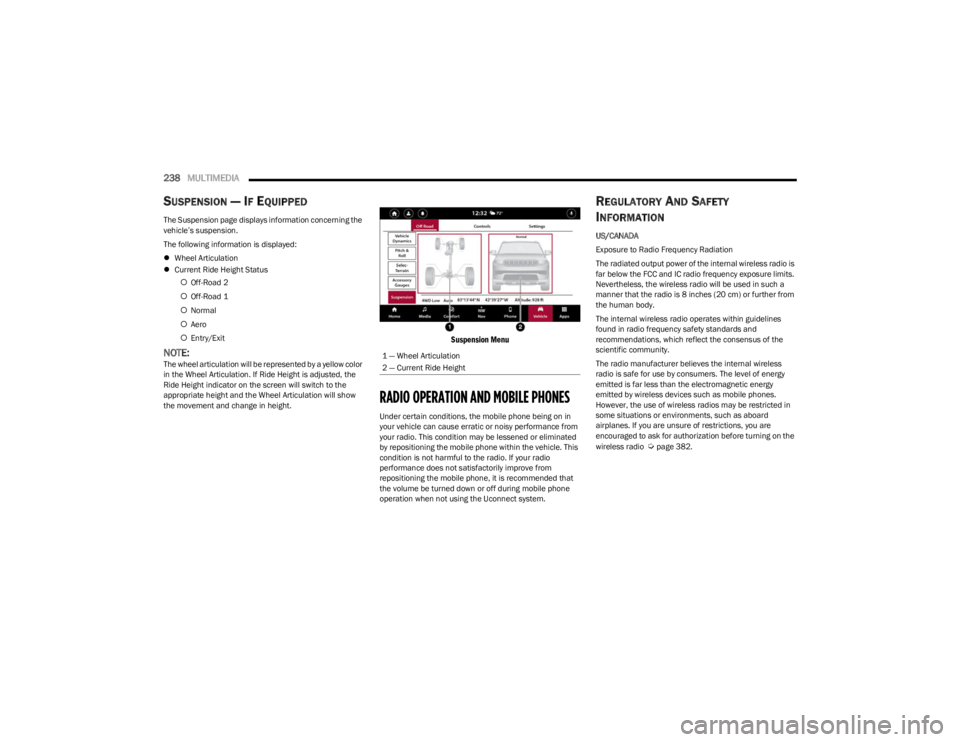
The Suspension page displays information concerning the
vehicle’s suspension.
The following information is displayed:
Wheel Articulation
Current Ride Height Status
Off-Road 2
Off-Road 1
Normal
Aero
Entry/Exit
NOTE:The wheel articulation will be represented by a yellow color
in the Wheel Articulation. If Ride Height is adjusted, the
Ride Height indicator on the screen will switch to the
appropriate height and the Wheel Articulation will show
the movement and change in height.
Suspension Menu
RADIO OPERATION AND MOBILE PHONES
Under certain conditions, the mobile phone being on in
your vehicle can cause erratic or noisy performance from
your radio. This condition may be lessened or eliminated
by repositioning the mobile phone within the vehicle. This
condition is not harmful to the radio. If your radio
performance does not satisfactorily improve from
repositioning the mobile phone, it is recommended that
the volume be turned down or off during mobile phone
operation when not using the Uconnect system.
REGULATORY AND SAFETY
I
NFORMATION
US/CANADA
Exposure to Radio Frequency Radiation
The radiated output power of the internal wireless radio is
far below the FCC and IC radio frequency exposure limits.
Nevertheless, the wireless radio will be used in such a
manner that the radio is 8 inches (20 cm) or further from
the human body.
The internal wireless radio operates within guidelines
found in radio frequency safety standards and
recommendations, which reflect the consensus of the
scientific community.
The radio manufacturer believes the internal wireless
radio is safe for use by consumers. The level of energy
emitted is far less than the electromagnetic energy
emitted by wireless devices such as mobile phones.
However, the use of wireless radios may be restricted in
some situations or environments, such as aboard
airplanes. If you are unsure of restrictions, you are
encouraged to ask for authorization before turning on the
wireless radio
Úpage 382.
1 — Wheel Articulation
2 — Current Ride Height
23_WS_OM_EN_USC_t.book Page 238