USB JEEP WRANGLER 2023 User Guide
[x] Cancel search | Manufacturer: JEEP, Model Year: 2023, Model line: WRANGLER, Model: JEEP WRANGLER 2023Pages: 396, PDF Size: 25.15 MB
Page 214 of 396

212MULTIMEDIA
In Bluetooth® Mode, press the Media button on the
touchscreen to select the desired audio source:
Bluetooth®.
In AUX Mode, press the Media button on the touchscreen
to select the desired audio source: AUX.
Repeat
In USB Mode, press the Repeat button on the touchscreen
to toggle the repeat functionality. The Repeat button on
the touchscreen is highlighted when active. The Radio will
continue to play the current track, repeatedly, as long as
the repeat is active. Press the Repeat button again to
enter Repeat All. The radio will continue to play all the
current tracks, repeatedly, as long as the repeat function
is active. To cancel Repeat, press the Repeat button a
third time.
Shuffle
In USB Mode, press the Shuffle button on the touchscreen
to play the selections on the USB device in random order
to provide an interesting change of pace. Press the Shuffle
button on the touchscreen a second time to turn this
feature off.
Audio
Audio settings can be accessed by pressing the Audio
button
Úpage 201.
Info
In USB Mode, press the Info button on the touchscreen to
display the current track information. Press the Info or X
button on the touchscreen a second time to cancel this
feature. Tracks
In USB Mode, press the Tracks button on the touchscreen
to display a pop-up with the Song List. The song currently
playing is indicated by an arrow and lines above and below
the song title. When in the Tracks List screen you can
rotate the TUNE/SCROLL knob to highlight a track
(indicated by the line above and below the track name)
and then push the ENTER/BROWSE knob to start playing
that track.
In Bluetooth® Mode, if the Bluetooth® device supports
this feature, press the Tracks button on the touchscreen
to display a pop-up with the Song List. The currently
playing song is indicated by a red arrow and lines above
and below the song title.
Pressing the Tracks button on the touchscreen while the
pop-up is displayed will close the pop-up.
MEDIA VOICE COMMANDS
Uconnect offers connections via USB, Bluetooth®, and
auxiliary (AUX) ports. Voice operation is only available for
connected USB and AUX devices.
Push the VR button located on the steering wheel.
After the beep, say one of the following commands and
follow the prompts to switch your media source or choose
an artist:
“Change source to Bluetooth®”
“Change source to AUX”
“Change source to USB”
“Play artist Beethoven”; “ Play album Greatest Hits”;
“ Play song Moonlight Sonata”; “ Play genre Classical” Did You Know:
Press the Browse button on the
touchscreen to see all of the music on your USB device.
Your Voice Command must match exactly how the artist,
album, song, and genre information is displayed.
PHONE MODE
Overview
Uconnect Phone is a voice-activated, hands-free,
in-vehicle communications system. It allows you to dial a
phone number with your mobile phone.
The feature supports the following:
Voice Activated Features
Hands-Free dialing via Voice (“Call John Smith Mobile”
or “Dial 248-555-1212”).
Hands-Free text-to-speech listening of your incoming
SMS messages.
Hands-Free Text Message Replying: Forward one of
18 predefined SMS messages to incoming calls/text
messages.
Redialing last dialed numbers (“Redial”).
Calling Back the last incoming call number (“Call
Back”).
Viewing call logs on screen (“Show Incoming Calls,”
“Show Outgoing Calls,” “Show Missed Calls,” or “Show
Recent Calls”).
Searching Contacts phone number (“Search for John
Smith Mobile”).
23_JL_OM_EN_USC_t.book Page 212
Page 224 of 396
222MULTIMEDIA
Did You Know: Voice Text Reply is not compatible with
iPhone®, but if your vehicle is equipped with Siri® Eyes
Free, you can use your voice to send a text message.
SIRI® EYES FREE — IF EQUIPPED
When used with your Apple® iPhone® connected to your
vehicle via Bluetooth®, Siri lets you use your voice to send
text messages, select media, place phone calls and much
more. Siri uses your natural language to understand what
you mean and responds back to confirm your requests.
The system is designed to keep your eyes on the road and
your hands on the wheel by letting Siri help you perform
useful tasks.
To enable Siri, push and hold, then release the Uconnect
Voice Recognition (VR) button on the steering wheel. After
you hear a double beep, you can ask Siri to play podcasts
and music, get directions, read text messages, and many
other useful requests.
BLUETOOTH® COMMUNICATION LINK
Mobile phones may lose connection to the Uconnect
Phone. When this happens, the connection can generally
be re-established by restarting the mobile phone. Your
mobile phone is recommended to remain in Bluetooth®
ON Mode.
POWER-UP
After switching the ignition key from OFF to either the ON/
RUN or ACC position, or after a language change, you must
wait at least 15 seconds prior to using the system
Úpage 381.
ANDROID AUTO™ & APPLE CARPLAY® —
IF EQUIPPED
ANDROID AUTO™
Use this QR code to access your digital
experience.
Android Auto™ is a feature of your
Uconnect system, and your Android™
6.0 or higher powered smartphone
with a data plan, that allows you to
project your smartphone and a number
of its apps onto the touchscreen radio
display. Android Auto™ brings you useful information, and
organizes it into simple cards that appear just when they
are needed. Android Auto™ can be used with speech
technology, the steering wheel controls, the knobs and
buttons on your radio faceplate, and the radio display’s
touchscreen to control many of your apps. To use Android
Auto™, perform the following procedure:
NOTE:Feature availability depends on your carrier and mobile
phone manufacturer. Some Android Auto™ features may
or may not be available in every region and/or language.
1. Download the Android Auto™ app from the Google Play store on your Android™-powered smartphone.
2. Connect your Android™-powered smartphone to one of the media USB ports in your vehicle. If the Android
Auto™ app was not downloaded, the first time you plug your device in the app begins to download. Your
vehicle should be in PARK the first time you use the
app.
NOTE:Be sure to use the factory-provided USB cable that came
with your phone, as aftermarket cables may not work.
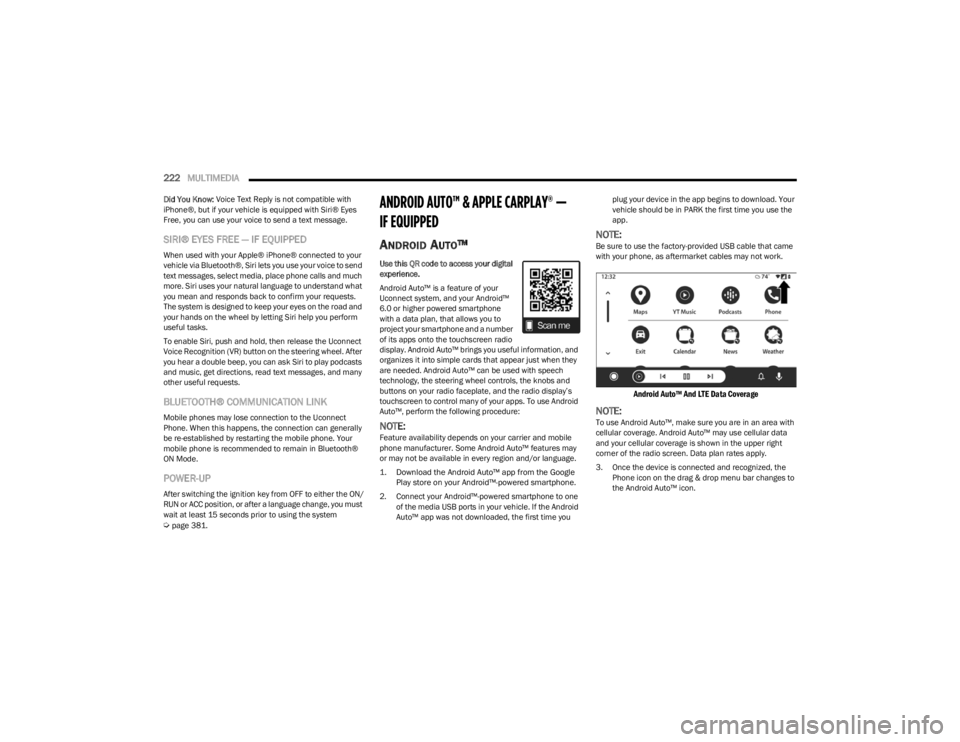
Android Auto™ And LTE Data Coverage
NOTE:To use Android Auto™, make sure you are in an area with
cellular coverage. Android Auto™ may use cellular data
and your cellular coverage is shown in the upper right
corner of the radio screen. Data plan rates apply.
3. Once the device is connected and recognized, the
Phone icon on the drag & drop menu bar changes to
the Android Auto™ icon.
23_JL_OM_EN_USC_t.book Page 222
Page 225 of 396

MULTIMEDIA223
NOTE:Android Auto™ is set to launch immediately once a
compatible device is connected. You can also launch it by
pressing the Android Auto™ icon on the touchscreen.
Once Android Auto™ is up and running on your Uconnect
system, the following features can be utilized using your
smartphone’s data plan:
Google Maps™ for navigation
YouTube Music, Spotify, iHeart Radio, etc. for music
Hands-free calling and texting for communication
Various compatible apps
Maps
Push and hold the Voice Recognition (VR)
button on the steering wheel until the beep or
tap the Microphone icon to ask Google to take
you to a desired destination by voice. You can
also touch the Navigation icon in Android Auto™ to access
other navigation apps.
While using Android Auto™, Google Maps™ provides
voice-guided:
Navigation
Live traffic information
Lane guidance
For further information, refer to www.android.com/auto/
(US) or https://www.android.com/intl/en_ca/auto/
(Canada).
For further information on the navigation function, please
refer to https://support.google.com/android or https://
support.google.com/androidauto/.
Music
Android Auto™ allows you to access and
stream your favorite music with apps like
YouTube Music, iHeartRadio, and Spotify.
Using your smartphone’s data plan, you can
stream endless music on the road.
NOTE:Music apps, playlists, and stations must be set up on your
smartphone prior to using Android Auto™ for them to work
with Android Auto™.
NOTE:To see the track details for the music playing through
Android Auto™, select the Uconnect system’s media
screen.
For further information, refer to https://
support.google.com/androidauto.
Communication
With Android Auto™ connected, push and hold
the VR button on the steering wheel to activate
voice recognition specific to Android Auto™.
This allows you to send and reply to text
messages, have incoming text messages read out loud,
and place and receive hands-free calls.
Apps
The Android Auto™ App displays all the compatible apps
that are available to use with Android Auto™, every time it
is launched. You must have the compatible app
downloaded, and you must be signed in to the app through
your mobile device for it to work with Android Auto™.
Refer to https://play.google.com/store/apps/ to see the
latest list of available apps for Android Auto™.
Android Auto™ Voice Command
NOTE:Feature availability depends on your carrier and mobile
phone manufacturer. Some Android Auto™ features may
or may not be available in every region and/or language.
Android Auto™ allows you to use your voice to interact with
its best-in-class speech technology through your vehicle’s
voice recognition system, and use your smartphone’s data
plan to project your Android™-powered smartphone and a
number of its apps onto your Uconnect touchscreen.
Connect your Android™ 6.0 or higher to one of the media
USB ports, using the factory-provided USB cable, and
press the new Android Auto™ icon that replaces your
Phone icon on the main menu bar to begin Android Auto™.
Push and hold the VR button on the steering wheel, or
press and hold the Microphone icon within Android Auto™,
to activate its VR, which recognizes natural voice
commands, to use a list of your smartphone’s features:
Maps
Music
Phone
Text Messages
Additional Apps
NOTE:
To use Android Auto™ on your car display, you’ll need
an Android™ phone running Android™ 6.0 or higher, an
active data plan, and the Android Auto™ app.
To wirelessly use Android Auto™ on your car display,
you need a compatible Android™ smartphone with an
active data plan. You can check which smartphones
are compatible at g.co/androidauto/requirements.
Android™ is a trademark of Google Inc.
5
23_JL_OM_EN_USC_t.book Page 223
Page 226 of 396
224MULTIMEDIA
APPLE CARPLAY®
Use this QR code to access your digital
experience.
Uconnect works seamlessly with Apple
CarPlay®, the smarter, more secure
way to use your iPhone® in the car, and
stay focused on the road. Use your
Uconnect Touchscreen display, the
vehicle's knobs and controls, and your
voice with Siri to get access to Apple Music®, Maps,
Messages, and more.
NOTE:Feature availability depends on your carrier and mobile
phone manufacturer. Some Apple CarPlay® features may
or may not be available in every region and/or language.
To use Apple CarPlay®, make sure you are using iPhone®
5 or later, have Siri enabled in Settings, ensure your
iPhone® is unlocked for the very first connection only, and
then use the following procedure:
1. Connect your iPhone® to one of the media USB
ports in your vehicle.
NOTE:Be sure to use the factory-provided Lightning cable that
came with your phone, as aftermarket cables may not
work.
2. Once the device is connected and recognized, the Phone icon on the drag & drop menu bar changes to
the Apple CarPlay® Icon.
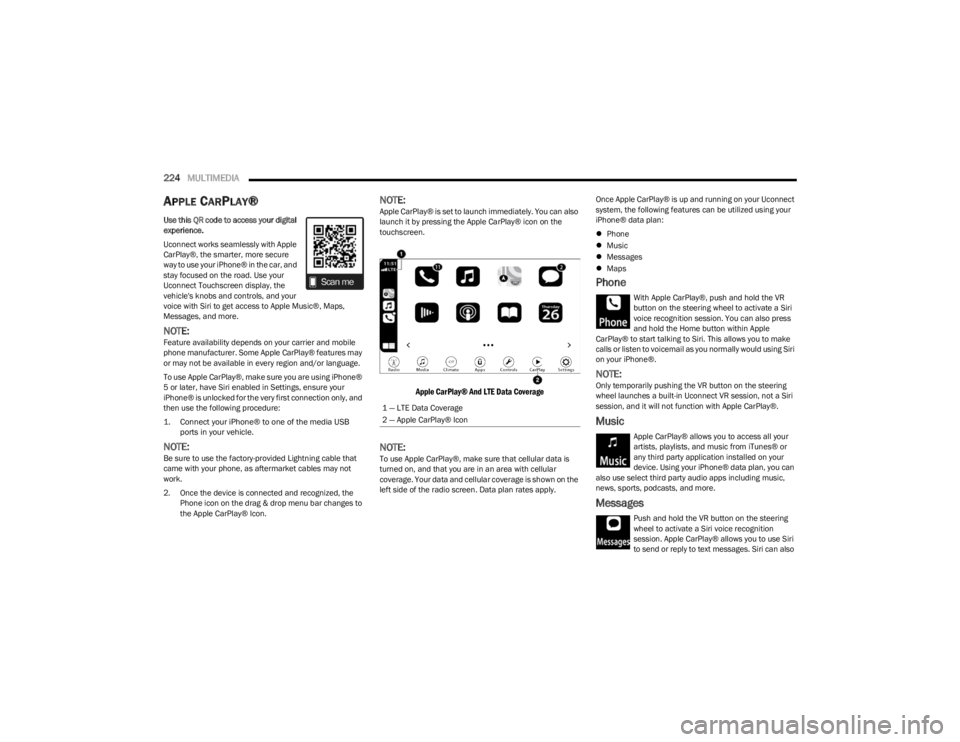
NOTE:Apple CarPlay® is set to launch immediately. You can also
launch it by pressing the Apple CarPlay® icon on the
touchscreen.
Apple CarPlay® And LTE Data Coverage
NOTE:To use Apple CarPlay®, make sure that cellular data is
turned on, and that you are in an area with cellular
coverage. Your data and cellular coverage is shown on the
left side of the radio screen. Data plan rates apply. Once Apple CarPlay® is up and running on your Uconnect
system, the following features can be utilized using your
iPhone® data plan:
Phone
Music
Messages
Maps
Phone
With Apple CarPlay®, push and hold the VR
button on the steering wheel to activate a Siri
voice recognition session. You can also press
and hold the Home button within Apple
CarPlay® to start talking to Siri. This allows you to make
calls or listen to voicemail as you normally would using Siri
on your iPhone®.
NOTE:Only temporarily pushing the VR button on the steering
wheel launches a built-in Uconnect VR session, not a Siri
session, and it will not function with Apple CarPlay®.
Music
Apple CarPlay® allows you to access all your
artists, playlists, and music from iTunes® or
any third party application installed on your
device. Using your iPhone® data plan, you can
also use select third party audio apps including music,
news, sports, podcasts, and more.
Messages
Push and hold the VR button on the steering
wheel to activate a Siri voice recognition
session. Apple CarPlay® allows you to use Siri
to send or reply to text messages. Siri can also
1 — LTE Data Coverage
2 — Apple CarPlay® Icon
23_JL_OM_EN_USC_t.book Page 224
Page 227 of 396

MULTIMEDIA225
read incoming text messages, but drivers will not be able
to read messages, as everything is done via voice.
Maps
Push and hold the VR button on the steering
wheel until the beep or tap the Microphone
icon to ask Apple® Siri to take you to a desired
destination by voice. You can also touch the
Navigation icon in Apple CarPlay® to access Apple®
Maps.
Apps
The Apple CarPlay® App plays all compatible apps that are
available to use, every time it is launched. You must have
the compatible app downloaded, and you must be signed
in to the app through your mobile device for it to work with
Apple CarPlay®.
Refer to http://www.apple.com/ios/carplay/ (US) or
https://www.apple.com/ca/ios/carplay/ (Canada) to see
the latest list of available apps for Apple CarPlay®.
Apple CarPlay® Voice Command
NOTE:Feature availability depends on your carrier and mobile
phone maker. Some Apple CarPlay® features may not be
available in every region and/or language.
Apple CarPlay® allows you to use your voice to interact
with Siri through your vehicle’s voice recognition system,
and use your smartphone’s data plan to project your
iPhone® and a number of its apps onto your Uconnect
touchscreen. Connect your iPhone® 5 or higher to one of
the media USB ports, using the factory-provided Lightning
cable, and press the new Apple CarPlay® icon that
replaces your Phone icon on the main menu bar to begin Apple CarPlay®. Push and hold the VR button on the
steering wheel, or press and hold the Home button within
Apple CarPlay®, to activate Siri, which recognizes natural
voice commands to use a list of your iPhone® features:
Phone
Music
Messages
Maps — If Equipped
Additional Apps — If Equipped
NOTE:Apple CarPlay® is a trademark of Apple® Inc. iPhone® is
a trademark of Apple® Inc., registered in the US and other
countries. Apple® terms of use and privacy statements
apply.
ANDROID AUTO™ AND APPLE
C
ARPLAY® TIPS AND TRICKS
Android Auto™ And Apple CarPlay® Automatic Bluetooth®
Pairing
After connecting to Android Auto™ or Apple CarPlay® for
the first time and undergoing the setup procedure, the
smartphone pairs to the Uconnect system via Bluetooth®
without any setup required every time it is within range, if
Bluetooth® is turned on.
NOTE:Apple CarPlay® uses a USB connection while Android
Auto™ uses both USB and Bluetooth® connections to
function. The connected device is unavailable to other
devices when connected using Android Auto™ or Apple
CarPlay®. Multiple Devices Connecting To The Uconnect System — If
Equipped
It is possible to have multiple devices connected to the
Uconnect system. For example, if using Android Auto™/
Apple CarPlay®, the connected device will be used to
place hands-free phone calls or send hands-free text
messages. However, another device can also be paired to
the Uconnect system, via Bluetooth®, as an audio source,
so the passenger can stream music.
NOTE:Apple CarPlay® and Android Auto™ can only be launched
from the front and center console USB ports.
CONNECTED VEHICLE SERVICES —
IF EQUIPPED
IS MY VEHICLE CONNECTED?
If equipped, vehicles with an ASSIST and an SOS button
are connected vehicles. These buttons will be located on
either the rearview mirror or overhead console, depending
on the vehicle. If these buttons are present in your vehicle,
you have a connected radio and can take advantage of the
many connected vehicle features.
For further information about the ASSIST and SOS buttons
Úpage 291.
5
23_JL_OM_EN_USC_t.book Page 225
Page 339 of 396

SERVICING AND MAINTENANCE337
F03 –5 Amp TanIntelligent Battery Sensor (IBS)
F04 –20 Amp Yellow Fuel Pump MTR/FPCM
25 Amp Clear Fuel Pmp (6.4) *
F05 –5 Amp TanSecurity Gateway
F06 ––Spare *
F07 –15 Amp BlueLTR Coolant Pump *
F08 –15 Amp BlueTCM-8HP CYGNUS
F09 ––Spare *
F10 –15 Amp BlueKIN / RF HUB / ESCL
F11 –10 Amp RedUCI Port (USB & AUX)
F12 –25 Amp ClearHIFI Amplifier
F13 ––Spare *
F14 ––Spare *
F15 –15 Amp BlueIPC / Switch Bank-HD Elec
F16 ––Spare *
F17 ––Spare *
F18 –10 Amp RedAir Conditioning Clutch (AC CLUTCH)
F19 ––Spare *
F20 30 Amp Pink –Central Body Controller (CBC) 1-INTERIOR LIGHTS
F21 –20 Amp Yellow REAR WIPER
F22 –10 Amp RedEngine Control Module (ECM)/Powertrain Control Module (PCM)/Motor
Generator Unit (MGU) WAKE UP/Power Pack Unit (PPU) WAKE UP
F23 –10 Amp RedECM / PCM
F24 ––Spare *
Cavity Cartridge Fuse Micro Fuse Description
* If Equipped
8
23_JL_OM_EN_USC_t.book Page 337
Page 341 of 396

SERVICING AND MAINTENANCE339
F46 –10 Amp RedAUTO HDLP LVL MOD/LVL MTR/HDLP SW
F47 ––Spare *
F48 ––Spare *
F49 –10 Amp RedOccupant Restraint Controller (ORC)
F50 –10 Amp RedHD ACC*
F51 –10 Amp RedDigital TV Inline / USB / ISRVM / Compass Mod
F52 –20 Amp Yellow CIGAR LTR
F53 ––Spare *
F54 ––Spare *
F55 –10 Amp RedCentral Vision Processing Module (CVPM)
F56 –10 Amp RedIN-CAR TEMP SENSOR/PTC HTR COIL FEED
F57 –20 Amp Yellow Driver Heated Seat
F58 –20 Amp Yellow Pass Heated Seat
F59 ––Spare *
F60 –15 Amp BlueComfort Steering Wheel Module (CSWM) (HTD STR WHEEL)
F61 –10 Amp RedLeft Blind Spot Sensor (LBSS)/Right Blind Spot Sensor (RBSS)
F62 ––
Spare *
10 Amp Red Exhaust Sol *
F63 –10 Amp RedOccupant Restraint Controller (ORC)
F64 ––Spare *
F65 ––Spare *
F66 40 Amp Green –HVAC BLOWER MTR Front
F67 ––Spare *
F68 ––Spare *
Cavity Cartridge Fuse Micro Fuse Description
* If Equipped
8
23_JL_OM_EN_USC_t.book Page 339
Page 343 of 396

SERVICING AND MAINTENANCE341
Customer can select to switch the Cargo Power Outlet from F43 battery fed power to this position F45 which is fed when the ignition in ON.F90
20 Amp Blue –TRAILER TOW PARK LMP*
F91 –20 Amp Yellow HORN
F92 40 Amp Green –HD ACCY #2*
F93 40 Amp Green –HD ACCY #1*
F94 ––Spare *
F95 ––Spare *
F96 –10 Amp RedPWR MIRROR SW
F97 –20 Amp Yellow RADIO/TBM
F98 –10 Amp RedSW BANK-HD ELEC/OFF ROAD
F99 ––Spare *
F100 30 Amp Pink –ESC-ECU & VALVES
F101 30 Amp Pink –DriveTrain Control Module (DTCM)
F102 –15 Amp BlueDUAL USB PORT
F103 –15 Amp BlueHD ACCY #3*
F104 –15 Amp BluePPU COOL PUMP*
F105 –10 Amp RedIntegrated Center Stack (ICS)/Heat Ventilation Air Conditioning (HVAC)
F106 50 Amp Red –ESC -PUMP MTR
F107 –20 Amp Yellow TRAILER TOW STOP/TURN LT*
F108 –15 Amp BlueHD ACCY #4*
F109 –20 Amp Yellow TRAILER TOW STOP/TURN RT*
F110 30 Amp Pink –POWER INVERTER
F111 20 Amp Blue –TRAILER TOW BACKUP*
Cavity Cartridge Fuse Micro Fuse Description
* If Equipped
8
23_JL_OM_EN_USC_t.book Page 341
Page 392 of 396

390
Towing .........................................................170, 172, 303
Disabled Vehicle ..................................................... 303
Recreational ............................................................ 176
Weight...................................................................... 172
Towing Behind A Motorhome ...................................... 176
Trac-Lok Rear Axle ................................................................. 144
Traction Control............................................................ 251
Trailer Sway Control (TSC) ........................................... 251
Trailer Towing ............................................................... 170 Hitches .................................................................... 172
Minimum Requirements ........................................ 173
Trailer And Tongue Weight ............................ 172
, 173
Wiring....................................................................... 174
Trailer Towing Guide .................................................... 172
Trailer Weight ............................................................... 172
Transfer Case ............................................................... 332 Fluid ......................................................................... 376
Four-Wheel-Drive-Operation .......................... 141
, 142
Maintenance ........................................................... 332
Transmission ................................................................ 138 Automatic ....................................................... 138
, 333
Fluid ......................................................................... 376
Maintenance ........................................................... 333
Manual .................................................................... 134
Shifting .................................................................... 137
Transporting Pets ......................................................... 288
Tread Wear Indicators ................................................. 354
Turn Signals......................................................... 123
, 344
UUCI Connector .................................................................61 Uconnect Phone Call Features ............................................... 217 Things You Should Know About Your Uconnect
Phone .................................................................. 220
Uconnect Settings ..................................................... 18
Uconnect Phone ................................................. 214
, 215
Answer Or Ignore An Incoming Call — Call Currently In Progress ..................................219
Answer Or Ignore An Incoming Call — No Call Currently In Progress............................. 219
Bluetooth Communication Link .............................. 222
Call Continuation ..................................................... 220 Call Controls............................................................. 218
Call Termination ...................................................... 220
Cancel Command ....................................................214Connecting To A Particular Mobile Phone Or Audio
Device After Pairing............................................216
Help Command........................................................ 214
Join Calls .................................................................. 220
Making A Phone Or Audio Device A Favorite .........216 Making A Second Call While Current Call Is In Progress .............................................................. 220
Managing Your Favorites ........................................ 217
Natural Speech........................................................ 214
Operation ................................................................. 213
Overview...................................................................212 Pair (Link) Uconnect Phone To A Mobile Phone .... 214
Pair A Bluetooth Streaming Audio Device.............. 215
Phonebook Download ............................................. 217Place/Retrieve A Call From Hold ............................ 219
Power-Up .................................................................. 222
Recent Calls ............................................................. 218
Redial ....................................................................... 220
To Remove A Favorite ............................................. 217 Toggling Between Calls........................................... 220
Touch-Tone Number Entry ...................................... 218
Transfer Call To And From Mobile Phone .............. 220
Voice Command ...................................................... 220
Uconnect Settings ........................................................ 184 Customer Programmable Features ......... 18
, 21, 184
Passive Entry Programming ..................................... 21
Uconnect System.......................................................... 197
Uniform Tire Quality Grades ........................................ 358
Universal Consumer Interface (UCI) Connector ........... 61
Universal Garage Door Opener (HomeLink®) —
If Equipped
S
.............................................................. 47
Untwisting Procedure, Seat Belt.................................. 264
USB.................................................................................. 61
USB Port .......................................................................... 61
VVanity Mirrors ................................................................. 46
Vehicle Finder ......................................................233, 238
Vehicle Health Alert ...................................................... 235
Vehicle Health Report .................................................. 234
Vehicle Identification Number (VIN) ............................ 368
Vehicle Loading ...................................................169
, 349
Vehicle Maintenance ................................................... 318
Vehicle Modifications/Alterations ....................................8
Vehicle Notifications .................................................... 235
Vehicle Settings ............................................................ 184
Vehicle Storage............................................................. 359
Voice Command ........................................... 44
, 223, 225
Climate....................................................................... 59
Voice Recognition ........................................................... 44
Voice Recognition System (VR) ..................................... 44
23_JL_OM_EN_USC_t.book Page 390