service JEEP WRANGLER 2023 Owner's Guide
[x] Cancel search | Manufacturer: JEEP, Model Year: 2023, Model line: WRANGLER, Model: JEEP WRANGLER 2023Pages: 396, PDF Size: 25.15 MB
Page 164 of 396

162STARTING AND OPERATING
The vehicle is close to the obstacle when the warning display shows one flashing arc and sounds a continuous tone. The following chart shows the warning alert operation when the
system is detecting an obstacle:
NOTE:ParkSense will reduce the volume of the radio, if on, when
the system is sounding an audio tone.
ENABLING AND DISABLING PARKSENSE
ParkSense can be enabled and disabled with
the ParkSense switch located below the
Uconnect display.
When the ParkSense switch is pushed to disable the
system, the instrument cluster display
Úpage 108 will
show the “PARKSENSE OFF” message for approximately
five seconds. When the gear selector is moved to
REVERSE and the system is disabled, the instrument
cluster display will show the “PARKSENSE OFF” message
for as long as the vehicle is in REVERSE (Not in 4WD Low). The ParkSense switch LED will be on when ParkSense is
disabled or requires service. The ParkSense switch LED
will be off when the system is enabled. If the ParkSense
switch is pushed, and requires service, the ParkSense
switch LED will blink momentarily, and then the LED will
remain on.
SERVICE THE PARKSENSE REAR PARK
A
SSIST SYSTEM
During vehicle start up, when the ParkSense Rear Park
Assist System has detected a faulted condition, the
instrument cluster display will actuate a single chime,
once per ignition cycle, and it will display the “PARKSENSE
UNAVAILABLE WIPE REAR SENSORS” or the “PARKSENSE
UNAVAILABLE SERVICE REQUIRED” message. When the gear selector is moved to REVERSE and the
system has detected a faulted condition, the instrument
cluster display will show the "PARKSENSE UNAVAILABLE
WIPE REAR SENSORS" or "PARKSENSE UNAVAILABLE
SERVICE REQUIRED" message for as long as the vehicle is
in REVERSE. Under this condition, ParkSense will not
operate.
If “PARKSENSE UNAVAILABLE WIPE REAR SENSORS”
appears in the instrument cluster display, make sure the
outer surface and the underside of the rear fascia/
bumper is clean and clear of snow, ice, mud, dirt or other
obstruction and then cycle the ignition. If the message
continues to appear, see an authorized dealer.
If “PARKSENSE UNAVAILABLE SERVICE REQUIRED”
appears in the instrument cluster display, see an
authorized dealer.
WARNING ALERTS
Rear Distance
(inches/cm) Greater than
79 inches (200 cm) 79-59 inches
(200-150 cm) 59-47 inches
(150-120 cm) 47-39 inches
(120-100 cm) 39-25 inches
(100-65 cm) 25-12 inches
(65-30 cm) Less than
12 inches (30 cm)
Arcs — Left NoneNone NoneNoneNone2nd Flashing 1st Flashing
Arcs — Center None6th Solid 5th Solid4th Solid 3rd Flashing 2nd Flashing 1st Flashing
Arcs — Right NoneNone NoneNoneNone2nd Flashing 1st Flashing
Audible Alert Chime None Single 1/2 Second
Tone
(for rear center only) Slow
(for rear center only) Slow
(for rear center only) Fast
(for rear center only) Fast
Continuous
Radio Volume Reduced No
Yes YesYesYes YesYes
23_JL_OM_EN_USC_t.book Page 162
Page 165 of 396
STARTING AND OPERATING163
CLEANING THE PARKSENSE SYSTEM
Clean the Rear Park Assist sensors with water, car wash
soap and a soft cloth. Do not use rough or hard cloths. In
washing stations, clean sensors quickly keeping the vapor
jet/high pressure washing nozzles at least 4 inches (10
cm) from the sensors. Do not scratch or poke the sensors.
PARKSENSE SYSTEM USAGE
P
RECAUTIONS
NOTE:
Ensure that the rear fascia/bumper is free of snow, ice,
mud, dirt and debris to keep the ParkSense system
operating properly.
Jackhammers, large trucks, and other vibrations could
affect the performance of ParkSense.
When you turn ParkSense off, the instrument cluster
display will read “PARKSENSE OFF.” Furthermore, once
you turn ParkSense off, it remains off until you turn it
on again, even if you cycle the ignition.
ParkSense, when on, will reduce the volume of the
radio when it is sounding a tone.
Clean the ParkSense sensors regularly, taking care not
to scratch or damage them. The sensors must not be
covered with ice, snow, slush, mud, dirt or debris.
Failure to do so can result in the system not working
properly. The ParkSense system might not detect an
obstacle behind the fascia/bumper, or it could provide
a false indication that an obstacle is behind the fascia/
bumper.
Use the ParkSense switch to turn the ParkSense
system off if objects such as bicycle carriers, trailer
hitches, etc. are placed within 12 inches (30 cm) of the
rear fascia/bumper. Failure to do so can result in the
system misinterpreting a close object as a sensor
problem, causing the “PARKSENSE UNAVAILABLE
SERVICE REQUIRED” message to be displayed in the
instrument cluster display.
PARKVIEW REAR BACK UP CAMERA
The ParkView Rear Back Up Camera allows you to see an
on-screen image of the rear surroundings of your vehicle
whenever the gear selector is put into REVERSE. The
image will be displayed in the touchscreen display along
with a caution note to “Check Entire Surroundings” across
the top of the screen. After five seconds this note will
disappear. The ParkView camera is located on the rear of
the vehicle in the center of the spare tire.
Manual Activation Of The Rear View Camera
1. Press the Controls button located on the bottom of
the Uconnect display.
2. Press the Back Up Camera button to turn the Rear View Camera system on.
WARNING!
Drivers must be careful when backing up even when
using ParkSense. Always check carefully behind your
vehicle, look behind you, and be sure to check for
pedestrians, animals, other vehicles, obstructions,
and blind spots before backing up. You are respon -
sible for safety and must continue to pay attention to
your surroundings. Failure to do so can result in
serious injury or death.
Before using ParkSense, it is strongly recommended
that the ball mount and hitch ball assembly be
disconnected from the vehicle when the vehicle is
not used for towing. Failure to do so can result in
injury or damage to vehicles or obstacles because
the hitch ball will be much closer to the obstacle than
the rear fascia when the vehicle sounds the contin -
uous tone. Also, the sensors could detect the ball
mount and hitch ball assembly, depending on its size
and shape, giving a false indication that an obstacle
is behind the vehicle.
CAUTION!
ParkSense is only a parking aid and it is unable to
recognize every obstacle, including small obstacles.
Parking curbs might be temporarily detected or not
detected at all. Obstacles located above or below the
sensors will not be detected when they are in close
proximity.
The vehicle must be driven slowly when using Park -
Sense in order to be able to stop in time when an
obstacle is detected. It is recommended that the
driver looks over his/her shoulder when using Park -
Sense.
4
23_JL_OM_EN_USC_t.book Page 163
Page 170 of 396
168STARTING AND OPERATING
System Overview
This vehicle is equipped with a Diesel Exhaust Fluid (DEF)
injection system and a Selective Catalytic Reduction (SCR)
catalyst to meet the emission requirements.
The DEF injection system consists of the following
components:
DEF tank
DEF pump
DEF injector
Electronically-heated DEF Lines
NOx sensors
Temperature sensors
SCR catalyst
The DEF injection system and SCR catalyst enable the
achievement of diesel emission requirements; while
maintaining outstanding fuel economy, drivability, torque
and power ratings.
For system messages and warnings see
Úpage 108.
NOTE:
Your vehicle is equipped with a DEF injection system.
You may occasionally hear an audible clicking noise
from under the vehicle at a stop. This is normal opera -
tion.
The DEF pump will run for a period of time after engine
shutdown to purge the DEF system. This is normal
operation and may be audible from the rear of the
vehicle.
Diesel Exhaust Fluid Storage
Diesel Exhaust Fluid (DEF) is considered a very stable
product with a long shelf life. If DEF is kept in
temperatures between 10° and 90°F (-12° and 32°C), it
will last a minimum of one year.
DEF is subject to freezing at the lowest temperatures. For
example, DEF may freeze at temperatures at or below
12°F (-11°C). The system has been designed to operate
in this environment.
NOTE:When working with DEF, it is important to know that:
Any containers or parts that come into contact with DEF
must be DEF compatible (plastic or stainless steel).
Copper, brass, aluminum, iron or non-stainless steel
should be avoided as they are subject to corrosion by
DEF.
If DEF is spilled, it should be wiped up completely.
Adding Diesel Exhaust Fluid
The DEF gauge (located on the instrument cluster display)
will display the level of DEF remaining in the tank
Úpage 108.
NOTE:Driving conditions (altitude, vehicle speed, load, etc.) will
affect the amount of DEF that is used in your vehicle.
DEF FILL PROCEDURE
NOTE:
For the correct DEF fluid type see Úpage 374.
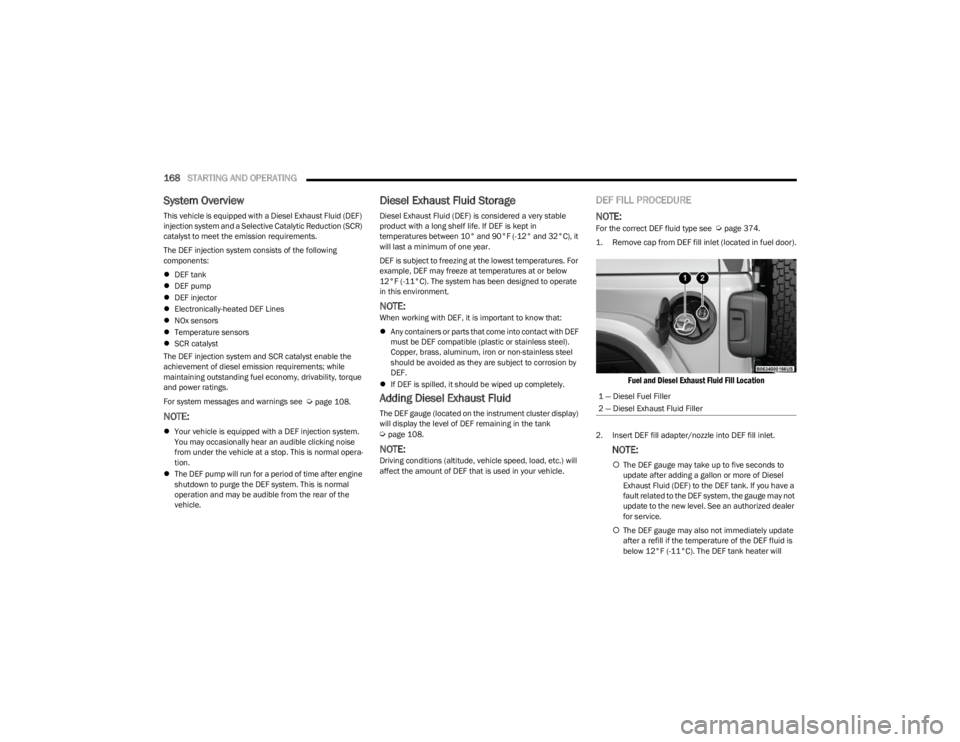
1. Remove cap from DEF fill inlet (located in fuel door).
Fuel and Diesel Exhaust Fluid Fill Location
2. Insert DEF fill adapter/nozzle into DEF fill inlet.
NOTE:
The DEF gauge may take up to five seconds to
update after adding a gallon or more of Diesel
Exhaust Fluid (DEF) to the DEF tank. If you have a
fault related to the DEF system, the gauge may not
update to the new level. See an authorized dealer
for service.
The DEF gauge may also not immediately update
after a refill if the temperature of the DEF fluid is
below 12°F (-11°C). The DEF tank heater will
1 — Diesel Fuel Filler
2 — Diesel Exhaust Fluid Filler
23_JL_OM_EN_USC_t.book Page 168
Page 185 of 396

STARTING AND OPERATING183
CROSSING DITCHES, STREAMS, SHALLOW
RIVERS OR OTHER FLOWING WATER
Flowing water can be extremely dangerous. Never attempt
to cross a fast running stream or river even in shallow
water. Fast moving water can easily push your vehicle
downstream, sweeping it out of control. Even in very
shallow water, a high current can still wash the dirt out
from around your tires putting you and your vehicle in
jeopardy. There is still a high risk of personal injury and
vehicle damage with slower water currents in depths
greater than the vehicle's running ground clearance. You
should never attempt to cross flowing water which is
deeper than the vehicle's running ground clearance. Even
the slowest current can push the heaviest vehicle
downstream and out of control if the water is deep enough
to push on the large surface area of the vehicle's body.
Before you proceed, determine the speed of the current,
the water's depth, approach angle, bottom condition and
if there are any obstacles. Then cross at an angle heading
slightly upstream using the low and slow technique.
After Driving Off-Road
Off-road operation puts more stress on your vehicle than
does most on-road driving. After going off-road, it is always
a good idea to check for damage. That way you can get any
problems taken care of right away and have your vehicle
ready when you need it.
Completely inspect the underbody of your vehicle.
Check tires, body structure, steering, suspension, and
exhaust system for damage.
Inspect the radiator for mud and debris and clean as
required.
Check threaded fasteners for looseness, particularly
on the chassis, drivetrain components, steering, and
suspension. Retighten them, if required, and torque to
the values specified in the Service Manual.
Check for accumulations of plants or brush. These
things could be a fire hazard. They might hide damage
to fuel lines, brake hoses, axle pinion seals, and
propeller shafts.
After extended operation in mud, sand, water, or
similar dirty conditions, have the radiator, fan, brake
rotors, wheels, brake linings, and axle yokes inspected
and cleaned as soon as possible.
NOTE:Inspect the clutch vent holes in the manual transmission
bell housing for mud and debris and clean as required.
If you experience unusual vibration after driving in
mud, slush or similar conditions, check the wheels for
impacted material. Impacted material can cause a
wheel imbalance and freeing the wheels of it will
correct the situation.
WARNING!
Never drive through fast moving deep water. It can push
your vehicle downstream, sweeping it out of control.
This could put you and your passengers at risk of injury
or drowning.
WARNING!
Abrasive material in any part of the brakes may cause
excessive wear or unpredictable braking. You might not
have full braking power when you need it to prevent a
collision. If you have been operating your vehicle in dirty
conditions, get your brakes checked and cleaned as
necessary.
4
23_JL_OM_EN_USC_t.book Page 183
Page 202 of 396
200MULTIMEDIA
DRAG & DROP MENU BAR
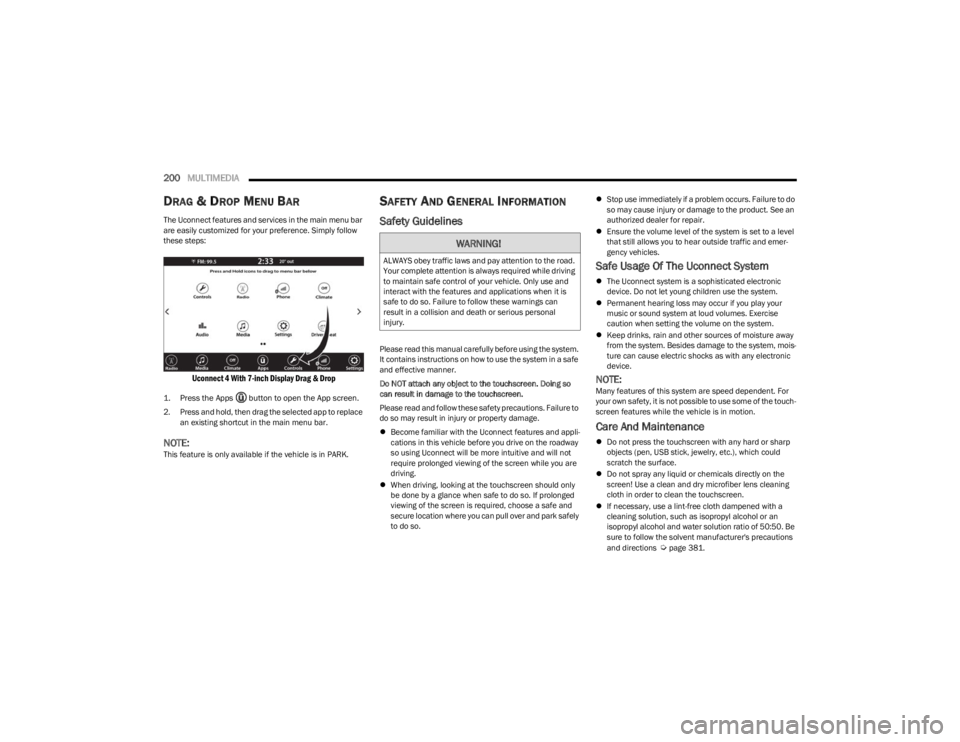
The Uconnect features and services in the main menu bar
are easily customized for your preference. Simply follow
these steps:
Uconnect 4 With 7-inch Display Drag & Drop
1. Press the Apps button to open the App screen.
2. Press and hold, then drag the selected app to replace
an existing shortcut in the main menu bar.
NOTE:This feature is only available if the vehicle is in PARK.
SAFETY AND GENERAL INFORMATION
Safety Guidelines
Please read this manual carefully before using the system.
It contains instructions on how to use the system in a safe
and effective manner.
Do NOT attach any object to the touchscreen. Doing so
can result in damage to the touchscreen.
Please read and follow these safety precautions. Failure to
do so may result in injury or property damage.
Become familiar with the Uconnect features and appli -
cations in this vehicle before you drive on the roadway
so using Uconnect will be more intuitive and will not
require prolonged viewing of the screen while you are
driving.
When driving, looking at the touchscreen should only
be done by a glance when safe to do so. If prolonged
viewing of the screen is required, choose a safe and
secure location where you can pull over and park safely
to do so.
Stop use immediately if a problem occurs. Failure to do
so may cause injury or damage to the product. See an
authorized dealer for repair.
Ensure the volume level of the system is set to a level
that still allows you to hear outside traffic and emer -
gency vehicles.
Safe Usage Of The Uconnect System
The Uconnect system is a sophisticated electronic
device. Do not let young children use the system.
Permanent hearing loss may occur if you play your
music or sound system at loud volumes. Exercise
caution when setting the volume on the system.
Keep drinks, rain and other sources of moisture away
from the system. Besides damage to the system, mois -
ture can cause electric shocks as with any electronic
device.
NOTE:Many features of this system are speed dependent. For
your own safety, it is not possible to use some of the touch -
screen features while the vehicle is in motion.
Care And Maintenance
Do not press the touchscreen with any hard or sharp
objects (pen, USB stick, jewelry, etc.), which could
scratch the surface.
Do not spray any liquid or chemicals directly on the
screen! Use a clean and dry microfiber lens cleaning
cloth in order to clean the touchscreen.
If necessary, use a lint-free cloth dampened with a
cleaning solution, such as isopropyl alcohol or an
isopropyl alcohol and water solution ratio of 50:50. Be
sure to follow the solvent manufacturer's precautions
and directions
Úpage 381.
WARNING!
ALWAYS obey traffic laws and pay attention to the road.
Your complete attention is always required while driving
to maintain safe control of your vehicle. Only use and
interact with the features and applications when it is
safe to do so. Failure to follow these warnings can
result in a collision and death or serious personal
injury.
23_JL_OM_EN_USC_t.book Page 200
Page 205 of 396
MULTIMEDIA203
RADIO VOICE COMMANDS
Use your voice to quickly get to the AM, FM, or SiriusXM®
Satellite Radio stations you would like to hear.
(Subscription or included SiriusXM® Satellite Radio trial
required.)
Push the VR button on the steering wheel and wait for
the beep to say a command. See an example:
“Tune to ninety-five-point-five FM”
“Tune to Satellite Channel Hits 1”
Did You Know: At any time, if you are not sure of what to
say or want to learn a Voice Command, push the VR button and say “ Help”. The system provides you with a list of
commands.
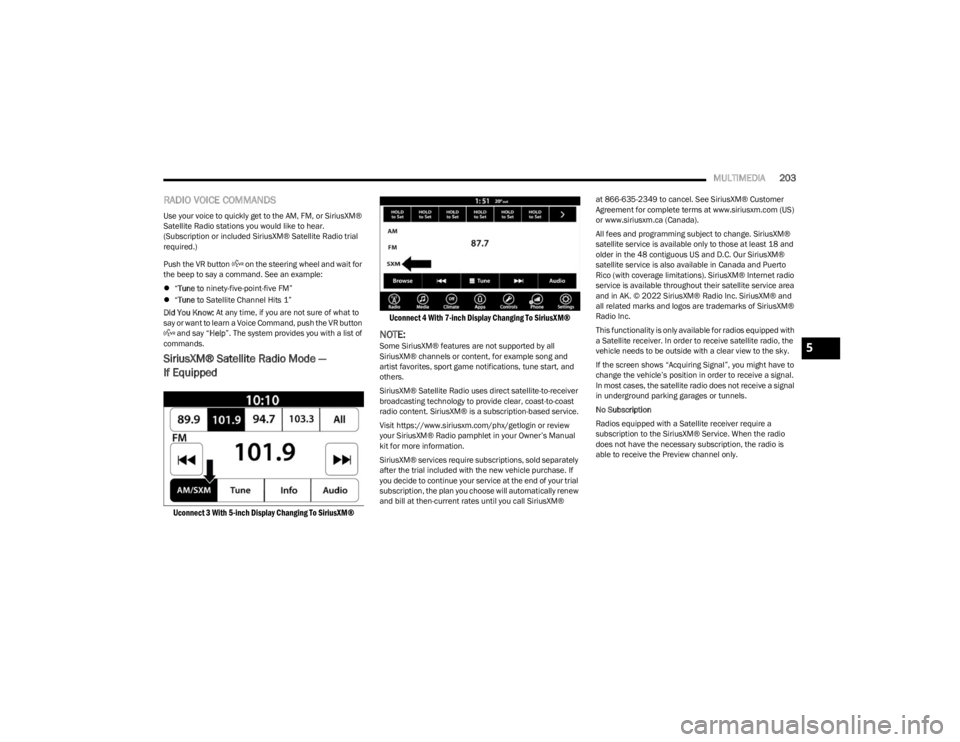
SiriusXM® Satellite Radio Mode —
If Equipped
Uconnect 3 With 5-inch Display Changing To SiriusXM® Uconnect 4 With 7-inch Display Changing To SiriusXM®
NOTE:Some SiriusXM® features are not supported by all
SiriusXM® channels or content, for example song and
artist favorites, sport game notifications, tune start, and
others.
SiriusXM® Satellite Radio uses direct satellite-to-receiver
broadcasting technology to provide clear, coast-to-coast
radio content. SiriusXM® is a subscription-based service.
Visit https://www.siriusxm.com/phx/getlogin or review
your SiriusXM® Radio pamphlet in your Owner’s Manual
kit for more information.
SiriusXM® services require subscriptions, sold separately
after the trial included with the new vehicle purchase. If
you decide to continue your service at the end of your trial
subscription, the plan you choose will automatically renew
and bill at then-current rates until you call SiriusXM® at 866-635-2349 to cancel. See SiriusXM® Customer
Agreement for complete terms at www.siriusxm.com (US)
or www.siriusxm.ca (Canada).
All fees and programming subject to change. SiriusXM®
satellite service is available only to those at least 18 and
older in the 48 contiguous US and D.C. Our SiriusXM®
satellite service is also available in Canada and Puerto
Rico (with coverage limitations). SiriusXM® Internet radio
service is available throughout their satellite service area
and in AK. © 2022 SiriusXM® Radio Inc. SiriusXM® and
all related marks and logos are trademarks of SiriusXM®
Radio Inc.
This functionality is only available for radios equipped with
a Satellite receiver. In order to receive satellite radio, the
vehicle needs to be outside with a clear view to the sky.
If the screen shows “Acquiring Signal”, you might have to
change the vehicle’s position in order to receive a signal.
In most cases, the satellite radio does not receive a signal
in underground parking garages or tunnels.
No Subscription
Radios equipped with a Satellite receiver require a
subscription to the SiriusXM® Service. When the radio
does not have the necessary subscription, the radio is
able to receive the Preview channel only.5
23_JL_OM_EN_USC_t.book Page 203
Page 219 of 396

MULTIMEDIA217
PHONEBOOK DOWNLOAD (AUTOMATIC
PHONEBOOK TRANSFER FROM MOBILE
PHONE) — IF EQUIPPED
If supported by your phone, Uconnect Phone has the
ability to download contact names and number entries
from the mobile phone’s phonebook. Specific Bluetooth®
Phones with Phonebook Access Profile may support this
feature. Your mobile phone may receive a pop-up asking
for permission for the Uconnect system to access your
messages and contacts. Selecting “Ok” or “Allow” will sync
your contacts with the Uconnect system.
See the Uconnect website, UconnectPhone.com, for
supported phones.
To call a name from a downloaded mobile phonebook
Úpage 221.
Automatic download and update of a phonebook, if
supported, begins as soon as the Bluetooth® wireless
phone connection is made to the Uconnect Phone, for
example, after you start the vehicle.
A maximum of 5,000 contact names with four numbers
per contact will be downloaded and updated every time
a phone is connected to the Uconnect Phone.
Depending on the maximum number of entries down -
loaded, there may be a short delay before the latest
downloaded names can be used. Until then, if avail -
able, the previously downloaded phonebook is avail -
able for use.
Only the phonebook of the currently connected mobile
phone is accessible.
This downloaded phonebook cannot be edited or
deleted on the Uconnect Phone. These can only be
edited on the mobile phone. The changes are trans -
ferred and updated to Uconnect Phone on the next
phone connection.
MANAGING YOUR FAVORITES — IF EQUIPPED
There are two ways you can add an entry to your favorites:
1. After loading the mobile phonebook, press the Favorites button on the touchscreen, and then press
one of the +Add Favorite Contact buttons that
appears on the list.
2. After loading the mobile phonebook, select “Contacts” from the Phone main screen, and then
select the appropriate number. Press the Down Arrow
button or the Settings Gear button next to the
selected number to display the option’s pop-up. In the
pop-up, select “Add to Favorites”.
NOTE:If the Favorites list is full, you will be asked to remove an
existing favorite.
TO REMOVE A FAVORITE — IF EQUIPPED
1. To remove a Favorite, select “Favorites” from the Phone main screen.
2. Next, select the Down Arrow icon or the Settings Gear icon next to the contact you want to remove from your
favorites. This will bring up the options for that
Favorite contact.
3. Deselect the Star icon to delete the Favorite.
Phone Call Features
The following features can be accessed through the
Uconnect Phone if the feature(s) are available and
supported by Bluetooth® on your mobile service plan. For
example, if your mobile service plan provides three-way
calling, this feature can be accessed through the
Uconnect Phone. Check with your mobile service provider
for the features that you have.
Here are the phone options with Uconnect:
Redial
Dial by pressing in the number
Voice Commands (Dial by Saying a Name, Call by
Saying a Phonebook Name, Redial or Call Back)
Favorites
Mobile Phonebook
Recent Call Log
SMS Message Viewer
5
23_JL_OM_EN_USC_t.book Page 217
Page 227 of 396

MULTIMEDIA225
read incoming text messages, but drivers will not be able
to read messages, as everything is done via voice.
Maps
Push and hold the VR button on the steering
wheel until the beep or tap the Microphone
icon to ask Apple® Siri to take you to a desired
destination by voice. You can also touch the
Navigation icon in Apple CarPlay® to access Apple®
Maps.
Apps
The Apple CarPlay® App plays all compatible apps that are
available to use, every time it is launched. You must have
the compatible app downloaded, and you must be signed
in to the app through your mobile device for it to work with
Apple CarPlay®.
Refer to http://www.apple.com/ios/carplay/ (US) or
https://www.apple.com/ca/ios/carplay/ (Canada) to see
the latest list of available apps for Apple CarPlay®.
Apple CarPlay® Voice Command
NOTE:Feature availability depends on your carrier and mobile
phone maker. Some Apple CarPlay® features may not be
available in every region and/or language.
Apple CarPlay® allows you to use your voice to interact
with Siri through your vehicle’s voice recognition system,
and use your smartphone’s data plan to project your
iPhone® and a number of its apps onto your Uconnect
touchscreen. Connect your iPhone® 5 or higher to one of
the media USB ports, using the factory-provided Lightning
cable, and press the new Apple CarPlay® icon that
replaces your Phone icon on the main menu bar to begin Apple CarPlay®. Push and hold the VR button on the
steering wheel, or press and hold the Home button within
Apple CarPlay®, to activate Siri, which recognizes natural
voice commands to use a list of your iPhone® features:
Phone
Music
Messages
Maps — If Equipped
Additional Apps — If Equipped
NOTE:Apple CarPlay® is a trademark of Apple® Inc. iPhone® is
a trademark of Apple® Inc., registered in the US and other
countries. Apple® terms of use and privacy statements
apply.
ANDROID AUTO™ AND APPLE
C
ARPLAY® TIPS AND TRICKS
Android Auto™ And Apple CarPlay® Automatic Bluetooth®
Pairing
After connecting to Android Auto™ or Apple CarPlay® for
the first time and undergoing the setup procedure, the
smartphone pairs to the Uconnect system via Bluetooth®
without any setup required every time it is within range, if
Bluetooth® is turned on.
NOTE:Apple CarPlay® uses a USB connection while Android
Auto™ uses both USB and Bluetooth® connections to
function. The connected device is unavailable to other
devices when connected using Android Auto™ or Apple
CarPlay®. Multiple Devices Connecting To The Uconnect System — If
Equipped
It is possible to have multiple devices connected to the
Uconnect system. For example, if using Android Auto™/
Apple CarPlay®, the connected device will be used to
place hands-free phone calls or send hands-free text
messages. However, another device can also be paired to
the Uconnect system, via Bluetooth®, as an audio source,
so the passenger can stream music.
NOTE:Apple CarPlay® and Android Auto™ can only be launched
from the front and center console USB ports.
CONNECTED VEHICLE SERVICES —
IF EQUIPPED
IS MY VEHICLE CONNECTED?
If equipped, vehicles with an ASSIST and an SOS button
are connected vehicles. These buttons will be located on
either the rearview mirror or overhead console, depending
on the vehicle. If these buttons are present in your vehicle,
you have a connected radio and can take advantage of the
many connected vehicle features.
For further information about the ASSIST and SOS buttons
Úpage 291.
5
23_JL_OM_EN_USC_t.book Page 225
Page 228 of 396
226MULTIMEDIA
INTRODUCTION TO CONNECTED VEHICLE
S
ERVICES
One of the many benefits of your vehicle’s Uconnect
system is that you can now take advantage of SiriusXM
Guardian™ connected services. To unlock the full
potential of SiriusXM Guardian™ in your vehicle, you first
need to activate SiriusXM Guardian™ connected services.
NOTE:
SiriusXM Guardian™ involves the collection, transmission
and use of data from your vehicle
Úpage 240.
SiriusXM Guardian™ Contact Information
SiriusXM Guardian™/Care
US residents visit: https://www.driveuconnect.com/
sirius-xm-guardian.html or call 1-844-796-4827
Canadian residents visit: https://www.driveucon -
nect.ca/en/sirius-xm-guardian or call 1-877-324-9091
What Is SiriusXM Guardian™?
SiriusXM Guardian™ uses an embedded device in the
Uconnect system installed in your vehicle, which receives
GPS signals and communicates with the SiriusXM Guardian™ Customer Care center via wireless and
landline communications networks. Depending on the
type of device in your vehicle, some SiriusXM Guardian™
connected services require an operable LTE (voice/data)
or 4G (data) network compatible with your device.
SiriusXM Guardian™ is available only on equipped
vehicles purchased within the continental United States,
Alaska, Hawaii, Puerto Rico and Canada.
NOTE:
Certain SiriusXM Guardian™ connected services are
dependent upon an operative telematics device, a
cellular connection, navigation map data, and GPS
satellite signal reception, which can limit the ability to
reach the response center or reach emergency
support.
Not all features of SiriusXM Guardian™ are available
everywhere at all times, particularly in remote or
enclosed areas.
Other factors outside the control of SiriusXM
Guardian™ that may limit or prevent service delivery
are hills, structures, buildings, tunnels, weather,
damage to the electrical system or other important
parts of your vehicle, network congestion, civil distur -
bances, actions of third parties or the government,
Internet failure, and/or the physical location of your
vehicle, such as in an underground parking structure or
under a bridge.
Not all SiriusXM Guardian™ features are available for all
models.
SiriusXM Guardian™ provides:
The ability to remotely lock/unlock and remote start
your vehicle from virtually anywhere by using the
Vehicle Branded App or your computer.
If equipped — Send & Go capability with the Vehicle
Branded App. Use the Vehicle Branded App to easily
search, map and send your locations directly to your
Uconnect Navigation.
The ability to locate your vehicle, when you forget
where you parked, using the Vehicle Finder function of
the Vehicle Branded App.
Before you drive, familiarize yourself with the easy-to-use
Uconnect system and SiriusXM Guardian™ connected
services.
The ASSIST and SOS Call Buttons On Your Rearview Mirror
Or Overhead Console
If equipped, the ASSIST Button is used for contacting
Roadside Assistance, Vehicle Care, Uconnect Care, and
SiriusXM Guardian™ Customer Care. The SOS Call button
connects you directly to SiriusXM Guardian™ Customer
Care for assistance in an emergency.
Activation — If Equipped
To unlock the full potential of SiriusXM Guardian™ in your
vehicle, you must activate your SiriusXM Guardian™
connected services.
1. Press the Apps icon on the bottom of your in-vehicle touchscreen.
2. Select the Activate Services icon from your list of apps.
3. For customers in the United States , select “Customer
Care” to speak with a SiriusXM Guardian™ Customer
Care agent who will activate services in your vehicle,
or select “Enter Email” to activate on the web.
For customers in Canada , enter your email address to
activate services in your vehicle.
WARNING!
ALWAYS obey traffic laws and pay attention to the road.
Your complete attention is always required while driving
to maintain safe control of your vehicle. Only use and
interact with the features and applications when it is
safe to do so. Failure to follow these warnings can
result in a collision and death or serious personal
injury.
23_JL_OM_EN_USC_t.book Page 226
Page 229 of 396
MULTIMEDIA227
Included Trial Period For New Vehicles
Your new vehicle may come with an included trial* period
for use of SiriusXM Guardian™ connected services
starting on the date of vehicle purchase. To get started
with your trial, enrollment in SiriusXM Guardian™ is
required.
* Included trial applies to new vehicles only.
Features And Packages
After the trial period, you must purchase a subscription to
continue your services by calling a SiriusXM Guardian™
Customer Care agent.
GETTING STARTED WITH CONNECTED
V
EHICLE SERVICES
Download The Vehicle Branded App
Once you have activated your services, you’re only a few
steps away from using connected services.
Download the Vehicle Branded App to your mobile
device.
Use your Owner Account login and password to open
the app and then set up a PIN.
For customers in the United States, if your vehicle is not
registered at the dealership, you will have to call the
Customer Care call center from inside your vehicle or
press the in-vehicle registration button. From there,
you will be able to register your vehicle and add your
vehicle’s VIN to your account.
For customers in Canada, register your account via
your vehicle.
a. Press the Apps button in the bottom menu bar.
b. Press the Activate Services button from the apps list.
c. Enter your email and press “OK”. A confirmation email will be sent to the provided email address.
d. Press “Continue Activation” from the confirmation email. It may take a short time before remote
services will be available, but you will be able to
log into the Vehicle Branded App and the Owner’s
Site.
Once on the Remote screen and you have set up your
four-digit PIN, you can begin using Remote Door Lock/
Unlock, Remote Vehicle Start, and activate your horn
and lights remotely, if equipped.
Press the Location button on the bottom menu bar of
the app to bring up a map to locate your vehicle or send
a location to your Mobile Navigation, if equipped.
Press the Settings side menu in the upper left corner of
the app to bring up app settings and access the Assist
Call Centers.
Using Your Owner’s Site
Your Owner’s Site website https://www.mopar.com/
en-us.html (US Residents), or www.mopar.ca (Canadian
Residents) provides you with all the information you need,
all in one place. You can track your service history, find
recommended accessories for your vehicle, watch videos
about your vehicle's features, and easily access your
manuals. It is also where you can manage your SiriusXM
Guardian™ account. This section will familiarize you with
the key elements of the website that will help you get the
most of your SiriusXM Guardian™ connected services.
For customers in the United States, press the Sign In/
Register button and enter your email address and
password.
5
23_JL_OM_EN_USC_t.book Page 227