reset KIA Borrego 2010 1.G Owner's Guide
[x] Cancel search | Manufacturer: KIA, Model Year: 2010, Model line: Borrego, Model: KIA Borrego 2010 1.GPages: 461, PDF Size: 12.25 MB
Page 258 of 461
Features of your vehicle178
4How to Use SIRIUS Satellite
RadioYour Kia vehicle is equipped with 3
months complimentary period of SIRIUS
Satellite Radio so you have access to
over 130 channels of music, information,
and entertainment programming.ActivationIn order to extend or reactivate your sub-
scription to SIRIUS Satellite Radio, you
will need to contact SIRIUS Customer
Care at 888-539-7474. Have your 12 digit
SID (Sirius Identification Number)/ESN
(Electronic Serial Number) ready. To
retrieve the SID/ESN, turn on the radio,
press the [SAT] button, and tune to chan-
nel zero. Please note that the vehicle will
need to be turned on, in Sirius mode, and
have an unobstructed view of the sky in
order for the radio to receive the activa-
tion signal.
1. SATELLITE RADIO Selection
Button(SIRIUS Satellite Radio)Press the [SAT] button to switch to SIR-
IUS Satellite Radio. It cycles through the
different bands as noted below.
SAT1
➟SAT2
➟SAT3
➟SAT1
➟...
2. Channel Selection Button Press [TRACK ] or [SEEK ] but-
ton for less than 0.8 second to select
previous or next channel.
Press [TRACK ] or [SEEK ] but- ton for 0.8 second or longer to continu-
ously move to previous or next chan-
nel.
if "CATEGORY" Icon is displayed at the top of the screen, channel up/down is
done through the channels within cur-
rent category.3. Preset Selection Button Press [1]~[6] buttons less than 0.8 sec-ond to play the channel saved in each
button.
Press [1]~[6] button for 0.8 second or longer to save current channel to the
respective button with a beep.
4. SCAN Selection Button When the [SCAN] button is pressed, itautomatically scans the radio stations
upwards.
The SCAN feature steps through every channel, starting from the initial chan-
nel, for ten seconds.
Press the [SCAN] button again to stop the scan feature and to listen to the
currently selected channel.
if "CATEGORY" Icon is displayed at the top of the screen, channel changing is
done through the channels within cur-
rent category.5. Tune Knob and Enter Button Rotate clockwise to increase the chan-nel number or to scroll down the cate-
gory list.
Rotate counterclockwise to decrease the channel number or to scroll up the
category list.
Press this button to make selection of channels or items.
Page 274 of 461
![KIA Borrego 2010 1.G Owners Guide Features of your vehicle194
4FM/AM modeStarting FM/AM mode by use of Rear
panel 1. Press the [MODE] button on the REAR panel to display a screen allowing the 6
modes of FM, AM, SIRIUS, CDC, AUX,
DVDP](/img/2/2914/w960_2914-273.png "KIA Borrego 2010 1.G Owners Guide Features of your vehicle194
4FM/AM modeStarting FM/AM mode by use of Rear
panel 1. Press the [MODE] button on the REAR panel to display a screen allowing the 6
modes of FM, AM, SIRIUS, CDC, AUX,
DVDP")
Features of your vehicle194
4FM/AM modeStarting FM/AM mode by use of Rear
panel 1. Press the [MODE] button on the REAR panel to display a screen allowing the 6
modes of FM, AM, SIRIUS, CDC, AUX,
DVDP to be selected.
2. While in mode selection screen, use the 4-direction keys on the REAR panel
to move the select area and press the
key to select FM mode.
3. The FM1/FM2/AM mode screen will become displayed. Select the desired
broadcast station to begin listening.
Starting FM/AM mode by use of Rearremote control 1. When operating a different mode, pressing the [RADIO] key on the Rear
Remote Control will display the most
recently operated RADIO mode. In
addition, pressing the RADIO key will
change the mode in FM1
➟FM2
➟AM
➟
FM1
➟... order.
FM/AM mode menu screen configura-tion
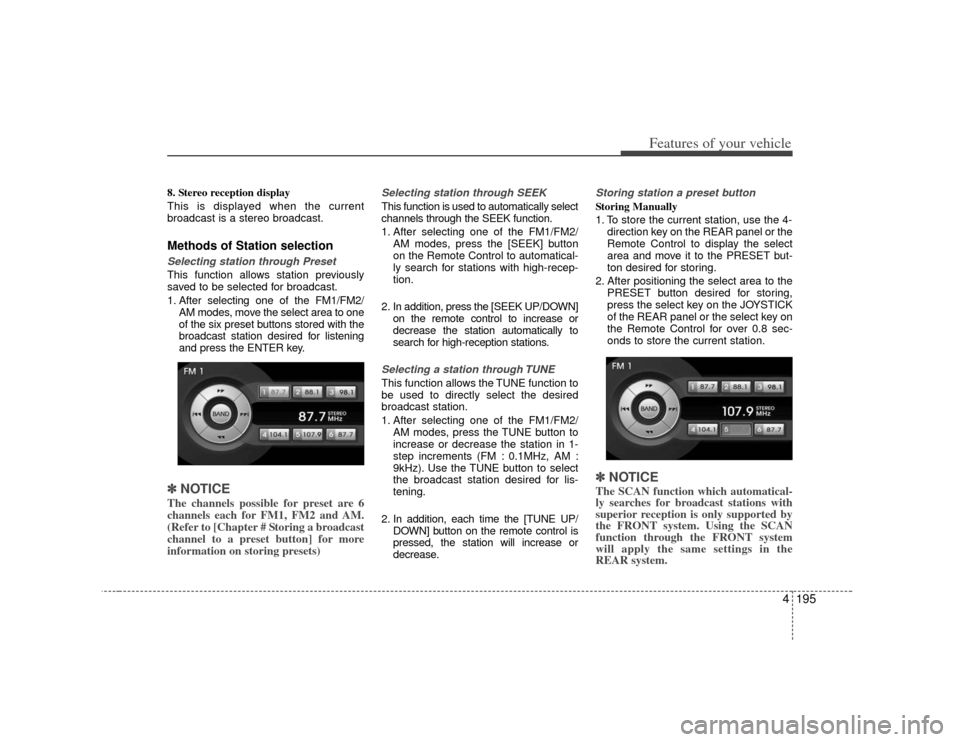
1. Mode display
This will display the current mode.
FM1/FM2/AM
2. PRESET button
The station can be easily selected by
storing the desired frequency in advance.
3. TUNE button
The frequency/station is increased or
reduced incrementally.
4. SEEK button
The channel is automatically searched
through the SEEK function.
5. BAND button
The mode is changed in FM1
➟FM2
➟AM
➟FM1
➟... order.
6. SCAN/SEEK display
This becomes displayed when the
SCAN/SEEK functions are operating.
(The RSE supports only the AUDIO
SCAN function.)
7. Station display
The station of the currently playing
broadcast is displayed.
Page 275 of 461
4195
Features of your vehicle
8. Stereo reception display
This is displayed when the current
broadcast is a stereo broadcast.Methods of Station selection Selecting station through Preset This function allows station previously
saved to be selected for broadcast.
1. After selecting one of the FM1/FM2/AM modes, move the select area to one
of the six preset buttons stored with the
broadcast station desired for listening
and press the ENTER key.✽ ✽NOTICEThe channels possible for preset are 6
channels each for FM1, FM2 and AM.
(Refer to [Chapter # Storing a broadcast
channel to a preset button] for more
information on storing presets)
Selecting station through SEEK This function is used to automatically select
channels through the SEEK function.
1. After selecting one of the FM1/FM2/
AM modes, press the [SEEK] button
on the Remote Control to automatical-
ly search for stations with high-recep-
tion.
2. In addition, press the [SEEK UP/DOWN] on the remote control to increase or
decrease the station automatically to
search for high-reception stations.Selecting a station through TUNE This function allows the TUNE function to
be used to directly select the desired
broadcast station.
1. After selecting one of the FM1/FM2/ AM modes, press the TUNE button to
increase or decrease the station in 1-
step increments (FM : 0.1MHz, AM :
9kHz). Use the TUNE button to select
the broadcast station desired for lis-
tening.
2. In addition, each time the [TUNE UP/ DOWN] button on the remote control is
pressed, the station will increase or
decrease.
Storing station a preset button Storing Manually
1. To store the current station, use the 4-direction key on the REAR panel or the
Remote Control to display the select
area and move it to the PRESET but-
ton desired for storing.
2. After positioning the select area to the PRESET button desired for storing,
press the select key on the JOYSTICK
of the REAR panel or the select key on
the Remote Control for over 0.8 sec-
onds to store the current station.✽ ✽NOTICEThe SCAN function which automatical-
ly searches for broadcast stations with
superior reception is only supported by
the FRONT system. Using the SCAN
function through the FRONT system
will apply the same settings in the
REAR system.
Page 276 of 461
![KIA Borrego 2010 1.G Owners Guide Features of your vehicle196
4SIRIUS satellite radio modeStarting SIRIUS mode by use of Rear
panel1. Press the [MODE] button on the REAR panel to display a screen allowing the
6 modes of FM, AM, SIRIUS](/img/2/2914/w960_2914-275.png "KIA Borrego 2010 1.G Owners Guide Features of your vehicle196
4SIRIUS satellite radio modeStarting SIRIUS mode by use of Rear
panel1. Press the [MODE] button on the REAR panel to display a screen allowing the
6 modes of FM, AM, SIRIUS")
Features of your vehicle196
4SIRIUS satellite radio modeStarting SIRIUS mode by use of Rear
panel1. Press the [MODE] button on the REAR panel to display a screen allowing the
6 modes of FM, AM, SIRIUS, CDC,
AUX, DVDP to be selected.
2. While in mode selection screen, use the 4-direction keys on the REAR
panel to move the cursor to SIRLUS
mode and press the joystick key to
enter SIRIUS mode.
3. The selected SIRIUS1/SIRIUS2/SIR- IUS3 mode screen will be displayed.
Select the desired broadcast station to
begin listening.
Starting SIRIUS mode by use of Rearremote control1. When operating a different mode, pressing the [SIRIUS] key on the Rear
Remote Control will display the most
recently operated SIRIUS mode.
Pressing the SIRIUS key will change
the mode in SIRIUS1, SIRIUS2, SIR-
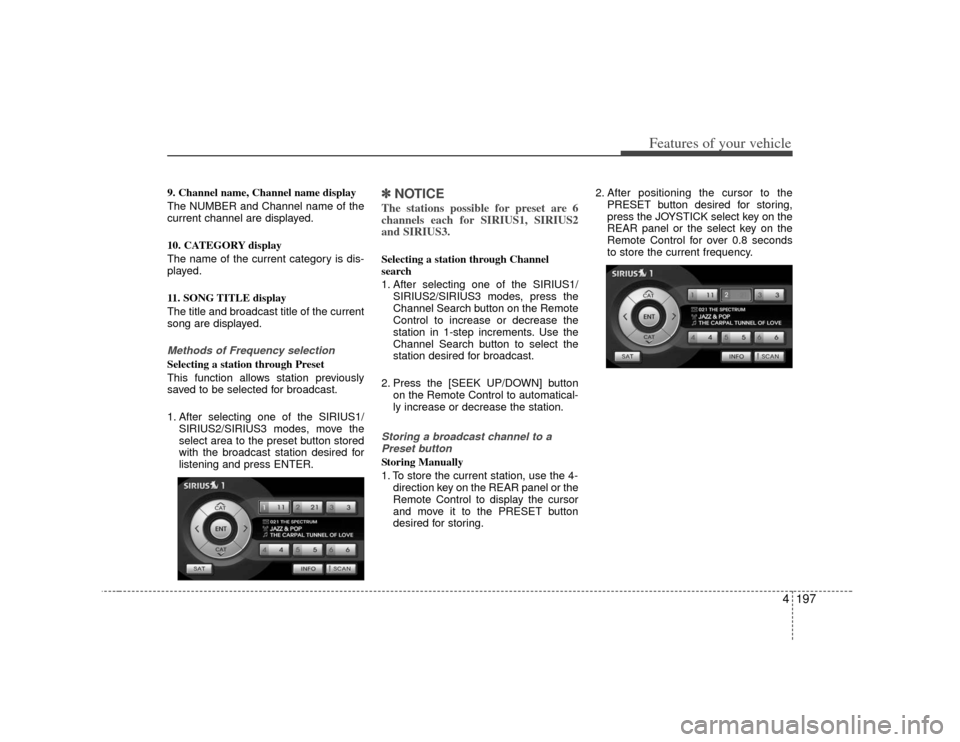
IUS3, SIRIUS1 order.SIRIUS mode menu screen configura-tion1. Mode display
This displays that the current mode is
SIRIUS1/SIRIUS2/SIRIUS3 mode.
2. PRESET button
The station can be easily selected by
storing the desired station in advance. 3. CHANNEL Search button
The channels within the category are
changed.
(All of the channels will be searched
when set to ALL Category. When in CAT
SEARCHING mode, search will be done
only for the current category.)
4. CATEGORY UP/DOWN Search but-
ton
This button will conduct a cyclic search of
the CATEGORY. The current channel will
be maintained during the search.
5. ENTER button
This button will change the channel to
the desired channel.
6. SAT button
The SIRIUS1/SIRIUS2/SIRIUS3 modes
are changed.
7. INFORMATION button
This button will display the INFORMA-
TION pop-up window for the current
broadcast.
8. SCAN button
This button scans the channels within the
current Category.
Page 277 of 461
4197
Features of your vehicle
9. Channel name, Channel name display
The NUMBER and Channel name of the
current channel are displayed.
10. CATEGORY display
The name of the current category is dis-
played.
11. SONG TITLE display
The title and broadcast title of the current
song are displayed.Methods of Frequency selectionSelecting a station through Preset
This function allows station previously
saved to be selected for broadcast.
1. After selecting one of the SIRIUS1/SIRIUS2/SIRIUS3 modes, move the
select area to the preset button stored
with the broadcast station desired for
listening and press ENTER.
✽ ✽NOTICEThe stations possible for preset are 6
channels each for SIRIUS1, SIRIUS2
and SIRIUS3.Selecting a station through Channel
search
1. After selecting one of the SIRIUS1/
SIRIUS2/SIRIUS3 modes, press the
Channel Search button on the Remote
Control to increase or decrease the
station in 1-step increments. Use the
Channel Search button to select the
station desired for broadcast.
2. Press the [SEEK UP/DOWN] button on the Remote Control to automatical-
ly increase or decrease the station.Storing a broadcast channel to aPreset button Storing Manually
1. To store the current station, use the 4- direction key on the REAR panel or the
Remote Control to display the cursor
and move it to the PRESET button
desired for storing. 2. After positioning the cursor to the
PRESET button desired for storing,
press the JOYSTICK select key on the
REAR panel or the select key on the
Remote Control for over 0.8 seconds
to store the current frequency.
Page 293 of 461

4213
Features of your vehicle
✽
✽NOTICERefer to the MP3 mode section in
Chapter 5 for additional USB related
operational instructions.
1. Refer to the MP3 mode section in
Chapter 5 for additional iPod related
operational instructions.
2. Some iPod devices may not play if the communication protocol is not sup-
ported by the device. (Supported
iPods : mini, 4G Photo, Nano, 5G).
3. The search and song order on the iPod device may differ with the search and
song order of the AV system.
4. RESET the iPod in the case of errors which occur due to malfunctions on
the iPod device. (Refer to the iPod
manual)
CAUTION
1. In order to operate the iPod with
the AV system buttons, a sepa-rately sold iPod connector cable must be used.❈Please refrain from using the PCcable in the package as the device may not properly operate.
2. When connecting the iPod cable, push the end of the JACK underthe terminal so that it does not cause interference with the com-munication.
3. Having the iPod cable connected even when there is no iPod canconvert the device into AUX mode causing an occurrence ofnoise. Please make sure toremove the iPod cable when an iPod device is not being used.
Page 341 of 461
543
Driving your vehicle
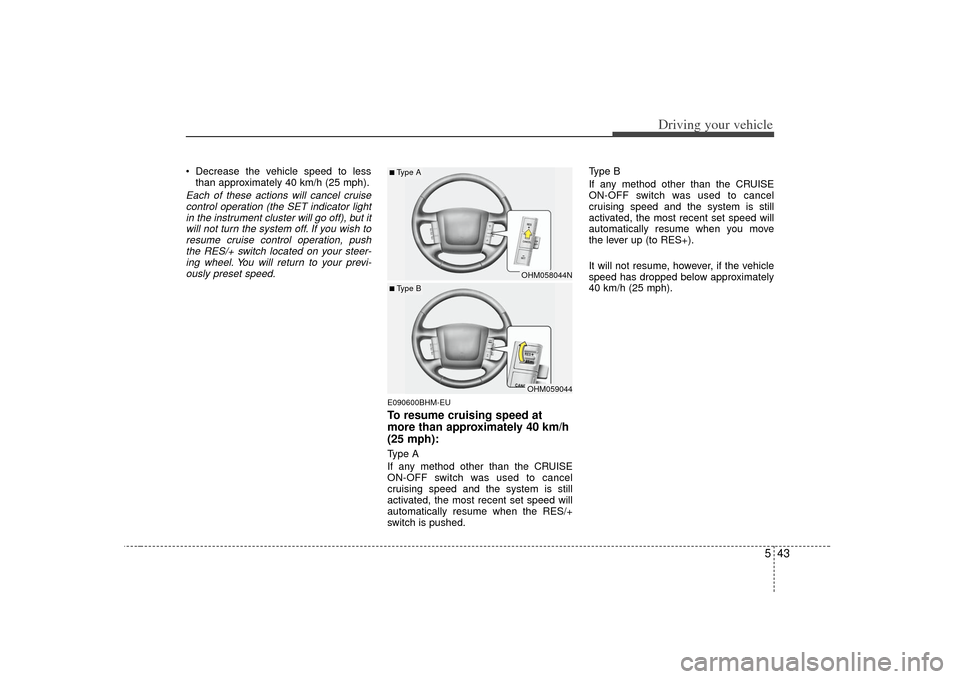
Decrease the vehicle speed to lessthan approximately 40 km/h (25 mph).Each of these actions will cancel cruisecontrol operation (the SET indicator light in the instrument cluster will go off), but itwill not turn the system off. If you wish toresume cruise control operation, pushthe RES/+ switch located on your steer- ing wheel. You will return to your previ-ously preset speed.
E090600BHM-EUTo resume cruising speed at
more than approximately 40 km/h
(25 mph):Type A
If any method other than the CRUISE
ON-OFF switch was used to cancel
cruising speed and the system is still
activated, the most recent set speed will
automatically resume when the RES/+
switch is pushed. Type B
If any method other than the CRUISE
ON-OFF switch was used to cancel
cruising speed and the system is still
activated, the most recent set speed will
automatically resume when you move
the lever up (to RES+).
It will not resume, however, if the vehicle
speed has dropped below approximately
40 km/h (25 mph).
OHM058044NOHM059044
■Type A■ Type B
Page 416 of 461
727
Maintenance
G190300AHMReset itemsItems should be reset after the battery
has been discharged or the battery has
been disconnected.
Auto up/down window (See section 4)
Sunroof (See section 4)
Driver position memory system (See section 4)
Trip computer (See section 4)
Climate control system (See section 4)
Clock (See section 4)
Audio (See section 4)
WARNING
Before performing maintenance or recharging the battery, turn off
all accessories and stop the
engine.
The negative battery cable must be removed first and installed
last when the battery is discon-
nected.
Page 420 of 461
731
Maintenance
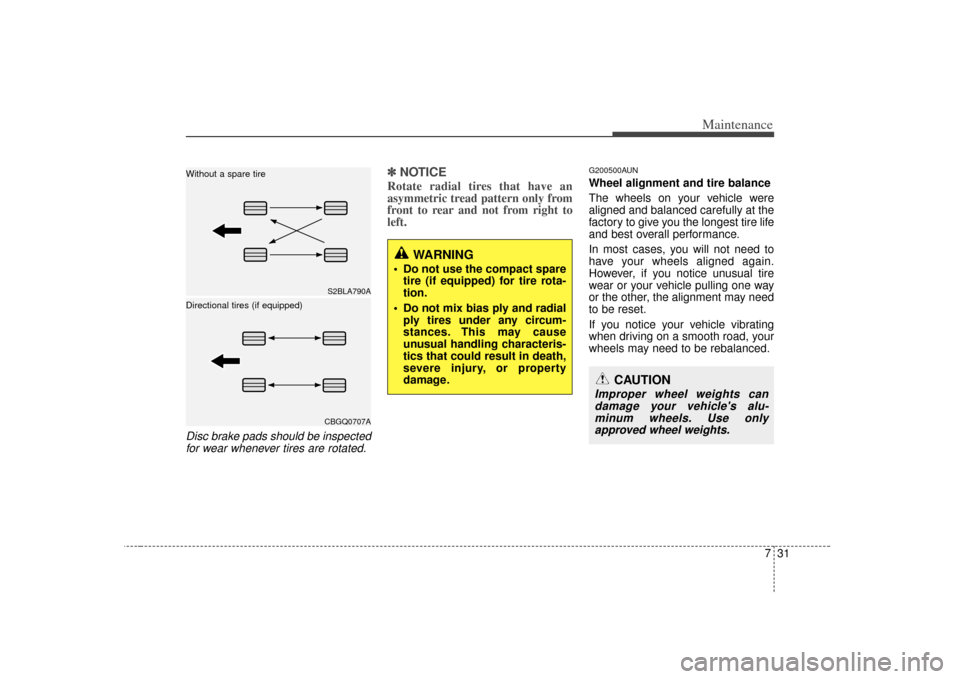
Disc brake pads should be inspectedfor wear whenever tires are rotated.
✽
✽ NOTICERotate radial tires that have an
asymmetric tread pattern only from
front to rear and not from right to
left.
G200500AUNWheel alignment and tire balance
The wheels on your vehicle were
aligned and balanced carefully at the
factory to give you the longest tire life
and best overall performance.
In most cases, you will not need to
have your wheels aligned again.
However, if you notice unusual tire
wear or your vehicle pulling one way
or the other, the alignment may need
to be reset.
If you notice your vehicle vibrating
when driving on a smooth road, your
wheels may need to be rebalanced.
S2BLA790ACBGQ0707A
Without a spare tire
Directional tires (if equipped)
WARNING
Do not use the compact spare
tire (if equipped) for tire rota-
tion.
Do not mix bias ply and radial ply tires under any circum-
stances. This may cause
unusual handling characteris-
tics that could result in death,
severe injury, or property
damage.
CAUTION
Improper wheel weights candamage your vehicle's alu-minum wheels. Use onlyapproved wheel weights.
Page 433 of 461
Maintenance44
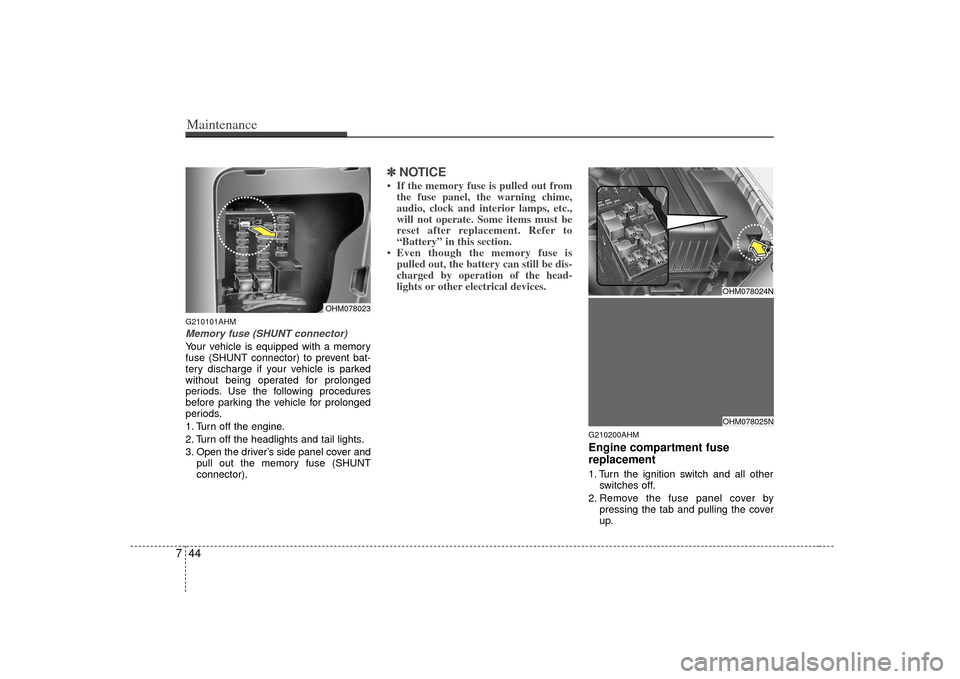
7G210101AHMMemory fuse (SHUNT connector)Your vehicle is equipped with a memory
fuse (SHUNT connector) to prevent bat-
tery discharge if your vehicle is parked
without being operated for prolonged
periods. Use the following procedures
before parking the vehicle for prolonged
periods.
1. Turn off the engine.
2. Turn off the headlights and tail lights.
3. Open the driver’s side panel cover and
pull out the memory fuse (SHUNT
connector).
✽ ✽NOTICE• If the memory fuse is pulled out from
the fuse panel, the warning chime,
audio, clock and interior lamps, etc.,
will not operate. Some items must be
reset after replacement. Refer to
“Battery” in this section.
• Even though the memory fuse is pulled out, the battery can still be dis-
charged by operation of the head-
lights or other electrical devices.
G210200AHMEngine compartment fuse
replacement1. Turn the ignition switch and all other
switches off.
2. Remove the fuse panel cover by pressing the tab and pulling the cover
up.
OHM078023
OHM078024NOHM078025N