USB KIA BORREGO 2017 User Guide
[x] Cancel search | Manufacturer: KIA, Model Year: 2017, Model line: BORREGO, Model: KIA BORREGO 2017Pages: 548, PDF Size: 36.78 MB
Page 267 of 548
![KIA BORREGO 2017 User Guide Audio system
25
5
Media Mode
Media Mode Screen
Pressing the [MEDIA]buttonwill
change the operating mode in the order of CD ➟ USB(iPod ®
) ➟ AUX ➟
My Music ➟BT Audio.
If [Pop-up Mode]/[M](/img/2/57934/w960_57934-266.png "KIA BORREGO 2017 User Guide Audio system
25
5
Media Mode
Media Mode Screen
Pressing the [MEDIA]buttonwill
change the operating mode in the order of CD ➟ USB(iPod ®
) ➟ AUX ➟
My Music ➟BT Audio.
If [Pop-up Mode]/[M")
Audio system
25
5
Media Mode
Media Mode Screen
Pressing the [MEDIA]buttonwill
change the operating mode in the order of CD ➟ USB(iPod ®
) ➟ AUX ➟
My Music ➟BT Audio.
If [Pop-up Mode]/[Mode Pop-up] is
turned on within [SETUP]
[Display], then pressing the [MEDIA]
button will display the Media Pop-up
Mode screen.
Turn the TUNEknob to move the
focus. Press the knob to select.The media mode pop up screen can
be displayed only when there are two
or more media modes turned on.
Mode Display on the Status Bar
When a Bluetooth®Wireless
Technology, iPod ®
, USB or AUX
device is connected or a CD is
inserted, the corresponding mode
icon will be displayed.
IconTitle
Bluetooth®Wireless Technology
CD
USB (iPod ®
)
AUX
Page 273 of 548
Audio system
31
5
MENU : USB
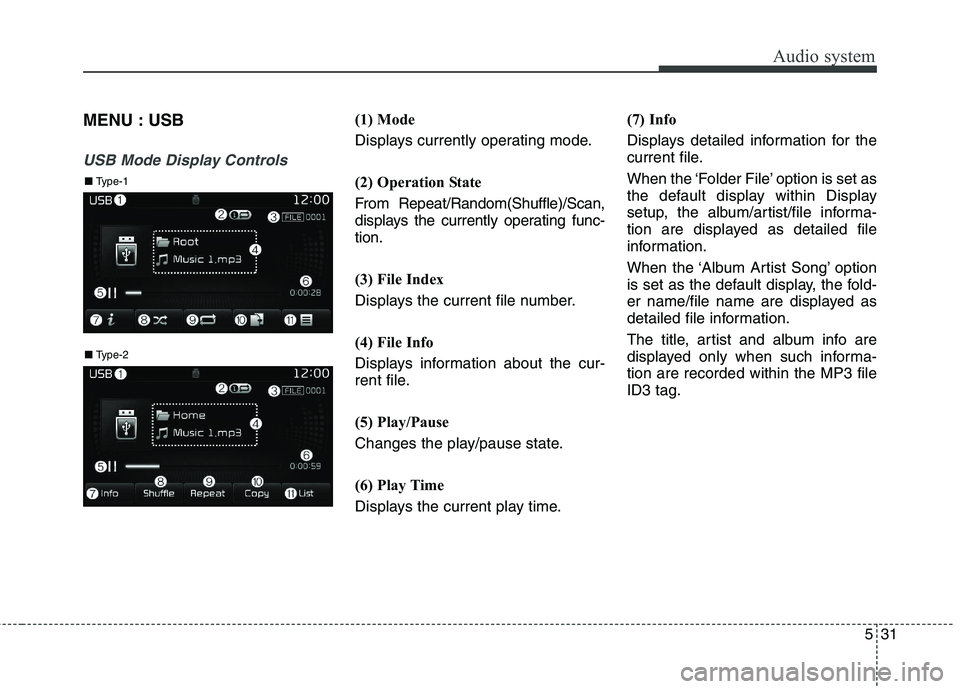
USB Mode Display Controls
(1) Mode
Displays currently operating mode.
(2) Operation State
From Repeat/Random(Shuffle)/Scan,
displays the currently operating func-tion.
(3) File Index
Displays the current file number.
(4) File Info
Displays information about the cur-
rent file.
(5) Play/Pause
Changes the play/pause state.
(6) Play Time
Displays the current play time. (7) Info
Displays detailed information for the
current file.
When the ‘Folder File’ option is set as
the default display within Display
setup, the album/artist/file informa-
tion are displayed as detailed file
information.
When the ‘Album Artist Song’ option
is set as the default display, the fold-
er name/file name are displayed as
detailed file information.
The title, artist and album info are
displayed only when such informa-tion are recorded within the MP3 fileID3 tag.
■
Type-2
■ Type-1
Page 274 of 548

Audio system
532(8) Random(Shuffle)
Turns the Random(Shuffle) feature
on/off.
Each time the button is pressed, the
feature changes in the order of
Random(Shuffle) Folder
➟Random
(Shuffle) All ➟Off.
Random(Shuffle) Folder : Plays the files in the current folder in ran-
dom(Shuffle) order.
Random(Shuffle) All : Plays all files in random(Shuffle) order.
(9) Repeat
Turns the Repeat feature on/off.
Each time the button is pressed, the
feature changes in the order ofRepeat ➟Repeat Folder ➟Off.
Repeat : Repeats the current file.
Repeat Folder : Repeats all files within the current folder. (10) Copy Copies the current file into My Music.
Selecting another feature during
copying will display a pop-up asking
whether you wish to cancel copying.
To cancel, select “Yes”.
(11) List
Moves to the list screen.
Turn the
TUNEknob left/right to
search for files. Once the desired file
is displayed, press the knob to select
and play.
With the USB Mode
Playing/Pausing USB Files Once a USB is connected, the mode
will automatically start and begin
playing a USB file.
While playing, press the [ II] button to
pause and press [ ] button to play.
Loading may require additional time
if there are many files and folders
within the USB and may result in
faulty list display or file search.
Normal operations will resume once
loading is complete.
The device may not support normal
operation when using a USB memo-
ry type besides (Metal Cover Type)
USB Memory.
Page 282 of 548
Audio system
540Phone Mode
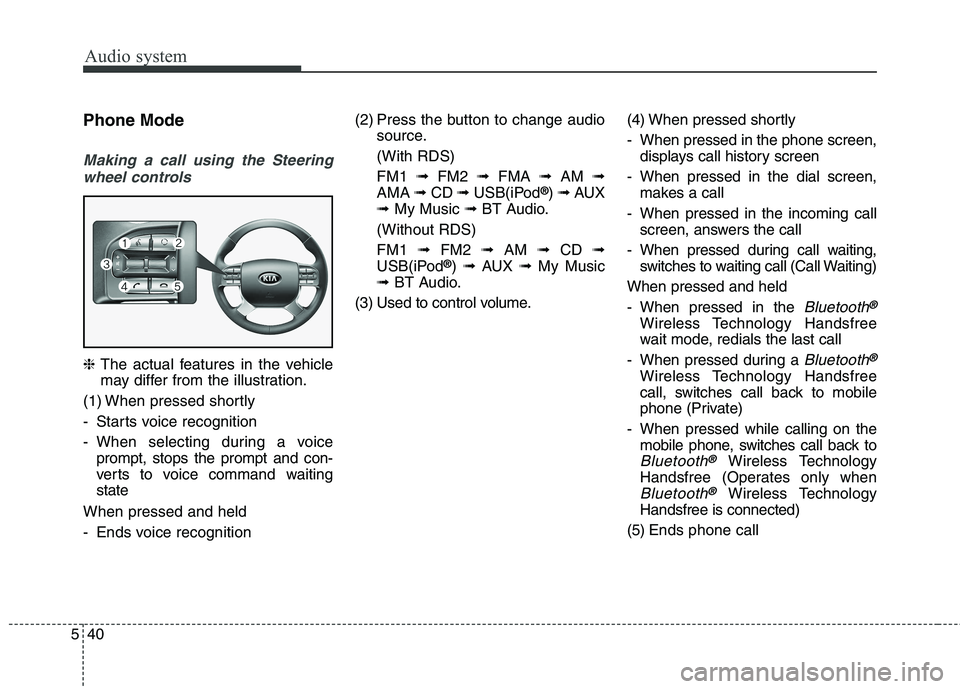
Making a call using the Steering
wheel controls
❈ The actual features in the vehicle
may differ from the illustration.
(1) When pressed shortly
- Starts voice recognition
- When selecting during a voice prompt, stops the prompt and con-
verts to voice command waitingstate
When pressed and held
- Ends voice recognition (2) Press the button to change audio
source.
(With RDS)FM1 ➟FM2 ➟FMA ➟AM ➟
AMA ➟CD ➟USB(iPod ®
) ➟ AUX
➟ My Music ➟BT Audio.
(Without RDS)FM1 ➟FM2 ➟AM ➟CD ➟
USB(iPod ®
) ➟ AUX ➟My Music
➟ BT Audio.
(3) Used to control volume. (4) When pressed shortly
- When pressed in the phone screen,
displays call history screen
- When pressed in the dial screen, makes a call
- When pressed in the incoming call screen, answers the call
- When pressed during call waiting, switches to waiting call (Call Waiting)
When pressed and held
- When pressed in the
Bluetooth®
Wireless Technology Handsfree
wait mode, redials the last call
- When pressed during a
Bluetooth®
Wireless Technology Handsfree
call, switches call back to mobile
phone (Private)
- When pressed while calling on the mobile phone, switches call back to
Bluetooth®Wireless Technology
Handsfree (Operates only when
Bluetooth®Wireless Technology
Handsfree is connected)
(5) Ends phone call
Page 299 of 548
Audio system
57
5
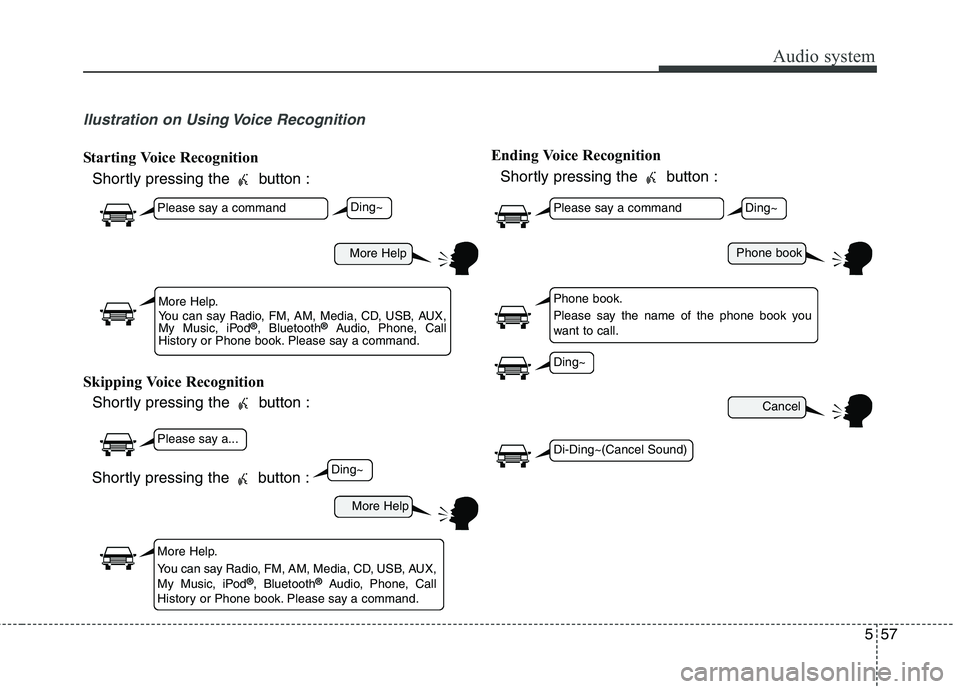
llustration on Using Voice Recognition
Starting Voice Recognition
Shortly pressing the button :
Skipping Voice Recognition Shortly pressing the button : Ending Voice Recognition
Shortly pressing the button :
More Help
More Help
Please say a command
Please say a...
More Help.
You can say Radio, FM, AM, Media, CD, USB, AUX,
My Music, iPod ®
, Bluetooth ®
Audio, Phone, Call
History or Phone book. Please say a command.
More Help.
You can say Radio, FM, AM, Media, CD, USB, AUX,
My Music, iPod ®
, Bluetooth ®
Audio, Phone, Call
History or Phone book. Please say a command.
Ding~
Ding~
Shortly pressing the button :
Phone book
Cancel
Please say a command
Phone book.
Please say the name of the phone book you
want to call.
Ding~
Di-Ding~(Cancel Sound)
Ding~
Page 301 of 548

Audio system
59
5
CommandFunction
News OnEnables RDS News feature.
News OffDisables RDS News feature.
MediaMoves to the most recently played media screen.
Play Track 1~30If a music CD has been inserted, plays the corre-
sponding track.
CDPlays music on the CD.
Search CDMoves to the CD track or file selection screen.
For audio CDs, move to the screen and say the
track number to play the corresponding track.
Moves to MP3 CD file selection screen. After manually operate the device to select and play
music.
USBPlays music on the USB device.
Search USBMoves to USB file selection screen. After manual-
ly operate the device to select and play music.
iPod ®Plays music on the iPod ®
.
Search iPod ®Moves to the iPod
®
file selection screen. After,
manually operate the device to select and play
music.
My MusicPlays music saved in My Music.
Search My MusicMoves to the My Music file selection screen. After,
manually operate the device to select and play
music.
CommandFunction
AUX (Auxiliary)Plays the connected external device.
Bluetooth ®
AudioPlays the music saved in connected Bluetooth®
Wireless Technology device.
MuteMutes the radio or music volume.
Pardon?Repeats the most recent comment.
Cancel (Exit)Ends voice command.
Page 303 of 548
Audio system
61
5
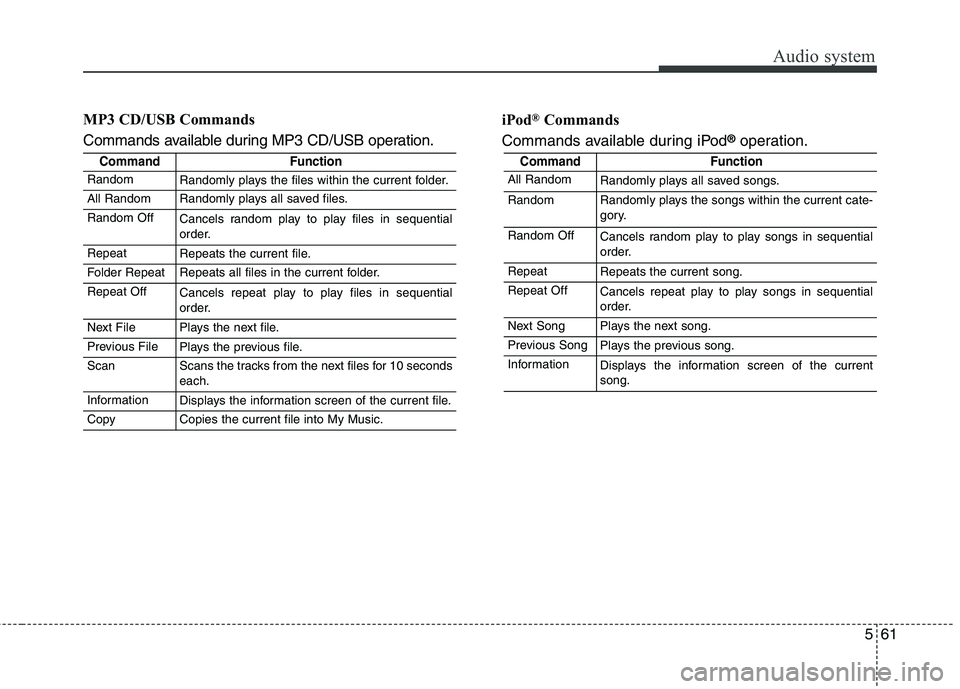
MP3 CD/USB Commands
Commands available during MP3 CD/USB operation. iPod
®
Commands
Commands available during iPod ®
operation.
CommandFunction
RandomRandomly plays the files within the current folder.
All RandomRandomly plays all saved files.
Random OffCancels random play to play files in sequential
order.
RepeatRepeats the current file.
Folder RepeatRepeats all files in the current folder.
Repeat OffCancels repeat play to play files in sequential
order.
Next FilePlays the next file.
Previous FilePlays the previous file.
ScanScans the tracks from the next files for 10 seconds each.
InformationDisplays the information screen of the current file.
CopyCopies the current file into My Music.
CommandFunction
All RandomRandomly plays all saved songs.
RandomRandomly plays the songs within the current cate-
gory.
Random OffCancels random play to play songs in sequential
order.
RepeatRepeats the current song.
Repeat OffCancels repeat play to play songs in sequential
order.
Next SongPlays the next song.
Previous SongPlays the previous song.
InformationDisplays the information screen of the current song.
Page 306 of 548
![KIA BORREGO 2017 User Guide Audio system
564Pop-up Mode
This feature is used to display the
Pop-up Mode screen when entering
radio and media modes.
When this feature is turned on, pressing the
[RADIO]or [MEDIA]
button will d](/img/2/57934/w960_57934-305.png "KIA BORREGO 2017 User Guide Audio system
564Pop-up Mode
This feature is used to display the
Pop-up Mode screen when entering
radio and media modes.
When this feature is turned on, pressing the
[RADIO]or [MEDIA]
button will d")
Audio system
564Pop-up Mode
This feature is used to display the
Pop-up Mode screen when entering
radio and media modes.
When this feature is turned on, pressing the
[RADIO]or [MEDIA]
button will display the Pop-up Modescreen.
✽✽ NOTICE
The media Pop-up Mode screen can
be displayed only when two or more
media modes have been connected.
Scroll Text
This feature is used to scroll text dis-
played on the screen when it is too
long to be displayed at once.
When turned on, the text is repeat-
edly scrolled. When turned off, the
text is scrolled just once. Song Info
This feature is used to change the
information displayed within USB
and MP3 CD modes.
Folder File : Displays file name and
folder name.
Album Artist Song : Displays album name/artist name/song.
Page 315 of 548
![KIA BORREGO 2017 User Guide Audio system
73
5
Mode Pop up
This feature is used to display the
Mode Pop up screen when entering
radio and media modes.
When this feature is turned on, pressing the [RADIO]or [MEDIA]
button wil](/img/2/57934/w960_57934-314.png "KIA BORREGO 2017 User Guide Audio system
73
5
Mode Pop up
This feature is used to display the
Mode Pop up screen when entering
radio and media modes.
When this feature is turned on, pressing the [RADIO]or [MEDIA]
button wil")
Audio system
73
5
Mode Pop up
This feature is used to display the
Mode Pop up screen when entering
radio and media modes.
When this feature is turned on, pressing the [RADIO]or [MEDIA]
button will display the Mode Pop upscreen.
✽✽ NOTICE
The media Mode Pop up screen can
be displayed only when two or more
media modes have been connected.
Text Scroll
This feature is used to scroll text dis-
played on the screen when it is too
long to be displayed at once.
When turned on, the text is repeat-
edly scrolled. When turned off, the
text is scrolled just once. Media Display
This feature is used to change the
information displayed within USB
and MP3 CD modes.
Folder File : Displays file name and
folder name.
Album Artist Song : Displays album name/artist name/song.
Page 358 of 548

Driving your vehicle
34
6
Power brakes
Your vehicle has power-assisted
brakes that adjust automatically
through normal usage.
In the event that the power-assisted
brakes lose power because of astalled engine or some other reason,
you can still stop your vehicle by
applying greater force to the brake
pedal than you normally would. The
stopping distance, however, will be
longer.
When the engine is not running, the
reserve brake power is partially
depleted each time the brake pedal
is applied. Do not pump the brake
pedal when the power assist has
been interrupted.
Pump the brake pedal only when
necessary to maintain steering con-
trol on slippery surfaces. BRAKE SYSTEM (Continued)
Always test your brakes in this fashion after driving
through deep water. To dry the
brakes, apply them lightly
while maintaining a safe for-
ward speed until brake per-
formance returns to normal.
Always, confirm the position of the brake and accelerator
pedal before driving. If you
don’t check the position of theaccelerator and brake pedal
before driving, you maydepress the accelerator
instead of the brake pedal. It
may cause a serious accident.WARNING - Brakes
Do not drive with your foot resting on the brake pedal. This will create abnormal high
brake temperatures, exces-sive brake lining and pad
wear, and increased stoppingdistances.
When descending a long or steep hill, shift to a lower gear
and avoid continuous applica-
tion of the brakes. Continuousbrake application will cause
the brakes to overheat and
could result in a temporary
loss of braking performance.
Wet brakes may impair the vehicle’s ability to safely slow
down; the vehicle may alsopull to one side when the
brakes are applied. Applying
the brakes lightly will indicate
whether they have been
affected in this way.
(Continued)