USB port KIA BORREGO 2017 Owners Manual
[x] Cancel search | Manufacturer: KIA, Model Year: 2017, Model line: BORREGO, Model: KIA BORREGO 2017Pages: 548, PDF Size: 36.78 MB
Page 15 of 548
25
Your vehicle at a glance
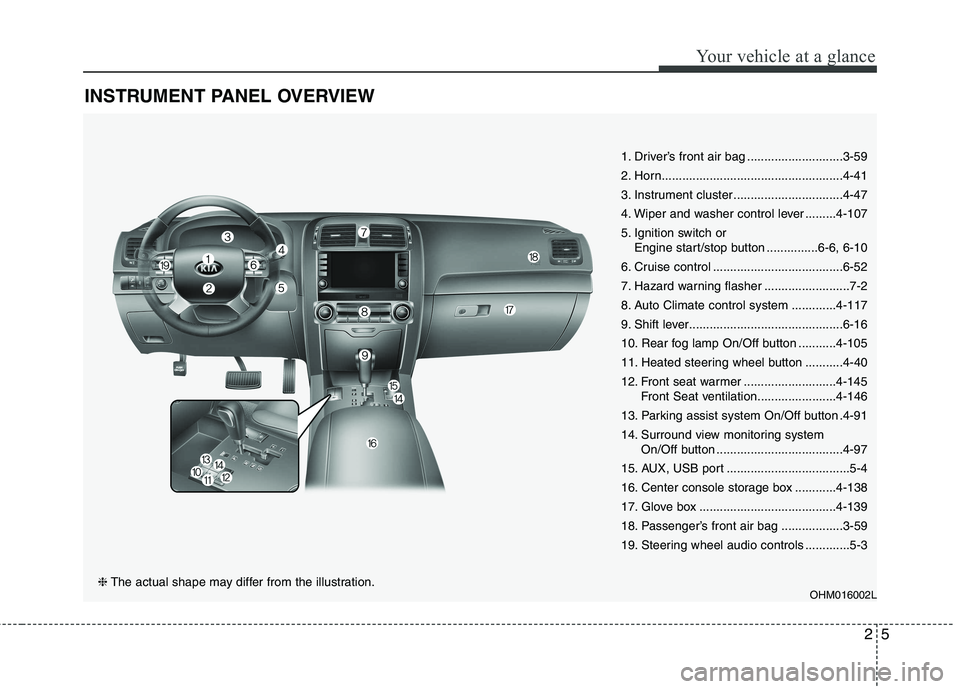
INSTRUMENT PANEL OVERVIEW
1. Driver’s front air bag ............................3-59
2. Horn.....................................................4-41
3. Instrument cluster ................................4-47
4. Wiper and washer control lever .........4-107
5. Ignition switch or Engine start/stop button ...............6-6, 6-10
6. Cruise control ......................................6-52
7. Hazard warning flasher .........................7-2
8. Auto Climate control system .............4-117
9. Shift lever.............................................6-16
10. Rear fog lamp On/Off button ...........4-105
11. Heated steering wheel button ...........4-40
12. Front seat warmer ...........................4-145 Front Seat ventilation.......................4-146
13. Parking assist system On/Off button .4-91
14. Surround view monitoring system On/Off button .....................................4-97
15. AUX, USB port ....................................5-4
16. Center console storage box ............4-138
17. Glove box ........................................4-139
18. Passenger’s front air bag ..................3-59
19. Steering wheel audio controls .............5-3
OHM016002L
❈The actual shape may differ from the illustration.
Page 243 of 548
Audio system
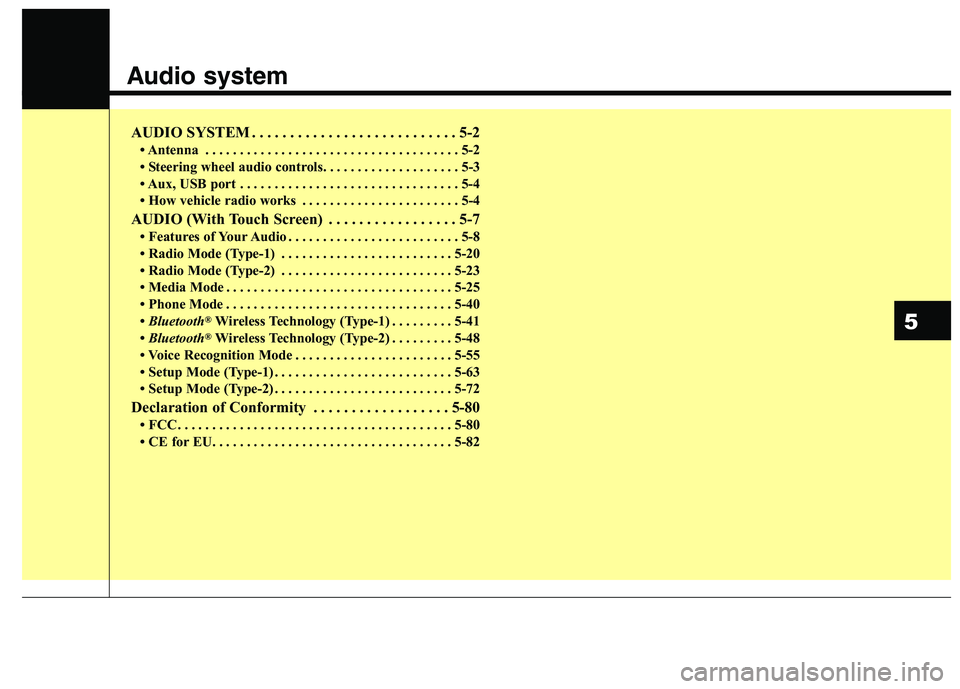
AUDIO SYSTEM . . . . . . . . . . . . . . . . . . . . . . . . . . . 5-2 Antenna . . . . . . . . . . . . . . . . . . . . . . . . . . . . . . . . . . . . . 5-2
Steering wheel audio controls. . . . . . . . . . . . . . . . . . . . 5-3
Aux, USB port . . . . . . . . . . . . . . . . . . . . . . . . . . . . . . . . 5-4
How vehicle radio works . . . . . . . . . . . . . . . . . . . . . . . 5-4
AUDIO (With Touch Screen) . . . . . . . . . . . . . . . . . 5-7 Features of Your Audio . . . . . . . . . . . . . . . . . . . . . . . . . 5-8
Radio Mode (Type-1) . . . . . . . . . . . . . . . . . . . . . . . . . 5-20
Radio Mode (Type-2) . . . . . . . . . . . . . . . . . . . . . . . . . 5-23
Media Mode . . . . . . . . . . . . . . . . . . . . . . . . . . . . . . . . . 5-25
Phone Mode . . . . . . . . . . . . . . . . . . . . . . . . . . . . . . . . . 5-40
Bluetooth ®
Wireless Technology (Type-1) . . . . . . . . . 5-41
Bluetooth ®
Wireless Technology (Type-2) . . . . . . . . . 5-48
Voice Recognition Mode . . . . . . . . . . . . . . . . . . . . . . . 5-55
Setup Mode (Type-1) . . . . . . . . . . . . . . . . . . . . . . . . . . 5-63
Setup Mode (Type-2) . . . . . . . . . . . . . . . . . . . . . . . . . . 5-72
Declaration of Conformity . . . . . . . . . . . . . . . . . . 5-80 FCC . . . . . . . . . . . . . . . . . . . . . . . . . . . . . . . . . . . . . . . . 5-80
CE for EU. . . . . . . . . . . . . . . . . . . . . . . . . . . . . . . . . . . 5-82
5
Page 246 of 548
Audio system
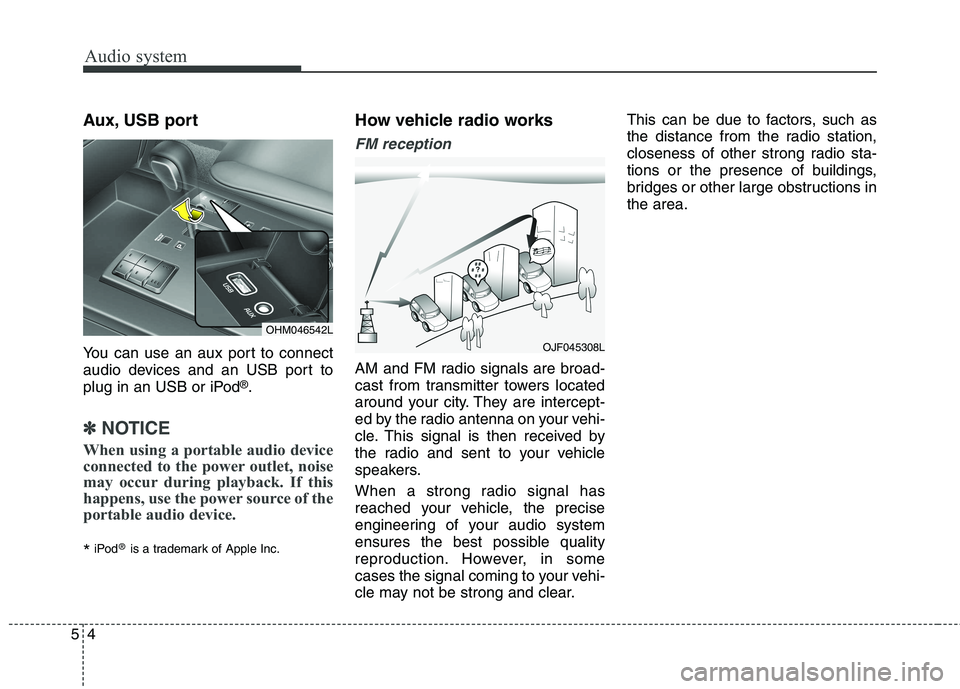
54Aux, USB port
You can use an aux port to connect
audio devices and an USB port to
plug in an USB or iPod
®
.
✽✽ NOTICE
When using a portable audio device
connected to the power outlet, noise
may occur during playback. If this
happens, use the power source of the
portable audio device.
* iPod
®
is a trademark of Apple Inc. How vehicle radio works
FM reception
AM and FM radio signals are broad-
cast from transmitter towers located
around your city. They are intercept-
ed by the radio antenna on your vehi-
cle. This signal is then received by
the radio and sent to your vehicle
speakers.
When a strong radio signal has
reached your vehicle, the precise
engineering of your audio system
ensures the best possible quality
reproduction. However, in some
cases the signal coming to your vehi-
cle may not be strong and clear. This can be due to factors, such as
the distance from the radio station,
closeness of other strong radio sta-
tions or the presence of buildings,
bridges or other large obstructions inthe area.
OJF045308L
OHM046542L
Page 253 of 548
Audio system
11
5
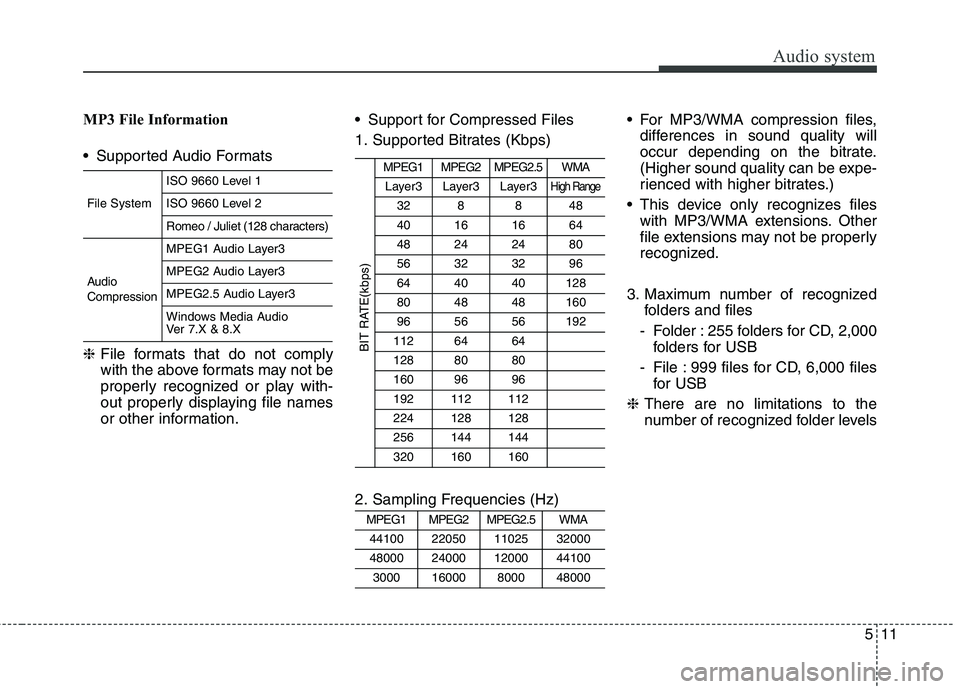
MP3 File Information
Supported Audio Formats ❈ File formats that do not comply
with the above formats may not be
properly recognized or play with-
out properly displaying file names
or other information. Support for Compressed Files
1. Supported Bitrates (Kbps)
2. Sampling Frequencies (Hz) For MP3/WMA compression files,
differences in sound quality will
occur depending on the bitrate.
(Higher sound quality can be expe-
rienced with higher bitrates.)
This device only recognizes files with MP3/WMA extensions. Other
file extensions may not be properly
recognized.
3. Maximum number of recognized folders and files
- Folder : 255 folders for CD, 2,000 folders for USB
- File : 999 files for CD, 6,000 files for USB
❈ There are no limitations to the
number of recognized folder levels
MPEG1MPEG2MPEG2.5WMA
44100220501102532000
48000240001200044100
300016000800048000
MPEG1MPEG2MPEG2.5WMA
Layer3Layer3Layer3High Range
328848
40161664
48242480
56323296
644040128
804848160
965656192
1126464
1288080
1609696
192112112
224128128
256144144
320160160
BIT RATE(kbps)
File System
ISO 9660 Level 1
ISO 9660 Level 2
Romeo / Juliet (128 characters)
Audio Compression
MPEG1 Audio Layer3
MPEG2 Audio Layer3
MPEG2.5 Audio Layer3
Windows Media Audio
Ver 7.X & 8.X
Page 255 of 548
Audio system
13
5
✽✽
NOTICE - Usingthe USB
Devices
Connect the USB device after turning on the engine. The USB
device may become damaged if it
is already connected when the
ignition is turned on. The USB
device may not operate properly if
the car ignition is turned on or off
with the USB device connected.
Be careful for static electricity when connecting/disconnecting
USB devices.
Encoded MP3 Players will not be recognized when connected as an
external device.
When connecting an external USB device, the vehicle's audio system
may not recognize the USB
depending on what firmware is
used by USB device or what files
are on the USB.
Only products formatted with byte/sectors under 64Kbyte will be
recognized.
This device recognizes USB devices formatted in FAT 12/16/32
file formats. This device does not
recognize files in NTFS file for-mat. (Continued)(Continued)
Some USB devices may not be sup-
ported due to compatibility issues.
Avoid contact between the USB connector and bodily parts or for-
eign objects.
Repeated connecting/disconnect- ing of USB devices within short
periods of time may result in prod-
uct malfunction.
A strange noise may occur when disconnecting the USB.
Make sure to connect/disconnect external USB devices with the
audio power turned off.
The amount of time required to recognize the USB device may dif-
fer depending on the type, size or
file formats stored on the USB.
Such differences in time are not
indications of malfunctions.
The vehicle audio system only sup- ports USB devices designed to
play music files.
USB images and videos are not supported. (Continued)(Continued)
Do not use the USB I/F to charge
batteries or USB accessories that
generate heat. Doing so may lead
to worsened performance or dam-
age to the audio system.
The audio system may not recog- nize the USB device if separately
purchased USB hubs and exten-
sion cables are being used.
Connect the USB device directly
with the USB port of the vehicle.
When using mass storage USB devices with separate logical
drives, only files saved to the root
drive can be played.
Files may not properly operate if application programs are installed
on the USBs.
The audio system may not operate normally if MP3 Players, cellular
phones, digital cameras, or other
electronic devices (USB devices
not recognized as portable disk
drives) are connected with the
audio system. (Continued)
Page 256 of 548
Audio system
514
(Continued)
Charging through the USB maynot work for some mobile devices.
The device may not support nor- mal operation when using an atyp-
ical USB memory device (minia-
ture, keychain, etc.). For best
results, use a typical USB device
that has a metal case.
The device may not support nor- mal operation when using formats
such as HDD Type, CF, or SD
Memory.
The device will not support files locked by DRM (Digital Rights
Management.)
USB memory sticks used by con- necting an Adaptor (SD Type or
CF Type) may not be properly rec-
ognized.
The device may not operate prop- erly when using USB HDDs or
USBs subject to connection fail-
ures caused by vehicle vibrations.
(e.g. i-stick type) (Continued)(Continued)
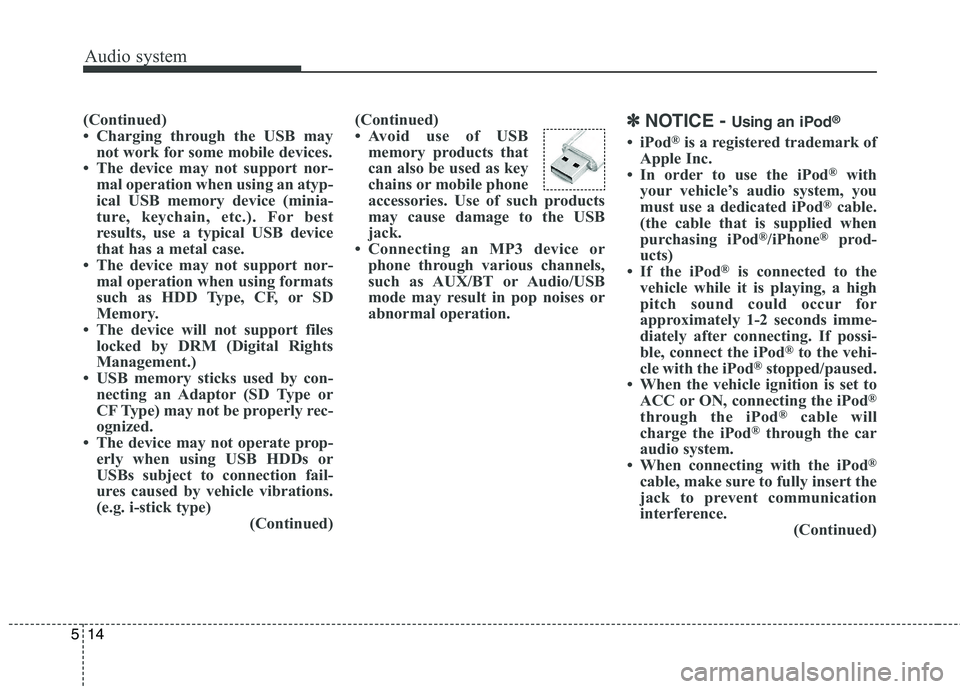
Avoid use of USB
memory products that
can also be used as key
chains or mobile phone
accessories. Use of such products
may cause damage to the USB
jack.
Connecting an MP3 device or phone through various channels,
such as AUX/BT or Audio/USB
mode may result in pop noises or
abnormal operation. ✽✽
NOTICE - Using an iPod ®
iPod ®
is a registered trademark of
Apple Inc.
In order to use the iPod ®
with
your vehicle’s audio system, you
must use a dedicated iPod ®
cable.
(the cable that is supplied when
purchasing iPod ®
/iPhone ®
prod-
ucts)
If the iPod ®
is connected to the
vehicle while it is playing, a high
pitch sound could occur for
approximately 1-2 seconds imme-
diately after connecting. If possi-
ble, connect the iPod ®
to the vehi-
cle with the iPod ®
stopped/paused.
When the vehicle ignition is set to ACC or ON, connecting the iPod ®
through the iPod ®
cable will
charge the iPod ®
through the car
audio system.
When connecting with the iPod ®
cable, make sure to fully insert the
jack to prevent communication
interference. (Continued)
Page 257 of 548
Audio system
15
5
(Continued)
When the EQ features of an exter-
nal device, such as the iPod ®
, and
the audio system are both active,
EQ effects could overlap and
cause sound deterioration and dis-
tortion. Whenever possible, turn
off the EQ feature within the
external device when it is connect-
ed to the audio system.
Noise may occur when an iPod ®
or
AUX device is connected. When
such devices are not being used,
disconnect the device for storage.
When the iPod ®
or AUX device
power is connected to the power
jack, playing the external device
may result in noise. In such cases,
disconnect the power connection
before use.
Skipping or improper operation may occur depending on the char-
acteristics of your iPod ®
/iPhone ®
device. (Continued)(Continued)
If your iPhone is connected to both
the Bluetooth ®
Wireless Technology
and USB, the sound may not be
properly played. In your iPhone,
select the Dock connector or
Bluetooth ®
Wireless Technology to
change the sound output (source).
iPod ®
mode cannot be operated
when the iPod ®
cannot be recog-
nized due to the playing of ver-
sions that do not support commu-
nication protocols, cases of iPod ®
abnormalities and defects.
For fifth generation iPod ®
Nano
devices, the iPod ®
may not be recog-
nized when the battery level is low.
Please charge the iPod ®
for use.
The search/play orders shown with- in the iPod ®
device may differ from
the orders shown within the audio
system.
If the iPod ®
malfunctions due to
an iPod ®
device defect, reset the
iPod ®
and try again. (To learn
more, refer to your iPod ®
manual)
(Continued) (Continued)
Some iPod
®
s may not sync with
the System depending on the ver-
sion. If the Media is removed
before the Media is recognized,
then the system may not properly
restore the previously operated
mode. (iPad charging is not sup-
ported.)
Use an iPod ®
cable shorter than 1
meter in length such as the one
originally supplied with a new
iPod ®
, longer cables may lead to
the audio system not recognizing
the iPod ®
.
Page 274 of 548

Audio system
532(8) Random(Shuffle)
Turns the Random(Shuffle) feature
on/off.
Each time the button is pressed, the
feature changes in the order of
Random(Shuffle) Folder
➟Random
(Shuffle) All ➟Off.
Random(Shuffle) Folder : Plays the files in the current folder in ran-
dom(Shuffle) order.
Random(Shuffle) All : Plays all files in random(Shuffle) order.
(9) Repeat
Turns the Repeat feature on/off.
Each time the button is pressed, the
feature changes in the order ofRepeat ➟Repeat Folder ➟Off.
Repeat : Repeats the current file.
Repeat Folder : Repeats all files within the current folder. (10) Copy Copies the current file into My Music.
Selecting another feature during
copying will display a pop-up asking
whether you wish to cancel copying.
To cancel, select “Yes”.
(11) List
Moves to the list screen.
Turn the
TUNEknob left/right to
search for files. Once the desired file
is displayed, press the knob to select
and play.
With the USB Mode
Playing/Pausing USB Files Once a USB is connected, the mode
will automatically start and begin
playing a USB file.
While playing, press the [ II] button to
pause and press [ ] button to play.
Loading may require additional time
if there are many files and folders
within the USB and may result in
faulty list display or file search.
Normal operations will resume once
loading is complete.
The device may not support normal
operation when using a USB memo-
ry type besides (Metal Cover Type)
USB Memory.
Page 537 of 548
Index
2
I
A/V Mode (cluster)........................................................4-60
Air bag warning label ....................................................3-72
Air bag warning light ....................................................3-55
Air bags..........................................................................3-51
Operation ....................................................................3-52
Air bag warning light ..................................................3-55
SRS components and functions ..................................3-56
Driver's and passenger's front air bag ........................3-59
Side air bag ................................................................3-61
Curtain air bag ............................................................3-63
Inflation conditions ....................................................3-67
Non-inflation conditions ............................................3-68
SRS Care ....................................................................3-70
Air bag warning label ................................................3-72
Air cleaner ....................................................................8-31 Filter replacement ......................................................8-31
Air conditioner compressor label ..................................9-10
Air conditioning system lubricants..................................9-4
Air leveling system (ALS) ............................................6-49 N (Normal) - Ordinary driving mode ........................6-49
HI (High) - Off road driving mode ............................6-49
LO (Low) - Loading mode ........................................6-50
Air ventilation seat ......................................................4-146
Anti-lock brake system (ABS) ......................................6-38
Appearance care ............................................................8-77 Exterior care ................................................................8-77 Interior care ................................................................8-83
Armed stage ..................................................................4-14
AUDIO (With Touch Screen) ........................................5-7 Feature of Your Audio ..................................................5-8
Radio Mode (Type-1)..................................................5-20
Radio Mode (Type-2)..................................................5-23
Media Mode ................................................................5-25
Phone Mode ................................................................5-40 Bluetooth ®
Wireless Technology (Type-1) ................5-41
Bluetooth ®
Wireless Technology (Type-2) ................5-48
Voice Recognition Mode ............................................5-55
Setup Mode (Type-1) ..................................................5-63
Setup Mode (Type-2) ..................................................5-72
Audio system ..................................................................5-2 Antenna ........................................................................5-2
Steering wheel audio controls ......................................5-3
Aux, USB port ..............................................................5-4
How vehicle audio works ............................................5-4
Auto light ....................................................................4-100
Automatic transaxle ......................................................6-16 Manual mode ..............................................................6-19
Shift-lock override ......................................................6-20
Battery............................................................................8-38 For best battery service ..............................................8-38Battery capacity label..................................................8-40
A
B