phone KIA BORREGO 2017 User Guide
[x] Cancel search | Manufacturer: KIA, Model Year: 2017, Model line: BORREGO, Model: KIA BORREGO 2017Pages: 548, PDF Size: 36.78 MB
Page 250 of 548
Audio system
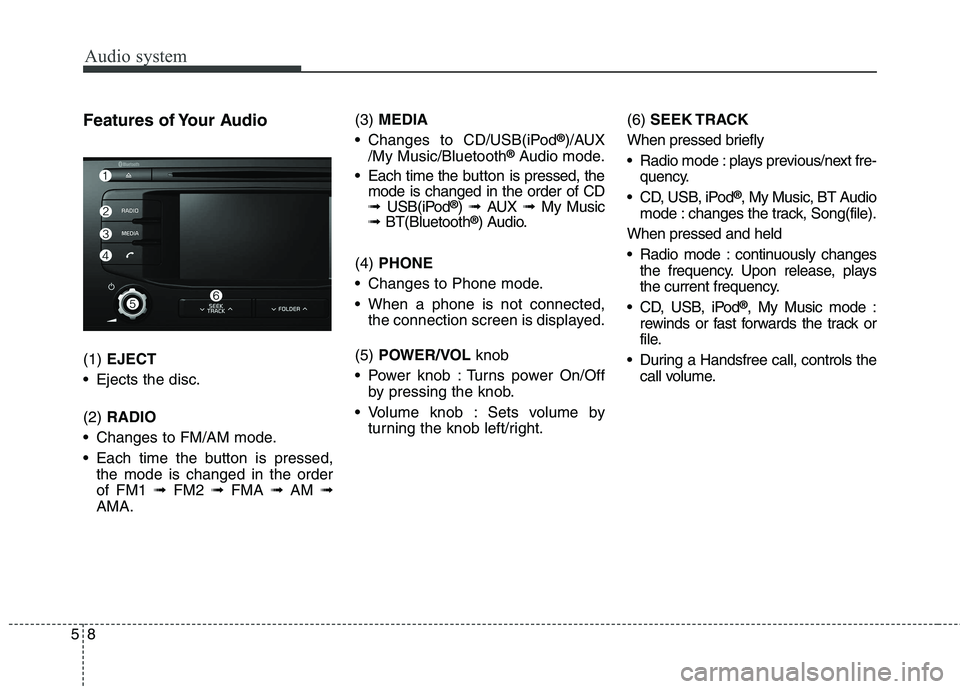
58Features of Your Audio (1)
EJECT
Ejects the disc. (2) RADIO
Changes to FM/AM mode.
Each time the button is pressed, the mode is changed in the order of FM1 ➟FM2 ➟FMA ➟AM ➟
AMA. (3)
MEDIA
Changes to CD/USB(iPod ®
)/AUX
/My Music/Bluetooth ®
Audio mode.
Each time the b utton is pressed, the
mode is changed in the order of CD ➟ USB(iPod ®
) ➟ AUX ➟My Music
➟ BT(Bluetooth ®
) Audio.
(4) PHONE
Changes to Phone mode.
When a phone is not connected, the connection screen is displayed.
(5) POWER/VOL knob
Power knob : Turns power On/Off by pressing the knob.
Volume knob : Sets volume by turning the knob left/right. (6)
SEEK TRACK
When pressed briefly
Radio mode : plays previous/next fre- quency.
CD, USB, iPod ®
, My Music, BT Audio
mode : changes the track, Song(file).
When pressed and held
Radio mode : continuously changes the frequency. Upon release, plays
the current frequency.
CD, USB, iPod ®
, My Music mode :
rewinds or fast forwards the track or
file.
During a Handsfree call, controls the call volume.
Page 255 of 548
Audio system
13
5
✽✽
NOTICE - Usingthe USB
Devices
Connect the USB device after turning on the engine. The USB
device may become damaged if it
is already connected when the
ignition is turned on. The USB
device may not operate properly if
the car ignition is turned on or off
with the USB device connected.
Be careful for static electricity when connecting/disconnecting
USB devices.
Encoded MP3 Players will not be recognized when connected as an
external device.
When connecting an external USB device, the vehicle's audio system
may not recognize the USB
depending on what firmware is
used by USB device or what files
are on the USB.
Only products formatted with byte/sectors under 64Kbyte will be
recognized.
This device recognizes USB devices formatted in FAT 12/16/32
file formats. This device does not
recognize files in NTFS file for-mat. (Continued)(Continued)
Some USB devices may not be sup-
ported due to compatibility issues.
Avoid contact between the USB connector and bodily parts or for-
eign objects.
Repeated connecting/disconnect- ing of USB devices within short
periods of time may result in prod-
uct malfunction.
A strange noise may occur when disconnecting the USB.
Make sure to connect/disconnect external USB devices with the
audio power turned off.
The amount of time required to recognize the USB device may dif-
fer depending on the type, size or
file formats stored on the USB.
Such differences in time are not
indications of malfunctions.
The vehicle audio system only sup- ports USB devices designed to
play music files.
USB images and videos are not supported. (Continued)(Continued)
Do not use the USB I/F to charge
batteries or USB accessories that
generate heat. Doing so may lead
to worsened performance or dam-
age to the audio system.
The audio system may not recog- nize the USB device if separately
purchased USB hubs and exten-
sion cables are being used.
Connect the USB device directly
with the USB port of the vehicle.
When using mass storage USB devices with separate logical
drives, only files saved to the root
drive can be played.
Files may not properly operate if application programs are installed
on the USBs.
The audio system may not operate normally if MP3 Players, cellular
phones, digital cameras, or other
electronic devices (USB devices
not recognized as portable disk
drives) are connected with the
audio system. (Continued)
Page 256 of 548
Audio system
514
(Continued)
Charging through the USB maynot work for some mobile devices.
The device may not support nor- mal operation when using an atyp-
ical USB memory device (minia-
ture, keychain, etc.). For best
results, use a typical USB device
that has a metal case.
The device may not support nor- mal operation when using formats
such as HDD Type, CF, or SD
Memory.
The device will not support files locked by DRM (Digital Rights
Management.)
USB memory sticks used by con- necting an Adaptor (SD Type or
CF Type) may not be properly rec-
ognized.
The device may not operate prop- erly when using USB HDDs or
USBs subject to connection fail-
ures caused by vehicle vibrations.
(e.g. i-stick type) (Continued)(Continued)
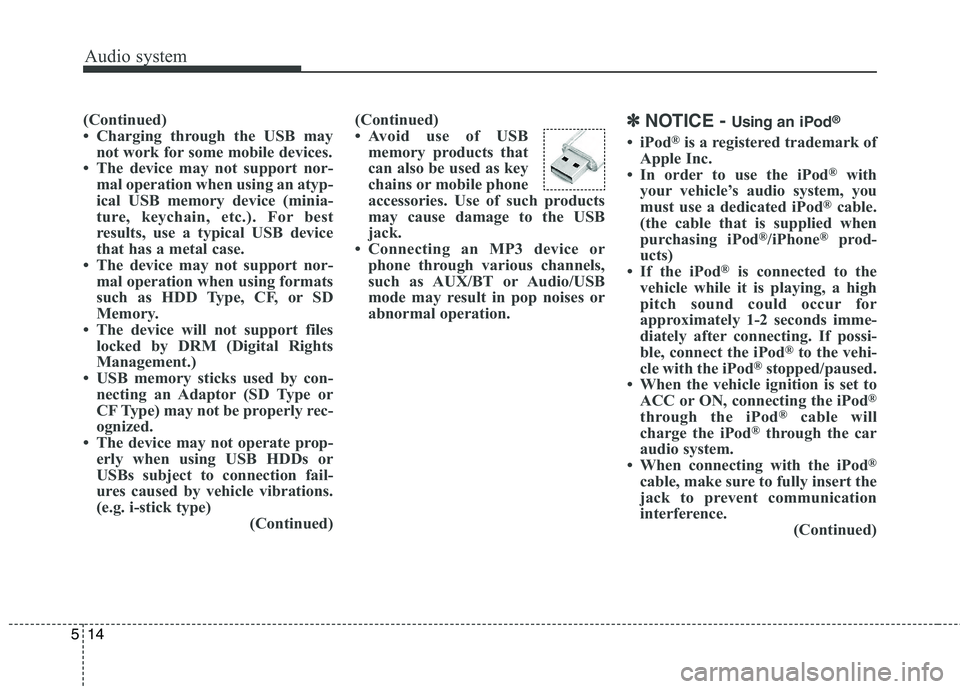
Avoid use of USB
memory products that
can also be used as key
chains or mobile phone
accessories. Use of such products
may cause damage to the USB
jack.
Connecting an MP3 device or phone through various channels,
such as AUX/BT or Audio/USB
mode may result in pop noises or
abnormal operation. ✽✽
NOTICE - Using an iPod ®
iPod ®
is a registered trademark of
Apple Inc.
In order to use the iPod ®
with
your vehicle’s audio system, you
must use a dedicated iPod ®
cable.
(the cable that is supplied when
purchasing iPod ®
/iPhone ®
prod-
ucts)
If the iPod ®
is connected to the
vehicle while it is playing, a high
pitch sound could occur for
approximately 1-2 seconds imme-
diately after connecting. If possi-
ble, connect the iPod ®
to the vehi-
cle with the iPod ®
stopped/paused.
When the vehicle ignition is set to ACC or ON, connecting the iPod ®
through the iPod ®
cable will
charge the iPod ®
through the car
audio system.
When connecting with the iPod ®
cable, make sure to fully insert the
jack to prevent communication
interference. (Continued)
Page 257 of 548
Audio system
15
5
(Continued)
When the EQ features of an exter-
nal device, such as the iPod ®
, and
the audio system are both active,
EQ effects could overlap and
cause sound deterioration and dis-
tortion. Whenever possible, turn
off the EQ feature within the
external device when it is connect-
ed to the audio system.
Noise may occur when an iPod ®
or
AUX device is connected. When
such devices are not being used,
disconnect the device for storage.
When the iPod ®
or AUX device
power is connected to the power
jack, playing the external device
may result in noise. In such cases,
disconnect the power connection
before use.
Skipping or improper operation may occur depending on the char-
acteristics of your iPod ®
/iPhone ®
device. (Continued)(Continued)
If your iPhone is connected to both
the Bluetooth ®
Wireless Technology
and USB, the sound may not be
properly played. In your iPhone,
select the Dock connector or
Bluetooth ®
Wireless Technology to
change the sound output (source).
iPod ®
mode cannot be operated
when the iPod ®
cannot be recog-
nized due to the playing of ver-
sions that do not support commu-
nication protocols, cases of iPod ®
abnormalities and defects.
For fifth generation iPod ®
Nano
devices, the iPod ®
may not be recog-
nized when the battery level is low.
Please charge the iPod ®
for use.
The search/play orders shown with- in the iPod ®
device may differ from
the orders shown within the audio
system.
If the iPod ®
malfunctions due to
an iPod ®
device defect, reset the
iPod ®
and try again. (To learn
more, refer to your iPod ®
manual)
(Continued) (Continued)
Some iPod
®
s may not sync with
the System depending on the ver-
sion. If the Media is removed
before the Media is recognized,
then the system may not properly
restore the previously operated
mode. (iPad charging is not sup-
ported.)
Use an iPod ®
cable shorter than 1
meter in length such as the one
originally supplied with a new
iPod ®
, longer cables may lead to
the audio system not recognizing
the iPod ®
.
Page 258 of 548
Audio system
516
✽✽NOTICE - Using the
Bluetooth®Wireless
Technology Audio Mode
Bluetooth ®
Wireless Technology
Audio Mode can be used only
when a Bluetooth®
Wireless
Technology phone has been con-
nected.
Bluetooth ®
Wireless Technology
Audio Mode will not be available
when connecting mobile phones
that do not support this feature.
If a Bluetooth ®
Wireless Technology
Phone is being used to play music
and receives an incoming or out-
going phone call, then the music
will stop.
Moving the Track up/down while playing Bluetooth®
Wireless
Technology audio mode may
result in pop noises with some
mobile phones.
Bluetooth ®
Wireless Technology
streaming audio may not be sup-
ported in some mobile phones. (Continued)(Continued)
When returning to
Bluetooth®
Wireless Technology Audio mode
after ending a call, the mode may
not automatically restart in some
mobile phones.
Receiving an incoming call or making an outgoing call while
playing Bluetooth®
Wireless
Technology Audio may result in
audio interference. ✽
✽
NOTICE - Using the
Bluetooth®Wireless
Technology Cellular Phone
Bluetooth ®
Wireless Technology
Handsfree refers to a device which
allows the user to conveniently
make phone calls with Bluetooth®
Wireless Technology mobile
phones through the audio system.
Bluetooth ®
Wireless Technology
allows devices to be connected in a
short distance, including hands-
free devices, stereo headsets, wire-
less remote controllers, etc. For
more information, visit the
Bluetooth ®
Wireless Technology
website at www
.Bluetooth.com.
Before using Bluetooth®
Wireless
Technology audio features.
The Bluetooth ®
word mark and
logos are registered trademarks
owned by Bluetooth ®
SIG, Inc. and
any use of such marks by Kia is
under license. Other trademarks
and trade names are those of their
respective owners. A Bluetooth ®
enabled cell phone is required to use
Bluetooth ®
Wireless Technology.
(Continued)
Page 259 of 548
Audio system
17
5
(Continued)
Bluetooth ®
Wireless Technology
features supported within the
vehicle are as follows. Some fea-
tures may not be supported
depending on your Bluetooth®
Wireless Technology device.
- Answering and placing Bluetooth ®
Wireless Technology
Handsfree calls
- Menu operation during call (Switch to Private, Switch to call
waiting, Outgoing volume)
- Download Call History
- Download Mobile Phone book
- Phone book/Call History Auto Download
- Bluetooth ®
Wireless Technology
device auto connection
- Bluetooth ®
Wireless Technology
Audio
Before using Bluetooth®
Wireless
Technology related features of the
audio system, refer your phone’s
User’s Manual for phone-side
Bluetooth ®
Wireless Technology
operations. (Continued)(Continued)
The phone must be paired to the
audio system to use Bluetooth®
Wireless Technology related fea-
tures.
Pairing and connecting a Bluetooth ®
Wireless Technology
enabled mobile phone will work
only when the Bluetooth®
Wireless
Technology option within your
mobile phone has been turned on.
(Methods of turning on the
Bluetooth ®
Wireless Technology
enabled feature may differ
depending on the mobile phone.)
Do not use a cellular phone or per- form Bluetooth ®
Wireless
Technology settings (e.g. pairing a
phone) while driving.
Even if the phone supports Bluetooth ®
Wireless Technology,
the phone will not be found during
device searches if the phone has
been set to hidden state or the
Bluetooth ®
Wireless Technology
has been deactivated. Disable the
hidden state or activate the
Bluetooth ®
Wireless Technology
prior to searching/connecting with
the car audio system. (Continued)(Continued)
You will not be able to use the
hands-free feature when your
phone (in the car) is outside of the
cellular service area. (e.g. in a tun-
nel, in an underground area, in a
mountainous area, etc.)
If the cellular phone signal is poor or the vehicles interior noise is too
loud, it may be difficult to hear the
other person’s voice during a call.
Do not place the phone near or inside metallic objects, otherwise
communications with Bluetooth®
Wireless Technology system or cel-
lular service stations can be dis-
turbed.
Placing the audio system within an electromagnetic environment may
result in noise interference.
Some cellular phones or other devices may cause interference
noise or malfunction to the audio
system. In this case, storing the
device in a different location may
resolve the condition. (Continued)
Page 260 of 548
Audio system
518
(Continued)
While a phone is connectedthrough Bluetooth®
Wireless
Technology your phone may dis-
charge quicker than usual for
additional Bluetooth®
Wireless
Technology-related operations.
If Priority is set upon vehicle igni- tion (IGN/ACC ON), the
Bluetooth ®
Wireless Technology
phone will be automatically con-
nected. Even if you are outside, the
Bluetooth ®
Wireless Technology
phone will be automatically con-
nected once you are in the vicinity
of the vehicle. If you do not want
to automatically connect your
Bluetooth ®
Wireless Technology
phone, try the following.
1) Turn off the Bluetooth®
Wireless
Technology feature in your
mobile phone.
2) Turn off the Bluetooth®
Wireless
Technology feature in your car
audio system. (Continued)(Continued)
- To turn off the Bluetooth®
Wireless Technology feature in
your car audio system, go to
[SETUP]> [Phone] and [turn
off] the Bluetooth®
Wireless
Technology feature.
Bluetooth ®
Wireless Technology
connection may become intermit-
tently disconnected in some
mobile phones. Follow these steps
to try again.
1) Turn the Bluetooth®
Wireless
Technology function within the
mobile phone off/on and try
again.
2) Turn the mobile phone power Off/On and try again.
3) Completely remove the mobile phone battery, reboot, and then
try again.
4) Reboot the audio system and try again.
5) Delete all paired devices, pair and try again.
It is possible to pair up to five Bluetooth ®
Wireless Technology
devices to the car system. (Continued)(Continued)
Phone contact names should be
saved in English or they may not
be displayed correctly.
The Handsfree call volume and quality may differ depending on
the mobile phone.
Only one Bluetooth®
Wireless
Technology device can be connect-
ed at a time.
In some mobile phones, starting the ignition while talking through
Bluetooth ®
Wireless Technology
enabled handsfree call will result
in the call becoming disconnected.
(Switch the call back to your
mobile phone when starting the
ignition.)
If the mobile phone is not paired or connected, it is not possible to
enter Phone mode. Once a phone
is paired or connected, the guid-
ance screen will be displayed.
Page 261 of 548
Audio system
19
5
✽✽
NOTICE - Usingthe Voice
Recognition (if equipped)
When using the voice recognition feature, only commands listed with-
in the user's manual are supported.
Be aware that during the opera- tion of the voice recognition sys-
tem, pressing any button other
than the button or touching the
screen will terminate voice recog-
nition mode.
For superior voice recognition performance, position the micro-
phone used for voice recognition
above the head of the driver’s seat
and maintain a proper position
when saying commands.
Within the following situations, voice recognition may not function
properly due to external sound.
- When the windows and sunroof
are open
- When the wind of the cooling/heat- ing device is strong
- When entering and passing through tunnels
- When driving on rugged and uneven roads. (Continued)(Continued)
- During severe rain (heavy rains,windstorms)
Phone related voice commands can be used only when a Bluetooth®
Wireless Technology device is con-
nected.
When making calls by stating a name, the corresponding contact
must be downloaded and stored
within the audio system.
After downloading the Bluetooth®
Wireless Technology phone book,
it takes some time to convert the
phone book data into voice infor-
mation. During this time, voice
recognition may not properly
operate.
Pronounce the voice commands naturally and clearly as if in a nor-
mal conversation.CAUTION
Bluetooth®Wireless Technology
Handsfree is a feature that enables drivers to practicesafe driving. Connecting the car audio system with aBluetooth
®Wireless Technology
phone allows the user to con- veniently make calls, receivecalls, and manage the phone book. Before using theBluetooth
®Wireless Technology,
carefully read the contents of this user’s manual.
Excessive use or operations while driving may lead to neg-ligent driving practices and bethe cause of accidents.
Do not operate the device excessively while driving.
Viewing the screen for pro- longed periods of time whiledriving is dangerous and may lead to accidents.
When driving, view the screen only for short periods of time.
Page 281 of 548
![KIA BORREGO 2017 User Guide Audio system
39
5
Scan (With RDS) Press and hold the [TA/SCAN]but-
ton to play the file 10 seconds of
each file. Press and hold the [TA/SCAN]but-
ton again to turn off.
Scan (Without RDS) Press th](/img/2/57934/w960_57934-280.png "KIA BORREGO 2017 User Guide Audio system
39
5
Scan (With RDS) Press and hold the [TA/SCAN]but-
ton to play the file 10 seconds of
each file. Press and hold the [TA/SCAN]but-
ton again to turn off.
Scan (Without RDS) Press th")
Audio system
39
5
Scan (With RDS) Press and hold the [TA/SCAN]but-
ton to play the file 10 seconds of
each file. Press and hold the [TA/SCAN]but-
ton again to turn off.
Scan (Without RDS) Press the [SCAN]button to play the
first 10 seconds of each file.Press the [SCAN]button again to
turn off. MENU :Bluetooth®Wireless
Technology Audio
Using Bluetooth®Wireless Technology
Audio Mode
Playing/Pausing Bluetooth®
Wireless
Technology Audio Once a
Bluetooth®Wireless
Technology device is connected, the
mode will automatically start.
While playing, press the [ II] button
to pause and press [ II] button to
play.
The play/pause feature may operate
differently depending on the mobile
phone. Changing Files Press the
[SEEK TRACK] button to
move to the previous or next file.
Setting Connection If a
Bluetooth®Wireless Technology
device has not been connected, press the [SETUP]button
[Phone]
button to display the
Bluetooth®
Wireless Technology connectionscreen.
It is possible to use the pair phone,
connect/disconnect and delete fea-
tures from your
Bluetooth®Wireless
Technology phone.
If music is not yet playing from your
mobile device after converting to
Bluetooth®Wireless Technology
Audio mode, pressing the play button
once may start playing the mode.
Check to see that music is playingfrom the
Bluetooth®Wireless
Technology device after convertingto
Bluetooth®Wireless Technology
Audio Mode.
Page 282 of 548
Audio system
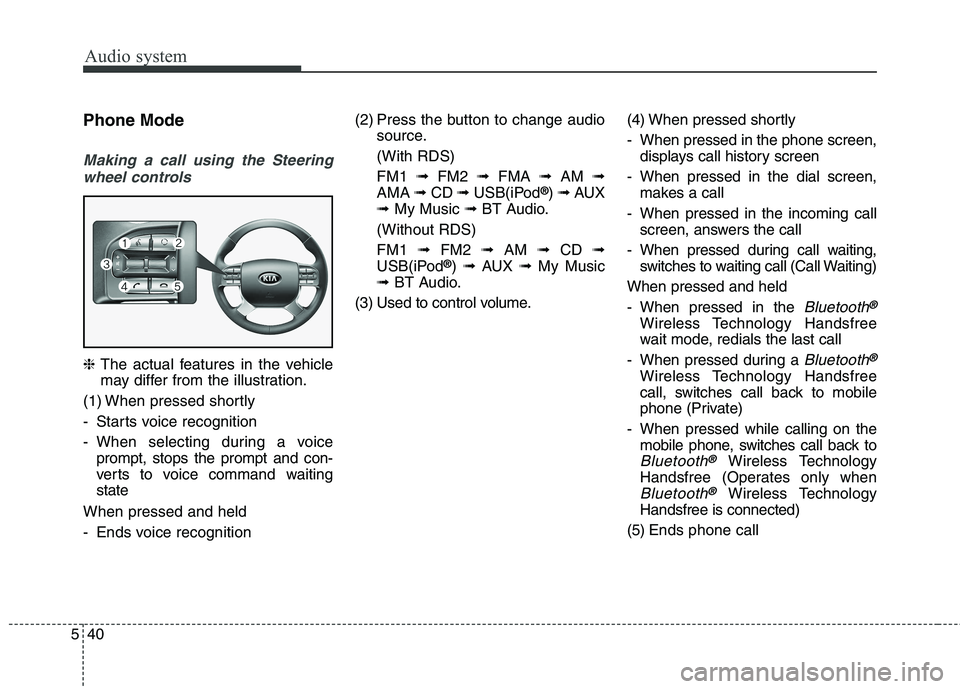
540Phone Mode
Making a call using the Steering
wheel controls
❈ The actual features in the vehicle
may differ from the illustration.
(1) When pressed shortly
- Starts voice recognition
- When selecting during a voice prompt, stops the prompt and con-
verts to voice command waitingstate
When pressed and held
- Ends voice recognition (2) Press the button to change audio
source.
(With RDS)FM1 ➟FM2 ➟FMA ➟AM ➟
AMA ➟CD ➟USB(iPod ®
) ➟ AUX
➟ My Music ➟BT Audio.
(Without RDS)FM1 ➟FM2 ➟AM ➟CD ➟
USB(iPod ®
) ➟ AUX ➟My Music
➟ BT Audio.
(3) Used to control volume. (4) When pressed shortly
- When pressed in the phone screen,
displays call history screen
- When pressed in the dial screen, makes a call
- When pressed in the incoming call screen, answers the call
- When pressed during call waiting, switches to waiting call (Call Waiting)
When pressed and held
- When pressed in the
Bluetooth®
Wireless Technology Handsfree
wait mode, redials the last call
- When pressed during a
Bluetooth®
Wireless Technology Handsfree
call, switches call back to mobile
phone (Private)
- When pressed while calling on the mobile phone, switches call back to
Bluetooth®Wireless Technology
Handsfree (Operates only when
Bluetooth®Wireless Technology
Handsfree is connected)
(5) Ends phone call