phone KIA CADENZA 2011 Owners Manual
[x] Cancel search | Manufacturer: KIA, Model Year: 2011, Model line: CADENZA, Model: KIA CADENZA 2011Pages: 352, PDF Size: 28.17 MB
Page 72 of 352
411
Features of your vehicle
Trunk unlocking
If you are within 0.7~1 m (28~40 in.) from
the outside trunk handle with your smart
key in your possession, the trunk will
unlock and open when you press the
trunk handle switch.
Also, once the trunk is opened and then
closed, the trunk will lock automatically.
Start-up
You can start the engine without inserting
the key. For detailed information refer to
“ENGINE START/STOP button” in sec-tion 5.Smart key precautions
✽✽
NOTICE
If, for some reason, you happen to lose your smart key, you will not be able to
start the engine. Tow the vehicle, if
necessary, and contact an authorized
KIA dealer.
A maximum of 2 smart keys can be
registered to a single vehicle. If you
lose a smart key, you should immedi-
ately take the vehicle and key to your
authorized KIA dealer to protect it
from potential theft.
The smart key will not work if any of
following occur:
- The smart key is close to a radiotransmitter such as a radio station or
an airport which can interfere with
normal operation of the smart key.
- You keep the smart key near a
mobile two-way radio system or a
cellular phone.
- Another vehicle’s smart key is being operated close to your vehicle.
When the smart key does not work
correctly, open and close the door with
the mechanical key. If you have a
problem with the smart key, contact
an authorized KIA dealer.CAUTION
Keep the smart key away from
water or any liquid. If the keyless
entry system is inoperative due to exposure to water or liquids, it willnot be covered by your manufactur- er’s vehicle warranty.
Page 89 of 352
Features of your vehicle
28
4
(Continued)
Do not get back into a vehicle
once you have begun refueling
since you can generate static
electricity by touching, rubbing
or sliding against any item or fab-
ric (polyester, satin, nylon, etc.)
capable of producing static elec-
tricity. Static electricity discharge
can ignite fuel vapors resulting in
rapid burning. If you must re-
enter the vehicle, you should
once again eliminate potentially
dangerous static electricity dis-
charge by touching a metal part
of the vehicle, away from the fuel
filler neck, nozzle or other gaso-
line source.
When using an approved portable fuel container, be sure toplace the container on the
ground prior to refueling. Static
electricity discharge from the
container can ignite fuel vapors
causing a fire. Once refueling has
begun, contact with the vehicleshould be maintained until the
filling is complete.
(Continued)WARNING - Refueling dan-
gers
Automotive fuels are flammable
materials. When refueling, please
note the following guidelines care-
fully. Failure to follow these guide-
lines may result in severe personal
injury, severe burns or death by fire
or explosion.
Read and follow all warnings at the gas station facility.
Before refueling note the location of the Emergency Gasoline Shut-
Off, if available, at the gas station
facility.
Before touching the fuel nozzle, you should eliminate potentially
dangerous static electricity dis-
charge by touching another metal
part of the vehicle, a safe dis-
tance away from the fuel filler
neck, nozzle, or other gas source.
(Continued)(Continued)Use only approved portable plas-
tic fuel containers designed to
carry and store gasoline.
Do not use cellular phones while refueling. Electric current and/or
electronic interference from cel-
lular phones can potentially
ignite fuel vapors causing a fire.
When refueling, always shut the engine off. Sparks produced byelectrical components related to
the engine can ignite fuel vapors
causing a fire. Once refueling is
complete, check to make sure thefiller cap and filler door are
securely closed, before starting
the engine.
DO NOT use matches or a lighter and DO NOT SMOKE or leave a lit
cigarette in your vehicle while at
a gas station especially during
refueling. Automotive fuel is
highly flammable and can, when
ignited, result in fire.
(Continued)
Page 130 of 352
469
Features of your vehicle
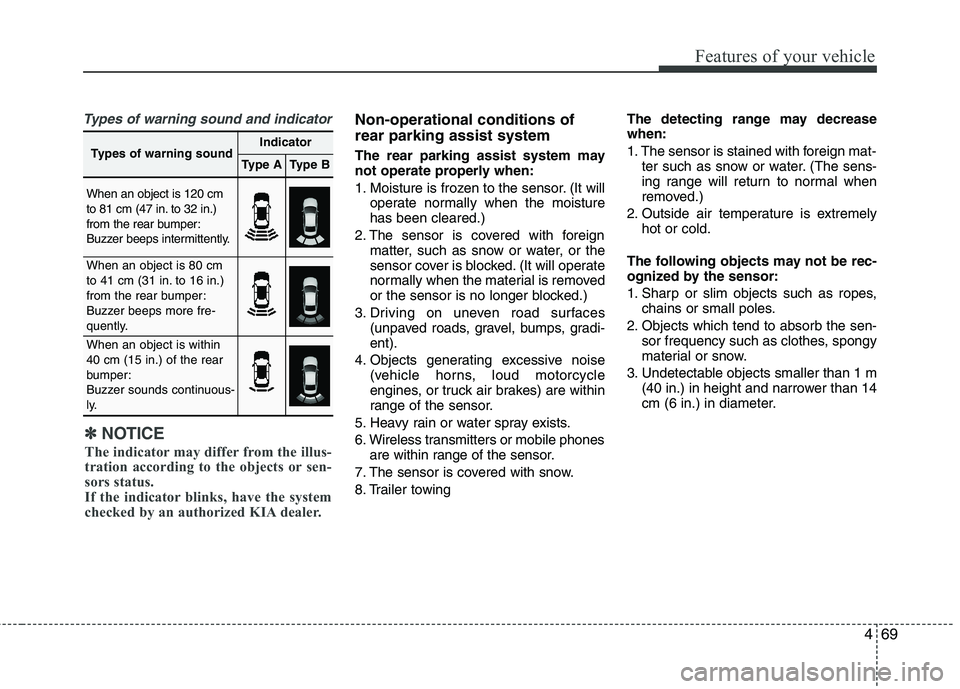
Types of warning sound and indicatorNon-operational conditions of rear parking assist system
The rear parking assist system may
not operate properly when:
1. Moisture is frozen to the sensor. (It willoperate normally when the moisture has been cleared.)
2. The sensor is covered with foreign matter, such as snow or water, or the
sensor cover is blocked. (It will operate
normally when the material is removed
or the sensor is no longer blocked.)
3. Driving on uneven road surfaces (unpaved roads, gravel, bumps, gradi-ent).
4. Objects generating excessive noise (vehicle horns, loud motorcycle
engines, or truck air brakes) are within
range of the sensor.
5. Heavy rain or water spray exists.
6. Wireless transmitters or mobile phones are within range of the sensor.
7. The sensor is covered with snow.
8. Trailer towing The detecting range may decrease when:
1. The sensor is stained with foreign mat-
ter such as snow or water. (The sens-
ing range will return to normal when
removed.)
2. Outside air temperature is extremely hot or cold.
The following objects may not be rec-
ognized by the sensor:
1. Sharp or slim objects such as ropes, chains or small poles.
2. Objects which tend to absorb the sen- sor frequency such as clothes, spongy
material or snow.
3. Undetectable objects smaller than 1 m (40 in.) in height and narrower than 14
cm (6 in.) in diameter.
✽✽ NOTICE
The indicator may differ from the illus-
tration according to the objects or sen-
sors status.
If the indicator blinks, have the system
checked by an authorized KIA dealer.
Types of warning soundIndicator
Type AType B
When an object is 120 cm
to 81 cm (47 in. to 32 in.)
from the rear bumper:
Buzzer beeps intermittently.
When an object is 80 cm
to 41 cm (31 in. to 16 in.)
from the rear bumper:
Buzzer beeps more fre-
quently.
When an object is within 40 cm (15 in.) of the rear
bumper:
Buzzer sounds continuous-
ly.
Page 134 of 352
473
Features of your vehicle
Non-operational conditions of parking assist system
Parking assist system may not oper-ate normally when:
1. Moisture is frozen to the sensor. (It will operate normally when moisture
melts.)
2. Sensor is covered with foreign matter, such as snow or water, or the sensor
cover is blocked. (It will operate nor-
mally when the material is removed or
the sensor is no longer blocked.)
3. Sensor is stained with foreign matter such as snow or water. (Sensing range
will return to normal when removed.)
4.The parking assist button is off.
There is a possibility of parking assist system malfunction when:
1. Driving on uneven road surfaces such as unpaved roads, gravel, bumps, or
gradient.
2. Objects generating excessive noise such as vehicle horns, loud motorcycle
engines, or truck air brakes can inter-
fere with the sensor.
3. Heavy rain or water spray.
4. Wireless transmitters or mobile phones present near the sensor.
5. Sensor is covered with snow.
Detecting range may decrease when:
1. Outside air temperature is extremely hot or cold.
2. Undetectable objects smaller than 1 m and narrower than 14 cm in diameter.
The following objects may not be rec-
ognized by the sensor:
1. Sharp or slim objects such as ropes, chains or small poles.
2. Objects, which tend to absorb sensor frequency such as clothes, spongy
material or snow.
✽✽ NOTICE
1. The warning may not sound sequen- tially depending on the speed and
shapes of the objects detected.
2. The parking assist system may mal-
function if the vehicle bumper height
or sensor installation has been modi-
fied. Any non-factory installed equip-
ment or accessories may also interfere
with the sensor performance.
3. Sensor may not recognize objects less
than 30 cm from the sensor, or it may
sense an incorrect distance. Use with
caution.
4. When the sensor is frozen or stained
with snow or water, the sensor may be
inoperative until the stains are
removed using a soft cloth.
5. Do not push, scratch or strike the sen-
sor with any hard objects that could
damage the surface of the sensor.
Sensor damage could occur.
Page 176 of 352
4115
Features of your vehicle
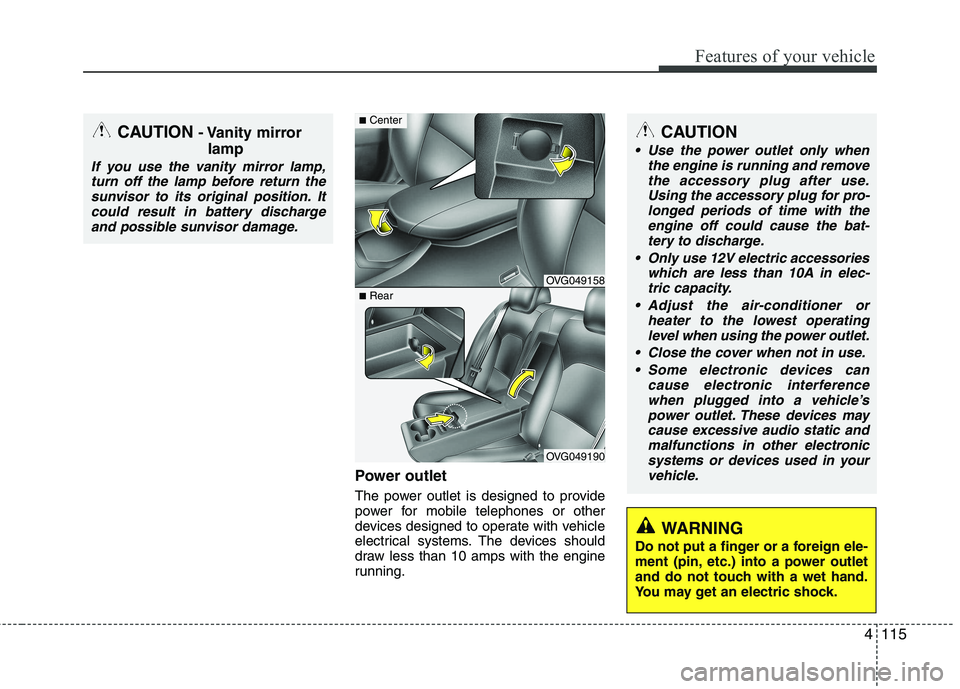
Power outlet
The power outlet is designed to provide
power for mobile telephones or other
devices designed to operate with vehicle
electrical systems. The devices should
draw less than 10 amps with the engine
running.
CAUTION
Use the power outlet only whenthe engine is running and remove
the accessory plug after use. Using the accessory plug for pro-longed periods of time with theengine off could cause the bat-
tery to discharge.
Only use 12V electric accessories which are less than 10A in elec-tric capacity.
Adjust the air-conditioner or heater to the lowest operatinglevel when using the power outlet.
Close the cover when not in use. Some electronic devices can cause electronic interference
when plugged into a vehicle’s power outlet. These devices maycause excessive audio static and malfunctions in other electronic
systems or devices used in yourvehicle.
WARNING
Do not put a finger or a foreign ele-
ment (pin, etc.) into a power outlet
and do not touch with a wet hand.
You may get an electric shock.
CAUTION - Vanity mirror
lamp
If you use the vanity mirror lamp,turn off the lamp before return the
sunvisor to its original position. Itcould result in battery dischargeand possible sunvisor damage.
OVG049158
OVG049190
■ Center
■Rear
Page 185 of 352
Features of your vehicle
124
4
Using a cellular phone or a two-way
radio
When a cellular phone is used inside the
vehicle, noise may be produced from the
audio equipment. This does not meanthat something is wrong with the audio
equipment. In such a case, use the cellu-
lar phone at a place as far as possiblefrom the audio equipment. Care of discs
If the temperature inside the vehicle is
too high, open the vehicle windows for
ventilation before using your vehicle
audio.
It is illegal to copy and use MP3/WMA files without permission. Use CDs that
are created only by lawful means.
Do not apply volatile agents such as benzene and thinner, normal cleaners
and magnetic sprays made for ana-
logue disc onto CDs.
To prevent the disc surface from get- ting damaged. Hold and carry CDs bythe edges or the edges of the center
hole only.
Clean the disc surface with a piece of soft cloth before playback (wipe it fromthe center to the outside edge).
Do not damage the disc surface or attach pieces of sticky tape or paperonto it.
Make sure objects other than CDs are not inserted into the CD player (Do not
insert more than one CD at a time). Keep CDs in their cases after use to
protect them from scratches or dirt.
Depending on the type of CD-R/CD- RW CDs, certain CDs may not operate
normally according to manufacturingcompanies or making and recording
methods. In such circumstances, if you
still continue to use those CDs, they
may cause the malfunction of your
vehicle audio system.
✽✽ NOTICE - Playing an
Incompatible Copy
Protected Audio CD
Some copy protected CDs, which do not
comply with the international audio CD
standards (Red Book), may not play on
your vehicle audio. Please note that if
you try to play copy protected CDs and
the CD player does not perform correct-
ly the CDs maybe defective, not the CD
player.
WARNING
Do not use a cellular phone while
driving. Stop at a safe location to
use a cellular phone.
CAUTION
When using a communication sys- tem such a cellular phone or a radioset inside the vehicle, a separate
external antenna must be fitted.When a cellular phone or a radio setis used with an internal antennaalone, it may interfere with the vehi-
cle's electrical system and adverse-ly affect safe operation of the vehi- cle.
Page 187 of 352
![KIA CADENZA 2011 Owners Manual Knowing your vehicle
126
4
Using RADIO, SETUP, VOLUME
and AUDIO CONTROL
1. AM Button
Pressing the [AM] button selects the AM
band. AM Mode is displayed on the LCD.
2. FM Button
Turns to FM mode a](/img/2/57935/w960_57935-186.png "KIA CADENZA 2011 Owners Manual Knowing your vehicle
126
4
Using RADIO, SETUP, VOLUME
and AUDIO CONTROL
1. AM Button
Pressing the [AM] button selects the AM
band. AM Mode is displayed on the LCD.
2. FM Button
Turns to FM mode a")
Knowing your vehicle
126
4
Using RADIO, SETUP, VOLUME
and AUDIO CONTROL
1. AM Button
Pressing the [AM] button selects the AM
band. AM Mode is displayed on the LCD.
2. FM Button
Turns to FM mode and toggles FM1and
FM2 when the button is pressed each time.
3. SEEK Button
When the [SEEK ] button is pressed,
it increases the band frequency to auto-
matically select channel. Stops at the
previous frequency if no channel is
found.
When the [TRACK ] button is press- ed, it reduces the band frequency to
automatically select channel. Stops at
the previous frequency if no channel is
found. 4. POWER ON/OFF Button
Turns on/off the set when the IGNITION
SWITCH is on ACC or ON.
5. PRESET Buttons
Push [1]~[6] buttons less than 0.8 sec-
onds to play the channel saved in each
button. Push Preset button for 0.8 sec-
onds or longer to save current channel to
the respective button with a beep.
6. AST(AUTO STORE Button)
When the button is pressed, it automati-
cally selects and saves channels with
high reception rate to PRESET buttons
[1]~[6] and plays the channel saved in
PRESET1. If no channel is saved after
AST, it will play the previous channel.
7. SETUP Button ■
PA710VG
Press this button to turn to the SCROLL
option and the other adjustment mode. If
no action is taken for 5 seconds after
pressing the button, it will return to the
play mode. (After entering SETUP mode,
select Manual tune Button and push OK
Button. )The setup change in the order ofSOUND ↔SDVC ↔CLOCK ↔TEMP ↔
SCROLL ↔RETURN
■ PA760VG
The setup change in the order ofSOUND ↔V-EQ ↔SDVC ↔CLOCK ↔
TEMP ↔SCROLL ↔PHONE ↔RETURN
In the case of JBL AMP SOUND ↔SDVC ↔CLOCK ↔TEMP ↔SCR
OLL ↔PHONE
Page 188 of 352
![KIA CADENZA 2011 Owners Manual 4127
Knowing your vehicle
SOUNDSelect this menu to adjust the sound in
following order: BASS, MIDDLE, TRE-
BLE and FADER /BALANCE. To move
between items, press [OK] button.
BASS/MIDDLE/TREBLE : Use](/img/2/57935/w960_57935-187.png "KIA CADENZA 2011 Owners Manual 4127
Knowing your vehicle
SOUNDSelect this menu to adjust the sound in
following order: BASS, MIDDLE, TRE-
BLE and FADER /BALANCE. To move
between items, press [OK] button.
BASS/MIDDLE/TREBLE : Use")
4127
Knowing your vehicle
SOUNDSelect this menu to adjust the sound in
following order: BASS, MIDDLE, TRE-
BLE and FADER /BALANCE. To move
between items, press [OK] button.
BASS/MIDDLE/TREBLE : Use [ FILE ],
[TUNE ] buttons to adjust the menu.
FADER/BALANCE : Use [ FILE ],
[TUNE ] buttons to adjust BALANCE
and [ FOLDER ] buttons to
adjust FADER.
This function automatically adjusts the
volume level according to the speed of
the vehicle and can be turned ON/OFF
through the sound quality control knob.
CLOCK Pressing the [ FILE ], [ TUNE ] but-ton select the time mode(12, 24mode),
and push the [OK] button. TEMP
Select this item to set the
"Temperature Display Type".
SCROLL Select whether long file names are
scrolled continuously (“ON”) or justonce (“OFF”).
PHONE (if equipped) Select this item to enter BLUETOOTH
setup mode. Refer to “BLUETOOTH
PHONE OPERATION” section for
detailed information.
Press [ FILE ], [ TUNE ] button
changes the Innocente, Forza,
Concertro mode, and push [OK]Button. 8. TUNE Button
Push this button to manually adjust fre-
quency, While listening to the radio chan-nel.
9. OK Button
Push this button to select each mode.
10. MUTE Button
When the button is pressed, stops sound
and “Audio Mute” is displayed on LCD.
11. VOLUME Knob
If the knob is turned clockwise/counter-
clockwise, the volume will increase
/decrease.
Page 195 of 352
Knowing your vehicle
134
4
(Continued)
If the USB device is divided by logical drives, only the music fileson the highest-priority drive arerecognized by car audio.
Devices such as MP3 Player/ Cellular phone/Digital camera canbe unrecognizable by standardUSB I/F can be unrecognizable.
Some non-standard USB devices (METAL COVER TYPE USB) can beunrecognizable.
Some USB flash memory readers (such as CF, SD, microSD, etc.) orexternal-HDD type devices can be unrecognizable.
Music files protected by DRM (DIGITAL RIGHTS MANAGEMENT)are not recognizable.
The data in the USB memory may be lost while using this audio.
Always back up important data ona personal storage device.
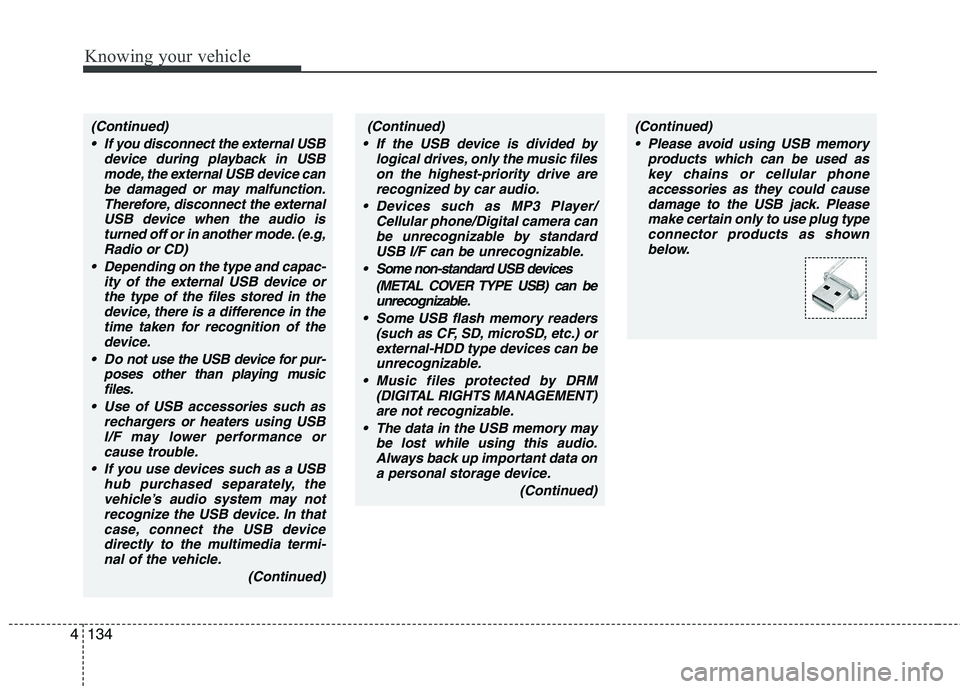
(Continued)(Continued) Please avoid using USB memory products which can be used askey chains or cellular phone
accessories as they could causedamage to the USB jack. Pleasemake certain only to use plug type
connector products as shownbelow.(Continued)
If you disconnect the external USB device during playback in USBmode, the external USB device canbe damaged or may malfunction.
Therefore, disconnect the externalUSB device when the audio isturned off or in another mode. (e.g,
Radio or CD)
Depending on the type and capac- ity of the external USB device orthe type of the files stored in the device, there is a difference in the
time taken for recognition of thedevice.
Do not use the USB device for pur- poses other than playing musicfiles.
Use of USB accessories such as rechargers or heaters using USBI/F may lower performance orcause trouble.
If you use devices such as a USB hub purchased separately, thevehicle’s audio system may notrecognize the USB device. In thatcase, connect the USB device
directly to the multimedia termi-nal of the vehicle.
(Continued)
Page 198 of 352
4137
Knowing your vehicle
✽✽NOTICE FOR USING THE
iPod DEVICE
Some iPod models might not support the communication protocol and the
files will not be played.
Supported iPod models:
- iPod Mini
- iPod 4th(Photo) ~ 6th(Classic) gen-
eration
- iPod Nano 1st~4th generation
- iPod Touch 1st~2nd generation
The order of search or playback of songs in the iPod can be different
from the order searched in the audio
system.
If the iPod disabled due to its own malfunction, reset the iPod. (Reset:
Refer to iPod manual)
An iPod may not operate normally on
low battery.
Some iPod devices, such as the iPhone,
can be connected through the Bluetooth
interface. The device must have audio
Bluetooth capability (such as for stereo
headphone Bluetooth). The device can
play, but it will not be controlled by the
audio system.CAUTION IN USING THE
iPod DEVICE
The Kia iPod Power Cable is needed in order to operate iPodwith the audio buttons on theaudio system. The USB cable pro-vided by Apple may cause mal-
function and should not be usedfor Kia vehicles.
❋ The Kia iPod Power Cable may be purchased through your KiaDealership.
When connecting iPod with the iPod Power Cable, insert the con-
nector to the multimedia socket completely. If not inserted com-pletely, communications betweeniPod and audio may be interrupt-
ed.
When adjusting the sound effects of the iPod and the audio system,the sound effects of both devices will overlap and might reduce or
distort the quality of the sound.
(Continued)
(Continued) Deactivate (turn off) the equalizer function of an iPod when adjust-ing the audio system’s volume,and turn off the equalizer of the
audio system when using theequalizer of an iPod.
When the iPod cable is connected, the system can be switched to AUX
mode even without iPod deviceand may cause noise. D isconnect
the iPod cable when you are not using the iPod device.
When not using iPod with car audio, detach the iPod cable fromiPod. Otherwise, iPod may remain in accessory mode, and may notwork properly.