USB KIA Carens 2017 3.G User Guide
[x] Cancel search | Manufacturer: KIA, Model Year: 2017, Model line: Carens, Model: KIA Carens 2017 3.GPages: 625, PDF Size: 19.69 MB
Page 299 of 625
Audio system
529
MP3 CD, USB mode: FLD.RDM on
screen
Folder Random (press the key) :Plays all files within the current
folder in random order.
iPod
®mode: ALL RDM on screen
All Random (press the key) : Plays all files in random order.
MP3 CD, USB : ALL RDM on screen
All Random (pressing twice): Plays all files in random order.
❈ Press the key again to turn
off random.
Changing Song/File
While song (file) is playing
key
Shortly pressing the key : Plays the current song from the beginning.
❈ If the key is pressed
again within 2 second, the previ-
ous song is played.
Pressing and holding the key (over 0.8 seconds): Rewinds the song. While song (file) is playing
key
Shortly pressing the key : Plays the next song.
Pressing and holding the key (over 0.8 seconds): Fast forwards the
song.
Scan
While song (file) is playing
key
Shortly pressing the key : Scans allsongs from the next song for 10
seconds each.
❈ Press the key again to turn
off.
❈ The SCAN function is not support-
ed in iPod
®mode. Folder Search : MP3 CD, USB
Mode
While file is playing
(Folder Up) key
Searches the next folder.
While file is playing
(Folder Down) key
Searches the parent folder.
❈
If a folder is selected by pressing
the TUNE knob, the first file
within the selected folder will be
played.
❈ In iPod
®mode, moves to the
Parent Folder.
Searching Songs (File)
Turning TUNE knob : Searches for songs (files)
Pressing TUNE knob : Plays selected song (file).
CAT
FOLDER
CAT
FOLDER
SCAN
SCAN
SEEK
TRACK
SEEK
TRACK
SEEK
TRACK
2RDM
Page 300 of 625
![KIA Carens 2017 3.G User Guide Audio system
30
5
MENU : Audio CD
Press the Audio CD mode
key to set the Repeat, Random,
Information features.
Repeat
Press the key Set [ RPT]
through the TUNE knob or
key to repeat the current so](/img/2/2982/w960_2982-299.png "KIA Carens 2017 3.G User Guide Audio system
30
5
MENU : Audio CD
Press the Audio CD mode
key to set the Repeat, Random,
Information features.
Repeat
Press the key Set [ RPT]
through the TUNE knob or
key to repeat the current so")
Audio system
30
5
MENU : Audio CD
Press the Audio CD mode
key to set the Repeat, Random,
Information features.
Repeat
Press the key Set [ RPT]
through the TUNE knob or
key to repeat the current song.
❈ Press RPT again to turn off.
Random
Press the key Set [ RDM]
through the
TUNEknob or
key to randomly play songs within
the current CD.
❈ Press RDM again to turn off.
Information
Press the key Set [ Info]
through the
TUNEknob or
key to display information of the cur-
rent song.
❈ Press the key to turn off
info display
.
MENU : MP3 CD / USB
Press the MP3 CD/USB mode key to set the Repeat, Folder
Random, Folder Repeat, All
Random, Information, and Copy fea-
tures.
Repeat
Press the key Set [ RPT]
through the
TUNEknob or
key to repeat the current song.
❈ Press RPT again to turn off.1 RPTMENU
MENU
MENU
3
MENU
2 RDMMENU
1 RPT
MENU
MENU
Page 301 of 625
![KIA Carens 2017 3.G User Guide Audio system
531
Folder Random
Press the key Set [ F.RDM]
through the
TUNEknob or
key to randomly play songs within the
current folder.
❈ Press F.RDM again to turn off.
Folder Repeat
Press the k](/img/2/2982/w960_2982-300.png "KIA Carens 2017 3.G User Guide Audio system
531
Folder Random
Press the key Set [ F.RDM]
through the
TUNEknob or
key to randomly play songs within the
current folder.
❈ Press F.RDM again to turn off.
Folder Repeat
Press the k")
Audio system
531
Folder Random
Press the key Set [ F.RDM]
through the
TUNEknob or
key to randomly play songs within the
current folder.
❈ Press F.RDM again to turn off.
Folder Repeat
Press the key Set [ F.RPT]
through the
TUNEknob or
key to repeat songs within the cur-
rent folder.
❈ Press F.RPT again to turn off.
All Random
Press the key Set [ A.RDM]
through the
TUNEknob or key
to randomly play all songs within the
CD/USB.
❈ Press A.RDM again to turn off.
Information
Press the key Set [ Info]
through the
TUNEknob or
key to display information of the cur-
rent song.
❈ Press the key to turn off
info display.
Copy
Press the key Set [ Copy]
through the
TUNEknob or
key.
This is used to copy the current
song into My Music. You can play
the copied Music in My Music
mode.
❈ If another key is pressed while
copying is in progress, a pop up
asking you whether to cancel
copying is displayed.
❈ If another media is connected or
inserted (USB, CD, iPod
®, AUX)
while copying is in progress, copy-
ing is canceled.
❈ Music will not be played while
copying is in progress.
MENU : iPod®
In iPod®mode, press the key
to set the Repeat, Random,
Information and Search features.
Repeat
Press the key Set [ RPT]
through the
TUNEknob or
key to repeat the current song.
❈ Press RPT again to turn repeat off.
Random
Press the key Set [ RDM]
through the TUNEknob or
key.
Plays all songs within the currently
playing category in random order.
❈ Press RDM again to turn off.
2
MENU
1 RPTMENU
MENU
6
MENU
MENU
5
MENU
4
MENU
3
MENU
2 RDM
MENU
Page 305 of 625
Audio system
535
Bluetooth®Wireless Technology
AUDIO
What is Bluetooth®Wireless
Technology
?
Bluetooth®Wireless Technology allows
devices to be connected in a short dis-
tance, including hands-free devices,
stereo headsets, wireless remote con-
trollers, etc. For more information, visit
the Bluetooth®Wireless Technology
website at www.Bluetooth.com
Before using Bluetooth®Wireless
Technology audio features
Bluetooth®Wireless Technology
audio may not be supported
depending on the compatibility of
your
Bluetooth®Wireless
Technology mobile phone.
In order to use
Bluetooth®Wireless
Technology audio, you must first
pair and connect the
Bluetooth®
Wireless Technology mobile phone. The
Bluetooth®word mark and
logos are registered trademarks
owned by Bluetooth SIG, Inc. and
any use of such marks by Kia is
under license. Other trademarks
and trade names are those of their
respective owners. A
Bluetooth®
enabled cell phone is required to
use
Bluetooth®Wireless
Technology.
Bluetooth®Wireless Technology
audio can be used only when the
[Audio Streaming] of Phone is
turned .
Starting Bluetooth®Wireless
Technology Audio
key to change the
mode in order of CD ➟ USB ➟ AUX
➟ My Music ➟ BT Audio.
Bluetooth®
Wireless Technology audio will start
playing.
❈ Audio may not automatically start
playing in some mobile phones.
MEDIA
On
WARNING
Driving while distracted can
result in a loss of vehicle control
that may lead to an accident,
severe personal injury, and
death. The driver’s primary
responsibility is in the safe and
legal operation of a vehicle, and
use of any handheld devices,
other equipment, or vehicle sys-
tems which take the driver’s
eyes, attention and focus away
from the safe operation of a vehi-
cle or which are not permissible
by law should never be used dur-
ing operation of the vehicle.
Page 322 of 625
Audio system
52
5
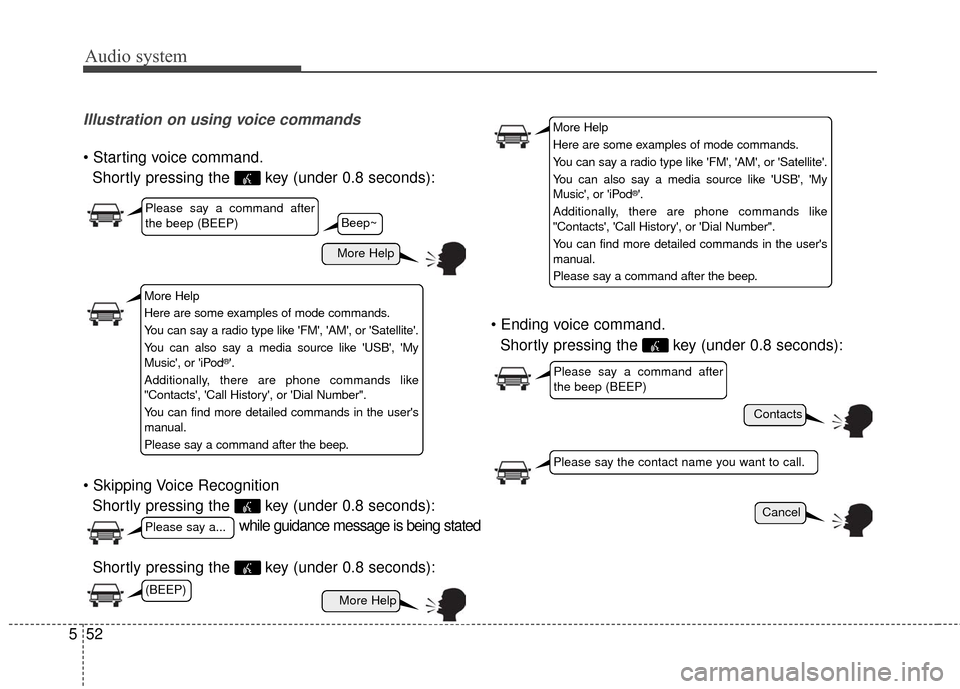
Illustration on using voice commands
Shortly pressing the key (under 0.8 seconds):
Shortly pressing the key (under 0.8 seconds):
Shortly pressing the key (under 0.8 seconds):
Shortly pressing the key (under 0.8 seconds):
while guidance message is being stated
More Help
Contacts
Cancel
More Help
Please say a command after
the beep (BEEP)
Please say a...
Please say the contact name you want to call.
Beep~
More Help
Here are some examples of mode commands.
You can say a radio type like 'FM', 'AM', or 'Satellite'.
You can also say a media source like 'USB', 'My
Music', or 'iPod
®'.
Additionally, there are phone commands like
"Contacts', 'Call History', or 'Dial Number".
You can find more detailed commands in the user's
manual.
Please say a command after the beep.
More Help
Here are some examples of mode commands.
You can say a radio type like 'FM', 'AM', or 'Satellite'.
You can also say a media source like 'USB', 'My
Music', or 'iPod
®'.
Additionally, there are phone commands like
"Contacts', 'Call History', or 'Dial Number".
You can find more detailed commands in the user's
manual.
Please say a command after the beep.
Please say a command after
the beep (BEEP)
(BEEP)
Page 324 of 625
Audio system
54
5
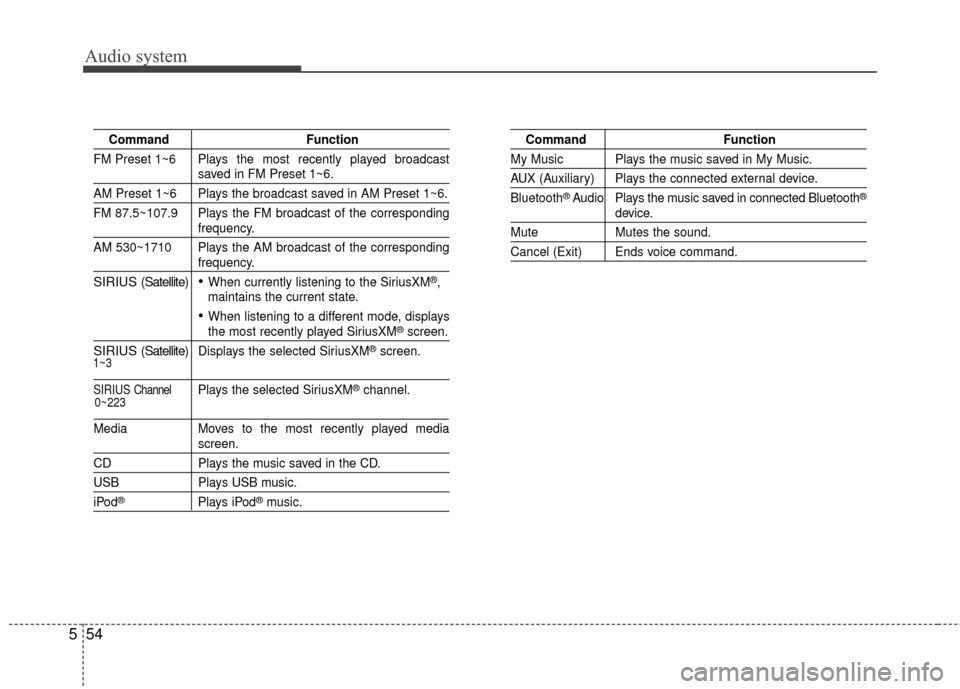
Command Function
FM Preset 1~6 Plays the most recently played broadcast
saved in FM Preset 1~6.
AM Preset 1~6 Plays the broadcast saved in AM Preset 1~6.
FM 87.5~107.9 Plays the FM broadcast of the corresponding
frequency.
AM 530~1710 Plays the AM broadcast of the corresponding
frequency.
SIRIUS (Satellite)When currently listening to the SiriusXM®,
maintains the current state.
When listening to a different mode, displaysthe most recently played SiriusXM®screen.
SIRIUS (Satellite)Displays the selected SiriusXM®screen.
SIRIUS ChannelPlays the selected SiriusXM®channel.
Media Moves to the most recently played media
screen.
CD Plays the music saved in the CD.
USBPlays USB music.
iPod®Plays iPod®music.
Command Function
My Music Plays the music saved in My Music.
AUX (Auxiliary) Plays the connected external device.
Bluetooth
®Audio Plays the music saved in connected Bluetooth®
device.
Mute Mutes the sound.
Cancel (Exit) Ends voice command.
0~223
1~3
Page 326 of 625
Audio system
56
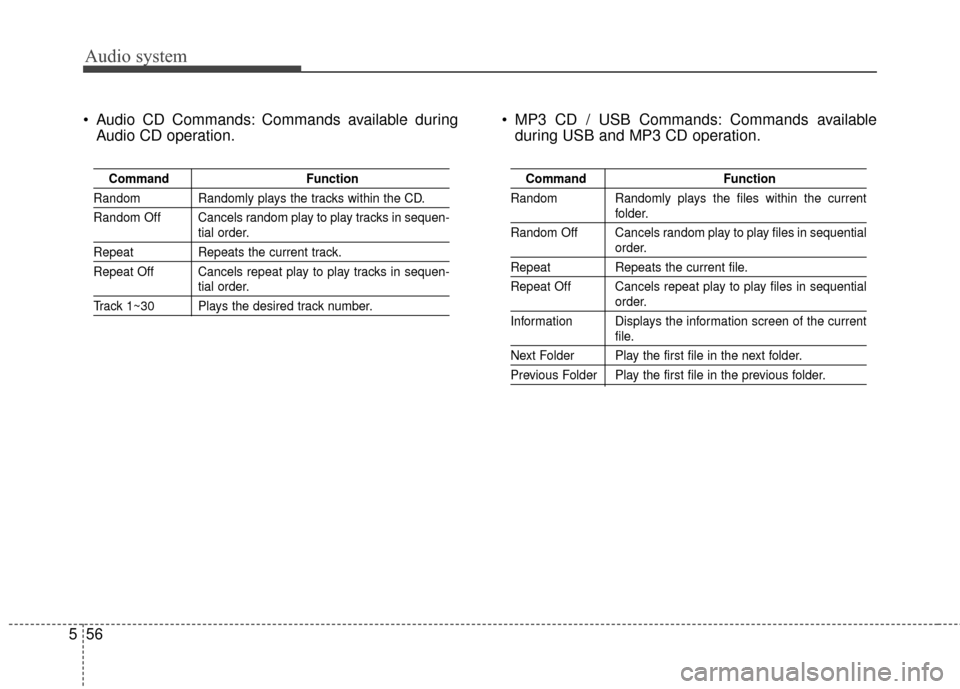
5 Audio CD Commands: Commands available during
Audio CD operation. MP3 CD / USB Commands: Commands available
during USB and MP3 CD operation.
Command Function
Random Randomly plays the tracks within the CD.
Random Off Cancels random play to play tracks in sequen-
tial order.
RepeatRepeats the current track.
Repeat Off Cancels repeat play to play tracks in sequen-
tial order.
Track 1~30 Plays the desired track number.
Command Function
Random Randomly plays the files within the current
folder.
Random Off Cancels random play to play files in sequential
order.
Repeat Repeats the current file.
Repeat Off Cancels repeat play to play files in sequential
order.
Information Displays the information screen of the current
file.
Next Folder Play the first file in the next folder.
Previous Folder Play the first file in the previous folder.
Page 330 of 625
Audio system
60
5
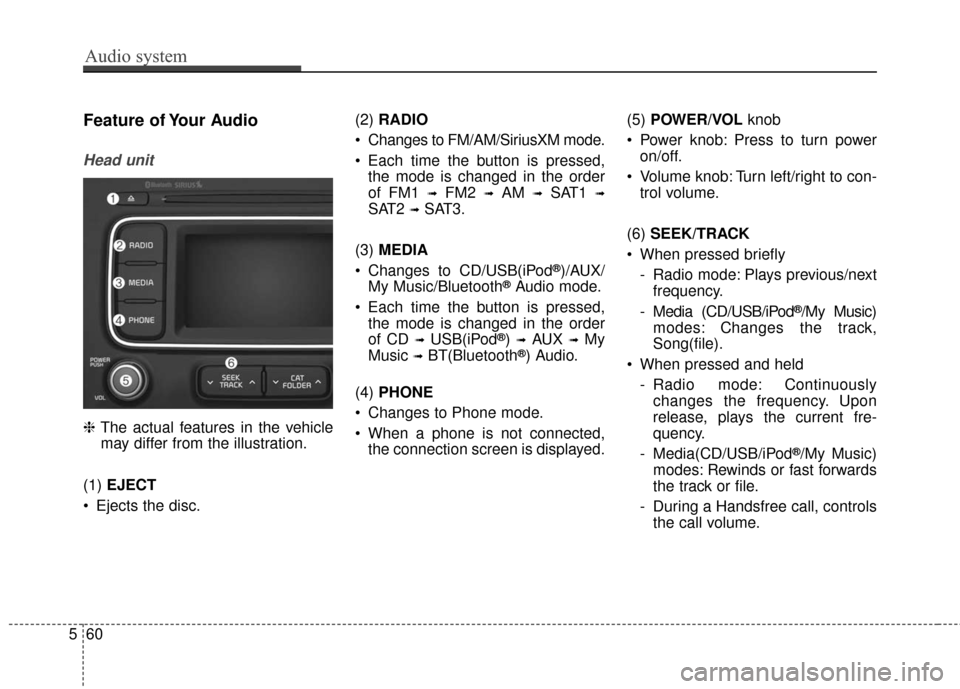
Feature of Your Audio
Head unit
❈ The actual features in the vehicle
may differ from the illustration.
(1) EJECT
Ejects the disc. (2)
RADIO
Changes to FM/AM/SiriusXM mode.
Each time the button is pressed, the mode is changed in the order
of FM1
➟FM2 ➟AM ➟SAT1 ➟
SAT2 ➟SAT3.
(3) MEDIA
Changes to CD/USB(iPod
®)/AUX/
My Music/Bluetooth®Audio mode.
Each time the button is pressed, the mode is changed in the order
of CD
➟USB(iPod®) ➟AUX ➟My
Music
➟BT(Bluetooth®) Audio.
(4) PHONE
Changes to Phone mode.
When a phone is not connected, the connection screen is displayed. (5)
POWER/VOL knob
Power knob: Press to turn power on/off.
Volume knob: Turn left/right to con- trol volume.
(6) SEEK/TRACK
When pressed briefly - Radio mode: Plays previous/nextfrequency.
- Media (CD/USB/iPod
®/My Music)
modes: Changes the track,
Song(file).
When pressed and held - Radio mode: Continuouslychanges the frequency. Upon
release, plays the current fre-
quency.
- Media(CD/USB/iPod
®/My Music)
modes: Rewinds or fast forwards
the track or file.
- During a Handsfree call, controls the call volume.
Page 331 of 625
Audio system
561
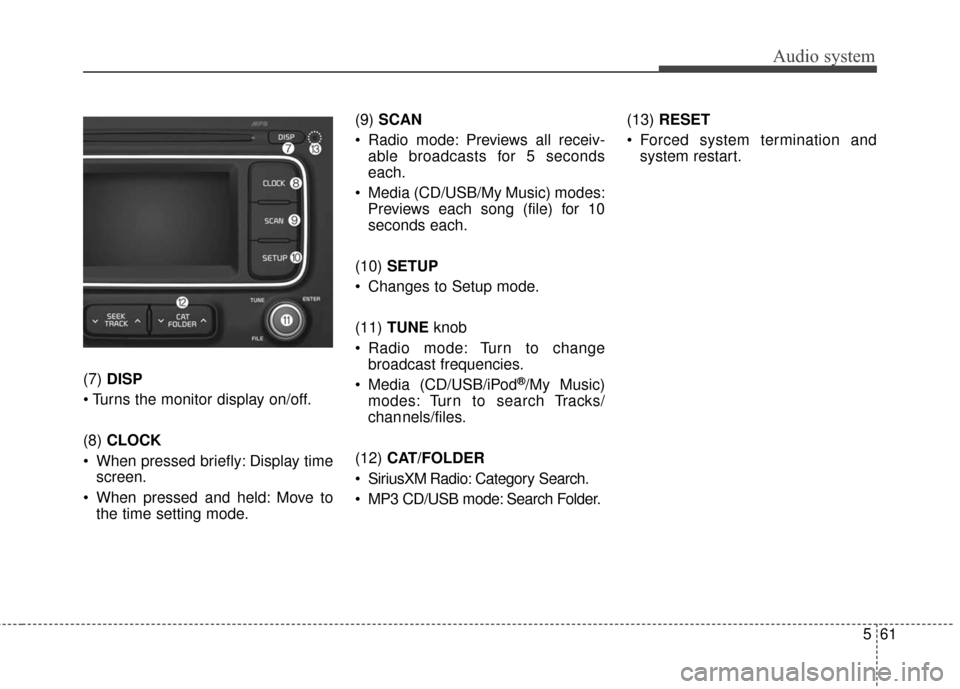
(7) DISP
(8) CLOCK
When pressed briefly: Display time screen.
When pressed and held: Move to the time setting mode. (9)
SCAN
Radio mode: Previews all receiv- able broadcasts for 5 seconds
each.
Media (CD/USB/My Music) modes: Previews each song (file) for 10
seconds each.
(10) SETUP
Changes to Setup mode.
(11) TUNE knob
Radio mode: Turn to change broadcast frequencies.
Media (CD/USB/iPod®/My Music)
modes: Turn to search Tracks/
chan nels/files.
(12) CAT/FOLDER
SiriusXM Radio: Category Search.
MP3 CD/USB mode: Search Folder. (13)
RESET
Forced system termination and system restart.
Page 335 of 625
Audio system
565
✽ ✽NOTICE - Using the USB
Devices
• Connect the USB device after turning on the engine. The USB
device may become damaged if it
is already connected when the
ignition is turned on. The USB
device may not operate properly if
the car ignition is turned on or off
with the USB device connected.
• Be careful for static electricity when connecting/disconnecting
USB devices.
• Encoded MP3 Players will not be recognized when connected as an
external device.
• When connecting an external USB device, the vehicle's audio system
may not recognize the USB
depending on what firmware is
used by USB device or what files
are on the USB.
• Only products formatted with byte/sectors under 64Kbyte will be
recognized.
• This device recognizes USB devices formatted in FAT 12/16/32 file for-
mats. This device does not recog-
nize files in NTFS file format. (Continued)(Continued)
• Some USB devices may not be sup-
ported due to compatibility issues.
• Avoid contact between the USB connector and bodily parts or for-
eign objects.
• Repeated connecting/disconnect- ing of USB devices within short
periods of time may result in prod-
uct malfunction.
• A strange noise may occur when disconnecting the USB.
• Make sure to connect/disconnect external USB devices with the
audio power turned off.
• The amount of time required to recognize the USB device may dif-
fer depending on the type, size or
file formats stored on the USB.
Such differences in time are not
indications of malfunctions.
• The vehicle audio system only sup- ports USB devices designed to
play music files.
• USB images and videos are not supported. (Continued)(Continued)
• Do not use the USB I/F to charge
batteries or USB accessories that
generate heat. Doing so may lead
to worsened performance or dam-
age to the audio system.
• The audio system may not recog- nize the USB device if separately
purchased USB hubs and exten-
sion cables are being used.
Connect the USB device directly
with the USB port of the vehicle.
• When using mass storage USB devices with separate logical
drives, only files saved to the root
drive can be played.
• Files may not properly operate if application programs are installed
on the USBs.
• The audio system may not operate normally if MP3 Players, cellular
phones, digital cameras, or other
electronic devices (USB devices
not recognized as portable disk
drives) are connected with the
audio system. (Continued)