audio KIA CARENS RHD 2018 Owners Manual
[x] Cancel search | Manufacturer: KIA, Model Year: 2018, Model line: CARENS RHD, Model: KIA CARENS RHD 2018Pages: 723, PDF Size: 40.94 MB
Page 429 of 723
![KIA CARENS RHD 2018 Owners Manual Audio system
146
5
Clock/Calendar Setting
Clock Setting
Press the key Select
[Clock/Calendar] Select [ClockSettings]
Use the , buttons to set the
Hour, Minutes and AM/PM setting.
✽✽
NOTICE](/img/2/57938/w960_57938-428.png "KIA CARENS RHD 2018 Owners Manual Audio system
146
5
Clock/Calendar Setting
Clock Setting
Press the key Select
[Clock/Calendar] Select [ClockSettings]
Use the , buttons to set the
Hour, Minutes and AM/PM setting.
✽✽
NOTICE")
Audio system
146
5
Clock/Calendar Setting
Clock Setting
Press the key Select
[Clock/Calendar] Select [ClockSettings]
Use the , buttons to set the
Hour, Minutes and AM/PM setting.
✽✽
NOTICE
Press and hold the key (over
0.8 seconds) to set the
Clock/Calendar screen.
Calendar Setting
Press the key Select
[Clock/Calendar] Select [CalendarSettings]
Use the , buttons to set the
Day, Month and Year setting.
Clock Display
Press the key Select
[Clock/Calendar] Select [Clock
Display (Power off)]
This feature is used to display a clock on the screen when the audio sys-
tem is turned off.SETUP SETUP
CLOCK
SETUP
Page 430 of 723
![KIA CARENS RHD 2018 Owners Manual 5147
Audio system
Bluetooth®Wireless
Technology Setting
Pairing a New Device
Press the key Select
[Phone] Select [Pair Phone]
Bluetooth®Wireless Technology
devices can be paired with the audiosyst](/img/2/57938/w960_57938-429.png "KIA CARENS RHD 2018 Owners Manual 5147
Audio system
Bluetooth®Wireless
Technology Setting
Pairing a New Device
Press the key Select
[Phone] Select [Pair Phone]
Bluetooth®Wireless Technology
devices can be paired with the audiosyst")
5147
Audio system
Bluetooth®Wireless
Technology Setting
Pairing a New Device
Press the key Select
[Phone] Select [Pair Phone]
Bluetooth®Wireless Technology
devices can be paired with the audiosystem.
For more information, refer to the
“Pairing through Phone Setup” sec-tion within
Bluetooth®Wireless
Technology.
Viewing Paired Phone List
Press the key Select
[Phone] Select [Paired Phone List]
This feature is used to view mobile
phones that have been paired with
the audio system. Upon selecting a
paired phone, the setup menu is dis-
played.
For more information, refer to the“Setting
Bluetooth®Wireless
Technology Connection” section with-in
Bluetooth®Wireless Technology.
(1) : Moves to the previous screen
(2) Connect/Disconnect Phone :
Connect/disconnects currently selected phone (3) Delete : Deletes the currently
selected phone
(4) Change Priority : Sets currently selected phone to highest connec-
tion priority
✽✽NOTICE BEFORE DOWN-
LOADING CONTACTS
Only contacts within connected phones can be downloaded. Also
check to see that your mobile
phone supports the download fea-
ture.
To learn more about whether your mobile phone supports contacts
downloads, refer to your mobile
phone user’s manual.
The contacts for only the connect- ed phone can be downloaded.
Before downloading, check to see
whether your phone supports the
download feature.
SETUP
SETUP
Page 431 of 723
![KIA CARENS RHD 2018 Owners Manual Audio system
148
5
Downloading Contacts
Press the key Select
[Phone] Select [Contacts Download]
The contacts is downloaded from the
mobile phone and the download
progress is displayed.
✽✽
NOTI](/img/2/57938/w960_57938-430.png "KIA CARENS RHD 2018 Owners Manual Audio system
148
5
Downloading Contacts
Press the key Select
[Phone] Select [Contacts Download]
The contacts is downloaded from the
mobile phone and the download
progress is displayed.
✽✽
NOTI")
Audio system
148
5
Downloading Contacts
Press the key Select
[Phone] Select [Contacts Download]
The contacts is downloaded from the
mobile phone and the download
progress is displayed.
✽✽
NOTICE
Up to 1,000 contacts entries can be copied into car contacts.
Up to 1,000 contacts entries can be saved for each paired device.
Upon downloading contacts data, previously saved contacts data
will be deleted. However, contacts
entries saved to other paired
phones are not deleted.
Auto Download (Contacts)
Press the key Select
[Phone] Select [Auto Download] T
his feature is used to automatically
download mobile contacts entries once a
Bluetooth®Wireless Technology
phone is connected.
✽✽ NOTICE
The Auto Download feature will download mobile contacts entries
every time the phone is connected.
The download time may differ
depending on the number of saved
contacts entries and the communi-
cation state.
When downloading a contacts, first check to see that your mobile
phone supports the contacts
download feature.
Streaming Audio
Press the key Select
[Phone] Select [Streaming Audio]
When Streaming Audio is turned on,
you can play music files saved in
your
Bluetooth®Wireless Technology
device from the car.
SETUP SETUP SETUP
Page 432 of 723
![KIA CARENS RHD 2018 Owners Manual 5149
Audio system
Outgoing Volume
Press the key Select
[Phone] Select [Outgoing Volume]
Use the , buttons to adjust the
outgoing volume level.
Turning Bluetooth System Off
Press the key Select](/img/2/57938/w960_57938-431.png "KIA CARENS RHD 2018 Owners Manual 5149
Audio system
Outgoing Volume
Press the key Select
[Phone] Select [Outgoing Volume]
Use the , buttons to adjust the
outgoing volume level.
Turning Bluetooth System Off
Press the key Select")
5149
Audio system
Outgoing Volume
Press the key Select
[Phone] Select [Outgoing Volume]
Use the , buttons to adjust the
outgoing volume level.
Turning Bluetooth System Off
Press the key Select
[Phone] Select [Bluetooth SystemOff]
Once Bluetooth®Wireless Technology
is turned off,
Bluetooth®Wireless
Technology related features will not be
supported within the audio system.
✽✽ NOTICE
To turn Bluetooth®
Wireless
Technology back on, go to
[Phone] and press “Yes”.
SETUP
SETUP SETUP
Page 433 of 723
![KIA CARENS RHD 2018 Owners Manual Audio system
150
5
System Setting
Memory Information
Press the key Select
[System] Select [Memory Information]
This feature displays information
related to system memory.
(1) Using : Displays cap](/img/2/57938/w960_57938-432.png "KIA CARENS RHD 2018 Owners Manual Audio system
150
5
System Setting
Memory Information
Press the key Select
[System] Select [Memory Information]
This feature displays information
related to system memory.
(1) Using : Displays cap")
Audio system
150
5
System Setting
Memory Information
Press the key Select
[System] Select [Memory Information]
This feature displays information
related to system memory.
(1) Using : Displays capacity currently
in use
(2) Capacity : Displays total capacity
Language
Press the key Select
[System] Select [Language]
This feature is used to change the
system and voice recognition lan-
guage. If the language is changed, the sys-
tem will restart and apply the select-
ed language. REAR VIEW CAMERA (if equipped)
The system has been equipped
with a rear view camera for user
safety by allowing a wider rear
range of vision.
The rear view camera will automat- ically operate when the ignition key
is turned ON and the transmission
lever is set to R.
The rear view camera will automat- ically stop operating when set to a
different lever.SETUP
SETUP
CAUTION
The rear view camera has been
equipped with an optical lens toprovide a wider range of visionand may appear different from the actual distance. For safety,directly check the rear andleft/right sides.
Page 434 of 723
5151
Audio system
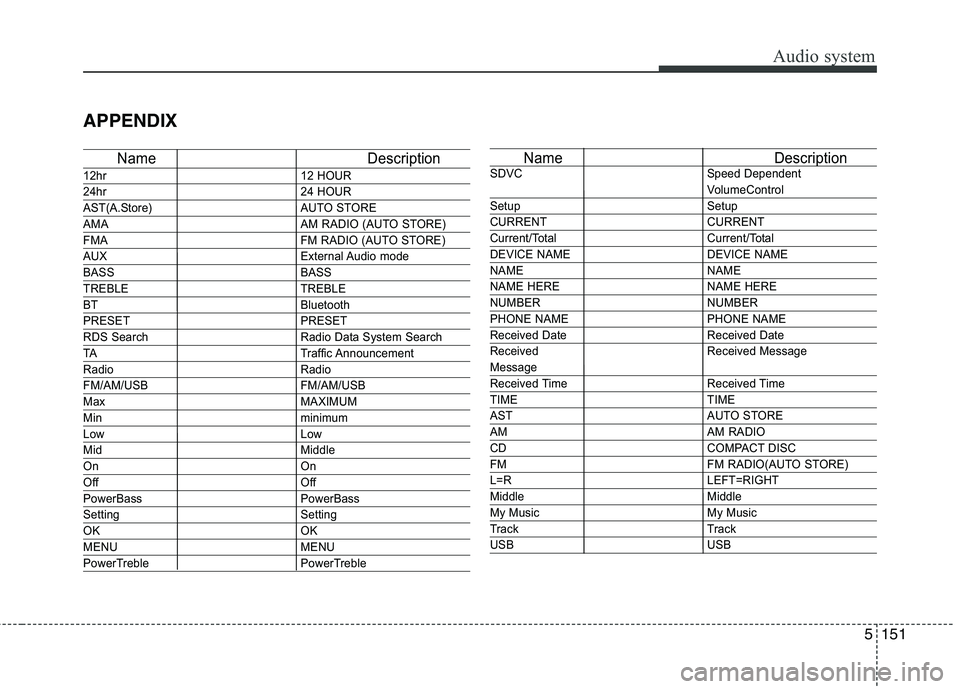
APPENDIX
Name Description
12hr12 HOUR
24hr24 HOUR
AST(A.Store) AUTO STORE
AMA AM RADIO (AUTO STORE)
FMA FM RADIO (AUTO STORE)
AUXExternal Audio mode
BASS BASS
TREBLE TREBLE
BT Bluetooth
PRESET PRESET
RDS Search Radio Data System Search
TATraffic Announcement
Radio Radio
FM/AM/USB FM/AM/USB
MaxMAXIMUM
Minminimum
LowLow
MidMiddle
On On
Off Off
PowerBass PowerBass
Setting Setting
OKOK
MENU MENU
PowerTreble PowerTreble
Name Description
SDVC Speed Dependent
VolumeControl
Setup Setup
CURRENT CURRENT
Current/Total Current/Total
DEVICE NAME DEVICE NAME
NAME NAME
NAME HERE NAME HERE
NUMBER NUMBER
PHONE NAME PHONE NAME
Received Date Received Date
Received Received Message
Message
Received Time Received Time
TIME TIME
AST AUTO STORE
AMAM RADIO
CDCOMPACT DISC
FM FM RADIO(AUTO STORE)
L=RLEFT=RIGHT
Middle Middle
My Music My Music
Track Track
USB USB
Page 435 of 723
Audio system
152
5
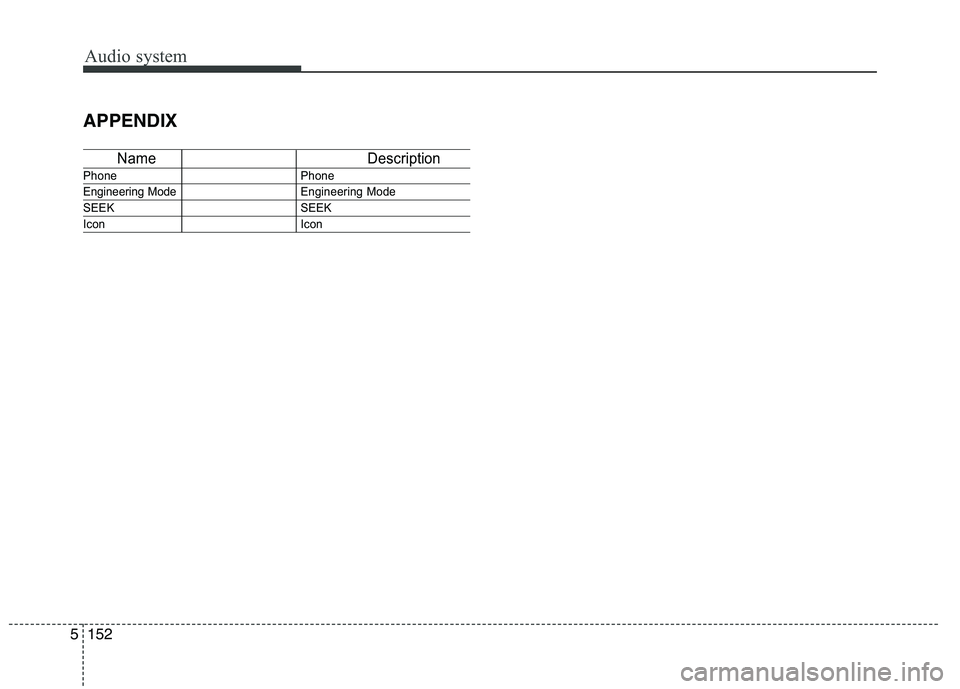
APPENDIX
Name Description
Phone Phone
Engineering Mode Engineering Mode
SEEK SEEK
IconIcon
Page 440 of 723
65
Driving your vehicle
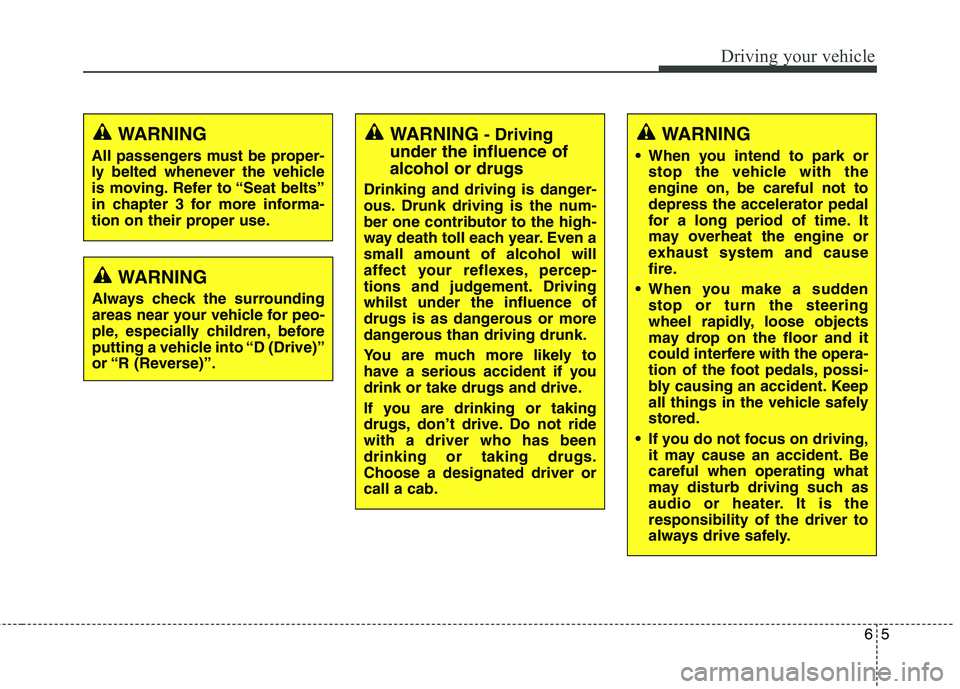
WARNING- Driving
under the influence of alcohol or drugs
Drinking and driving is danger-
ous. Drunk driving is the num-
ber one contributor to the high-
way death toll each year. Even asmall amount of alcohol will
affect your reflexes, percep-
tions and judgement. Drivingwhilst under the influence of
drugs is as dangerous or more
dangerous than driving drunk.
You are much more likely to
have a serious accident if you
drink or take drugs and drive.
If you are drinking or taking
drugs, don’t drive. Do not ridewith a driver who has beendrinking or taking drugs.Choose a designated driver orcall a cab.WARNING
When you intend to park or stop the vehicle with the
engine on, be careful not todepress the accelerator pedal
for a long period of time. It
may overheat the engine or
exhaust system and cause
fire.
When you make a sudden stop or turn the steering
wheel rapidly, loose objects
may drop on the floor and it
could interfere with the opera-
tion of the foot pedals, possi-
bly causing an accident. Keep
all things in the vehicle safelystored.
If you do not focus on driving, it may cause an accident. Becareful when operating what
may disturb driving such as
audio or heater. It is theresponsibility of the driver to
always drive safely.WARNING
All passengers must be proper-
ly belted whenever the vehicle
is moving. Refer to “Seat belts”
in chapter 3 for more informa-
tion on their proper use.
WARNING
Always check the surrounding
areas near your vehicle for peo-
ple, especially children, before
putting a vehicle into “D (Drive)”
or “R (Reverse)”.
Page 513 of 723
Driving your vehicle
78
6
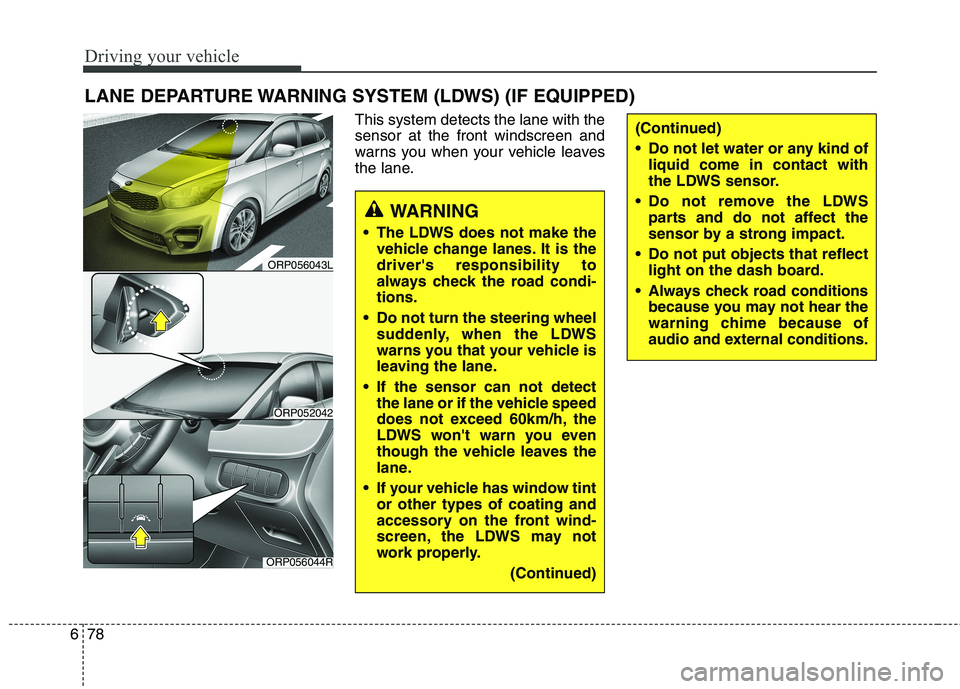
This system detects the lane with the sensor at the front windscreen and
warns you when your vehicle leaves
the lane.
LANE DEPARTURE WARNING SYSTEM (LDWS) (IF EQUIPPED)
WARNING
The LDWS does not make the vehicle change lanes. It is the driver's responsibility to
always check the road condi-tions.
Do not turn the steering wheel suddenly, when the LDWS
warns you that your vehicle is
leaving the lane.
If the sensor can not detect the lane or if the vehicle speed
does not exceed 60km/h, the
LDWS won't warn you even
though the vehicle leaves the
lane.
If your vehicle has window tint or other types of coating and
accessory on the front wind-
screen, the LDWS may not
work properly.
(Continued)
(Continued)
Do not let water or any kind ofliquid come in contact with
the LDWS sensor.
Do not remove the LDWS parts and do not affect the
sensor by a strong impact.
Do not put objects that reflect light on the dash board.
Always check road conditions because you may not hear the
warning chime because of
audio and external conditions.
ORP056044R
ORP052042
ORP056043L
Page 638 of 723
851
Maintenance
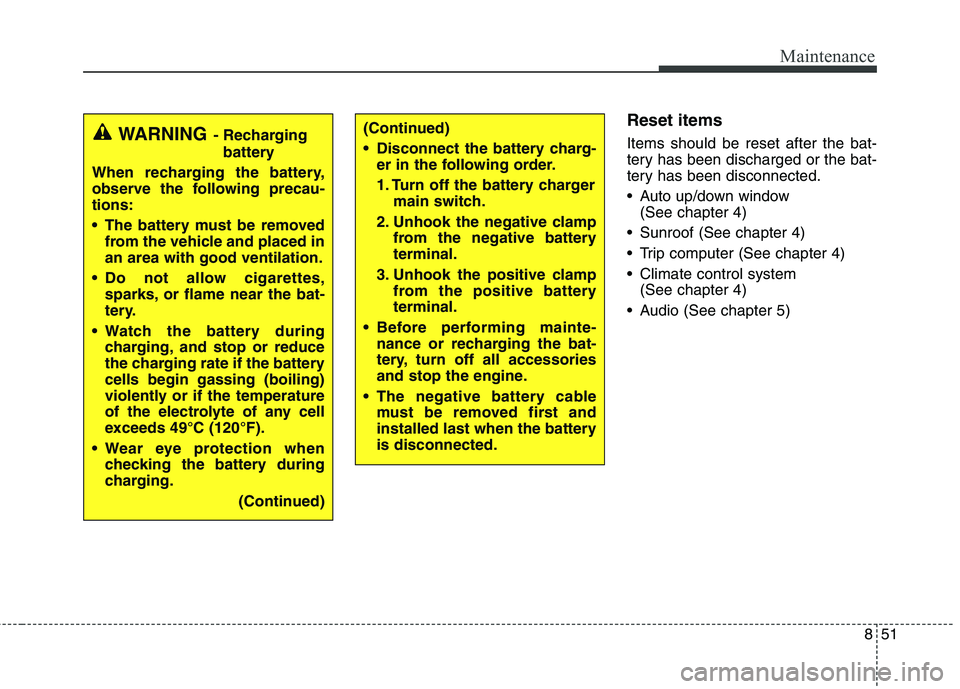
Reset items Items should be reset after the bat-
tery has been discharged or the bat-
tery has been disconnected.
Auto up/down window (See chapter 4)
Sunroof (See chapter 4)
Trip computer (See chapter 4)
Climate control system (See chapter 4)
Audio (See chapter 5)(Continued)
Disconnect the battery charg- er in the following order.
1. Turn off the battery charger main switch.
2. Unhook the negative clamp from the negative battery terminal.
3. Unhook the positive clamp from the positive batteryterminal.
Before performing mainte- nance or recharging the bat-
tery, turn off all accessories
and stop the engine.
The negative battery cable must be removed first and
installed last when the batteryis disconnected.WARNING - Recharging
battery
When recharging the battery,
observe the following precau-tions:
The battery must be removed from the vehicle and placed in an area with good ventilation.
Do not allow cigarettes, sparks, or flame near the bat-
tery.
Watch the battery during charging, and stop or reduce
the charging rate if the batterycells begin gassing (boiling)
violently or if the temperature
of the electrolyte of any cell
exceeds 49°C (120°F).
Wear eye protection when checking the battery during
charging.
(Continued)