ECO mode KIA CEED 2013 Owners Manual
[x] Cancel search | Manufacturer: KIA, Model Year: 2013, Model line: CEED, Model: KIA CEED 2013Pages: 1168, PDF Size: 48.01 MB
Page 862 of 1168
4 199
Features of your vehicle
PHONE (if equipped)
Before using the
Bluetooth®Wireless
Technology
phone features
In order to use
Bluetooth®Wireless
Technologyphone, you must first pair
and connect the Bluetooth®Wireless
Technologymobile phone.
If the mobile phone is not paired or con- nected, it is not possible to enter Phone
mode. Once a phone is paired or con-nected, the guidance screen will be dis-
played.
If Priority is set upon vehicle ignition (IGN/ACC ON), the
Bluetooth®Wireless
Technologyphone will be automatically
connected. Even if you are outside, the
Bluetooth®Wireless Technologyphone
will be automatically connected once
you are in the vicinity of the vehicle. If
you do not want automatic
Bluetooth®
Wireless Technologyphone connection,
set the Bluetooth®Wireless Technologyto OFF. Making a call using the Steering
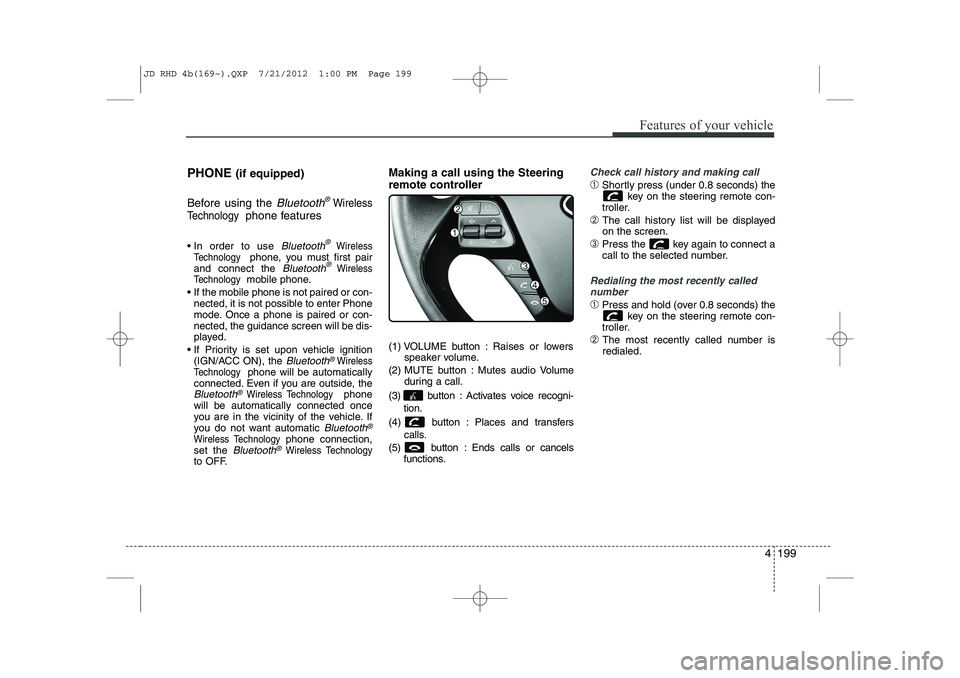
remote controller
(1) VOLUME button : Raises or lowers
speaker volume.
(2) MUTE button : Mutes audio Volume during a call.
(3) button : Activates voice recogni- tion.
(4) button : Places and transfers calls.
(5) button : Ends calls or cancels functions.
Check call history and making call
➀Shortly press (under 0.8 seconds) the
key on the steering remote con-
troller.
➁ The call history list will be displayed on the screen.
➂ Press the key again to connect a
call to the selected number.
Redialing the most recently called
number
➀ Press and hold (over 0.8 seconds) the
key on the steering remote con-
troller.
➁ The most recently called number is redialed.
JD RHD 4b(169~).QXP 7/21/2012 1:00 PM Page 199
Page 866 of 1168
4 203
Features of your vehicle
VOICE COMMAND (if equipped)
The voice recognition feature of this
product supports recognition of the
commands listed within this user’s
manual.
Whilst using voice recognition, operating the steering remote control or the device
will terminate voice recognition and allow
you to manually operate desired func-
tions.
Position of the microphone is above the head of the driver’s seat.
Voice recognition may not function properly due to outside noise. The fol-
lowing conditions can affect the per-
formance of Voice Recognition:
- When the windows and sunroof are open
- When the heating/cooling system is on
- When passing a tunnel
- When driving on rugged and uneven roads
After downloading
Bluetooth®Wireless
Technology phone book, the system
requires some times to convert the
phone book into voice information.
During this time, voice recognition may
not operate properly. Upon inputting your phone book, spe-
cial symbols and numbers cannot be
recognized by voice. For example, “#
John Doe%&” will be recognized as“John Doe”. Starting Voice Command
To start voice command, shortly press
the key on the steering wheel
remote controller.
If voice command is in [Normal Mode], then the system will say “Please say a
command. Beep”
❈ If voice command is in [Expert Mode],
then the system will only say a “Beep-”
❈ Setting Voice command [Normal
Mode]/[Expert Mode]:
Press the key Select [ System]
through the TUNE knob or key
Select [Prompt Feedback] through the
TUNE knob Set [Normal Mode]/[ExpertMode]
Say the voice command.
For proper voice recognition, say the
voice command after the guidance
message and the “Beep” sound.
4
SETUP
JD RHD 4b(169~).QXP 7/21/2012 1:00 PM Page 203
Page 870 of 1168
4 207
Features of your vehicle
System?activated
Fader Fader is sound positon between FRONT and REAR. It can be
adjusted sound by user
Balance Balance is sound positon between Right and Left. It can
be adjusted sound by user
Default This function is used to initialize
setting value
System Setup system or system infor-
mation
Memory Information Display used memory size
VRS Mode Setup Voice command mode
Normal Normal mode. This function is used to set default value of
voice recognition factor
Expert Expert mode. This function is used to set exercised value of
voice recognition factor
Language This function is used to select
user language
Deutsch Deutsch
English(UK) English(UK)
Français French
Italiano Italian
Español Spanish
Nederlands dutch
Svenska swedish
Dansk Danish
Polish
Polski Russian
The system will be The system will be
rebooted
Please change languagePlease change language when
ignition ON
Bluetooth not readyYou can use BT System for a moment Because BT system is
being initialized
Add a new Bluetooth Add a new Bluetooth®Wireless
Technology de vice from your phone
Processing Bluetooth
You can use BT System for a moment Because BT system is
being initialized or processing
other command
Incoming Call Receivng phone
Call Ended Call Ended
Call Rejected When there is unwanted call, You push the button on the
steering remote controller
Unknown "Unknown" mean Headunit or phone don't have any informa-
tion about phone number
Call is not possible Call is not possible
MIC Mute Microphone mute
Activate
BluetoothActivate Bluetooth®Wireless
TechnologySystem
Bluetooth SystemBluetooth®Wireless
Technologysystem activated
when ignition ON
device from your phone
Please try later
Please wait
rebooted
JD RHD 4b(169~).QXP 7/21/2012 1:00 PM Page 207
Page 873 of 1168
Features of your vehicle
210
4
SYSTEM CONTROLLERS AND FUNCTIONS
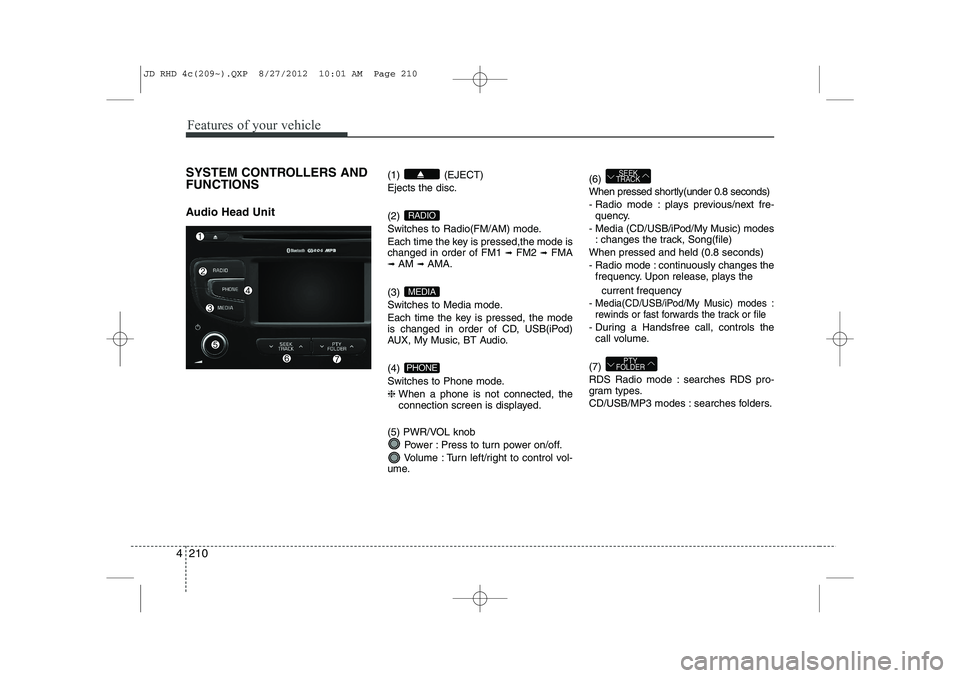
Audio Head Unit (1) (EJECT) Ejects the disc. (2)
Switches to Radio(FM/AM) mode.
Each time the key is pressed,the mode is changed in order of FM1
➟
FM2 ➟FMA
➟ AM ➟AMA.
(3)
Switches to Media mode.
Each time the key is pressed, the mode
is changed in order of CD, USB(iPod)
AUX, My Music, BT Audio. (4)
Switches to Phone mode.❈ When a phone is not connected, the
connection screen is displayed.
(5) PWR/VOL knob Power : Press to turn power on/off.
Volume : Turn left/right to control vol-
ume. (6)
When pressed shortly(under 0.8 seconds)
- Radio mode : plays previous/next fre-
quency.
- Media (CD/USB/iPod/My Music) modes : changes the track, Song(file)
When pressed and held (0.8 seconds)
- Radio mode : continuously changes the frequency. Upon release, plays the
current frequency
-
Media(CD/USB/iPod/My Music) modes :
rewinds or fast forwards the track or file
- During a Handsfree call, controls the call volume.
(7)
RDS Radio mode : searches RDS pro-
gram types.
CD/USB/MP3 modes : searches folders.
PTY
FOLDER
SEEK
TRACK
PHONE
MEDIA
RADIO
JD RHD 4c(209~).QXP 8/27/2012 10:01 AM Page 210
Page 874 of 1168
4 211
Features of your vehicle
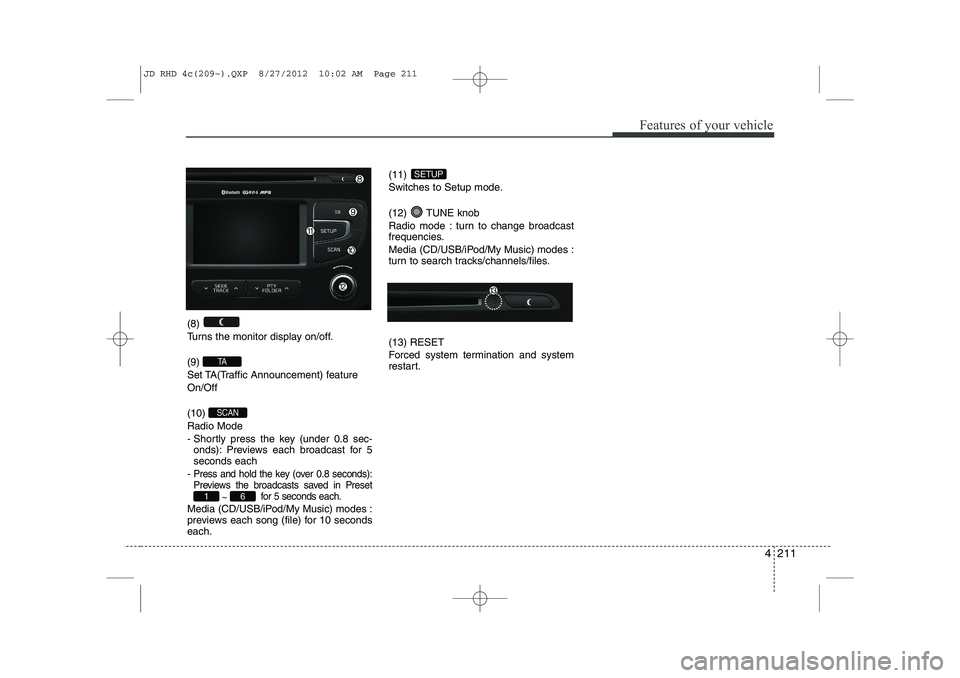
(8)
Turns the monitor display on/off. (9)
Set TA(Traffic Announcement) featureOn/Off (10) Radio Mode
- Shortly press the key (under 0.8 sec-onds): Previews each broadcast for 5 seconds each
-
Press and hold the key (over 0.8 seconds):
Previews the broadcasts saved in Preset ~ for 5 seconds each.
Media (CD/USB/iPod/My Music) modes :
previews each song (file) for 10 secondseach. (11)
Switches to Setup mode.
(12) TUNE knob
Radio mode : turn to change broadcast
frequencies.
Media (CD/USB/iPod/My Music) modes :
turn to search tracks/channels/files. (13) RESET
Forced system termination and system
restart.
SETUP
61
SCAN
TA
JD RHD 4c(209~).QXP 8/27/2012 10:02 AM Page 211
Page 875 of 1168
Features of your vehicle
212
4
Steering remote controller
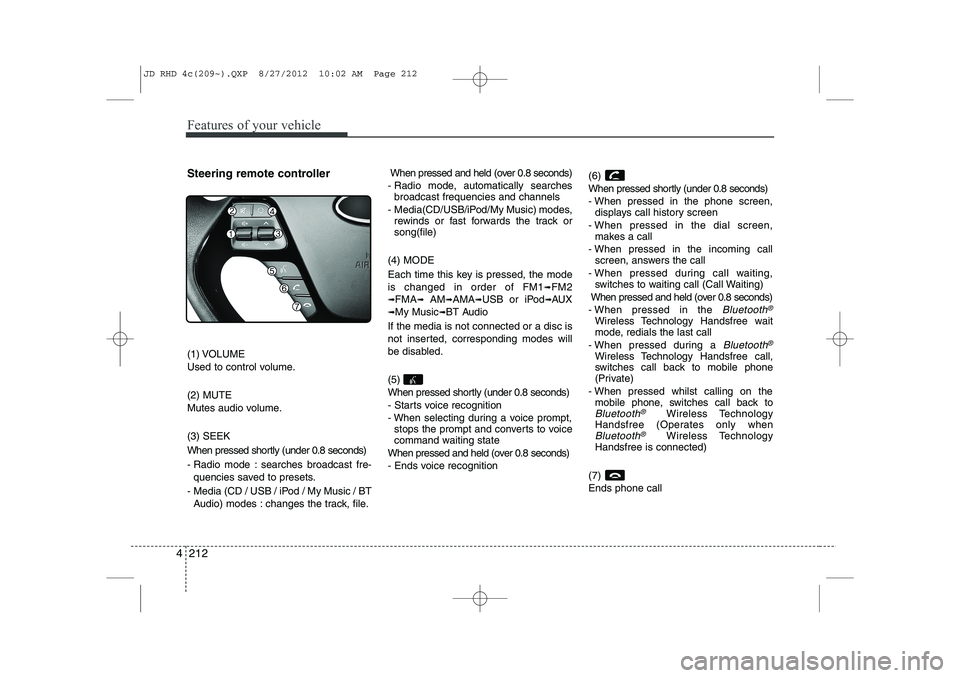
(1) VOLUME
Used to control volume. (2) MUTE
Mutes audio volume. (3) SEEK
When pressed shortly (under 0.8 seconds)
- Radio mode : searches broadcast fre-
quencies saved to presets.
- Media (CD / USB / iPod / My Music / BT Audio) modes : changes the track, file. When pressed and held (over 0.8 seconds)
- Radio mode, automatically searches broadcast frequencies and channels
- Media(CD/USB/iPod/My Music) modes, rewinds or fast forwards the track or song(file)
(4) MODE
Each time this key is pressed, the mode is changed in order of FM1
➟FM2
➟FMA➟AM➟AMA➟USB or iPod➟AUX
➟My Music➟BT Audio
If the media is not connected or a disc is
not inserted, corresponding modes will
be disabled. (5)
When pressed shortly (under 0.8 seconds)
- Starts voice recognition
- When selecting during a voice prompt, stops the prompt and converts to voice
command waiting state
When pressed and held (over 0.8 seconds)
- Ends voice recognition (6)
When pressed shortly (under 0.8 seconds)
- When pressed in the phone screen,
displays call history screen
- When pressed in the dial screen, makes a call
- When pressed in the incoming call screen, answers the call
- When pressed during call waiting, switches to waiting call (Call Waiting)
When pressed and held (over 0.8 seconds)
- When pressed in the Bluetooth®
Wireless Technology Handsfree wait
mode, redials the last call
- When pressed during a
Bluetooth®
Wireless Technology Handsfree call,
switches call back to mobile phone
(Private)
- When pressed whilst calling on the mobile phone, switches call back to
Bluetooth®Wireless Technology
Handsfree (Operates only when
Bluetooth®Wireless Technology
Handsfree is connected)
(7) Ends phone call
JD RHD 4c(209~).QXP 8/27/2012 10:02 AM Page 212
Page 878 of 1168
4 215
Features of your vehicle
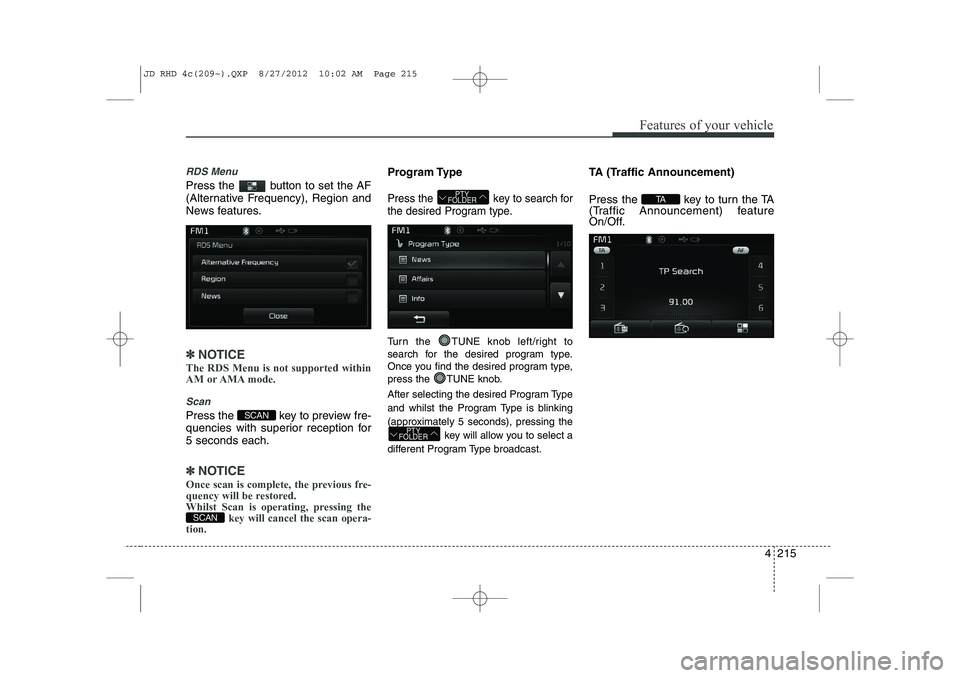
RDS Menu
Press the button to set the AF
(Alternative Frequency), Region and
News features.
✽✽NOTICE
The RDS Menu is not supported within
AM or AMA mode.
Scan
Press the key to preview fre-
quencies with superior reception for5 seconds each.
✽✽ NOTICE
Once scan is complete, the previous fre-
quency will be restored.
Whilst Scan is operating, pressing the key will cancel the scan opera-
tion.
Program Type
Press the key to search for
the desired Program type.
Turn the TUNE knob left/right to
search for the desired program type.
Once you find the desired program type,
press the TUNE knob.
After selecting the desired Program Type
and whilst the Program Type is blinking
(approximately 5 seconds), pressing the
key will allow you to select a
different Program Type broadcast. TA (Traffic Announcement)
Press the key to turn the TA
(Traffic Announcement) feature
On/Off.
TA
PTY
FOLDER
PTY
FOLDER
SCAN
SCAN
JD RHD 4c(209~).QXP 8/27/2012 10:02 AM Page 215
Page 884 of 1168
4 221
Features of your vehicle
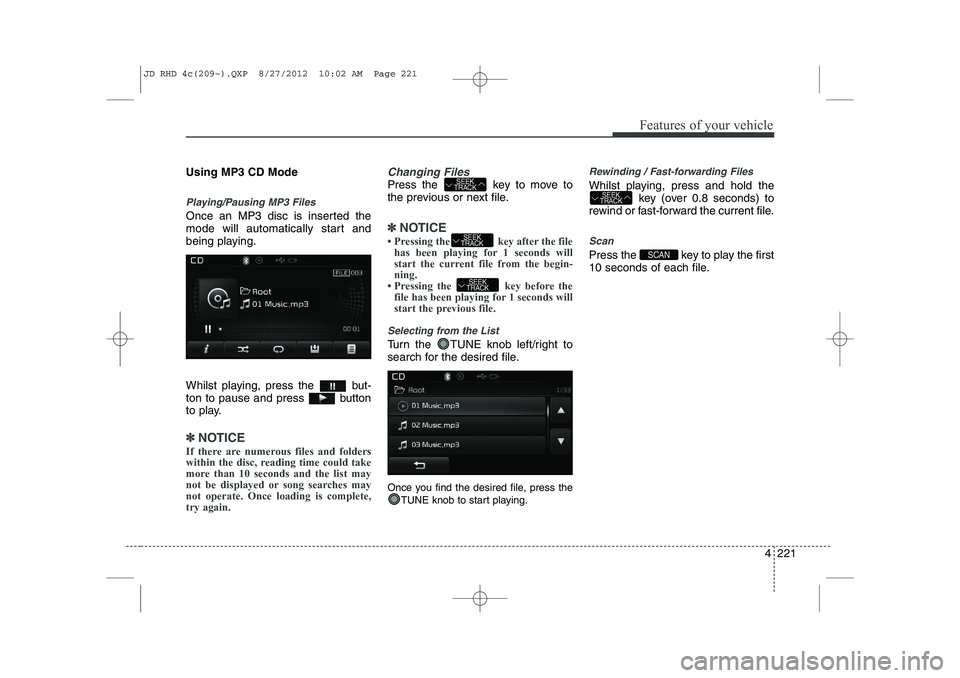
Using MP3 CD Mode
Playing/Pausing MP3 Files
Once an MP3 disc is inserted the
mode will automatically start and
being playing.
Whilst playing, press the but-
ton to pause and press button
to play.
✽✽NOTICE
If there are numerous files and folders
within the disc, reading time could take
more than 10 seconds and the list may
not be displayed or song searches maynot operate. Once loading is complete,try again.
Changing Files
Press the key to move to
the previous or next file.
✽✽ NOTICE
Page 897 of 1168
Features of your vehicle
234
4
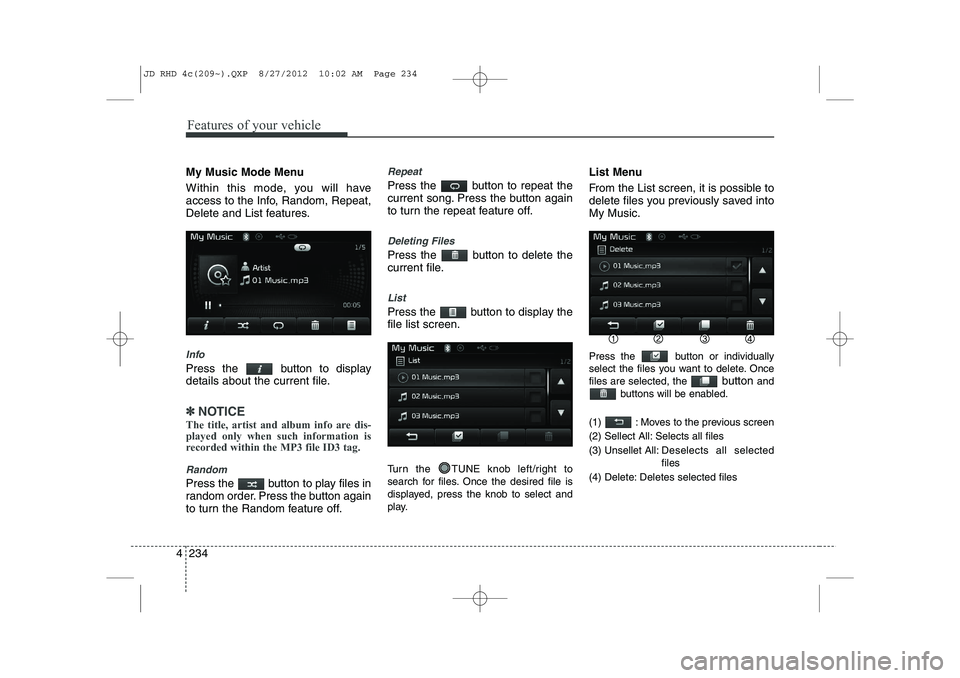
My Music Mode Menu
Within this mode, you will have
access to the Info, Random, Repeat,
Delete and List features.
Info
Press the button to display
details about the current file.
✽✽
NOTICE
The title, artist and album info are dis- played only when such information is
recorded within the MP3 file ID3 tag.
Random
Press the button to play files in
random order. Press the button again
to turn the Random feature off.
Repeat
Press the button to repeat the
current song. Press the button again
to turn the repeat feature off.
Deleting Files
Press the button to delete the
current file.
List
Press the button to display the file list screen.
Turn the TUNE knob left/right to
search for files. Once the desired file is
displayed, press the knob to select and
play. List Menu
From the List screen, it is possible to
delete files you previously saved intoMy Music.
Press the button or individually
select the files you want to delete. Oncefiles are selected, the
button and
buttons will be enabled.
(1) : Moves to the previous screen
(2) Sellect All: Selects all files
(3) Unsellet All: Des elects all selected
files
(4) Delete: Deletes selected files
JD RHD 4c(209~).QXP 8/27/2012 10:02 AM Page 234
Page 911 of 1168
Features of your vehicle
248
4
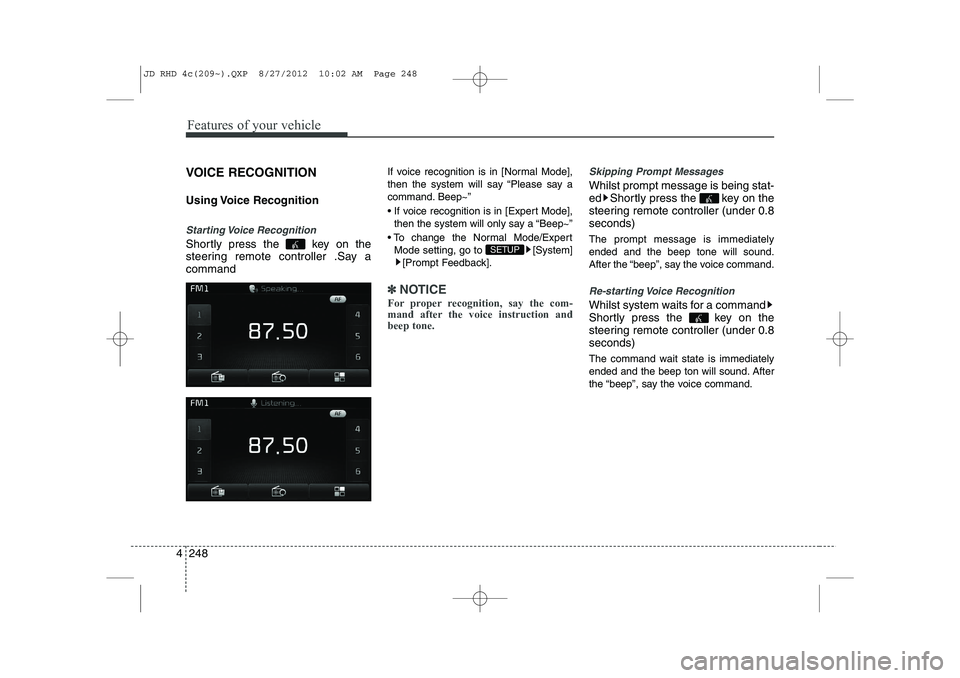
VOICE RECOGNITION
Using Voice Recognition
Starting Voice Recognition
Shortly press the key on the
steering remote controller .Say acommand If voice recognition is in [Normal Mode],
then the system will say “Please say a
command. Beep~”
If voice recognition is in [Expert Mode],
then the system will only say a “Beep~”
To change the Normal Mode/Expert Mode setting, go to [System] [Prompt Feedback].
✽✽ NOTICE
For proper recognition, say the com-
mand after the voice instruction andbeep tone.
Skipping Prompt Messages
Whilst prompt message is being stat-
ed Shortly press the key on the
steering remote controller (under 0.8seconds) The prompt message is immediately ended and the beep tone will sound.
After the “beep”, say the voice command.
Re-starting Voice Recognition
Whilst system waits for a command
Shortly press the key on the
steering remote controller (under 0.8seconds)
The command wait state is immediately
ended and the beep ton will sound. After
the “beep”, say the voice command.
SETUP
JD RHD 4c(209~).QXP 8/27/2012 10:02 AM Page 248